


Why WordPress Email Deliverability Matters for UK Businesses
What “deliverability” actually means in plain English
Deliverability is simply whether your emails end up where they are meant to:
- Inbox (good)
- Spam / junk (bad, but at least they arrived)
- Blocked or silently dropped (worst, nothing shows)
For a WordPress site, that usually means:
- Contact form submissions
- Booking and order confirmations
- Password resets and account emails
- Newsletters and marketing campaigns
If these do not reach the right inbox reliably, your website is not really doing its job, even if the front end looks perfect.
Real world problems: lost enquiries, missed bookings and GDPR complaints
Poor deliverability shows up as everyday business problems:
- Lost enquiries: a prospect fills in your contact form, nothing arrives, and they go to a competitor.
- Missed bookings: restaurants, clinics or trades miss booking emails and then face angry customers who “never got a confirmation”.
- GDPR issues: if unsubscribe links or subject access responses do not arrive, complaints can escalate.
- Internal confusion: staff blame the website, the host or “Outlook being strange” when the real issue is configuration.
For WooCommerce and other ecommerce setups, unreliable emails mean order disputes and support tickets. There is a deeper dive on that in this WooCommerce email deliverability guide.
Different email types: contact forms, system alerts and newsletters
It helps to separate the types of email your WordPress site sends:
- Contact and booking forms: messages from your website to your internal team.
- System alerts: password resets, new user emails, order confirmations, failed payment notices.
- Newsletters / bulk mail: marketing campaigns, updates and promotions.
Each type has slightly different risks and best practices. Contact and system emails must be near 100% reliable. Newsletters must be compliant and well behaved so that inbox providers trust your domain.
How WordPress Sends Email by Default (and Why That Causes Trouble)
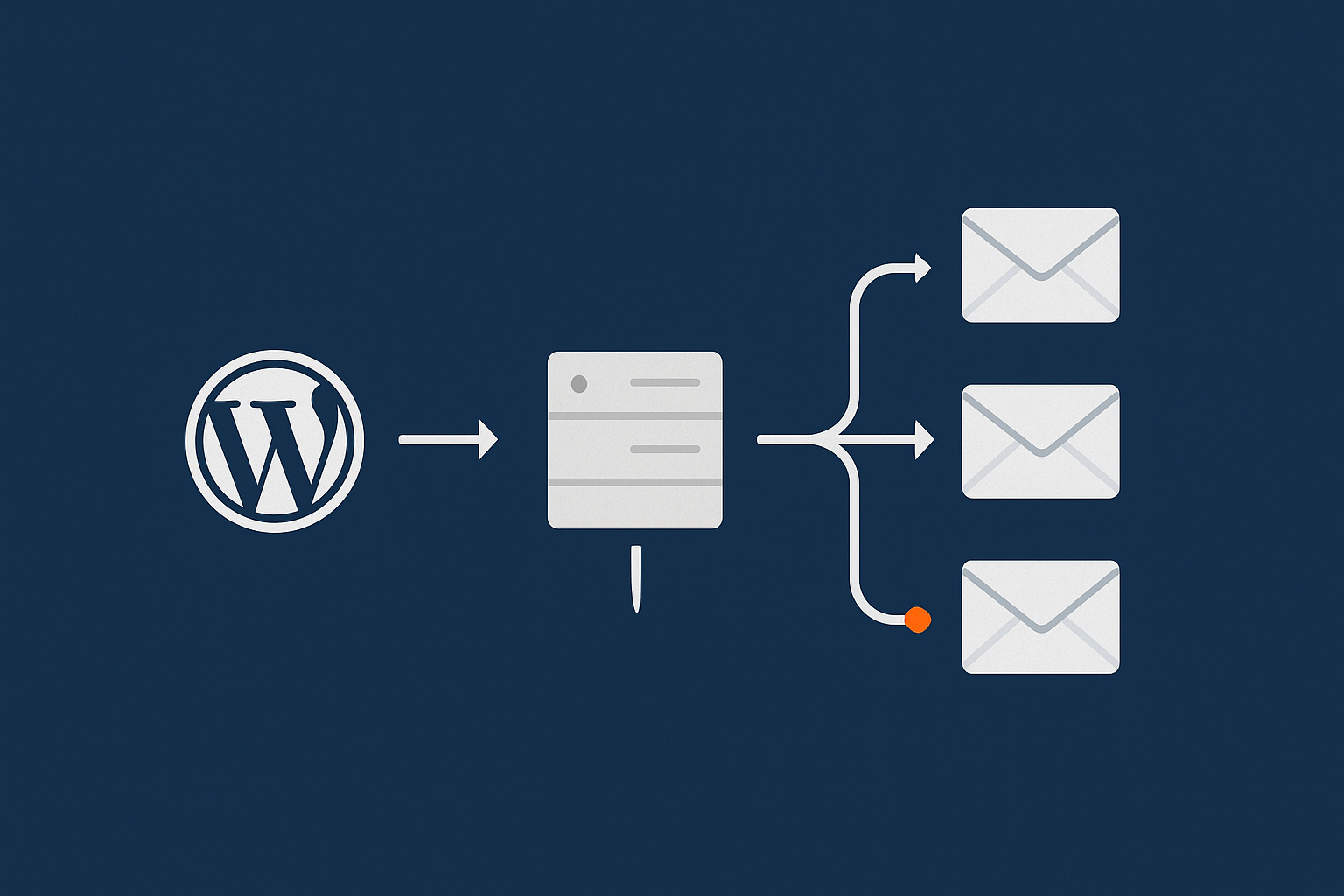
The PHP mail() function and why hosts often restrict it
Out of the box, WordPress uses the server’s PHP mail() function. That means:
- Your web server connects directly to the recipient’s mail server.
- There is no real authentication that proves your site is allowed to send mail for your domain.
- On shared hosting, many sites may send from the same server and IP address.
Because mail() is heavily abused for spam, many hosts restrict or throttle it. Some quietly block external sending altogether, which leads to contact forms “working” on screen but emails never leaving the server.
Why emails sent from your web server look suspicious to Gmail, Outlook and Microsoft 365
Modern inbox providers judge every email based on:
- Whether it came from an IP that often sends spam
- Whether the sending server is allowed to send mail for your domain
- Past behaviour from your domain and IP
A typical WordPress site sending via mail() often fails several of these checks. Shared server IPs may have a mixed reputation and there is usually no cryptographic proof that the email is legitimate. Gmail, Outlook and Microsoft 365 are then more likely to treat it as spam or block it.
Red flags: shared IPs, mismatched domains and generic sender addresses
Common technical red flags include:
- Shared IPs: dozens or hundreds of unrelated sites sending from one IP.
- Mismatched domains: your website says it is from
info@yourdomain.co.ukbut actually sends from a generic server name such asserver123.host.com. - Generic sender addresses: using
@gmail.comor@outlook.comas the “from” address even though the mail is not coming from Google or Microsoft.
These mismatches are one of the biggest reasons for deliverability failure on standard WordPress hosting.
Foundation: Use a Real Mailbox and Consistent From Address
Create a proper business mailbox on your domain (not @gmail.com)
Step one is to create a real mailbox on your business domain, for example:
info@yourcompany.co.ukhello@yourcompany.co.ukbookings@yourcompany.co.uk
You can do this through services such as Microsoft 365 or Google Workspace, or via your hosting if they provide mailboxes. Many cPanel web hosting plans with mailbox support include this as standard.
A mailbox on your own domain tells inbox providers “this is a genuine business sending from its own domain”, which is a strong positive signal.
Choose stable sender addresses for forms and notifications
Use a small set of stable “from” addresses across your site:
- Contact form notifications from
website@yourcompany.co.uk - Order and system emails from
orders@yourcompany.co.ukoraccounts@yourcompany.co.uk - Newsletters from
news@yourcompany.co.ukor similar
Keep these addresses consistent. Constantly changing the “from” address weakens your reputation data with inbox providers.
Avoiding common mistakes with reply to and “no reply” addresses
A few easy rules:
- Do not send from customer addresses. For example, do not set “from” to the email the visitor typed into the contact form. Use your own domain as “from”, and put the visitor address in the reply to field instead.
- Avoid “no reply” where possible. For newsletters it can make sense, but for customer contact and booking emails it is better to allow replies.
- Check that reply addresses exist. If users reply to a non existent address, it hurts trust and can lead to further confusion.
Setting Up SPF, DKIM and DMARC for Your Domain

What SPF, DKIM and DMARC actually are in non technical terms
These three records live in your domain’s DNS and act like identity checks for email:
- SPF: a list of servers that are allowed to send email for your domain.
- DKIM: a cryptographic signature added to each email to prove it was not tampered with and really came from your email system.
- DMARC: a policy that tells inbox providers what to do if SPF or DKIM fail (monitor, quarantine or reject).
Together, they help inboxes separate legitimate emails from spoofed or fraudulent ones.
Identify where your DNS is managed (domain registrar, host or elsewhere)
You need to edit DNS records where your domain’s nameservers point. Common options are:
- Your domain registrar
- Your web hosting provider
- A separate DNS platform or CDN
If you are not sure, check the nameserver records for your domain, or ask whoever manages your domain and DNS management services.
Add or fix SPF for your chosen mail provider and web host
SPF is stored as a TXT record. You should have one SPF record per domain which includes:
- Your main email provider (for example
include:spf.protection.outlook.comfor Microsoft 365) - Your web host if you send system mail directly from the server
- Any dedicated transactional or newsletter providers you use
A typical SPF record might look like:
v=spf1 include:spf.protection.outlook.com include:sendgrid.net -all
Avoid multiple SPF records or overly broad settings such as +a +mx +ptr ~all which weaken protection and clarity.
Enable DKIM signing for your email service (Microsoft 365, Google Workspace, cPanel etc)
Most modern email services can sign outgoing mail with DKIM if you enable it:
- In Microsoft 365 and Google Workspace you add TXT or CNAME records in DNS, then switch DKIM on in their admin panels.
- On many cPanel servers you tick “enable DKIM” within the email or authentication section, which creates the DKIM record for your domain.
Follow your provider’s official guide for the exact values. It usually takes 10 to 30 minutes for DNS changes to propagate.
Set a simple DMARC policy to monitor problems
DMARC uses a TXT record named _dmarc.yourdomain.co.uk. A safe starting policy is:
v=DMARC1; p=none; rua=mailto:dmarc-reports@yourdomain.co.uk
This tells inboxes to send you reports when SPF or DKIM fail, without blocking anything yet. Once everything is stable, you can tighten this to p=quarantine or p=reject in stages.
Keep the reporting address active, as DMARC reports are useful for spotting unauthorised senders or misconfigurations.
Routing WordPress Through SMTP Instead of PHP Mail
Why SMTP is more reliable than the default WordPress mail
SMTP is the standard protocol that real mail servers use to communicate. When WordPress sends through SMTP, it:
- Authenticates with a username and password
- Sends from a server that matches your domain and SPF
- Often adds DKIM signatures via your email provider
This looks far more trustworthy to inbox providers than a random web server using mail(), so deliverability improves significantly.
Choosing an SMTP option: host provided mail vs dedicated email service vs transactional provider
You have three main choices:
- Host provided mailboxes: simple for small sites. Your WordPress site and mailbox sit on the same platform; SMTP details are in your hosting control panel.
- Dedicated business email: services like Microsoft 365 or Google Workspace. Better reputation, better spam filtering and strong admin controls.
- Transactional providers: services such as SendGrid, Postmark or Amazon SES, used mainly for system emails and high volume sending.
For a typical UK SME with modest email volumes, host provided mail or a dedicated business email service is usually sufficient. A transactional provider makes sense if you send a lot of automated emails or run large platforms.
Configuring a trusted SMTP plugin in WordPress (high level steps, not tied to one plugin)
Although there are many SMTP plugins, the setup pattern is similar:
- Install a reputable SMTP plugin from the official repository.
- In the plugin settings, enter:
- SMTP host (for example
smtp.office365.com) - SMTP port (usually 587 for TLS)
- Encryption type (TLS or STARTTLS)
- Authentication: on
- Username and password for your mailbox, for example
website@yourcompany.co.uk
- SMTP host (for example
- Set the default “from” address and name to match your chosen business mailbox.
- Save, then send a test email from within the plugin to a real external address.
Some providers offer OAuth based connections instead of plain passwords. Follow their instructions if available, as this can be more secure and resilient to password changes.
Testing with a mail logging plugin and a dedicated test form
To verify everything works reliably:
- Install a mail logging plugin so you can see every email WordPress attempts to send.
- Create a simple hidden test form that sends to a personal Gmail or Outlook address.
- Submit the test form periodically and check:
- That the email appears in the mail log
- That it arrives in the inbox, not spam
If delivery suddenly fails, a mail log makes it much easier to see whether the problem is on the WordPress side or with the external email provider.
Contact Form and Newsletter Best Practices That Improve Deliverability

Form settings: from address, reply to and “send to” targets
For each contact or booking form plugin:
- Set the from address to your stable business mailbox, for example
website@yourcompany.co.uk. - Set the reply to to the visitor’s email field so staff can reply directly.
- Send notifications to a shared mailbox or distribution list rather than a single person, for example
sales@orbookings@. - Ensure any admin confirmation emails use the same domain as your SPF and DKIM settings.
If you are choosing a new form plugin, there is a detailed guide on selecting reliable contact and booking setups for UK SMEs in this article on contact and booking forms.
Newsletter tools: why you should not bulk mail from WordPress itself
Bulk sending newsletters directly from WordPress, using your web server as the mail engine, is risky:
- Shared hosting often has low sending limits.
- One complaint or spam trap can damage your entire domain reputation.
- Bounce handling, unsubscribe management and list hygiene are usually basic or missing.
It is better to use a dedicated email marketing platform and connect it to WordPress via forms and API integrations. Let WordPress handle signups and confirmations, while the newsletter platform sends campaigns with full compliance tooling.
Double opt in, unsubscribe links and list hygiene for UK / UK hosted lists
For UK businesses operating under UK GDPR and PECR:
- Double opt in (confirmation emails) helps ensure people really want your messages, which reduces spam complaints.
- Every newsletter must contain a clear unsubscribe link that works without forcing users to log in.
- Regularly prune inactive or bouncing addresses. Keeping old or invalid contacts drags down your engagement and reputation.
Clean, engaged lists are much easier to deliver to than large, stale ones.
What to tell staff: safe sender, inbox rules and not marking real mail as spam
Deliverability is not just technical. Train staff to:
- Add your main sending addresses (for example
website@,orders@) to their safe sender lists in Outlook or Gmail. - Create simple inbox rules for contact and booking emails so they do not get lost in crowded inboxes.
- Never mark genuine business emails as spam, especially internal notifications, as this sends negative feedback to mailbox providers.
These small habits help maintain a positive reputation with major inbox providers.
Troubleshooting: When Your WordPress Emails Still Do Not Arrive
Step 1: Separate “not sent at all” from “sent but in spam”
Start by working out what is actually happening:
- Check your mail log plugin. If there is no entry, WordPress is not sending the email at all.
- If the log shows a successful send, check your inbox spam / junk folders and any filtered or focused tabs.
If mail is not sent at all, the issue is inside WordPress or the plugin. If mail is sent but lands in spam, you are dealing with a reputation or configuration problem.
Step 2: Check WordPress logs, SMTP logs and hosting limits
If email is not being sent:
- Check your SMTP plugin’s error logs for authentication or connection errors.
- Verify that mailbox passwords, ports and encryption settings are still correct.
- Ask your host whether there are any outbound email limits you have hit or restrictions on SMTP connections.
Many issues are as simple as an expired password or an enforced change in security settings from your email provider.
Step 3: Use inbox side tools: spam folder, message headers and third party tests
When emails are delivered but not where you want them, look at:
- Spam / junk folder: mark legitimate messages as “not spam” to train the filter.
- Message headers: these show pass / fail results for SPF, DKIM and DMARC, as well as the perceived sending IP.
- External tests: tools such as the ones provided in the official Microsoft and Google documentation explain why emails were filtered, then offer remediation steps.
Headers often reveal that mail is being forwarded or altered in a way that breaks SPF or DKIM, especially when using forwarding aliases or complex routing.
When to involve your hosting provider or email provider
Escalate to your providers when:
- SPF, DKIM or DMARC show as failing even though you believe they are correct.
- Your server’s IP address has been listed on a major blacklist.
- Outlook or Gmail block messages with a clear “policy” or “reputation” reason.
Share full message headers and any error codes with support; it saves time and avoids guesswork. For broader context on roles and responsibilities, this guide on hosting responsibility and what your provider covers is worth a read.
Hosting, Architecture and Responsibility: Who Should Own What
What your WordPress host can realistically do about email deliverability
Your WordPress host controls the web server environment and, if they provide mailboxes, the outgoing mail server and IP reputation. They can:
- Keep server IPs off major blacklists
- Provide working SMTP details and protect them properly
- Offer guidance on SPF, DKIM and DMARC records that match their systems
They cannot usually control how third party newsletter platforms or your own Microsoft 365 tenancy behave, nor can they override spam filtering decisions at Gmail or Outlook.
When to separate web hosting and email hosting
It often makes sense to keep web hosting and email hosting separate, especially when:
- You rely heavily on email for operations and cannot risk outages.
- You want enterprise features such as legal hold, advanced spam filtering and multi factor access to mailboxes.
- You plan to move your website more often than you move your email.
In that setup, your WordPress host focuses on performance and uptime, while your email provider focuses on deliverability, compliance and mailbox management. Clear DNS and correctly configured SMTP keep everything tied together.
How managed WordPress hosting can simplify the email side of things
Good managed WordPress hosting for UK business sites helps by handling the web layer properly, so your site is stable, fast and predictable. When your hosting and email providers are clearly defined and configured, troubleshooting becomes much easier.
If you are using features like the G7 Acceleration Network to cache pages and block abusive traffic, that protects server resources so legitimate functions such as contact form processing and SMTP handshakes are less likely to fail under load.
Summary: A Simple Deliverability Checklist for WordPress Business Sites
Quick checklist you can run through in 15 minutes
Use this list as a practical review:
- ✅ You send from real mailboxes on your own domain, not free webmail addresses.
- ✅ WordPress is configured to send via a trusted SMTP service, not PHP
mail(). - ✅ Contact and booking forms use a stable “from” address on your domain, with visitor emails in “reply to” only.
- ✅ SPF includes your email provider and any transactional or newsletter services, with a single, clean record.
- ✅ DKIM signing is enabled for your main email service and validated in DNS.
- ✅ DMARC is set to at least “monitor” so you receive reports on SPF / DKIM issues.
- ✅ You use a proper newsletter platform, not bulk sending from WordPress itself.
- ✅ Staff know how to use safe sender lists, basic inbox rules and avoid flagging real messages as spam.
- ✅ A mail logging plugin is active, and you have a simple test form pointing to an external inbox you control.
If you have worked through this and still struggle with reliability, it may be time to reduce complexity: simplify plugins, ensure SMTP settings are correct, and consider moving to managed WordPress hosting where the platform is designed with consistent email behaviour in mind.
For many UK businesses, combining stable hosting, clear DNS records and a sensible email provider is enough to make contact forms and newsletters feel dependable again. If you want less day to day hassle, exploring managed WordPress hosting or the G7 Acceleration Network with G7Cloud can give you a more predictable base to build on, while leaving you in control of your own email tools.