

Why Package Managers Matter on Your VPS or Server
What a package manager actually does in plain English
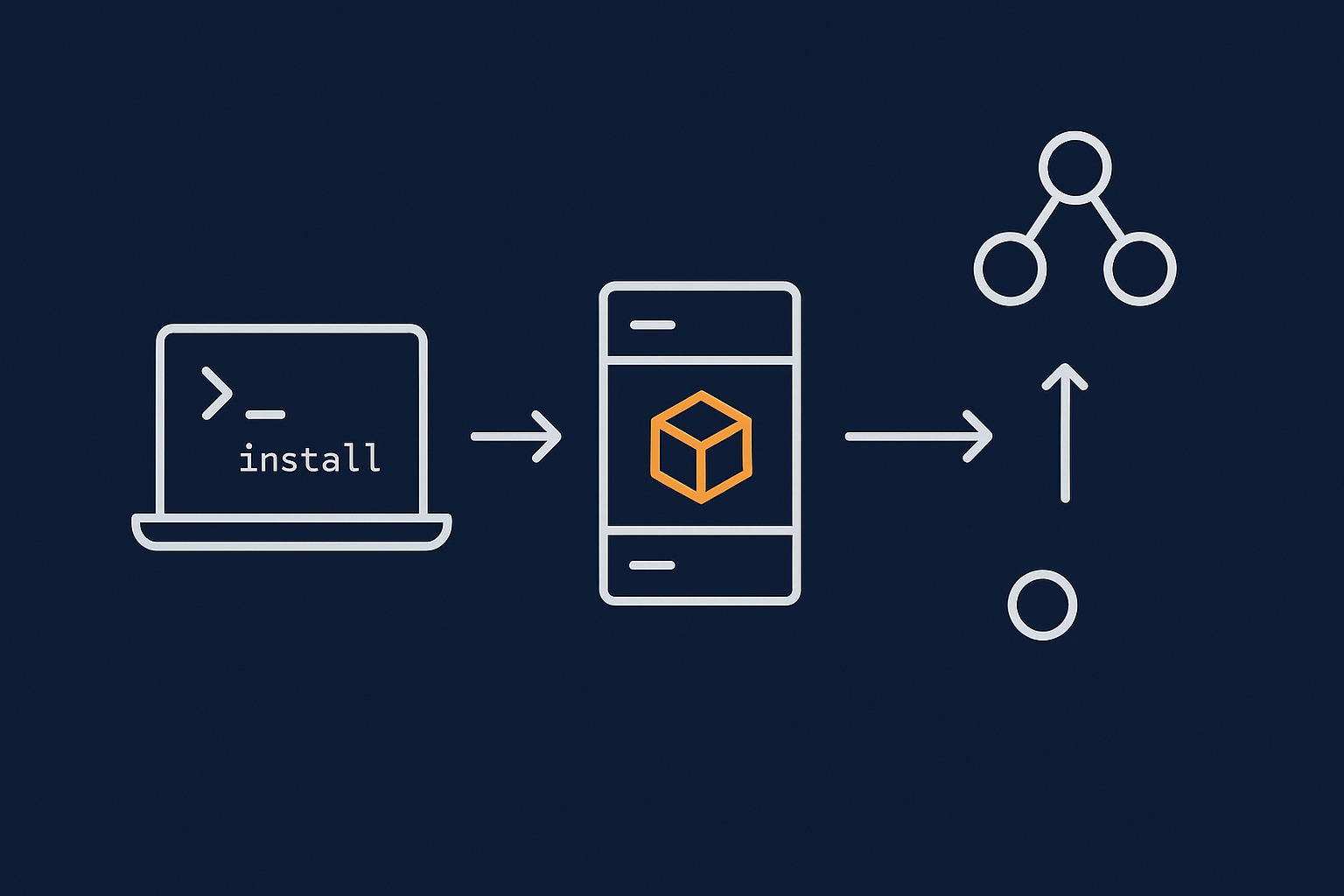
On a Linux server, most software is installed through a package manager, not by downloading installers from websites.
A package manager such as apt or yum/dnf:
- Knows where to fetch software from trusted repositories
- Tracks which version of each package is installed
- Installs all the extra pieces (dependencies) that software needs
- Updates software cleanly, without you hunting for downloads
- Removes software and cleans up associated files
Instead of thinking in terms of “download & run a setup file”, think:
- Install something:
apt installoryum install - Update everything:
apt upgradeoryum update/dnf upgrade - Remove something:
apt removeoryum remove
On a VPS or virtual dedicated server, this is how you will manage almost all of your software.
Where you will use apt or yum in day to day hosting
Once you are connected to your server over SSH (see How to Connect to a Linux Server Securely Using SSH if you are new to this), you will use a package manager for tasks like:
- Installing web servers such as Nginx or Apache
- Installing database servers such as MySQL or MariaDB
- Installing PHP and extra PHP extensions
- Adding tools like
htopornloadto monitor the server - Keeping the system and security patches up to date
If you run an unmanaged VPS or virtual dedicated server, using apt or yum safely is part of your regular operational work. On a managed VDS that work is largely handled for you.
Package managers and your web stack (Nginx, PHP, MySQL and WordPress)
Most of the web stack for a WordPress or WooCommerce site comes from your package manager:
- Web server:
nginxorapache2/httpd - PHP and extensions:
php,php-fpm,php-mysqland similar - Database:
mysql-serverormariadb-server - Utilities:
curl,zip, image tools and others
When you run an update, these packages may be upgraded. That can bring important security fixes, but it can also restart web services. Understanding apt and yum helps you choose the right time and approach so that your sites stay stable.
Understanding Distributions: When You Use apt vs yum/dnf
Common server distributions and their package managers
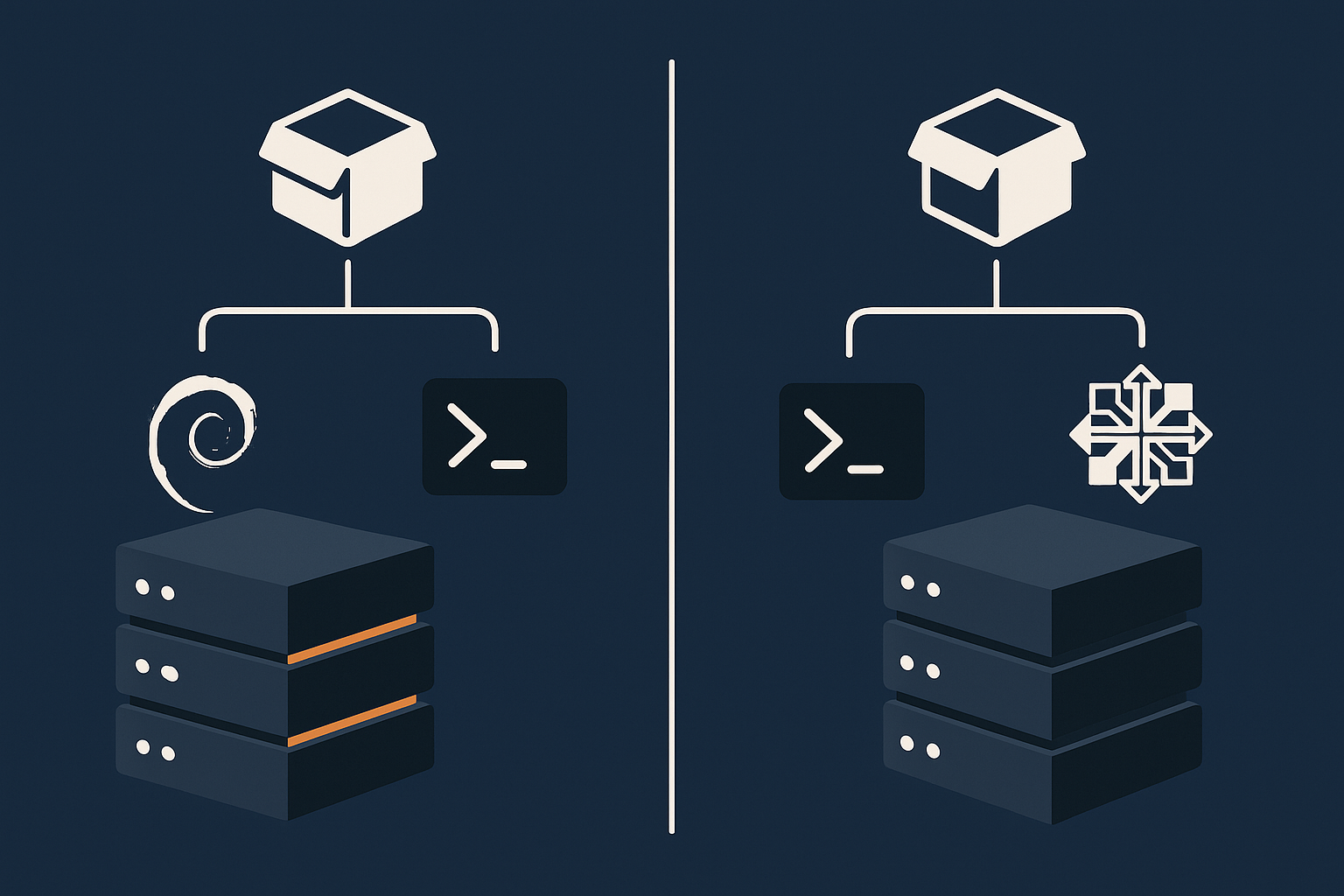
The package manager you use depends on your Linux distribution:
- Debian family:
- Debian, Ubuntu, Ubuntu Server
- Use
apt(and underlyingdpkg)
- Red Hat / Enterprise family:
- CentOS, AlmaLinux, Rocky Linux, RHEL
- Use
yumor the newerdnf
Knowing which family you are on is important, because commands are similar in idea but different in spelling and options.
How to check what you are running
If you are not sure what distribution your server uses, run:
cat /etc/os-release
This reads a text file with information about your operating system. You do not need sudo for this because it is not modifying anything.
Typical outputs:
- Ubuntu example:
NAME="Ubuntu" VERSION="22.04.4 LTS (Jammy Jellyfish)" ID=ubuntu - AlmaLinux example:
NAME="AlmaLinux"
VERSION="9.4 (Seafoam Ocelot)"
ID="almalinux"
If you see ID=ubuntu or ID=debian, you will use apt. If you see almalinux, rocky, centos or similar, you will use yum or dnf.
Why it matters for guides and copy paste commands
Many online guides assume a particular distribution. Copying commands written for a different family can lead to confusing errors or, in some cases, wrong packages being installed.
Before you paste a command into your terminal:
- Check if the guide is for Debian/Ubuntu (
apt) or CentOS/AlmaLinux/Rocky (yum/dnf) - Translate package names if needed (for example
apache2on Ubuntu ishttpdon CentOS) - Prefer distribution specific instructions from your provider or from your control panel
This extra check is a simple habit that prevents a lot of confusion.
apt Basics: Managing Packages on Debian and Ubuntu
Updating the package index safely
Command: sudo apt update
Before installing or upgrading packages, apt needs an up to date list of what is available in the repositories.
Run:
sudo apt update
What it does:
- Contacts all configured repositories
- Downloads the latest lists of packages and versions
- Does not actually upgrade any installed software
You will see lines like:
Hit:1 http://archive.ubuntu.com/ubuntu jammy InRelease
Get:2 http://security.ubuntu.com/ubuntu jammy-security InRelease
Reading package lists... Done
Building dependency tree... Done
If there are available upgrades, apt will end with a line such as:
XX packages can be upgraded. Run 'apt list --upgradable' to see them.
This command is safe to run frequently. It does not restart any services.
What this does and when to run it
Typical times to run sudo apt update:
- Before installing a new package
- Before a routine set of upgrades
- After you change repositories in
/etc/apt/sources.list(advanced usage)
If you need to undo a change, the main adjustment is to restore repository configuration files from a backup, then run sudo apt update again. The command itself is read only with respect to installed packages.
Installing software with apt
Command: sudo apt install package-name
To install software, first decide what package you want, then run:
sudo apt install <package-name>
For example, to install htop:
sudo apt install htop
What it does:
- Works out which extra packages are required
- Shows you a summary of what will be installed and how much space it needs
- Asks for confirmation:
Do you want to continue? [Y/n] - Downloads and installs the selected packages
You can cancel at the confirmation prompt by typing n and pressing Enter if the changes look larger than expected.
Finding the right package name (searching packages)
If you do not know the exact name of a package, use:
apt search <keyword>
For example:
apt search monitor
This shows a list of packages whose name or description matches “monitor”. You will see lines such as:
htop/jammy 3.0.5-7 amd64
  interactive processes viewer
To see more detail about a specific package:
apt show htop
This is helpful for checking what a package does before installing it.
Example: installing a basic monitoring tool (like htop or nload)
htop gives you an interactive view of CPU and memory use, similar to top but easier to read. To install it:
sudo apt update
sudo apt install htop
After installation, run:
htop
to open the monitoring interface. To remove htop again if you no longer need it:
sudo apt remove htop
If you would like more depth on monitoring tools, see How to Check CPU, Memory and Disk Usage on a Linux Server, and for an example focused on network monitoring, see What Is nload and How to Install & Use It on Linux.
Upgrading packages on Ubuntu or Debian
Difference between apt upgrade and apt full-upgrade / dist-upgrade
Once your package index is updated, you can upgrade installed software.
The two main commands are:
sudo apt upgradesudo apt full-upgrade(or olderdist-upgrade)
apt upgrade:
- Upgrades packages to newer versions where it can do so without removing anything
- Is conservative about dependency changes
apt full-upgrade:
- May install new packages and remove old ones to satisfy dependencies
- Is often used when moving between major versions or when there are kernel or system level changes
On most servers, a regular routine of apt update then apt upgrade is sufficient. Use full-upgrade more carefully and ideally with a snapshot or backup in place.
When it is safe to run full-upgrade on a server
Safe habits for apt full-upgrade:
- Use a test or staging server first if you have one
- Make a VPS snapshot or backup before running it
- Run it during a maintenance window when traffic is light
- Read the list of packages that will be removed or installed
If you see that major components such as nginx, apache2, mysql-server or php-fpm will be removed, stop and review why that is. In many cases, it is better to resolve such conflicts with help from an experienced administrator or move the change to a planned migration.
How package upgrades affect running services like Apache, Nginx or PHP-FPM
When apt upgrades a service such as Nginx or PHP-FPM, it may:
- Restart the service automatically
- Ask a configuration question (for example whether to keep your current config or replace it)
On a busy site, an automatic restart can briefly interrupt traffic. In many cases this is less than a second, but for important production systems it is sensible to:
- Warn users or plan a small maintenance window
- Test configuration syntax before restart, using commands such as
nginx -t(if you have edited configs)
If a package upgrade stops a service, you can typically start it again manually, for example:
sudo systemctl status nginx
sudo systemctl restart nginx
For more background on services and reboots, see How to Reboot Linux Commands.
Removing packages with apt
Command: sudo apt remove vs sudo apt purge
To uninstall software while keeping most configuration files:
sudo apt remove <package-name>
To remove software and its configuration files:
sudo apt purge <package-name>
Use with care: removing packages that are part of your web stack, such as nginx, apache2, mysql-server or php* packages, can stop your sites from working. Always read the list of packages that will be removed before confirming.
If you realise you removed a package by mistake, you can reinstall it with sudo apt install <package-name>. If it was purged, you may need to reconfigure it manually or restore a configuration file from backup.
Cleaning up: sudo apt autoremove
Over time, apt may leave behind packages that were installed as dependencies but are no longer needed. To clean these up:
sudo apt autoremove
It will show you what will be removed and ask for confirmation. This helps keep your system tidy and frees disk space.
Safety notes: what not to remove on a production server
On a live server, treat the following as “do not remove unless you are certain”:
linux-image-*packages, unless you know about kernel managementsystemd,network-manager, core libraries such aslibc6- The active web server, database server or PHP versions that your sites use
If apt suggests removing many packages you did not expect, type n to cancel, then review the situation further. It is perfectly fine to stop rather than risk unexpected changes.
yum / dnf Basics: Managing Packages on CentOS, AlmaLinux and Rocky Linux
yum vs dnf: what is the difference and why both exist
On CentOS, AlmaLinux, Rocky Linux and other Red Hat based distributions, the traditional package manager was yum. Newer versions provide dnf as a more modern backend.
On current systems:
yumoften callsdnfbehind the scenes- The command syntax is very similar
You can usually follow any guide that refers to either, using whichever command exists on your system. Your distribution documentation will clarify which is preferred for your version.
Updating package metadata and your system
Command: sudo yum check-update or sudo dnf check-update
To see which packages can be updated without installing them yet:
sudo yum check-update
or:
sudo dnf check-update
This contacts the repositories and lists packages with newer versions available. It does not modify installed software.
Command: sudo yum update / sudo dnf upgrade
To actually apply updates:
- Traditional syntax:
sudo yum update - Newer syntax:
sudo dnf upgrade
These commands:
- Update package metadata
- Compute which packages need to change
- Present you with a list of packages to be updated, installed or removed
- Ask you to confirm before proceeding
As with apt, read the summary carefully. Cancel if the change set includes unexpected removals of core components.
Reboots and kernel updates on enterprise style distributions
Enterprise distributions such as AlmaLinux and Rocky Linux are designed for stability. Major kernel upgrades are less frequent, but they still occur.
If yum or dnf updates a kernel package, the new kernel will not be active until you reboot. Plan:
- Routine reboots during quiet periods after kernel updates
- Service restarts after major web server or database updates, if requested by the package manager
Again, taking a snapshot before significant updates is a sound habit, especially on production workloads.
Installing software with yum / dnf
Command: sudo yum install package-name
To install a package on CentOS, AlmaLinux or Rocky Linux:
sudo yum install <package-name>
or, with dnf:
sudo dnf install <package-name>
For example, to install htop:
sudo dnf install htop
As with apt install, you will see a summary and a prompt:
Is this ok [y/N]:
Type y to proceed, or press Enter to accept the default N and cancel.
Searching for packages and info (yum search, yum info)
If you are not sure of the exact package name, search for it:
yum search <keyword>
or:
dnf search <keyword>
To view details for a particular package:
yum info <package-name>
or:
dnf info <package-name>
This helps you choose the right package and understand its purpose before installing.
Example: installing PHP extensions for a WordPress or WooCommerce site
WordPress and WooCommerce typically need extensions such as php-mysqlnd, php-gd and php-xml. On an AlmaLinux or Rocky Linux server with the standard PHP module enabled, you might run:
sudo dnf install php php-fpm php-mysqlnd php-gd php-xml php-mbstring php-zip
What to expect:
dnfwill list the packages to install- PHP-FPM and the web server may be started or restarted
- You will be prompted to confirm
If a PHP extension appears to cause issues with a plugin, you can remove it with:
sudo dnf remove php-xml
(replace php-xml with the package in question), but review dependency information carefully before confirming.
Removing and cleaning packages on yum / dnf
Command: sudo yum remove package-name
To remove a package:
sudo yum remove <package-name>
or:
sudo dnf remove <package-name>
Use with care. As on Debian based systems, avoid removing:
- Core system libraries and tools
- Your active web server, database server or PHP version unless you are deliberately decommissioning them
Always read the list of packages that will be removed. If you are in doubt, cancel and investigate.
Cleaning up cached packages (yum clean all / dnf clean all)
The package manager keeps a cache of downloaded packages. If disk space is tight or you want to clear the cache, you can run:
sudo yum clean all
or:
sudo dnf clean all
This removes cached data but does not uninstall any software. There is no need to run it frequently on a healthy server, but it can help when space is limited.
Safety notes around removing web and database packages
Before removing packages like httpd, nginx, mariadb-server, mysql-server, php*:
- Confirm whether they are serving live sites
- Ensure you have current database and file backups
- Plan downtime if necessary
If you are using a control panel such as cPanel, Plesk or DirectAdmin, let the panel manage these services instead of removing them via yum or dnf directly.
Working Safely: Good Habits When Using Linux Package Managers
Always read what the package manager is about to do
Both apt and yum/dnf provide a summary before they change anything. Make it a habit to:
- Scan the list of packages to be installed, upgraded or removed
- Look for unexpected removals of core services or libraries
- Cancel if the changes are larger than you expected
There is no harm in cancelling and taking time to understand what is going on.
Why you should avoid mixing manual source installs with apt/yum
Sometimes software vendors offer installation from a .tar.gz file or from source. While this is useful in some scenarios, mixing manual installations under /usr/local or /opt with package manager versions can cause:
- Two versions of the same software on your path
- Confusing upgrades where the package manager is unaware of the manual version
- More complex troubleshooting when something does not start
Where possible:
- Use distribution packages or vendor provided repositories
- If you must compile from source, document it clearly and keep it separate
This keeps your system more maintainable over time.
Using package managers with cPanel and control panels
If your server runs a control panel such as cPanel or Plesk, those panels may manage certain packages themselves.
In that case:
- Use the panel’s interface to add or remove PHP versions, web server modules and similar
- Avoid manually upgrading core services via
aptoryumunless the panel’s documentation explicitly permits it
Altering packages behind the panel’s back can lead to configuration drift or unexpected behaviour.
Why you should have backups or snapshots before big upgrades
Even routine updates can occasionally surface a bug or conflict. Before large changes, particularly kernel upgrades or full distribution upgrades:
- Take a VPS snapshot if your provider supports it
- Ensure off server backups of site files and databases are current
- Keep a simple change log of the commands you run
This gives you a clear rollback path and makes troubleshooting simpler if something behaves differently afterwards.
When it is better to let a managed VDS team handle updates
Running your own unmanaged VPS or virtual dedicated servers means:
- Applying security patches promptly
- Planning and testing upgrades
- Monitoring services after changes
If you would prefer to spend your time on your sites rather than server operations, a managed VDS moves most of that work to a specialist team. You still have root level flexibility if you need it, but routine patching and incident response are not solely your responsibility.
Common Problems and How to Troubleshoot Them
Broken or interrupted updates
How to re-run an update and check logs
If your SSH session disconnects during an update, or power is lost, the package manager usually detects this on the next run.
On Ubuntu or Debian, try:
sudo dpkg --configure -a
sudo apt -f install
This instructs the system to finish configuring any half installed packages, then attempt to fix dependencies.
On CentOS / AlmaLinux / Rocky:
sudo yum history
or:
sudo dnf history
to see recent transactions. You can often repeat a failed transaction or review which packages were involved.
Logs are in:
/var/log/apt/on Debian/Ubuntu/var/log/dnf.logor/var/log/yum.logon Red Hat based systems
Dealing with locked package databases (apt lock, yum lock)
If another package process is running, you may see a message about a lock. This prevents two package managers from changing things at the same time.
Typical messages include “Could not get lock /var/lib/dpkg/lock” or “Another app is currently holding the yum lock”.
Steps:
- Wait a minute to see if an automatic update finishes
- Check running processes:
ps aux | grep -E 'apt|dpkg|yum|dnf' - If an update is still in progress, let it complete
Only consider removing lock files manually if you are certain no package process is active, and preferably after consulting documentation such as the relevant section of the Debian dpkg docs or your distribution’s support resources.
Dependency issues and conflicts
What dependencies are in the context of apt and yum
Most packages rely on other packages to function. These are dependencies. For example, a PHP module might depend on a specific version of the main PHP package.
The package manager usually handles these automatically, but issues arise when:
- Different repositories provide conflicting versions
- You have pinned or held specific versions
- Packages were installed manually outside the package manager
How to interpret dependency error messages
When a dependency problem appears, read the message slowly. It will mention:
- Which package cannot be installed or upgraded
- Which version is required or in conflict
On apt, you can often see more detail with:
apt-cache policy <package-name>
On yum/dnf, the error output usually includes which repositories and versions are involved.
Common resolutions include:
- Removing or disabling a third party repository that conflicts
- Allowing the package manager to install a compatible version
- On development systems, removing and reinstalling a conflicting package cleanly
When a package update breaks your site or application
Quick checks: web server status, PHP-FPM, database services
If a site stops working after updates, first check the main services:
- On Debian/Ubuntu:
sudo systemctl status nginx sudo systemctl status apache2 sudo systemctl status php-fpm sudo systemctl status mysql - On CentOS/AlmaLinux/Rocky:
sudo systemctl status nginx
sudo systemctl status httpd
sudo systemctl status php-fpm
sudo systemctl status mariadb
Look for services that are “inactive” or “failed”. Often the fix is:
- Correct a configuration error (logs in
/var/log/) - Restart the service
Why staged environments or managed hosting reduce this risk
The lowest risk approach is:
- Apply updates on a staging server first
- Confirm that WordPress, plugins and WooCommerce behave as expected
- Then update production.
If maintaining staging environments and update routines feels like a lot for one or two business sites, Managed WordPress hosting or hassle free WordPress maintenance can move this operational work to a specialist team.
Putting It All Together: A Simple Update Routine for Your Server
Step by step example for an Ubuntu based VPS
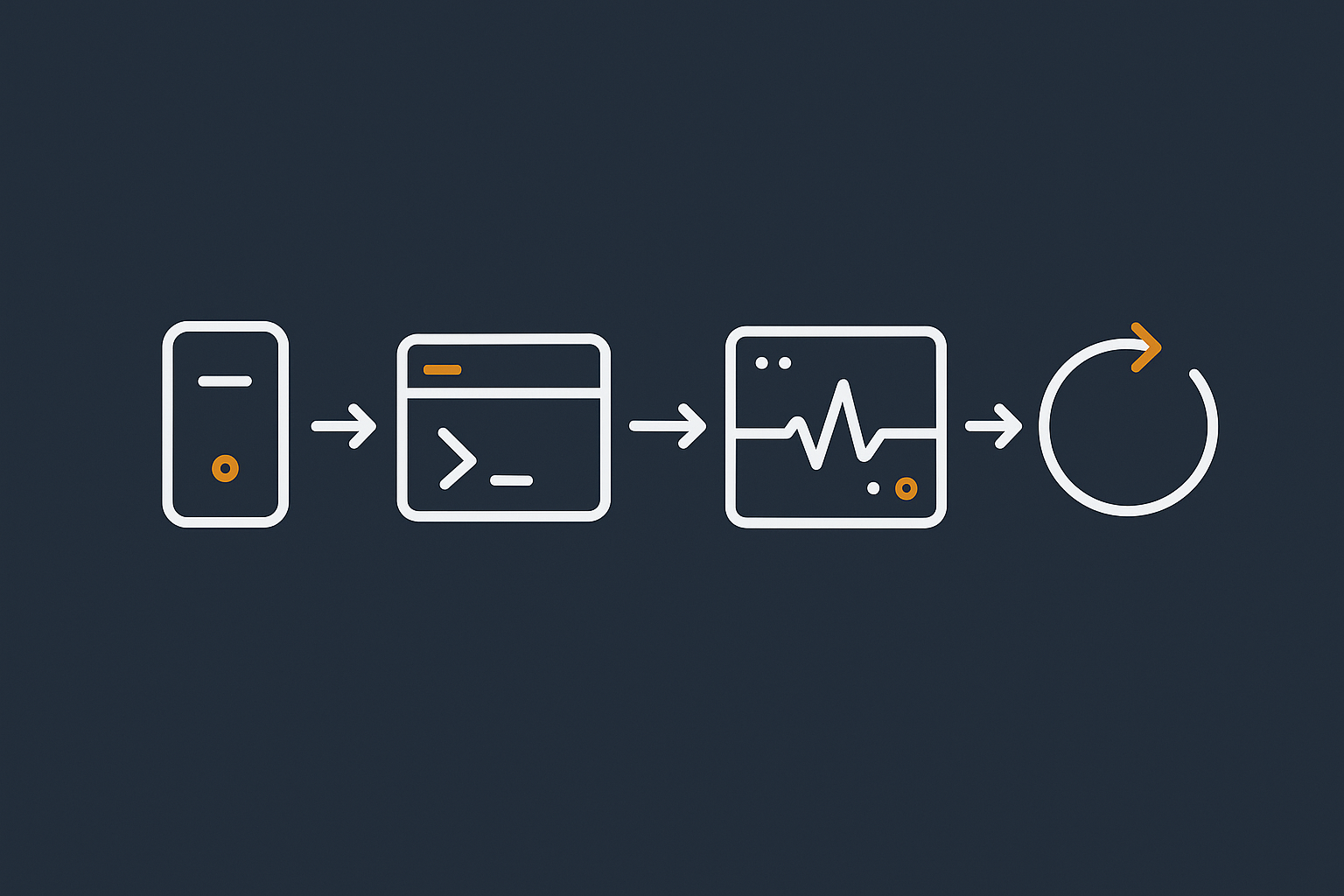
A basic, safe routine might look like:
- Check resource usage to ensure you have memory and disk headroom
uptime
df -h
free -h
- Create or confirm a snapshot or backup
- Update package index and preview upgrades
sudo apt update
apt list --upgradable
- Apply routine upgrades
sudo apt upgrade
Read the summary, then confirm if it looks reasonable.
- Check key services
sudo systemctl status nginx apache2 php-fpm mysql
- Test your sites in a browser
- If a kernel or important libraries were updated, schedule a reboot when convenient
For detailed reboot options, the article How to Reboot Linux Commands is a useful reference.
Step by step example for a CentOS / AlmaLinux based VPS
A similar routine on an AlmaLinux or Rocky Linux server:
- Check usage
uptime
df -h
free -h
- Take a snapshot or confirm backups
- Check for available updates
sudo dnf check-update
- Apply updates
sudo dnf upgrade
Review the package list before confirming.
- Check services
sudo systemctl status nginx httpd php-fpm mariadb
- Test your sites, including admin and checkout flows for WooCommerce if relevant
- Reboot later if a kernel update was applied
When to schedule updates to avoid customer impact
Some practical scheduling tips:
- Run updates during quieter periods for your audience
- Avoid heavy maintenance immediately before major campaigns or launches
- Allow time afterwards to observe logs and performance
For higher traffic sites, external protection and optimisation such as the G7 Acceleration Network can also help performance stay stable by optimising images to AVIF and WebP on the fly and filtering abusive traffic before it reaches PHP or the database.
If this feels like too much: options for managed WordPress and virtual dedicated servers
Managing apt or yum is a normal part of running an unmanaged server. Some people enjoy this and want full control. Others would rather focus on content, marketing and development.
If you mostly need one or two reliable business sites, Managed WordPress hosting or Enterprise WordPress hosting may be simpler. If you prefer to keep root control but would like a team to handle patching and monitoring, a managed virtual dedicated server can be a good fit.
Whichever route you choose, a basic understanding of package managers will help you make sense of documentation, discuss changes with support and keep your systems predictable.
If you are ready to take the next step, explore our managed and unmanaged virtual dedicated servers or WordPress hosting options, and choose the level of day to day server responsibility that suits you best.