


Who This Guide Is For (And What You Will Be Able To Do)
Typical situations where you need to manage services
This guide is for people who run a Linux VPS or virtual dedicated server for sites such as WordPress or WooCommerce, and who occasionally need to “fix the server” without being full time Linux administrators.
Common situations include:
- Your site suddenly shows a 502 Bad Gateway or 503 Service Unavailable error.
- A plugin update causes PHP errors and you are told “just restart PHP-FPM”.
- Your host or developer asks you to “reload Nginx” after changing a configuration file.
- The database crashes and you need to bring MySQL or MariaDB back online.
- You are planning maintenance and want to restart services safely without data loss.
What you will be comfortable doing by the end
By the end of this article you should feel comfortable to:
- Log in safely over SSH as a non root user and use
sudofor admin tasks. - Confirm that your system uses
systemd, which is the case on most modern Linux servers. - List services, check their status and understand what they do.
- Start, stop, restart and reload services such as Nginx, Apache, PHP-FPM and MySQL with
systemctl. - Use logs, especially
journalctl, to understand problems before restarting anything. - Follow a safe restart pattern during deployments or planned maintenance.
- Recognise when it is better to contact support or use a managed platform instead of experimenting on a live system.
If you are very new to SSH itself, the guide SSH Access for Beginners: Safe First Login and Day‑to‑Day Use on Your VPS is a useful starting point.
What A “Service” Actually Is On A Linux Web Server
From processes to services in plain English
On Linux, everything that runs is a “process”. Your web server, your database, background tasks and even system components are all processes.
A “service” is a process that is managed by the init system, which on most modern servers is systemd. A service usually has:
- A configuration file (a
.serviceunit) that describes how to start it. - A way to control it using
systemctl(start, stop, restart, reload). - Logging and automatic restart behaviour if it fails.
So, when someone says “restart the PHP service”, they mean “ask systemd to restart the PHP-FPM service unit”.
Common services on a WordPress or WooCommerce server
On a typical single server that runs WordPress or WooCommerce you will see services such as:
- Web server:
nginx.serviceorapache2.service/httpd.service. - PHP FastCGI:
php-fpm.service,php7.4-fpm.service,php8.1-fpm.serviceand so on. - Database:
mysql.service,mariadb.serviceormysqld.service. - Background jobs:
cron.serviceorcrond.service, queues, workers. - Security and networking: firewalls, intrusion detection, SSH (
sshd.service).
Getting used to the names on your own server is an important early step. Later we will look at how to list them and find what is running.
If you want a deeper explanation of how Nginx, Apache, PHP-FPM and the database fit together on a single box, see Choosing and Tuning a Web Stack on a Single Server.
Why almost all modern servers use systemd
systemd is the init system used by most modern Linux distributions such as Ubuntu, Debian, CentOS Stream, Rocky Linux and AlmaLinux.
It provides:
- A single command,
systemctl, to manage services. - A centralised logging system through the journal and
journalctl. - Automatic dependency handling, so services start in a sensible order.
- Tools to control services at boot time and during shutdown.
Knowing the basics of systemctl and journalctl gives you enough control for most day to day tasks on an unmanaged VPS.
Safe First Steps: Connecting Over SSH And Checking systemd Version
Logging in over SSH as a non-root user
Before running any service commands, you need SSH access to your server. It is considered good practice not to log in directly as root. Instead:
- Log in as a normal user that you created during server setup.
- Use
sudoto run administrative commands when needed.
From your local machine, your SSH command will look like:
ssh youruser@your-server-ip
This command opens a secure shell to your server as youruser. Once logged in, your prompt will usually show the server name. If you are not sure how to create a non root user and grant sudo access, the guide First 48 Hours on a New Linux VPS walks through those basics.
Checking which init system you are using
Before using systemctl, you should confirm that your server actually uses systemd. On most recent distributions it will, but it is easy to check.
Run:
ps -p 1 -o comm=
This lists the command name for process ID 1, which is the init system. If your server uses systemd you will see:
systemd
If you see something else, such as init or openrc, your system may not use systemd. In that case your hosting provider’s documentation is the best place to check how services are managed.
You can also ask systemd for its version:
systemctl --version
This prints the systemd version and some build information. If this command is not found, your system is probably not using systemd.
Using sudo safely for service management
Managing services usually requires root privileges. Instead of logging in as root, you should add sudo in front of administrative commands.
For example, later we will run:
sudo systemctl restart nginx
This means “run systemctl restart nginx as the root user”. You will normally be prompted for your password once per session. Using sudo is safer than working as root all the time because it limits accidental changes and gives you a clear record of which commands required elevated permissions.
General safe habits:
- Read the entire command before pressing Enter, especially if it mentions
stop,restartorrm. - Prefer
reloadtorestartfor web servers when applying configuration changes, where available. - On production servers, consider testing unfamiliar commands on a staging environment first.
Core systemd Commands You Will Use Every Week

Listing and identifying important services
The first useful step is to list what services are running so you can identify your web, PHP and database units.
To show all running services:
systemctl list-units --type=service --state=running
This prints a table with columns such as UNIT, LOAD, ACTIVE and SUB. Look for units like nginx.service, apache2.service, php-fpm.service and mysql.service. This command is read only and safe to run at any time.
If you want to see all services, including inactive ones:
systemctl list-unit-files --type=service
This lists installed service unit files and whether they are enabled at boot. You can use this to confirm which services will start when the server reboots.
Checking service status without changing anything
Before you restart anything, it is useful to see whether a service is already running and whether it has any recent errors.
Use:
systemctl status nginx
Replace nginx with apache2, php-fpm, mysql or the unit name you observed earlier.
This shows:
- Whether the service is
active (running),inactiveorfailed. - When it started.
- The main process ID (PID).
- The last few log lines from the journal.
systemctl status is safe to run and very useful when troubleshooting, because it often surfaces clear error messages.
Starting, stopping, restarting and reloading services
These are the core actions you will perform when managing services. They can disrupt your site, so it is important to understand what each does.
- Start a service (if it is not running):
sudo systemctl start nginx
This starts the Nginx service if it is currently stopped. It has no effect if Nginx is already running.
- Stop a service (high impact):
sudo systemctl stop nginx
This stops Nginx and will make all websites on that server unavailable until you start it again. Only do this intentionally, for example when you are changing low level configuration or investigating a serious problem.
- Restart a service (stop then start):
sudo systemctl restart nginx
This briefly stops the service and then starts it again. There is usually a small interruption. For web servers and PHP, this can cause a short blip where some requests fail. For databases, restarts can interrupt writes, so they should be planned.
- Reload a service (if supported):
sudo systemctl reload nginx
Reload tells the service to re read its configuration without a full stop and start. For Nginx and Apache this is usually lower impact than a full restart and is preferred when applying configuration changes. Not all services support reload, in which case systemd will report an error.
If you make a mistake and restart the wrong service, you can usually undo it by restarting or starting the correct one, but users may experience brief downtime. This is one reason to keep a simple record of changes you make during a session.
Enabling and disabling services at boot
Some services should always start when your server boots, for example your web server and database. Others might be used only occasionally.
- Enable a service to start at boot:
sudo systemctl enable nginx
This creates the appropriate symlinks so that Nginx starts automatically when the system boots. It does not start the service immediately; it only affects future boots.
- Disable a service at boot:
sudo systemctl disable nginx
This prevents Nginx from starting automatically at boot. It does not stop a running service. To also stop it now you would run sudo systemctl stop nginx.
Be cautious when disabling core services on a remote server, because a reboot afterwards could leave your sites offline.
Safety notes: when a restart is low risk and when it is not
Restarts always carry some risk, but in practice:
- Low to moderate impact:
- Reloading Nginx or Apache after changing a vhost configuration.
- Restarting PHP-FPM to pick up a new PHP configuration or extension.
- Higher impact and should be planned:
- Restarting MySQL or MariaDB, especially on busy e‑commerce sites.
- Restarting core system services like
sshdor firewall components. - Rebooting the entire server.
Before high impact actions, consider:
- Taking a snapshot or backup of your VPS if your provider supports it.
- Scheduling changes in a low traffic window.
- Testing the change on a staging server first where possible.
If you use a managed or unmanaged virtual dedicated server, you have more flexibility with staging environments and snapshots than on basic shared hosting.
Managing Web Stack Services: Nginx, Apache, PHP-FPM and MySQL/MariaDB
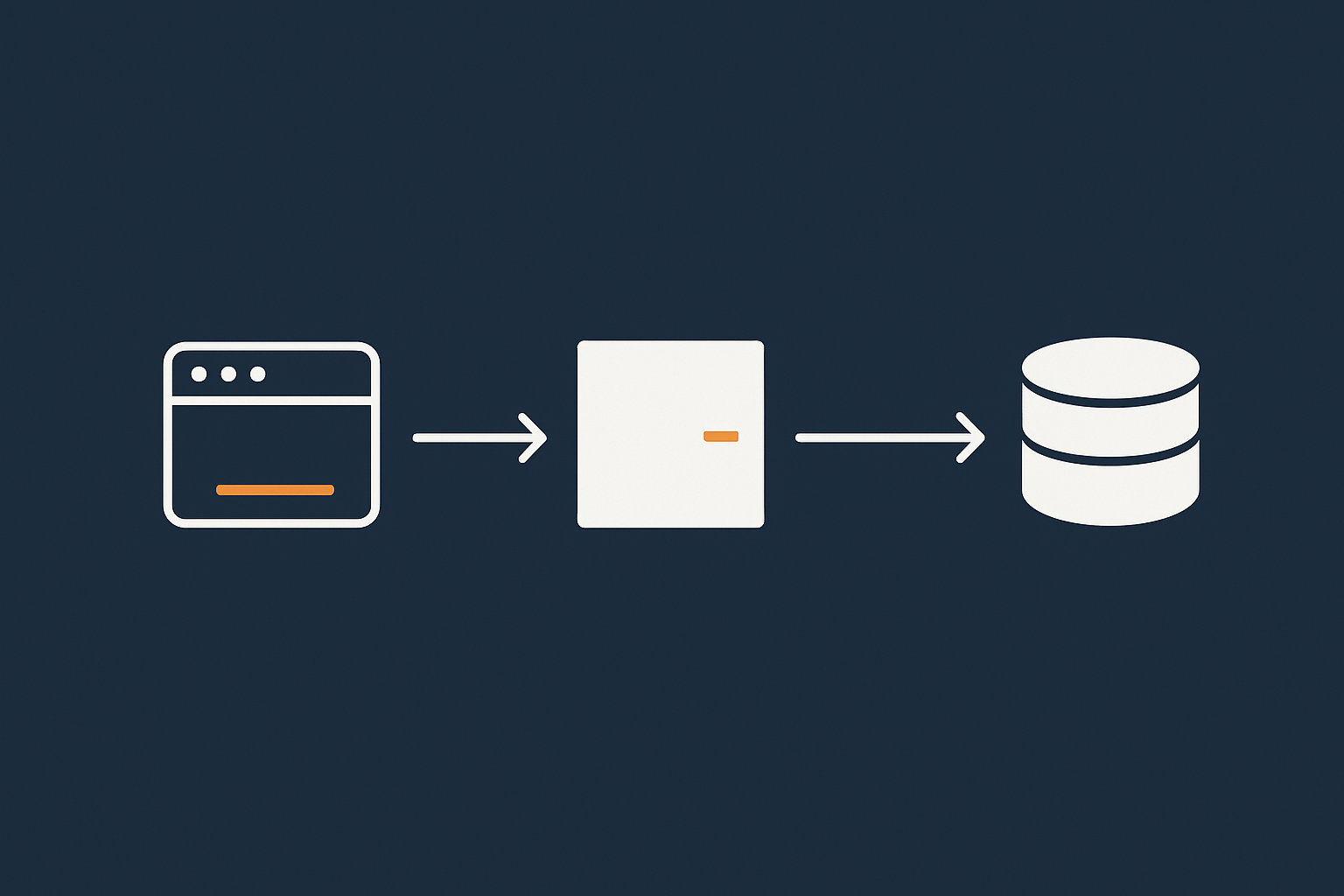
How a typical single server web stack fits together
To manage services confidently, it helps to picture how they connect:
- A visitor’s browser sends a request to your server’s IP.
- Nginx or Apache receives the HTTP request.
- For PHP pages, the web server passes the request to PHP‑FPM.
- PHP code then connects to MySQL or MariaDB to read or write data.
In systemd terms, that might be:
nginx.service→php8.1-fpm.service→mariadb.service
If any of these are down or unhealthy, your site can break with 500‑level errors, connection timeouts or database error messages.
Finding the right unit names on your system
Service names differ slightly between distributions. To discover the exact names on your server, you can filter the list-units output.
systemctl list-units --type=service | grep -Ei 'nginx|apache|httpd|php|mysql|maria'
This searches for common web stack names. Output might look like:
nginx.service              loaded active running A high performance web server
php8.1-fpm.service         loaded active running The PHP 8.1 FastCGI Process Manager
mariadb.service            loaded active running MariaDB 10.5.21 database server
Make a note of the exact names; you will use them in systemctl status, restart and reload commands.
Safe operations for Nginx or Apache (reload vs restart)
Web servers often have several virtual host configuration files. When you change a configuration file, for example to install an SSL certificate or change a site’s domain, you need to tell the service to pick up the change.
The safest pattern is:
- Run a configuration test command.
- If that passes, run a reload.
For Nginx:
sudo nginx -t
This tests the configuration syntax without restarting anything. If it reports “syntax is ok” and “test is successful”, you can reload:
sudo systemctl reload nginx
For Apache on Debian/Ubuntu:
sudo apachectl configtest
sudo systemctl reload apache2
On CentOS/Rocky/AlmaLinux Apache is usually httpd:
sudo apachectl configtest
sudo systemctl reload httpd
If the config test fails, read the error message and fix the file before reloading. This pattern avoids bringing down a working web server with a configuration typo.
Managing PHP-FPM pools without killing active users
PHP-FPM maintains “pools” of worker processes that handle PHP requests. Restarting PHP-FPM momentarily interrupts PHP execution, which can cause:
- Users to see a brief 502 error.
- Long running processes to be interrupted.
On most WordPress sites this is acceptable if done quickly during a low traffic period.
To restart PHP-FPM:
sudo systemctl restart php8.1-fpm
Replace php8.1-fpm with the unit name on your system. If you run multiple PHP versions, be sure to restart the correct one. Use systemctl status afterwards to confirm it is healthy.
There is often no separate reload for PHP-FPM, so configuration changes to php.ini or pool files normally require a restart.
Restarting MySQL or MariaDB without corrupting data
The database is more sensitive. While modern MySQL and MariaDB are resilient and transactional, a hard crash in the middle of writes can still cause issues, especially if the underlying storage is unreliable.
Some practical safety steps:
- Avoid database restarts during peak traffic or while large imports/exports are running.
- Confirm you have recent backups, particularly for busy WooCommerce shops.
- If disk space is low, fix that first; databases dislike running when storage is nearly full.
To restart MariaDB:
sudo systemctl restart mariadb
Or for MySQL:
sudo systemctl restart mysql
Afterwards, check status and logs:
systemctl status mariadb
journalctl -u mariadb -n 50 --no-pager
If you see recurring crash loops or “InnoDB: corruption” messages, this is a point where it may be safer to contact support or a database specialist rather than repeatedly restarting.
Using Logs To Understand What Is Going Wrong (Before Restarting)

Where logs live on a Linux web server
Logs tell you what happened before something broke. On a typical system you will have two main sources:
- systemd journal: accessed with
journalctl, contains service output and system messages. - Traditional log files in
/var/log: web server access and error logs, PHP logs, database logs.
Knowing where to look helps you avoid guesswork and unnecessary restarts.
Reading service logs with journalctl
journalctl is the counterpart to systemctl. It reads the log messages recorded by systemd.
To see recent logs for Nginx:
journalctl -u nginx -n 50 --no-pager
This shows the last 50 log lines for the nginx unit. Adjust -n 50 to see more or fewer lines.
To follow logs in real time, similar to tail -f:
journalctl -u php8.1-fpm -f
This is useful when reproducing an error. Open one SSH window to watch logs and another to trigger the problem in your browser.
Filtering logs by service, time and severity
journalctl has many filters. Here are a few simple and useful ones:
- Since a specific time:
journalctl -u mariadb --since "1 hour ago"
- Between two times:
journalctl -u nginx --since "2025-12-12 10:00" --until "2025-12-12 10:30"
- Higher severity messages only (warnings and above):
journalctl -u php8.1-fpm -p warning
Severity levels range from emerg (0) to debug (7). Filtering by warning or error can make it easier to spot problems quickly.
Combining journalctl with classic log files (Nginx, Apache, PHP)
Systemd’s journal is not the whole story. Web servers and PHP still write to traditional log files, usually under /var/log. Common locations include:
/var/log/nginx/access.logand/var/log/nginx/error.log/var/log/apache2/access.logand/var/log/apache2/error.log/var/log/php8.1-fpm.logor/var/log/php-fpm/error.log
You can inspect these with less or tail:
sudo tail -n 50 /var/log/nginx/error.log
For WordPress and WooCommerce, application level logging is also useful. The guide Logging and Error Monitoring for WordPress and WooCommerce covers that layer.
Safe Restart Patterns During Maintenance And Deployments
Preparing for planned restarts on a live site
When you know you will need to restart key services, a small amount of preparation reduces stress.
Consider:
- Announcing a short maintenance window if you run busy or revenue generating sites.
- Ensuring recent backups of your database and files are in place.
- Testing the new configuration or code on a staging site where possible.
- Having a simple checklist of the services you will touch and commands you plan to run.
On more complex setups, a managed platform or a managed virtual dedicated server can take care of coordination, staging and rollbacks for you.
Order of operations: which services to restart first
When making changes that affect several layers, the usual order is:
- Database, if needed and if no other services depend on it during the change.
- PHP-FPM, when PHP configuration, extensions or code require it.
- Web server, ideally with config tests and reloads rather than hard restarts.
Some examples:
- If you update PHP extensions, restart PHP-FPM then reload Nginx or Apache.
- If you change database configuration, restart MySQL/MariaDB and then test your application before touching anything else.
- If you modify only Nginx vhost files (for example to point a domain to a different directory), config test and reload Nginx alone.
Checking everything is healthy afterwards
After your changes, go through a quick verification checklist:
- Check service status:
systemctl status nginx php8.1-fpm mariadb - Review recent logs for errors:
journalctl -u nginx -n 20 --no-pager journalctl -u php8.1-fpm -n 20 --no-pager journalctl -u mariadb -n 20 --no-pager - Load the main pages of your site in an incognito/private window.
- For WooCommerce, run a test checkout in sandbox mode if possible.
Keeping a short written record of what changed and what you checked makes later troubleshooting much easier.
When to avoid restarts entirely and call support
It is sensible to pause and ask for help instead of experimenting when:
- Restarting a service immediately re creates the same crash or error loop.
- Database logs mention corruption or severe InnoDB errors.
- The SSH session is unreliable or the server is under heavy load and unresponsive.
- You are managing a mission critical site without recent tested backups.
On a managed platform or managed VDS, your provider’s operations team should handle these situations, including log analysis and recovery steps, so you do not have to take those decisions alone.
Common Mistakes With systemd (And How To Avoid Them)
Restarting the wrong service or the whole server
A frequent mistake is to restart a service with a similar name, or to reboot the whole server when only one component is affected.
To minimise this:
- Use
systemctl status <service>first to confirm what the service does. - Double check the unit name;
php7.4-fpmandphp8.1-fpmare not the same. - Avoid
sudo rebootas a first response; it interrupts everything, including SSH.
Editing unit files directly without understanding overrides
Systemd unit files live under /lib/systemd/system or /etc/systemd/system. It is possible to edit them, for example to change environment variables or resource limits, but this should be done carefully.
The recommended way is to create an override rather than editing the original file. For example:
sudo systemctl edit nginx
This opens an editor where you can add only the settings you want to change. They are stored in a drop in file under /etc/systemd/system/nginx.service.d/. To apply changes:
sudo systemctl daemon-reload
sudo systemctl restart nginx
Editing unit files directly can be risky if you are not familiar with systemd syntax, because a syntax error may prevent the service starting at all.
Ignoring failing services and noisy logs
It is tempting to ignore “noisy” logs if the site seems to work. Over time, though, repeated warnings about things such as low disk space, slow queries or PHP deprecations tend to become real issues.
Good habits include:
- Checking
systemctl --failedoccasionally to see if any services are in a failed state. - Reviewing key logs weekly, or setting up simple monitoring that alerts when error rates spike. The guide Server Monitoring for Non‑Admins covers lightweight approaches.
How managed VDS hosting can reduce the risk
Managing services with systemd is entirely feasible for technically comfortable users, but it does bring ongoing responsibilities: updates, security hardening, performance tuning and backups.
With a managed virtual dedicated server much of this operational work is handled for you. The provider keeps services patched, monitors their health and assists with troubleshooting, so you are less likely to face sudden failures without support. Unmanaged options still exist if you prefer full control.
If you only run one or two business sites and do not want to touch systemd at all, a specialised platform such as managed WordPress hosting may be more comfortable.
Simple Troubleshooting Flow When A Site Breaks
Step 1: Check if the server itself is up
When a site is down, first confirm whether the server is reachable:
- From your local machine, try SSH:
ssh youruser@your-server-ip. - If SSH fails, check your provider’s control panel or status page.
If the server is offline or unreachable, service restarts will not help and you may need to open a support ticket instead.
Step 2: Check web, PHP and database services with systemctl
Once logged in, check the key services in one go:
systemctl status nginx php8.1-fpm mariadb
Adjust the unit names to match your system. Look for:
active (running): service appears healthy.inactiveorfailed: service is not running.
If a service is inactive or failed, you can attempt a restart:
sudo systemctl restart php8.1-fpm
Then re check status. If it immediately fails again, do not keep restarting in a loop; move on to log inspection.
Step 3: Use logs to narrow down the fault
Use journalctl and the relevant log files:
journalctl -u php8.1-fpm -n 50 --no-pager
sudo tail -n 50 /var/log/nginx/error.log
Look for clear messages such as:
- “Address already in use” (port conflict).
- “Permission denied” (file or directory permissions).
- “Out of memory” or OOM kill events.
These often point directly to the underlying problem.
Step 4: Decide whether a targeted restart is appropriate
If logs show a transient issue that is now resolved, a targeted restart can be sensible:
- Restart PHP-FPM after fixing a configuration typo.
- Reload Nginx after correcting a vhost file.
- Restart the database once after freeing disk space.
On the other hand, if logs show repeated crashes, corruption or hardware related problems, a restart is unlikely to fix the root cause and may make matters worse. That is the time to engage your host’s support or consider moving that responsibility to a managed platform.
When To Move Service Management To A Managed Platform
Signs that DIY service management is becoming a risk
Running your own unmanaged VPS or virtual dedicated server gives flexibility and control. It can also become a burden if:
- You regularly delay updates or security patches because you are worried about breaking services.
- Service incidents consume time you would rather spend on development or business work.
- Performance tuning and capacity planning feel unclear or are frequently guessed.
- You have important revenue tied to the site and downtime carries real cost.
These are indicators that the operational side of service management is significant enough to consider offloading.
What a managed VDS or managed WordPress platform handles for you
A managed platform typically covers:
- System and service updates, including PHP, Nginx/Apache and databases.
- Monitoring of core services with alerts and automated responses.
- Security hardening and incident response at the system level.
- Backups, restore testing and sometimes staging environments.
- Assistance with performance optimisation and capacity planning.
On a managed virtual dedicated server you still have dedicated resources and configuration flexibility, but operational risk is shared with the provider. On managed WordPress hosting, most of the stack is abstracted, which is ideal if you only run a few business sites and prefer not to think about services at all.
Next steps if you prefer not to touch systemd at all
If you have read this far and feel that service management is more than you want to deal with, that is a valid conclusion. Owning a server is an ongoing responsibility, not a one time setup task.
You might choose to:
- Move sites to a managed WordPress or WooCommerce platform where systemd is not exposed.
- Upgrade from an unmanaged VPS to a managed VDS where service level work is supported.
- Keep a small staging VPS for learning, while production lives on a managed platform.
If you would like your future service restarts and log investigations to be handled for you, it may be worth exploring G7Cloud’s managed VDS and managed WordPress options as a next step.
Further Reading And Next Steps
Related G7Cloud guides to deepen your Linux server basics
- SSH Access for Beginners: Safe First Login and Day‑to‑Day Use on Your VPS
- First 48 Hours on a New Linux VPS: A Safe Setup Checklist for Beginners
- Choosing and Tuning a Web Stack on a Single Server: Nginx vs Apache, PHP‑FPM and Database Basics
- Server Monitoring for Non‑Admins: Simple, Reliable Alerts for Your Linux VPS
- Managed vs Unmanaged Servers: Who Does What, And What Can Still Break?
Official documentation worth bookmarking
- systemctl manual page for full details of service management commands.
- journalctl manual page for the rich logging and filtering options available.
If you would prefer to focus on your sites rather than on systemd, it may be a good moment to look at G7Cloud’s managed and unmanaged virtual dedicated servers or managed WordPress hosting and choose a level of responsibility that fits how you work.