

Who actually needs a CDN for WordPress (and who probably does not)
What a CDN really does in plain English
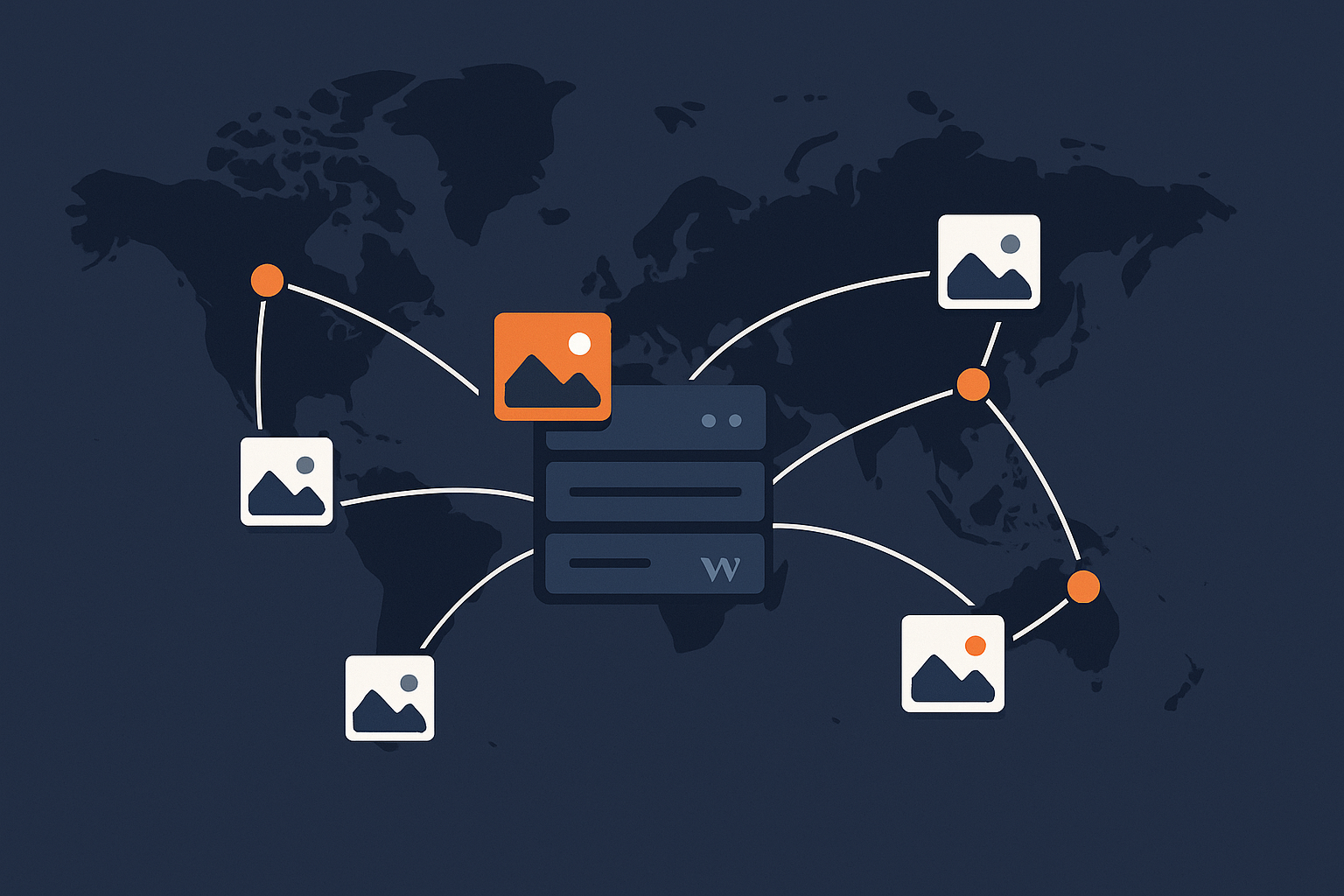
A Content Delivery Network (CDN) is a network of servers around the world that hold copies of your site’s files so visitors can download them from a server that is geographically closer to them.
For WordPress, a CDN typically:
- Caches static files such as images, CSS, JavaScript and sometimes full HTML pages.
- Reduces latency by serving those files from a nearby location.
- Shields your origin server (where WordPress runs) from some of the traffic, so PHP and the database do less work.
- Handles TLS/SSL termination in front of your site and can add security features such as a web application firewall (WAF) and bot filtering.
When someone visits your site:
- Their browser asks the CDN for your page and assets.
- If the CDN has a cached copy and the rules allow it, it serves that immediately.
- If not, it fetches the content from your origin server, returns it to the visitor and may store it for later visitors.
The benefit is less distance, fewer hops and less work for your origin server.
Situations where a CDN makes a big difference
You are likely to see clear gains from a CDN if:
- You have visitors from multiple countries or continents. A UK-only audience on a UK server will often be fine without a CDN. If you have visitors from Europe and North America, the benefit grows quickly.
- Your site uses lots of images, CSS and JavaScript. Large hero images, page builders and heavy themes increase the load time penalty over distance.
- Your traffic is spiky. Campaigns, press mentions or social media can send sudden bursts of visitors. A CDN absorbs much of that load.
- You run WooCommerce or a busy membership site. Dynamic parts will not be fully cached, but offloading static assets still helps performance and stability.
- Your existing hosting is constrained. If CPU, RAM or disk I/O are already tight, moving repeat traffic to a CDN can buy you some breathing space.
For many UK businesses, especially those with customers across Europe or globally, a CDN is a sensible part of a performance and resilience plan rather than a luxury.
Cases where a CDN may be overkill or a distraction
A CDN can be unnecessary, or at least low priority, if:
- Your audience is hyper local. For example, a small service business whose customers are all within the same UK region and your hosting is already physically close to them.
- Your site is very light. A simple, mostly text brochure site with a few compressed images on good hosting is already fast.
- You have serious origin performance issues. If your server is misconfigured or underpowered, a CDN can hide symptoms but will not fix the root cause. You may need to address PHP, database or caching first.
- You lack time or expertise to configure it safely. Misconfigured cache rules can break logins, forms and WooCommerce checkouts. In that case, a managed solution may be safer than a DIY CDN.
If you are still learning the basics of WordPress itself, it may be worth reading something like What is WordPress? before you start introducing layers such as CDNs.
How CDNs, hosting quality and caching fit together
Think of performance in layers:
- Hosting quality controls how fast uncached requests are processed. Good PHP and database tuning, fast storage and an efficient web server matter a lot. G7Cloud, for example, focuses on web hosting performance features such as tuned PHP-FPM, HTTP/2 and modern CPU.
- Origin caching (such as Nginx or Apache reverse proxy cache plus an object cache) reduces the work for PHP and MySQL even before a CDN is involved. If you want to understand this layer more deeply, the guide The Ultimate Guide to Setting Up Nginx Reverse Proxy Cache explains the same concepts CDNs use, but at the server level.
- A CDN sits in front of your origin and can cache both static assets and sometimes whole HTML pages, distribute them globally and add security features.
For small brochure sites with local traffic, good hosting and basic caching may be enough. As traffic grows geographically or in volume, the CDN layer becomes more useful both for speed and for absorbing load.
Key CDN features that matter for WordPress
Global network and latency: where your visitors actually are
Look at your analytics and note where visitors come from. This should guide your CDN choice.
- Edge locations: Check if the CDN has points of presence (PoPs) close to your key markets. A UK business targeting Europe should care about London, Amsterdam, Frankfurt and Paris. If you sell worldwide, look for decent coverage in North America and Asia-Pacific.
- Realistic latency: Do not rely purely on marketing maps. Test from your important regions using tools such as WebPageTest or browser dev tools with VPN.
- Failover and resilience: Some CDNs can route around outages or congested routes. This is more about uptime than pure speed, but it matters for business-critical sites.
In short, match the CDN’s geography to your real customers, not to where you happen to be based.
Full page caching vs static asset caching
CDNs can cache different things:
- Static asset caching: Images, CSS, JS, fonts and other files that rarely change. Almost every CDN can do this safely for most WordPress sites.
- Full page caching: Caching complete HTML responses from WordPress. This gives the biggest performance boost but requires more care, especially with logged in users or e‑commerce.
For anonymous visitors to a brochure site or blog, full page caching on a CDN can reduce time to first byte (TTFB) dramatically, because the CDN does not need to talk to your origin for each visit.
Check for:
- Cache rules based on URL patterns so you can cache most pages but exclude, for example,
/wp-admin/,/my-account/or/checkout/. - Respect for origin cache headers such as
Cache-ControlandExpires. This lets your server influence how long things are cached. - Easy cache purging from the dashboard or API when you update the site.
Handling logged in users, carts and checkout
Logged in users, WooCommerce carts and membership areas introduce complexity. You never want to cache:
- User-specific pages such as account dashboards.
- Carts, checkouts and order confirmation pages.
- Areas showing personalised content or prices.
A WordPress-friendly CDN should support:
- Cookie-based cache bypass: For example, not caching responses when the user sends a
woocommerce_items_in_cartorwordpress_logged_in_*cookie. - Path-based rules: Always bypass cache for URLs such as
/cart/,/checkout/and/my-account/. - Flexible cache keys: Some setups vary the cache by device type, language or other headers.
Managed environments like G7Cloud’s WooCommerce hosting take care of these rules for you, which avoids expensive mistakes such as customers seeing each other’s carts or outdated stock levels.
Bad bot filtering and protecting your origin server
Real visitors are not your only traffic. There are:
- Legitimate crawlers such as Googlebot.
- Marketing tools and uptime monitors.
- Scrapers, vulnerability scanners and credential stuffing bots.
On a busy site, automated traffic can be a large percentage of total hits. If this all reaches WordPress, PHP and MySQL, they can be overloaded long before your actual customers are affected by high demand.
A good CDN should offer:
- Basic bot management that differentiates between known good crawlers and abusive or unknown bots.
- Rate limiting rules to slow or block IPs that request too many pages too quickly.
- IP reputation filtering to block known attack sources.
G7Cloud’s bot protection within the G7 Acceleration Network does this filtering before requests ever reach PHP or the database, which reduces wasted server load and helps your site stay responsive during busy periods or attack attempts.
Security features: TLS, WAF and sensible rate limits
Security features worth considering when comparing CDNs include:
- TLS/SSL support: Automatic certificates (for example via Let’s Encrypt), HTTP/2 or HTTP/3 and support for modern ciphers.
- Web Application Firewall (WAF): Rulesets tuned for WordPress and WooCommerce that block common attack patterns such as SQL injection or XML‑RPC abuse.
- Rate limiting and connection caps: To protect login pages, XML‑RPC and the REST API from brute force or denial of service.
- Security headers: Ability to inject headers like
Content-Security-Policy,Strict-Transport-SecurityandX-Frame-Optionswithout server-side configuration.
DNS, SSL and how much control you really want
CDNs can be integrated at different layers:
- Full proxy (DNS-level): You point your domain’s DNS to the CDN. It terminates SSL, proxies all traffic and can apply all its features. This is typical for enterprise-style CDNs and for networks like the G7 Acceleration Network.
- Partial integration: Only some assets are served via CDN URLs (for example
cdn.example.com) while the main site is served directly from your host.
Consider:
- Who controls DNS: Moving DNS to the CDN may simplify configuration but also means you rely on them fully for name resolution.
- Certificate management: Automatic SSL is convenient, but larger organisations may prefer to use their own certificates and control renewal processes.
- Rollback options: Ensure you can quickly revert DNS records to your origin if needed.
Image optimisation basics for WordPress site owners
Why images usually dominate page weight
On most modern WordPress sites, images are the largest contributor to page size. A single full‑width hero image from a design tool can easily be 1–3 MB if not compressed or resized correctly.
This affects:
- Load time on mobile, especially over 3G/4G connections.
- Bandwidth costs if you pay per GB egress.
- Core Web Vitals, particularly Largest Contentful Paint (LCP).
For performance-focused setups, networks such as the G7 Acceleration Network automatically convert images to modern AVIF and WebP formats on the fly, often reducing image file sizes by more than 60 percent without obvious quality loss. This is included for every site hosted with G7Cloud and requires no extra plugins or WordPress changes.
Lossless vs lossy compression in practical terms
Image compression comes in two broad flavours:
- Lossless: Reduces file size without changing the actual pixel data. Good for graphics or logos where you want perfect fidelity, but the savings are limited.
- Lossy: Discards some information your eyes are unlikely to notice at normal viewing sizes. Used correctly, it can halve or quarter the file size while keeping the image acceptable for web use.
In practice for WordPress:
- Use lossy compression with a moderate quality setting (e.g. 70–85) for photographs and hero images.
- Use lossless or high-quality lossy for logos, icons and brand assets with sharp edges or text.
- Avoid uploading print‑ready images directly from a camera or design tool. Resize to sensible dimensions first (for example, 1600–2000 px wide for hero images).
Modern formats: WebP and AVIF explained
Traditional JPEG and PNG are widely supported but not very efficient. WebP and AVIF are modern formats designed for smaller sizes at equivalent visual quality.
How much file size you can realistically save
Typical savings, compared with unoptimised JPEG/PNG, are:
- WebP: Often 30–50 percent smaller than JPEG at similar perceived quality.
- AVIF: Often 50–70 percent smaller than JPEG, and generally smaller than WebP for complex images.
Actual savings depend on the original file, but for many sites moving to these formats cuts total image weight by more than half, which shows up clearly in Core Web Vitals and real-world timings.
Browser support and safe fallbacks
Browser support matters:
- WebP is supported by all modern browsers, including recent versions of Chrome, Edge, Firefox and Safari.
- AVIF is supported by most Chromium-based browsers and newer Safari/Firefox versions, but support is still not universal.
Safe approaches include:
- Using the HTML
<picture>element with AVIF and WebP sources, and a JPEG/PNG fallback. - Letting a CDN or edge service detect browser capabilities and serve the best supported format automatically.
A practical advantage of solutions like the G7 Acceleration Network is that they handle this detection server-side, delivering AVIF or WebP when supported and a suitable fallback when not, without you needing to change templates or upload multiple formats.
Serving the right size image: thumbnails, responsive images and srcset
File format is only half the story. Serving a 2000 px image to a 360 px mobile viewport wastes bandwidth.
WordPress helps by generating multiple sizes when you upload an image and by using the srcset attribute in themes that support responsive images. To make this work effectively:
- Check your theme uses
the_post_thumbnail()and responsive images correctly. - Configure the thumbnail, medium and large sizes under Settings → Media to match how images are actually displayed.
- Avoid hard‑coding large background images in CSS without breakpoints.
- Use lazy loading for below-the-fold images, but test for layout shifts.
If you rebuild or change theme, you may need to regenerate thumbnails so all images have the correct sizes available.
CDN‑based image optimisation vs WordPress plugins
How traditional image plugins work (and their downsides)
Traditional WordPress image optimisation plugins usually:
- Hook into the upload process.
- Generate additional resized versions of your images.
- Optimise each file on your server or send it to a third‑party API.
- Sometimes replace JPEG/PNG with WebP versions, storing both.
Downsides include:
- Disk usage: Many image variants per upload (standard sizes, theme-specific sizes, WebP copies) quickly fill storage.
- CPU load: On‑server compression uses CPU and memory. On a busy site this can be noticeable.
- Backup bloat: Multiple copies of the same image increase backup sizes and times.
- Plugin conflicts: Multiple optimisation plugins can clash, causing broken images or duplicated work.
How CDN / edge image optimisation works
CDN or edge-based image optimisation takes a different approach:
- Your origin stores a single, reasonably high‑quality source image.
- The CDN converts, compresses and resizes images on the fly the first time they are requested in a new combination.
- The optimised versions are cached at edge locations so subsequent visitors get the small, fast versions without reprocessing.
Benefits:
- Less disk usage on the origin: Fewer stored variants.
- Offloaded CPU work: Processing happens on the CDN’s infrastructure.
- Automatic format selection: AVIF, WebP or fallback are picked per visitor.
On managed platforms such as G7Cloud, this is integrated into the G7 Acceleration Network so you gain these benefits without configuring extra plugins or services.
Impact on backups, storage and server CPU
From a maintenance perspective:
- Backups are smaller and faster when you do not store multiple on‑disk variants for each image.
- Restores and migrations are simpler when you only need to move the original files.
- Server CPU is freed up for PHP and database work instead of crunching image files.
For sites on modest VPSs or shared hosting, this difference can be significant, particularly during content migrations or when editors upload large batches of media.
What to do if you are already using several optimisation plugins
If you already have a stack of optimisation plugins, take a staged approach:
- Audit what each plugin does: Note whether it handles image compression, lazy loading, WebP conversion, caching, minification or CDN integration.
- Avoid overlap: Turn off duplicate features such as multiple lazy loaders or overlapping WebP generators. Conflicts often show up as broken images or odd layout shifts.
- Test with and without plugins: Use a staging site to compare performance and reliability with fewer moving parts.
- Plan any cleanup: If a plugin has generated thousands of WebP files you no longer need, ensure you have a backup before deleting them.
Note: automatic AVIF and WebP conversion on the G7 Acceleration Network
For sites hosted with G7Cloud, the G7 Acceleration Network provides automatic AVIF and WebP conversion at the edge. It works with your existing images, produces optimised versions for compatible browsers and typically cuts file sizes by more than 60 percent while preserving quality suitable for production sites. Because it lives outside WordPress, it does not require any extra plugins and keeps your media library clean.
Choosing a CDN for a WordPress brochure site
Typical traffic patterns and priorities
Most brochure sites:
- Have modest traffic that is relatively steady.
- Serve mostly anonymous visitors.
- Focus on fast first impressions, contact forms and lead generation rather than complex, logged in behaviour.
Your main goals are usually:
- Good performance for your main markets.
- Solid uptime and simple security provisions.
- Low maintenance overhead.
Essential features to look for
For a brochure site, prioritise:
- Static asset caching across relevant regions.
- Optional full page caching for anonymous pages, with easy on/off controls.
- Simple SSL management and automatic renewals.
- Basic WAF rules for WordPress and rate limits on login pages.
- Image optimisation support or integration so you do not need a separate tool.
A simple, safe configuration that works for most small sites
A practical starting point for a small WordPress brochure site:
- Enable the CDN via your hosting provider or a reputable standalone service.
- Ensure DNS and SSL are correctly set up and that HTTP to HTTPS redirection works cleanly.
- Cache all static assets with a long TTL (for example, 7 days) and enable full page caching for
/and general page/post URLs. - Exclude
/wp-admin/,/wp-login.phpand any forms that must always be fresh from caching. - Turn on image optimisation if available.
- Test your contact forms and any third‑party embeds from multiple locations.
Once everything works reliably, you can refine settings, but avoid premature complexity.
Choosing a CDN for WooCommerce and membership sites
Why e‑commerce caching is trickier
WooCommerce and membership sites mix static catalogue content with highly dynamic behaviour:
- Stock levels and prices that may change quickly.
- User-specific carts and checkout flows.
- Account pages, wishlists and subscriptions.
Caching too aggressively can cause serious issues such as customers seeing stale prices or incorrect stock availability. Caching too cautiously wastes performance potential.
Avoiding cached carts, prices and personalised content
To keep things safe:
- Do not cache carts, checkouts, account dashboards or any pages where content clearly depends on the specific user.
- Bypass cache when WooCommerce cookies are present, especially:
woocommerce_items_in_cartwoocommerce_cart_hashwp_woocommerce_session_*wordpress_logged_in_*
- Cache catalogue pages, product listings and blog posts, but purge carefully when products or prices are updated.
Using cache rules, cookies and bypasses correctly
Look for a CDN or hosting platform that lets you:
- Create rulesets such as “Bypass cache if cookie name matches
woocommerce_*”. - Set different cache behaviours for
/product/,/cart/,/checkout/,/my-account/and general pages. - Programmatically purge relevant URLs when orders complete or products change.
Many UK businesses prefer managed WooCommerce hosting for this reason. The default caching and cookie rules are already tuned for typical shops, which lowers the risk of subtle bugs.
Handling traffic spikes and sale events
Sales campaigns, email blasts and seasonal events can create short bursts of intense traffic, particularly around checkout.
To prepare:
- Warm the cache for key landing pages and catalogue sections before the campaign starts so the CDN serves them quickly.
- Test checkout under load on staging, ideally using realistic scenarios and payment gateways.
- Increase origin capacity briefly if you expect unusually high load and your platform allows it.
How upstream bot protection keeps the origin stable
During busy periods, abusive bots and scrapers can consume a surprising amount of capacity that should be reserved for customers. When bot filtering runs at the CDN layer, known bad traffic is stopped before it hits your origin server, leaving more of your CPU and database throughput for real orders.
G7Cloud’s bot protection in the G7 Acceleration Network is designed with this in mind, filtering non‑human traffic upstream so your WooCommerce or membership site remains responsive even when both customers and bots are active.
Practical checklist: what to compare when selecting a CDN
Performance and geographic coverage
- PoPs close to your main visitor locations.
- Consistent latency and throughput in independent tests.
- HTTP/2 and preferably HTTP/3 support.
Pricing model and hidden costs
- Is pricing based on bandwidth, requests or flat tiers?
- Are WAF, image optimisation or logs included or charged separately?
- What happens if you exceed limits during a viral spike?
WordPress integration and support
- Clear documentation or presets for WordPress and WooCommerce.
- Support staff who understand cache rules, cookies and common plugin interactions.
- Optional managed services that handle configuration for you.
If you find yourself constantly firefighting issues such as mixed content, redirect loops or cache oddities, it might be worth reviewing general WordPress health using resources like Top 10 Most Common WordPress Issues and How to Resolve Them.
Image optimisation and Core Web Vitals impact
- Automatic AVIF/WebP conversion on the fly, without you uploading multiple formats.
- Responsive resizing, compression controls and support for lazy loading.
- Integration that does not bloat your media library or backups.
On G7Cloud, for example, the G7 Acceleration Network automatically converts eligible images to AVIF or WebP at the edge and serves an appropriate fallback when needed, typically reducing image sizes by more than 60 percent while keeping quality acceptable for business sites.
Security posture and compliance needs
- WAF tuned for WordPress, WooCommerce and common plugins.
- Support for security headers, DDoS mitigation and rate limiting.
- Data residency, logging and compliance features that align with your regulatory obligations.
How the G7 Acceleration Network fits into your CDN and image strategy
Built in caching for WordPress and WooCommerce
The G7 Acceleration Network is an integrated CDN and optimisation layer for sites hosted on G7Cloud. It provides:
- Full page caching for anonymous WordPress traffic with safe defaults.
- WooCommerce-aware cache rules that bypass carts, checkouts and logged in sessions.
- Automatic cache purging when content changes so visitors see updates quickly.
Automatic AVIF and WebP image optimisation with no plugins
Every site benefits from on‑the‑fly AVIF and WebP conversion at the edge, without changing how you upload images. Original files stay in your media library; optimised versions are generated and cached as needed, cutting file sizes dramatically and improving Core Web Vitals without plugin overhead.
Filtering abusive bots before they hit PHP
By inspecting traffic at the network edge, the G7 Acceleration Network can block or challenge abusive crawlers, brute force attempts and obvious automated attacks before they reach your origin. This preserves PHP and database capacity for genuine visitors.
Why this matters for uptime and consistent response times
When bad traffic is filtered upstream, your site experiences fewer sudden CPU and memory spikes. Response times stay more stable, especially during marketing pushes or sale events where every additional millisecond at checkout can affect conversion rates. It also reduces the likelihood of resource exhaustion and avoidable downtime.
How it compares to DIY CDN + plugin stacks
A typical DIY setup might involve:
- A generic CDN account.
- One or two optimisation plugins for caching and minification.
- One or more image optimisation plugins or services.
- Manual WAF and DNS configuration.
This can work well if you have the time and expertise to tune and maintain it. The trade‑off is complexity, overlapping functionality and a higher chance of conflicts after WordPress, theme or plugin updates.
An integrated stack such as G7Cloud’s managed managed WordPress hosting with the G7 Acceleration Network reduces that complexity by providing caching, CDN, image optimisation and bot protection as coordinated services rather than separate parts.
Step‑by‑step: setting up a CDN on a WordPress site without breaking things
Prepare your site: backups, staging and baseline tests
- Take a full backup of files and database.
- Create a staging copy if your host offers it. Test CDN changes there first.
- Record baseline performance with tools like PageSpeed Insights or WebPageTest, focusing on LCP, TTFB and total page weight.
Connect DNS and SSL in a controlled way
- Add your domain to the CDN dashboard or hosting control panel.
- Set up or validate SSL certificates and confirm that HTTPS loads your site correctly when bypassing the CDN.
- Update DNS for a low‑traffic subdomain first (for example
cdn.example.com) to verify that the CDN is serving assets correctly. - Only then switch your main
AorCNAMErecords if you are moving full traffic through the CDN.
Configure caching rules for static pages vs dynamic pages
- Cache static assets (
.css,.js, images, fonts) for longer periods. - Enable full page caching for anonymous content such as blog posts and static pages.
- Exclude:
/wp-admin//wp-login.php/cart/,/checkout/,/my-account/and other dynamic e‑commerce or membership paths.
- Set cookie-based bypass rules for
wordpress_logged_in_*and relevant WooCommerce cookies.
Enable image optimisation and test key templates
Once basic caching is stable:
- Turn on the CDN’s image optimisation features: AVIF/WebP conversion, compression and resizing.
- Test key templates:
- Home page hero banners.
- Product pages with galleries.
- Blog posts with multiple images.
- Check for visual artefacts or layout shifts, especially on mobile devices.
Solutions like the G7 Acceleration Network handle optimisation automatically from the edge, so you typically do not need to adjust WordPress configuration or regenerate media.
Verify Core Web Vitals and troubleshoot common issues
After rollout:
- Re‑run PageSpeed Insights and similar tools, comparing before/after metrics.
- Check Chrome’s Core Web Vitals report in Search Console once enough data accumulates.
- Watch for:
- Incorrect caching of logged in pages.
- Mixed content warnings if some assets still load over HTTP.
- Redirect loops caused by conflicting HTTP/HTTPS rules.
If problems appear, temporarily bypass the CDN while you debug rules, rather than changing lots of WordPress plugins at the same time.
When to reconsider your CDN choice (or move to managed hosting instead)
Warning signs your current setup is working against you
- Frequent issues with users seeing stale content or logged in pages cached.
- Complex rule sets you no longer fully understand.
- Support tickets bouncing between your host, CDN provider and plugin authors.
- Spikes in load time or downtime during promotions, despite paying for a premium CDN.
When it is simpler to move to managed WordPress hosting with built‑in acceleration
There is a point where the time you spend managing a DIY stack exceeds the cost of a platform that handles this for you. If your business depends on WordPress or WooCommerce but you do not want to specialise in caching rules and bot mitigation, a managed platform with integrated CDN, image optimisation and security can be more predictable.
G7Cloud’s managed WordPress hosting and WooCommerce plans include the G7 Acceleration Network by default, which can be a straightforward way to gain global caching, image optimisation and bot filtering without additional contracts or plugins.
Planning a low risk migration
To minimise risk when changing CDN or hosting:
- Audit your current stack: Note website size, traffic patterns, plugins and any custom cache rules.
- Set up the new environment in parallel, including staging copies and test domains.
- Reproduce core functionality: Logins, carts, checkout, integrations with CRMs and mailing lists.
- Plan DNS changes for a quiet period and lower the TTL on DNS records ahead of time for quicker rollback if needed.
- Monitor closely for the first 24–48 hours after cut‑over.
Summary: a sensible, long‑term approach to CDN and image optimisation for WordPress
Selecting and configuring a CDN, along with a sane image optimisation strategy, is less about chasing every new feature and more about matching tools to your real traffic, content and internal capacity.
For many UK businesses:
- A well‑tuned origin with sensible caching is the foundation.
- A CDN that provides predictable performance, straightforward rules and automatic AVIF/WebP optimisation covers most needs.
- Bot filtering and WAF features help keep uptime and response times stable, especially for WooCommerce and membership sites.
If you find your current setup fragile, time‑consuming or confusing, it may be worth exploring managed options where CDN, caching, security and image optimisation are treated as a single, coherent system. G7Cloud’s managed WordPress and WooCommerce hosting with the G7 Acceleration Network is one example, but whatever route you choose, aim for clarity, maintainability and a configuration you understand well enough to support for years rather than months.