


Who This Guide Is For (And What You Will Be Able To Do)
This guide is for UK businesses running WordPress or WooCommerce on managed hosting who feel their sites are getting slower, heavier and harder to manage, but who do not want to risk breaking orders, logins or content.
Typical symptoms of a bloated WordPress database
You may recognise some of these signs:
- WordPress admin pages such as “All Posts”, “Pages” or “Orders” taking several seconds to load.
- Searching orders or products in WooCommerce timing out or returning errors.
- Frequent “database connection” or 500 errors during busy periods.
- Hosting support mentioning large tables, slow queries or high MySQL usage.
- Backups and staging copies taking longer and longer to complete.
If this sounds familiar, your database is probably carrying years of unused revisions, logs and temporary data.
What you will clean up: posts, revisions and logs
By the end of this guide you will know how to:
- Remove excessive post revisions and autosaves without touching live content.
- Clear expired transients and temporary cache data that build up in
wp_options. - Review and trim plugin logs, WooCommerce logs and audit trails safely.
- Use your hosting tools for light database optimisation without risking corruption.
For very large sites, you may also want to read our deeper guide on trimming big installations: How to Safely Trim a Large WordPress or WooCommerce Database.
Why being on managed hosting changes how you should approach this
On managed WordPress hosting, a lot of the heavy lifting is already handled at the server layer: backups, PHP versions, database tuning and often caching and security. That is a big advantage, but it also means:
- Your provider may already run scheduled maintenance, so you should avoid clashing with it.
- You usually have safer tools such as staging sites, on-demand backups and controlled access to phpMyAdmin or database utilities.
- You can and should involve support if you are unsure about a particular table or plugin.
If you are with a specialist provider offering managed WordPress hosting, they will often be happy to confirm which clean-up actions are safe for your specific stack.
First Rule: Safety Nets Before You Touch the Database
Confirm your hosting backups and how to restore
Before deleting anything, confirm:
- How often your host backs up your site and database.
- How far back you can restore (your “recovery point objective”, or RPO).
- How long a restore typically takes (your “recovery time objective”, or RTO).
In simple terms: if you make a mistake, how much data could you lose, and how long might your site be affected while it is being restored?
Check your hosting control panel for a backups section and, if anything is unclear, ask support to confirm the process. Include questions such as:
- “Does this backup include both files and database?”
- “Can I restore just the database if needed?”
- “Will restoring overwrite today’s orders or new content?”
Take an on-demand backup or export of the database
Even with automatic backups, always take a fresh copy before you start:
- Host tools: Many managed hosts let you trigger an on-demand backup from their control panel. Use this if it is available.
- Plugin export: Backup plugins can create a database-only backup. This is fine for smaller sites, but avoid running new heavy backups on very large databases right before clean-up.
- phpMyAdmin or adminer: If you are comfortable, you can export the database as an SQL dump from your hosting database tool.
Whichever method you use, download a copy off the server and store it somewhere safe. Do not rely on a single copy sitting on the same hosting account you are about to modify.
Optional but wise: use a staging site if your host offers it
If your managed host offers staging, use it. The safest workflow is:
- Clone your live site to staging.
- Run the clean-up steps in this guide on staging first.
- Check the admin, orders, logins and key user flows.
- Repeat the same steps on live during a quiet period once you are confident.
Some hosts will even help you create a staging site if you ask. Staging is particularly important for busy WooCommerce shops or membership sites where data loss is costly.
Understand What Lives in Your WordPress Database
Core tables: posts, postmeta, options and comments
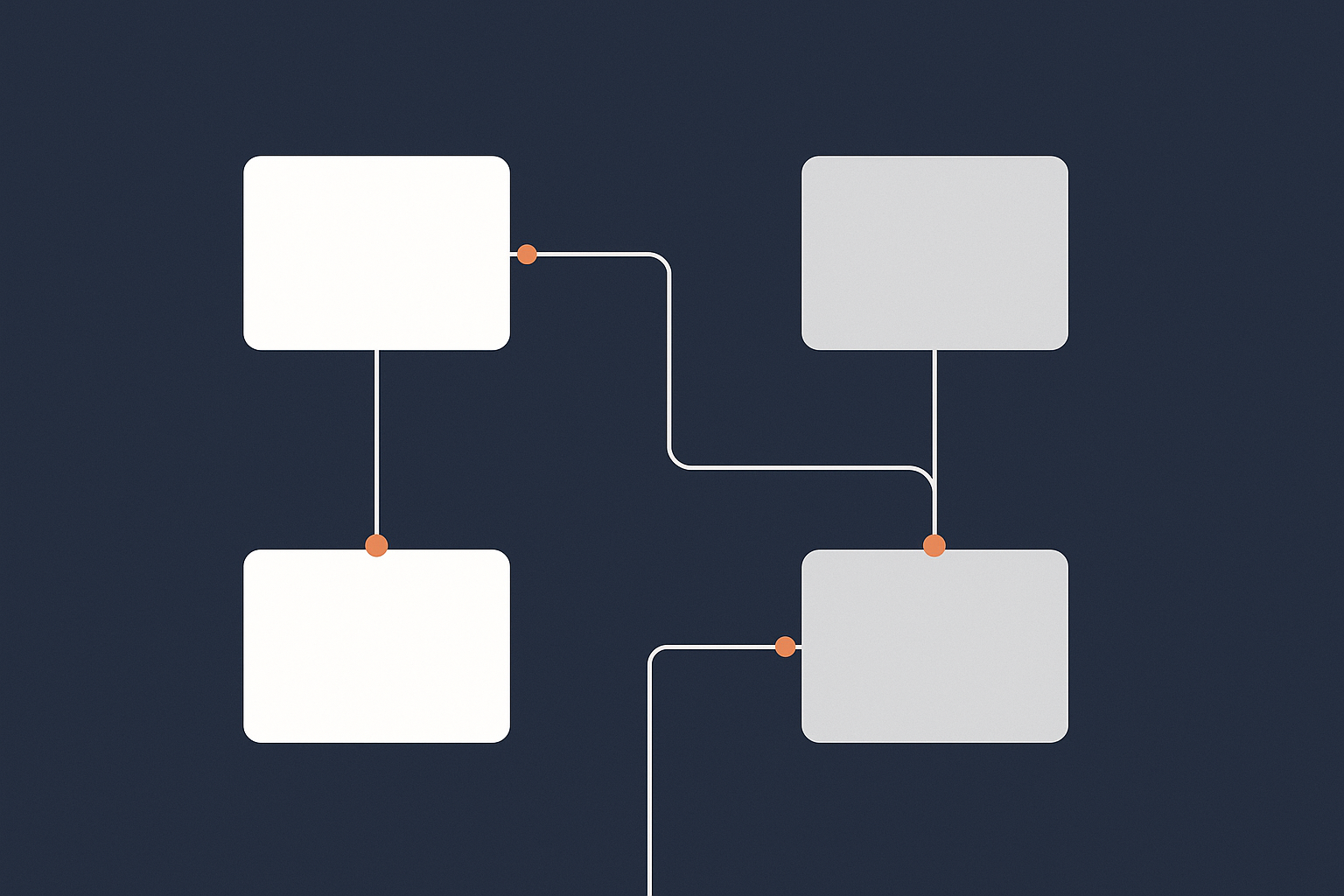
WordPress stores almost everything in a small set of core tables:
wp_posts: Holds posts, pages, products, orders (as custom post types), and their revisions and autosaves.wp_postmeta: Stores extra data about those posts, such as product prices, order totals, SEO settings and custom fields.wp_options: Site-wide settings, plugin options, transients (temporary cached values) and sometimes plugin logs.wp_commentsandwp_commentmeta: Comments, reviews and notes, including some WooCommerce order notes.
These tables grow over time as you add content, orders and plugins. The aim is not to make them tiny, but to keep them healthy and free of junk.
How posts, revisions and autosaves pile up over time
Every time someone edits a post or page, WordPress can create a new revision. Autosaves are created in the background while editing. On collaborative or content-heavy sites, this can easily lead to hundreds of revisions per item.
You might have:
- A product edited weekly for two years with dozens of unused revisions.
- Landing pages that went through many draft versions but only one final version is ever used.
- Old blog posts that have not changed in years but still have long revision histories.
These revisions all sit in wp_posts and can bloat related indexes and queries.
Where logs and transient data usually hide
Plugins often store temporary or diagnostic data in:
wp_options: Transients, cache entries, session data and feature flags.- Plugin-specific tables such as
wp_woocommerce_log,wp_actionscheduler_actions, or security plugin log tables. - WooCommerce order and webhook logs, which can grow quickly on active shops.
Most of this data is designed to be temporary, but if retention is not configured it can hang around for years and slow down lookups in your largest tables.
Step 1: Clean Up Old Post Revisions and Autosaves Safely
Decide how much history you actually need
Different sites have different needs:
- Small brochure sites: Often safe with only a few revisions per page, or even none for static pages.
- Blogs and content sites: May want to keep the last 5 to 10 revisions per post, especially for editorial workflows.
- Busy shops and membership sites: Product and page revisions matter less than order and user data, but you may still want a light revision history.
Write down a simple rule such as: “Keep the last 5 revisions per post and remove anything older than 6 months”. Many clean-up plugins let you apply this kind of rule.
Using a trusted plugin to remove excess revisions (without touching live content)
The safest way to clean revisions for most site owners is with a well supported optimisation plugin. Look for:
- Good recent reviews and active development.
- Clear options for “post revisions” separate from other data.
- Dry-run or preview counts before actually deleting.
Typical workflow:
- Install and activate the plugin on staging first.
- Configure it to target only post revisions and autosaves.
- Set a limit such as “keep last 5 revisions” or “delete revisions older than 180 days”.
- Run the clean-up and review that your live posts and pages remain intact.
A plugin is simply issuing database queries for you, but it is less error-prone than writing DELETE statements by hand.
Limit future revisions so the problem does not come back
Once you have cleared the excess, limit future growth. You can do this either in wp-config.php or via your optimisation plugin’s settings.
To cap revisions via configuration, add a line like this to wp-config.php above the “That is all, stop editing!” comment:
define( 'WP_POST_REVISIONS', 10 );
This keeps the last 10 revisions for each post or page. Avoid setting this to false or 0 on collaborative sites, because revisions are valuable for recovering from editing mistakes.
Step 2: Tidy Up Expired Transients and Plugin Logs
What transients are and why millions of them slow things down
Transients are temporary cached values stored by WordPress and plugins. They are meant to speed things up by avoiding repeated expensive operations such as API calls or complex queries.
On many sites, transients are stored in wp_options. Over time you can end up with hundreds of thousands of rows, many of which are expired. When wp_options grows too large, every page load and admin action that touches it can slow down.
Clearing expired transients the safe way
Most managed hosting environments allow one of three safe methods:
- Optimisation plugin: Good tools have a “remove expired transients” option. This deletes only those with an expiry in the past.
- WP CLI: If your host provides SSH and WP CLI, you can run
wp transient delete-expiredand optionallywp transient delete --allfor a full reset. - Host tools: Some hosts expose safe clean-up buttons in their control panel that target transients and sessions.
Avoid manually running wide DELETE queries in wp_options unless you know exactly what you are doing. It is easy to remove vital settings by accident.
Reviewing plugin-specific logs and audit trails
Next, check plugins that are known to store logs:
- WooCommerce: System status > Logs for status logs and webhook logs.
- Security plugins: Events, firewall hits, login attempts and file change logs.
- Analytics and marketing tools: Click tracking, email logs, form submission logs.
Each usually has a settings page where you can adjust retention, for example “keep logs for 30 days”. Reduce the retention to something sensible for your business and manually clear existing logs from within the plugin interface.
Step 3: Deal With WooCommerce and High Volume Logs (If You Run a Shop)
Which WooCommerce tables you must never bulk-delete
On a shop, do not bulk-delete or truncate tables that hold real business data, such as:
- Orders and order meta (stored in
wp_posts,wp_postmetaand related order tables). - Customers, subscriptions and coupons.
- Product data and product meta.
Avoid any generic “optimise” tool or SQL statement that claims to “clean” WooCommerce by truncating tables without clearly describing what is being removed. If you are unsure, ask your host for a second opinion.
For a detailed WooCommerce specific view, you can also see our guide Keeping WooCommerce Order Data Safe and Fast.
WooCommerce logs you can safely rotate or trim
There are areas you can clean more aggressively:
- Status and error logs: Rotate or delete old logs from WooCommerce > Status > Logs.
- Action Scheduler tables: Used for background tasks. Failed or completed actions can be pruned periodically using WooCommerce’s own tools or scheduled clean-up.
- Webhook delivery logs: Often safe to clear once integrations are stable.
Always use WooCommerce’s own interfaces or a well documented plugin before going near the database directly.
How a managed host can help with heavy WooCommerce databases
On managed WooCommerce hosting, support teams are used to dealing with large order tables and slow reports. They can help with:
- Checking for missing or inefficient indexes on key tables.
- Reviewing slow query logs for expensive WooCommerce queries.
- Advising on whether you have reached the limits of your current plan.
Providers that offer specialised WooCommerce hosting will often have tuned database configurations and query caching specifically for order-heavy workloads.
Optional: Using Your Managed Host’s Tools for Database Optimisation
What “optimise table” actually does
Most database tools and some hosting panels offer an “optimise table” option. In plain terms this:
- Reclaims unused space caused by lots of deletes and updates.
- Defragments data and indexes so scans are more efficient.
- In some cases, updates table statistics that the database uses for query planning.
It does not delete data or magically fix structural problems, but on tables that have recently had large amounts of data removed it can give a small performance and size improvement.
When it is safe to run optimisation from a control panel
Guidelines:
- Prefer to run table optimisation after you have already cleaned revisions and logs.
- Choose off-peak times when traffic and order volume are low.
- On small to mid-sized databases, running “optimise” on all tables is usually fine after a backup.
- On very large stores, focus only on the worst affected tables and speak to support first.
Some managed platforms will expose a safe “optimise database” command that runs with conservative settings. If in doubt, open a ticket and ask whether it is appropriate for your site size.
Why you should not rely on constant “repair” buttons
“Repair table” functions are there for emergencies such as corruption, not as routine maintenance. If you regularly see messages telling you to repair tables, or your host keeps fixing table errors, there is a deeper problem to diagnose such as:
- Underlying hardware or storage issues on the server.
- A misbehaving plugin writing malformed data.
- Sudden power loss or full disk situations.
In these cases, involve your host before repeatedly pressing repair. Constant repairs without root cause analysis are a warning sign, not a solution.
How Database Clean Up Affects Speed, Resource Usage and Uptime
Faster queries and a more responsive WordPress admin
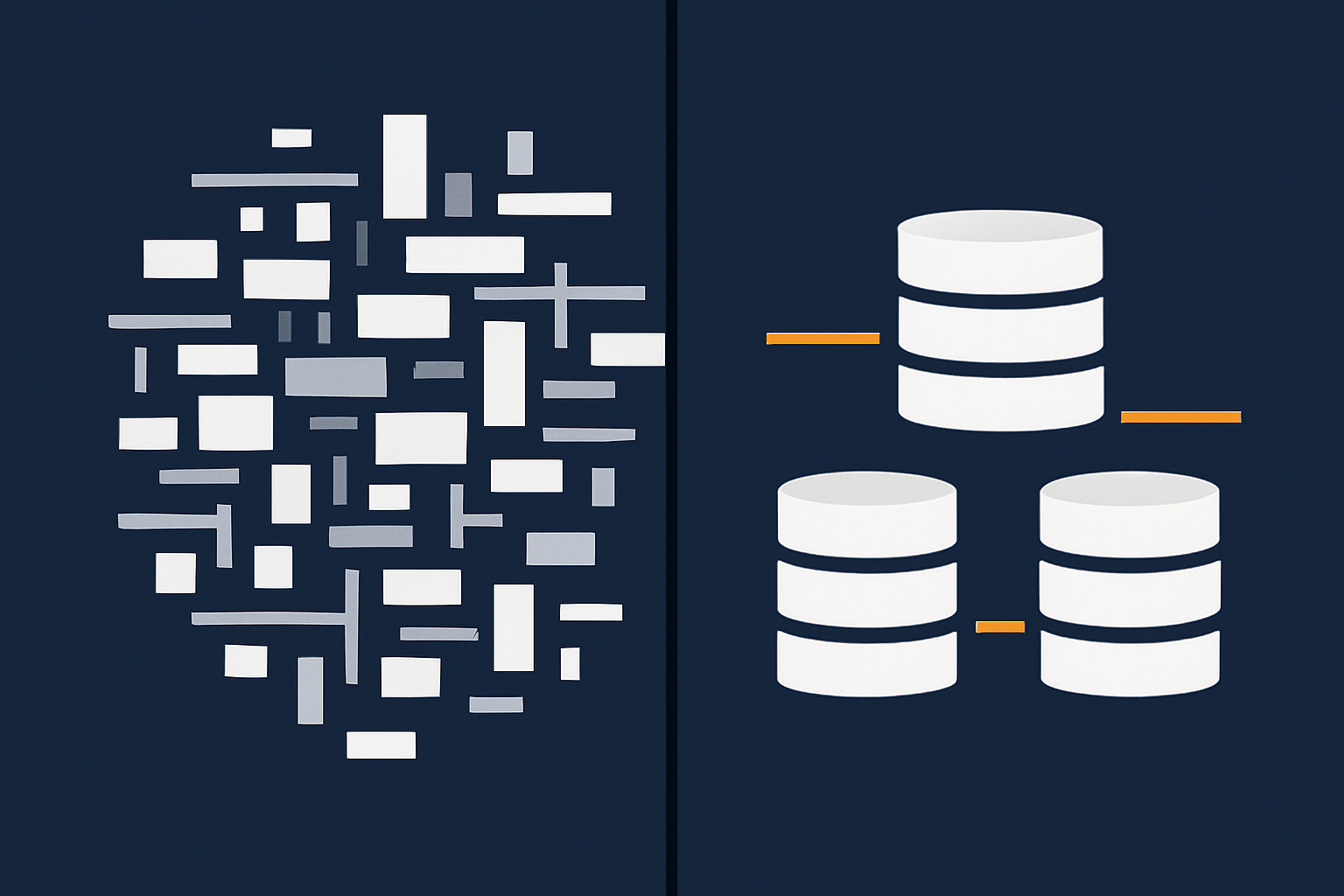
When your tables and indexes are smaller and cleaner:
- Admin lists such as posts, orders and products need to scan fewer rows.
- Searches and filters complete more quickly.
- Bulk operations such as changing order status or updating product prices run with less locking.
If your WordPress admin feels noticeably slower than the front end, it is often related to database load; our piece on Why Your WordPress Admin Is Slower Than the Front End explores this in more depth.
Lower CPU, RAM and disk I/O on your managed hosting plan
Every wasted query consumes CPU, memory and disk input/output. On a managed plan this can show up as:
- High MySQL CPU during simple admin actions.
- Spikes in disk I/O when backups or reports run.
- Resource graphs showing consistently high baseline load.
By trimming revisions, transients and logs you often reduce load enough to delay or avoid a hosting upgrade. Tidier tables mean less data to scan, cache and back up, which benefits both speed and stability.
Why you still need good caching and bot protection
Database clean-up helps, but it does not stop bots, scrapers and brute force attempts from hitting your site. You still need solid caching and protection at the edge so every anonymous page view is not fetching fresh data from the database.
Network-level systems such as the G7 Acceleration Network combine server-side caching with bot filtering to keep most abusive and non-human traffic away from PHP and the database. By blocking this traffic before it reaches your site, they reduce wasted server load and keep response times steadier during busy periods.
Build a Simple Ongoing Database Maintenance Routine
Monthly or quarterly tasks you can safely repeat
A light routine helps keep things under control:
- Every month or quarter:
- Run a revisions clean-up with your chosen plugin.
- Clear expired transients and plugin caches.
- Review plugin log sizes and trim or rotate as needed.
- Optionally run table optimisation during a quiet window.
- Twice a year:
- Review plugins that add heavy logging or analytics.
- Confirm backup and restore procedures still work as expected.
You can fit this into a broader maintenance schedule such as the one discussed in our guide on keeping a WordPress site fast over time.
What to automate on managed hosting (and what to leave manual)
Automation is helpful within limits:
- Good to automate: Scheduled clean-up of expired transients, capped revisions, and regular pruning of WooCommerce background task logs.
- Keep manual: Large structural changes, deleting plugin tables, and anything that might affect orders or user data.
Use plugin schedulers or cron jobs conservatively. Automation should handle repetitive, low risk tasks, not replacements for occasional human checks.
When to ask your managed host to step in
Contact your host if you notice:
- Constant high CPU or I/O even after clean-up.
- Single tables several gigabytes in size that you do not fully understand.
- Frequent lockups, deadlocks or “too many connections” errors.
Specialist providers offering strong web hosting performance features can often look at query logs, indexing and caching in ways that are hard to do from inside WordPress alone.
If You Are Already Hitting Limits: When Database Clean Up Is Not Enough
Signs you may need more resources or a different hosting model
There comes a point where growth simply outpaces your current plan. Signs include:
- Very large catalogues or membership lists, with hundreds of thousands of records.
- High order volumes where reports, exports or bulk actions regularly time out.
- Regular 502/504 errors during campaigns even after optimisation and caching.
In those cases your host may recommend a larger plan, a VPS / VDS, or an enterprise setup with more RAM, CPU and dedicated database resources.
How to talk to your provider about slow queries and capacity
When you approach support, share practical information:
- Which areas are slow (e.g. “Orders list in admin”, “Product search”, “Checkout”).
- Typical and peak traffic levels, including campaign periods.
- Rough database size and any particularly large tables you can see.
- Recent changes such as new plugins or marketing integrations.
This gives them enough context to distinguish between code-level issues and genuine capacity limits.
Next steps if you decide to move host
If you choose to migrate, a clean, well maintained database makes the move safer and quicker:
- Backups and restores run faster with fewer errors.
- There is less historical junk to transfer and debug.
- Testing on the new platform is easier because you are not masking issues with bloat.
Managed WordPress hosting with G7Cloud and similar providers is designed to reduce this operational friction by combining tuned databases, caching, and tools such as staging and on-demand backups in one place.
Summary: Safe Database Optimisation Without Breaking Your Site
Key do’s and don’ts in one place
- Do make sure you have recent, restorable backups and preferably a staging site.
- Do use trusted tools to clear old revisions, expired transients and plugin logs.
- Do limit future revisions and log retention so bloat does not build up again.
- Do involve your managed host when dealing with very large or mysterious tables.
- Do not truncate or bulk-delete WooCommerce order or customer tables.
- Do not rely on constant “repair” actions instead of finding root causes.
- Do not assume database clean-up replaces good caching and bot protection.
Where database care fits into long term WordPress performance
Looking after your database is one piece of a broader performance picture that also includes code quality, caching layers, network optimisation and security. Done thoughtfully, it can make your admin smoother, improve stability under load and reduce hosting costs over time.
If you are tired of firefighting performance problems and would prefer a calmer setup with staging, backups and server-level optimisation built in, exploring managed WordPress hosting or the G7 Acceleration Network for caching, bot protection and security headers can be a practical next step. Even if you stay where you are, the routine in this guide will help keep your WordPress database in good shape for the long run.