

Why Core Web Vitals Matter for UK WordPress Sites
What Core Web Vitals actually are in plain English
Core Web Vitals are a small set of speed and usability metrics that Google uses to judge how “pleasant” your site feels for real visitors.
They are less about raw technical speed and more about whether people can see and use your pages quickly and without frustration. In simple terms they answer three questions:
- How fast does the main content appear? (Largest Contentful Paint, or LCP)
- How quickly do pages react when you click or tap? (Interaction to Next Paint, or INP)
- Does the page jump around as it loads? (Cumulative Layout Shift, or CLS)
If these feel good to your visitors, Google is more likely to treat your site as high quality. If they feel slow or jumpy, your rankings and conversions can suffer, even if the design looks good.
How Core Web Vitals affect SEO, conversions and trust
Core Web Vitals are part of Google’s ranking systems. They will not magically put you at the top for competitive keywords, but they can influence:
- Search visibility: When content quality is similar, the site that feels faster and smoother usually has an edge.
- Conversions: Faster pages tend to mean more enquiries, more completed checkout sessions and fewer abandoned forms.
- Perceived professionalism: A site that loads in pieces, freezes after clicks or shifts elements around can feel unreliable, which undermines trust.
For a UK business, especially if you rely on local search, small percentage differences in conversion can be the difference between “just about OK” and “comfortably profitable”. Core Web Vitals are one of the more straightforward levers you can pull.
What is different for UK businesses (local audiences, UK hosting, regulations)
UK sites serving mainly UK visitors have some particular considerations:
- Location: If your WordPress hosting is in the US or mainland Europe, UK visitors have higher latency. Even with good optimisation, that extra distance adds delay to LCP and INP.
- Regulation and consent: Cookie consent, analytics and advertising scripts can all hurt Web Vitals if added carelessly. UK and EU privacy expectations often mean more scripts, so they need to be managed properly.
- Local competition: If your competitors’ sites are slow or dated, a well‑optimised site can give you a visible edge in both rankings and perceived quality.
Using managed WordPress hosting for UK businesses with servers in UK data centres helps keep latency down so your Core Web Vitals reflect actual performance, not geographical distance.
The Three Main Core Web Vitals Explained Simply

Largest Contentful Paint (LCP): how fast the main content appears
LCP measures how long it takes for the largest “meaningful” element above the fold to appear. In real life this is often:
- The big hero image or banner at the top of your home page
- The main product image on a product page
- A large heading and text block on a service page
Google’s current thresholds:
- Good: ≤ 2.5 seconds
- Needs improvement: 2.5 to 4 seconds
- Poor: > 4 seconds
Typical WordPress issues that hurt LCP include oversized hero images, slow hosting, and heavy page builders that need lots of CSS and JavaScript before anything can render.
Interaction to Next Paint (INP): how quickly the site reacts to clicks and taps
INP replaces the older “First Input Delay” metric. It looks at all the interactions a user makes on a page and takes the slowest one, then asks: how long did it take for the page to visually respond?
Google’s thresholds for INP:
- Good: ≤ 200 milliseconds
- Needs improvement: 200 to 500 milliseconds
- Poor: > 500 milliseconds
On WordPress and WooCommerce, poor INP usually shows up when:
- Menus feel sticky or slow to open
- “Add to basket” or filter buttons pause before anything happens
- Mobile navigation lags after each tap
Too much JavaScript, slow third‑party scripts and an overloaded server are common causes.
Cumulative Layout Shift (CLS): stopping pages jumping about while loading
CLS measures how much visible page content moves around as the page loads. Visitors experience this when:
- A heading is pushed down by an image that appears late
- A popup or banner appears and shunts everything down the screen
- Fonts change after a second, nudging text and buttons
Google’s thresholds for CLS:
- Good: ≤ 0.1
- Needs improvement: 0.1 to 0.25
- Poor: > 0.25
Fixing CLS is often about giving the browser enough information up front: image dimensions, reserved space for banners, careful handling of fonts and avoiding intrusive popups.
Other useful metrics that are worth watching (TTFB, Speed Index, etc.)
Core Web Vitals are not the full picture. A few other metrics in tools like PageSpeed Insights are worth understanding:
- Time to First Byte (TTFB): How long the server takes to start responding. Strong indicator of hosting quality and caching.
- Speed Index: How quickly the visible parts of the page come into view.
- Total Blocking Time (TBT): Measures JavaScript “blocking” time in lab tests, closely related to INP.
If TTFB is weak, no amount of front‑end tweaking will completely fix LCP and INP. Hosting, caching and database performance matter as much as theme choice.
How to Measure Core Web Vitals for Your WordPress Site
The difference between lab tests and real‑world field data
Most tools show two types of data:
- Lab data: A synthetic test on a single device and network profile, run on demand.
- Field data: Real‑world measurements collected from visitors using Chrome (the Chrome User Experience Report, or CrUX).
Lab data is useful for debugging because you can run it repeatedly while you experiment. Field data is what Google uses for rankings and what appears in Search Console’s Core Web Vitals report.
If lab and field numbers differ, trust the field data, then use lab tests to understand where the problems are.
Using PageSpeed Insights and the Chrome UX report without getting lost
PageSpeed Insights is the simplest place to start. Enter a URL, and if your site has enough traffic you will see:
- A summary of field data for that URL (and the origin) over the last 28 days
- Lab test results for that specific page load
- Suggestions grouped under “Opportunities” and “Diagnostics”
For non‑developers, focus on:
- The Core Web Vitals summary at the top (field data)
- LCP, INP and CLS values in both field and lab sections
- High‑impact recommendations like “Reduce unused JavaScript” or “Serve images in next‑gen formats”
A more detailed walk‑through of practical tool usage and interpreting metrics is available in the guide How to Diagnose Slow WordPress Performance Using Real Tools and Metrics.
Setting up simple ongoing monitoring (Search Console and basic reports)
Once your site is verified in Google Search Console, use the “Core Web Vitals” report under “Experience”:
- Group URLs by status (“Poor”, “Needs improvement”, “Good”)
- See which metric is causing problems (LCP, INP or CLS)
- Track changes over time as you make improvements
For a simple routine:
- Check the Core Web Vitals report monthly.
- Focus on pages with the most impressions (Google shows this in the report).
- Use PageSpeed Insights to investigate those URLs in more detail.
What “good”, “needs improvement” and “poor” actually look like
For quick reference:
- LCP: good ≤ 2.5 s, needs improvement 2.5–4 s, poor > 4 s
- INP: good ≤ 200 ms, needs improvement 200–500 ms, poor > 500 ms
- CLS: good ≤ 0.1, needs improvement 0.1–0.25, poor > 0.25
Do not obsess over a single test result. Field data is expressed as “percentage of visits that are good”. Aim for at least 75 percent of visits in the “good” bucket for each metric.
Quick Wins: Non‑Technical Fixes That Often Help Core Web Vitals
Clean up heavy themes, page builders and unused plugins
Many UK business sites use multipurpose themes and visual page builders. They are flexible, but often ship with far more features than you use, which increases page weight and JavaScript.
Practical steps without touching code:
- Remove unused themes. Keep your active theme and maybe one default WordPress theme as a fallback.
- Audit plugins. Disable and delete plugins you no longer use, especially sliders, fancy galleries and visual effects.
- Replace multi‑function plugins with lighter alternatives when possible.
Every plugin removed is less code for the browser to load and less work for your server.
Tidy third‑party scripts: analytics, chat widgets, tracking tags
Analytics, heatmaps, chat widgets and advertising tags can quietly ruin INP and LCP if they block the main thread or load large external files.
Consider:
- Removing tools you no longer act on. Historical heatmap scripts left running “just in case” are common culprits.
- Ensuring consent popups really block non‑essential tracking until accepted.
- Loading heavy scripts after the main content appears, rather than at the very top.
Reduce bloated pages: sliders, popups and auto‑playing media
Rotating sliders, embedded videos and auto‑playing backgrounds all add weight and visual instability.
Simple wins:
- Replace sliders with a single well‑chosen hero image and clear message.
- Turn off auto‑play on background videos or move them further down the page.
- Use popups sparingly and avoid layouts that push content down when they appear.
Image basics: sizes, formats and compression that non‑developers can handle
Images are usually the biggest files on a page. Even without touching code you can:
- Upload images at sensible dimensions (for example, 1600px wide for full‑width banners, 800–1000px for content images).
- Use compressed JPEG or WebP rather than huge PNGs for photos.
- Avoid uploading images straight from a phone at 4000px+ wide.
Some hosts and plugins will optimise images automatically. With the G7 Acceleration Network, images are converted on the fly to modern AVIF and WebP formats and typically shrink by over 60 percent while keeping quality suitable for real business sites, all without extra plugins or changes inside WordPress.
How a good hosting foundation and caching can lift your scores overnight
Even modest WordPress sites benefit from server‑side caching and fast storage. When a page is cached, the server can respond in milliseconds instead of running PHP and MySQL for every visit.
On the hosting side, look for:
- Built‑in full‑page caching.
- Object caching for database queries, especially for WooCommerce.
- Servers located in the UK for UK‑focused sites.
Using web hosting performance features that include caching and UK‑based infrastructure can often improve TTFB and LCP without changing your theme at all.
Improving LCP on WordPress Without Writing Code
Identify the LCP element on key pages (home, product, service, blog)
To fix LCP, you need to know what element the browser considers “largest”. In Chrome:
- Open your page, right‑click and choose “Inspect”.
- Go to the “Performance” tab, record a load, and look for the “LCP” marker.
- Hover over the marker to see which element it is.
Common examples by page type:
- Home page: hero image or large heading block.
- Product page: main product image.
- Service page: banner image or large intro section.
- Blog post: featured image or the main article heading.
Lighten the LCP element: images, hero sections and banners
Once you know the LCP element, focus on making that specific element faster:
- Reduce the image’s pixel dimensions to what is actually displayed.
- Compress the image more aggressively; most visitors will not notice the difference.
- Avoid placing big carousels or video backgrounds in the LCP position.
If your host provides automatic image optimisation through something like the G7 Acceleration Network, it will convert heavy hero and product images into AVIF and WebP on the fly, often cutting file sizes by more than half and directly improving LCP.
Use proper caching and a CDN to get content closer to visitors
Where full‑page caching helps and where WooCommerce needs dynamic rules
Full‑page caching stores the final HTML for pages so that repeat visitors (and even first‑time visitors after the first cache fill) get a pre‑built page.
On typical brochure and blog pages, this is straightforward: cache everything for a period, clear the cache when you update content.
WooCommerce is trickier:
- Product listing and product detail pages can often be cached for anonymous visitors.
- Basket, checkout and “My Account” pages must stay dynamic to show correct user data.
Good WooCommerce‑aware caching rules will exclude basket and checkout URLs from full‑page caching while still caching category and product pages to help LCP.
How G7 Acceleration Network handles page caching and bad bots automatically
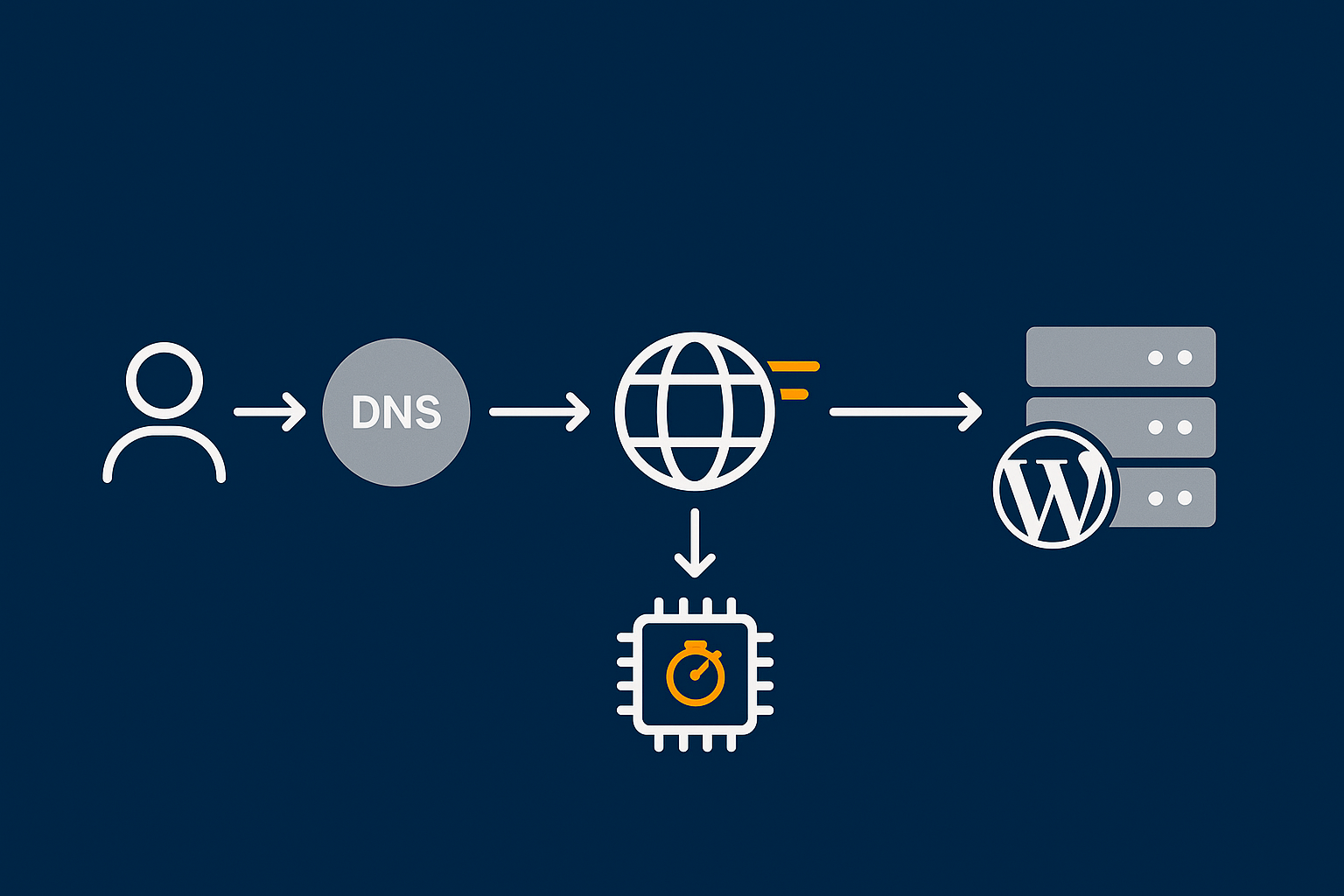
An acceleration layer such as the G7 Acceleration Network sits in front of your WordPress site, caching pages geographically closer to visitors and serving them without waking up PHP each time. It can apply WooCommerce‑safe rules by default, so product pages are cached while carts and checkout are kept dynamic.
In addition, G7Cloud’s bot protection within the G7 Acceleration Network filters abusive and non‑human traffic before it hits PHP or the database, which reduces wasted server load and makes LCP more consistent during busy periods.
Hosting decisions that affect LCP: PHP version, database speed and UK location
Backend speed directly influences TTFB and therefore LCP. Key factors include:
- PHP version: Newer PHP versions are significantly faster for WordPress. Many sites are still stuck on old versions for compatibility reasons. If your host allows it, test upgrading on a staging site. For background, see Understanding PHP Versions and Why They Matter for WordPress.
- Database performance: Slow MySQL queries delay page generation, particularly for WooCommerce and membership sites.
- Server location: For UK audiences, choose UK data centres so each request has less physical distance to travel.
Moving to managed WordPress hosting for UK businesses that actively keeps PHP current and optimises databases can shift LCP from “needs improvement” to “good” even before front‑end tweaks.
Improving INP: Making Your WordPress Site Feel Instantly Responsive
Common INP killers on WordPress and WooCommerce (menus, filters, add to cart)
Poor INP usually shows up in real interactions:
- Mobile menus that pause before opening.
- Product filters that freeze the page while results update.
- “Add to basket” buttons that delay before updating icons or mini‑baskets.
These often come from heavy JavaScript in themes, page builders and WooCommerce add‑ons.
Reducing JavaScript bloat from themes, page builders and plugins
Without writing code you can still reduce JavaScript weight:
- Disable theme features you do not use (animations, counters, sliders) in the theme options.
- Replace multi‑purpose page sections built in a visual builder with simpler blocks where possible.
- Review plugin settings to turn off front‑end scripts you do not need on every page.
If your performance plugin offers “defer JavaScript” or “delay non‑critical scripts”, enable these cautiously and test key user actions (menus, forms, basket operations) after each change.
Taming third‑party scripts: consent, delaying and deferring safely
Third‑party scripts can block the main thread, which worsens INP. Practical steps:
- Use a consent tool that only loads non‑essential scripts after consent.
- Load bulky marketing scripts (for example, LinkedIn Insight Tag) after the main content and navigation.
- If possible, configure analytics in “minimal” or “basic” mode to reduce payloads.
Always re‑test key conversions after adjusting these scripts to ensure nothing critical breaks.
Server‑side performance and INP: why a busy server makes every click feel slow
INP is not only about front‑end code. When an action needs data from the server (for example, updating basket contents, loading new search results), server delays count towards the interaction time.
Symptoms of server‑side INP issues include:
- Fast initial page loads but slow subsequent interactions under load.
- Responsive browsing during quiet times, sluggish during peak hours.
Here, stronger hosting, proper database indexing and caching are as important as front‑end optimisations. G7Cloud’s bot protection within the G7 Acceleration Network helps by keeping abusive crawlers away from PHP, which leaves capacity for genuine user interactions so clicks stay responsive even during traffic spikes.
Reducing CLS: Stopping Layout Shift on WordPress Pages
Fixing image and video layout shift with correct sizing
Most image‑related CLS issues occur because the browser does not know how much space an image will need until it has downloaded it.
To reduce CLS from media:
- Ensure your theme or page builder sets width and height attributes for images.
- Avoid inserting very tall banners without defined height on mobile.
- For embedded videos, use blocks or plugins that reserve space (a fixed aspect ratio) before the video loads.
Dealing with fonts and icon sets that jump when they load
Web fonts can cause text to render in a default font, then “jump” when the custom font loads.
Non‑developer‑friendly steps:
- Limit the number of different font families and weights.
- Prefer system fonts for body text where brand guidelines allow.
- In your performance or typography plugin/theme settings, look for an option like “swap” or “fallback” to control font loading behaviour.
Adverts, popups and banners that move content around
Marketing elements that appear after the initial load are frequent CLS offenders:
- Cookie banners that push content down instead of overlaying.
- Top or bottom bars that appear with no reserved space.
- Inline adverts in blog content that are injected after load.
Whenever possible, choose tools that overlay without changing the document flow, or reserve the required space from the beginning.
Common WordPress design patterns that quietly hurt CLS
Patterns to watch for:
- “Load more” sections that reflow the entire page instead of appending neatly.
- Accordions or tabs that expand and collapse large blocks of content, especially near key calls to action.
- Social proof widgets that insert testimonials or logos at the top of existing content.
Where possible, place dynamic elements away from critical buttons and forms so any movement does not disrupt user actions.
Images and Media: The Biggest, Easiest Core Web Vitals Opportunity

Choosing the right image dimensions for common WordPress layouts
Rough guidelines that work for many modern themes:
- Full‑width hero banners: 1600–2000px wide.
- Content images in blog posts: 800–1200px wide.
- Product images: match your theme’s product image width setting; often 800–1200px.
Uploading much larger images than needed wastes bandwidth without adding visible quality for most users.
Modern formats in practice: WebP and AVIF for WordPress site owners
WebP and AVIF are newer image formats that offer much smaller file sizes than JPEG and PNG for the same perceived quality.
For non‑developers, the easiest approach is automation:
- Use a plugin or hosting feature that converts uploaded images to WebP or AVIF automatically.
- Keep original files in case you ever change workflow, but serve modern formats to visitors.
On hosting that includes the G7 Acceleration Network, images are converted on the fly to AVIF and WebP without extra plugins or manual work, often reducing image sizes by more than 60 percent while maintaining a quality level suitable for real UK business sites.
Lazy loading images and video without breaking SEO or UX
Lazy loading means delaying images and videos that are off‑screen until the visitor scrolls towards them. WordPress now supports lazy loading out of the box.
Sensible defaults:
- Allow lazy loading for most images below the fold.
- Do not lazy load your LCP image (hero or main product image) if your performance tool flags it as critical.
- For video, use a “click to play” thumbnail rather than loading the full player immediately.
How the G7 Acceleration Network optimises images automatically for Core Web Vitals
A network layer such as the G7 Acceleration Network sits between visitors and your origin server, handling image conversion, compression and caching. For UK businesses this means heavy JPEGs and PNGs are transparently served as optimised AVIF/WebP versions from edge locations, cutting page weight and improving LCP without needing extra image optimisation plugins or manual workflows.
When The Problem Is Your Hosting, Not Your Theme
Symptoms that point to hosting limits: TTFB, timeouts and traffic spikes
Some issues are hard to fix with front‑end tweaks because the real problem is under the bonnet:
- High TTFB (> 800ms) on every test, regardless of page.
- Regular brief outages or “504 Gateway Timeout” errors.
- Sites that are fine during quiet times but crawl during campaigns or seasonal peaks.
If you see these symptoms even after cleaning up plugins and images, it is worth questioning whether your hosting platform is holding you back.
Shared vs VPS vs managed WordPress: what actually changes for Core Web Vitals
In brief:
- Cheap shared hosting: Many sites compete for the same resources. Performance can vary wildly, and you usually manage everything yourself.
- VPS: More dedicated resources, but you or your team must configure and maintain the server.
- Managed WordPress hosting: The provider tunes the stack (PHP, database, caching) specifically for WordPress and often handles updates, security and backups.
From a Core Web Vitals perspective, moving from crowded shared hosting to well‑configured managed WordPress hosting for UK businesses often brings immediate improvements in TTFB, LCP and INP consistency.
For more context on infrastructure choices, see Shared, VPS or Dedicated Hosting: How to Choose the Right Foundation for Your Business.
Handling peaks in WooCommerce traffic without wrecking Web Vitals
Ecommerce peaks such as Black Friday or local campaigns can expose weak hosting. Symptoms include:
- Product and category pages slowing down as concurrent users rise.
- Checkout pages timing out or freezing.
To keep Core Web Vitals stable under load you need:
- Robust full‑page caching for catalogue pages.
- Database and object caching for carts and accounts.
- Enough CPU and RAM headroom to handle peak PHP processes.
Specialist WooCommerce hosting is designed around these patterns, with caching rules and resource allocation that keep product browsing and checkout usable when it matters most.
How G7Cloud’s bot protection and caching keep performance stable
Not all traffic is equal. Bad bots, scrapers and aggressive crawlers can consume a surprising amount of CPU and database capacity, even if human traffic is modest.
G7Cloud’s bot protection within the G7 Acceleration Network filters abusive and non‑human traffic before it reaches WordPress, and combines this with intelligent caching. The result is more predictable response times and reduced risk of avoidable downtime or Web Vitals degradation during genuine traffic peaks.
A Practical 30‑Day Plan to Improve Core Web Vitals
Week 1: Measure, prioritise key pages and strip out obvious bloat
- Set up or review Search Console and check the Core Web Vitals report.
- List your top 10–20 pages by traffic and revenue (home, key services, top products, checkout).
- Run each through PageSpeed Insights and capture baseline LCP, INP and CLS.
- Remove unused themes and plugins; disable obvious visual clutter like sliders and auto‑playing media.
Week 2: Fix images, fonts and layout shift on your top landing pages
- Resize and recompress hero and product images on your top pages.
- Ensure lazy loading is applied sensibly and that above‑the‑fold images are treated as critical.
- Reduce the number of font families and weights; adjust font loading settings if possible.
- Fix obvious CLS issues: reserve space for banners, adjust cookie bars and popups that move content.
Week 3: Review scripts, plugins and WooCommerce interactions for INP
- Identify slow interactions (menus, filters, “add to basket”).
- Test pages by disabling non‑essential plugins temporarily to see which ones affect INP.
- Tune or remove heavy third‑party scripts; adjust consent settings so tracking only loads when necessary.
- Ensure caching rules are WooCommerce‑aware so catalogue pages benefit without breaking checkout.
If you rely heavily on WooCommerce, the guide A Simple Guide to Optimising WooCommerce Performance offers deeper, store‑specific tuning ideas that complement this week’s work.
Week 4: Re‑test, decide if hosting changes are needed and set up ongoing checks
- Re‑run PageSpeed Insights for your key pages and compare with Week 1.
- Review Search Console’s Core Web Vitals report after changes have had time to collect data.
- If TTFB remains high or performance collapses under load, evaluate whether a move to better hosting is justified.
- Set a reminder to review Web Vitals and key plugins quarterly.
This is also a good moment to consider whether moving to managed WordPress hosting for UK businesses or enabling an acceleration layer like the G7 Acceleration Network would save you ongoing effort and give you more consistent results.
When To Ask For Help (And What To Ask For)
What you can expect from a developer or performance specialist
A competent WordPress performance specialist should be able to:
- Read and interpret lab and field data clearly.
- Identify specific bottlenecks (theme, plugin, hosting, third‑party script).
- Implement targeted fixes that respect your design and business goals.
- Explain trade‑offs, such as removing or simplifying design elements.
When engaging someone, ask for a short written summary of current issues, proposed fixes and estimated impact on LCP, INP and CLS.
What a good managed WordPress host should handle for you
A good managed host is not just a place to park your site. For Core Web Vitals, they should:
- Provide modern PHP versions, tuned for WordPress.
- Include full‑page and object caching tailored to WordPress and WooCommerce.
- Offer an acceleration layer or CDN integration, preferably with automatic image optimisation.
- Monitor server‑side performance and help diagnose bottlenecks.
Providers offering managed WordPress hosting for UK businesses typically take care of these aspects, which leaves you to focus on content and marketing rather than infrastructure.
Key questions to ask any provider about Core Web Vitals support
- “How do you handle caching for WordPress and WooCommerce, and can you adjust rules for our site?”
- “Do you include any form of CDN or acceleration network, and does it optimise images automatically?”
- “How do you protect against bad bots and traffic spikes that might affect our site’s speed?”
- “Can you help us understand and act on our Core Web Vitals reports?”
Clear, practical answers here are often a better indicator of a suitable partner than raw resource specifications alone.
Summary: Focus On Real‑World Speed, Not Just Scores
The 80/20 of Core Web Vitals for busy UK business owners
You do not need to become a developer to improve Core Web Vitals meaningfully. For most UK WordPress and WooCommerce sites, the big wins come from:
- Serving optimised, sensibly sized images.
- Using caching and a solid UK‑based hosting foundation.
- Trimming unnecessary plugins, scripts and visual clutter.
- Fixing obvious layout shift from images, banners and fonts.
Once those are in place, scores often move from red or amber into green, and your site simply feels nicer to use.
How to keep your site fast as you add more content and features
Performance is not a one‑off project. As you add content and tools:
- Review new plugins and scripts carefully; ask whether they are worth the performance cost.
- Keep an eye on Search Console’s Core Web Vitals report a few times a year.
- Revisit key pages after design updates, marketing campaigns or major plugin changes.
If you prefer to keep the technical workload low, using managed WordPress hosting for UK businesses together with an acceleration layer like the G7 Acceleration Network provides a stable, performance‑focused base so you can concentrate on running your business while your site stays fast, consistent and easier for customers to use.