

Who This Guide Is For (And How It Will Help You Use Search Console Properly)
Google Search Console can feel alarming when it starts flagging red errors across your WordPress or WooCommerce site. This guide is for UK businesses that rely on organic search and want a practical way to turn those warnings into a clear list of fixes.
Typical WordPress and WooCommerce scenarios that trigger Search Console warnings
Some familiar patterns include:
- Core Web Vitals complaints after installing a heavy page builder, switching themes, or adding new sliders and popups.
- 404 and coverage errors after a redesign, changing permalinks, restructuring WooCommerce categories, or removing old content.
- Server errors and crawl issues when your hosting struggles during busy periods, plugin updates go wrong, or caching is misconfigured.
- Mixed content / HTTPS issues after moving to SSL but leaving old HTTP URLs hard-coded in menus or page builder templates.
If any of those sound familiar, the rest of this article will give you a structured way to diagnose and fix them instead of guessing.
What you will be able to do by the end: a repeatable debugging process
By the end, you should be able to:
- Read Search Console’s key reports and know which ones matter for WordPress.
- Distinguish between one-off glitches and real issues that affect rankings and users.
- Trace Core Web Vitals problems through to specific templates, plugins, images or hosting limits.
- Fix 404s and coverage errors safely with redirects, content clean up and sitemap updates.
- Match server-side errors in Search Console to actual hosting logs and performance bottlenecks.
- Set up a simple monthly routine so Search Console stays manageable.
We will reference tools built into WordPress, browser dev tools, PageSpeed Insights, and where suitable, features such as the G7 Acceleration Network or managed WordPress hosting that can remove some of the ongoing work.
First Step: Make Sense of Search Console Reports
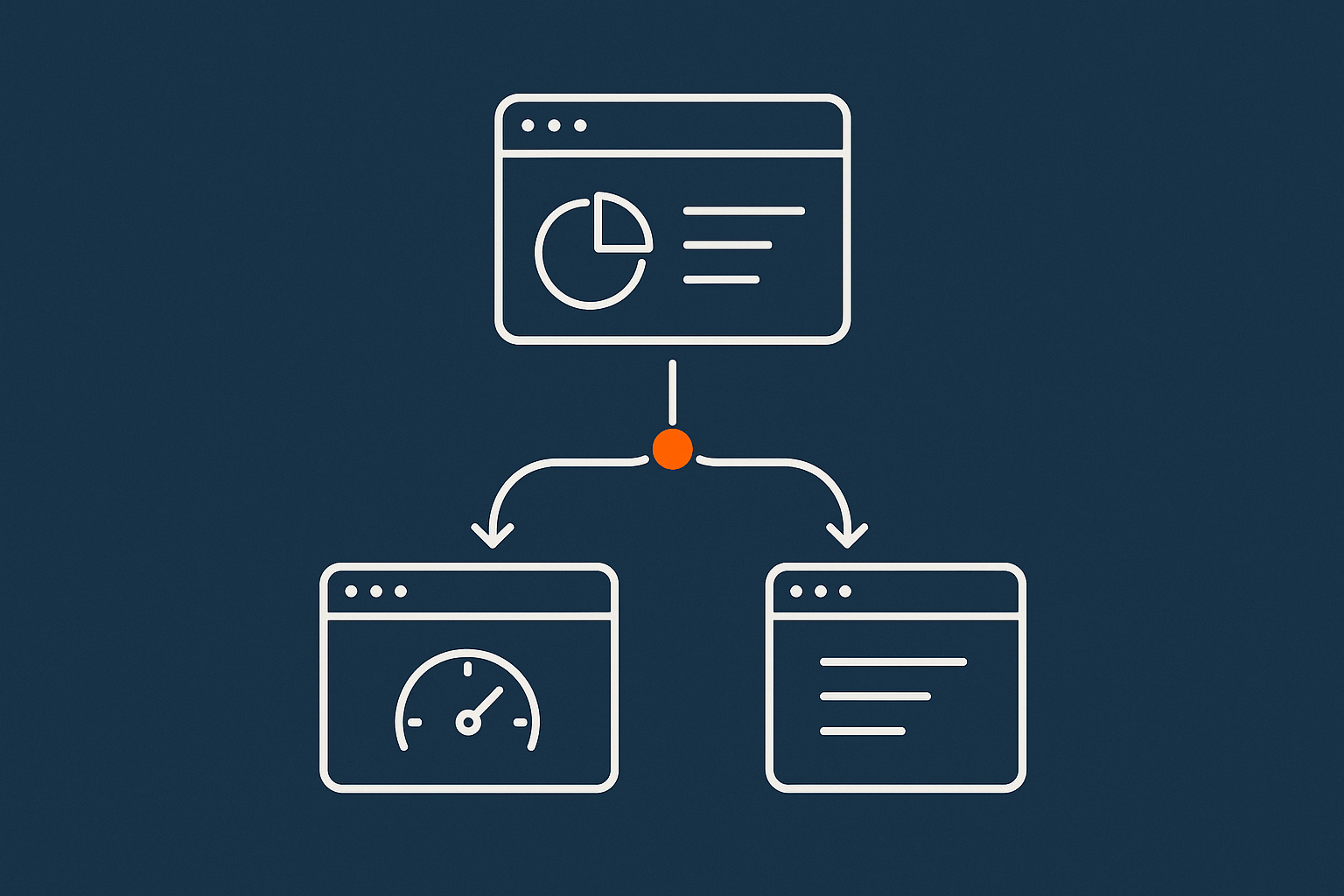
Key reports for WordPress: Pages, Experience, Enhancements and Settings
For most WordPress and WooCommerce sites, focus on four areas:
- Pages (formerly Coverage): Shows which URLs are indexed, which are excluded, and why (404s, soft 404s, redirects, canonicalised, etc.).
- Experience:
- Core Web Vitals: Real user data for LCP, CLS and INP, grouped by page type.
- Page experience: A high-level view, less important than Core Web Vitals itself.
- Enhancements: Reports on structured data like breadcrumbs, products, FAQs and sitelinks search boxes.
- Settings: Confirms your preferred domain, indexing settings and whether Search Console views match your live setup (HTTP/HTTPS, www/non-www).
Start with Pages and Core Web Vitals, as those tend to correlate directly with traffic issues.
Separating one-off glitches from real ongoing problems
Search Console often reports spikes that look worse than they are. To filter noise:
- Check the chart over time: An isolated spike that returns to normal may be maintenance or a brief outage. A gradual upward trend usually means a real issue.
- Look at example URLs: Are they all the same type of page (e.g.
/product/or/blog/)? That points to a template-level problem. - Compare with your changes log: Match spikes to plugin updates, theme changes or hosting work.
Exporting issues and prioritising by impact, not just scary wording
Search Console lets you export URL lists from each report. For a structured workflow:
- Open a report (for example, Core Web Vitals > Poor URLs).
- Click “Export” and choose Google Sheets or CSV.
- Add columns such as “Template type”, “Traffic”, “Revenue impact” and “Priority”.
- Use Analytics or WooCommerce stats to highlight URLs that matter for sales or leads.
A Core Web Vitals issue on a key product template is far more urgent than the same issue on an archive page no one uses.
Debugging WordPress Core Web Vitals Errors from Search Console
How Core Web Vitals show up in Search Console (and what LCP, CLS and INP actually mean)
Search Console groups Core Web Vitals into “Good”, “Needs improvement” and “Poor” based on real user data collected by Chrome. You will mainly see:
- LCP (Largest Contentful Paint): How long it takes the main above-the-fold content to appear. For WordPress, this is usually your hero image, a background image, or a large heading section.
- CLS (Cumulative Layout Shift): Measures how much content jumps around as the page loads. Commonly caused by images without size attributes, late-loading fonts, sticky headers or injected ads.
- INP (Interaction to Next Paint): Replaces FID and focuses on how quickly the page responds when users interact, such as clicking buttons or opening menus.
Core Web Vitals in Search Console are based on field data, not synthetic tests, so they may lag behind changes by several weeks. Use them as a trend indicator and then drill down with tools like PageSpeed Insights.
Step-by-step: Move from Search Console URLs to PageSpeed Insights and real tests
Grouping URLs by template: homepage, posts, product pages, category pages
Most WordPress sites reuse templates, so the same problem affects many URLs.
Once you export affected URLs from Search Console:
- Identify patterns such as:
/product/→ WooCommerce single product template./product-category/→ Product category archive./blog/or/category/→ Blog archive templates./→ Homepage, often a custom page builder layout.
- Pick a small number of representative URLs per template for deeper testing.
Testing with PageSpeed Insights and Lighthouse in Chrome
For each representative URL:
- Run it through PageSpeed Insights. Focus on:
- Field data (CrUX) for long-term trends.
- Lab data and the waterfall for specific issues like slow LCP or blocking scripts.
- Open Chrome DevTools (F12) and run a Lighthouse report:
- Check “Performance” and view the filmstrip, which shows what users see over time.
- Note render-blocking CSS/JS, large images and long tasks on the main thread.
- Test on a real mobile device where possible, especially for WooCommerce checkout and product filters.
For a deeper technical process aimed at business sites, you can pair this with the checklist in A Practical Core Web Vitals Checklist for WordPress Business Sites in the UK.
Common WordPress causes of Core Web Vitals issues
Heavy themes, page builders and unnecessary plugins
Many Core Web Vitals problems come from:
- Themes that load every component on every page.
- Page builders adding multiple CSS and JS files per block.
- Plugins injecting scripts site-wide, even where they are not used.
Typical symptoms include long main-thread blocking time, lots of unused CSS and JS and multiple megabytes of assets for simple pages.
Unoptimised images, sliders and hero sections
LCP is often dominated by large hero images or sliders:
- Full-width images saved at 3000+ pixels when your layout only displays 1200 pixels.
- Sliders loading 4–5 large images above the fold.
- No lazy loading for below-the-fold images.
On platforms such as G7 Acceleration Network, images are automatically converted to modern AVIF and WebP on the fly, usually cutting file sizes by more than 60 percent without visible quality loss, and this happens for every site on the platform without extra plugins or WordPress changes.
Third-party scripts: chat widgets, analytics, ad tags
Chat tools, customer review widgets, A/B testing tools and multiple analytics tags can all impact INP and LCP:
- Each extra script adds network requests and parsing time.
- Some block rendering until they are loaded.
- Misconfigured tag managers can fire many tags on every page.
Try to remove anything that is not actively used and load what remains in a non-blocking way where possible.
Slow Time to First Byte (TTFB) from weak hosting or bad caching
If TTFB is high in PageSpeed Insights (for example 800 ms or more), the bottleneck is usually server-side:
- Underpowered shared hosting, especially for busy WooCommerce sites.
- No page caching, so every request hits PHP and the database.
- Slow database queries from bloated options tables, logging plugins or heavy search and filter features.
For more detail on how to reduce TTFB at server and site level, the article Reducing WordPress Time to First Byte on UK Hosting goes into concrete configuration examples.
Practical fixes you can apply without rewriting your whole site
Quick wins in your theme and plugins
- Disable plugins you are not using, especially visual effects, sliders and marketing tools.
- Check if your theme offers a “performance” panel to disable unused features (icons sets, animations, fonts).
- Load heavy scripts only on pages where they are needed (for example, disable form or slider scripts on simple content pages).
- Inspect your header and footer template for duplicate analytics or tracking tags.
Improving images and media for LCP
- Resize hero images to realistic dimensions for your layout (often 1200–1600 px wide for desktop).
- Use responsive image sizes in WordPress by setting suitable
srcsetand selecting appropriate thumbnail sizes in Settings > Media. - Enable lazy loading for below-the-fold images via your performance or optimisation plugin.
- Replace sliders with a single static hero image where possible.
On hosting platforms that provide image optimisation at the edge, such as the G7 Acceleration Network, images are auto-converted to AVIF or WebP formats as they are served, which reduces payload significantly without requiring yet another optimisation plugin.
Using proper caching and a CDN to bring down TTFB
Effective caching usually involves multiple layers:
- Page caching: Serves full HTML from cache instead of running PHP on every request.
- Object caching: Caches database query results, useful for WooCommerce and membership sites.
- CDN: Delivers static assets like images, CSS and JS from locations closer to your visitors.
Use a lightweight caching plugin or your host’s built-in caching, and avoid running two page cache systems at once. For WooCommerce, make sure the cart, checkout and account pages are excluded from full-page cache but still benefit from object caching.
When to involve your host or developer
Bring in your host or developer when:
- You see consistent TTFB problems even on cached pages.
- Page cache appears enabled but your performance reports show no improvement.
- Complex JavaScript refactoring is required that goes beyond toggling plugin options.
- WooCommerce queries under load are causing database locks or timeouts.
Managed environments, such as managed WordPress hosting with performance support, can reduce the amount of low-level tuning you need to understand yourself.
How the G7 Acceleration Network helps with Core Web Vitals
Page caching in front of WordPress
A reverse proxy cache in front of WordPress, like the G7 Acceleration Network, stores rendered pages at the edge and serves them directly, reducing TTFB and smoothing out spikes in CPU usage during busy periods.
On-the-fly AVIF/WebP image optimisation without extra plugins
Edge networks that support on-the-fly conversion can take your existing JPG and PNG files and serve optimised AVIF or WebP versions to compatible browsers, often halving or more the image weight while keeping quality suitable for real sites, and this can usually be done without new plugins or manual media library changes.
Filtering abusive bots so load times stay predictable
Bot filtering within the G7 Acceleration Network can block abusive or non-human traffic before it ever reaches PHP or the database, which helps keep TTFB consistent for real users and prevents Core Web Vitals results from being skewed by server stress.
Finding and Fixing 404 and Coverage Errors in Search Console
Understanding 404s, soft 404s and excluded pages in the Coverage / Pages report
The Pages report in Search Console categorises URLs as:
- 404 (Not found): The URL genuinely does not exist. Often appears after content removal or URL changes.
- Soft 404: The page returns a 200 OK status but looks like a “not found” or extremely thin page. Common with custom 404 pages that still return 200.
- Excluded: URLs that Google knows about but chooses not to index, for reasons such as duplicates, canonicalised URLs, “noindex” meta tags or redirects.
Not all excluded URLs are a problem. Many are expected, such as ?add-to-cart= URLs or filtered archive pages that WooCommerce generates.
Identify the real problems: important URLs vs junk Google can safely ignore
Prioritise:
- 404s on important pages (products, categories, landing pages, key blog content).
- Soft 404s where legitimate pages are being misclassified because they are too thin or look error-like.
- Excluded pages where canonical tags or redirects are misconfigured, causing Google to index the wrong version.
Low-value URLs such as search results, filter combinations and paginated tags are often best left excluded or deliberately noindexed.
Common WordPress causes of 404s and indexation issues
Changed URLs after redesigns, page builder changes or WooCommerce restructuring
Typical causes include:
- Changing product permalinks from
/product/to/shop/without redirects. - Moving pages to new slugs during a redesign.
- Changing category hierarchies that alter the full path of product URLs.
Deleted pages, products and categories with no redirects
When you delete content in WordPress or WooCommerce, any external links or bookmarks to those URLs will return 404 unless you set a redirect. Over time this can build up a large volume of 404s in Search Console.
Incorrect permalink settings or .htaccess rules
Switching permalinks (for example from plain to “post name”) or adding custom rules can cause:
- Category or tag URLs to break.
- Strange redirect chains or loops.
- Different URL versions all resolving but competing (with and without trailing slashes,
/index.php/in the path, etc.).
Plugins generating low-quality or duplicate URLs
Certain plugins create lots of extra URLs, such as:
- Calendar and event plugins generating past/future archives.
- Store filters creating indexable combinations (colour, size, price, etc.).
- Landing page builders that auto-generate test or variant URLs.
Often it is best to either noindex or block these in robots.txt if they serve no search value.
Fixing 404s safely in WordPress
When to add 301 redirects (and how to do it with plugins or server rules)
Use 301 redirects when:
- A page moved to a new URL with equivalent content.
- Products have been replaced by newer equivalents.
- You merged multiple thin pages into a stronger single page.
Practical options:
- Use a reputable redirection plugin and keep the rules tidy and documented.
- For high-traffic or large-scale migrations, use server-level redirects in
.htaccessor Nginx config to reduce overhead.
When to let a 404 remain a 404
Do not redirect everything:
- If a page is truly gone and there is no close equivalent, a 404 is correct.
- Redirecting to the homepage as a catch-all can confuse users and trigger soft 404 labels.
- Old spammy URLs, or obvious crawl noise, can be ignored.
Cleaning up old sitemaps and internal links
Once you have dealt with key 404s:
- Regenerate your XML sitemap and make sure it only lists live, canonical URLs.
- Search your site for internal links to removed pages and update or remove them.
- Check menus, footers and widgets for hard-coded links to retired content.
Validating fixes in Search Console and how long changes really take
After implementing redirects or content changes:
- Use the URL Inspection tool on a sample of fixed URLs and click “Request indexing”.
- In the relevant Pages or Core Web Vitals report, click “Validate fix” to start Google’s verification process.
- Expect a delay of days to weeks for full confirmation, depending on crawl frequency.
Validation failing does not always mean the fix is wrong, only that it was not seen across enough URLs yet. Keep an eye on the trend charts as well as the validation status.
Debugging Server Errors, Slow Responses and Crawl Issues

Which server-side problems Search Console can actually see
5xx errors (500, 502, 503, 504) during crawling
Server errors usually appear as “Server error (5xx)” or “Server error (5xx) in URL” in the Pages or Crawl stats reports. For WordPress, 5xx errors often come from:
- PHP crashes or fatal errors after plugin or theme updates.
- Gateway timeouts (502/504) when PHP or the database are overloaded.
- Temporary 503 “Service unavailable” responses during maintenance.
Slow responses and short-term outages
Even if the site does not fully error, very slow responses can show up as:
- “Crawl anomalies”.
- Spikes in “Average response time” in Crawl stats.
These usually correlate with traffic peaks, marketing campaigns, heavy cron jobs or background tasks such as imports and backups.
Crawl anomalies and misconfigured HTTPS or redirects
Misconfiguration can cause:
- Endless HTTP to HTTPS or www/non-www loops.
- Redirect chains through multiple URLs before the final destination.
- Mixed content problems where some resources still load over HTTP.
These do not always show as 5xx errors but can harm crawl efficiency and user experience.
Step-by-step: Trace Search Console errors back to your hosting or WordPress
Match timestamps with hosting logs and uptime monitors
To investigate:
- Note the date range where Search Console shows 5xx or crawl anomalies.
- Check your uptime monitoring or hosting provider’s status log for incidents at the same time.
- Look in web server logs and PHP error logs for spikes in errors or timeouts.
A structured logging setup, as covered in “Logging and Error Monitoring for WordPress and WooCommerce: A Practical Guide”, can make this much easier to trace.
Check CPU, RAM, disk and PHP worker usage on your server
Where you have access to resource graphs:
- Look for sustained CPU or RAM maxing out during the problem window.
- Check disk I/O and space, as full disks can cause write failures.
- On platforms with PHP workers, see if they are constantly at 100% utilisation.
If you are consistently hitting limits under normal traffic, it may be time to move to a higher tier, such as Virtual Dedicated Servers for busier sites.
Look for bad bots, brute-force attacks and XML sitemap floods
A large share of server load on public sites can come from non-human traffic:
- Brute-force login attempts on
/wp-login.php. - Scrapers hammering product or blog pages.
- Bots recrawling XML sitemaps excessively.
Filtering abusive and non-essential bot traffic at the edge, as done by G7Cloud’s bot protection within the G7 Acceleration Network, prevents much of this noise from reaching PHP or MySQL, which in turn helps maintain stable crawl performance for Googlebot.
Fixing the common server-side culprits
Underpowered or overcrowded shared hosting
Symptoms include:
- Performance fine at quiet times but collapsing during campaigns or sales.
- Frequent 503 errors during backup windows.
- Hosting support acknowledging contention on shared resources.
Options:
- Reduce server load via caching and optimisation first.
- Then, if problems remain, migrate to a more isolated environment such as Virtual Dedicated Servers or quality managed hosting.
Expensive plugins or WooCommerce queries under load
Plugins that do complex operations on each page load, such as advanced filters, custom search, or heavy membership logic, can cause slow queries:
- Use query monitoring tools on a staging site to detect the slowest queries.
- Consider caching parts of pages (fragments) or using object caching for frequently accessed data.
- If needed, ask a developer to optimise or replace particularly heavy components.
Broken cache configuration causing random 5xx errors
Misconfigured caching can be worse than no caching:
- Running multiple page cache plugins or mixing plugin cache with your host’s cache.
- Incorrect cache purging that invalidates pages too aggressively.
- Caching dynamic endpoints like checkout or account pages.
Review your caching setup carefully. The guide “Understanding WordPress Caching Layers: What Really Speeds Up Your Site (and What Your Host Should Handle)” explains how each layer should fit together.
Missing or broken HTTPS redirects and www/non-www loops
Set a single canonical URL pattern and stick to it:
- Decide between
https://example.comandhttps://www.example.com. - Implement a simple 301 redirect rule at the server level.
- Update WordPress Address and Site Address in Settings > General to match.
Test with curl or online redirect checkers to confirm there is only one redirect hop and no loops.
How G7Cloud’s platform helps stabilise server responses

G7 Acceleration Network bot filtering before PHP to keep load steady
The G7 Acceleration Network includes edge-level bot filtering that inspects incoming traffic and blocks abusive or clearly automated sources before requests hit PHP or MySQL. This reduces wasted CPU and helps keep response times smoother during busy periods, which in turn makes Search Console’s crawl stats more predictable.
Built-in caching, PHP tuning and database performance features
Platforms that combine caching, PHP configuration and database tuning take care of many structural performance details for you, such as opcode caching, persistent object caching and sensible PHP-FPM limits, which directly improve TTFB and reduce the risk of 5xx errors during normal use.
When a Virtual Dedicated Server or managed WordPress plan is worth considering
If you consistently see server-side failures in Search Console despite optimisation, it may be time to move from basic shared hosting to dedicated resources. For busy WooCommerce shops and lead-generation sites, managed WordPress hosting or Virtual Dedicated Servers can give you more predictable performance and access to support that understands WordPress-specific issues.
A Simple Ongoing Routine So Search Console Does Not Become Overwhelming Again
Monthly checks: Core Web Vitals trends, Coverage and crawl stats
A light-weight monthly process might include:
- Review Core Web Vitals for trend changes rather than chasing every minor warning.
- Scan the Pages report for new 404s on important URLs or unexpected increases in excluded pages.
- Check Crawl stats for spikes in response time or 5xx errors.
Combine this with a regular performance check using your preferred tools and the guidance in “How to Keep a WordPress Site Fast Over Time: A Practical Maintenance Routine”.
Using staging sites and safe update routines so fixes do not create new errors
To avoid creating new Search Console problems while fixing old ones:
- Use a staging site for theme, plugin and major configuration changes.
- Test key journeys (home, category, product, basket, checkout, contact) before deploying changes to live.
- After each batch of changes, request indexing for a handful of important URLs and watch for new errors.
When to escalate: involving your host vs hiring a developer
As a rule of thumb:
- Contact your host when you see 5xx errors, resource limits, TTFB problems or persistent crawl issues that look infrastructure-related.
- Hire a developer when issues clearly relate to theme code, JavaScript behaviour, structured data, or complex migrations and redirects.
If you prefer not to coordinate multiple suppliers yourself, consolidating onto a capable managed WordPress hosting platform that understands performance and Search Console can reduce friction and give you a single point of contact.
Summary: Turning Search Console From a List of Errors into a Useful Maintenance Tool
Search Console can look daunting, but it is essentially a structured to-do list of how Google experiences your WordPress or WooCommerce site. By:
- Focusing on key reports (Pages, Core Web Vitals, Crawl stats).
- Grouping issues by template instead of chasing individual URLs.
- Addressing images, scripts and hosting performance methodically.
- Handling 404s with sensible redirects and content housekeeping.
- Tracing server-side issues back to resource limits, configuration or abusive traffic.
you can turn red warnings into a manageable optimisation routine that benefits both search and real users.
If you would like to reduce the amount of low-level tuning required and focus more on your business, exploring options such as managed WordPress hosting and the G7 Acceleration Network can provide built-in caching, bot filtering and image optimisation that directly address many of the issues highlighted by Search Console.