


Who This Guide Is For (And Why Your Host Is Not The Whole Story)
This guide is for UK businesses running WordPress or WooCommerce who keep seeing Core Web Vitals warnings, even after upgrading hosting, adding a cache plugin or switching to a “faster” plan.
It is especially relevant if:
- You have moved host once or twice but PageSpeed Insights is still complaining.
- Your homepage “feels” fast to you, yet Search Console shows poor Core Web Vitals.
- Support keeps saying “it is a theme or plugin issue”, and you are not sure what to do next.
Hosting matters. A good managed WordPress hosting platform can dramatically improve baseline speed, consistency and uptime. But many Core Web Vitals bottlenecks live in your theme, plugins and content, not on the server.
Common situations: blaming hosting for every Core Web Vitals warning
Some patterns come up again and again:
- You install a visual page builder, a large multipurpose theme, sliders and several marketing tools. The site scores 40–50 on mobile. The host gets the blame.
- You add a full screen video hero, Google Tag Manager with half a dozen tags, and a chat widget. LCP and INP tank. The response is “our hosting is slow”.
- Your WooCommerce store has a lot of logged in traffic. Checkout is fine, but product pages show poor LCP. The instinct is to jump to a bigger server.
In many of these cases the server is doing its job. The delays happen in the browser, after the first byte has already arrived.
What you will be able to do after reading
By the end of this article you will be able to:
- Tell the difference between a hosting issue and a front end issue using real metrics.
- Read basic PageSpeed Insights and waterfall reports in a practical way.
- Identify which specific choices are hurting LCP, INP and CLS, rather than blaming “WordPress” as a whole.
- Know what to change in your theme, plugins and content when hosting is not the bottleneck.
- Understand where tools like the G7 Acceleration Network help, and where only a design or content change will move the needle.
If you want a deeper background on the metrics themselves, the separate guide Practical Core Web Vitals for WordPress may be a useful companion.
Quick Refresher: What Core Web Vitals Actually Measure
LCP, INP and CLS in plain English
- LCP (Largest Contentful Paint) measures how long it takes the main thing on the page to appear. Often this is your hero image, large heading or featured product.
- INP (Interaction to Next Paint) reflects how quickly the page responds when people click, tap or type. Slow JavaScript, heavy third party scripts and chat widgets often hurt this.
- CLS (Cumulative Layout Shift) tracks how much the layout jumps around as things load. Popups, sliders, sticky bars and late loading fonts are common causes.
Hosting can influence how quickly the first response arrives, but it cannot compress a 5 MB hero video or prevent a popup plugin from pushing content down the page.
Where Core Web Vitals data comes from: lab vs field (PSI, Lighthouse, Search Console)
You will see Core Web Vitals in three main places:
- PageSpeed Insights (PSI) and Lighthouse in Chrome DevTools. These run a test in a controlled environment (“lab data”).
- Chrome User Experience Report (CrUX) data, shown in PSI and Search Console. This uses real user data (“field data”).
- Search Console’s Core Web Vitals report, which groups URLs by template and device type.
Lab tests are good for experimenting with changes. Field data is what Google Search actually cares about.
Which parts hosting can influence, and which are 100% front end
Hosting primarily affects:
- Time to First Byte (TTFB) and how consistent it is.
- How quickly cached and uncached pages are generated.
- SSL, HTTP/2 or HTTP/3, and connection quality.
Almost everything after TTFB is a front end issue:
- Heavy images and videos affecting LCP.
- JavaScript and third party scripts affecting INP and LCP.
- Layout and CSS choices affecting CLS.
Separating Hosting Problems From Front End Problems
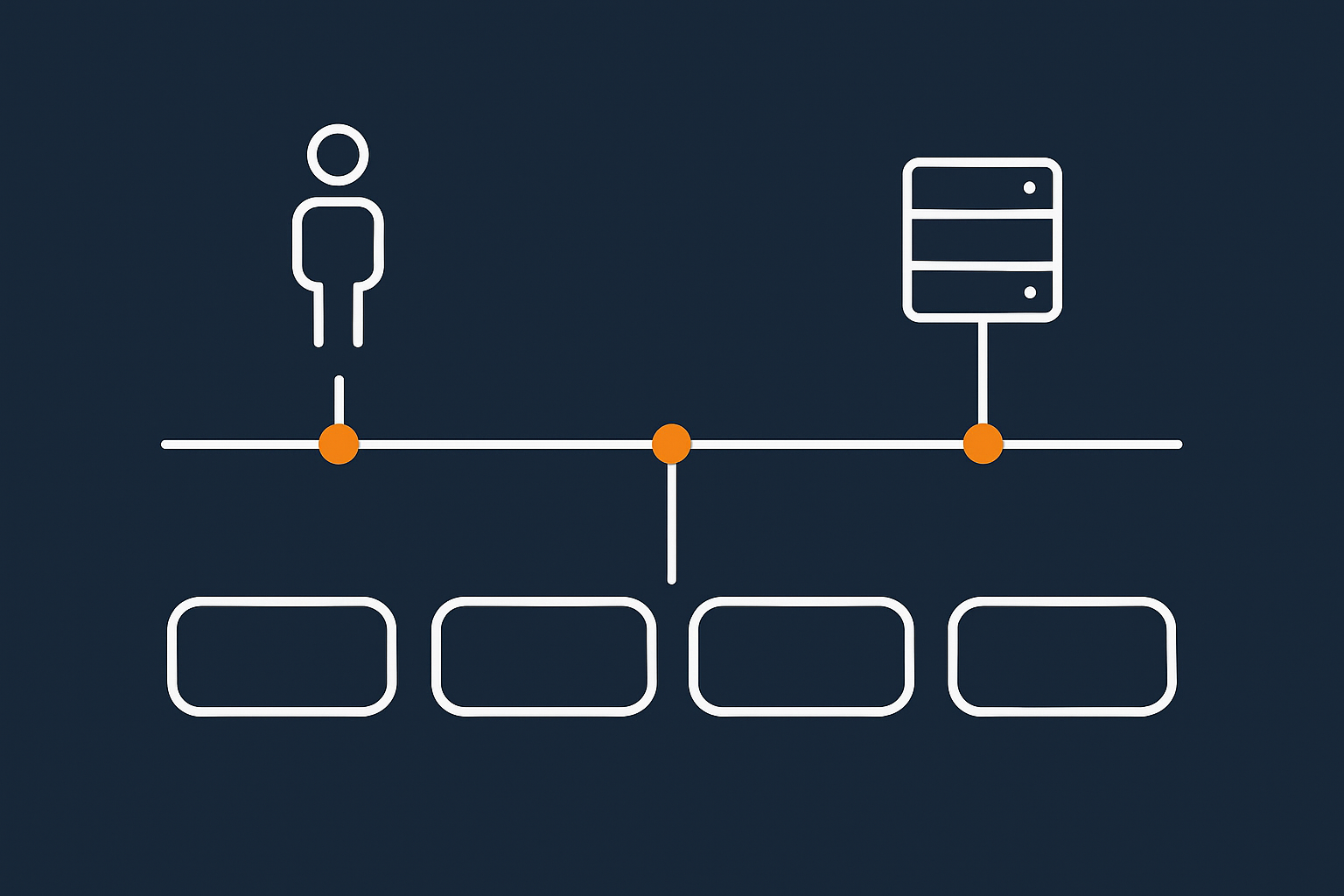
The simple test: is Time to First Byte slow, or is everything after TTFB slow?
How to read TTFB and Core Web Vitals in PageSpeed Insights
Run a PageSpeed Insights test on a key page. Scroll down to the “Diagnostics” section and look for:
- “Reduce initial server response time” with a warning and TTFB over about 600 ms on mobile. This suggests a hosting or backend issue.
- A reasonable TTFB (for example 200–400 ms), but poor LCP or INP higher up. This means the delay is in the browser.
If TTFB is fine but LCP is 4–6 seconds, the main content is simply heavy or blocked by other resources. No server upgrade will fix a 3 MB hero image or five blocking scripts in the head.
When slow TTFB really is a hosting or backend issue
Slow TTFB can be a hosting problem if:
- It is slow even for simple pages with no heavy images or scripts.
- It gets worse at busy times, especially on WooCommerce checkout or account pages.
- You see spikes or high variability in TTFB over multiple tests.
In those cases, better infrastructure, smarter caching and fewer backend bottlenecks can help. The article Reducing WordPress Time to First Byte on UK Hosting goes into more depth on that side.
Using multiple tools to cross check: PSI, WebPageTest, browser DevTools
It is worth confirming your findings with more than one tool:
- PageSpeed Insights for an overview and Core Web Vitals scores.
- WebPageTest for detailed waterfalls, filmstrips and repeat views.
- Chrome DevTools “Performance” and “Network” tabs for quick local checks.
What to look for in waterfall charts and filmstrips
In a waterfall:
- Check the first bar. A long initial bar with a slow TTFB points to hosting or backend work.
- If TTFB is quick but the LCP element appears much later, look at what loads between them. Large images, CSS files and JavaScript bundles are common culprits.
- Look for big third party scripts (ads, analytics, chat) that start early and block rendering.
In a filmstrip view:
- Watch how long it takes for your main content or hero to appear.
- Look for visible layout jumps when sliders, popups or fonts load.
Core Web Vitals Bottlenecks Your Host Cannot Fix
Heavy themes, builders and layout choices hurting LCP and CLS
How page builders, animations and large hero sections affect LCP
Visual builders and multipurpose themes often ship with:
- Large JavaScript bundles for effects you may not use.
- Full screen hero sections with big images, parallax or video backgrounds.
- Multiple nested containers before any real content appears.
If the main “above the fold” content is not rendered until several builder scripts have run and a large image has downloaded, LCP will be slow even on good hosting.
CLS from sliders, popups, sticky headers and ad / embed placeholders
Common CLS triggers include:
- Sliders that change height as each slide loads.
- Sticky headers that appear after scroll, pushing content down.
- Popups or banners injected without reserved space.
- Ad slots or embeds added dynamically with no fixed dimensions.
Your host cannot stop a popup plugin from inserting HTML in a way that jumps the page. The only real fix is to change or remove the component, or configure it to reserve space.
Third party scripts and tags bloating INP and LCP
Analytics, chat widgets and marketing pixels
Each additional script adds work for the browser. Typical examples:
- Multiple analytics tools (for example GA4, legacy Analytics, third party analytics).
- Chat widgets that load large JavaScript bundles on every page.
- Social sharing widgets with their own external scripts.
These rarely show up as “hosting issues”, yet they can easily add a second or more to LCP and cause poor INP by keeping the browser’s main thread busy.
Consent tools, A/B testing and personalisation scripts
Consent banners, A/B testing tools and personalisation systems typically load before or alongside core scripts, because they need to decide what to show.
If they are not configured carefully, they can block other resources or inject layout shifts when variants are swapped in. Your host can serve the page quickly, but these scripts can still delay first render.
Fonts, icons and visual polish that quietly break your scores
Webfonts, icon fonts and FOIT / FOUT
Custom webfonts and icon fonts often:
- Add extra requests early in page load.
- Block text rendering until the font is available (FOIT, flash of invisible text).
- Cause a flash of unstyled text (FOUT) when fonts swap.
Loading three or four different font families or full icon font sets on every page is expensive, especially on mobile.
CLS from late loading font weights and styles
Even if you have a fast server, text can shift when fonts and weights finally load:
- Headings that become bolder and wider, pushing content down.
- Buttons that change size when the correct weight loads.
The fix is to reduce the number of fonts, use font-display strategies sensibly, and pre load critical fonts. Your provider cannot automatically correct font usage inside your theme.
Image choices and media habits that no server upgrade can fix
Oversized hero images, background videos and carousels
Design choices often trump infrastructure:
- A 3000 px wide hero image served to every device.
- Autoplay background video in the header.
- Carousels with half a dozen large product images above the fold.
Even on fast web hosting performance features, that much media simply takes time to download and decode, especially on mobile data.
Unoptimised formats and missing intrinsic dimensions
Unoptimised JPEGs and PNGs, or images without proper width and height attributes, cause two issues:
- Heavy file sizes that delay LCP.
- Unknown dimensions that cause CLS when the image appears.
Some hosting providers now handle image formats at the edge. For example, the G7 Acceleration Network can automatically convert images to modern AVIF and WebP formats on the fly, usually cutting size by over 60 percent with practical quality, without extra plugins or changes inside WordPress.
A Practical Diagnostic Workflow For Non Developers
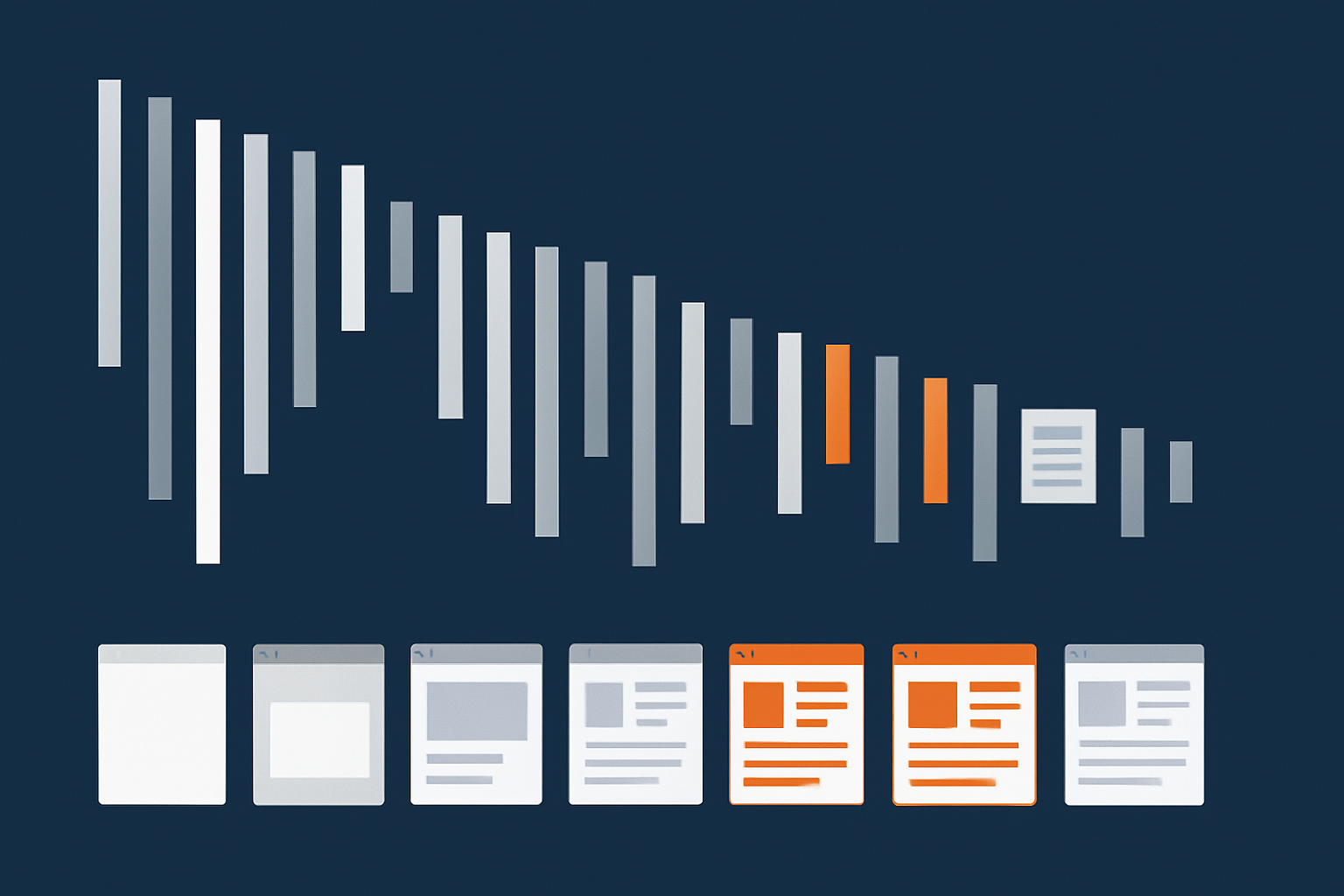
Step 1: Confirm hosting is not the primary bottleneck
Check TTFB and server response consistency
Test a key template (for example homepage, product page, blog post) in PSI and WebPageTest:
- If TTFB is consistently under about 500 ms on mobile tests, hosting is probably fine for that page.
- If TTFB varies wildly between runs without traffic changes, there may be backend or infrastructure issues.
Compare cached vs uncached performance
If your site uses full page caching (via a plugin or something like the G7 Acceleration Network), compare:
- A normal public page view (likely cached).
- An uncached view, for example by adding a random query string or testing a private page.
If cached and uncached TTFB are both reasonable but LCP/INP are still poor, you can safely focus on front end fixes rather than bigger servers.
Step 2: Identify which Core Web Vital is failing most badly
Using Search Console’s Core Web Vitals report
In Search Console:
- Open “Core Web Vitals”.
- Look separately at Mobile and Desktop.
- Note which metric (LCP, INP, CLS) is flagged most often and which URL groups are affected.
Mapping issues to templates and page types
Core Web Vitals issues often cluster by template:
- All product pages use one WooCommerce template.
- Blog posts share a single post template.
- Landing pages use a certain page builder layout.
Focus on the most common and most commercially important template first. Fixing one can often improve hundreds of URLs.
Step 3: Use a filmstrip and waterfall to see what loads when
Spotting late loaded hero images and blocking scripts
Run a WebPageTest or Lighthouse run with filmstrip:
- Find the moment where the main hero, title or product image appears. Check which resource is responsible for that.
- Look for blocking scripts or CSS files loading before that point.
If a marketing script or builder asset sits before your critical CSS or hero image, consider deferring, delaying or moving it lower in the page.
Checking for layout shifts as elements appear
Watch the filmstrip for jumps:
- Note the exact moment a shift happens.
- Match it to the resource in the waterfall starting around the same time.
This will usually reveal the plugin, widget or embed that needs reconfiguring or replacing.
Step 4: Turn suspected bottlenecks off in staging, then retest
Safely testing without breaking your live site
Use a staging site, or at least a maintenance window, to test changes:
- Disable a suspected plugin (for example a slider, chat widget or popup).
- Switch a heavy builder layout to a simpler template.
- Replace a video hero with a static image temporarily.
Then retest with PSI and WebPageTest. If scores improve, you have found a real bottleneck.
Building a simple before / after evidence trail
Keep screenshots or exports of:
- Original PSI and WebPageTest results.
- Results after each significant change.
This makes it easier to justify design adjustments internally and to brief developers or designers with concrete evidence.
What To Change When Hosting Is Not The Problem
Theme and builder choices
When it is worth redesigning a slow homepage template
If you have tried smaller tweaks and your homepage still shows very poor LCP or CLS, a redesign can be the most efficient option. In particular, consider this when:
- The template relies on several sliders and carousels above the fold.
- There are multiple stacked hero sections and heavy backgrounds.
- Every block of content uses a separate builder widget.
A simpler layout with a single hero, clear heading and key call to action often performs better and converts better.
Reducing dependency on heavy page builder widgets
You do not always need to abandon your builder. Often it is enough to:
- Use native WordPress blocks where possible.
- Remove unused global widgets and templates.
- Turn off builder features you do not use (for example animations, shape dividers).
If you want a deeper dive into how specific builders behave, the article WordPress Page Builders and Hosting explores Elementor, Divi and Gutenberg in more detail.
Cleaning up scripts, fonts and tags
Prioritising what really needs to load on first paint
Ask a simple question: “Does this script help the user in the first 3 seconds?” If not, it can probably wait.
Examples of scripts that do not need to block first paint:
- Heatmaps and session recording.
- Most marketing pixels for remarketing or attribution.
- Some chat widgets on lower intent pages.
Deferring, delaying or removing non essential scripts
Practical steps:
- Remove duplicate or unused tracking codes from Tag Manager.
- Defer non essential scripts so they run after initial render.
- Consider loading heavy tools (for example chat) only after user interaction.
Simplifying font stacks and preloading key fonts
To minimise font related issues:
- Limit yourself to one or two font families and a small set of weights.
- Preload critical fonts used in your main headings and body text.
- Use
font-display: swapor similar, tested carefully to avoid jarring shifts.
Fixing image and media weight without a plugin sprawl
Setting sane max image dimensions in your design system
Agree practical limits with your designers and content editors:
- Hero images: for example limit to 1600 px wide for desktop, with responsive sizes for mobile.
- Product images: standardise on a reasonable size and compress level.
This prevents new content from gradually bloating your pages again.
Using modern formats like AVIF and WebP via your hosting edge
Where possible, use automatic conversion to modern formats. For instance, the G7 Acceleration Network converts suitable images to AVIF and WebP at the edge on the fly, typically cutting file sizes by more than 60 percent while keeping real world quality, with no extra plugins or WordPress changes required.
Lazy loading and placeholder strategies that do not hurt CLS
Lazy loading images below the fold is good practice, but:
- Make sure above the fold images (especially LCP) are not lazily loaded.
- Use placeholders or CSS to reserve space, so images do not push content down as they appear.
Where Smart Hosting Still Helps With Core Web Vitals
Edge caching and consistent TTFB as a foundation
How a good cache hides PHP and database variability
Even if most of your bottlenecks are front end, a strong hosting base helps:
- Edge caching means most visitors get pre rendered HTML from a location close to them.
- Consistent TTFB reduces the “noise” in your Core Web Vitals data, so real front end problems stand out.
Smart web hosting performance features should handle the PHP, database and caching layers, so you can focus efforts higher up the stack.
Automatic image optimisation at the network edge
On the fly AVIF / WebP conversion without extra plugins
Network edge image optimisation saves you from batch processing media or installing multiple optimisation plugins. With something like the G7 Acceleration Network, images are converted automatically to AVIF and WebP close to your users, with compression that generally halves or better the file size while preserving real site quality.
Bot filtering and keeping real user performance stable
Abusive bots, credential stuffing attempts and aggressive crawlers can consume a large part of your capacity, which then affects real visitors. G7Cloud’s bot protection within the G7 Acceleration Network filters abusive and non human traffic before it touches PHP or the database, which reduces wasted server load and keeps response times more stable during busy periods.
When it is time to move host because Core Web Vitals are blocked by infrastructure
It is reasonable to consider a new provider when:
- TTFB is consistently slow despite caching and a well optimised front end.
- The platform does not support modern protocols (HTTP/2, HTTP/3) or sensible caching.
- You hit resource limits regularly even after reducing plugin bloat.
In those cases, specialist WooCommerce hosting or managed WordPress hosting with G7Cloud can remove infrastructure bottlenecks, so your Core Web Vitals reflect the quality of your theme and content rather than server strain.
Turning One Off Fixes Into A Simple Ongoing Routine
Quarterly Core Web Vitals check in
Instead of treating Core Web Vitals as a one off project, build a light routine:
- Once a quarter, review Search Console’s Core Web Vitals report.
- Spot new URL groups with issues and trace them to templates or recent changes.
Performance sign off for new plugins, layouts and campaigns
Before launching a new layout or adding a plugin:
- Test the affected page in PSI before and after the change.
- Check LCP, INP and CLS specifically.
- Decide whether the benefit is worth any performance cost, and adjust if not.
When to ask your host vs when to ask your developer or designer
As a rule of thumb:
- Ask your host when TTFB is slow, caching behaves oddly or the site struggles under load.
- Ask your developer or designer when LCP, INP or CLS are poor but TTFB is healthy, or when a specific component (hero, slider, popup) appears in filmstrips as the problem.
Summary: Focusing Your Effort Where It Actually Moves The Needle
Core Web Vitals are not just a hosting problem, and they are not just a “Google thing”. They reflect how real people experience your site.
The most effective approach is to:
- Use TTFB and waterfalls to separate backend from front end issues.
- Fix the biggest blockers first: heavy heroes, blocking scripts, problem fonts and layout shifts.
- Let good hosting, edge caching, image optimisation and bot filtering handle the lower layers.
If you are tired of guessing whether your host or your theme is to blame, combining a solid base such as managed WordPress hosting with G7Cloud and a simple diagnostic routine like the one above will give you clearer answers and more reliable progress over time.