

Who This Media Offloading Guide Is For (And When It Actually Helps)
Typical WordPress and WooCommerce pain points with media
Media is often the heaviest and most awkward part of a WordPress or WooCommerce site. Common problems include:
- Uploads folder getting huge so backups are slow, restores are painful and hosting storage costs creep up.
- Slow page loads on media-heavy pages such as product listings, galleries or long-form content with many images.
- Time-outs when importing products with lots of images or when bulk-uploading media.
- Disk I/O pressure on the server because PHP and the web server are constantly reading files from the same disk your database is using.
- Bandwidth usage spikes during campaigns or viral posts with many image views or downloads.
- Backups that fail or are impractically large because the
wp-content/uploadsfolder is tens or hundreds of gigabytes.
For UK businesses, this tends to show up as a site that feels fine in the office, but slows or becomes unstable during busy sales periods or when new marketing campaigns send image-heavy traffic.
What “offloading media” really means in plain English
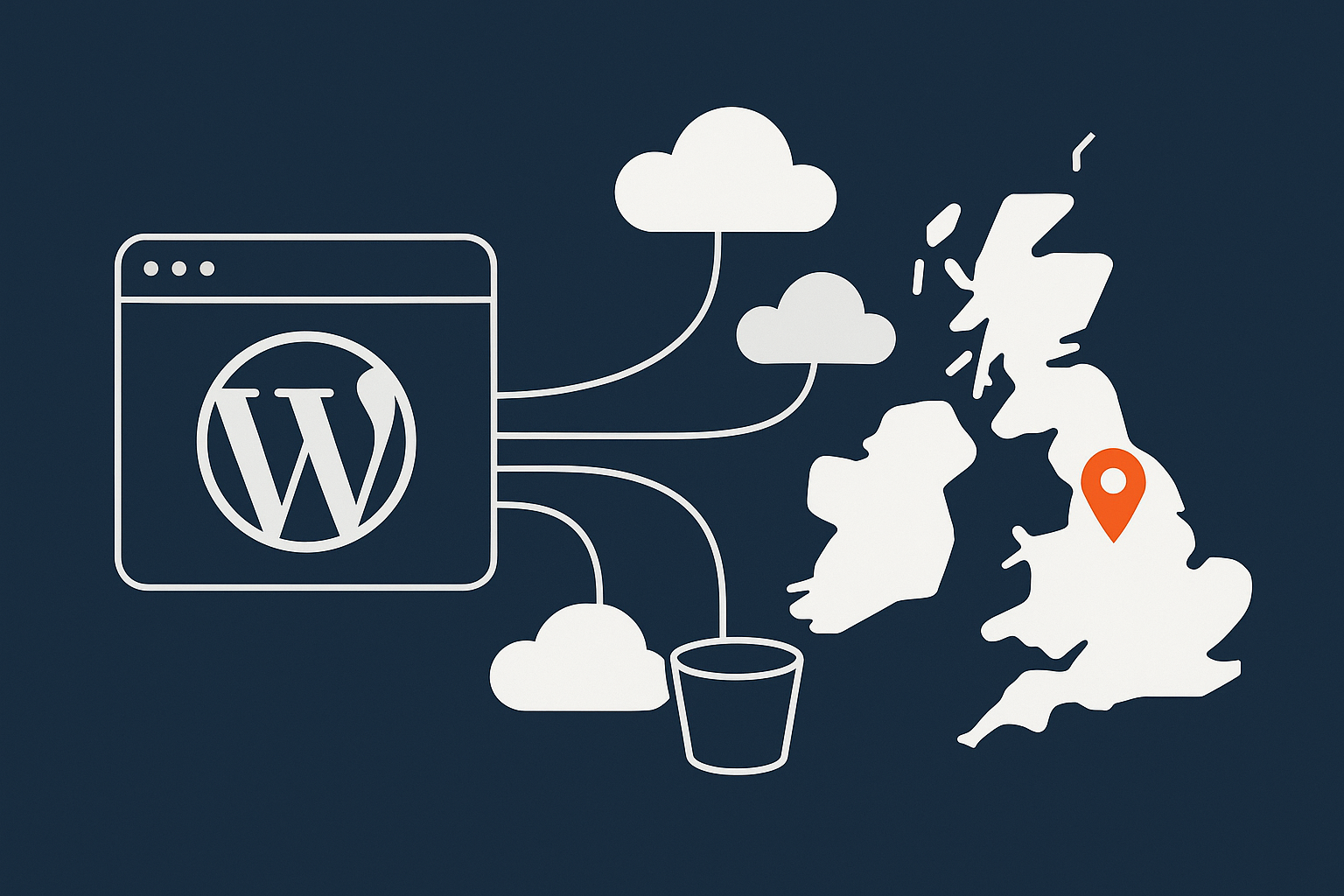
Offloading media simply means storing and serving your images, videos and other uploads from somewhere other than your main WordPress server.
Instead of WordPress saving files like /wp-content/uploads/2025/12/product.jpg on the local disk, an offload plugin uploads them to external storage, for example:
- Amazon S3 or another S3 compatible object storage
- DigitalOcean Spaces, Backblaze B2, Wasabi, etc.
- A storage layer that sits behind a CDN
The file URL on your site then points to that storage or CDN domain, such as https://cdn.example.com/uploads/product.jpg instead of your main domain.
This can reduce disk usage and offload bandwidth from your origin, but it changes how every media request is handled, so it affects performance, caching and sometimes SEO if set up poorly.
When you should fix hosting, caching or images before offloading
Many sites jump to offloading because the uploads folder is big and the site feels slow. In reality, the main bottleneck is often:
- Underpowered or badly tuned hosting
- Lack of full-page caching
- Oversized or unoptimised images
Before you plan a more complex media architecture, check:
- Is TTFB slow? A slow first byte is usually about PHP, database and hosting, not media. See G7Cloud’s guide on reducing WordPress TTFB on UK hosting for a focused checklist.
- Are images huge? 2–5 MB hero images will be slow wherever they live. Fix compression and dimensions first.
- Is caching in place? A good page cache plus a CDN often solves “speed” issues before you need offloading.
High quality managed WordPress hosting or specialist WooCommerce hosting will usually give you tuned PHP, database and caching out of the box, which should be your base before you start moving media around.
How Media Offloading Affects Speed, Latency and Core Web Vitals
UK visitor latency: where your images actually live
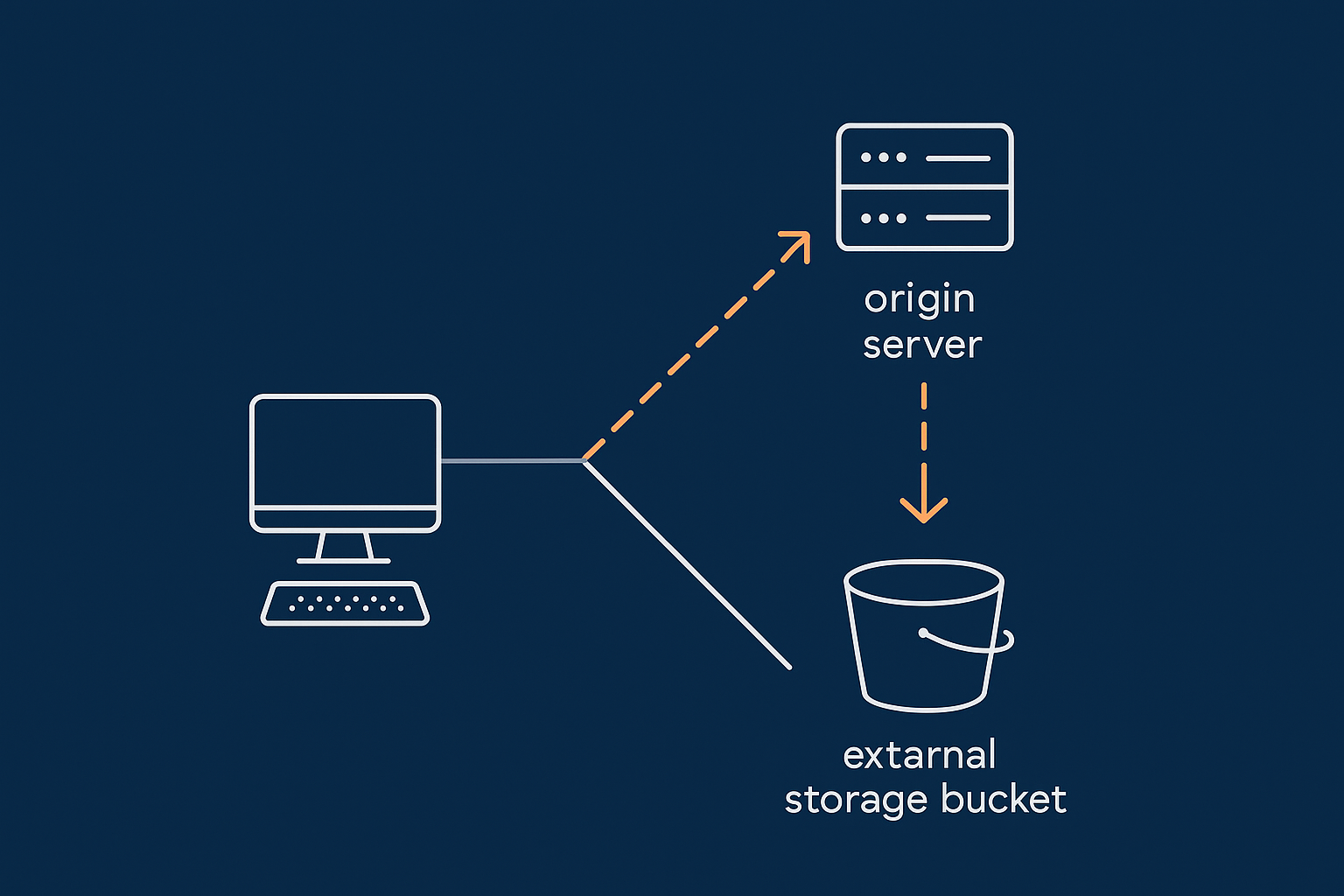
For UK visitors, the key question is where the image is actually being served from:
- If your origin server is in a UK or nearby data centre, locally stored images can be fast.
- If you offload to a storage bucket in a distant region (for example, US-East), every image request crosses the Atlantic unless a CDN edge cache sits in front.
This distance affects latency. Even with a CDN, a poorly chosen storage region can slow down cache misses, admin previews and first views of new media.
TTFB vs download time for images and video
Many people look at PageSpeed or Lighthouse and see “slow” scores, then assume offloading will fix TTFB. It will not.
- TTFB (time to first byte) for HTML is mostly about your PHP, database and caching setup.
- Image and video performance mainly affects after TTFB: Largest Contentful Paint (LCP), layout shift and total page weight.
Moving media to external storage can help by:
- Reducing disk I/O and bandwidth on the origin, so TTFB is more stable under load.
- Allowing a CDN to serve optimised, cached copies closer to visitors.
It can hurt if:
- Every image is fetched from a slow, distant bucket without an edge cache.
- The CDN is misconfigured so images are not cached effectively.
Why offloading can speed up your origin server (and when it will slow the site down)
Offloading shines in scenarios where your origin is struggling with:
- High concurrent requests for product images or downloads
- Heavy reporting or imports alongside regular traffic
- Limited disk throughput on shared or entry-level VPS hosting
By shifting media delivery to object storage plus CDN, the origin serves mainly HTML and API responses. That can reduce CPU, I/O and bandwidth pressure and improve stability.
It tends to slow things down when:
- You use external storage without a CDN, so every file is an extra network hop.
- You choose a non-European storage region, giving UK visitors higher latency.
- Your offload plugin adds overhead or broken URLs that bypass caching.
Using a performance-focused stack with strong web hosting performance features can often delay the need for offloading, or make it a simple incremental improvement rather than a firefight.
Common Approaches to Offloading WordPress Media

External object storage (S3 compatible, DigitalOcean Spaces, etc.)
This is the classic offloading model: a WordPress plugin uploads files to an object storage service and rewrites URLs.
Key points:
- Storage: Buckets or containers in a chosen region.
- URLs: Either the provider’s domain (for example,
my-bucket.s3.eu-west-1.amazonaws.com) or your custom CDN domain. - Permissions: Public read access for assets, private buckets plus signed URLs for protected downloads.
Pros:
- Scales to very large libraries.
- Takes load off your web server’s disk and bandwidth.
Cons:
- More moving parts: storage, plugin, CDN, DNS.
- Poor region choices and missing CDN often hurt performance.
Traditional CDN in front of your existing media
Here, files stay on your origin, but a CDN sits in front and caches them. WordPress still thinks files live at /wp-content/uploads, but visitors may see URLs such as https://cdn.example.com/wp-content/uploads/....
Pros:
- Simpler than full offload: no separate storage system.
- Good speed gains for UK visitors if the CDN has strong UK and European POPs.
Cons:
- Disk space and backups still grow with your uploads folder.
- If the origin is slow or overloaded, cache misses still hurt.
If you want to go deeper into CDN selection and configuration, see the related guide on choosing and configuring a CDN for WordPress and WooCommerce on UK hosting.
Hybrid approach: local uploads + acceleration network / CDN edge cache
A hybrid design keeps media on the origin for simplicity, but uses an acceleration network to handle caching, optimisation and edge delivery. This is often the sweet spot for UK sites that want speed but do not yet justify fully external storage.
For example, the G7 Acceleration Network can cache images and other static assets at the edge, reduce origin hits and apply on-the-fly optimisations while WordPress still stores files locally in wp-content/uploads.
What to avoid: slow overseas buckets and complex DIY setups
Things that cause more trouble than they solve:
- Offloading to a far-away region without a CDN. UK traffic hitting US or Asia buckets directly is usually slower than a decent UK origin with caching.
- Custom scripts or sync jobs that push and pull media between multiple locations without clear URLs and rules.
- Mixing several CDNs or storage providers unless you have a very specific reason and monitoring in place.
The more components you add, the more you need solid observability and a clear rollback plan.
Planning Your Setup: Capacity, Costs and UK Performance
Estimating storage and bandwidth needs
Before you choose a storage provider, know your rough numbers:
- Current uploads size: Check your
wp-content/uploadsdirectory size via your control panel or SSH. - Growth rate: How many new products, posts or media-heavy campaigns per month?
- Bandwidth: Typical monthly traffic, plus peaks during sales or promotions.
Then compare with object storage and CDN pricing:
- Storage per GB per month
- Outbound bandwidth per GB
- Request or operation charges (PUT, GET), which can matter for very busy sites
Often, combining decent local storage with an efficient edge cache, such as the G7 Acceleration Network, keeps both costs and complexity manageable until your library becomes truly large.
Choosing a storage region and CDN POPs for UK traffic
For UK businesses, prioritise:
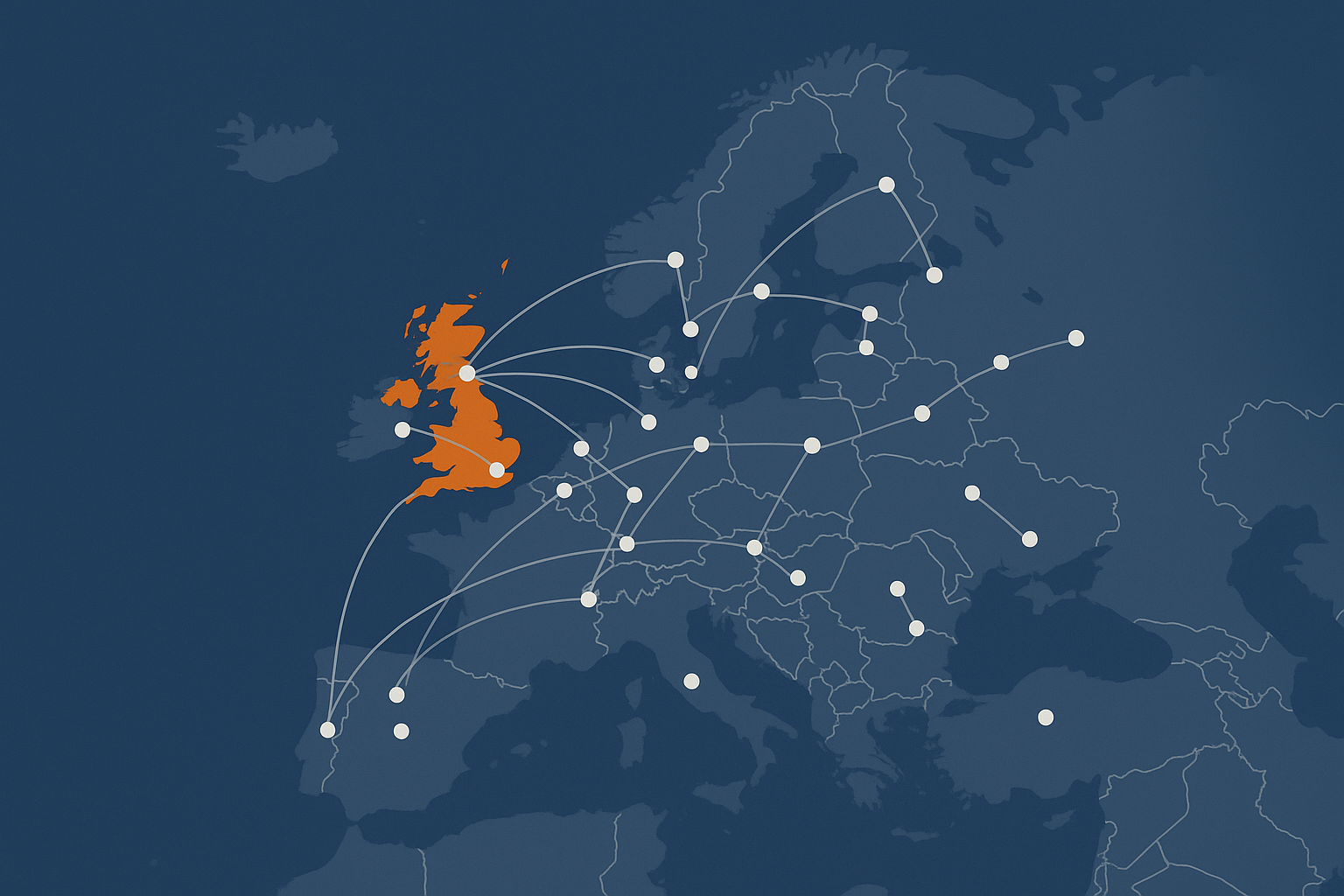
- Object storage in a UK or nearby European region (for example, London, Ireland, Amsterdam, Frankfurt).
- A CDN with well-peered UK and European POPs for low latency.
Good practice:
- Pick the closest region that meets your compliance needs.
- Test performance with tools like
curlor WebPageTest from a UK node, both with and without CDN caching.
How G7Cloud’s G7 Acceleration Network fits in (caching, images and bot filtering)
For many UK WordPress and WooCommerce sites, the G7 Acceleration Network provides a middle ground between full offloading and doing nothing:
- Edge caching of static assets (including images) close to UK users.
- Network-level rules that cut down bad or abusive bot traffic before it reaches PHP or the database.
- Automatic image optimisation and modern format conversion without WordPress plugin changes.
This lets you keep a simple “local uploads” structure for now, and consider true offloading later if your media library or download volume justifies it.
Step‑by‑Step: Offloading Media to External Object Storage Safely

1. Take a backup and test on staging first
Any change that rewrites media URLs across your site deserves caution.
- Take a full backup of files and database.
- Clone your site to a staging environment.
- Test your offloading plugin and configuration on staging first, including admin, front end and WooCommerce flows.
2. Pick a well‑supported offload plugin and storage provider
Look for plugins that:
- Support your chosen provider (S3 compatible, Spaces, etc.).
- Handle media library URL rewriting cleanly.
- Support offloading thumbnails and metadata correctly.
- Are actively maintained and tested with current WordPress versions.
On the provider side, check:
- UK / EU regions.
- Clear, predictable pricing.
- Simple integration with your preferred CDN.
3. Configure buckets, permissions and UK‑friendly URLs
Key configuration points:
- Create a dedicated bucket (for example,
example-com-media) in a UK or European region. - Set bucket policies to allow public read for standard assets, or use private buckets with signed URLs for premium downloads.
- Connect a CDN with a friendly domain such as
media.example.comorcdn.example.com. - Configure your plugin to use that CDN domain in all generated URLs.
Always test that new uploads appear at the expected URL and that direct access is working via HTTPS.
4. Migrate existing library vs offloading new uploads only
You have two main choices:
- New uploads only: Simpler and safer. Old media stays local, new media is offloaded.
- Full library migration: Moves all historical media. Saves more disk space, but carries more risk.
If you plan a full migration:
- Test a small subset first, such as one month of uploads.
- Check your plugin’s tools for backfilling and verifying migrated files.
- Keep local copies until you are confident the external storage is correct and backed up.
5. Check your site for mixed content, broken thumbnails and SEO issues
After enabling offloading (on staging first):
- Browse your key templates (home, category, product, post) and watch the browser console for 404s or mixed content warnings.
- Check product galleries, variation images and dynamically generated thumbnails.
- Ensure
og:imageand other meta tags use correct, accessible URLs. - Validate a few pages in tools such as Google’s URL Inspection to confirm images are crawlable.
Broken images or blocked resources can affect SEO and user trust more than minor performance gains help, so do not skip this step.
Keeping UK Sites Fast: Caching, Image Optimisation and Bad Bots

How to cache offloaded media correctly
Offloaded media needs sensible caching headers so CDNs and browsers can keep copies for a useful period.
- Set long
Cache-Controlheaders for versioned assets (for example, images with unique filenames). - Enable CDN edge caching for image paths and other static objects.
- Use query string or filename versioning if you ever need to force refresh.
A network like the G7 Acceleration Network can cache media aggressively at the edge while still respecting origin changes, which reduces trips back to storage and improves consistency for UK visitors.
Modern image formats, thumbnails and reducing page weight
Regardless of where you store them, images should be:
- Sized appropriately for their display slots.
- Compressed sensibly, typically with lossy compression for photographs.
- Served in modern formats like WebP or AVIF where supported.
You can find detailed guidance specific to UK sites in the article on WordPress image sizes, thumbnails and compression.
The G7 Acceleration Network automatically converts images to AVIF and WebP on the fly, typically cutting image file sizes by more than 60 percent while keeping real-world quality, and it does this for every hosted site without extra plugins or WordPress changes.
Protecting your origin and storage from abusive bots
Offloading does not magically reduce malicious or noisy bot traffic. Bad bots will happily hit your origin and storage URLs, inflate bandwidth and slow things down.
To reduce this:
- Use rate limiting or WAF rules at the CDN or network edge.
- Block clearly abusive user agents and known bad IP ranges.
- Protect login,
xmlrpc.phpand search endpoints from brute force scanning.
With managed WordPress hosting that includes a network layer such as the G7 Acceleration Network, bot protection filters abusive and non-human traffic before it ever reaches PHP or the database, which cuts wasted load and helps keep response times steady during busy periods.
How the G7 Acceleration Network handles images and bot traffic automatically
For UK businesses that want fewer moving parts, using G7 Acceleration Network in front of a well-tuned origin can often deliver most of the benefits people seek from offloading:
- Edge caching and compression of media near UK users.
- Automatic AVIF/WebP conversion and sensible security headers.
- Network-level bot filtering so only legitimate traffic reaches WordPress and any backing storage.
You can then decide later whether to add true object storage as your library or traffic grows, without rethinking your entire front-end delivery path.
When Offloading Media Is the Wrong Fix (And What To Do Instead)
Symptoms that point to CPU, PHP workers or database limits instead
Offloading rarely fixes:
- Slow cart, checkout or account pages.
- Admin pages taking seconds to load.
- Search queries or filters feeling sluggish.
These usually indicate:
- Insufficient CPU or PHP workers.
- Database contention or slow queries.
- Inefficient plugins or page builders.
In such cases, investing in better managed WordPress hosting, optimising queries and removing heavy plugins will pay off more than moving images to a bucket.
Admin‑only slowness vs front‑end media bottlenecks
If only your admin is slow, but the front end is fine, media offloading is unlikely to help. Admin slowness usually relates to:
- Uncached dynamic requests
- Heavy WooCommerce reports
- Large queries and background tasks
Media offloading mainly helps when the front end is slow primarily due to media size or origin disk/bandwidth limits.
Tuning hosting, caching and images before adding complexity
Before committing to offloading, confirm you have:
- Solid page caching, ideally at the server or network level.
- Reasonably sized and compressed images.
- PHP, database and caching tuned for your traffic and catalogue size.
This foundation keeps things manageable and lets any offloading strategy deliver clear, measurable benefits rather than masking basic configuration problems.
Practical Checks and Monitoring After You Offload Media
Smoke tests for speed, broken assets and Core Web Vitals
Once offloading is live on production, perform simple checks:
- Open key pages in an incognito browser and confirm no broken images.
- Use browser DevTools “Network” tab to confirm media loads from the new domain or CDN.
- Run a few Core Web Vitals tests from a UK location to check LCP and total page weight.
What to watch in your hosting and storage graphs
After offloading, your graphs should show:
- Lower origin disk I/O and bandwidth, especially for image-heavy pages.
- More stable CPU usage during peaks, as media traffic is taken elsewhere.
- Predictable storage and bandwidth billing on the object storage and CDN side.
If you are not sure how to interpret graphs, the guide on reading WordPress hosting resource graphs is a useful next step.
When to revisit your architecture as the site grows
Reassess your setup when:
- Your uploads library hits new size thresholds (for example, 100 GB, 500 GB).
- Bandwidth or CDN bills spike beyond expectations.
- New features such as user uploads or large downloadable products appear.
At each stage, consider whether you still need full offloading, or whether a combination of good hosting, sensible caching and a network layer such as the G7 Acceleration Network can keep things simple and reliable for UK visitors.
Summary: A Sensible Offloading Strategy for UK WordPress and WooCommerce Sites
Offloading media can be very useful for UK WordPress and WooCommerce sites with large libraries, heavy downloads or bandwidth constraints, but it is not a cure-all for slow sites. It introduces new moving parts, so it only pays off when you have already addressed basic hosting, caching and image optimisation.
A sensible path is:
- Get the fundamentals right: strong hosting, page caching and properly sized images.
- Add an acceleration network or CDN in front of your site to cache media close to UK visitors.
- Introduce true object storage once your library or traffic clearly justify the extra complexity.
If you would like to simplify this and avoid maintaining multiple services yourself, exploring managed WordPress hosting or WooCommerce plans that include the G7 Acceleration Network can give you fast UK delivery, on-the-fly image optimisation and bot filtering without extra plugins or DIY infrastructure.