

Who This Guide Is For (And What You Will Be Able To Do)
This guide is written for UK businesses running WordPress or WooCommerce that have noticed the site getting slower, admin screens dragging, or hosting costs creeping up because of database size.
Typical symptoms of a bloated WordPress or WooCommerce database
Common signs include:
- Slow wp-admin, especially when editing products, orders or large pages.
- WooCommerce order list taking several seconds to load or timing out.
- Search, filters or product category pages feeling sluggish.
- Backups becoming very large or taking a long time to complete.
- Hosting support mentioning large
postmeta,optionsor log tables. - Frequent “504 Gateway Timeout” or “Error establishing a database connection” messages under load.
The core promise: cut size and improve speed without risking orders, users or reporting
The aim of this guide is to help you:
- Reduce database size in a controlled way.
- Improve backend responsiveness and stability.
- Keep WooCommerce orders, user accounts and reporting intact.
We will focus on cleaning safe, temporary and redundant data first, then carefully pruning history and logs. You will not be asked to run risky SQL snippets that could silently corrupt your store.
Before You Touch Anything: Backups, Access and Ground Rules
Confirm you have full site and database backups (and how to test them quickly)
Before changing the database, you must have:
- A recent full database backup (all tables).
- A copy of your
wp-contentfiles (themes, plugins, uploads).
If your host offers automated backups as part of managed WordPress hosting or WooCommerce plans, check:
- How often they are taken.
- How long they are retained.
- How to restore a single backup and how long that takes.
To test quickly without risking production, restore the latest backup to a staging or test subdomain and confirm you can log in and view a few recent orders.
Decide where you will work: staging copy vs live site with maintenance window
Best practice is:
- Do the bulk of your cleanup on a staging copy first.
- Repeat the proven steps on live during a quiet period or maintenance window.
If you cannot use staging, schedule a window when order volume is low and communicate it clearly to stakeholders. Avoid heavy data changes in the middle of sales campaigns or advertising pushes.
Essential access: hosting control panel, phpMyAdmin or Adminer, and wp-admin
You will need:
- Hosting control panel access (for backups and database tools).
- phpMyAdmin, Adminer or an equivalent database viewer.
- Administrator access to
wp-admin. - Command line (SSH + WP-CLI) if you want to use the WP-CLI examples.
Managed WooCommerce hosting providers often expose table size and optimisation tools directly in their dashboards, which makes this easier.
What you must never delete on a WooCommerce site (orders, users, core tables)
There are some hard rules:
- Do not drop or truncate any core WordPress tables such as
wp_posts,wp_postmeta,wp_options,wp_users,wp_usermeta,wp_terms,wp_term_relationships,wp_comments,wp_commentmeta. - Do not truncate WooCommerce order tables or related tables such as
wp_wc_orders*,wp_woocommerce_order_itemsandwp_woocommerce_order_itemmeta. - Do not bulk delete orders directly via SQL. Always use WordPress or WooCommerce tools for this.
- Do not delete users directly from the database unless you understand how their data links to orders, memberships or subscriptions.
If you are unsure about any table, assume it matters until you have proof from documentation.
Understand What Lives in Your WordPress / WooCommerce Database
Core WordPress tables in plain English (posts, postmeta, options, comments, users)
In a typical installation (with wp_ as the prefix):
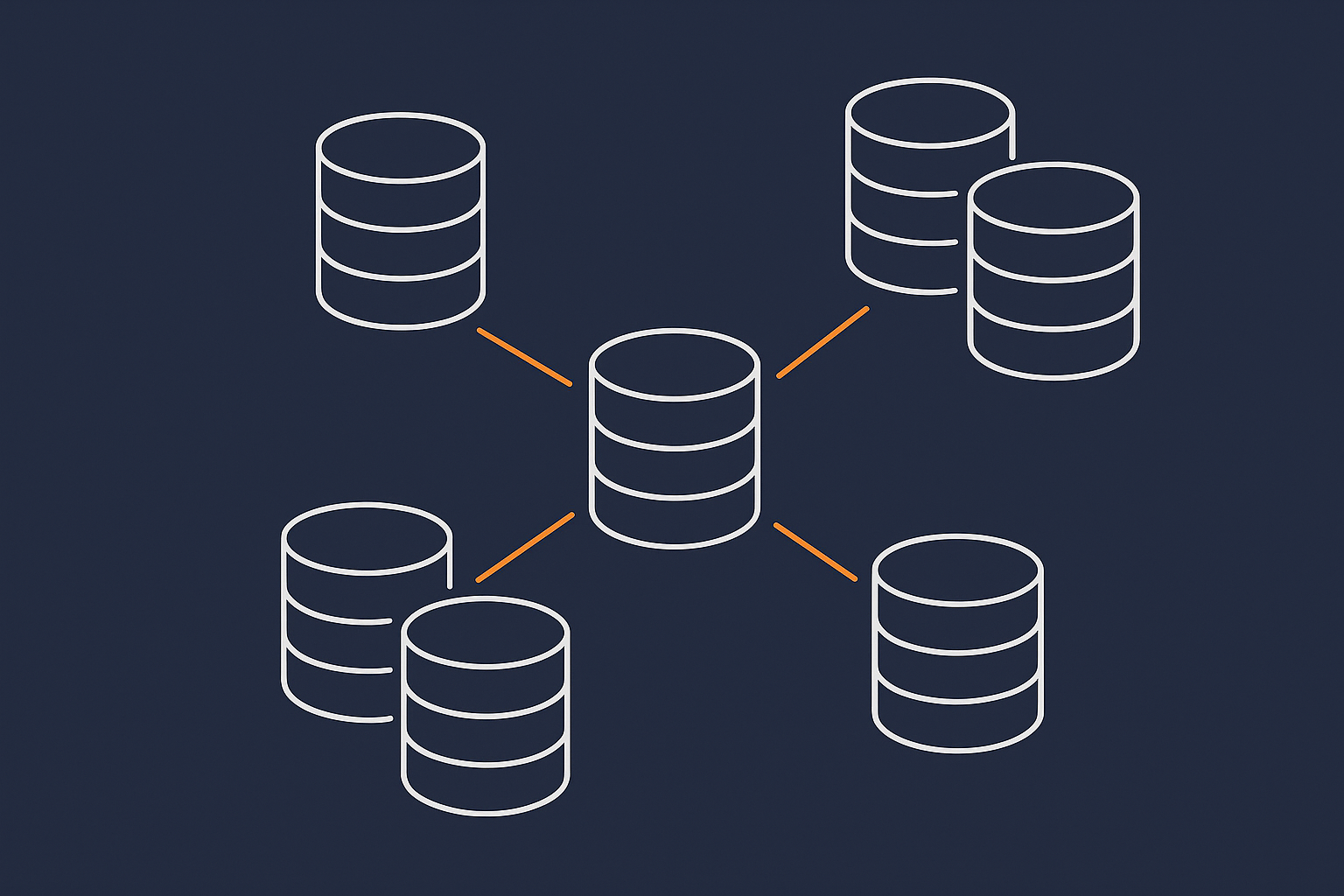
wp_posts– stores posts, pages, products, orders (as posts), attachments and more.wp_postmeta– stores extra information about those posts, such as prices, SEO data, layout settings and custom fields.wp_options– site-wide settings, plugin options, transients and cron jobs.wp_comments/wp_commentmeta– blog comments and, on some older setups, order notes.wp_users/wp_usermeta– login accounts and their metadata such as roles and preferences.
Most performance trouble on WordPress and WooCommerce sites involves wp_postmeta and wp_options becoming overly large or cluttered.
WooCommerce specific tables that hold orders, products and sessions
Recent versions of WooCommerce create their own tables such as:
wp_wc_orders,wp_wc_order_stats– core order and reporting data.wp_wc_customer_lookup– data used to speed up customer reporting.wp_woocommerce_sessions– customer carts and sessions.
Treat the order and stats tables as critical. Session tables are safer to clean in a controlled way, which we will cover later.
Plugin and log tables that quietly grow over time
Many plugins create their own tables for logs, tracking and background jobs, for example:
wp_actionscheduler_actionsand related tables – used by WooCommerce and other plugins to schedule tasks.- Email logging tables created by SMTP or marketing plugins.
- Security plugin logs (login attempts, scans, file changes).
- Analytics plugin data and tracking events.
These are often the best candidates for safe trimming, provided you understand what each table is used for and whether the plugin offers settings to manage retention.
Step 1: Measure Your Current Database Size and Hotspots

Check overall size and per table size in your hosting panel or phpMyAdmin
Start by checking:
- Total database size in megabytes or gigabytes.
- Size of each table and number of rows.
In phpMyAdmin, open your database and look at the Size column in the tables list. Sort by size to bring the largest tables to the top. Many hosts offering specialised WooCommerce hosting also show table size breakdowns in their panels.
Spot the usual culprits: postmeta, options, logs, sessions, transients, wp_actionscheduler
Tables worth scrutinising include:
wp_postmetalarger thanwp_postsby a big margin.wp_optionswith tens of thousands of rows.wp_woocommerce_sessionsgrowing continuously.wp_actionscheduler_*tables with millions of rows.- Any log or stats table clearly created by a plugin.
Make notes of the largest 5 to 10 tables and whether they look like core data or logs.
Decide what “success” looks like: size reduction vs performance vs stability
Define your priorities before you start:
- If the database is enormous but performance is acceptable, focus on safe reductions that do not risk downtime.
- If admin or checkout performance is struggling, focus on optimising hot tables that are heavily queried.
- If stability is the main worry, aim for modest changes and thorough testing rather than aggressive cleanup.
This will help you choose which steps to tackle now and which to park for later or for a developer.
Step 2: Clear Safe, Temporary Data First (Transients, Sessions, Caches)
Clear expired transients and cache entries via a plugin or WP-CLI
Using a reputable optimisation plugin safely (and what not to tick)
Plugins such as WP-Optimize or Advanced Database Cleaner can remove expired transients and some cache entries. When using them:
- Limit yourself initially to options clearly marked as “expired transients” or “orphaned transients”.
- Avoid bulk deletions of
postmeta, options or anything vaguely described as “orphaned data” unless you are sure how it is detected. - Run a backup immediately before using the plugin’s database tools.
After clearing transients, log out and in again, then browse the front end and checkout to confirm nothing obvious has broken.
Using WP-CLI for advanced users: transient and cache commands
If you have WP-CLI, you can clear transients with:
wp transient delete-expired
wp transient delete --all
Start with delete-expired first, then consider delete --all if your site is well behaved. To flush object cache (if used):
wp cache flush
Always avoid running these commands in the middle of heavy traffic or during key promotions.
Clean WooCommerce sessions and carts without touching live orders
WooCommerce sessions store basket contents and some customer data. Old sessions can usually be removed safely.
In WooCommerce > Status > Tools you will often find a tool to “Clear customer sessions”. Use this first. Some stores also schedule automatic cleanup via Action Scheduler.
Do not manually truncate wp_wc_orders or any order tables. Only clear the dedicated sessions or carts table, ideally using WooCommerce’s own tools.
Run a simple OPTIMIZE TABLE on heavily used tables after cleanup
After removing transients and sessions, you can reclaim space and defragment tables using MySQL’s OPTIMIZE command. In phpMyAdmin:
- Select a small set of tables you have just cleaned, such as
wp_optionsandwp_woocommerce_sessions. - Choose “Optimize table” from the dropdown.
This can cause brief locking on some storage engines, so avoid running OPTIMIZE on the entire database during trading hours.
Step 3: Tidy Up Revisions, Drafts and Trash (Without Hurting Content Editors)
How post revisions work and why they pile up
Every time you save a post, page or product, WordPress may create a revision. Over years of editing, this can lead to thousands of stored versions.
Set sensible revision limits in wp-config.php
You can limit future revision growth by adding to wp-config.php:
define( 'WP_POST_REVISIONS', 10 );
This allows up to 10 revisions per post. For highly edited pages you might raise it slightly; for mostly static content you can keep it low.
Safely deleting old revisions, auto drafts and trashed posts
Where to be extra careful on WooCommerce product pages and landing pages
Use a reputable optimisation plugin or WP-CLI to remove older revisions, but:
- Avoid deleting all revisions for complex landing pages or key product pages where you may need to roll back.
- Set a threshold, such as keeping the last 10 or revisions newer than 60 days.
- Empty trash for posts and pages once you are sure they are not needed.
For WooCommerce products, confirm that variations, custom fields and SEO settings are intact after cleanup. Test editing and saving a few products to ensure everything behaves as expected.
Step 4: Deal With Plugin Bloat and Old Logs
Identify plugins that generate heavy logs, statistics or history tables
Look down your biggest tables list and note table names that clearly belong to specific plugins. Then:
- Check each plugin’s settings for logging, statistics, reports and retention periods.
- Disable non-essential logging or reduce retention where possible.
- Consider whether some logging can move to an external service if you genuinely need long history.
If you want a deeper guide to removing plugin bloat safely, see Cleaning Up WordPress Bloat Safely.
Decide what history you actually need to keep (orders vs analytics vs email logs)
For most businesses:
- Order and accounting data should be kept according to your legal and financial requirements.
- Basic analytics and sales reporting for several years can be helpful.
- Email delivery logs, security event logs and debug data rarely need more than 30 to 180 days.
Agree internally how long you truly need each type of data, then enforce it via plugin settings or periodic cleanups.
Safely truncate or archive log tables after checking plugin settings
Where a table holds only logs and the plugin either offers a “clear logs” button or has no problem recreating the table, you can:
- Use the plugin’s own tools to empty logs first.
- If those are missing, consider taking a backup and then truncating the table via phpMyAdmin, but only once you are confident it is not used for anything permanent.
For very large log tables, archiving older rows to a separate database for reference can be safer than deleting everything.
Remove unused plugins and their data where it is safe to do so
Deactivated plugins often leave their tables and options behind. Where you are certain a plugin is no longer needed:
- Take a backup.
- Delete the plugin via
wp-adminrather than via FTP, so that uninstall routines can run. - Optionally clean up orphaned tables afterwards if the plugin does not remove them.
Unused plugins also slow updates and increase the attack surface, so this is worthwhile beyond database size alone.
Step 5: Special Care for WooCommerce Order Data
Why you should never bulk delete orders directly in the database
WooCommerce order data spans multiple tables and often third party plugins. Deleting rows in one table can easily break relationships, reports or subscriptions. Always use the WooCommerce interface or dedicated tools.
How order status, refunds and subscriptions affect which data you can archive
Before considering any archiving:
- Check how long you must keep completed orders for tax and accounting.
- Identify whether you use subscriptions, payment plans or warranties that rely on historic orders.
- Understand how your reporting tools (built-in analytics, external systems) read order data.
For example, archiving failed or cancelled orders may be acceptable, while archiving refunded or completed orders could affect year-on-year reporting.
Options for archiving very old orders without breaking reports or accounting
There are three main approaches:
- Keep all orders in WooCommerce and move heavy reporting to an external tool.
- Use plugins designed for WooCommerce archiving that understand the schema and maintain integrity.
- Export very old orders to a separate system, then carefully delete them via WooCommerce tools, retaining exports for reference.
For a deeper technical dive on keeping order data safe and fast, you may find Keeping WooCommerce Order Data Safe and Fast useful.
Step 6: Database Optimisation and Index Checks
Run safe table optimisation from your hosting panel or MySQL
When OPTIMIZE TABLE helps and when it will not make much difference
After trimming temporary data and logs, running OPTIMIZE on certain tables can:
- Reclaim free space inside the database files.
- Defragment rows so sequential reads are faster.
It is most useful on frequently updated tables that have seen many deletions, such as sessions, logs and transients. It is less impactful on huge tables that are mostly reads, where indexing and query structure matter more.
Some managed WordPress hosting platforms expose “optimise database” buttons that safely run this with the right engine-specific commands.
Basic index checks on very large postmeta and order tables (plain English view)
When to involve your host or a developer rather than experimenting
Poor indexing on wp_postmeta, order tables or lookup tables can cause slow queries, especially for product filters, order lists and search.
Simple checks you can do:
- Confirm your WooCommerce database is up to date under WooCommerce > Status > Tools.
- Ask your host to review slow query logs and highlight any missing or inefficient indexes.
Creating or changing indexes blindly can slow writes or break queries, so it is usually worth asking your host or a developer to help at this stage, particularly if database size and traffic are both high. Articles such as “Understanding WordPress Caching Layers” in your documentation can also help you see how queries interact with caching.
Step 7: Test Orders, Logins and Key Flows Before and After
Build a quick regression checklist: logins, checkout, search, filters, account area
After each meaningful change:
- Log in as an administrator and a customer.
- Place a full test order using a real payment gateway in test mode if possible.
- Search for products, use common filters, browse categories.
- Check the My Account area including order history.
- Edit and save a key product and a key page.
Keep this checklist as a repeatable routine every time you change database structure or run larger cleanups.
How to spot subtle problems in logs and error monitoring
Some issues only appear in logs at first. Monitor:
- PHP error logs for database-related warnings.
- WooCommerce logs for failed actions or scheduled tasks.
- Server logs for increased 500 or 502 errors.
A structured approach to logging and error monitoring for WordPress and WooCommerce can save you time guessing what went wrong.
Putting a Simple Ongoing Database Maintenance Routine in Place
Monthly and quarterly checks: size, slow growth tables, plugin logs
To avoid another crisis later:
- Once a month, check total database size and top 10 tables.
- Clear expired transients and sessions regularly.
- Review logging and analytics plugins quarterly to ensure retention settings still make sense.
A broader site maintenance routine such as the one outlined in “How to Keep a WordPress Site Fast Over Time” can include these steps alongside plugin and theme updates.
Tuning cron jobs and background tasks so cleanup actually runs
WordPress and WooCommerce rely on cron jobs for many cleanup tasks, including session pruning and Action Scheduler maintenance. If WP-Cron is disabled or traffic is low, these jobs may not run reliably.
Consider:
- Configuring a real cron job on your server to call
wp-cron.phpregularly. - Checking WooCommerce > Status > Scheduled Actions for large backlogs.
For a detailed look at this, see “WordPress Cron Jobs Explained: How Missed Tasks Slow Your Site and Break WooCommerce”.
When a bigger hosting plan or virtual dedicated server becomes the right fix
There is a point where optimisation is not enough. If:
- Your store has heavy concurrent traffic and large order volume.
- You have already cleaned logs, transients and bloat responsibly.
- Slow queries and high CPU use persist at busy times.
then increased resources or a virtual dedicated environment may be the better answer. Good managed WordPress hosting should help you understand when that point has been reached, using slow query logs and capacity monitoring.
How Managed Hosting and Server-Level Optimisation Can Help
What a good managed WordPress / WooCommerce host should handle for you
A capable managed host should provide:
- Regular full backups and easy restores.
- Database optimisation tools and slow query monitoring.
- Server-level caching to reduce unnecessary database hits.
- Support that understands WooCommerce tables and background jobs.
Working with hassle free WordPress maintenance can reduce the time you spend on routine cleanups and give you confidence that changes are being tested properly.
Bot filtering, caching and why reducing pointless traffic matters for database load
A significant amount of database load on busy sites can come from bots and scrapers continually crawling product and search pages. Tools such as the G7 Acceleration Network combine caching and bot filtering, so abusive or clearly non human traffic is filtered before it reaches PHP or the database. This cuts wasted queries, keeps response times more consistent and reduces the risk of slowdowns during sales peaks.
Good caching and traffic control complement database trimming: you get fewer unnecessary database hits and the remaining queries run against a cleaner, smaller dataset.
Summary: Safe Trimming Without Surprises
The safe order of operations you can reuse next time
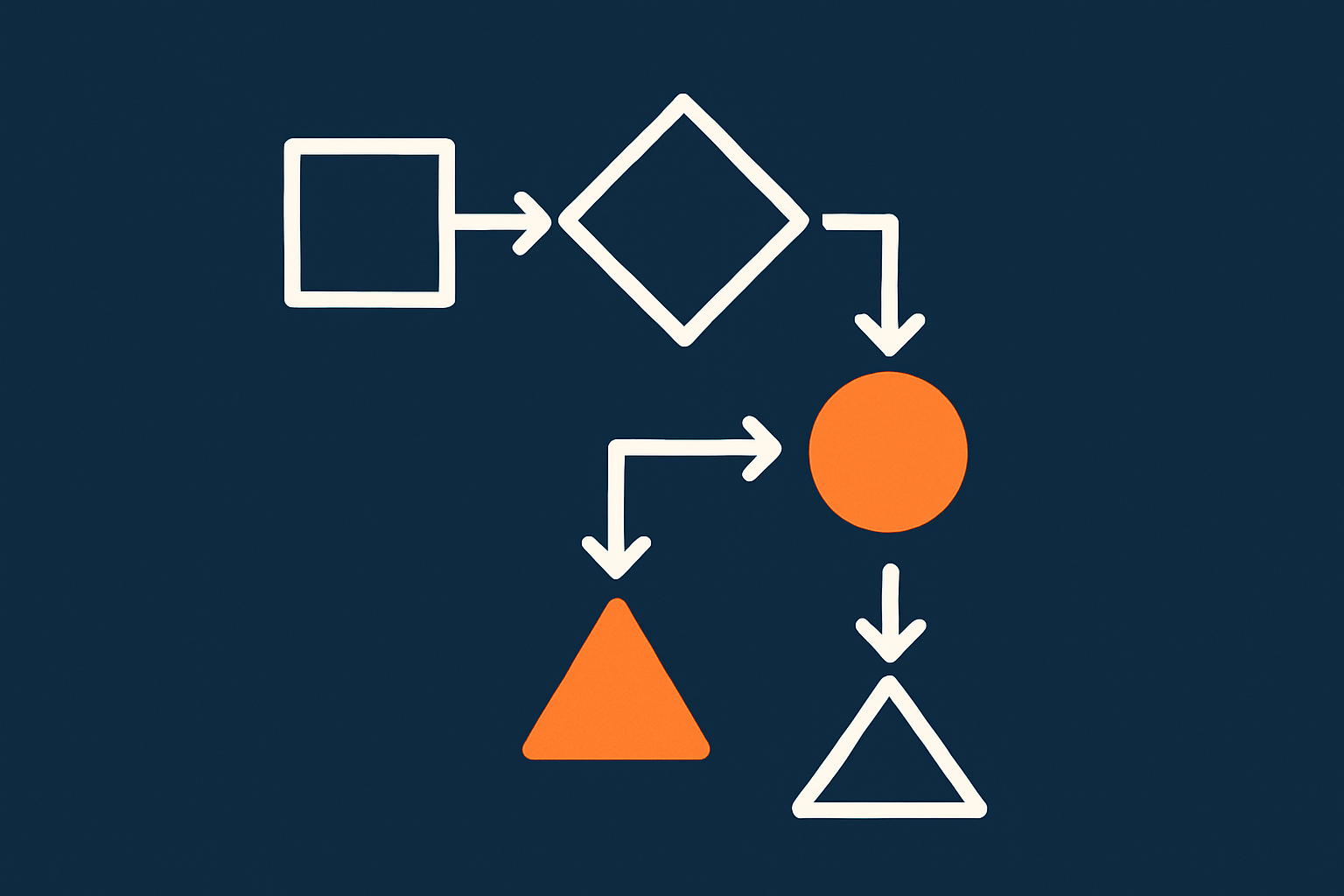
In short, you can follow this order whenever you need to slim a WordPress or WooCommerce database:
- Back up the full site and, if possible, test a restore on staging.
- Measure current database size and identify the largest tables.
- Clear safe, temporary data first: expired transients, caches, sessions.
- Tidy revisions, drafts and trash with sensible limits.
- Review plugins for heavy logs and prune or archive where appropriate.
- Handle WooCommerce order data cautiously using supported tools.
- Optimise tables and review indexing with the help of your host if needed.
- Thoroughly test logins, checkout and key flows, watching logs for subtle issues.
When to stop cleaning and start planning bigger changes
If you have worked through these steps, seen some improvement, but still struggle with slow admin, timeouts under load or recurring database errors, it may be time to:
- Review theme and plugin choices for more efficient options.
- Plan indexing or schema changes with a developer.
- Move to hosting that provides stronger database resources, caching and bot filtering.
If you would prefer not to manage this all yourself, exploring managed WordPress hosting or performance focussed WooCommerce plans that include tools like the G7 Acceleration Network can take much of the routine work and risk off your plate, so you can focus on running the business rather than nursing the database.