

Why Caching Matters So Much for WordPress and WooCommerce
What actually happens when someone visits your site
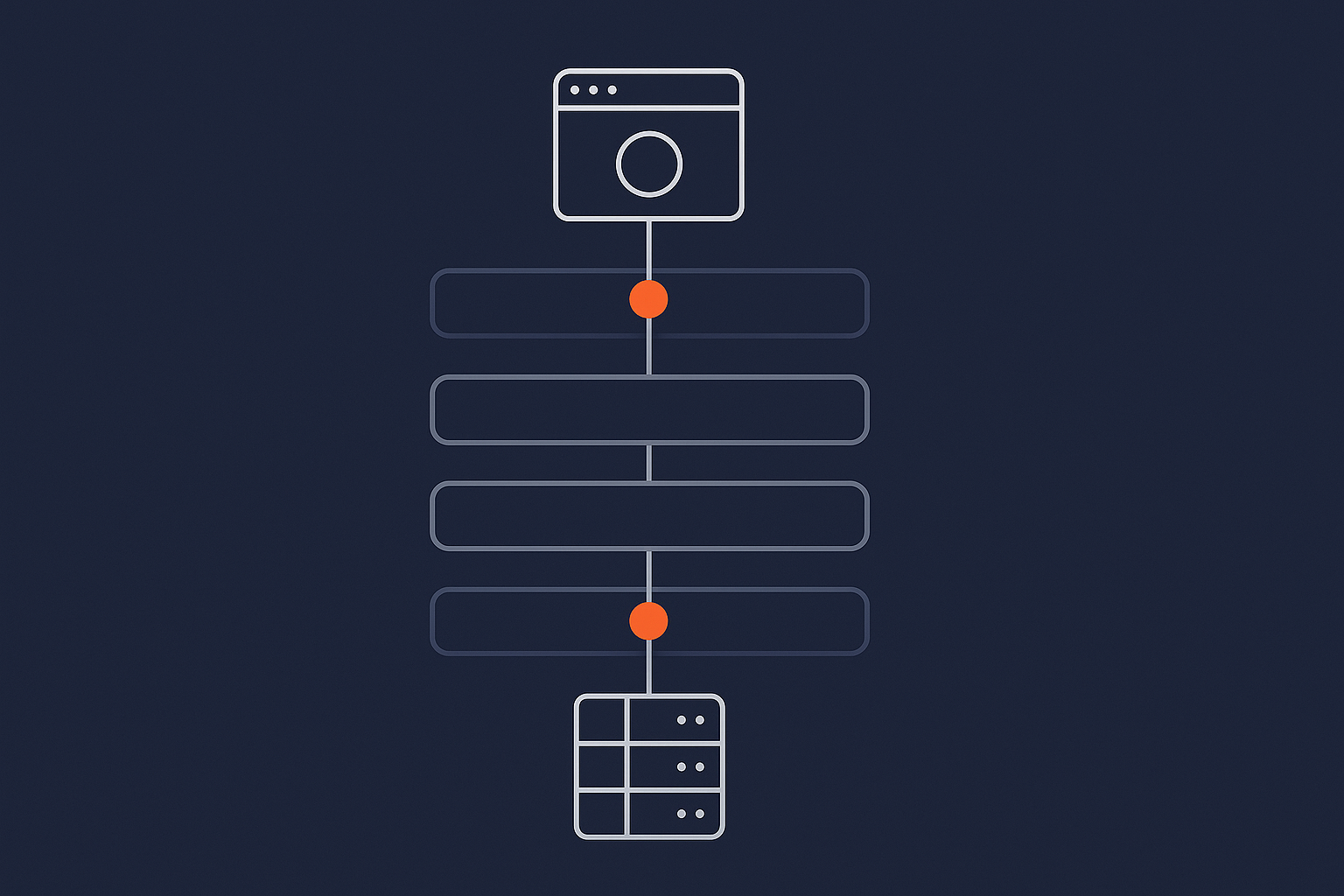
When someone visits a WordPress or WooCommerce site, quite a lot happens behind the scenes before they see anything on screen.
In simplified steps:
- Their browser looks up your domain name to find your server’s IP (DNS lookup).
- The browser connects to your server using HTTPS.
- The web server (usually Nginx or Apache) hands the request to PHP.
- PHP loads WordPress, your theme and all active plugins.
- WordPress requests data from the database: posts, products, user data, options.
- PHP builds the HTML page from templates, plugins and data.
- The web server sends the final HTML back to the browser.
- The browser then requests all the assets referenced in that HTML: CSS, JavaScript, images, fonts, icons and so on.
That is a lot of moving parts for what looks like a simple page.
Where time is really spent: PHP, database, assets and network
The time between a visitor clicking a link and seeing your page is mostly spent in four areas:
- PHP execution loading WordPress, your theme and plugins, and building the page.
- Database queries fetching posts, products, user sessions, cart contents and settings.
- Asset delivery sending HTML, CSS, JavaScript, images and fonts to the user.
- Network latency the physical distance and quality of the connection between visitor and server.
If PHP and the database work hard on every single request, performance suffers, especially under load. A WooCommerce shop during a sale, a membership site on a webinar day or a blog post that suddenly goes viral can all put serious pressure on those parts of the stack.
How caching fixes different parts of the problem
Caching is simply the practice of saving work that has already been done so it can be reused.
- Page caching stores the final HTML for pages and posts, so PHP and the database are bypassed for most visitors.
- Object caching stores the results of database queries and other calculations, so they do not need to be repeated on every request.
- Opcode caching makes PHP itself faster by reusing compiled bytecode instead of recompiling scripts each time.
- CDN and edge caching move your assets (and sometimes full pages) closer to visitors across the world, reducing latency and offloading traffic from your origin server.
The rest of this article looks at each of these layers in turn, how they stack, and what a good managed WordPress hosting provider should quietly handle for you.
The Request Journey: How Caching Layers Stack Up
From browser to CDN to web server to database in plain English
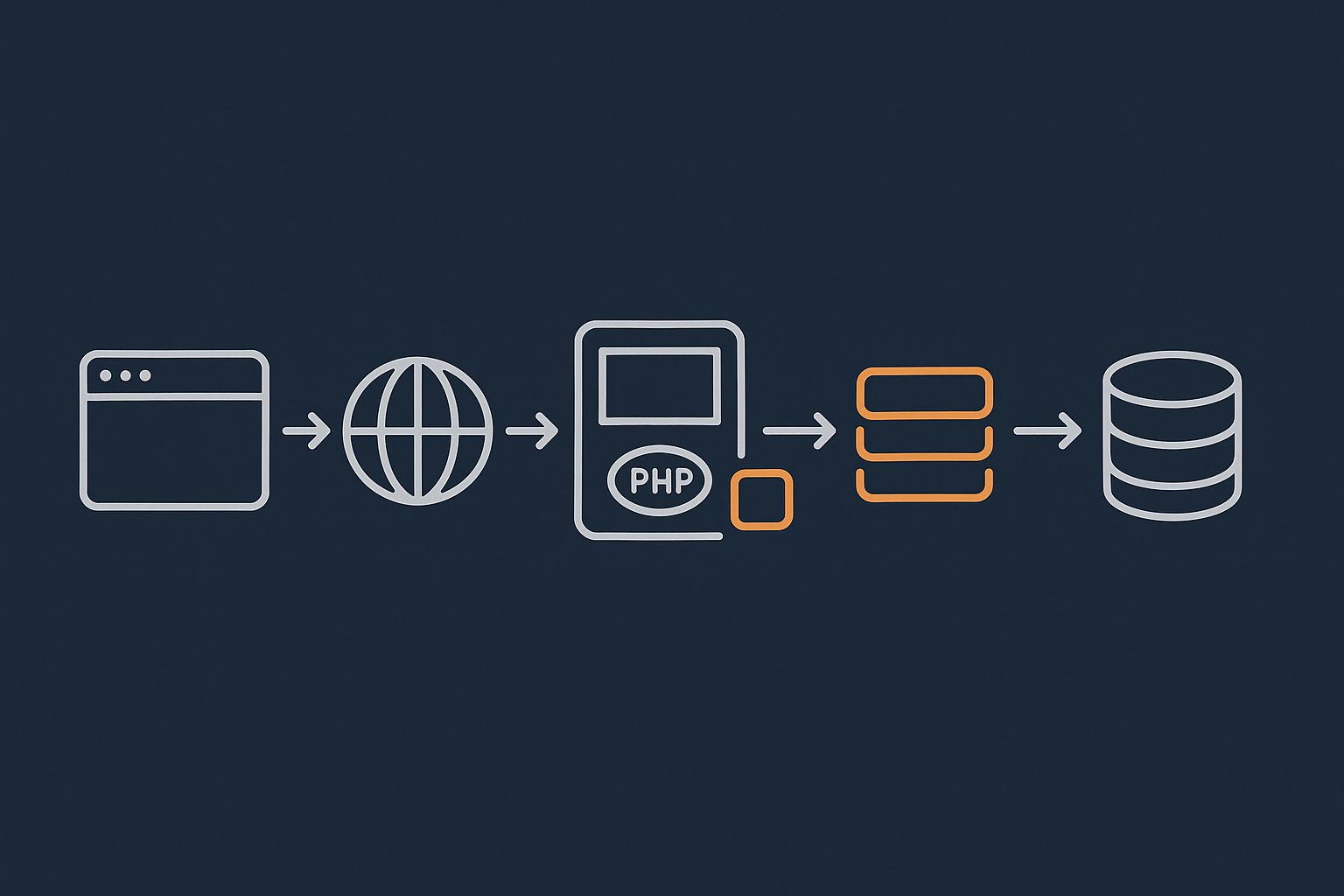
Think about a typical request in layers, from the visitor’s point of view:
- Browser cache: The visitor’s browser may already have your CSS, JS, fonts and some images stored locally from a previous visit. If so, it does not need to download them again.
- CDN / edge: If you are using a content delivery network or an integrated service such as the G7 Acceleration Network, the request first hits a nearby edge server. That server may already have a cached copy of the HTML or at least your static assets.
- Web server / page cache: If the CDN passes the request to your origin, your web server may serve a cached HTML page from disk or memory.
- PHP / opcode cache: If there is no page cache hit, PHP runs. Its opcode cache avoids recompiling the same PHP scripts on every request.
- Object cache / database: WordPress looks up data. Some data may be pulled from an object cache such as Redis, reducing database load. Anything not found there comes from the database itself.
Caching works best when each layer is doing its part and they are not fighting each other.
Static vs dynamic content and why it matters for caching
To understand where caching helps, you need to distinguish between:
- Static content rarely changes and looks the same for every visitor, such as blog posts, evergreen pages, documentation and many product category pages.
- Dynamic content changes often or depends on the user, such as carts, checkouts, “My account” pages, stock levels (for some shops), dashboards and personalised recommendations.
Static content is ideal for aggressive caching at multiple layers. Dynamic content often needs more careful handling so you do not serve the wrong cart or account details to the wrong user.
Where each cache layer typically lives in the stack
- Browser cache: On the user’s device, controlled by HTTP headers from your server or CDN.
- CDN / edge cache: On geographically distributed edge servers owned by your CDN or an integrated network such as the G7 Acceleration Network.
- Page cache: On your origin server, either at web server level (Nginx/Apache), in a reverse proxy (like Varnish) or in a WordPress plugin.
- Object cache: On a networked store such as Redis or Memcached, usually on the same local network as your web and database servers.
- Opcode cache: Inside the PHP process on your server.
A performance focused host should wire these layers together sensibly, so you do not have to think about each one in isolation.
Page Caching: The Biggest Win for Most WordPress Sites
What page caching is and how it works
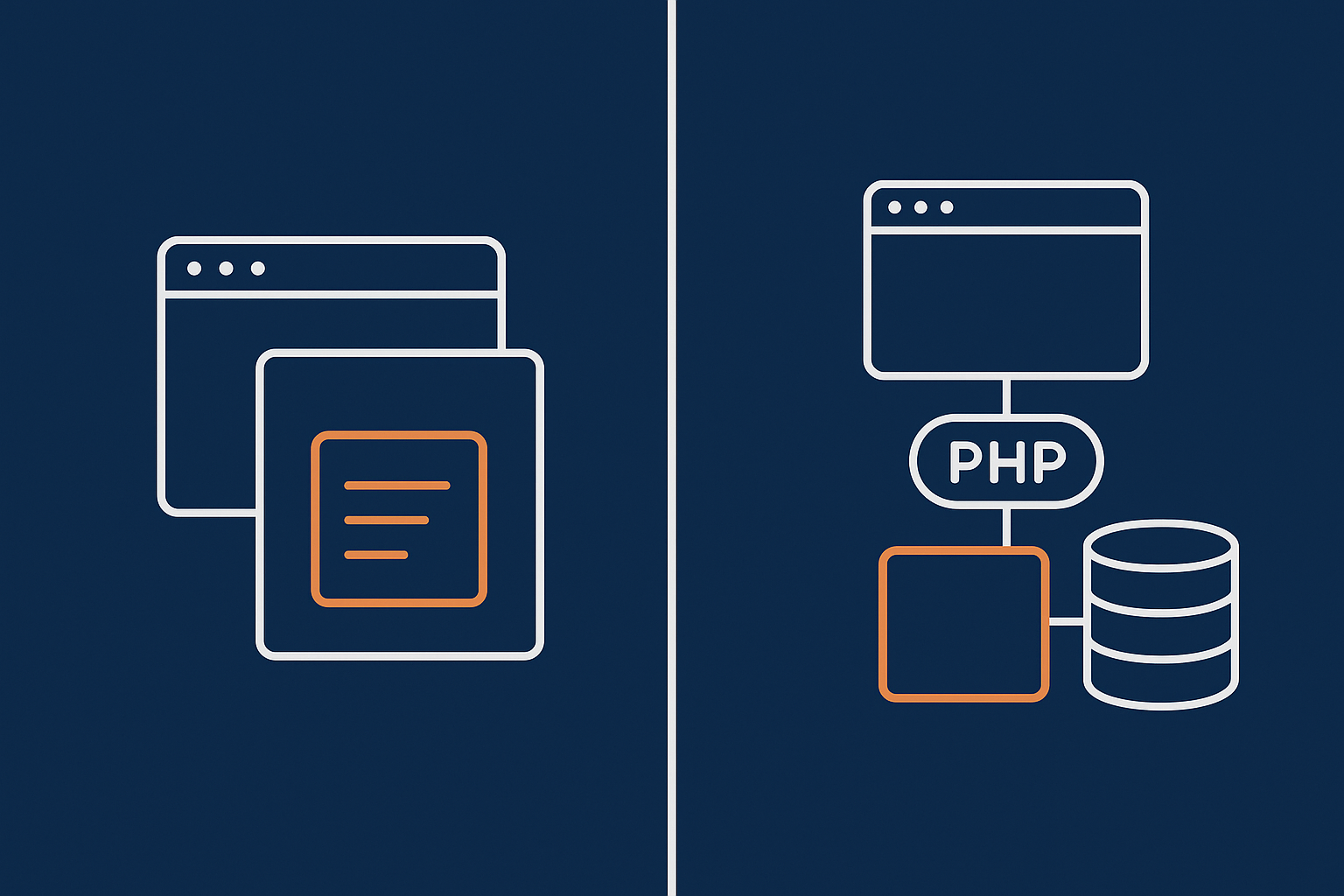
Page caching stores the final HTML output for a page or post and serves that prebuilt version to future visitors.
When page caching is enabled and correctly configured:
- The first visitor after a change triggers WordPress to build the page as usual.
- The resulting HTML is stored in a cache, usually keyed by URL and some additional conditions (such as device type or query string).
- Subsequent visitors receive that stored HTML directly from the cache without running PHP or hitting the database.
For anonymous, logged out visitors, this can reduce PHP and database work by 80 to 95 percent. It is often the single biggest speed win for blogs, brochure sites and much of a typical e‑commerce catalogue.
Common approaches: plugins, server level cache, reverse proxy
There are three main ways WordPress sites implement page caching.
1. Plugin based caching
Plugins such as WP Super Cache, W3 Total Cache and others generate and store static HTML files inside WordPress itself.
Pros:
- Easy to install on almost any host.
- Good control from the WordPress dashboard.
Cons:
- Still adds PHP overhead on cache misses.
- Easy to misconfigure with too many options.
- Can clash with other performance tools or hosting level cache.
2. Server level cache (Nginx/Apache)
The web server can be configured to store and serve cached HTML files directly, before PHP runs. Many managed WordPress hosting platforms take this approach.
Pros:
- Very fast, since PHP is bypassed completely on hits.
- More consistent across sites on the same platform.
Cons:
- Configuration is under the host’s control, so you rely on them to get it right.
- Some custom rules require support or developer input.
3. Reverse proxy caching (e.g. Varnish, or at the edge)
A reverse proxy cache sits in front of the web server and can cache HTML responses. Network layer services such as the G7 Acceleration Network use a similar principle at a global scale.
Pros:
- Reduces load on the origin server dramatically.
- Can be extended to multiple origin servers for high availability.
Cons:
- More complex invalidation and bypass rules.
- Misconfiguration can cause stale pages or caching of private content.
For many UK business sites, the ideal is a well tuned server level or edge cache that works automatically, without needing to choose and configure multiple overlapping plugins.
Where page caching fits for WooCommerce (and where it must not)
WooCommerce complicates page caching because some pages are highly dynamic and personalised.
Safe to cache aggressively (for most shops):
- Product detail pages, as long as pricing and stock are not changing every second.
- Category and tag archives.
- Blog posts and content pages (size guides, brand stories, FAQs).
- Homepages without personalised recommendations.
Must not be cached for logged in customers or at all in some cases:
- Cart pages.
- Checkout pages.
- My account, order history and wishlists.
- Pages that show different content per user or per session.
Good WooCommerce caching solutions recognise WooCommerce cookies and bypass the page cache automatically for these routes. Some also vary the cache by selected currency, language or device type where needed.
What a good host should handle for page caching
A competent managed host should:
- Provide page caching by default for logged out visitors.
- Ship with sensible exclusion rules for WooCommerce, carts, checkouts and account pages.
- Automatically purge or refresh caches when content changes: publishing, updating or deleting posts, products and menus.
- Offer safe defaults for online shops and membership sites, with clear guidance for edge cases rather than leaving you to guess.
- Avoid forcing customers to stack multiple cache plugins on top of server level caching.
If you need heavy manual tuning for a simple store or brochure site, that is usually a sign that the platform’s defaults are not well thought through.
Object Caching: Speeding Up Database Heavy WordPress Sites
What object caching is in WordPress terms
WordPress has a built in object cache layer which stores data in memory during a single request: results of SQL queries, expensive calculations and API responses. This avoids repeating those operations within the same page load.
Transients are a related concept. They are a way of storing data in the database (or a persistent cache) with an expiration time. Developers use transients for things like caching API calls to payment gateways or shipping providers, or storing precomputed menus and widget data.
By default, the WordPress object cache is not persistent. Each new request starts with an empty cache. That is where tools like Redis and Memcached come in.
Persistent object caches like Redis and Memcached
A persistent object cache sits outside PHP and the database. The most common options for WordPress are Redis and Memcached.
In practice, this means:
- On the first request, WordPress queries the database as usual and stores the results in Redis/Memcached.
- On later requests, the same queries are served from the cache, avoiding a round trip to the database.
- The cache can be shared across PHP workers and sometimes even across multiple web servers.
On database heavy sites, this can significantly reduce query load and improve response times, especially for logged in users who often bypass page caches.
For a deeper dive into how this works in practice, you might find our guide on using object caching to speed up WordPress useful once you have the basics in hand.
When object caching actually helps (and when it does not)
Persistent object caching shines when:
- You have WooCommerce with lots of products, complex filters or heavy reporting.
- You run a membership site or LMS with many logged in users and personalised content.
- You have a large blog or news site with complex queries (multiple taxonomies, custom fields, related content).
- Plugins or custom code run many similar database queries per request.
It tends not to move the needle much when:
- The site is a small brochure site with only a handful of pages.
- Page caching is already doing most of the heavy lifting and traffic is mostly anonymous visitors.
- The site is CPU bound on PHP execution rather than database bound.
In other words, if you run a busy WooCommerce shop or membership site, object caching is almost essential. If you have a 10 page brochure site, it is nice to have, but not a game changer.
What your host should provide for object caching
A business friendly host should treat persistent object caching as part of the platform for sites that need it, not as a DIY add on. In practice, that means:
- Providing Redis or Memcached on appropriate plans, with reasonable memory allocations.
- Handling installation and daemon management at the server level.
- Offering basic monitoring so that runaway plugins do not fill the cache and harm stability.
- Providing simple, documented instructions or a small helper plugin to connect WordPress to the cache.
What you should not be doing is tuning Redis eviction policies or Memcached thread counts yourself on a “managed” platform.
Opcode Caching: Making PHP Itself Faster
What PHP opcode caching does in simple terms
PHP is an interpreted language. Every time a request comes in, PHP normally has to:
- Read your
.phpfiles (WordPress core, plugins, themes). - Parse and compile them into bytecode.
- Execute that bytecode.
Opcode caching (usually via Opcache) cuts out the repeated compilation step. The first time a PHP script is run, its compiled bytecode is stored in memory. Subsequent requests reuse that compiled version.
This might only save a few milliseconds per file, but across all of WordPress, your theme and plugins, it adds up, especially under load.
Opcache configuration and limits
Opcache has various settings that your host needs to tune correctly:
- Memory size how much RAM to allocate to storing compiled scripts. Too little and the cache will churn, losing the benefit. Too much and you waste memory needed elsewhere.
- Max files how many separate scripts it can cache. Large plugin stacks and complex themes increase this count.
- Revalidation / invalidation how often Opcache checks whether a file has changed on disk. If this is too infrequent, you can see strange bugs where code changes do not seem to apply. If it is too aggressive, you lose performance.
In a development or staging environment, revalidation often needs to be more frequent to reflect code changes quickly. On production, it should be tuned for stability and performance.
Why opcode cache is 100% your host’s responsibility
Business owners, marketers and even most developers should not need to touch Opcache flags on a managed WordPress platform. A performance conscious host should:
- Enable Opcache by default for all PHP versions in use.
- Use sensible, tested defaults for memory size and file limits based on plan size.
- Expose basic controls only where necessary (such as clearing Opcache after deploys).
If you are having to request that Opcache be enabled, or are told to tweak low level settings yourself, it is a sign that the platform is not as managed as it could be.
CDN and Edge Caching: Moving Content Closer to Your Visitors
What a CDN actually does for a WordPress site
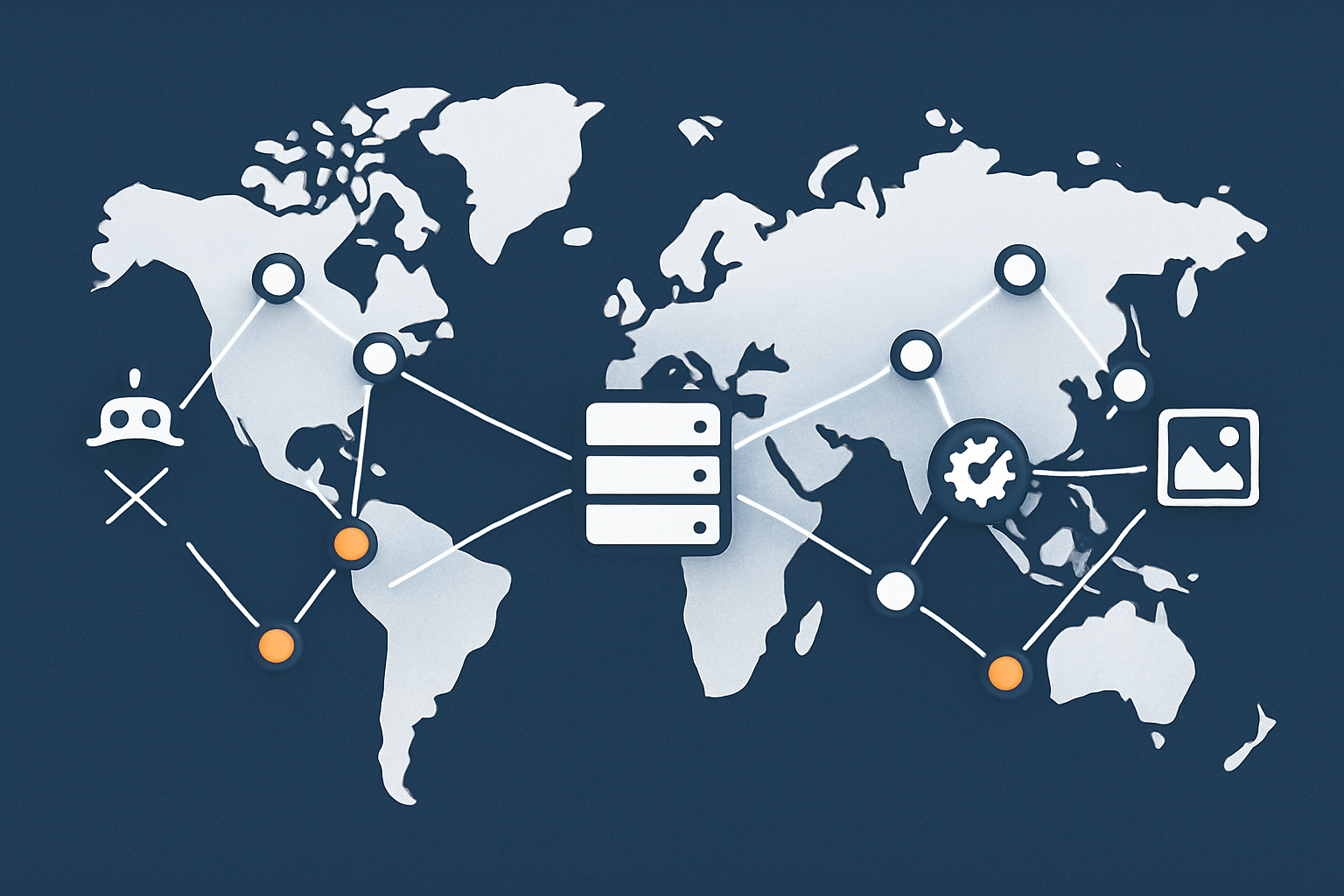
A content delivery network (CDN) is a network of servers around the world that store copies of your static assets. When a visitor requests your site, DNS or routing logic sends them to the geographically closest edge server.
For WordPress, a CDN typically:
- Caches and serves images, CSS, JavaScript and fonts.
- Sometimes also caches full HTML pages, depending on configuration.
- Offloads traffic from your origin server, improving stability and scalability.
Services such as the G7 Acceleration Network combine CDN style asset caching with additional performance and security features, which can simplify the stack for non technical teams.
Page vs asset caching at the edge
It helps to separate two kinds of edge caching:
- Asset caching focusing on static files like images, CSS and JS. This is relatively safe and simple.
- Full page caching where the CDN or edge stores the HTML for whole pages.
Asset caching is almost always recommended. It improves load times for visitors far from your origin server and reduces bandwidth and connection overhead.
Full page caching at the edge can be powerful, but needs careful handling of:
- Cookies that indicate logged in users, carts and sessions.
- Query strings used for tracking or personalisation.
- Regions where you may need to vary prices or content.
A “smart” acceleration layer can handle many of these patterns automatically for typical WordPress and WooCommerce setups, but you still need clear rules for what should and should not be cached.
Image optimisation as part of CDN / edge performance
Images are often the heaviest part of a page. Poor image handling is a common reason why sites fail to meet Core Web Vitals targets, even when caching is otherwise solid.
Modern CDNs and acceleration layers can take care of image optimisation for you. For example, the G7 Acceleration Network automatically converts images to modern AVIF and WebP formats on the fly, typically reducing file sizes by over 60 percent while keeping quality appropriate for real sites, and it does this for all hosted sites without extra plugins or WordPress changes.
Handling image conversion server side avoids the overhead of extra optimisation plugins and reduces complexity in your media workflow.
If you want a deeper dive into this topic, our guide on choosing a CDN and image optimisation strategy for WordPress looks at practical options in more detail.
Bad bots, abusive traffic and keeping caches effective
Not all traffic is good traffic. Scrapers, brute force attempts, vulnerability scanners and poorly written bots can generate large numbers of requests that:
- Bypass caches by hitting unusual URLs or query strings.
- Hammer login forms, search endpoints and
wp-admin. - Increase server load without contributing any value.
Bot filtering at the edge is one of the most effective ways to protect performance. Features such as G7Cloud’s bot protection within the G7 Acceleration Network filter abusive and non human traffic before it reaches PHP or the database, reducing wasted load, keeping response times more consistent and helping avoid downtime during busy periods.
This is particularly important for WooCommerce shops running promotions or membership sites with scheduled events where traffic peaks are predictable but sensitive to slowdowns.
What your host should own when it comes to CDNs
In an ideal world, you should not have to:
- Sign up for a third party CDN.
- Change DNS records yourself without guidance.
- Manually adjust cache rules for every plugin and path.
A performance oriented host should either:
- Provide an integrated acceleration network (such as the G7 Acceleration Network) that is already wired into their platform, or
- Offer clear, tested guidance for a small number of supported third party CDNs, including recommended rules for WordPress and WooCommerce.
What you should not be doing is trial and error with generic CDN tutorials that do not account for your specific stack.
How These Caches Work Together (and Where They Can Clash)
The ideal layered setup for a typical business site
For a normal UK business running WordPress or WooCommerce, a sensible caching stack looks like this:
- Browser cache controlled via cache control headers, telling browsers to reuse CSS, JS, fonts and images for reasonable periods.
- CDN / edge cache serving static assets globally and, where safe, caching full pages for logged out visitors.
- Page cache on the origin serving prebuilt HTML for anonymous traffic and most catalogue pages.
- Object cache such as Redis for database heavy workflows, especially for logged in users and admin interfaces.
- Opcode cache enabled and tuned for all PHP processes.
- Reasonably tuned database indexed based on your workloads, with slow query logging available for diagnosis.
When these pieces are aligned, pages feel fast, the server remains stable under load and you have reasonable headroom for campaigns and seasonal peaks.
Common conflicts: double caching, stale content and broken logins
Caches can clash when they overlap or are not aware of each other.
Typical problems include:
- Double caching: Running a WordPress cache plugin on top of strong server level or edge caching can cause confusion about which layer is serving content and which one should be purged.
- Stale content: If cache purging is not coordinated, you may update a product, but some visitors keep seeing old prices because an upstream cache was not cleared.
- Broken logins or carts: Overly aggressive page caching or CDN rules that ignore WordPress and WooCommerce cookies can lead to users being logged out unexpectedly or seeing other customers’ cart contents.
Signs of cache related issues include:
- Problems that affect some users but not others, depending on geography or whether they are logged in.
- Changes in the WordPress admin not appearing on the front end until you “clear all caches” in several places.
- Odd behaviour after enabling or changing a CDN or cache plugin, particularly around login, checkout and account pages.
Many slow-site investigations reveal more issues from misconfigured caching than from not having enough caching.
Who should fix what: host vs developer vs site owner
In a healthy division of responsibilities:
- Host owns the platform: Opcode cache, base PHP and database tuning, server and edge level page caching, object caching infrastructure and edge bot filtering. They should also provide clear defaults and documentation.
- Developer / implementer ensures that your theme and plugins work well with the platform, sets appropriate exclusion rules for truly dynamic custom pages and uses transients/object cache sensibly in custom code.
- Site owner or marketer understands what types of content are safe to cache, knows how to clear caches safely after big changes and can recognise when something feels like a cache bug rather than a content problem.
If you find yourself frequently toggling cache settings blindly to fix issues, it is worth revisiting this division with your host or developer.
What Your Hosting Provider Should Handle By Default
Baseline expectations for managed WordPress hosting
If you are paying for managed WordPress or WooCommerce hosting for busy shops, there are some non negotiable basics you should expect:
- Modern PHP with opcode cache enabled and tuned.
- HTTP/2 or HTTP/3 support for efficient asset loading.
- Sensible default page caching rules, with WooCommerce awareness.
- Integrated CDN or very clear guidance and support for enabling one.
- Security headers and TLS configured without you having to ask.
These are table stakes for a platform that claims to be performance oriented.
Performance features you should not have to build yourself
Beyond the basics, there are features that a host is simply better placed to handle than a plugin stack:
- Integrated image optimisation at the edge, converting images to AVIF and WebP on the fly without needing extra plugins. For example, customers using the G7 Acceleration Network benefit from automatic conversion that typically cuts image sizes by over 60 percent while keeping real-world quality.
- Bot filtering and rate limiting before requests reach PHP or the database, so abusive or clearly non human traffic does not consume your resources.
- Automatic cache purging tied to WordPress hooks (post/product publish, update, delete), so the correct layers are invalidated consistently.
These are hard to reproduce reliably with a collection of separate plugins, especially across multiple environments.
Where you still need plugins or developer help
Even on a strong platform, there are areas where plugins or development work are still necessary:
- Custom business logic such as bespoke pricing rules, unusual checkout flows or multi step forms that rely on dynamic data.
- Advanced personalisation beyond standard WooCommerce patterns, such as content tailored by behaviour tracking or external data sources.
- Specialist plugins that introduce new caching considerations, for example advanced search, custom booking engines or complex reporting.
In these cases, your host should be able to advise on safe cache exclusions and any extra headers or rules required, but the implementation details sit with your developer.
How G7Cloud approaches caching layers for WordPress and WooCommerce
G7Cloud’s platform is designed around the layered approach described in this article. The G7 Acceleration Network handles global asset and, where appropriate, page caching, image optimisation, bot filtering and security headers at the edge. On the origin, server level page caching, Opcache and optional Redis object caching are tuned to work together rather than compete.
For WooCommerce and similar transactional sites, default rules exclude carts, checkouts and account areas from page caching, while allowing catalogue and content pages to benefit from full acceleration. The aim is simple: reduce complexity for site owners while giving developers a predictable, well documented baseline.
Practical Steps: Auditing Your Current Caching Setup
Quick checks any site owner can do
You do not need to be a developer to run some simple checks:
- Check page caching: Open your site in an incognito/private window. Load a page, then reload it. If the second load feels clearly faster and HTTP response headers mention a cache (for example
x-cache: HITor similar from your host or CDN), page caching is likely working. - Look for CDN headers: Use your browser’s developer tools (Network tab) to inspect requests for images and CSS/JS. If you see headers referring to a known CDN or acceleration network, or the response IPs vary by location, you probably have a CDN in place.
- Test logged in vs logged out: Log in to WordPress in one browser, then test your site in another browser that is logged out. Logged out views should feel fast and consistent; logged in ones may be slower but still acceptable.
- Monitor admin speed: A slow WordPress dashboard often points to missing object caching or database bottlenecks rather than page cache issues.
If you want to go deeper with tools and metrics, the guide on diagnosing slow WordPress performance walks through practical ways to pinpoint real bottlenecks.
Questions to ask your current or potential host
When reviewing a host, it helps to ask specific questions rather than generic “Is it fast?” queries. For example:
- What kind of page caching do you provide by default for WordPress and WooCommerce?
- How do you handle cache purging when content and products are updated?
- Is Redis or Memcached available for persistent object caching, and is it managed for me?
- Do you include an integrated CDN or acceleration layer such as the G7 Acceleration Network? What does it cache by default?
- How do you deal with abusive bots and brute force traffic before it reaches PHP?
- Do you provide on the fly image optimisation to AVIF/WebP, or will I need a separate plugin?
The quality of the answers is often a better indicator than any benchmark chart.
When to move from shared to VDS or enterprise hosting for caching and performance
Caching can take you a long way, but there are times when you simply need more resources or better isolation.
Signs you may have outgrown basic shared hosting:
- Performance is acceptable when traffic is low, but deteriorates sharply during predictable peaks, even with caching properly configured.
- You share IPs or resources with many other sites, and neighbour activity frequently affects your stability.
- You have strict uptime, compliance or isolation requirements that shared plans cannot comfortably meet.
In these cases, moving to a virtual dedicated server (VDS) or enterprise grade environment gives you:
- More predictable CPU and memory allocations.
- Greater control over database and cache sizing.
- Room for horizontal scaling if your business demands it.
A good provider should guide you through this decision based on real usage data rather than on guesswork or fear of missing out.
Summary: A Simple Way to Think About Caching Layers
Mapping caching layers to real business outcomes
It helps to translate technical caching layers into normal business terms:
- Page caching makes pages feel snappy for most visitors, reducing bounce rates and abandoned carts, especially from mobile and slower connections.
- Object caching keeps complex, logged in experiences responsive, so members or customers are not left waiting on spinners.
- Opcode caching makes better use of your hosting resources, helping your site stay stable under load.
- CDN and edge caching improve experience for visitors across the UK, Europe and beyond, and provide resilience when traffic suddenly spikes.
- Image optimisation and bot filtering reduce waste: fewer megabytes downloaded per page, and less server time spent on traffic that does not convert.
All of this ultimately supports sales, lead generation and reputation: a site that feels quick and stays up during busy periods is simply easier to trust.
A short, realistic wishlist for your next hosting plan
When you next review hosting or plan a move, you might use this short checklist:
- Modern PHP with properly configured Opcache.
- Server level or edge page caching, WooCommerce aware by default.
- Optional, managed Redis or Memcached for object caching.
- Integrated CDN / acceleration network with on the fly AVIF/WebP image optimisation.
- Edge level bot filtering to protect origin resources and keep caches effective.
- Automatic cache purging on content and product changes.
- Clear documentation and support around cache rules for dynamic content.
If your current platform falls a long way short of this, it may be time to explore alternatives. A service built around managed WordPress hosting and a thoughtful acceleration layer such as the G7 Acceleration Network can remove much of the day to day tuning work, letting you focus on content, campaigns and customers instead of headers and cache rules.
For a more practical, step by step perspective on speeding up a real site, you might also find our article on WordPress speed optimisation for non developers a useful next read.