

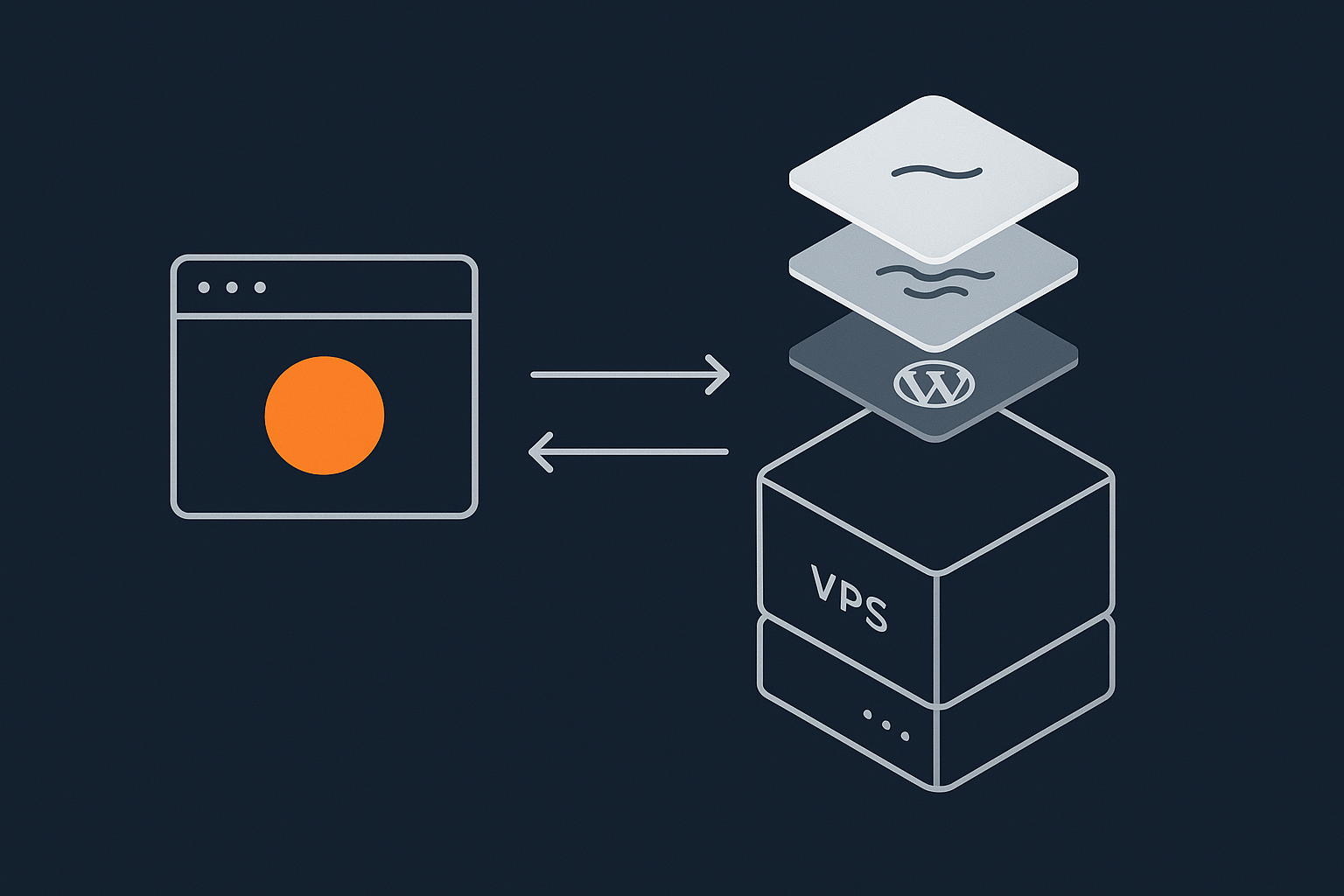
Who This Caching Setup Is For (And What You Will Have Working At The End)
This guide is for people running WordPress or WooCommerce on a single VPS or virtual dedicated server, who want a fast, reliable cache without spending days guessing at Nginx directives and plugin options.
Typical situations include:
- Moving from shared hosting to a VPS/VDS and needing a proper stack rather than “one click” defaults.
- Rebuilding a slow single server that already runs Nginx, PHP-FPM and MySQL/MariaDB but struggles under traffic.
- Running WooCommerce on a VPS and seeing timeouts or cart issues when you enable caching.
By the end, you will have:
- Nginx serving static assets directly with sensible browser cache headers.
- Optional simple Nginx microcaching for anonymous pages.
- A WordPress cache plugin aligned with Nginx so you avoid duplicated work and conflicts.
- Safe rules for WooCommerce and logged in users.
- PHP-FPM tuned so cache misses do not bring the server down.
The guide assumes:
- Linux VPS or VDS with root or sudo access.
- Nginx + PHP-FPM + MySQL or MariaDB.
- One or a handful of WordPress sites on the server.
If you want more background on how this stack fits together, the article on choosing and tuning a web stack on a single server is a good primer.
If managing all of this yourself feels heavy, then Virtual dedicated servers designed for WordPress and WooCommerce or fully managed WordPress hosting if you prefer caching and stack tuning handled for you can take much of the work away, but this guide focuses on a do it yourself VPS.
The Three Caching Layers You Need To Think About
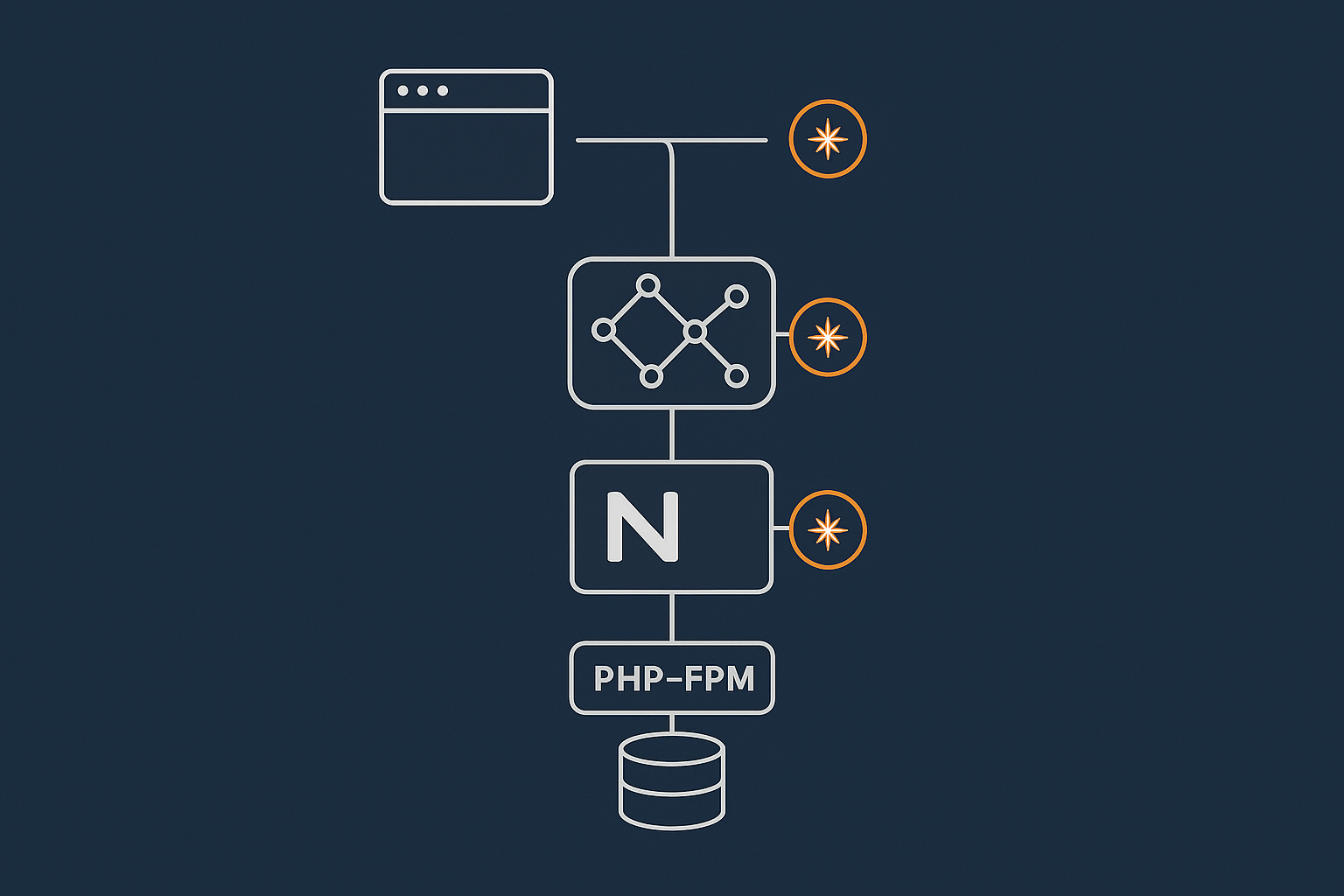
Browser cache and HTTP headers
The browser cache is the first layer. If you tell browsers to keep CSS, JavaScript and images for a while, repeat visits become much faster and you cut bandwidth.
You control this with HTTP headers, mainly:
Cache-Control(modern directive, supports fine grained rules)Expires(older but still widely used)ETagandLast-Modified(validation, for when content may change)
You will set most of these in Nginx rather than inside WordPress.
Nginx-level caching and static file delivery
Nginx is very good at serving static content directly from disk and can provide a fast page cache before PHP is involved.
Two key roles:
- Static files such as
.css,.js, images and fonts, served quickly from disk with long cache headers. - Microcaching of HTML responses for a short time (for example 10 to 60 seconds) for anonymous users, which can flatten spikes in traffic.
Static delivery will be in your Nginx server block. Microcaching is optional and must be configured carefully so it does not affect logins, carts or personalised content.
WordPress layer: page cache, object cache and fragment cache
Inside WordPress, there are three common caches:
- Page cache: stores the final HTML of each page. This is what most “caching plugins” focus on.
- Object cache: stores database query results and other data structures so that repeated requests do not keep hitting MySQL.
- Fragment cache: stores pieces of page output. Used by some themes or plugins for specific widgets or layouts.
The balance you want on a single VPS:
- Let Nginx serve static files.
- Use a WordPress page cache plugin that cooperates with Nginx.
- Add object cache (Redis or Memcached) when you have WooCommerce or heavy plugins.
For a deeper explanation of how these layers fit together, see Understanding WordPress Caching Layers.
Where PHP-FPM and database performance fit into the picture
Even with good caching, some requests always hit PHP-FPM and the database:
- First visitor to a page before it is cached.
- Logged in users and WooCommerce carts.
- Admin area and AJAX calls.
PHP-FPM needs enough workers to handle realistic traffic, but not so many that it exhausts RAM and swaps. Your database needs sensible buffers and indexes so queries finish quickly. The G7Cloud guide on PHP workers, concurrency and WooCommerce explains this connection.
Preparing Your VPS or VDS for Caching
Baseline server checks: CPU, RAM, disk and PHP version
Before touching Nginx, confirm the basics:
- CPU: 2 vCPUs is a comfortable minimum for a modest WooCommerce shop. Brochure sites can manage with 1, but 2 gives more headroom.
- RAM: 2 GB is usually enough for a single small site, 4 GB or more is safer for WooCommerce or multiple sites.
- Disk: Use SSD or NVMe only. Check
df -hto ensure you are not close to full. - PHP version: use a supported version (PHP 8.1 or newer at the time of writing). Run
php -vto check.
Managed platforms that focus on web hosting performance features such as tuned PHP and database stacks usually handle sensible defaults for you, but on a self managed VPS these checks are your responsibility.
File structure: where Nginx, PHP-FPM and WordPress live
On a typical Debian/Ubuntu server:
- Nginx site configs are under
/etc/nginx/sites-available/and symlinked from/etc/nginx/sites-enabled/. - PHP-FPM pool configs are under
/etc/php/8.x/fpm/pool.d/. - WordPress lives somewhere like
/var/www/example.com/public.
Ensure ownership and permissions are sensible:
chown -R www-data:www-data /var/www/example.com
find /var/www/example.com -type d -exec chmod 755 {} \;
find /var/www/example.com -type f -exec chmod 644 {} \;
This reduces permission related errors when caching plugins create cache folders.
Security basics that affect caching: HTTPS, firewalls and bad bot traffic
You should have:
- HTTPS via Let’s Encrypt or a commercial certificate.
- A firewall (for example
ufworfirewalld) allowing only 80/443 plus SSH. - Fail2ban or similar for basic brute force defence.
Bad bots and aggressive crawlers can destroy the benefits of caching by constantly requesting uncached URLs or bypassing cache rules. G7Cloud’s bot protection within the G7 Acceleration Network filters abusive and non human traffic before it reaches PHP or the database, which helps keep response times stable and reduces wasted server load during busy periods.
When a managed platform or acceleration layer can take care of edge caching for you
An edge or acceleration network sits between users and your VPS, caching content geographically closer to visitors and filtering unwanted traffic.
For example, the G7 Acceleration Network provides edge caching, bot filtering, image optimisation and security headers automatically. In that case, you may keep Nginx configuration simpler and let the network handle full page caching, focusing mainly on correct bypass rules for logins and WooCommerce.
Configuring Nginx for Fast Static Assets and Simple Page Caching
Clean Nginx server block for WordPress (no conflicting legacy rules)
A minimal server block for WordPress on HTTPS might look like:
server {
    listen 80;
    server_name example.com www.example.com;
    return 301 https://example.com$request_uri;
}

server {
    listen 443 ssl http2;
    server_name example.com www.example.com;

    root /var/www/example.com/public;
    index index.php index.html;

    # SSL config here...

    include /etc/nginx/snippets/wordpress-static.conf;

    location / {
        try_files $uri $uri/ /index.php?$args;
    }

    location ~ \.php$ {
        include snippets/fastcgi-php.conf;
        fastcgi_pass unix:/run/php/php8.1-fpm.sock;
    }

    location ~* \.(php|phtml)$ {
        deny all;
    }
}
Keep the WordPress rules simple. Remove old Apache-style .htaccess assumptions and unnecessary rewrites.
Serving static assets directly: CSS, JS, images and fonts
In /etc/nginx/snippets/wordpress-static.conf you can add:
location ~* \.(?:css|js|jpg|jpeg|gif|png|webp|avif|ico|svg|woff2?)$ {
    access_log off;
    log_not_found off;
    try_files $uri =404;
}
This tells Nginx to deliver static files directly from disk and not pass them to PHP. If you offload images to an edge network, such as the G7 Acceleration Network, static delivery will often happen there instead, taking further load off your VPS.
Setting sensible browser cache headers in Nginx
Add cache headers in the same static block:
location ~* \.(?:css|js|jpg|jpeg|gif|png|webp|avif|ico|svg|woff2?)$ {
    access_log off;
    log_not_found off;
    expires 30d;
    add_header Cache-Control "public, max-age=2592000, immutable";
    try_files $uri =404;
}
The immutable directive works best if you use versioned file names (for example style.12345.css). Many themes and plugins already do this when you update assets.
If you use an acceleration network that handles image conversion, note that the G7 Acceleration Network automatically converts images to AVIF and WebP on the fly, usually cutting image weight by more than 60 percent without extra plugins or changes inside WordPress.
Optional: safe Nginx microcaching for anonymous traffic
Microcaching can protect your VPS during spikes by caching HTML for a short time. Add this to the http block in nginx.conf:
proxy_cache_path /var/cache/nginx levels=1:2 keys_zone=WORDPRESS:10m
                 inactive=60s max_size=500m;
In your server block:
set $no_cache 0;

# Do not cache logged in users or WooCommerce sessions
if ($http_cookie ~* "wordpress_logged_in_|woocommerce_items_in_cart|wp_woocommerce_session_") {
    set $no_cache 1;
}

location / {
    proxy_cache_bypass $no_cache;
    proxy_no_cache $no_cache;

    proxy_cache WORDPRESS;
    proxy_cache_valid 200 30s;
    proxy_cache_valid 404 1m;
    add_header X-Proxy-Cache $upstream_cache_status;

    try_files $uri $uri/ /index.php?$args;
}
This is a simple example and you must test WooCommerce thoroughly. Keep microcache times short and never cache logged in users or cart / checkout traffic.
Tuning PHP-FPM So Caching Has Something Fast To Talk To
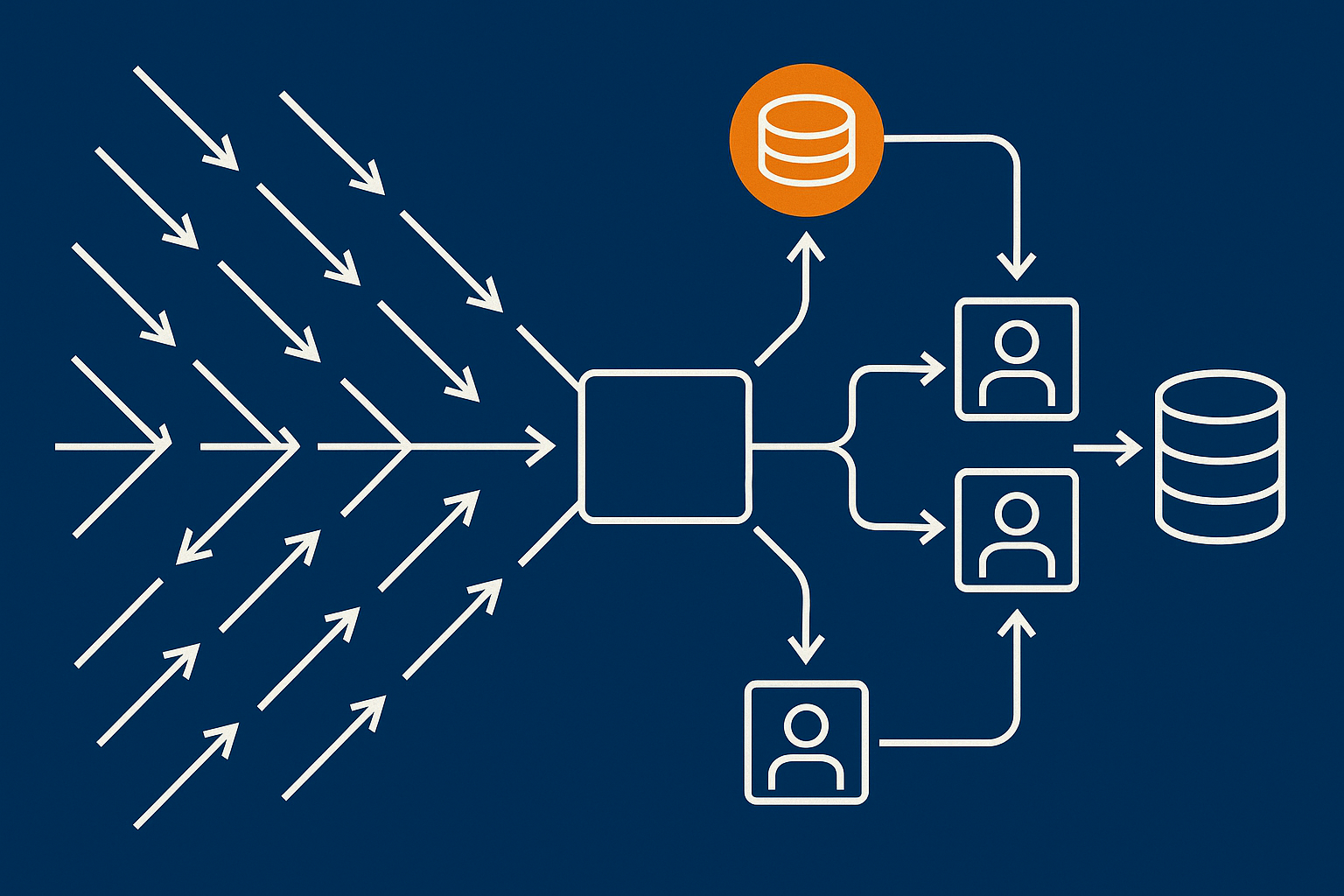
How PHP-FPM workers interact with Nginx and WordPress
Nginx passes PHP requests to PHP-FPM via a socket or TCP port. Each request occupies a PHP-FPM worker until it finishes. If all workers are busy, new requests queue and users see slow responses or 502/504 gateway errors.
Caching reduces how often this happens, but PHP-FPM still needs sane limits.
Choosing a process manager (dynamic vs ondemand) for a typical WordPress VPS
PHP-FPM pool configuration is usually in /etc/php/8.x/fpm/pool.d/www.conf. Two useful settings are:
- dynamic: keeps some workers always ready, good for steady traffic.
- ondemand: starts workers only when needed, good for low traffic sites.
For a typical production WordPress VPS, dynamic is a safe starting point. Example:
pm = dynamic
pm.max_children = 12
pm.start_servers = 4
pm.min_spare_servers = 2
pm.max_spare_servers = 8
Adjust pm.max_children based on RAM and typical PHP memory usage.
Setting max children and timeouts so cache misses do not cause 502/504s
Estimate pm.max_children as:
max_children ≈ (PHP RAM limit fraction of system RAM) / estimated PHP memory per request
Example:
- Server RAM: 4 GB
- Allocate roughly 2 GB to PHP-FPM
- Average PHP request uses around 128 MB
Then pm.max_children ≈ 2048 / 128 ≈ 16. It is safer to start at 12 and monitor.
Also check:
request_terminate_timeout = 60s
This stops very slow scripts from hanging workers forever.
Monitoring PHP-FPM under load and avoiding “too many workers, not enough RAM”
Monitor with top or htop. Watch:
- Swap usage (avoid any if possible).
- Number of
php-fpmprocesses during traffic. - CPU saturation during cache misses.
If you see 502/504 responses during spikes, the guide on diagnosing and fixing WordPress 502/504 errors provides a deeper troubleshooting path.
Choosing and Configuring a WordPress Cache Plugin That Plays Nicely With Nginx
What a cache plugin should do (and what Nginx should already be handling)
On an Nginx VPS, your caching plugin does not need to manage everything. Ideally, it should:
- Generate static HTML files for each page (page cache).
- Set correct rules for WooCommerce and logged in users.
- Optionally manage object caching (Redis or Memcached) if you choose.
Let Nginx handle gzip or Brotli compression and browser cache headers. Avoid enabling duplicate features in both Nginx and the plugin.
Recommended plugin categories: full page cache vs object cache vs all in one
- Full page cache plugins create HTML snapshots of each page. Examples include popular performance plugins that can store cache on disk.
- Object cache plugins integrate WordPress with Redis or Memcached. These are very helpful for WooCommerce.
- All in one plugins combine page cache, object cache, minification and sometimes CDN features.
On a VPS with Nginx, page cache + object cache is usually enough. Use minification cautiously because it can break scripts and makes debugging harder.
Key plugin settings to align with Nginx: cache path, cache TTL, gzip/Brotli, browser cache
Adjust these in your plugin:
- Cache storage method: choose “Disk” or “Disk enhanced” so Nginx can serve cached HTML quickly.
- Cache path: leave defaults unless you have a separate data disk; ensure the directory is writable by the web user.
- TTL (time to live): 10–60 minutes for most blogs, 5–15 minutes for busy WooCommerce shops.
- Compression: disable gzip/Brotli compression in the plugin if you already have them configured in Nginx.
- Browser cache: if you configure this in Nginx, disable the plugin’s browser cache settings to avoid conflicting headers.
Avoiding double work and conflicts: compression, minification and CDN features
Conflicts to avoid:
- Do not enable HTML/CSS/JS minification in multiple plugins at once.
- Do not use a plugin’s CDN feature if an acceleration network such as the G7 Acceleration Network already handles edge delivery.
- Keep image optimisation in one place. If your host’s network converts images to AVIF/WebP automatically, turn off heavy compression plugins in WordPress to avoid double processing.
Safe Caching Rules for WooCommerce and Logged In Users
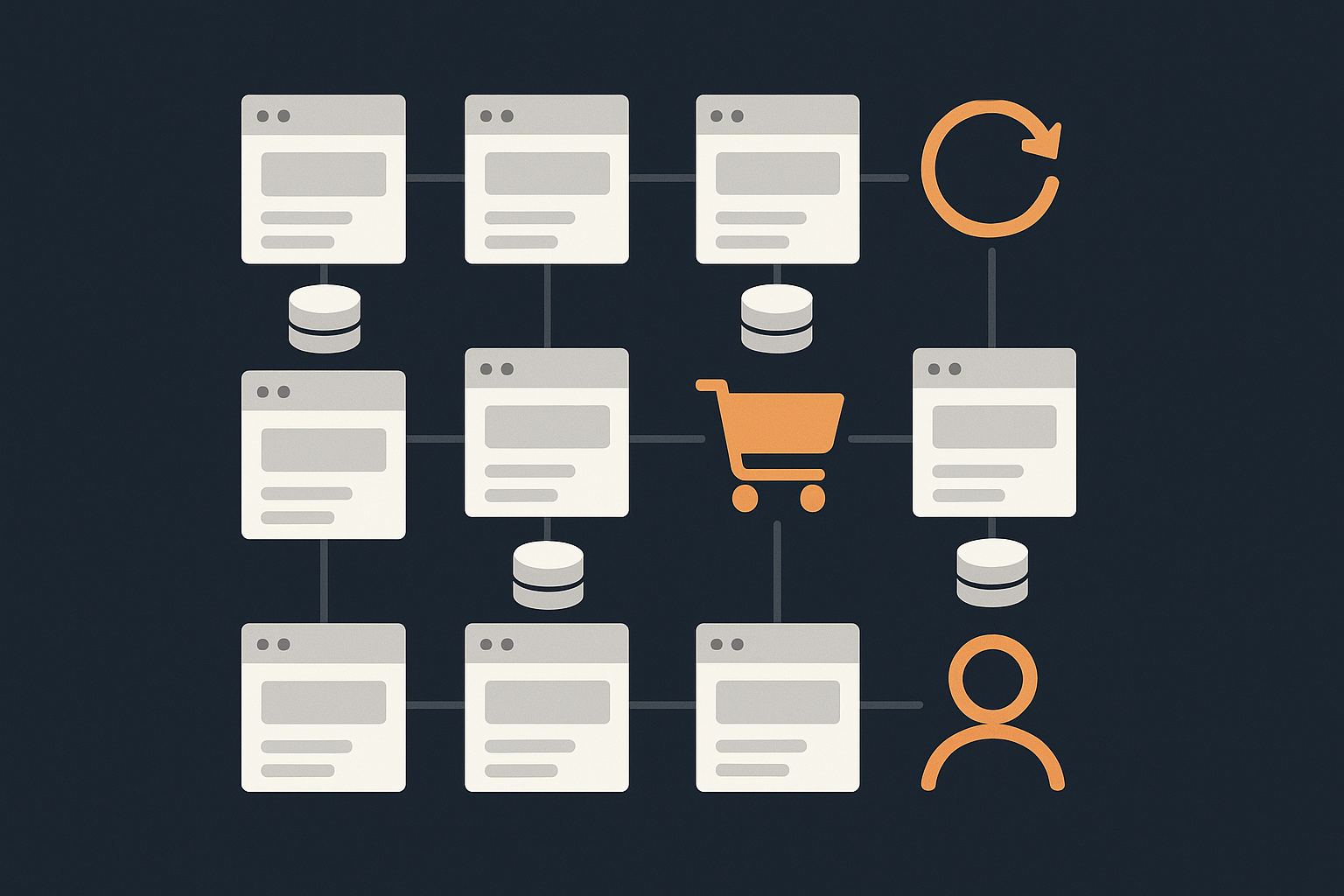
Pages you must never serve from a full-page cache
For WooCommerce, never cache:
/cart//checkout//my-account/and related account pages- Any pages handling vouchers, custom pricing or user specific content
Also avoid full page cache for /wp-admin/ and /wp-login.php.
Using cookies and URL rules to bypass cache for carts, checkout and account areas
Ensure both Nginx and your cache plugin bypass cache when certain cookies are present, for example:
woocommerce_items_in_cartwp_woocommerce_session_*wordpress_logged_in_*
Most WooCommerce-aware cache plugins include these by default, but confirm in the settings. In Nginx, we used the $http_cookie condition earlier to drive $no_cache.
Handling personalised pricing, vouchers and dynamic fragments
If you use:
- Role based pricing
- Voucher / discount plugins with dynamic totals
- GeoIP based pricing
you may need to reduce what is cached on pages that show different content per user. Options include:
- Disabling page cache on specific URLs or product categories.
- Using fragment caching (widgets that render dynamic bits separately).
- Shortening cache TTL on shop and product pages.
The article on WooCommerce caching without breaking carts covers advanced rules and patterns in more depth.
Testing WooCommerce with caching: real-world scenarios to run through
Always test:
- Browse as a guest, add products to basket, go to cart and checkout.
- Log in as a customer, repeat cart and checkout.
- Apply a voucher; confirm totals update correctly.
- Change stock levels in admin and confirm product pages reflect them after cache expiry or a manual purge.
Note: when an edge network or WAF is doing the caching for you
If a service such as the G7 Acceleration Network handles edge caching, you typically set “do not cache” rules for WooCommerce-sensitive URLs and cookies at the edge, and reduce or disable full page cache on the origin. The network can still cache static assets and anonymous product/category pages while respecting carts and checkouts.
Object Caching and Database Load: When Redis or Memcached Help
What object caching is and why it helps heavy plugins and WooCommerce
Object caching stores the results of expensive queries and operations. WooCommerce, membership plugins and page builders make many database calls per request. With an object cache, repeated queries are served from memory instead of hitting MySQL each time.
Comparing file-based object cache to Redis or Memcached on a VPS
- File-based: stores cache data on disk. Better than nothing, but much slower than memory and adds disk I/O.
- Redis: in-memory key value store, persistent, very common for WordPress.
- Memcached: simple in-memory cache, non-persistent, also widely supported.
On a VPS, Redis is usually the most practical: good performance and straightforward configuration.
Basic Redis/Memcached setup and WordPress integration plugins
Example Redis install on Debian/Ubuntu:
apt update
apt install redis-server php-redis
Enable Redis and ensure it listens on 127.0.0.1 only for security. Then in WordPress:
- Install a Redis object cache plugin.
- Enable object cache inside the plugin’s settings.
Watch RAM usage after enabling, especially on smaller VPS plans.
How object cache interacts with page cache and when to invalidate it
Object cache sits behind page cache. If a page is served from page cache, object cache is not touched. On cache misses or for logged in traffic, object cache reduces the work for PHP and MySQL.
Most plugins handle invalidation automatically on content changes. If you see stale data in the front end, clear both page cache and object cache together.
Testing, Monitoring and Troubleshooting Your Caching Setup
How to confirm Nginx is serving cached pages vs hitting PHP
Useful checks:
- Enable a header from your cache plugin, for example
X-Cache: HIT/MISS. - In Nginx microcache, the
X-Proxy-Cacheheader we added will showHIT,MISSorBYPASS. - Use
curl -I https://example.com/to inspect response headers.
Spotting cache hits and misses in response headers
Examples:
curl -I https://example.com/

HTTP/2 200
x-proxy-cache: HIT
x-cache: HIT
or
HTTP/2 200
x-proxy-cache: MISS
x-cache: MISS
You want consistent HIT for anonymous home, category and blog pages after the first request.
Tools to test performance
Use:
- WebPageTest to see waterfall charts and confirm static assets and HTML are cached.
- Google PageSpeed Insights to verify Core Web Vitals over time.
- Real browser tests in incognito and logged in modes to check WooCommerce behaviour.
If your host provides an acceleration layer like the G7 Acceleration Network, it will also handle on the fly conversion of images to AVIF/WebP, improving Web Vitals by reducing image sizes significantly without extra configuration.
Common problems: mixed content, stale pages, 502/504 under load and what to change first
- Mixed content: ensure WordPress site URLs are set to HTTPS and that any reverse proxy or edge network forwards the correct scheme.
- Stale pages: shorten cache TTL or enable automatic cache purge on content updates in your plugin.
- 502/504 errors: check PHP-FPM worker limits, slow database queries and whether bad bots are causing excessive uncached requests.
If resource usage stays high even after caching, the guide on troubleshooting high CPU and memory usage on WordPress walks through next steps.
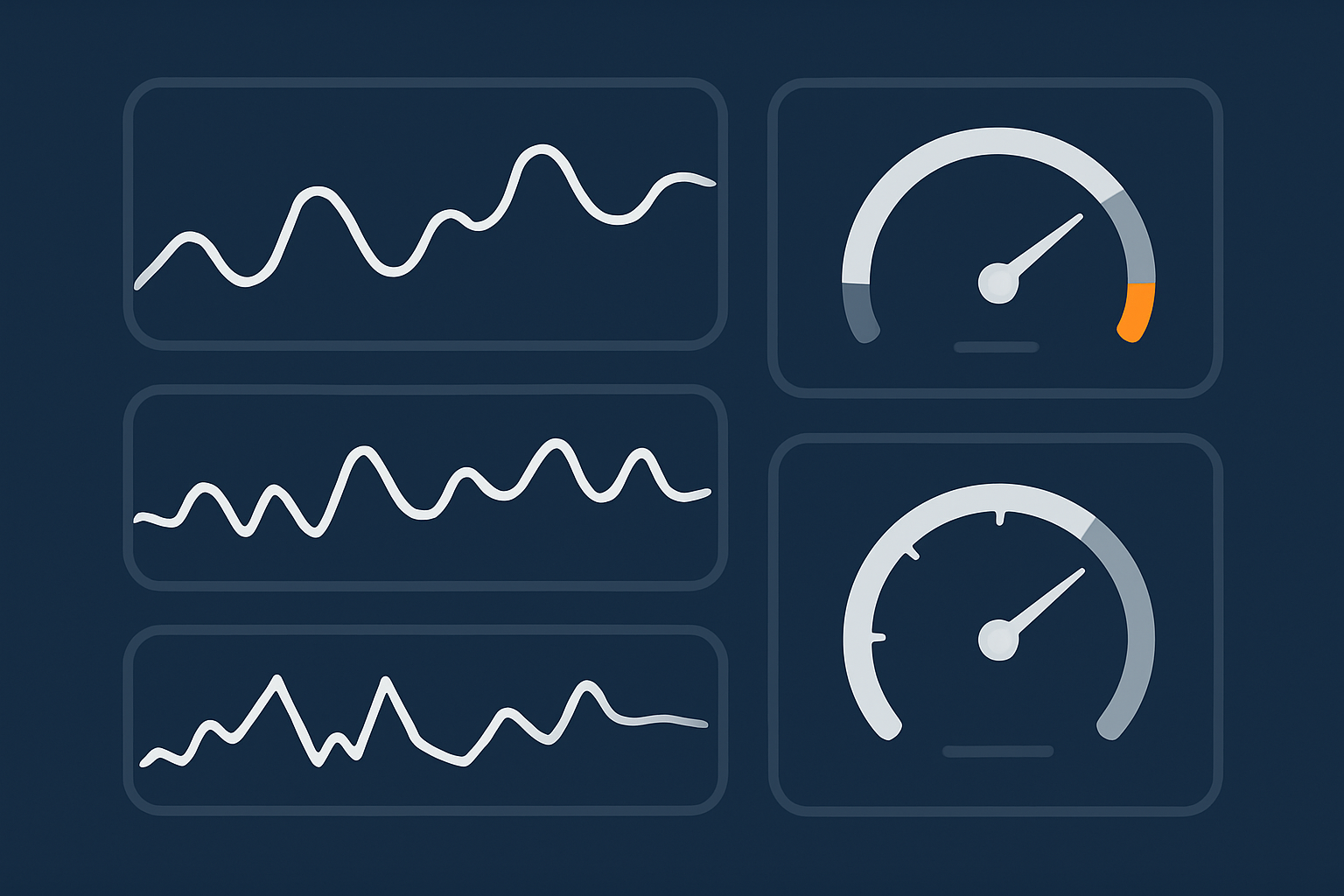
Watching server graphs to see whether caching is actually reducing load
On your VPS dashboard or monitoring tool, look for:
- Lower average CPU under similar traffic.
- Reduced disk I/O and database queries per second.
- Stable PHP-FPM process counts during traffic spikes.
The article on reading WordPress hosting resource graphs helps interpret these metrics.
Keeping Your Caching Setup Stable Over Time

Deploying theme and plugin updates without wiping or poisoning the cache
When you update themes or plugins:
- Clear cache for affected URLs (for example, product pages if you update WooCommerce templates).
- Avoid clearing the entire cache unnecessarily, especially before busy trading periods.
- Test on a staging site if you are changing caching plugins or Nginx configuration.
When to clear caches manually vs let them expire
Let caches expire naturally when:
- You are only changing content (new blog posts, price changes) and your plugin auto purges related pages.
Clear manually when:
- You change themes, page builders or core layout.
- You alter Nginx cache rules or PHP-FPM settings.
- Customers report seeing outdated content after updates.
Planning for traffic spikes: pre-warming caches and filtering abusive bots before PHP
Before a campaign or sale:
- Pre-warm key pages (home, top categories/products) using your cache plugin’s preload feature or a simple crawler script.
- Shorten microcache TTL slightly during volatile content changes.
Filtering abusive bots is as important as caching. G7Cloud’s bot protection within the G7 Acceleration Network filters non human and abusive requests before they reach your VPS, which helps maintain consistent response times and avoids PHP-FPM overload during spikes.
When it is time to move from home-grown caching to a managed WordPress or VDS platform
Signs you may be better off on a managed platform include:
- Frequent firefighting of 502/504 errors during promotions.
- Needing complex edge rules for WooCommerce that you are not comfortable maintaining.
- Lacking time to monitor PHP-FPM, Redis and Nginx logs regularly.
In those cases, exploring managed WordPress hosting if you prefer caching and stack tuning handled for you or a tuned Virtual dedicated servers designed for WordPress and WooCommerce can free you to focus on the site rather than the stack.
Summary: A Simple, Robust Caching Pattern You Can Reuse
Checklist of key Nginx, PHP-FPM and plugin settings
- Nginx serves static assets directly with long-lived cache headers.
- Optional microcaching for anonymous traffic, bypassing cookies for logins and WooCommerce.
- PHP-FPM using dynamic process management with sensible
pm.max_childrenand timeouts. - WordPress cache plugin storing page cache on disk, not duplicating Nginx compression or browser cache.
- Redis or Memcached object cache for WooCommerce or heavy plugins when RAM allows.
- Clear rules for never caching carts, checkouts, account pages and logged in users.
How to adapt this pattern for additional sites or a multi-site server
When you host additional sites:
- Create a separate Nginx server block per domain, possibly with its own microcache zone.
- Use separate PHP-FPM pools for particularly heavy sites so one cannot starve others of workers.
- Consider central Redis for object caching but monitor memory usage as you add sites.
Where to get help if you would rather somebody else maintain this stack
Not everyone wants to tune Nginx, PHP-FPM and Redis by hand. If you would rather focus on content and trading, managed platforms that bundle caching, acceleration networks and tuned PHP/database settings can remove much of the complexity.
If that sounds appealing, it is worth exploring managed WordPress hosting if you prefer caching and stack tuning handled for you or a G7 Acceleration Network backed VDS. You can still keep control of your WordPress site while letting a specialist platform handle caching, bad bot filtering and media optimisation in a consistent way.