

What Object Caching Actually Is (In Plain English)
How WordPress normally loads a page
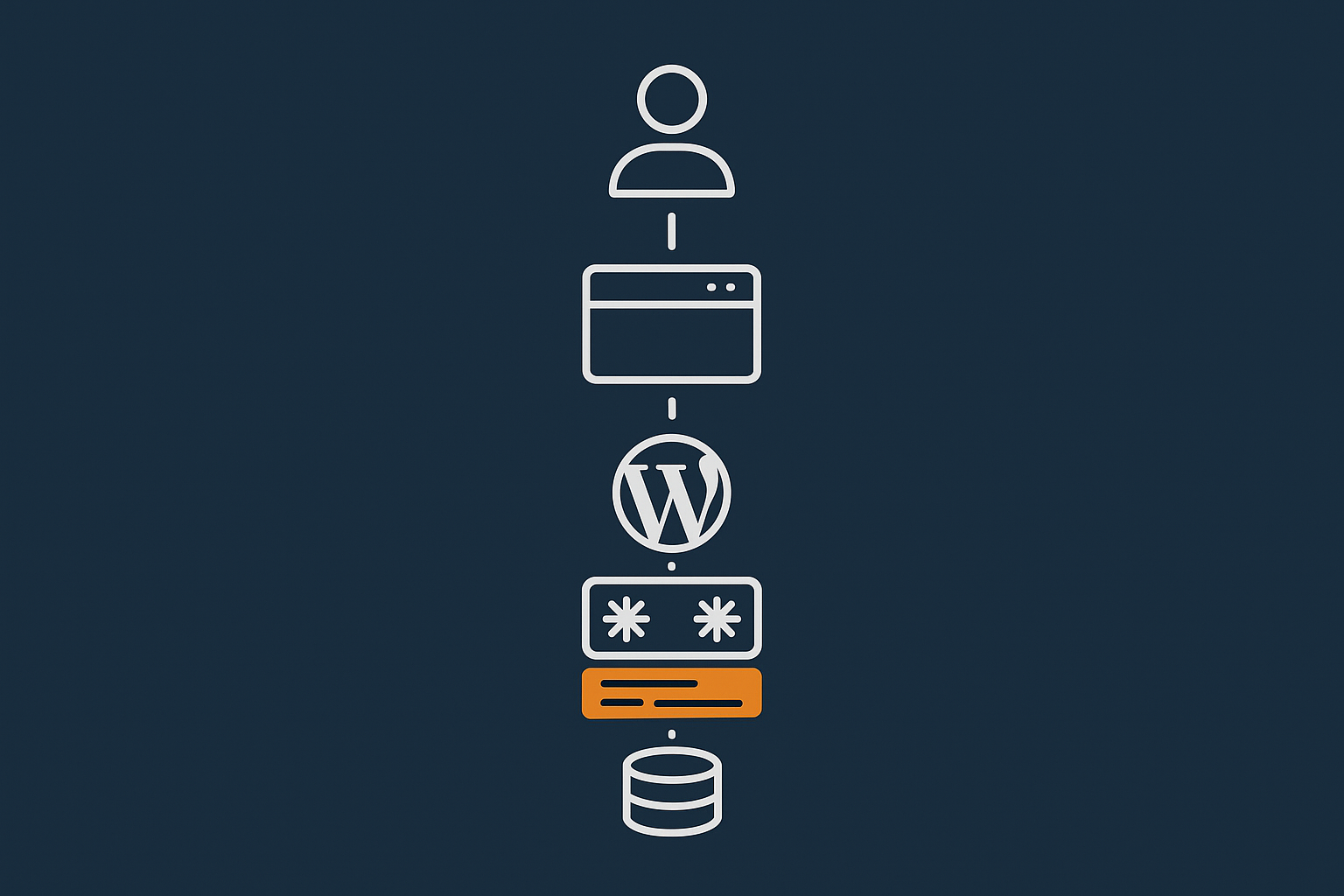
Every time someone visits a WordPress page, a lot of work happens on the server:
- The web server receives the request and passes it to PHP.
- WordPress loads, reads configuration and loads plugins and the theme.
- WordPress runs database queries to fetch posts, pages, products, user data, options and more.
- PHP + WordPress build the final HTML for that page.
- The HTML is sent back to the visitor’s browser.
Steps 2 to 4 are repeated for every uncached request. Database queries in particular are relatively slow and consume CPU and I/O. On a busy WooCommerce shop or membership site this can easily become the bottleneck.
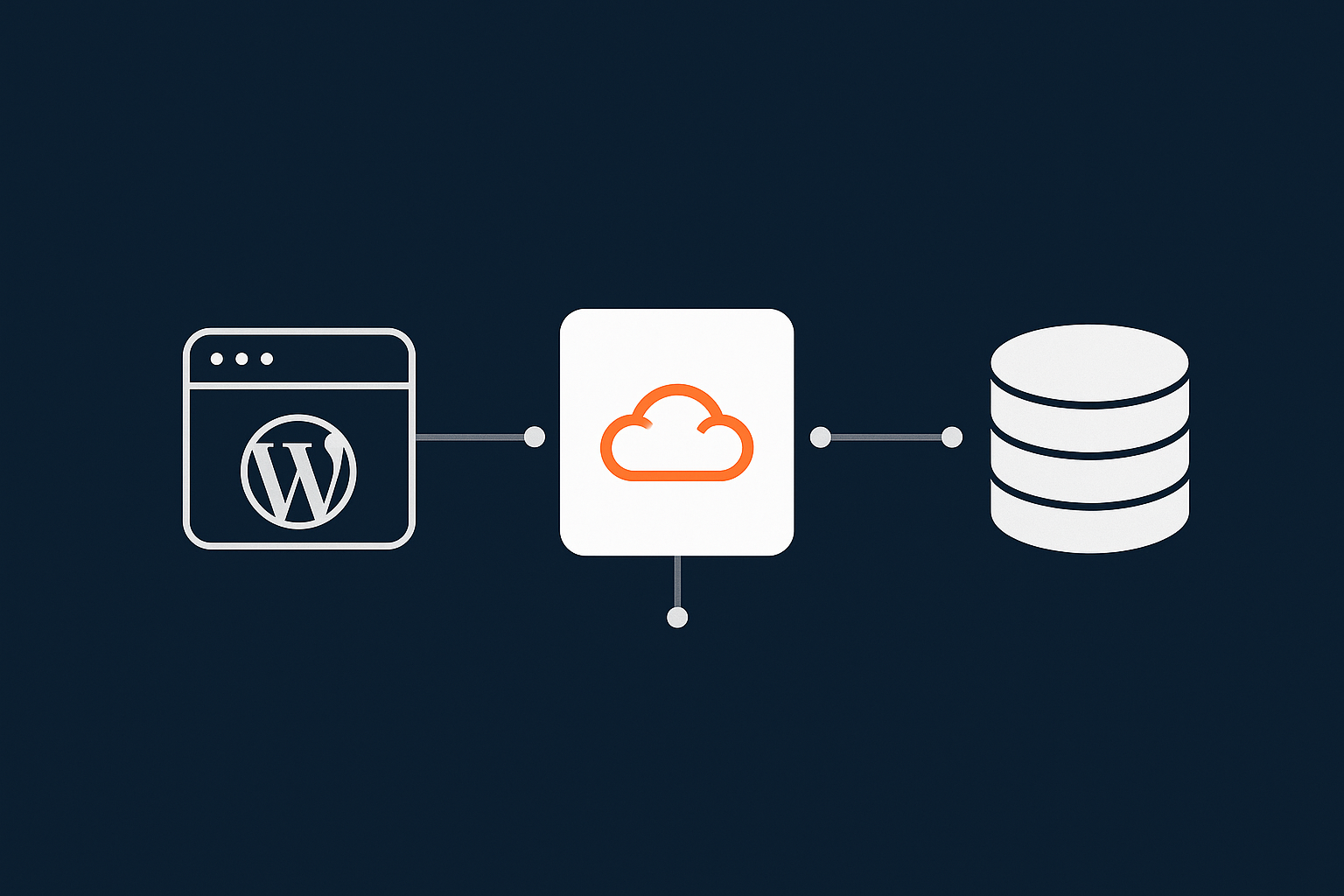
Object caching reduces the repeated work by storing the results of expensive operations in fast server memory, so that follow up requests can reuse them without hitting the database again.
The difference between page caching and object caching
Many WordPress sites already use page caching (often via a plugin or an edge cache in front of WordPress). Page caching stores the final HTML output of a page. When the next visitor requests the same page:
- If a page cache exists and is valid, the web server can send it straight back with almost no PHP or database work.
- If no page cache exists, WordPress has to run fully, then the result can be cached for next time.
Object caching is different:
- It does not cache the final HTML.
- It caches pieces of data inside WordPress while the page is being built, such as query results and options.
This means object caching still helps when page caching cannot be used or is less effective, for example:
- Logged in sessions (customers, members, admins).
- Personalised account and dashboard pages.
- Dynamic fragments on otherwise cached pages (e.g. mini cart widgets).
Many modern stacks combine all three: browser caching, page caching and an object cache. Network level solutions like the G7 Acceleration Network can provide the page and edge caching layer, while Redis or Memcached provide the object cache under WordPress.
What counts as an “object” in WordPress
In this context an “object” is any data structure that WordPress or a plugin wants to reuse. Common examples include:
- Database query results, such as a list of product IDs that match a filter.
- Individual posts, pages, products and terms (categories, tags).
- Site wide options from
wp_options(settings, feature flags, API keys). - User data, roles and capabilities.
- Results of expensive calculations, such as dynamic menus or complex price rules.
The WordPress object cache API lets code store these objects against a key, retrieve them quickly later, and decide how long they should live in the cache.
Why object caching matters more as your site grows
On a small brochure site with a handful of pages, the database is usually not the primary bottleneck. Page caching alone often gives acceptable performance.
As your site grows, a few things change:
- You have more posts, products and users, which means more and heavier queries.
- You install more plugins, many of which make their own database queries.
- Your traffic increases, so slow queries are executed more often.
- You get more logged in traffic (customers, members, staff) that cannot be fully page cached.
Without object caching, these queries hit the database every time. With a persistent object cache, the most frequently used data can live in memory and be reused across many requests.
Hosting platforms that focus on web hosting performance features often include Redis or Memcached specifically for this reason. They become increasingly important as you move from a simple site to a busy WooCommerce store or membership platform.
When Object Caching Will Help Your Site (And When It Will Not)
Sites and scenarios that benefit most
Object caching tends to deliver the biggest wins for:
- WooCommerce shops with many products, variations, filters or dynamic pricing.
- Membership, LMS and community sites with lots of logged in users.
- News and content sites with many posts and complex archive pages.
- Multi language sites that duplicate content structures for each language.
- Heavily extended WordPress installs with lots of plugins that query metadata.
Typical improvements you might see include:
- Lower database query count per request.
- Reduced CPU usage during busy periods.
- More consistent response times for logged in users.
Situations where you will not notice much difference
There are also cases where object caching will not move the needle much:
- Very small brochure or landing page sites with only a few simple pages.
- Sites where almost every request is served from a page cache or edge cache.
- Sites where the bottleneck is elsewhere, such as slow external APIs, very large images, or poor PHP configuration.
If your pages already load in under 200 ms server side and the database is barely working, object caching may not be your priority. In those situations, focus on page caching, image optimisation and front end performance. Network solutions like the G7 Acceleration Network also handle HTML caching and optimise assets close to visitors, often giving a bigger gain than backend tuning on low traffic sites.
Special case: WooCommerce, membership and LMS sites
WooCommerce and similar platforms are special because:
- They have a lot of relational data: products, variations, orders, coupons, stock.
- They often need to generate dynamic queries for filters, search and recommendations.
- Most customer interactions are logged in and dynamic, so full page caching is limited.
This is where a reliable object cache shines. Cached results for expensive catalog queries, user meta and options reduce database load significantly.
If you run a store, it is worth combining a proper object cache with quality high performance WooCommerce hosting. That way, Redis/Memcached, PHP and the database are tuned to work together, and you are less likely to hit obscure edge cases under load. For a broader look at WooCommerce performance, see A Simple Guide to Optimising WooCommerce Performance.
Red flags that suggest you need an object cache
Symptoms that often indicate your site would benefit from a persistent object cache include:
- Admin pages feel slow, especially product or post lists.
- WooCommerce category or search pages have high TTFB (time to first byte).
- Your hosting control panel or monitoring shows high MySQL CPU during busy periods.
- Slow queries appear in your database logs or Query Monitor plugin reports.
- Logged in users see inconsistent performance compared with anonymous visitors.
If you observe these, enabling Redis or Memcached and wiring WordPress to use it is usually a sensible next step.
How WordPress Object Caching Works Under the Hood
The built in WordPress object cache API
WordPress includes an object cache API that core and plugins can use. The basic functions are:
wp_cache_set( $key, $data, $group, $expire )wp_cache_get( $key, $group )wp_cache_delete( $key, $group )wp_cache_flush()
By default, this cache is non persistent. It is just an in memory store for the duration of a single request. It avoids repeating work within that request but does not help between requests.
To make the object cache persistent across requests, WordPress looks for a special file called object-cache.php in wp-content. A plugin or your hosting environment provides this drop in. The drop in replaces the default in memory implementation with one that talks to Redis or Memcached and can store data between requests.
Why you need a persistent object cache (Redis or Memcached)
Without a persistent backend, each request starts with an empty object cache. Any benefit only applies inside that single request lifecycle.
A persistent cache backend such as Redis or Memcached lives outside PHP and:
- Stores cached objects in RAM between requests.
- Can be shared across multiple PHP workers and even multiple servers.
- Allows you to reuse expensive results across many visitors.
That is why most guides and plugins recommend configuring Redis or Memcached for “real” object caching. Many managed WordPress hosting platforms provide Redis as a standard feature and offer a one click way to enable it.
Where object caching fits in your overall stack
A typical modern WordPress stack, working from the visitor inward, looks like this:
- Browser cache and HTTP caching headers.
- Edge cache / CDN / acceleration layer (HTML and static files).
- Web server and PHP, running WordPress core and plugins.
- Persistent object cache (Redis or Memcached).
- Database (MySQL or MariaDB).
The object cache sits between PHP and the database. When code requests data, the cache is checked first:
- If the data is in the cache and not expired, it is returned immediately.
- If not, WordPress queries the database, then stores the result in the cache for next time.
How long objects live: cache keys, TTLs and invalidation basics
Every cached item has:
- A key (identifier, often includes IDs and parameters).
- Optional group (namespacing, e.g.
options,posts). - A TTL (time to live) after which it expires automatically.
WordPress core and well written plugins also invalidate relevant cache entries when data changes. For example:
- When you update a post, its cached version is cleared.
- When you change a setting, the corresponding
wp_optionscache entry is invalidated.
Problems usually arise either when:
- Plugins cache things too aggressively and do not clear them when they should (stale data).
- The cache does not have enough memory, so it evicts entries too often (reduced hit rate).
We will look at tuning and avoiding these issues later.
Choosing Between Redis and Memcached for WordPress
What Redis and Memcached actually are
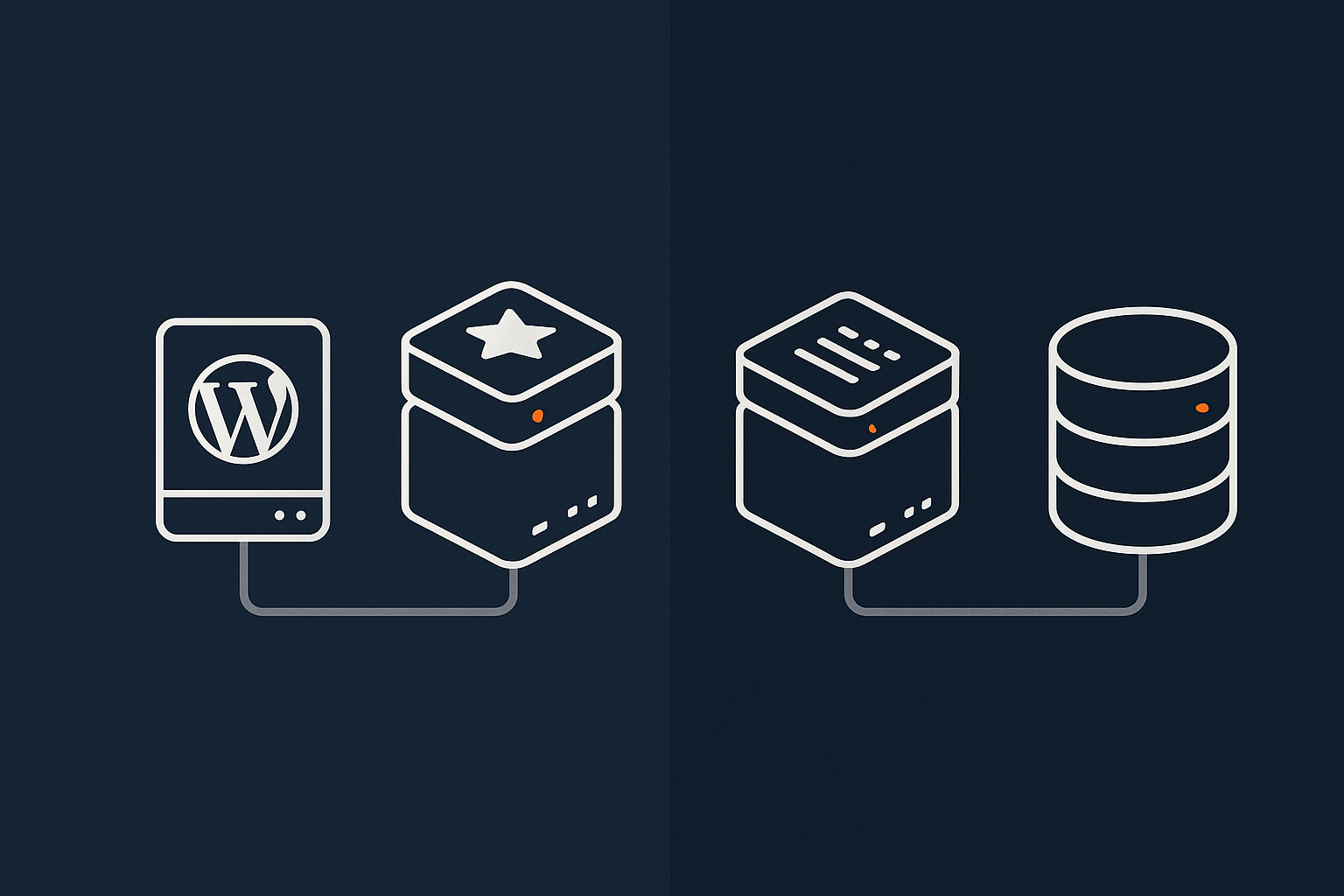
Both Redis and Memcached are in memory key value data stores. In simple terms:
- You store a value (serialised PHP data) against a string key.
- You can retrieve, update or delete that value very quickly.
For WordPress object caching, they are used in similar ways, but there are differences in features and behaviour that may matter for larger or more complex setups.
Pros and cons of Redis for WordPress
Pros:
- Supports richer data types (lists, sets, hashes) and advanced commands, which some plugins may use.
- Can persist data to disk if configured, reducing data loss on restart.
- More advanced monitoring and introspection tools.
- Common choice in modern hosting stacks; well supported by plugins.
Cons:
- Slightly more complex to configure and tune than Memcached.
- More features than you strictly need for a simple object cache.
Pros and cons of Memcached for WordPress
Pros:
- Very simple: pure key value store in memory.
- Extremely fast and battle tested.
- Lighter on resources in some small setups.
Cons:
- No built in persistence; cache is lost on restart (usually acceptable for a cache).
- Less feature rich; some plugins assume Redis specific functionality.
- Operational tooling and support ecosystem is not as rich as Redis for many teams.
How to choose for small business, WooCommerce and enterprise sites
As a rough guide:
- Smaller business sites can use either. Choose what your host supports and can manage confidently.
- WooCommerce and dynamic sites often benefit from Redis because plugins and hosts test more with it.
- Larger or multi server deployments usually prefer Redis for its richer feature set and tooling.
If you are using managed WordPress hosting, it usually makes sense to follow their recommendation. Providers like G7Cloud standardise on Redis in the G7 Acceleration Network stack because it balances performance, features and operational reliability for most WordPress and WooCommerce use cases.
Step by Step: Enabling Object Caching on Your WordPress Site
Check whether your hosting already supports Redis or Memcached
First, confirm what your hosting offers:
- Check your hosting control panel for Redis or Memcached options.
- Search your host’s documentation for “Redis”, “Memcached” or “object cache”.
- Ask support directly if it is unclear.
On many platforms you simply toggle Redis on for a site and the host provides connection details such as host, port and password. That is the case with many managed WordPress hosting plans where Redis is part of the stack rather than something you install yourself.
Install a safe object cache plugin (plugin recommendations)
Next, you need a WordPress plugin that:
- Provides the
object-cache.phpdrop in. - Connects to your Redis or Memcached instance.
- Offers basic controls such as flushing the cache.
Well regarded options for Redis include:
- Redis Object Cache (by Till Krüss) – popular, actively maintained, supports clusters.
- W3 Total Cache – includes object caching support, but is more complex and includes many other features.
For Memcached, you will typically use:
- W3 Total Cache configured for Memcached.
- Or a hosting provided integration if your host supplies one.
In most cases, a dedicated Redis plugin such as Redis Object Cache is the simplest and safest starting point.
Connect WordPress to Redis or Memcached
The exact steps vary slightly by plugin and host, but the process is usually:
- Install and activate the plugin from the WordPress plugin directory.
- Go to the plugin settings page, usually under Tools or Settings.
- Enter connection details if needed:
- Host, e.g.
127.0.0.1or a Unix socket path. - Port, commonly
6379for Redis. - Password, if your host configured authentication.
- Host, e.g.
- Enable object caching or “Drop in” from the plugin’s UI.
- The plugin will create
wp-content/object-cache.phpand connect to Redis/Memcached.
Some managed platforms, including G7Cloud, handle the connection and drop in file automatically when you enable Redis via the control panel, so you may not need to configure hostnames or ports manually.
Basic verification: how to confirm it is working
Once enabled, confirm that the cache is active:
- Most object cache plugins have a status panel that shows connection status and cache metrics.
- You can install the Query Monitor plugin and look for:
- “Object cache” section showing cache hits and misses.
- Reduced database queries on subsequent page loads.
- Reload a page a few times and observe if “cache hit” counts increase.
If the plugin shows errors connecting to Redis or Memcached, double check your credentials or contact your host.
What to do if enabling object caching breaks something
Occasionally, you may see odd issues after enabling an object cache, such as:
- Stale content not updating when edited.
- Unexpected errors or white screens on specific pages.
- WooCommerce showing incorrect prices or stock counts.
To troubleshoot:
- Flush the object cache using the plugin’s “Flush” or “Purge” button.
- Clear any page cache or CDN cache as well.
- Disable the suspected plugin (such as a poorly written caching or performance add on) and test again.
- If issues persist, temporarily disable object caching by deactivating the object cache plugin and removing
object-cache.phpif needed.
If the problem goes away when you disable the object cache, it often indicates that a plugin is not invalidating its cached data correctly. In that case, check for plugin updates, contact the developer, or consider alternatives.
Tuning Object Caching for Real World Performance
How much memory to allocate to your object cache
The cache needs enough memory to hold a useful working set of data without constantly evicting items. How much is “enough” varies, but as a starting guide:
- Small sites: 128–256 MB.
- Busy WooCommerce or content sites: 512 MB – 1 GB.
- Larger multi site or enterprise deployments: 1 GB and above, based on measurement.
Your hosting provider will usually set sensible defaults. You can then monitor:
- Memory usage of Redis/Memcached.
- Eviction counts (how many items are being removed due to memory pressure).
- Cache hit ratio (percentage of requests that find data in the cache).
If memory usage is always near 100% and evictions are frequent, consider increasing the memory limit, reducing TTLs for less important data, or reviewing whether some items should not be cached at all.
Avoiding common cache key and eviction problems
Most site owners will not write custom cache keys, but it helps to understand common pitfalls:
- Key conflicts: different pieces of code accidentally using the same key for different data, causing weird behaviour.
- Unbounded keys: keys that grow without limit, such as including a full query string or user input, leading to huge numbers of cache entries.
- Aggressive TTLs: items that never expire, filling the cache with rarely used data.
To mitigate these:
- Use established plugins with good reputations for caching and optimisation.
- Avoid stacking many different caching plugins that may conflict.
- Monitor eviction rates and hit ratios; if your hit rate is very low, something may be wrong with how keys are being set.
Object caching and logged in users
Object caching helps logged in sessions because many database queries are the same for each user type, for example:
- Loading site options and configurations.
- Fetching product data and taxonomies.
- Loading shared templates or menus.
However, you must be careful with data that is specific to a particular user:
- Do not cache per user data globally (e.g. full user objects without including user ID in the key).
- Ensure that any per user cache entries are keyed properly and invalidated when that user’s data changes.
Good plugins handle this for you, but if you are writing custom code, treat user specific data separately and consider shorter TTLs or bypassing the cache for highly sensitive operations.
How page caching and object caching work together
Page caching and object caching are complementary:
- Page caching reduces the number of times WordPress has to run at all, by serving full HTML for anonymous users.
- Object caching makes the times when WordPress does run much cheaper, by avoiding repeated queries and work.
In practice, aim for this:
- Use an edge / page cache (via a plugin or acceleration layer like the G7 Acceleration Network) to serve as much anonymous traffic as possible from the cache.
- Use a persistent object cache to speed up the remaining dynamic and logged in traffic.
Both layers together give a more robust and scalable result than relying on either one alone.
Using Object Caching Safely on WooCommerce Stores
What to cache aggressively vs what must stay real time
On a WooCommerce site, consider:
Safe to cache more aggressively:
- Product catalog queries and category listings.
- Term archives (categories, brands, attributes).
- Static page content such as policies and information pages.
Must stay real time or near real time:
- Carts and checkouts.
- Stock levels on critical products with limited inventory.
- Pricing when using complex dynamic rules or personalised discounts.
Most of this is handled automatically by WooCommerce itself and good plugins. The risky area is usually third party caching plugins that try to cache fragments around checkout or cart pages too aggressively. Treat any option labelled “cache cart” or “cache checkout pages” with caution.
Avoiding stale carts, stock levels and pricing
To reduce the risk of stale data on a store:
- Exclude the cart, checkout and “My Account” URLs from any page or full HTML caching.
- Ensure your object cache plugin is known to work with WooCommerce.
- Test dynamic pricing rules carefully with object caching enabled.
- Keep WooCommerce, its extensions and your caching plugins up to date.
If you notice stock levels not updating or prices not reflecting discounts, suspect caching first. Flush caches and retest; if that fixes the issue, adjust configuration or consult plugin support.
Testing checkout, account pages and stock updates
Before relying on a new caching setup in production:
- Use a staging site that mirrors your production environment.
- Enable object caching and, if used, page caching.
- Run through complete user journeys:
- Add items to basket.
- Apply coupons or discounts.
- Complete checkout with different payment methods.
- Check order emails and account order history.
- Check stock levels before and after purchases.
- Test as a guest and as logged in user, including role based pricing or membership discounts if you use them.
This type of checklist reduces surprises when enabling or tuning caches on a live store.
Handling peak traffic and bot load with object caching
During sales, marketing campaigns or unexpected peaks, object caching can help reduce the load on your database by reusing catalog and options data. However, bots and abusive crawlers can still overload your stack by generating large numbers of requests that miss caches or cause cache churn.
Bot protection in front of WordPress is useful here. The G7 Acceleration Network includes G7Cloud’s bot filtering, which blocks abusive and non human traffic before it reaches PHP or the database, so your object cache and database capacity are preserved for real visitors even under heavy load.
Measuring the Impact: How to Tell If Object Caching Is Helping
Key metrics to watch: TTFB, database queries and CPU
To understand the real effect of object caching, focus on:
- TTFB (time to first byte): server response time as seen from the visitor’s browser.
- Database query count and total time per request.
- Server CPU usage, especially database CPU during busy periods.
- Object cache hit ratio reported by your plugin or Redis/Memcached tools.
You are aiming to see lower query counts, reduced query time and more stable TTFB, particularly for logged in pages and catalogue views.
How to compare before/after properly
To get a fair comparison:
- Pick a set of representative pages:
- Homepage.
- Key category or product listing pages.
- Product detail pages.
- Account or dashboard pages.
- Measure baseline performance before enabling object caching, ideally at comparable traffic levels.
- Enable object caching and clear other caches.
- Repeat measurements for the same pages, as both anonymous and logged in users where relevant.
- Compare averages, not single requests, to avoid noise from temporary network variations.
Understanding proper benchmarking and interpretation of metrics is covered in more depth in How to Diagnose Slow WordPress Performance Using Real Tools and Metrics.
Useful tools and WordPress plugins for measuring query performance
Helpful tools include:
- Query Monitor (plugin): shows query count, query time, object cache usage and more for each request.
- New Relic or similar APM tools: for more advanced tracing and database performance insight.
- Browser dev tools and WebPageTest.org: to measure TTFB and waterfall timings.
- Hosting level metrics: CPU, RAM and MySQL usage over time.
Use these to identify whether your bottleneck was the database and whether object caching has reduced that pressure in practice.
When Object Caching Is Not Enough

Code, queries and plugins that defeat any cache
Object caching is powerful, but it cannot fix everything. You may still have performance issues if:
- Your theme or a plugin makes extremely inefficient queries each request.
- You call slow external APIs synchronously on page load.
- You have logic that intentionally bypasses caching due to business rules.
- Your site relies heavily on highly personalised content for each user.
In those cases, you may need to optimise code, refactor queries, offload work to background jobs, or reconsider certain features. No cache can fully compensate for fundamentally heavy operations on every request.
When you really need better hosting or architecture
Sometimes the underlying infrastructure is simply not sufficient:
- Shared hosting with limited CPU and memory struggling under business level traffic.
- Very large WooCommerce or membership sites trying to run on a single small VM.
- Spiky traffic patterns where vertical scaling alone keeps hitting limits.
In those situations, upgrading to a more capable platform, separating concerns (e.g. offloading search or reporting), or moving to a multi server architecture may be required. For strategic decisions like this, Scaling a Website Safely: When Vertical Scaling Stops Working provides useful context.
How managed hosting and network level caching fit in
Object caching is one ingredient of a wider performance approach. Managed platforms combine:
- Optimised PHP and database settings.
- Persistent object caching (Redis) for WordPress.
- Edge / CDN caching for HTML, CSS, JS and media.
- Security and bot filtering to protect server capacity.
Network level services such as the G7 Acceleration Network sit in front of your site, caching full pages where safe, blocking abusive bots before they reach PHP, and handling things like TLS termination and HTTP/2 or HTTP/3. That way, WordPress and your object cache concentrate on genuinely dynamic work, not on serving every single request from scratch.
Summary: A Practical Object Caching Checklist
Quick checklist for business and marketing owners
- Confirm whether your hosting includes Redis or Memcached and can enable a persistent object cache for you.
- Ensure you have some form of page caching or an acceleration layer for anonymous visitors.
- Ask your developer or agency to enable and test object caching on a staging site before going live.
- Have them verify that the cart, checkout and account pages work correctly with caches enabled.
- Monitor basic metrics such as page load time, TTFB and any complaints from customers about slowness.
- If performance issues persist despite caching, be open to reviewing your hosting plan or architecture.
Checklist for more technical users and developers
- Verify your host supports Redis or Memcached and obtain connection details.
- Install a reputable object cache plugin and enable the
object-cache.phpdrop in. - Use Query Monitor to confirm reduced database query counts and object cache hits.
- Right size your cache memory and monitor evictions and hit ratios.
- Exclude sensitive or highly dynamic pages (checkout, cart, account) from page caching.
- Review and, if necessary, adjust custom code that interfaces with the object cache API.
- Consider complementary optimisations such as PHP FPM tuning, image optimisation and front end performance.
If you would like a setup where Redis, PHP, the database and edge caching are already integrated and tuned, exploring managed WordPress hosting with a built in acceleration layer such as the G7 Acceleration Network can remove a lot of configuration and maintenance overhead. That leaves you free to focus on content, products and customers rather than caching internals.