

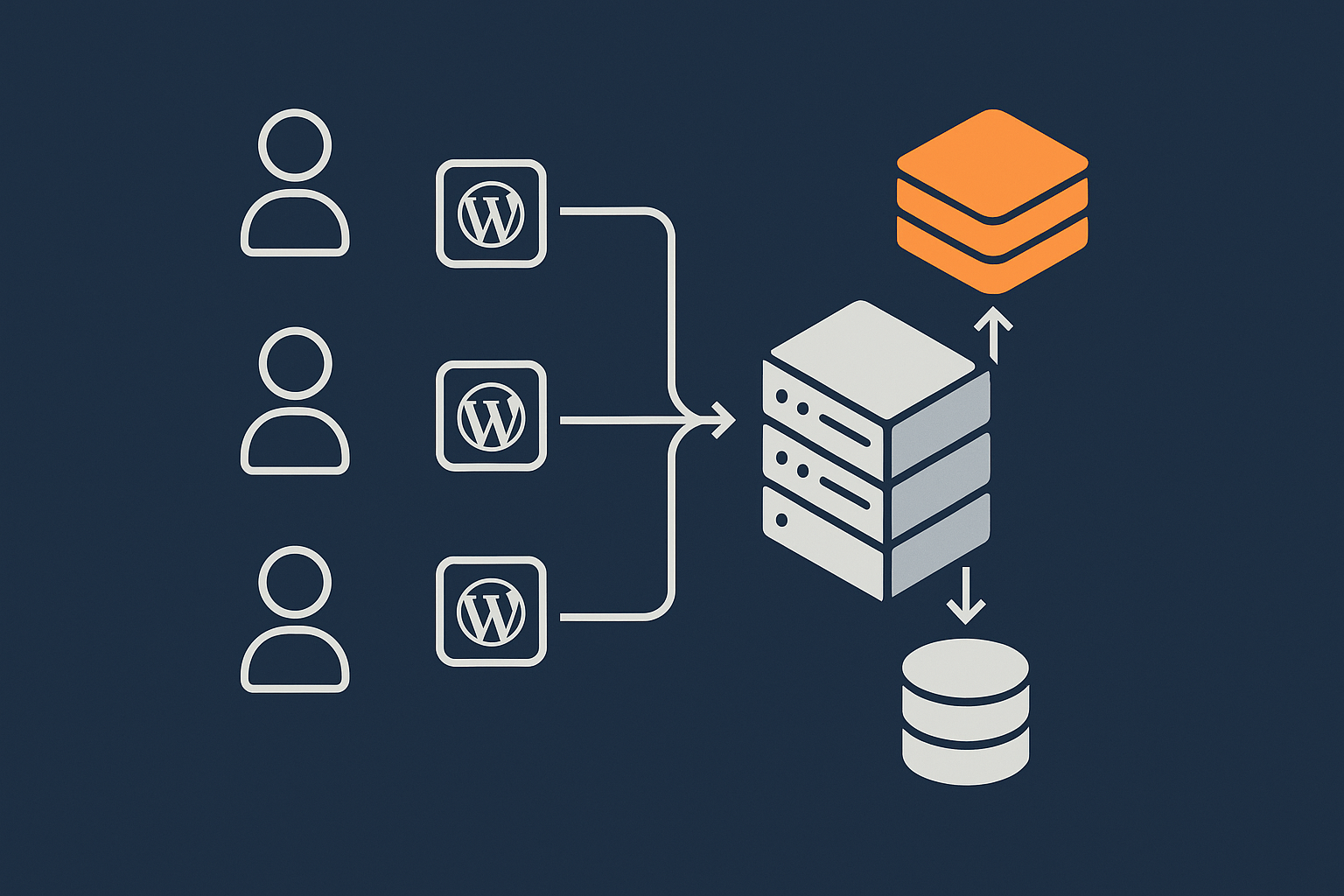
Who This Object Caching Guide Is For (And What You Will Decide)
This guide is written for UK businesses running WordPress or WooCommerce on a single VPS, virtual dedicated server or a high quality shared plan. The aim is to help you decide whether a persistent object cache is worth the extra complexity, and if so, how to set it up safely.
Typical situations where object caching comes up
Object caching usually enters the conversation in a few familiar scenarios:
- Your WooCommerce admin is slow when viewing orders or reports.
- High traffic days cause CPU spikes and slow page loads despite page caching.
- You have lots of logged in users, so a full page cache does not help as much.
- A developer or plugin vendor suggests Redis or Memcached without clear explanation.
- You are moving to your own VPS or virtual dedicated server and want a sensible caching stack.
If you have not yet built the basic caching layers on your server, it is worth understanding them first. The guide on WordPress caching layers gives helpful background that this article builds on.
What you will be able to decide by the end
By the end of this article you should be able to:
- Explain in plain language what a WordPress object cache does.
- Decide whether you genuinely need a persistent object cache on your single server.
- Choose between Redis and Memcached in a practical way.
- Set up Redis safely, connect it to WordPress and confirm that it is helping.
- Avoid common pitfalls, especially around WooCommerce sessions and carts.
- Know when to tune, when to scale your server, and when to ask your hosting provider for help.
What WordPress Object Caching Actually Is (In Plain English)
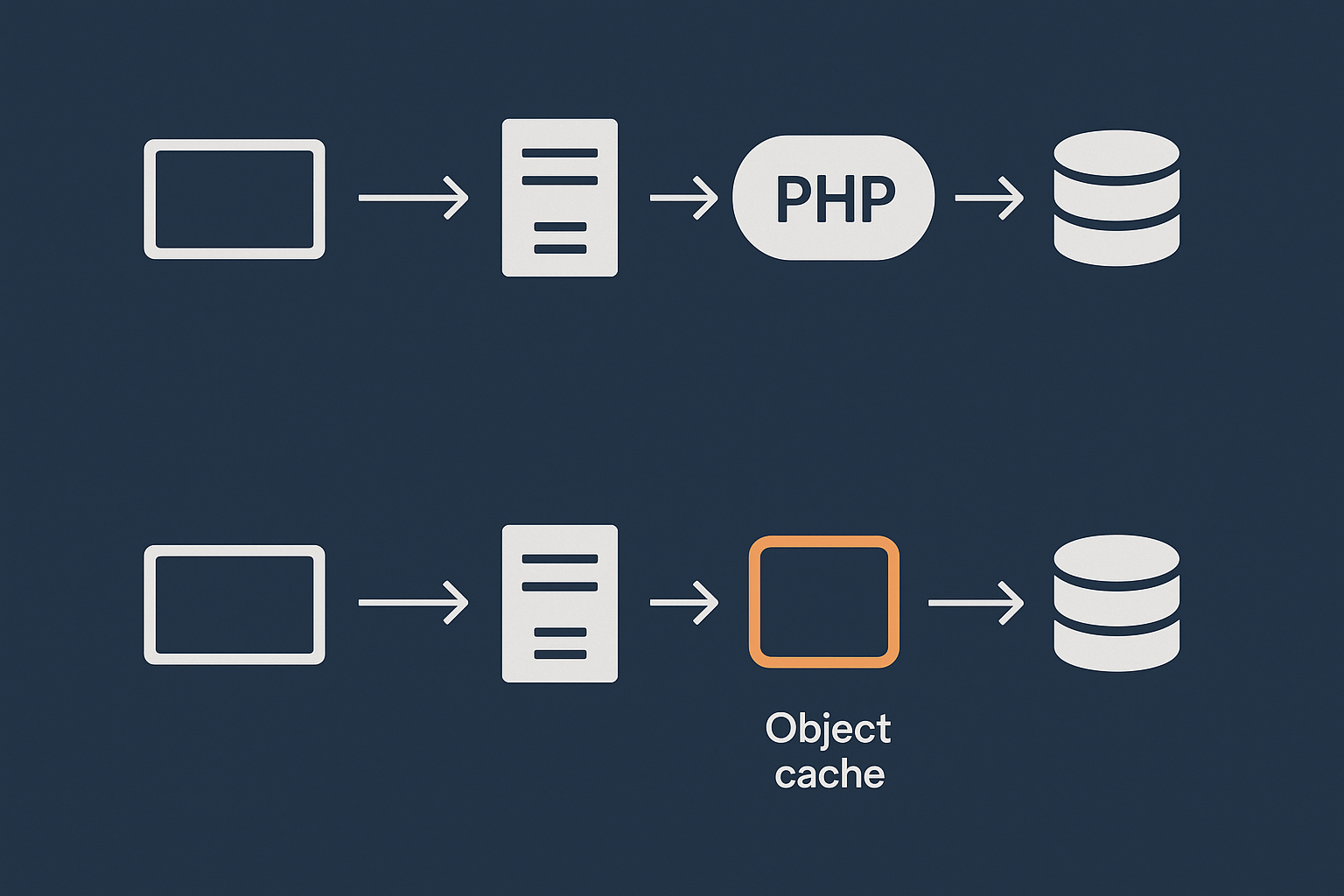
Page cache vs object cache vs database: what is the difference?
On a typical WordPress request, PHP runs and asks the database for lots of pieces of data: options, menu items, user details, product meta and so on. That back and forth is often the slowest part of generating a page.
There are three related but different layers involved:
- Database: The canonical store of your content and settings. It is relatively slow compared to memory.
- Page cache: Stores the final HTML output for a page. When it hits, the server can respond without running WordPress or querying the database. This is what page cache plugins and many web hosting performance features handle.
- Object cache: Stores individual pieces of data in memory, such as the result of a complex product query or a set of options. WordPress can then skip the database for those pieces on subsequent requests.
Page caching speeds up whole pages, usually for anonymous visitors. Object caching speeds up the work WordPress does to build each page, which matters most when page caching cannot be used or misses often.
How WordPress uses the object cache internally
WordPress has an internal API called the object cache. Core and many plugins call functions like wp_cache_get() and wp_cache_set() to read and write data there.
Examples of things that may be stored in the object cache:
- Results of expensive database queries, such as a list of featured products.
- Transients created by plugins to store remote API responses or pre-built fragments.
- Site options and theme settings that are read on every request.
Out of the box, this cache only lasts for the duration of a single PHP request. That means it reduces repeated work within one page build, but every new request starts from scratch.
Persistent object cache vs the default in‑memory cache
A persistent object cache stores those values in a separate service, typically Redis or Memcached, that lives in memory across requests. When enabled, the flow looks like:
- Request arrives.
- WordPress asks the object cache for some data.
- If it exists there, WordPress uses it and skips the database.
- If not, WordPress queries the database, then saves the result to the object cache for next time.
The key point is persistence across requests. The same expensive query only has to run occasionally, instead of on every hit.
Do You Really Need Object Caching on a Single Server?
Strong signals you will benefit from a persistent object cache
You are likely to see clear benefits if one or more of these apply:
- WooCommerce or membership site with many logged in users where full page caching is limited.
- Busy admin area with slow order screens, reports or custom dashboards.
- High read traffic to complex archive pages, product grids or faceted search.
- Your performance monitoring shows slow database queries on repeated requests.
- You run multiple WordPress sites on one server and see repeated query patterns.
In these cases, a persistent object cache can reduce load on the database and smooth out performance under load. On managed WordPress hosting that already tunes other layers, it can be a straightforward win.
Cases where object cache is optional or low value
You may not need a persistent object cache if:
- Your site is mostly static content, well covered by page caching.
- Traffic is modest and CPU / database load is low even at peak.
- Your main problems are slow third party scripts, images or front end bloat.
- You are on a tiny VPS with very limited RAM and already close to capacity.
In these situations, focusing on page cache, image optimisation and front end performance will usually give more improvement than adding Redis. The article on cleaning and optimising a bloated WordPress database can also be more impactful than masking issues with extra caching.
WordPress vs WooCommerce: how the answer changes
For a standard brochure or blog site, a persistent object cache is often a “nice to have” rather than critical. A good page cache and PHP opcache will handle most of the load.
For WooCommerce, membership and learning platforms, the picture changes:
- More queries per request.
- More personalised content that bypasses page cache.
- More admin usage with heavy queries for orders and reports.
Here a persistent object cache can meaningfully reduce database pressure and sometimes make the difference between needing more CPU or not.
How Object Caching Fits Into Your Existing Caching Stack
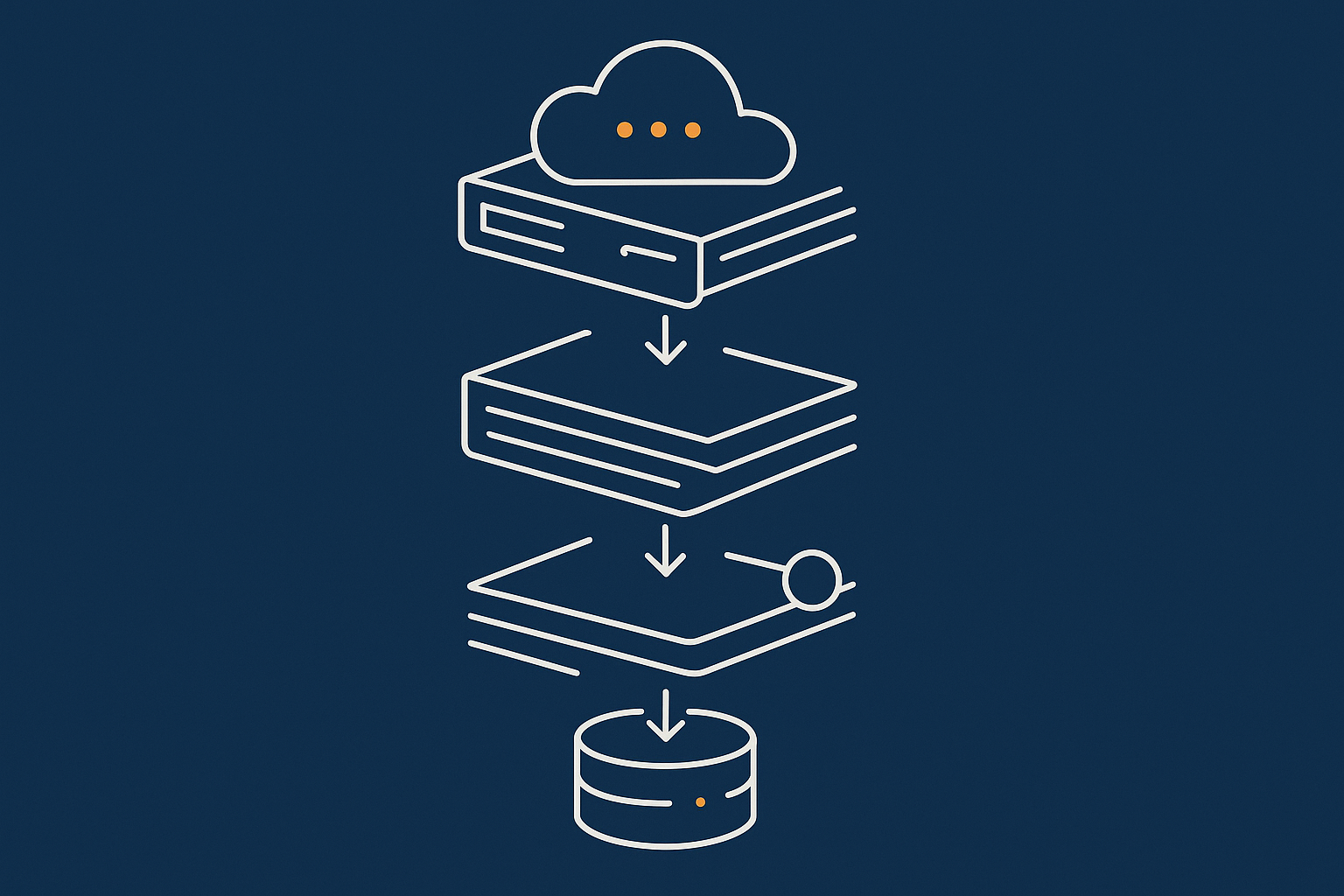
Nginx/Apache cache, PHP opcache, page cache plugins and object cache working together
On a single server WordPress stack you might have:
- Web server cache at Nginx or Apache level for static files or full pages.
- PHP opcache to keep compiled PHP in memory.
- A page cache plugin, or server level full-page cache, for anonymous visitors.
- A persistent object cache in Redis or Memcached.
They are complementary:
- Page cache: avoid running PHP at all.
- PHP opcache: make PHP itself faster when it does run.
- Object cache: reduce database work inside WordPress.
If you want a more detailed overview of how these layers interact on a VPS, the guide to WordPress caching on a VPS is a useful companion read.
Avoiding overlap and double caching problems
The main risks with multiple caches are:
- Serving stale content if one layer updates slower than the others.
- Wasting RAM by caching the same data in several places.
Practical ways to avoid this on a single server:
- Rely on one primary page caching layer, not both server cache and a plugin duplicating the same job.
- Let PHP opcache and object cache run together; they operate at different levels and the overlap is small.
- Use sensible TTLs (time to live) for object cache keys where you control them, especially with transients.
Where the G7 Acceleration Network sits in this picture
A network level cache such as the G7 Acceleration Network typically sits in front of your server, handling edge caching for static assets and many anonymous page views. This reduces how often your server has to run PHP at all, which means the object cache is used mainly for logged in users, dynamic pages and admin requests. G7Cloud’s bot protection within the G7 Acceleration Network also filters abusive and non human traffic before it hits PHP or the database, which lowers background noise and makes your object cache size and tuning more predictable.
Choosing a Safe Object Cache Backend on a Single Server

Redis vs Memcached: practical differences for WordPress
Both Redis and Memcached are in memory key value stores that WordPress can use for persistent object cache. For most small to medium WordPress sites either will work, but there are practical differences:
- Redis:
- Supports data persistence to disk, which can help with warm restarts.
- Allows multiple databases (logical namespaces), useful for multiple sites.
- Rich tooling and monitoring.
- Slighly more complex but widely used in WordPress hosting.
- Memcached:
- Simpler design, purely in memory, no persistence.
- Very fast for straightforward key/value caching.
- Fewer configuration options.
On a single server, Redis is usually the better long term choice because it is flexible, well supported by WordPress plugins and behaves predictably across restarts.
Resource impact: CPU, RAM and disk on a VPS or VDS
Any persistent cache will consume RAM. On a small VPS, allocating too much to Redis can starve MySQL and PHP.
Guidelines:
- On a 2 GB RAM server, start with 128 MB to 256 MB for Redis.
- On a 4 GB to 8 GB server, 256 MB to 512 MB is usually safe for moderate sites.
- Increase gradually while monitoring memory usage and swap.
Redis uses very little CPU when configured correctly. Disk impact is minimal unless you enable heavy persistence. On single server WordPress hosting, a modest save schedule or even disabling persistence purely for object cache use is often fine if backups are handled separately.
Security basics: binding, authentication and access
Two simple rules:
- Do not expose Redis or Memcached to the public internet.
- Require authentication for any non local access.
For a single server:
- Bind Redis to
127.0.0.1so only local processes can reach it. - Set a strong
requirepassinredis.confif you expect any non local use. - Block external Redis ports in your firewall.
Step‑by‑Step: Setting Up Redis Object Caching Safely
Pre‑flight checks: backups, staging and monitoring
Before you install Redis:
- Ensure you have recent backups of files and database.
- Ideally, have a staging site or low traffic window for testing.
- Know how to watch CPU, RAM and swap usage on your server.
- Clarify with your host whether Redis is supported or already available as part of their managed WordPress hosting.
Installing and configuring Redis on a single server (high level)
On popular Linux distributions, installation is straightforward using the package manager, for example:
# Ubuntu / Debian
sudo apt update
sudo apt install redis-server
Key configuration points in /etc/redis/redis.conf (paths can vary):
bind 127.0.0.1to keep it local.maxmemory 256mb(adjust to taste).maxmemory-policy allkeys-lrufor typical object cache use.- Optionally adjust
savesettings; for pure cache use, you can reduce or disable disk persistence.
Restart Redis after changes:
sudo systemctl restart redis-server
Connecting WordPress using a Redis object cache plugin
To use Redis as a persistent object cache you need a drop-in object-cache.php file. The simplest way to manage that is via a well maintained plugin such as “Redis Object Cache”.
Typical steps:
- Install and activate the Redis object cache plugin in WordPress.
- Check the plugin settings page for connection status.
- If Redis is local with default port, many plugins will auto detect it.
- If needed, define connection settings in
wp-config.php, for example:define( 'WP_REDIS_HOST', '127.0.0.1' ); define( 'WP_REDIS_PORT', 6379 ); define( 'WP_REDIS_MAXTTL', 86400 ); // 1 day
Once enabled, the plugin will install the drop-in and start routing WordPress object cache calls to Redis.
Basic validation: how to confirm it is working and helping
To confirm Redis is in use:
- Check the plugin dashboard for metrics such as hits, misses and number of keys.
- Use the
redis-clitool on the server and runINFOto see connected clients and key statistics. - Load a few pages, then run
redis-cli INFO keyspaceto confirm keys are being created.
To see if it helps:
- Measure response times for logged in pages before and after enabling Redis.
- Watch CPU and database load on your server during a busy period.
- Review any slow query logs to see whether frequency or execution time improves.
Avoiding Common Object Cache Pitfalls (Especially on WooCommerce)
Stale data and cache invalidation problems to watch for
The hardest part of caching is deciding when to refresh. WordPress core and major plugins usually handle invalidation correctly, but problems can appear if:
- Custom code stores data in the object cache without expiring it sensibly.
- Plugins use transients for dynamic content but never clear them.
- Multiple layers of caching interact in unexpected ways.
Signs of invalidation issues include products not updating immediately, wrong prices appearing, or widgets showing old content for some users. When debugging, temporarily disable the persistent object cache to see if symptoms disappear.
Known pain points: sessions, carts and personalised content
WooCommerce adds complexity:
- Customer sessions are stored in the database by default and sometimes interact awkwardly with object caching.
- Cart fragments must stay fresh and personalised.
- Pricing logic can vary per user, currency or role.
For most sites, a well behaved persistent object cache does not break these, but you should:
- Avoid caching full HTML fragments for carts and account pages in the object cache unless you fully control invalidation.
- Be careful with custom code that uses transients for cart or session like data.
- Test thoroughly with common customer journeys after enabling Redis.
When to clear the object cache and when not to
Clearing the cache is sometimes necessary, but frequent full flushes undermine its value.
Reasonable times to flush:
- After major plugin or theme updates that change queries or data shapes.
- After changing WooCommerce configuration that affects prices or catalog visibility.
- When troubleshooting suspected caching issues.
What to avoid:
- Automatic full flush on every content edit.
- Using flush as a “fix everything” button several times a day.
The aim is to let the cache stay warm and stable over time while still reflecting important changes promptly.
Tuning and Monitoring: When Object Caching Starts to Hurt

Spotting memory pressure, eviction and slow queries
An overfilled or under resourced Redis instance can slow things down:
- High eviction counts in
redis-cli INFOindicate the cache is too small for the workload. - Increased swap usage on the server suggests total RAM is overcommitted.
- Slow object cache operations can show up as delays in WordPress even before database queries run.
Watch server metrics regularly, especially after initial rollout and after traffic growth or major site changes.
Simple tuning knobs that make a real difference
On a single server, focus on a few key settings:
- maxmemory: increase gradually if eviction is heavy and RAM allows.
- maxmemory-policy:
allkeys-lruusually works well, as it evicts least recently used keys globally. - Key TTLs: where you control caching via code or plugin settings, choose realistic TTLs to keep space available for frequently used data.
Many sites run comfortably with a few hundred megabytes dedicated to Redis when the rest of the stack is healthy.
When you should scale up, not just tune the cache
If you repeatedly hit resource limits even after tuning, it is a sign that your workload has outgrown the current server. Symptoms include:
- Consistently high CPU even when cache hit rates look good.
- Database contention and slow queries that do not improve with caching.
- Frequent swapping or out of memory events.
In these cases, scaling up CPU, RAM or moving to better optimised web hosting performance features is usually more productive than squeezing ever more from the cache.
Where Object Caching Fits Into a Broader Performance Plan
Object cache vs database clean‑up, front‑end optimisation and PHP workers
Object caching is one piece of performance work, not a complete answer. Other improvements can bring larger or more reliable gains:
- Database clean up and indexing for large WooCommerce stores.
- Optimising images, scripts and CSS to reduce page weight.
- Adjusting PHP workers and concurrency to match your traffic pattern.
Managed WordPress hosting with G7Cloud typically includes tuned PHP workers, server level caching and database configuration, which can reduce how much manual tuning you need to do yourself. For image performance and Core Web Vitals, the G7 Acceleration Network automatically converts images to modern AVIF and WebP formats on the fly, often reducing image sizes by more than 60 percent without extra plugins or changes inside WordPress.
How bot protection and edge caching reduce the need to over‑optimise
Abusive crawlers, scrapers and brute force attacks can consume a surprising amount of server capacity, inflating the perceived need for aggressive caching. Network level protection such as G7Cloud’s bot protection within the G7 Acceleration Network filters non human traffic before it reaches PHP or the database, which cuts wasted load and helps keep response times more consistent during busy periods. With less noise, you can keep your object cache configuration simpler and more conservative.
When to ask your hosting provider for help
Object caching touches the operating system, Redis configuration, PHP, WordPress and your plugins, so it is reasonable to ask your host for guidance. Helpful questions include:
- Is Redis or Memcached already available on my plan?
- What memory limits and policies do you recommend for my site size?
- Can you help monitor resource usage during a test period?
If you would rather not manage these details, a move to managed WordPress hosting where Redis, page caching and security are handled for you can remove much of the complexity.
Summary: A Safe, Sensible Object Caching Checklist
Quick decision checklist: enable now, test later, or skip
Use this quick check:
- Enable now if:
- You run WooCommerce or a membership site with noticeable backend or logged in slowdowns.
- Your server has enough free RAM for a modest Redis allocation.
- You are comfortable doing basic testing and monitoring.
- Test later if:
- Your performance bottlenecks are not clearly database related yet.
- You are still building out basic page caching and front end optimisation.
- Skip for now if:
- Your site is small, lightly loaded and mostly static.
- The server is already memory constrained.
What to document for future you (or your next host)
Once you set up object caching, document:
- Which backend you use (Redis or Memcached) and version.
- Key configuration settings such as
maxmemoryand eviction policy. - Any custom code or plugins that define object cache or Redis specific settings.
- Your standard procedure for flushing and for testing after major changes.
Clear notes make migrations, upgrades and troubleshooting much easier, whether you are staying on a single server or moving to new infrastructure. If this all feels like too much to maintain in house, exploring managed WordPress hosting with G7Cloud and the G7 Acceleration Network can be a practical way to get sensible defaults, protection against bad bots and efficient caching without having to become a sysadmin yourself.