

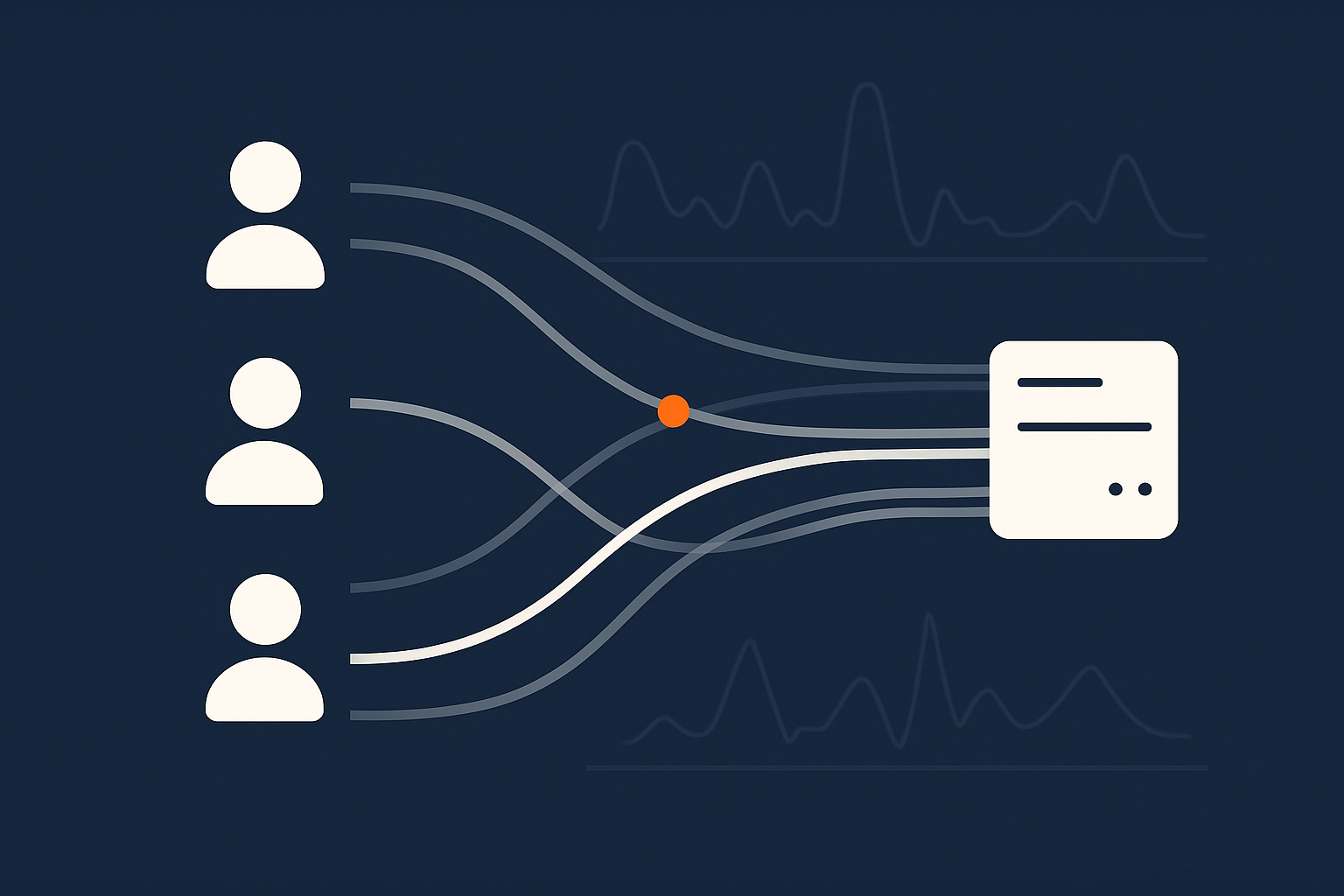
Who This Guide Is For (And Why Network Limits Suddenly Matter)
If you run a business website, online shop or web application, “the network” probably only comes up when something feels slow or appears to be down.
You might recognise situations like:
- Customers saying “your site is down” but when you refresh it eventually loads.
- Pages that seem fine in the office but feel sluggish on mobile or from abroad.
- Admin users complaining that WordPress feels painful to work in during busy periods.
All of these can be caused by the limits of the network between your visitors and your hosting. Understanding those limits helps you decide whether the issue is your hosting plan, your application, or simply how the internet works.
Typical situations where latency and bandwidth bite
Some common real world examples:
- UK business with US visitors. Your WordPress site is hosted in a UK data centre, and your US customers complain that it feels slow. They see higher latency due to distance.
- Growing WooCommerce shop. A marketing campaign succeeds and traffic jumps. The site stays technically “up” but pages crawl as bandwidth or throughput hit their limits.
- Image heavy brochure site. The design is beautiful but uses large unoptimised images and scripts. Visitors on 4G or shared office Wi‑Fi see long load times even if the server and data centre are healthy.
- Shared hosting with busy neighbours. Your plan promises “unlimited bandwidth” but performance varies wildly. At certain times, other sites on the same server or link are using most of the available capacity.
None of these scenarios are about obscure networking tricks. They are about how quickly data can travel and how much data can flow at once.
What you should be able to understand and decide by the end
By the end of this guide you should be able to:
- Explain in plain English what latency, bandwidth and throughput mean.
- Recognise how they show up as “slowness” or “downtime” for your users.
- Spot whether a problem is likely to be:
- Network distance and latency
- Bandwidth and throughput limits
- Or something else, such as CPU, RAM or code performance
- Make more informed choices about hosting architecture and web hosting performance features.
- Know when it is worth considering managed services to reduce operational risk.
You do not need to be a network engineer. You just need enough understanding to ask better questions and avoid common assumptions.
Plain‑English Definitions: Latency, Bandwidth and Throughput
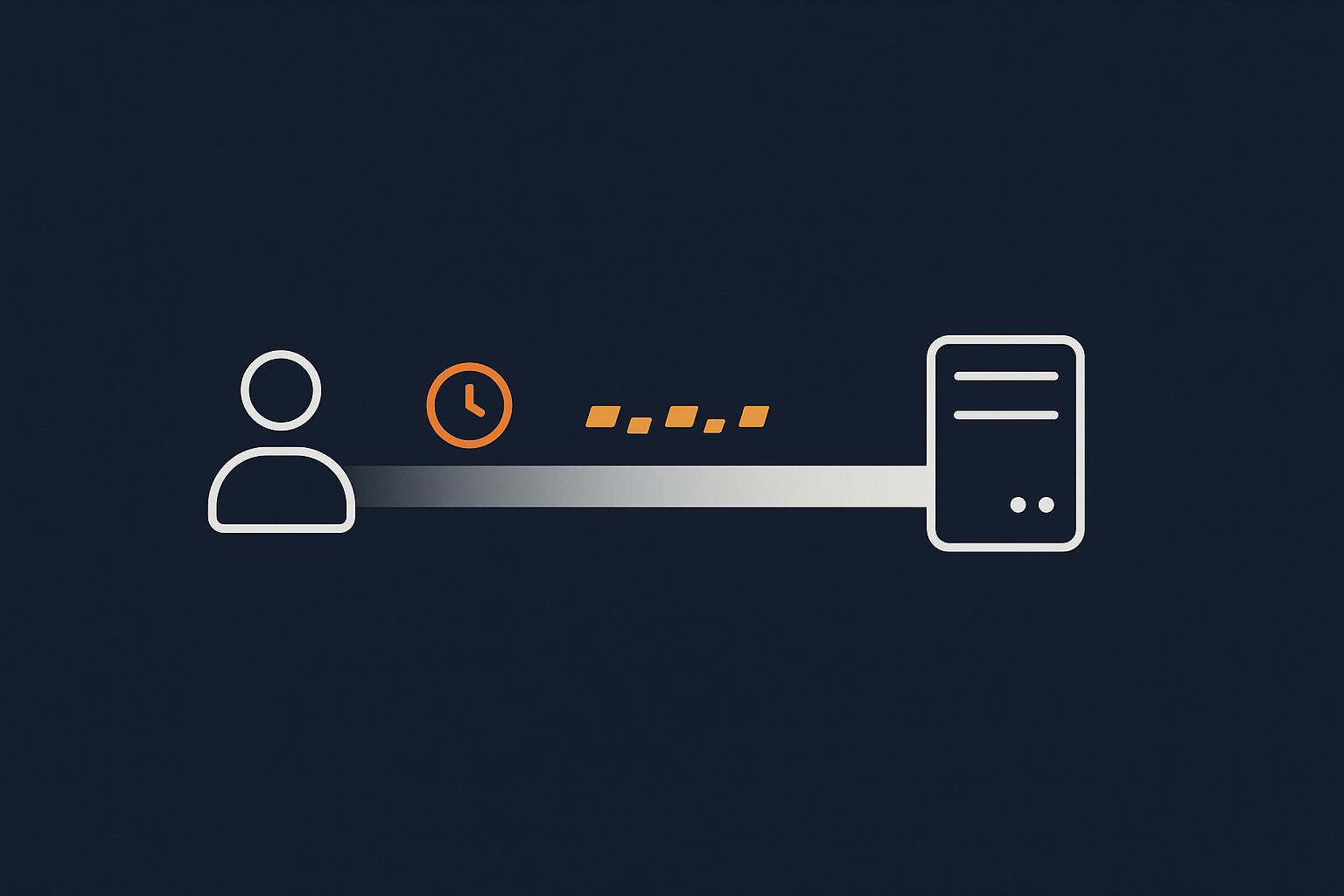
Latency: how long the first packet takes to get there
Latency is the time it takes for a small piece of data to travel from point A to point B, usually measured in milliseconds. In web terms it is how long it takes between:
- Your visitor’s browser asking for something.
- The first byte of the response arriving back.
A good analogy is a phone call between two people in different countries. If there is a slight pause every time someone speaks before the other person hears it, that pause is latency. The line might be perfectly clear and able to carry a lot of sound, but every exchange has that built in delay.
Key points:
- Latency increases with distance and the number of “hops” across the network.
- Latency affects every round trip your site needs: DNS lookups, TLS handshakes, database queries on remote servers and third party services.
- High latency does not always mean low bandwidth. You can have a very fast line with a noticeable delay.
Bandwidth: how wide the pipe is in theory
Bandwidth is how much data could flow through a connection per second if everything were perfect. It is usually measured in megabits per second (Mbps) or gigabits per second (Gbps).
Think of it as the width of a motorway. Wider roads allow more cars to travel side by side. Higher bandwidth allows more bits of data to travel per second.
Important details:
- Bandwidth is a capacity limit, not a guarantee of speed.
- It is often “shared” between many customers, especially on cheaper or shared hosting plans.
- Bandwidth is usually advertised, but it is throughput that you actually experience in real use.
Throughput: what you actually get in practice
Throughput is the real data transfer rate achieved, considering all the imperfections and overhead. It is how many megabits or megabytes per second are actually flowing during a file download or page load.
Throughput is affected by:
- Latency and how many round trips are needed.
- Congestion and packet loss on any link in the path.
- Server performance, such as CPU and disk speed.
- Rate limits or caps applied by providers.
You can think of throughput as the average speed a car achieves on a motorway during rush hour. The road might be capable of 70 mph but traffic jams, lane closures and junctions reduce the actual speed.
How these three interact for a real website visit
Consider a visitor loading your home page:
- The browser does a DNS lookup to find your server’s IP.
- Each lookup involves latency, often to a resolver that might not be near your user.
- The browser establishes a TLS (SSL) connection.
- This requires several round trips, each paying the latency cost again.
- The browser requests the HTML page.
- Latency affects time to first byte (TTFB).
- Once data starts flowing, bandwidth and throughput control how quickly the full HTML arrives.
- The browser parses the HTML and requests images, CSS and JavaScript.
- Each asset might require more connections and round trips.
- Throughput determines how quickly large images and scripts arrive.
A problem at any point feels like “the site is slow” to your user. Your job is to identify which part of the chain is the limiting factor so you can address it cost effectively.
How Network Limits Show Up To Users: From “Site Feels Sluggish” To Actual Downtime
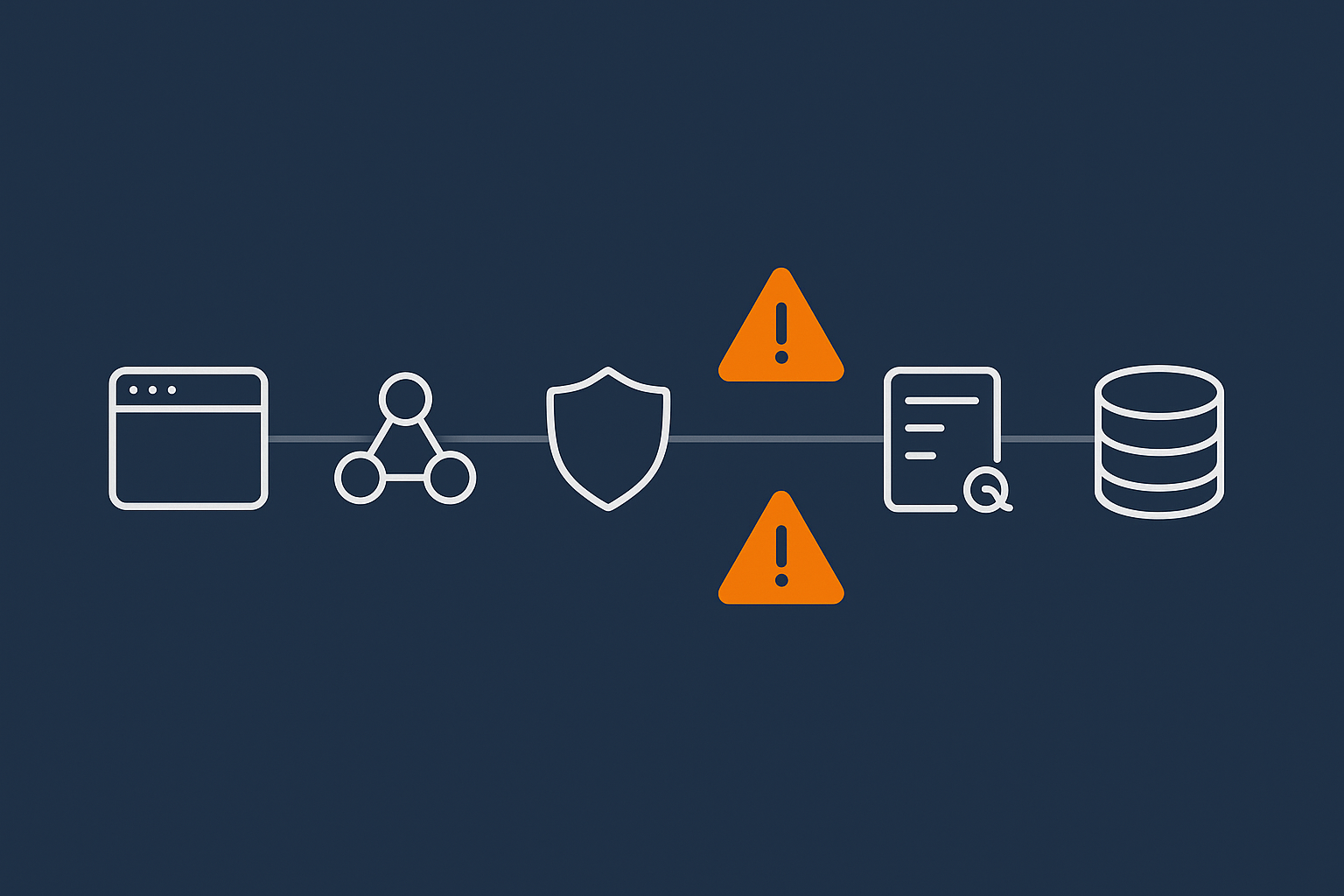
Perceived slowness vs measurable network delay
Users rarely say “your network latency appears high.” They say things like “the site feels sluggish” or “it hangs for a moment before loading.”
From a measurement perspective, you might see:
- High TTFB in browser dev tools.
- Increased DNS lookup times.
- Long waits for the initial HTML followed by quick asset loading.
This can be a mix of network latency and server processing time. Our article on reducing WordPress Time to First Byte on UK hosting explores that interaction in detail.
When high latency looks like downtime (but is not)
Sometimes users report “downtime” when the site is actually loading, just very slowly. For example:
- A server in the UK serving users in Asia, without caching or a content delivery network.
- Heavy reliance on remote APIs or third party services with their own latency.
- Underpowered DNS hosting causing slow lookups or occasional timeouts.
If latency is high enough, browsers may time out or show “This site cannot be reached” messages, which feel the same as real downtime. From the hosting side the site is technically up, but from a user’s point of view, it may as well not be.
Real downtime from network failures and saturation
True network related downtime usually falls into two categories:
- Failure: Something breaks in the path. Examples:
- A data centre loses an upstream connection with no working backup.
- A misconfiguration in routing causes traffic to be dropped.
- DNS records expire or are misconfigured.
- Saturation: Links are so congested that usable throughput drops towards zero.
- Excessive traffic, whether legitimate spikes or abusive traffic.
- Insufficient capacity between network segments.
From a user’s perspective, saturation can look identical to a failure. The site may technically be answering some requests, but slow enough that the experience is effectively an outage.
If you want more depth on broader causes of outages, see Why Websites Go Down: The Most Common Hosting Failure Points.
Latency in Practice: Distance, DNS, SSL and Chatty Applications
Physical distance and routing: why “UK hosting” usually helps UK visitors
Signals travel at close to the speed of light in fibre, but they still have to pass through many switches and routers along the way. Every extra hop adds a little latency.
For a UK business whose customers are mostly in the UK and Europe, hosting in a UK data centre usually means:
- Lower base latency for those users.
- Fewer routing surprises, especially if the host has strong local connectivity.
- Better odds of meeting Core Web Vitals targets that expect fast initial responses.
If your audience is global, location becomes more nuanced. You may:
- Host near your largest market.
- Use a content delivery or G7 Acceleration Network style layer to cache content closer to users worldwide.
- Consider multi region setups for truly global applications.
DNS lookups, TLS handshakes and other hidden round trips
When someone types your domain into their browser, several background steps happen before any content is loaded:
- DNS resolution. The browser asks DNS resolvers for your IP address, which may involve multiple network hops.
- TCP connection. The browser and server establish a connection.
- TLS (SSL) handshake. They negotiate encryption, which can require several exchanges.
Each stage involves round trips affected by latency. Poor DNS hosting, distant resolvers or misconfigured TLS settings can all add tens or hundreds of milliseconds before your application even starts responding.
Using reputable DNS providers, enabling modern TLS settings and keeping certification chains tidy are simple operational wins that reduce this hidden latency.
Why WordPress and WooCommerce can be “chatty” over the network
WordPress and WooCommerce are flexible and extensible, which is why they are so widely used. The trade off is that plugins and themes can introduce many network calls and database queries per page.
Network related “chattiness” includes:
- Multiple database queries for dynamic elements of a page.
- Calls to remote APIs (payment gateways, inventory systems, marketing tools).
- Additional assets loaded from third party CDNs and tracking scripts.
Every request pays the latency cost. If your database is on another server or your APIs are in a different region, the lag adds up. The effect is particularly noticeable for logged in users and admin pages where caching is weaker.
How caching and an acceleration layer reduce the impact of latency
Caching is one of the most effective tools for reducing the user impact of latency:
- Page caching. Serving pre generated HTML where possible so the server can respond quickly.
- Object caching. Reusing database query results so fewer trips are needed.
- Browser caching. Letting the user’s device reuse assets rather than fetching them again.
An acceleration layer, such as the G7 Acceleration Network, sits in front of your origin server and can:
- Cache static content closer to your users so it travels a shorter distance.
- Optimise images to AVIF and WebP formats on the fly, often reducing image sizes by more than 60 percent.
- Handle TLS termination efficiently, which can reduce handshake overhead at the application server.
For many sites, especially content heavy ones, this combination significantly improves perceived speed even if the origin server remains in a single location.
Bandwidth and Throughput: Why a “Fast Line” Is Not Always Fast
Shared hosting, contention and noisy neighbours
On shared hosting, you are not just sharing CPU and disk. You are often sharing network bandwidth with many other customers.
Hosts may advertise high or “unlimited” bandwidth, but in practice:
- The network port from the server to the switch has a fixed capacity.
- That capacity is divided among many sites.
- Usage patterns vary by time of day and traffic spikes.
When another site on the same server or network segment experiences a spike, your available throughput can drop, even if your own traffic is steady. This is the “noisy neighbour” problem.
Moving up to better isolated plans, such as Virtual dedicated servers, reduces contention by giving your site a defined share of network capacity, CPU and RAM.
Server network limits vs visitor connection limits
It is worth separating two different constraints:
- Server side limits.
- Network port capacity in the data centre.
- Rate limits or caps on your hosting plan.
- Shared links inside the hosting provider’s network.
- Visitor side limits.
- Mobile network quality and signal strength.
- Shared office or home Wi‑Fi congestion.
- Local ISP throttling or shaping.
You can invest heavily in server side capacity but you cannot fix a visitor’s poor 3G signal or overused office line. What you can do is reduce the amount of data each visitor needs, and avoid adding unnecessary round trips that worsen the experience on slow connections.
How congestion and packet loss crush throughput
Throughput suffers badly when networks experience congestion and packet loss. When packets are dropped:
- The sender has to retransmit them.
- TCP slows down to avoid overwhelming the connection.
- Effective throughput can drop far below theoretical bandwidth.
This is particularly visible for large downloads or streaming. For web pages it shows up as assets loading in bursts, or a long delay before “finishing” even though the main content has appeared.
Good data centre and carrier networks are engineered to minimise loss and jitter, but they cannot control all the networks between your server and the user. This is another reason to cache and move common assets closer to end users where possible.
Image weight, scripts and payload size: the quiet bandwidth killer
Even if latency and server throughput are healthy, large payloads can still make a site feel slow. Typical culprits include:
- High resolution images uploaded directly from cameras.
- Heavy JavaScript bundles and frameworks.
- Multiple tracking, analytics and marketing scripts.
- Uncompressed or poorly compressed assets.
The G7 Acceleration Network can automatically compress and convert images to more efficient formats such as AVIF and WebP, often cutting file sizes by more than half without visible quality loss. That directly reduces the bandwidth each visitor consumes and improves load times, especially for mobile users.
How Latency and Throughput Affect Business Metrics
Core Web Vitals, TTFB and network performance
Google’s Core Web Vitals focus on user experience. Metrics like Largest Contentful Paint (LCP) and Interaction to Next Paint (INP) are influenced by:
- How quickly the initial HTML arrives (TTFB, which includes network latency).
- How fast key assets like images and CSS are delivered (throughput and payload size).
- How many network round trips are required to render the page.
Our article on realistic Core Web Vitals for WordPress covers the practical targets many UK SMEs can reasonably aim for, and how hosting affects those.
Checkout friction and abandonment on slow networks
For e‑commerce, every extra second during checkout can increase abandonment. Latency and throughput affect this in several ways:
- Slow loading of product pages and cart updates.
- Delays during payment or address verification API calls.
- Extra steps that trigger full page reloads instead of lightweight updates.
If your traffic includes users on slower mobile networks, high latency and large payloads are even more damaging. Optimising both network paths and front end assets reduces friction at the moment users are most likely to abandon.
Admin performance and staff productivity on WordPress
Slow WordPress admin affects staff productivity:
- Every extra second waiting for pages to load adds up over hundreds of daily actions.
- Bulk actions such as publishing or updating products can become painful.
- Remote staff on higher latency connections feel it even more.
For admin usage, application design and database performance matter as much as network factors. However, hosting choices that improve latency and throughput, especially for logged in users, can have a noticeable impact on day to day work.
Common Misunderstandings About Network Speed and Uptime
“Our plan has unlimited bandwidth, so we are fine”
“Unlimited” bandwidth usually means there is no explicit cap on total data transferred over a month. It rarely means:
- You have a dedicated high capacity network port.
- You will never experience contention with other users.
- Your throughput will always match the maximum advertised rate.
It is more accurate to read “unlimited” as “no metered overage charges, within reasonable usage” rather than a promise of infinite capacity.
Confusing bandwidth with CPU, RAM and disk limits
Networking is only one part of the picture. A site can feel slow even with ample bandwidth if:
- The server CPU is pegged due to heavy PHP processing.
- RAM is exhausted and the system is swapping to disk.
- Disk I/O is saturated, slowing database queries.
It is common to blame “the network” when the real bottleneck is inside the server. Monitoring at host level can separate network saturation from CPU, RAM and disk issues so you target the right fix.
Assuming a CDN automatically fixes all latency problems
Content delivery networks and acceleration layers are powerful, but they are not magic. They work best when:
- Your content is cacheable (for example, static images, scripts, pages that do not change per user).
- Cache rules are tuned correctly.
- Dynamic or personalised parts of the site are designed with latency in mind.
Highly dynamic applications that cannot be cached much will still pay latency costs for origin requests. A CDN can still help with offloading static assets, but it will not eliminate all performance issues if the core application is slow.
Mixing up uptime issues with peering and routing problems
Sometimes a site appears down to some users but not others. Common causes include:
- Issues with specific ISPs or peering arrangements.
- Routing problems in one geographic region.
- Local DNS resolver issues.
From the hosting provider’s perspective, the site and network may be healthy. The problem lies in the middle of the internet. In these cases, monitoring from different locations helps distinguish localised routing issues from actual data centre outages.
Our article on what really matters for power, cooling and network redundancy provides more context on where a host’s responsibility starts and ends.
Practical Ways To Improve Latency, Bandwidth Use and Throughput
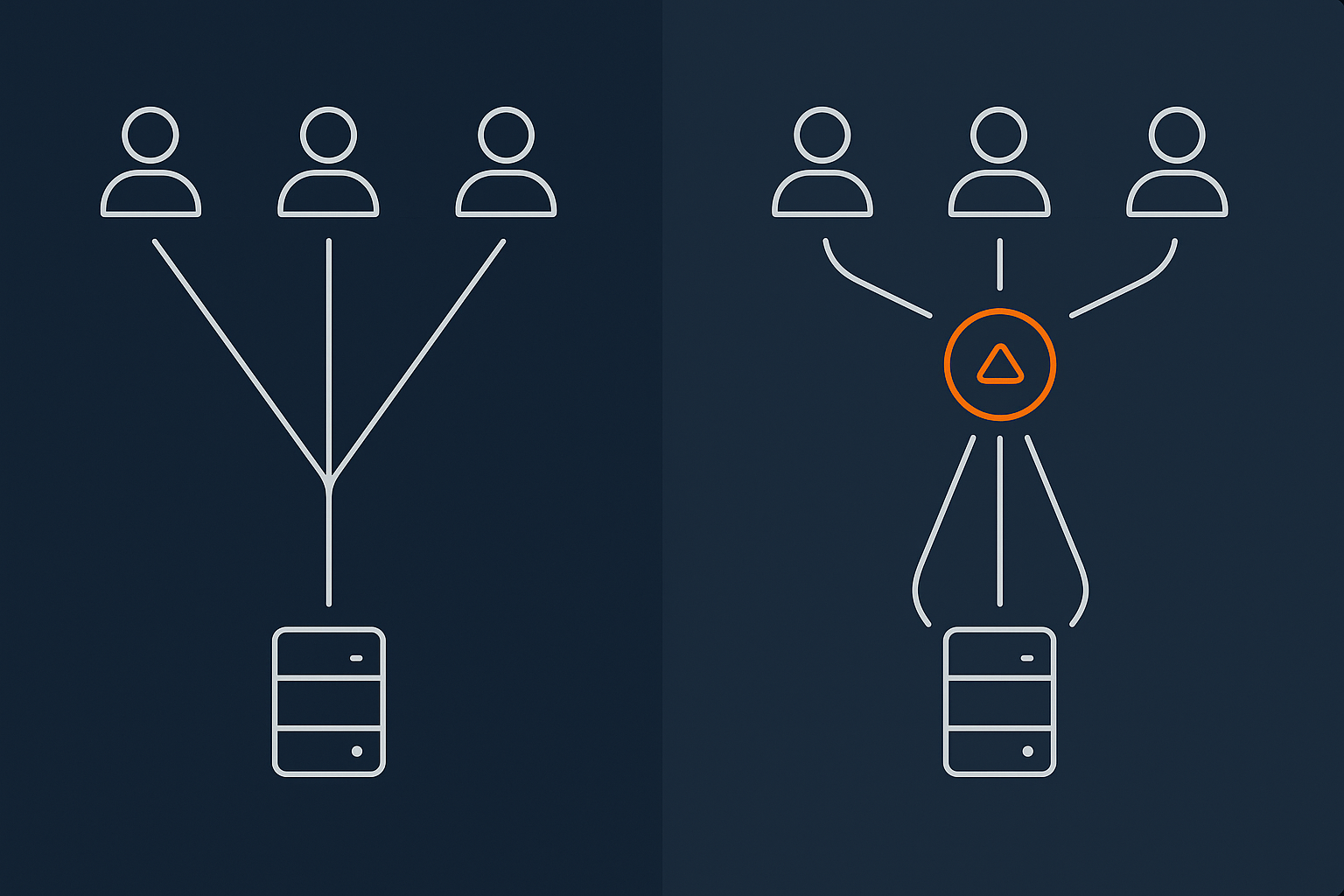
Hosting choices that reduce avoidable network pain
Some practical hosting decisions that reduce network related issues:
- Choose data centre regions close to your main audience. For a UK focused business, UK hosting usually makes sense.
- Avoid heavily oversold shared hosting once your traffic or business risk grows.
- Consider Managed WordPress hosting or managed VDS when:
- Your team cannot comfortably manage network tuning, caching and scaling.
- Downtime or performance issues would have material business impact.
Managed services do not remove responsibility from you entirely, but they shift much of the operational load and day to day optimisation to specialists.
Caching, compression and front‑end optimisation that actually move the needle
On the application and front end side, focus on:
- Page caching for anonymous users where content is not personalised.
- Image optimisation including:
- Appropriate compression and dimensions.
- Modern formats like AVIF and WebP through an acceleration layer.
- Minimising JavaScript and CSS to what you truly need.
- Reducing third party scripts that add extra DNS lookups and connections.
These steps often yield more noticeable performance gains for users than minor infrastructure tuning, especially on slower networks.
Filtering abusive traffic so real users get the bandwidth
Unwanted traffic reduces effective capacity for legitimate visitors. This is not always a full DDoS attack. It can be:
- Over enthusiastic bots scraping your site.
- Misconfigured crawlers or monitoring tools.
- Repeated automated login or search attempts.
An acceleration or edge layer can filter obvious abusive requests before they reach your application servers. The G7 Acceleration Network, for instance, can drop or challenge such traffic early so that bandwidth and server resources are reserved for real users.
Monitoring the right metrics: what to look at when things feel slow
When users say “the site is slow”, useful data points include:
- Browser dev tools:
- DNS, connection, SSL and TTFB timings.
- Asset sizes and load order.
- Server side metrics:
- CPU, RAM and disk utilisation.
- Network throughput and error rates.
- External monitoring:
- Latency from multiple locations.
- Uptime checks over time.
This evidence helps you and your hosting provider distinguish between network limits, capacity issues and application level bottlenecks.
Designing for Resilience: Network Redundancy and Real‑World Uptime
How data centre network design affects your site’s uptime
Behind your hosting plan sit network design choices that you rarely see, such as:
- Redundant uplinks to multiple carriers.
- Redundant switches and routers.
- Well engineered routing and failover.
These influence how often a link failure translates into downtime for you. Good data centre design makes most individual component failures invisible at service level.
However, it does not eliminate all risk. Routing incidents and broader internet issues can still affect connectivity. Understanding what your provider offers, and what is covered in their SLAs, helps you plan your own resilience.
Single‑server vs multi‑server layouts and internal network traffic
A simple hosting setup might have everything on a single server:
- Web server.
- Database.
- Cron jobs and background workers.
This minimises internal network hops but can limit scalability and resilience.
As you grow, you may separate components:
- Web servers on one or more machines.
- Database on a separate server or cluster.
- Caching layer (such as Redis or Memcached) on its own instance.
This design increases flexibility and resilience but relies more on the internal data centre network. Its performance and redundancy then become more important, particularly for latency sensitive database and cache queries.
When you actually need multi‑data‑centre or multi‑region setups
Spreading your application across data centres or regions can increase resilience and reduce latency for distributed audiences, but it adds:
- Complexity in deployment and data synchronisation.
- More moving parts to monitor and maintain.
- Higher infrastructure and operational costs.
It is usually worth considering when:
- Downtime has a high financial or reputational cost.
- Your users are truly global and need low latency from multiple regions.
- You have in house expertise or managed services to operate it safely.
For many SMEs, a well designed single region setup with robust data centre redundancy and an acceleration layer in front provides a good balance between reliability, performance and complexity.
Putting It All Together: A Simple Checklist Before You Blame “The Internet”
Quick triage questions to narrow down latency vs capacity issues
When your site feels slow, ask:
- Is it slow for everyone or just some users?
- If only in certain regions or networks, latency or routing issues are likely.
- Are all pages slow, or only specific ones?
- Specific pages point to application or asset issues.
- Is TTFB high, or is it the time after TTFB that is long?
- High TTFB can be network or server processing.
- Long load time after TTFB suggests payload, bandwidth or front end issues.
- Do server metrics show CPU, RAM or disk saturation?
- If yes, the bottleneck may be capacity, not the network itself.
When to talk to your developer, when to talk to your host
In broad terms:
- Talk to your developer when:
- Specific pages or actions are slow.
- There are many external scripts, APIs or heavy assets.
- Database queries or application logic dominate response time.
- Talk to your host when:
- You see high latency or packet loss from multiple locations.
- The server appears overloaded even at modest traffic.
- There are signs of network saturation or routing issues.
Our article on hosting responsibility explains in more detail what providers typically handle versus what remains in your control.
Next steps if you are outgrowing shared hosting or basic plans
If performance issues keep recurring despite basic optimisations, it may be a sign that you have outgrown entry level hosting. Options include:
- Moving to better isolated hosting such as Virtual dedicated servers where you control more of the resources.
- Using Managed WordPress hosting to shift more of the operational burden and tuning to your provider.
- Introducing an acceleration layer for caching, image optimisation and traffic filtering.
The right choice depends on your traffic patterns, budget and in house skills. You do not need to solve everything at once. Incremental improvements, informed by data, are usually safer than big leaps based on guesswork.
If you would like to talk through what is holding your site back, you are welcome to speak with G7Cloud about your current setup and where a different architecture, managed hosting or a virtual dedicated server might reduce your risk and complexity.