


Who This Guide Is For (And What You Will Be Able to Decide)
Typical situations where capacity planning suddenly matters
Capacity planning often moves from “something we should think about one day” to “we need to make a decision this week” when the business changes. Typical triggers include:
- You are moving from shared hosting to a VPS or virtual dedicated servers and have to pick a size.
- Your WordPress or WooCommerce site has slowed down after traffic growth.
- You are planning a product launch, TV feature or big marketing push.
- Your agency is adding more client sites to an already busy server.
- Storage alerts keep appearing and you are not sure how big to go next.
In all of these, the real question is simple: “Given where our business is going, what CPU, RAM and storage do we actually need, without overspending?”
What you should be able to estimate by the end
By the end of this guide you should be able to:
- Explain in plain English what CPU, RAM, storage, I/O and PHP workers do for a typical web application.
- Roughly translate traffic and order forecasts into concurrent users and workload.
- Pick sensible starting sizes for common VPS and VDS workloads.
- Decide when CPU, RAM or storage are really the bottleneck.
- Plan 12 to 24 months ahead with realistic headroom, rather than guessing.
You do not need to be a full time infrastructure engineer. You just need enough understanding to ask good questions and make proportionate decisions.
Plain English View: What CPU, RAM and Storage Actually Do
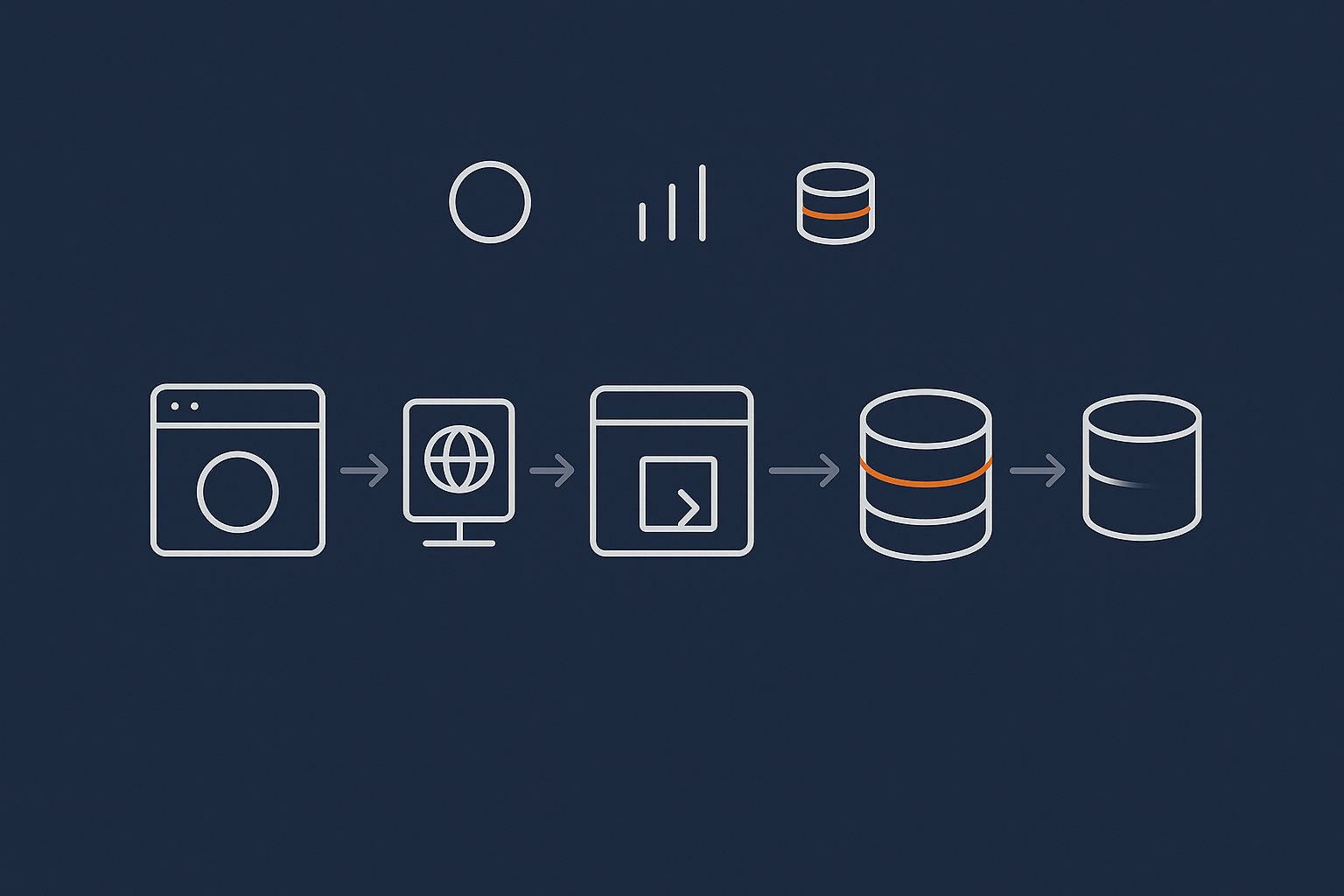
CPU: how many tasks you can do at once (and how quickly)
Think of CPU as the engine of the server. It determines:
- How many things the server can work on at the same time.
- How long each of those things takes.
On a WordPress site, CPU is used when:
- PHP runs your theme and plugins to build a page.
- The database processes queries.
- Background jobs run, such as imports, backups or scheduled posts.
If your CPU is consistently near 100%, requests start to queue. Users see slower page loads, spinning loaders or timeouts. For many business sites, CPU is the first resource to feel pressure during traffic spikes.
RAM: short term memory for active users and processes
RAM is the server’s short term memory. It holds:
- Active PHP processes and their data.
- The web server’s connection handling.
- Database caches and query results.
- Application level caches such as Redis or object cache.
If you do not have enough RAM, the server starts “swapping” to disk, which is much slower. Symptoms include:
- Very slow admin areas, especially WooCommerce dashboards.
- Random PHP errors or processes killed by the operating system.
- High disk activity even when traffic is not extreme.
Storage and I/O: where data lives and how fast you can reach it
Storage capacity is how much space you have. I/O (input / output) speed is how quickly you can read and write that space.
For most VPS and VDS workloads, you care about:
- Enough GB to hold your code, media, logs and backups.
- Fast SSD or NVMe storage so the database and file access are quick.
Database heavy sites, such as busy WooCommerce stores, feel slow if storage I/O is poor, even when CPU and RAM look fine. NVMe storage is usually significantly faster than older SSDs for these patterns.
Why network bandwidth and PHP workers also matter for web workloads
Two more concepts matter in practice:
- Network bandwidth controls how much data you can send and receive per second. Image heavy sites or sites with large downloads can run out of bandwidth before they run out of CPU.
- PHP workers (or PHP-FPM children) determine how many dynamic requests your application can process at once. They sit on top of CPU and RAM: too few workers and users queue, too many and you run out of CPU or RAM.
If you use a CDN or the G7 Acceleration Network, bandwidth and PHP workers on your origin server are under less constant pressure, because much of the static work is offloaded before it reaches the VPS or VDS.
From Business Growth to Rough Technical Numbers
Translating traffic, orders and sessions into concurrent users
Hosts often talk about “concurrent users”. That sounds abstract, but you can estimate it from familiar numbers.
Imagine:
- 30,000 visits per month, spread fairly evenly.
- Each visit lasts 3 minutes.
30,000 visits per month is roughly 1,000 per day. Spread over 8 busy daytime hours, that is around 125 visits per hour or a bit over 2 visits per minute. With 3 minute sessions, on average maybe 6 or 7 people are active at any one time. That is your concurrent user ballpark.
Campaigns change this. A 2 hour flash sale might push a whole day’s traffic into a short window, so concurrency can jump 5 to 10 times. It is this peak concurrency that drives capacity, not the monthly totals.
Static content vs dynamic work: why 10,000 page views is not always heavy
Not all page views are equal:
- A cached blog post or product page served as static HTML is light on CPU and database.
- A personalised account page, cart or checkout uses more PHP and database per request.
A site that mostly serves static articles may handle 10,000 page views per hour on modest hardware if caching is solid. A WooCommerce store doing 200 complex checkouts per hour can be more demanding.
When planning capacity, try to estimate:
- What proportion of your pages can be cached or served statically.
- How many “heavy” actions happen per hour, such as checkouts, logins, searches or report exports.
How caching, CDNs and the G7 Acceleration Network change the maths
Caching and content delivery networks reduce the work your VPS or VDS has to do.
The G7 Acceleration Network and similar services:
- Cache static pages and assets at the edge, near users.
- Optimise images to AVIF and WebP on the fly, often cutting image weight by more than 60 percent.
- Filter abusive or clearly automated traffic before it reaches your application.
In capacity terms, this means:
- Lower bandwidth and I/O usage on your VPS or VDS.
- Fewer PHP requests hitting the origin, so CPU and RAM pressure is reduced.
- More predictable performance during spikes, because many requests are served from cache.
This does not remove the need for sensible CPU, RAM and storage sizing, but it can let you handle more growth on the same hardware.
Baseline Sizing: Sensible Starting Points for Common Workloads

These are ballpark starting points, not hard rules. Real needs vary with code quality, plugin choices, caching and how sharp your traffic peaks are.
Small brochure or lead‑gen sites on a VPS
For a few small brochure or lead generation sites with modest traffic:
- CPU: 1 to 2 vCPUs.
- RAM: 2 to 4 GB.
- Storage: 40 to 80 GB SSD.
This is enough for a standard LAMP/LEMP stack, email signups and basic contact forms, provided caching is configured properly. A managed VPS is helpful if you do not have in house Linux expertise, but not essential for simple estates.
Growing WordPress site with regular content and email signups
For an actively maintained content site with growing search traffic, regular publishing and some marketing tools:
- CPU: 2 to 4 vCPUs.
- RAM: 4 to 8 GB.
- Storage: 80 to 160 GB, depending on media.
Image optimisation (through a CDN or acceleration layer) can materially reduce storage growth and bandwidth needs. If you prefer not to tune PHP workers, caching and database settings yourself, a Managed WordPress hosting setup can reduce operational effort.
WooCommerce or similar e‑commerce on VPS vs VDS
E‑commerce workloads are spikier and more sensitive to slowdowns at checkout. As a rough guide:
- Smaller stores on VPS: 4 vCPUs, 8 GB RAM, 160+ GB fast SSD or NVMe.
- Busier stores or multiple stores: 6 to 8 vCPUs, 16+ GB RAM, 250+ GB NVMe, possibly on a virtual dedicated servers plan for more predictable CPU performance.
A VDS (where your cores are reserved rather than heavily shared) tends to give more consistent checkout performance and database response times. That consistency is often more important than the raw headline vCPU count.
Agencies running multiple sites on one server
If you are an agency placing multiple client sites on a single VPS or VDS:
- For 10 to 20 low to medium traffic sites: 4 to 6 vCPUs, 8 to 16 GB RAM, 250 GB SSD.
- For 20+ sites, including WooCommerce: plan for 8+ vCPUs, 16 to 32 GB RAM and 500 GB+ SSD or NVMe.
Operationally, this is where managed VDS or enterprise managed services become attractive. Maintaining updates, backups, monitoring and performance tuning across many independent sites is a significant workload in itself.
CPU Planning on VPS and VDS: Cores, Contention and Spikes
vCPUs vs physical cores: what actually matters for your site
A vCPU is a slice of a physical core. On shared VPS platforms, many vCPUs may map to the same physical hardware. This is normal, but it means:
- You are sharing physical CPU capacity with other tenants.
- Performance can vary when others are busy.
On VDS, CPU resources are more strongly allocated to you. That usually means more consistent performance, especially at peak times, even if the vCPU count on paper looks similar.
For capacity planning, look for:
- Whether CPU is reserved or “burstable”.
- What contention you might see on shared platforms.
- How easy it is to add more vCPUs without long downtime.
How to think about CPU for WordPress and WooCommerce
Each PHP worker uses some fraction of a CPU core while working. As a rough mental model:
- A 4 vCPU system might comfortably run 10 to 20 PHP workers for typical WordPress workloads.
- Heavy WooCommerce or complex plugins may require fewer workers for the same CPU, to avoid saturation.
If you run into limits around PHP concurrency, this separate PHP worker guide goes into more detailed numbers.
Handling peaks: campaigns, sales and background jobs
CPU planning should consider:
- Marketing peaks: email campaigns, influencer posts, press coverage.
- Seasonality: Black Friday, Christmas, ticket release days.
- Background jobs: imports, synchronisations, subscriptions, reporting.
It is common to size a VPS for “busy but normal” days and then rely on:
- Caching and the G7 Acceleration Network to absorb short traffic bursts.
- Temporary scaling up during forecast promotions.
- Sensible scheduling of heavy background jobs outside peak hours.
The companion article on planning for traffic spikes looks at these scenarios in more depth.
When it is time to move from smaller VPS to virtual dedicated server
Symptoms that you may be outgrowing a shared VPS and heading towards VDS include:
- CPU graphs regularly spiking to 80 to 100 percent during business hours.
- Performance that varies noticeably by time of day, even when your own traffic is steady.
- Checkout or API performance that is sensitive to small bursts of traffic.
At this point, moving to a VDS with reserved cores often improves stability more than simply adding more shared vCPUs.
RAM Planning: Avoiding Swaps, Crashes and Slow Admin Panels
How RAM is used by web server, PHP, database and caching
On a typical stack:
- The web server (Nginx, Apache) uses RAM for connections and buffers.
- PHP-FPM uses RAM per worker, depending on what your code does.
- MySQL or MariaDB uses RAM for query caches, buffers and connections.
- Redis or Memcached use RAM to hold cached objects.
Tuning is about balancing these pieces so that:
- The database has enough RAM to avoid thrashing the disk.
- PHP has enough workers for concurrency, but not so many that RAM is exhausted.
Practical RAM ranges for typical stacks and site counts
Very roughly:
- Single WordPress site, low traffic: 2 to 4 GB.
- Several WordPress sites or a busier single site: 4 to 8 GB.
- WooCommerce or several medium busy sites: 8 to 16 GB.
- Multi‑site agencies or high volume e‑commerce: 16 to 32 GB.
Managed VPS or managed VDS services are useful when you want someone to regularly review memory usage, PHP pool sizing and database configuration, rather than set it once and hope for the best.
Symptoms of under‑provisioned memory (and what to check)
Signs that you may need more RAM or better tuning:
- Frequent “out of memory” errors in logs.
- Swap usage that steadily climbs during the day and never really drops.
- Admin dashboards that feel sluggish even when front end traffic is quiet.
- Database restarts under load.
You can dig deeper with resource graphs. Our guide on reading hosting resource graphs walks through CPU, RAM and I/O charts in more detail.
Storage and I/O: Capacity vs Performance vs Safety
How much space you actually need today and in 3 years
To estimate storage:
- Look at your current disk usage by category: application code, uploads/media, logs, backups.
- Estimate annual growth for media and database size based on past trends.
- Add space for future features such as more languages, additional sites or product lines.
For many small and medium sites, 160 to 250 GB is comfortable, especially if you store older backups off server. Large agencies or content heavy businesses may plan for 500 GB or more.
I/O and database performance: why SSD and NVMe matter more than GBs
If your database is busy, storage speed matters more than raw capacity. NVMe drives have significantly lower latency and higher throughput than traditional SSDs.
This translates into:
- Faster product searches and filters.
- Quicker dashboard reports.
- Less impact from background jobs that hit the database.
For database intensive workloads, consider NVMe storage on a VDS as part of your performance and capacity plan.
Logs, backups and growth: reserving overhead so you do not hit 100%
Running disks close to 100% capacity is risky and usually slows things down. It is sensible to:
- Keep at least 15 to 25 percent free space as a routine buffer.
- Rotate logs so they do not grow without limit.
- Store older backups in an external object store rather than on the main VPS or VDS.
If compliance or PCI considerations apply, aligning your backup and storage strategy with PCI DSS guidance is also worth planning up front.
Planning for Headroom: Safety Margins without Wasting Money
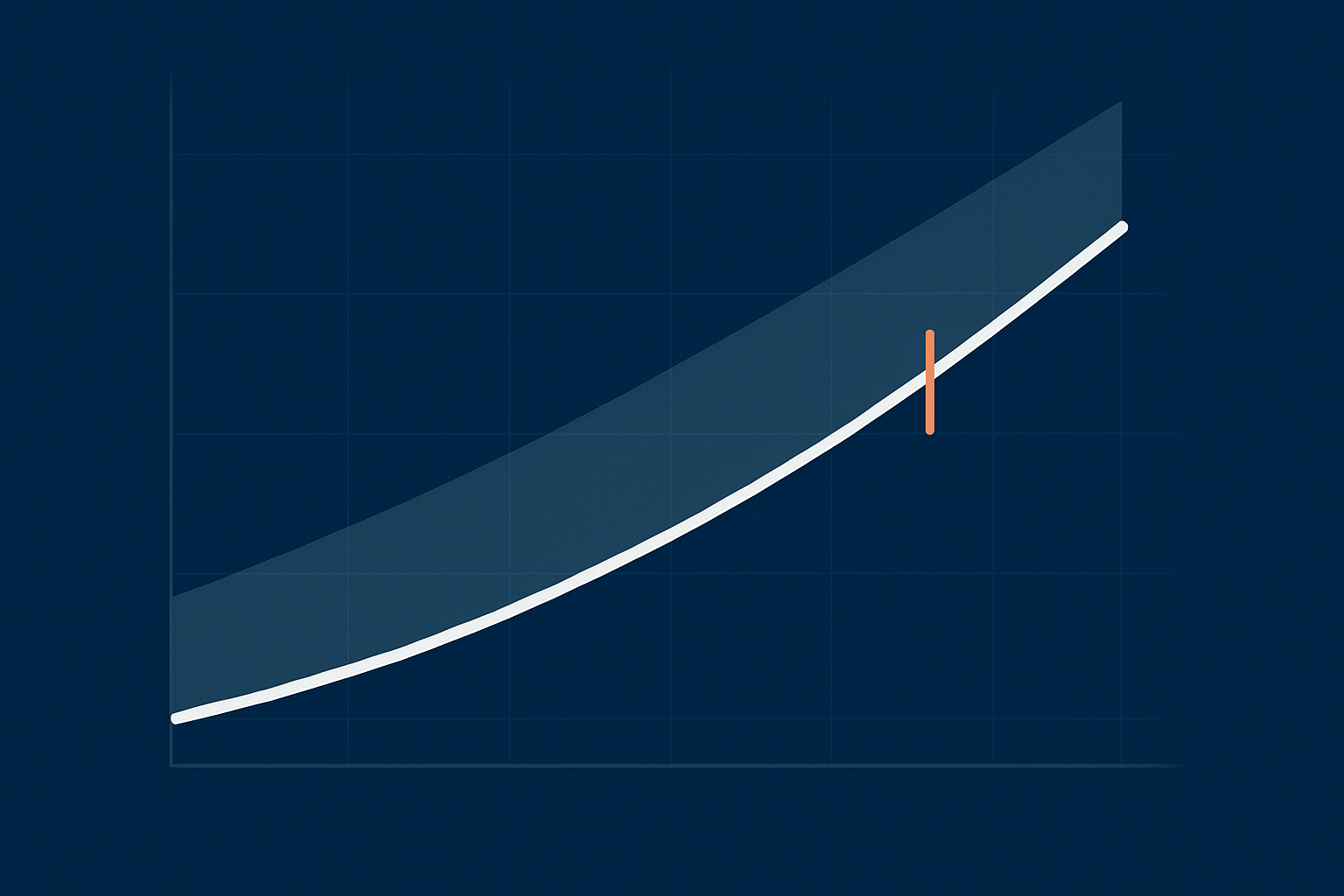
Choosing a buffer: 20–40% headroom and what it covers
A common rule of thumb is to size so that, on a normal busy day:
- CPU averages no more than 60 to 70 percent.
- RAM usage leaves 20 to 30 percent free.
- Disk is no more than 70 to 80 percent full.
This 20 to 40 percent headroom covers:
- Unexpected small traffic bumps.
- Organic growth before your next review.
- New features that are slightly more demanding than expected.
Vertical scaling vs horizontal scaling for VPS and VDS
You have two broad scaling options:
- Vertical scaling: make the VPS or VDS bigger (more CPU, RAM, storage).
- Horizontal scaling: add more servers and load balance between them.
Vertical scaling is simple and works well until a single server cannot realistically handle the load or uptime requirements. Horizontal scaling introduces more complexity and operational overhead but gives more resilience and growth potential. Our article on when vertical scaling stops working explores that transition.
How upgrade paths and contract terms affect your choices
Capacity planning is easier if:
- You can scale up VPS or VDS resources quickly, with minimal downtime.
- Contract terms allow you to adjust resources without penalties.
- You have clear communication with your provider about upgrade procedures.
When evaluating providers, ask specifically how CPU, RAM and storage can be increased, how often and what kind of maintenance window is involved.
Using Real Data: Turning Resource Graphs into Capacity Decisions
Which metrics to watch monthly: CPU, RAM, disk, I/O and PHP workers
A simple monthly review of a few key graphs can prevent surprises:
- CPU utilisation: daily peaks and averages.
- RAM usage and swap: especially during busy periods.
- Disk usage and I/O wait times: to spot storage bottlenecks.
- PHP worker usage or request queues: to see if concurrency is constrained.
Reading trends rather than single spikes
Isolated spikes are normal. You are looking for:
- CPU or RAM peaks that get higher month after month.
- Disk space that is steadily filling even after log rotation.
- PHP worker utilisation that sits near the limit for long periods.
A 3 to 6 month trend is a much better guide to future capacity than one busy week.
When graphs say you are outgrowing shared hosting or a small VPS
Patterns that suggest it is time to move beyond shared hosting or a very small VPS include:
- Regular CPU or I/O saturation during normal business hours.
- Support staff mentioning “noisy neighbours” when explaining slowdowns.
- Limited ability to tune PHP or database settings yourself.
If you recognise these, the broader context article on choosing between shared, VPS, VDS and dedicated may be a useful next read.
Common Capacity Planning Mistakes (And How To Avoid Them)
Only planning for average days, not peaks or marketing campaigns
Average traffic statistics hide the peaks that actually cause problems. To avoid this:
- List known seasonal peaks and marketing plans for the next 12 months.
- Estimate peak concurrent users during those periods.
- Check whether your current headroom is enough for those scenarios.
Confusing backups with extra capacity or redundancy
Backups are essential for recovery, but they do not give you more CPU, RAM or I/O. Nor do they keep the site running if the main server fails.
If uptime is critical, think in terms of:
- High availability or failover setups, which may involve multiple VPS or VDS instances.
- Separate backup storage that does not share the same failure domain.
Ignoring non‑production environments, cron jobs and background tasks
Staging sites, test environments and background tasks all consume resources:
- Separate staging instances can double the capacity requirement if they mirror production.
- Heavy cron jobs and imports may spike CPU and I/O even at low user traffic.
Include these in your planning, or use schedules and rate limits so they do not overlap peak user times.
Over‑trusting “unlimited” plans and vague vCPU descriptions
“Unlimited” bandwidth or visits are usually subject to fair usage. Likewise, 4 vCPUs on one platform may not perform the same as 4 vCPUs on another if the underlying cores are shared differently.
Where possible, ask providers for:
- Clear explanations of how vCPUs map to physical resources.
- Any soft limits or fair usage policies that might affect you.
- Example benchmarks or reference customers with similar workloads.
Independent benchmarks from sites such as Phoronix or well established technical publications can also help you understand typical performance differences between CPU types and storage media.
Putting It Together: A Simple 12–24 Month Capacity Plan
Step‑by‑step: from today’s usage to a realistic growth path
A simple, practical approach:
- Capture today: note current CPU, RAM and disk usage at busy times, plus rough concurrent users.
- List growth drivers: planned campaigns, new markets, extra sites, more products.
- Estimate peaks: for each major event, estimate peak concurrent users and whether more of them will hit “heavy” pages.
- Apply headroom: aim for 20 to 40 percent spare capacity during expected peaks.
- Check upgrade paths: confirm how easily you can move up one or two VPS or VDS sizes.
- Review every 6 months: compare actual graphs to your estimates and adjust.
When managed VPS or VDS support reduces your planning burden
There is nothing wrong with running your own VPS or VDS if you have the time and skills. Managed services start to make sense when:
- Your revenue or reputation depends on the site being both fast and available.
- You prefer not to spend evenings tuning PHP and databases.
- You want proactive monitoring and a team that will suggest capacity changes based on real data.
In those cases, managed VPS, virtual dedicated servers or enterprise support are less about buying bigger hardware and more about reducing operational risk.
Questions to ask your hosting provider about future capacity
When you speak to a host about capacity planning, useful questions include:
- How do you recommend sizing CPU, RAM and storage for our specific workload?
- What is the practical upper limit of a single VPS or VDS with you?
- How quickly can we scale up if we see faster than expected growth?
- Do you offer help interpreting our graphs and planning upgrades?
- What managed options exist if we want less hands‑on responsibility?
If you would like a calm, practical conversation about your own hosting roadmap, you are welcome to talk to G7Cloud about which VPS or VDS architecture fits your growth plans and how much headroom is sensible for your risk profile.