


Who This Checklist Is For (And What You Will Have After 48 Hours)

This checklist is written for people who are comfortable using a computer, but new to running their own Linux server or VPS.
You do not need to be a professional sysadmin. You do need to be willing to type commands carefully, read what they do, and keep notes of your changes.
Typical situations: from shared hosting to your first VPS
You might recognise yourself in one of these situations:
- You have outgrown shared hosting and need more consistent performance.
- You are moving a busy WordPress or WooCommerce site to its own server.
- You are a developer or agency starting to host sites for clients.
- You want to learn Linux properly on a real server, not just locally.
By the end of these 48 hours you should have:
- A VPS you can log in to safely without using the root account directly.
- System updates and security patches applied.
- A basic firewall in place that protects unused ports.
- SSH key based login working, with passwords disabled only once it is safe.
- Correct time and hostname set, with basic resource monitoring checked.
- A simple but working web stack appropriate for your needs.
- Automatic security updates (where sensible) and at least one backup.
- A short routine for ongoing maintenance.
This is not a full hardening guide. It is a safe and realistic starting point that avoids the most common mistakes beginners make in the first couple of days.
What “safe enough” looks like for a new Linux VPS
On a new VPS “safe enough” usually means:
- You are not logging in as root for daily work.
- Only the services you actually use are reachable from the internet.
- The system is up to date with security patches.
- Attackers cannot simply guess or reuse a password to get into SSH.
- You have at least one working backup and you know you can restore it.
Some organisations need much stricter controls, central logging, intrusion detection and compliance checks. That is beyond this beginner checklist but worth keeping in mind as you grow.
When to consider managed hosting instead of doing it all yourself
Running an unmanaged VPS or virtual dedicated server means you are responsible for:
- Monitoring and applying updates regularly.
- Checking logs when something behaves oddly.
- Diagnosing performance issues and planning capacity.
- Designing and testing your own backup and recovery plan.
If you only want to run one or two business sites and have little interest in server administration, that can quickly feel like a lot of ongoing work. In that case, a Managed WordPress hosting plan or a managed virtual dedicated server can offload most day to day tasks, leaving you to focus on the sites themselves.
If you enjoy understanding how things work and are comfortable taking responsibility for updates and backups, this checklist is written for you.
Before You Log In: Know Your VPS Basics
Key details to have ready from your provider
Before touching the command line, collect these details from your VPS control panel or welcome email:
- Server IP address (IPv4 and, if available, IPv6).
- Root username (usually
rooton most Linux VPS). - Root password, or any initial SSH key details if the provider set one.
- The Linux distribution and version (for example, “Ubuntu 22.04” or “AlmaLinux 9”).
- VPS control panel access (for example, reboot, console, or snapshot features).
The out of band console in your VPS panel is a useful safety net. If you misconfigure SSH or the firewall, you can still log in via the web console to fix it.
Choosing a terminal and testing basic SSH access
You will manage your VPS over SSH, a secure remote shell.
- On Linux and macOS, the built in Terminal application works fine.
- On Windows, Windows Terminal, PowerShell or PuTTY are common choices.
First, test that you can reach the server at all. This does not change anything on the server.
ping -c 4 your.server.ip.addressThis sends four small network packets to the VPS. If it works, you will see replies with times. If it fails, check that the VPS is started in your provider panel and that you used the correct IP.
Next, attempt an SSH connection using the root login details from your provider:
ssh root@your.server.ip.addressThe first time, you will be asked to confirm the host fingerprint. Typing yes here stores the server’s identity in your known_hosts file. Then you enter the root password.
If you get a “Permission denied” or timeouts, see the more detailed SSH access for beginners guide for troubleshooting tips.
Safety note: never share your root password or private SSH key
The root password and your private SSH key give full control over the server. Treat them like the keys to your office or home.
- Never send root passwords or private keys by email, chat or ticket.
- If you must give someone else access, create a separate user for them.
- Store private SSH keys securely on your own device, optionally with a passphrase.
If you suspect the password or key has been exposed, change it or revoke the key and generate a new one.
Hour 1: Safe First SSH Login and New Admin User
Log in as root for the last time (and why it is risky)
For the first few changes, you will use the root account provided. After that, it is safer to work as a normal user with sudo.
Staying logged in as root all the time is risky because any accidental command is applied system wide without confirmation. A simple typo in a destructive command can remove critical files.
Log in now using SSH with the root user:
ssh root@your.server.ip.addressKeep this session open for the next steps. We will create a new user and test it before closing the root session.
Create a non-root sudo user
You will now create a normal user that can run administrative commands with sudo. Replace alice with your preferred username.
adduser aliceThis command:
- Creates a home directory for
alice. - Asks you to set a password for this user (different from root).
- Optionally asks for full name and other details, which you can leave blank.
Next, add this user to the sudo group so they can run administrative commands. The exact command depends on your distribution.
On Ubuntu and Debian:
usermod -aG sudo aliceOn AlmaLinux, Rocky, CentOS and similar:
usermod -aG wheel aliceThis does not print output if it succeeds. If you mistype the username, you will see an error. You can view group membership with:
id aliceLook for sudo or wheel in the list of groups. If you got it wrong, simply run the appropriate usermod command again.
Test your new user before you log out
Before closing the root session, open a second terminal window on your computer and try logging in as the new user:
ssh alice@your.server.ip.addressOnce logged in as alice, test that sudo works:
sudo whoamiThe first time, you will be asked for alice’s password. If everything is set up correctly, the command will output:
rootThis confirms that your new user can perform administrative actions when needed.
Only after this works should you consider closing the original root session. If something goes wrong, you still have the root connection open to fix it.
Common mistakes: locking yourself out of sudo
A common beginner mistake is either:
- Forgetting to add the user to the
sudoorwheelgroup, or - Editing
/etc/sudoersincorrectly.
In this checklist we avoid manual editing of /etc/sudoers entirely. The group based approach is simpler and safer.
If you realise sudo does not work for your new user, log back in as root (or use the VPS console) and run the appropriate usermod -aG command again.
Hours 1–4: Update and Patch the Server Safely
Check your Linux distribution and version
Different distributions use different package managers. First, confirm exactly which distribution and release you are on.
lsb_release -a 2>/dev/null || cat /etc/os-releaseThis command tries lsb_release (common on Ubuntu/Debian) and falls back to /etc/os-release. It will print something like “Ubuntu 22.04.4 LTS” or “AlmaLinux 9.x”. Keep a note of this, as you will refer to it when reading documentation.
If you want a deeper understanding of package managers, you may find the beginner friendly guide to Linux package managers helpful.
Run system updates with apt or yum / dnf
New VPS images are often a few weeks or months behind on security updates. Applying updates early reduces your exposure to already known issues.
On Ubuntu and Debian, use apt:
sudo apt update
sudo apt upgrade
apt update downloads the latest package lists. apt upgrade installs available updates. You may be asked to confirm with Y.
On AlmaLinux, Rocky, CentOS 8+ and similar (which use dnf):
sudo dnf updateOn older CentOS 7 systems that still use yum:
sudo yum updateThese commands may:
- Take several minutes.
- Print a list of packages being updated.
- Occasionally ask how to handle configuration files. For now, if asked, choosing the default option or keeping the current file is usually safe on a brand new VPS.
If you update something critical and regret it, rolling back is sometimes possible but not always straightforward. This is where snapshots from your VPS panel can help on future changes: take a snapshot before large updates so you can revert the whole VPS if needed.
Reboot or not? How to decide safely
Some updates, particularly for the kernel or core libraries, only fully apply after a reboot.
After updates, check if a reboot is recommended:
- On Ubuntu/Debian:
[ -f /var/run/reboot-required ] && echo "Reboot recommended" - On RHEL-like systems, check the list of updated packages for the kernel.
When your VPS is new and does not yet run production sites, rebooting is generally the simplest choice:
sudo rebootYour SSH session will disconnect. Wait 30–60 seconds, then reconnect:
ssh alice@your.server.ip.addressIf you cannot reconnect, check the VPS console in your provider panel to see whether the server is still booting or waiting for input.
Later, when you are hosting live sites, you will want to plan reboots during low traffic periods. The article on safely updating and patching a Linux server explains this in more detail.
If you are already running sites: how to patch with care
If you are applying this checklist to an existing VPS that already serves websites:
- Let stakeholders know there may be short interruptions during reboots.
- Take a snapshot or backup before a large batch of updates.
- Read the list of packages being updated and look out for web server, PHP, or database changes.
In most cases, security updates apply cleanly. If something goes wrong after an update, system logs (covered later) are where you look first.
Hours 4–8: Basic Firewall Setup to Control Network Access
What a firewall does in plain language
A firewall controls which types of network connections can reach your VPS. Think of it as a “front door” that only allows certain visitors in.
- Ports like 22 (SSH), 80 (HTTP) and 443 (HTTPS) are like numbered doors.
- The firewall decides which of those numbered doors are open to the world.
Without a firewall, any listening service on your VPS is reachable from the internet. With a firewall, you can restrict access to only the services you intend to offer.
Quick start: UFW on Ubuntu
On Ubuntu, UFW (Uncomplicated Firewall) provides a simple way to manage firewall rules.
First, check whether UFW is installed:
sudo ufw status verboseIf it says “Status: inactive”, UFW is present but not yet enforcing rules. Before enabling it, allow SSH so you do not lock yourself out.
sudo ufw allow OpenSSHThis creates a rule allowing incoming SSH connections on the standard port (22). Now, if you plan to host websites, allow HTTP and HTTPS:
sudo ufw allow http
sudo ufw allow https
Finally, enable the firewall:
sudo ufw enableType y to confirm. UFW will start enforcing rules immediately.
To view the active rules:
sudo ufw status numberedIf you accidentally open something you do not want, you can later remove rules by their number, for example:
sudo ufw delete 3Be careful not to delete the SSH rule you rely on. Any time you change firewall rules, it is a good habit to test a new SSH connection from another terminal.
Quick start: firewalld on AlmaLinux / Rocky / CentOS
On AlmaLinux, Rocky and CentOS, firewalld is often the default firewall manager.
Check its status:
sudo systemctl status firewalldIf it is inactive and you wish to use it, start and enable it:
sudo systemctl enable --now firewalldNow, allow SSH in the default zone:
sudo firewall-cmd --permanent --add-service=sshAllow HTTP and HTTPS if you plan to host websites:
sudo firewall-cmd --permanent --add-service=http
sudo firewall-cmd --permanent --add-service=https
Reload the firewall to apply changes:
sudo firewall-cmd --reloadList current rules:
sudo firewall-cmd --list-allIf you add a rule by mistake, you can remove it with:
sudo firewall-cmd --permanent --remove-service=service-name
sudo firewall-cmd --reload
As with UFW, any time you tighten rules, keep an existing SSH session open and test a new connection before logging out.
For a deeper introduction to firewalls, you can read the separate guide on basic Linux firewall setup.
Safety checks: do not lock yourself out over SSH
Whenever you touch firewall or SSH settings:
- Keep one SSH session open in case something goes wrong.
- Use a second terminal to test a new login.
- Have your VPS provider’s console access within reach.
If a new connection cannot be established, quickly undo the last change in your existing session or via the VPS console.
Hours 8–16: SSH Hardening Without Breaking Access
Generate an SSH key pair on your laptop
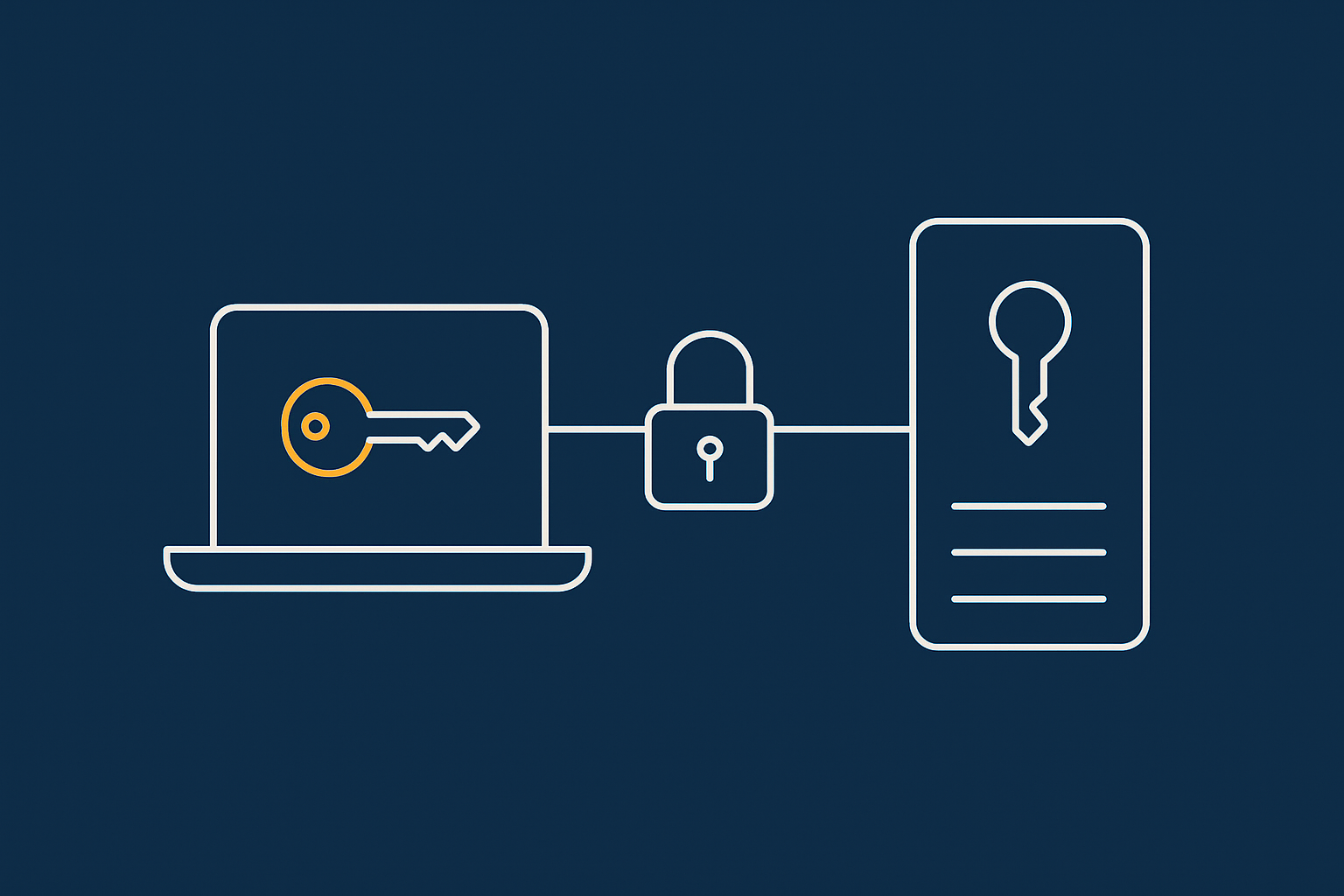
SSH keys are safer than passwords because:
- They are not vulnerable to simple guessing or credential reuse.
- You do not type them each time, so keyloggers cannot capture them easily.
You create a key pair on your own computer. The private key stays with you. The public key goes on the server.
On Linux, macOS or Windows with OpenSSH, run:
ssh-keygen -t ed25519 -C "your-email@example.com"This:
- Creates a modern Ed25519 key pair.
- Asks where to save it (press Enter to accept the default
~/.ssh/id_ed25519). - Asks for a passphrase. Adding one is recommended for extra protection.
You will see output showing where the public key is stored, usually ~/.ssh/id_ed25519.pub. You can view it with:
cat ~/.ssh/id_ed25519.pubDo not share the private key file (without .pub). Only the public key goes to the server.
Install your public key on the server
Now you will add your public key to the authorized_keys file for your user on the VPS.
The simplest way, if ssh-copy-id is available, is:
ssh-copy-id alice@your.server.ip.addressYou will be asked for alice’s password once, and the tool will append your public key to ~/.ssh/authorized_keys on the server.
If ssh-copy-id is not installed, you can do it manually:
- On your laptop, copy the public key contents:
cat ~/.ssh/id_ed25519.pub - On the server (logged in as
alice), create the.sshdirectory with correct permissions:mkdir -p ~/.ssh chmod 700 ~/.ssh - Edit or create the
authorized_keysfile:nano ~/.ssh/authorized_keysPaste the public key on a single line, save and exit.
- Set permissions:
chmod 600 ~/.ssh/authorized_keys
These permissions are important. If they are too loose, SSH may ignore the keys.
Now test key based login from your laptop:
ssh alice@your.server.ip.addressIf everything is configured correctly, you should not be asked for the VPS password. If you set a passphrase on your key, you may be asked for that instead.
Disable password login only after key login works
Once you are certain your SSH key works, you can disable password based SSH login. This reduces the risk from password guessing and credential reuse.
Warning: Misconfiguring SSH can lock you out. Make these changes slowly and keep an existing root or sudo user session open until you have tested a new connection.
Open the SSH configuration file with sudo from your alice account:
sudo nano /etc/ssh/sshd_configFind the line:
#PasswordAuthentication yesUncomment it (remove the #) and change yes to no:
PasswordAuthentication noAlso ensure that public key authentication is enabled:
PubkeyAuthentication yesSave and exit. Then restart the SSH service carefully:
- On Ubuntu/Debian:
sudo systemctl restart ssh - On AlmaLinux/Rocky/CentOS:
sudo systemctl restart sshd
Do not close your existing SSH session yet. Open a new terminal and test:
ssh alice@your.server.ip.addressIf the new connection works, you have successfully switched to key only authentication. If it fails, revert the changes using your existing session or via the VPS console by setting PasswordAuthentication yes again and restarting SSH.
Optional: changing the SSH port and what it really helps with
Some people like to change the SSH port from 22 to another number, to reduce the volume of automated login attempts.
This can slightly reduce log noise but does not, by itself, provide strong security. Strong keys and proper firewall rules matter more.
If you decide to change the port:
- Pick a port number between 1024 and 65535 that is not otherwise in use, for example 2222.
- Edit SSH config:
sudo nano /etc/ssh/sshd_configAdd or change the line:
Port 2222 - Update your firewall to allow the new port before restarting SSH.
- UFW:
sudo ufw allow 2222/tcp - firewalld:
sudo firewall-cmd --permanent --add-port=2222/tcp && sudo firewall-cmd --reload
- UFW:
- Restart SSH (
sshorsshdas before). - Test a new connection:
ssh -p 2222 alice@your.server.ip.address
If the test works, you can consider removing port 22 from the firewall. Again, do this only once the new port is confirmed to work.
Safety note: keep one emergency window open when changing SSH settings
Throughout any SSH and firewall adjustments:
- Keep an existing working session open until new settings are confirmed.
- Use the second session to test new ports or authentication methods.
- Keep the VPS console from your provider accessible in case both SSH sessions fail.
This habit alone prevents most self inflicted lockouts.
Hours 16–24: Time, Hostname and Basic Monitoring
Set the correct timezone and NTP
Correct time on your VPS is important for:
- Log timestamps that match your expectations.
- SSL certificate validation.
- Scheduled jobs (for example, cron tasks).
To set the timezone on most modern systems, use timedatectl:
sudo timedatectl list-timezones | grep -i londonFind the correct zone (for example, Europe/London). Then set it:
sudo timedatectl set-timezone Europe/LondonConfirm status:
timedatectl statusYou should see NTP (network time synchronisation) enabled or active. If not, you can often enable it with:
sudo timedatectl set-ntp trueSet a sensible hostname
The hostname is the server’s own name. It appears in prompts, logs and monitoring.
Choose something simple and descriptive, such as web1 or lon-wp01, not a full website domain.
sudo hostnamectl set-hostname web1Check:
hostnamectlThis changes the system hostname immediately. If your provider’s panel lets you set a “reverse DNS” or PTR record, you would normally use the fully qualified name there (for example, web1.example.com). That is configured in DNS, not with hostnamectl.
Check CPU, memory and disk usage so you know what “normal” looks like
Spend a few minutes seeing how the system looks when idle. Later, when something feels slow, you will have a comparison.
Check CPU and load:
topor, on some systems, the more user friendly:
htopIf htop is not installed, you can add it via your package manager (sudo apt install htop or sudo dnf install htop), though this is optional. Press q to exit.
Check memory:
free -hThis shows how much RAM is used and free. On a new VPS with nothing running, usage should be modest.
Check disk usage:
df -hThis shows filesystem sizes and usage percentages. It is useful to know how much space you start with. Running out of disk later can cause various issues, which are discussed further in the article on what happens when a Linux server runs out of disk space.
Log basics: where to look when something feels wrong
When you suspect something is off, logs are usually the first place to check. On most modern Linux systems using systemd, journalctl is the main tool.
View the most recent system log entries:
sudo journalctl -xeUse the arrow keys or Page Up/Page Down to scroll and q to quit.
To follow logs in real time (for example while restarting a service):
sudo journalctl -fApache, Nginx, MariaDB and other services also keep their own log files in /var/log. A more detailed walk through is available in the guide to understanding system logs on Linux.
Hours 24–36: Install Your Web Stack Safely
Decide: single site vs multiple sites, control panel or not
Before installing web software, decide roughly how you will use this VPS:
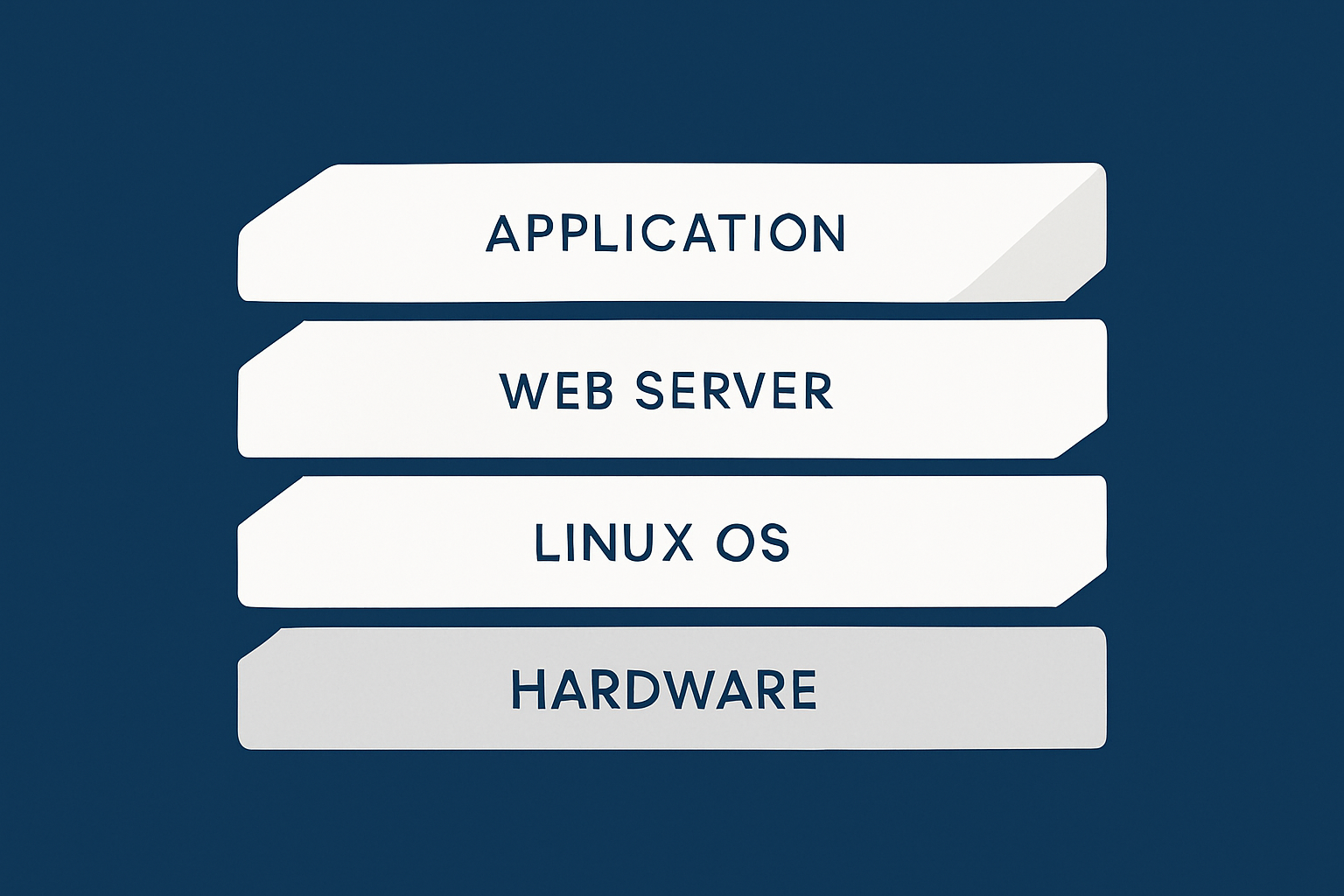
- Single site, simple setup: A straightforward LAMP (Linux, Apache, MariaDB, PHP) or LEMP (Linux, Nginx, MariaDB, PHP) stack installed manually is often enough.
- Multiple sites, hosting for clients: A control panel or a more structured approach might make sense, as it handles vhosts, email and DNS for you.
Control panels are convenient but add complexity and resource usage. If you only need a couple of WordPress sites and do not enjoy server work, a managed panel based service can be simpler than running your own panel.
Typical LAMP / LEMP components and what they do
- Web server (Apache or Nginx): receives HTTP/HTTPS requests from visitors’ browsers.
- PHP: runs dynamic code for applications like WordPress.
- Database server (MariaDB or MySQL): stores content, user data and settings.
The Linux part is already provided by your VPS. Your job is to install and configure the rest.
Installing a basic stack with your package manager
Here is a minimal example for a simple Apache based stack.
On Ubuntu / Debian:
sudo apt install apache2 mariadb-server php php-mysqlOn AlmaLinux / Rocky / CentOS (stream) with DNF:
sudo dnf install httpd mariadb-server php php-mysqlndThese commands:
- Install the web server, database server, PHP and PHP database module.
- Automatically configure services to start on boot in most cases.
Enable and start services if needed.
- On Ubuntu/Debian, Apache and MariaDB usually start automatically.
- On RHEL style systems, you may need:
sudo systemctl enable --now httpd mariadb
Check their status:
sudo systemctl status apache2   # Ubuntu/Debian
sudo systemctl status httpd     # AlmaLinux/Rocky/CentOS
sudo systemctl status mariadb
You can now visit http://your.server.ip.address/ in a browser. You should see a default Apache test page for your distribution. This confirms the web server is working.
For the database, secure the initial installation:
sudo mysql_secure_installationThis script will:
- Let you set or confirm the root password for MariaDB/MySQL.
- Offer to remove anonymous users and test databases.
- Disallow remote root login.
On a new VPS, accepting the recommended options is generally sensible. Keep a record of the database root password in a secure place.
If you are running WordPress or WooCommerce
For WordPress and WooCommerce, you will also need:
- PHP extensions such as
php-curl,php-xml,php-gd,php-zipandphp-mbstring. - HTTPS (SSL/TLS) certificates, often from Let’s Encrypt.
You can usually add the common PHP extensions like this on Ubuntu:
sudo apt install php-curl php-xml php-gd php-zip php-mbstringOn RHEL style systems, the package names may vary slightly, for example:
sudo dnf install php-curl php-xml php-gd php-zip php-mbstringOnce your WordPress site is live, performance depends on more than server CPU. Caching, image optimisation and bot traffic all play a role. The web hosting security features provided by G7Cloud include protections that help here, and the G7 Acceleration Network can automatically optimise images into AVIF and WebP on the fly while filtering abusive bots before they reach PHP or the database. This reduces wasted load and improves consistency without changing your WordPress plugins.
If your goal is to run one or two busy WooCommerce shops rather than to learn server administration, a dedicated WooCommerce hosting or Managed WordPress platform may offer a better balance.
Common mistakes: exposing development tools and test files
When experimenting on a new VPS, it is tempting to upload test scripts like phpinfo.php or database tools such as phpMyAdmin without restricting them.
Typical issues to avoid:
- Leaving
phpinfo.phpin the web root, which exposes detailed information about your PHP and modules. - Installing phpMyAdmin and leaving it at the default URL without access restrictions.
- Leaving old application installers or backups (
.zip,.sql) in publicly reachable folders.
As a general rule:
- Remove test scripts when you are finished with them.
- Restrict access to administration tools using at least HTTP authentication and, ideally, IP or VPN based restrictions.
Hours 36–42: Automatic Security Updates and Basic Backups
Enable unattended security updates (where sensible)
Manual updates are important, but it is also useful to have security fixes applied in the background for core packages.
On Ubuntu, install and configure unattended upgrades:
sudo apt install unattended-upgrades
sudo dpkg-reconfigure unattended-upgrades
During reconfiguration, choose to enable automatic updates. By default this focuses on security updates. Logs are kept in /var/log/unattended-upgrades/ if you wish to review them.
On RHEL style systems, you can use dnf-automatic:
sudo dnf install dnf-automatic
sudo systemctl enable --now dnf-automatic.timer
You can edit /etc/dnf/automatic.conf to control whether it only downloads or also applies updates automatically. For production systems, many administrators prefer auto downloading updates but applying them manually during a maintenance window.
Set up at least one automatic backup
A VPS without backups is fragile. Hardware is generally reliable, but accidents, misconfigurations and software bugs happen.
Backups can be made at several levels:
- Provider snapshots (entire VPS image).
- Filesystem level backups (for example,
rsyncto another server). - Application level backups (WordPress plugins, database dumps).
For the first 48 hours, aim for something simple:
- If your provider offers automatic snapshots, enable a daily or weekly schedule.
- Additionally, take a manual dump of any important databases:
mysqldump -u root -p --all-databases > ~/all-databases-$(date +%F).sqlThis creates a dump of all databases in your home directory with today’s date in the filename. It will prompt for the MariaDB/MySQL root password.
Bear in mind that keeping backups on the same VPS is not a full solution. It does, however, give you something to test restore procedures with initially.
Test a tiny restore so you know backups actually work
Backups are only useful if you can restore them. Pick a small test database or table and run through a restore on a non production instance.
For example, to restore all databases from the dump you just created into a fresh test VPS:
mysql -u root -p < all-databases-YYYY-MM-DD.sqlOn your main VPS, you may want to create a small test database instead of overwriting existing ones. The key lesson is to practise the process before you need it for a live incident.
When you need a more complete backup and disaster recovery plan
As your usage grows, consider whether you need:
- Off-site backups stored in a different data centre or region.
- More frequent database backups for busy sites.
- Documented restore steps and recovery time objectives.
Designing, monitoring and periodically testing a comprehensive backup and disaster recovery plan is part of running an unmanaged VPS sustainably. If that feels beyond what you want to handle, a managed virtual dedicated server where backups and recovery processes are handled for you may be worth considering.
Hours 42–48: Final Security Pass and “Day 2” To-Do List
Lock down unused services and ports
By now you should only have the services you actually use exposed to the internet. It is time to check for anything unnecessary.
List listening ports with:
sudo ss -tulpnLook for entries with LISTEN and note which ports and services they belong to. Compare with your firewall rules. For example:
- If a service is listening on 3306 (MySQL/MariaDB) on 0.0.0.0 but is only used locally, ensure the firewall blocks external access, or configure it to listen only on
127.0.0.1. - If you see services you do not recognise or use, consider disabling them:
sudo systemctl disable --now service-nameBe careful here. If you are unsure what a service does, research it first rather than disabling it blindly.
Check for obvious weak points (default passwords, sample pages)
A quick final sweep can pick up a lot:
- Have you changed any default passwords for:
- Database root user.
- Application admin accounts.
- Control panels or web based tools.
- Are there any:
- Sample web pages (for example,
info.php,test.php) left online? - Publicly accessible backup archives (
.zip,.tar.gz,.sql) in your web root?
- Sample web pages (for example,
Remove files you do not need from public directories and regenerate any weak credentials you created while experimenting.
Write a simple maintenance routine for your VPS
Running a VPS safely is an ongoing activity, not a one time job. A short checklist you follow weekly and monthly can keep things in good shape.
For example, a weekly routine might include:
- Apply updates:
sudo apt update && sudo apt upgrade # or sudo dnf update - Check disk and memory:
df -h free -h - Scan logs for repeated errors or suspicious activity:
sudo journalctl -p warning --since "7 days ago"
Monthly, you might:
- Test restoring a backup to a separate environment.
- Review firewall rules and open ports.
- Check SSL certificate expiry dates.
Keep notes of changes you make. A simple text file or shared document works well. It helps you and anyone else responsible understand how the server has evolved.
When to hand over to managed WordPress or a managed VDS
After spending time on these tasks, you may decide you enjoy understanding and tuning your VPS. If so, you are on a good path and can explore more advanced topics over time.
On the other hand, if you are running a small business and find that server care is distracting you from your core work, it may be worth stepping back and asking:
- Would my time be better spent elsewhere if someone else handled updates, backups and monitoring?
- Is this VPS hosting just one or two WordPress sites that could live more comfortably on a managed platform?
In that case, exploring either a managed Managed WordPress hosting plan or a managed virtual dedicated server can be a practical next step. These options aim to take on the operational risk while still giving you the performance and flexibility benefits of a dedicated environment.
Quick Reference: Command Summary From This Checklist
This summary is for quick recall. Revisit the relevant sections above before running anything you are unsure about.
- System information
lsb_release -aorcat /etc/os-release– Check distribution and version.hostnamectl– View or set hostname.timedatectl status– Check time and NTP status.
- User and sudo setup
adduser alice– Create new user.usermod -aG sudo alice/usermod -aG wheel alice– Grant sudo access.sudo whoami– Confirm sudo works.
- Updates
sudo apt update && sudo apt upgrade– Ubuntu/Debian updates.sudo dnf updateorsudo yum update– RHEL style updates.sudo reboot– Reboot the VPS.
- Firewall
- UFW:
sudo ufw allow OpenSSH,sudo ufw allow http,sudo ufw allow https,sudo ufw enable. - firewalld:
sudo firewall-cmd --permanent --add-service=ssh,--add-service=http,--add-service=https,sudo firewall-cmd --reload.
- UFW:
- SSH and keys
ssh-keygen -t ed25519 -C "you@example.com"– Generate SSH key pair.ssh-copy-id user@server– Install public key on server.sudo nano /etc/ssh/sshd_config– Adjust SSH settings.sudo systemctl restart sshorsshd– Restart SSH service.
- Monitoring basics
toporhtop– Live CPU and process view.free -h– Memory usage.df -h– Disk usage.sudo journalctl -xe– Recent system log.sudo ss -tulpn– Listening ports and services.
- Web stack
- Ubuntu/Debian:
sudo apt install apache2 mariadb-server php php-mysql. - AlmaLinux/Rocky/CentOS:
sudo dnf install httpd mariadb-server php php-mysqlnd. sudo systemctl enable --now httpd mariadb– Enable web and database services on boot.sudo mysql_secure_installation– Secure initial database setup.
- Ubuntu/Debian:
- Automatic updates
- Ubuntu:
sudo apt install unattended-upgrades,sudo dpkg-reconfigure unattended-upgrades. - RHEL style:
sudo dnf install dnf-automatic,sudo systemctl enable --now dnf-automatic.timer.
- Ubuntu:
- Backups
mysqldump -u root -p --all-databases > ~/all-databases-$(date +%F).sql– Simple full database dump.mysql -u root -p < backup.sql– Restore databases from dump.
If you have worked through this checklist, you now have a decent foundation for hosting sites on your new VPS. As your needs grow, you can either deepen your skills step by step or choose to offload more of the operational work to a managed virtual dedicated server or Managed WordPress service. If you are unsure which path suits you best, taking a look at the available virtual dedicated servers and Managed WordPress hosting options can help clarify what you would like to manage yourself and what you would prefer to delegate.