


Why Your WooCommerce Product Pages Feel Slow
What “slow” actually means: user experience vs lab tests
“My product pages are slow” usually means one of three things:
- The page takes ages before anything useful shows.
- Bits of the page jump around while loading.
- The page feels “sticky” when you try to scroll or add to basket.
Speed tools use different words for these:
- Time to First Byte (TTFB): how long the server takes to start responding.
- Largest Contentful Paint (LCP): when the main image or title is visible.
- Total Blocking Time (TBT) / Interaction to Next Paint (INP): how quickly the page reacts to taps and clicks.
Lab tests like Google PageSpeed Insights or WebPageTest are useful, but they run from a clean device and a fixed connection. Real customers may be:
- On older phones.
- Using slow 4G or patchy Wi‑Fi.
- Visiting during busy times when your server is under load.
So you need to balance both views: lab results for structure and code issues, and your own experience on real devices for practical usability.
Why product pages struggle more than simple pages
Product pages are harder work for WordPress and WooCommerce than a simple “About” page. A typical product view may trigger:
- Price calculations, tax rules and discounts.
- Stock lookups and variations (size, colour, etc.).
- Related products and “customers also bought” queries.
- Tracking and analytics scripts for ecommerce events.
- Page builders, sliders and image galleries.
Each of these adds database queries, PHP processing or extra JavaScript and CSS. On lower end hosting, or with lots of plugins and a heavy theme, product pages are often the first to show pain.
Quick sense‑check: is it the whole site or just products?
Before you dive into deep diagnosis, run this simple check:
- Open your home page in a private / incognito window.
- Open a basic content page like “Terms” or “Privacy”.
- Open two or three product pages, including a variable product with options.
If everything is slow, the hosting or a core plugin is probably struggling. If simple pages are fine but products are slow, you are more likely dealing with WooCommerce queries, plugin bloat or theme issues.
For a broader overview of WooCommerce performance fundamentals, you might find A Simple Guide to Optimising WooCommerce Performance a useful companion to this product‑focused guide.
Step 1: Measure Product Page Speed Properly
Tools to use: PageSpeed Insights, WebPageTest and your own browser
Use a mix of tools instead of relying on one score:
- PageSpeed Insights (PSI) to see Core Web Vitals and obvious issues, plus any real user data Google has.
- WebPageTest.org to run UK‑based tests, see filmstrips and test repeat views.
- Your own browser dev tools: in Chrome, open DevTools → Network tab and reload to see timing and file sizes.
Always test an actual product URL, not just the home page.
Key numbers to look at for product pages (TTFB, LCP, requests, page weight)
On product templates, pay particular attention to:
- TTFB: under 500 ms is good, 500 to 1,000 ms is borderline, over 1,000 ms suggests server or heavy backend work.
- LCP: aim for under 2.5 seconds on mobile, even for products with large images.
- Requests count: roughly how many files load; over 120 on mobile can feel sluggish.
- Page weight: total MB downloaded; try to keep product pages under 2 MB if possible.
Note which parts are slow:
- Long TTFB even on a very light test page points to hosting or server‑side issues.
- Reasonable TTFB but very slow LCP usually means heavy images or front end code.
How to capture a “bad” example during busy periods
Performance during quiet times can hide real problems. To catch “worst case” behaviour:
- Test during your normal peak periods (for many UK shops, lunchtime or evening).
- If you can, run a test while you know you have more visitors (for example, during an email campaign).
- Use WebPageTest to run 3 runs and look at the median result rather than just one fast or slow outlier.
Take screenshots or export the results so you can compare before and after any fixes.
Step 2: Rule Out Hosting Bottlenecks
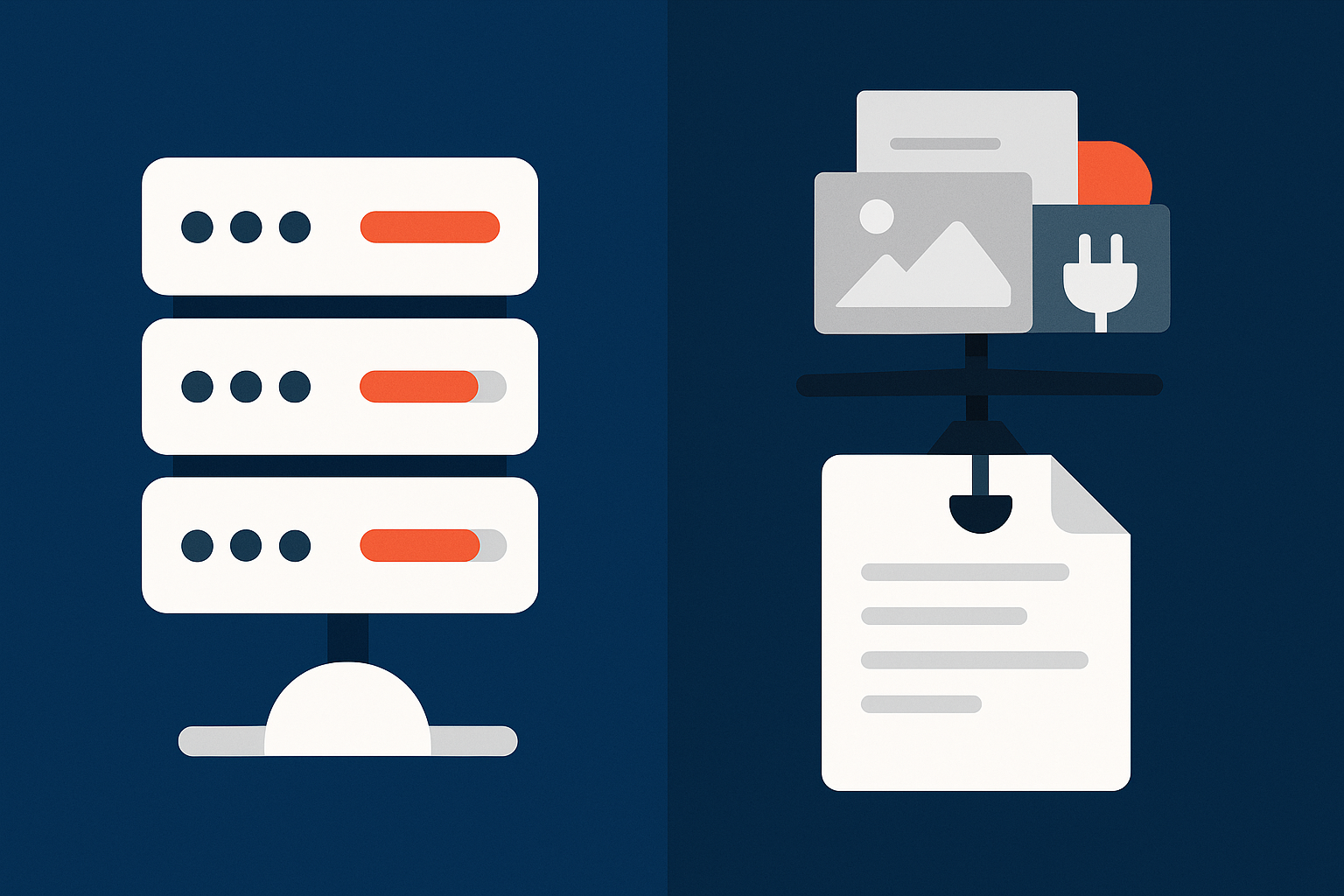
Check time to first byte (TTFB) and server response under load
TTFB is your best quick indicator of server health. To test it fairly:
- Create a very simple page (no builder, just a line of text).
- Test that page and a product page side by side.
If both have poor TTFB, your hosting or PHP/database layer is likely the core problem. If the simple page is fast but the product is not, the slowdown is more likely plugins, theme, or WooCommerce logic.
To understand TTFB more deeply on WordPress, this article on reducing WordPress time to first byte on UK hosting walks through practical diagnostics for server response issues.
Reading basic hosting resource graphs: CPU, RAM and I/O in plain English
Most control panels show graphs for:
- CPU: how hard your server is thinking. Constantly near 100% means it is overloaded.
- RAM: memory for PHP and database processes. If maxed out, processes are killed or slowed.
- I/O: how fast data moves to and from storage. Spikes can point to slow disk or backup conflicts.
Look for patterns:
- Sharp spikes that match your slow periods suggest the server cannot keep up temporarily.
- A flat line near the limits most of the day means your site has outgrown the plan.
When shared hosting becomes a problem for WooCommerce
Symptoms your product pages have outgrown an entry‑level plan
Shared hosting can work for small shops, but product pages often start to suffer when:
- Admin feels slow, especially “Orders” and “Products” screens.
- Adding to basket sometimes hangs or returns errors.
- TTFB is unpredictable: fast one minute, slow the next.
- Traffic spikes from campaigns regularly cause 5xx errors.
In those cases, a move to higher quality web hosting performance features or virtual dedicated servers for growing stores often gives you more consistent CPU, RAM and I/O, which helps WooCommerce handle peaks.
How smarter caching and bot filtering reduce load without a bigger server
Before upgrading, you can often reduce waste:
- Ensure you have page caching for non‑logged‑in users where safe.
- Use object caching so repeated product queries do not hit the database every time.
- Block or rate‑limit obvious spam bots, scrapers and brute‑force attempts.
On platforms that include an edge layer, such as the G7 Acceleration Network, bot protection filters abusive and non human traffic before it hits PHP or the database. This frees up capacity for real shoppers and helps keep response times steady during campaigns.
Step 3: Find Plugin Issues That Slow Product Pages
Why product pages trigger more plugins than normal pages
Product templates touch more of your stack than standard pages. For example:
- Dynamic pricing and discount plugins often run on every product view.
- Stock and reservation tools check inventory in real time.
- Recommendation engines query carts, browsing history and related products.
- Analytics and tracking plugins fire custom scripts on product views.
It is common for a product page to load double the number of queries or scripts compared with a static page.
A safe way to profile plugins without breaking your shop
To see what is really happening without risking live orders:
- Take a full backup and, if possible, create a staging copy of your site.
- Install a profiler such as Query Monitor on staging.
- Open a product page and look for:
- Plugins listed as heavy in database queries or PHP time.
- API calls that fire on every view.
- On staging, disable one suspect plugin at a time and reload the product page to see the impact on load time and queries.
If you can only work on live:
- Test outside peak hours.
- Disable front end features (like extra widgets) rather than entire core plugins wherever possible.
For a structured way to think about plugin bloat, see The Truth About WordPress Plugins: How Many Is Too Many?.
Common plugin culprits on WooCommerce product pages
Page builders, sliders and heavy galleries
Visual builders and galleries can add:
- Multiple large JavaScript libraries.
- Dozens of CSS files.
- Extra DOM elements that slow rendering.
Look out for:
- Multiple sliders on one product (hero slider + gallery + related items carousel).
- Builder sections that repeat on every product but add little value, such as long testimonials carousels.
Dynamic pricing, stock, personalisation and tracking plugins
These are powerful, but they can be expensive in performance terms:
- Complex discount rules that check many conditions on each view.
- Real‑time stock checks across multiple warehouses.
- Personalised recommendations loaded via slow external APIs.
- Many separate tracking tags instead of a single tag manager.
Ask yourself what must truly run on every product view, and what could be cached, simplified or moved to cart/checkout instead.
Cleaning up bloat: what to disable, replace or move off the product page
Typical clean‑ups that make an immediate difference:
- Turn off “also bought” style blocks if your analytics show low engagement.
- Replace heavy sliders with a single, well optimised hero image plus thumbnails.
- Limit dynamic pricing plugins to categories that genuinely need them.
- Consolidate tracking scripts into one tool (for example, via a tag manager) and load non‑essential ones after interaction.
Sometimes a move to leaner WooCommerce hosting tailored for online shops also includes guidance on which plugins are slowing you down, so consider asking your provider if they can help identify obvious culprits.
Step 4: Check Your Theme and Page Builder
How themes affect HTML size, CSS and JavaScript on product pages
Your theme controls:
- How much HTML structure is output.
- How many CSS and JavaScript files load.
- How responsive images and galleries are handled.
Some multipurpose themes load full libraries and page builder code on every product, even if you use only a fraction of the features. This increases page weight and can delay both LCP and interactivity.
Testing theme overhead: default theme vs your current setup
A simple test:
- Clone your site to staging.
- Switch the theme to a default like Storefront or Twenty Twenty‑Four.
- Compare:
- Page source size (HTML KB).
- Number of CSS and JS files in the Network tab.
- LCP and TBT times in PageSpeed Insights.
If the plain theme is much faster, your existing theme or builder is adding significant overhead. In some cases optimising within that theme is enough; in others, a gradual replatforming to a leaner theme may be worth planning. You can also dig deeper into builder impact in the guide on WordPress page builders and hosting.
Practical tweaks: trimming sections, widgets and animations on products
You do not always need a redesign. Practical, low‑risk adjustments include:
- Remove non‑essential sections from the product template (social feeds, huge testimonial blocks, complex tabs).
- Turn off animations and parallax effects on mobile.
- Limit the number of recommended products shown.
- Use simple image galleries rather than advanced carousel widgets.
Each removed element is fewer DOM nodes, less CSS and less JavaScript for the browser to process.
Step 5: Fix Front‑End Weight: Images, Scripts and Fonts
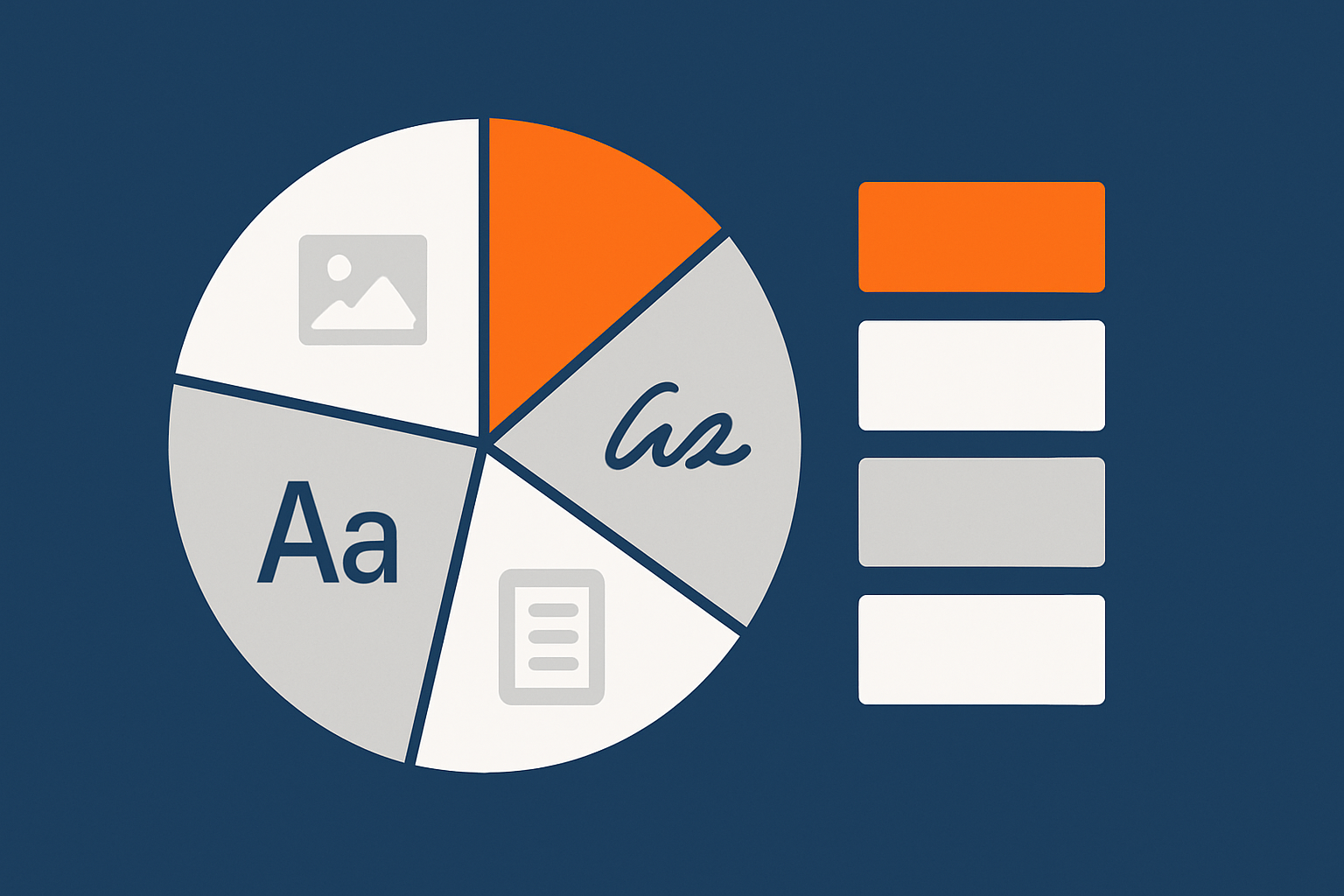
Right‑sizing product images and thumbnails
Images are usually the biggest contributor to product page weight. Practical steps:
- Set WordPress thumbnail sizes that match your design, then regenerate thumbnails.
- Avoid uploading 4000px images if your layout displays them at 800px.
- Use lazy loading for below‑the‑fold images.
Using modern formats (WebP, AVIF) without extra plugin headaches
WebP and AVIF formats can cut image size drastically. Two simple approaches:
- Use a reputable image optimisation plugin that converts uploads to WebP and, where supported, AVIF.
- Or use a host / CDN that handles conversion at the edge.
For example, the G7 Acceleration Network automatically converts product images to AVIF and WebP on the fly, often reducing file sizes by over 60 percent while keeping quality suitable for real shops, and it works without extra plugins or changes inside WordPress.
Reducing third‑party scripts and heavy fonts on product templates
Third‑party scripts and fonts can quietly add seconds of delay:
- Audit external scripts (chats, reviews, trackers) and remove those that are not pulling their weight.
- Load non‑critical scripts after interaction or on scroll instead of on initial page load.
- Limit font families and weights; two families with regular and bold is enough for most shops.
For more front‑end detail, the article on practical WooCommerce image, script and font optimisation offers additional examples that apply equally well to product pages.
Step 6: Caching WooCommerce Product Pages Safely
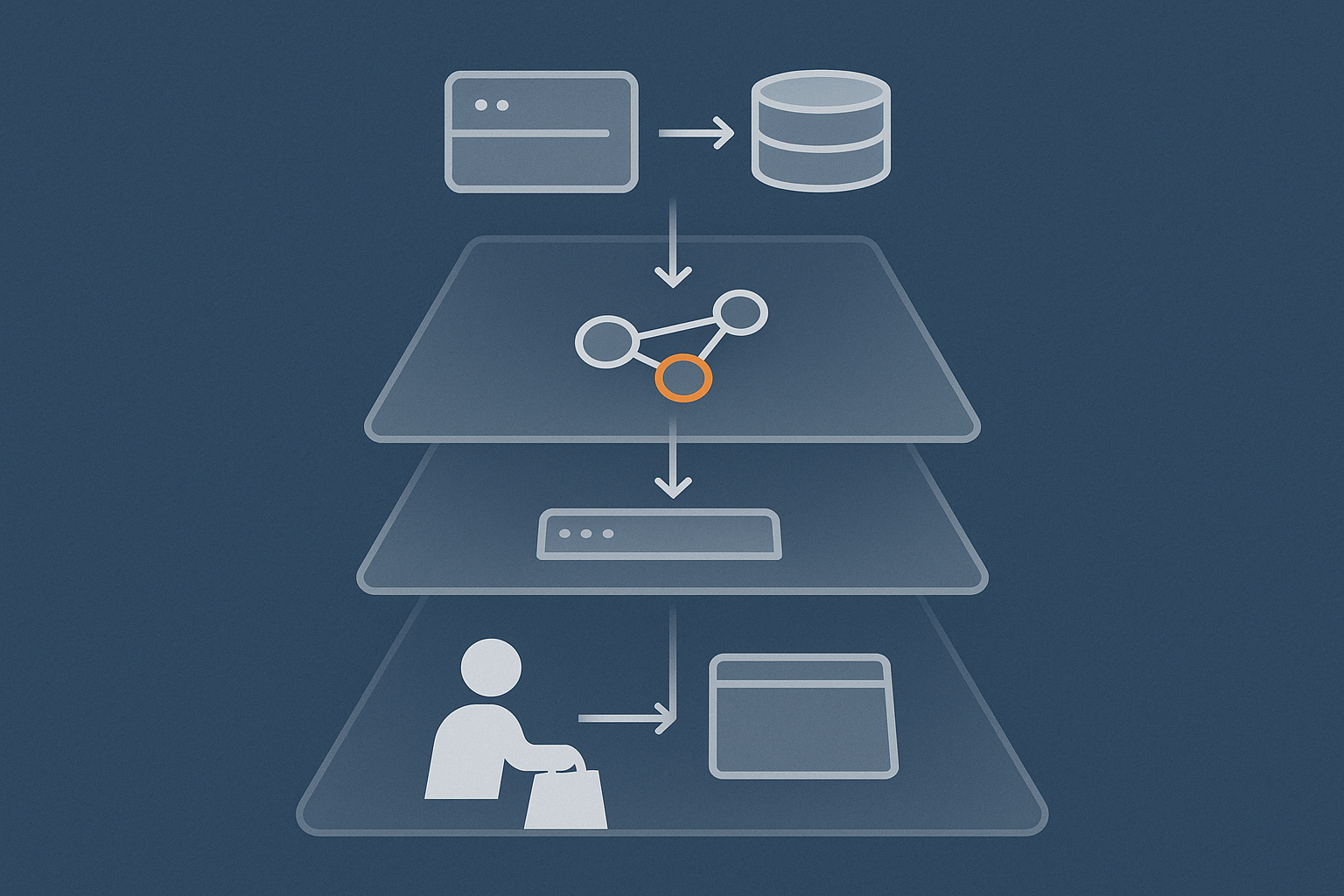
What you can cache on a product page (and what must stay dynamic)
On a typical product page you can safely cache:
- The main HTML template.
- Product description, static images and layout.
- Most CSS and JS assets.
What often needs to stay dynamic or be handled carefully:
- Stock levels that change rapidly.
- Dynamic prices, discounts and personalised content.
- Cart fragments and mini‑cart contents.
The goal is to cache the bulk of the page for anonymous users while letting WooCommerce update sensitive pieces via AJAX or small uncached fragments.
Avoiding broken carts and personalisation issues
To avoid odd behaviour:
- Exclude cart, checkout, “My Account” and usually the basket widget endpoints from full page caching.
- Use WooCommerce’s recommended cache rules, not generic “cache everything” presets.
- Test logged‑in customers, vouchers and dynamic pricing carefully after any cache change.
If you are unsure, there is a detailed walkthrough in the guide on WooCommerce caching without breaking carts.
How edge caching and CDN‑style acceleration help product pages
A content delivery network (CDN) or edge cache stores copies of your pages closer to customers. For product pages this can:
- Cut down TTFB for visitors far from your server.
- Reduce load on your origin server during campaigns.
- Improve image and asset delivery, especially on mobile.
In setups with an edge layer such as the G7 Acceleration Network, this is combined with bot filtering so abusive crawlers are blocked before they ever reach PHP or MySQL. That means more consistent performance for genuine shoppers without needing a huge origin server.
Step 7: When It Really Is Time To Change Hosting
Signs you have done the basics and the host is now the limit
After you have:
- Optimised images and reduced scripts.
- Cleaned up plugins and trimmed the theme.
- Set up sensible caching rules.
Yet you still see:
- High TTFB even for very simple pages.
- Frequent spikes in CPU/RAM with modest traffic.
- Regular support replies blaming “high usage” without concrete solutions.
then the hosting environment is probably your main constraint.
What to look for in WooCommerce hosting for fast product pages
Key features to look for include:
- Current PHP versions and fast PHP handlers, not outdated defaults.
- Database tuned for WooCommerce, not generic low‑end settings.
- Built‑in object caching and sensible page caching for anonymous visitors.
- Edge caching and image optimisation such as the G7 Acceleration Network for caching and image optimisation.
- Clear resource allocations, so you know what CPU and RAM you actually have.
Providers that focus on WooCommerce hosting tailored for online shops tend to understand these requirements and can often help with configuration rather than leaving everything up to you.
Planning a low‑risk migration if your product pages are already struggling
To minimise disruption:
- Take a full backup and create a migration plan including DNS changes and TTL values.
- Move a recent copy of the site and test on the new host:
- Key product pages under load.
- Cart, checkout and payment gateways.
- Any dynamic pricing or vouchers.
- Schedule the final switch during a quiet period and keep the old site in read‑only mode for a short time if needed.
Managed WordPress hosting with web hosting performance features often includes help with this process, which reduces the time you spend juggling DNS, SSL and database imports.
A Simple Ongoing Checklist To Keep Product Pages Fast

Monthly tasks: updates, plugin reviews and speed spot‑checks
Each month, set aside a little time for:
- Updating WordPress, WooCommerce, plugins and your theme after a quick backup.
- Reviewing plugins: remove those no longer needed and check for lighter alternatives to heavy ones.
- Running a quick PageSpeed Insights check on 2 or 3 key product URLs and noting any major changes.
Before big campaigns: quick load and resilience checks for key products
A week or two before promotions or seasonal peaks:
- Test your best‑selling product pages from mobile on a real device over 4G.
- Run a short load test (or ask your host to help) to see how the site behaves under increased traffic.
- Confirm caching and bot protection rules are active so that sudden interest does not take the server down.
On platforms that include bot filtering such as the G7 Acceleration Network, abusive crawlers are filtered before they reach WooCommerce, which helps keep product pages responsive when marketing campaigns spike traffic.
Where your host should help and where you need a developer or marketer
Roughly:
- Your host should help with: server performance, PHP versions, database tuning, caching layers, basic security and uptime.
- A developer is best for: theme and template changes, code‑level plugin issues, heavy custom functionality.
- A marketer or UX person should lead on: which elements genuinely help conversions versus clutter, and what can safely be removed or delayed.
If you are at the point where slow product pages are costing you sales and you would like fewer moving parts to manage, exploring managed WordPress hosting with G7Cloud and the integrated G7 Acceleration Network may take much of the day‑to‑day performance work off your plate, so you can focus on products and customers rather than constant firefighting.