

Who this checklist is for (and what you will be able to do)
Sudden slowdowns on a WooCommerce shop are stressful. Pages that were fine yesterday begin dragging, carts hang, and support tickets start arriving. The first instinct is often to blame the hosting provider.
This checklist is for:
- Owners and managers of WooCommerce sites who feel the shop has “suddenly” gone slow
- Agencies and freelancers who support multiple WooCommerce clients
- Teams on shared, VPS or specialist WooCommerce hosting who need a structured way to separate site issues from hosting issues
By the end you should be able to:
- Describe clearly what has actually slowed down and when it started
- Rule out the most common on-site causes with simple checks
- Read basic hosting metrics and spot real capacity problems
- Decide whether to optimise, scale your hosting, or migrate
- Send your developer or host a focused summary instead of “it’s slow”
Typical “it suddenly went slow” WooCommerce scenarios
You may recognise some of these:
- The home page is fine but category and product pages crawl during busy times
- Cart and checkout hang after adding a few items
- Only
/wp-admin/feels painfully slow, while customers seem unaffected - Everything was fine until a sale, a campaign or a TV/radio mention
- Speed dropped after “just a few quick plugin updates”
What this checklist will help you decide: host vs site-level issues
Many “sudden” slowdowns turn out to be:
- A newly installed plugin or WooCommerce extension
- A background job or cron that started misbehaving
- Uncontrolled bot traffic scraping the site
- Database growth that finally tipped over a threshold
Others really are hosting related: overloaded shared servers, limited PHP workers, slow disks or weak database servers.
This guide walks through practical tests that help you decide which type of problem you are dealing with, before you contact your host or start moving platform. For a much deeper dive into the underlying tools and metrics, you might also want to read How to Diagnose Slow WordPress Performance Using Real Tools and Metrics afterwards.
Step 1: Define what “slow” actually means on your store
If you cannot describe what is slow, it is almost impossible to fix. Start by defining the symptoms as clearly as you can.
Is it the whole site, certain pages, or just wp-admin?
Check different parts of the site:
- Home page
- Category/archive pages
- Single product pages
- Cart and checkout
- Account pages (
/my-account/) /wp-admin/dashboard and key admin screens (orders, products)
Note which of these are slow, and which are still normal. If:
- Only admin is slow: it may be plugin conflicts, database load, or low PHP resources, but front-end caching might be masking it for customers.
- Only some front-end pages are slow: that often suggests front-end bloat, specific templates, or features like search and filters.
- Everything is slow: more likely a hosting, PHP, database or global configuration issue.
Customer-facing symptoms vs your own experience as admin
Your experience logged in as admin is not the same as a typical customer’s:
- Admins often bypass many caching layers.
- Admin screens load extra data (reports, dashboards, widgets).
- Toolbars and debug plugins add extra work per request.
Use an incognito window and visit the site as a guest user. If possible, test from a different connection (mobile vs office broadband) to rule out local network issues.
Ask questions like:
- How long do key pages take to “feel” usable (not just fully loaded)?
- Does adding to cart feel instant, or does the button hang?
- Does checkout sit on “processing” or “loading spinner” for several seconds?
Quick tools to measure slowness: TTFB, load time, and Core Web Vitals
Use a basic set of measurements for repeatable checks:
- TTFB (Time To First Byte): how long your browser waits before the server sends the first response. Typically:
- < 300 ms: excellent on cached pages
- 300 – 800 ms: usually fine
- > 1 s: suggests server-side work or network problems
- Fully loaded time: images, scripts and third-party resources.
- Core Web Vitals: particularly Largest Contentful Paint (LCP) for product and category pages.
Tools like Chrome DevTools (Network tab), WebPageTest or PageSpeed Insights give you TTFB and overall load times from a neutral location. You will use these numbers later to work out whether the problem is front-end bloat, PHP/WordPress processing, or hosting resources.
Step 2: Check for obvious external causes first
Before diving into technical debugging, confirm nothing obvious has changed around the same time the slowdown started.
Did anything change today? Updates, new plugins, themes, marketing campaigns
Look back 24 to 72 hours:
- Any WordPress core, theme or plugin updates applied?
- New WooCommerce extensions installed or configured?
- Theme changes, new page builder templates, or new sliders?
- New tracking scripts or tag manager containers deployed?
- Marketing campaigns launched: email broadcasts, paid ads, affiliates, influencers?
Check:
- WooCommerce > Status > Logs for any recent fatal errors.
- Plugins > Installed Plugins sorted by “Recently active” or “Recently updated”.
- Your project notes, ticket system or Slack to see what was deployed.
If a specific change lines up with the slowdown, temporarily disable that plugin or feature (outside peak hours) and test again as a guest user.
Traffic spikes, bots and crawlers: are you simply getting more hits?
A slowdown during a successful campaign may simply be the site hitting its capacity limit. However, it may also be bot traffic, not real buyers.
Check analytics and hosting stats for:
- Sustained increases in sessions and page views
- Unusual referrers or countries
- Large spikes in “Direct” traffic with very low engagement
- Access logs full of aggressive crawlers hitting many pages per second
Offer pages like search, filters, cart and /wp-json/ are attractive targets for scrapers and can heavily load PHP and the database.
Quick checks in analytics and uptime monitors
Use whatever you have available:
- Google Analytics / Matomo: check the last 7 days vs previous 7 days for traffic and behaviour changes.
- Uptime monitors (StatusCake, UptimeRobot, Pingdom etc): look for response time graphs, not just downtime alerts.
- Host’s access logs: scan for repeating IPs or bots making many requests.
If response times climb with traffic and then fall again as traffic drops, resource limits are likely in play. If traffic seems flat but response times rise, look harder at site-level changes or bot traffic.
How bot filtering and edge caching reduce “fake” slowdowns
Filtering abusive crawler traffic before it reaches PHP can make the difference between a store that survives a traffic spike and one that falls over. Solutions like the G7 Acceleration Network for caching and bot protection use edge rules to block or slow non human traffic before it hits your origin server, which reduces wasted server load and keeps response times steadier during busy periods.
Step 3: Separate front-end, PHP and database slowness
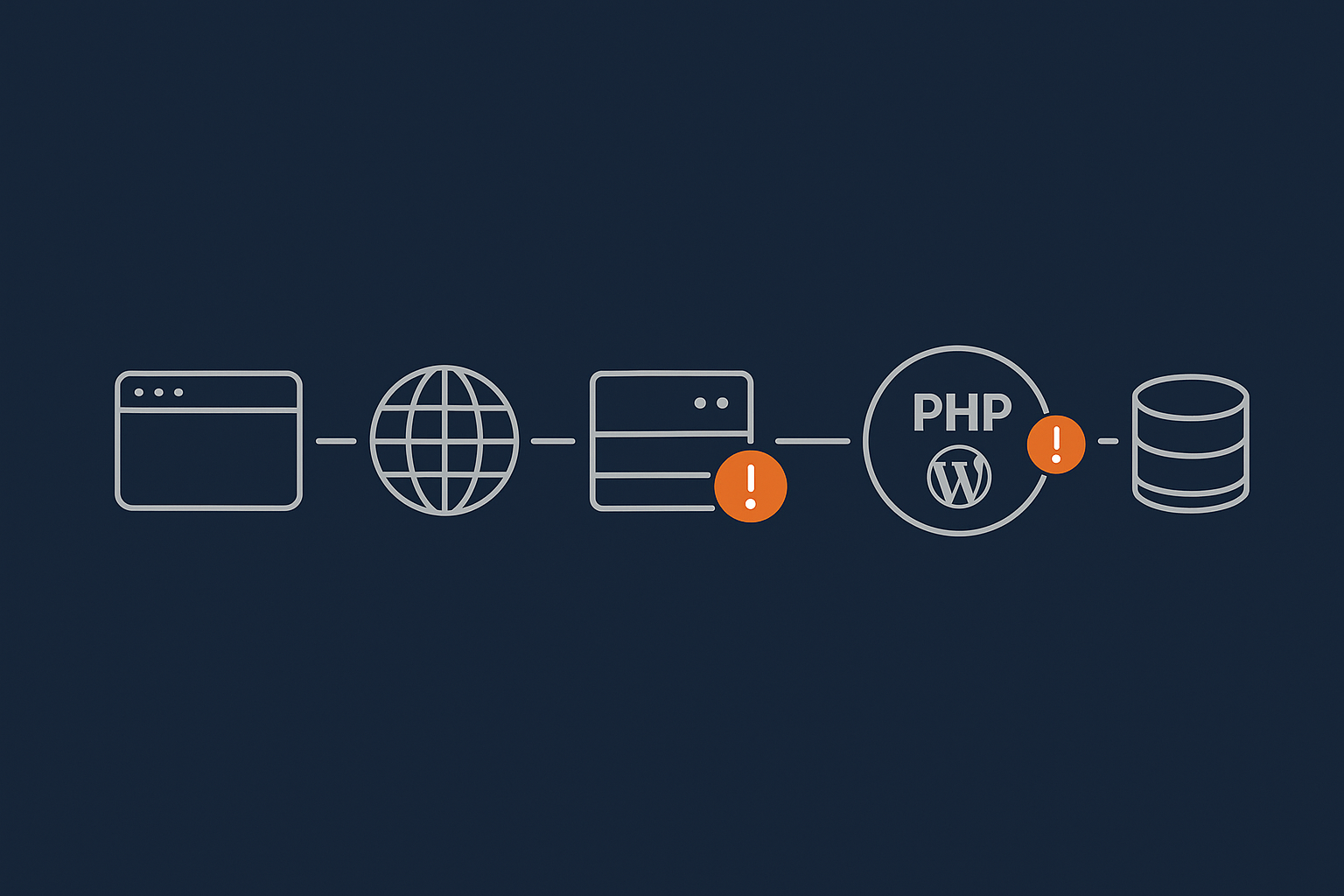
Not all “slowness” is equal. Identifying where time is being spent gives you a clear path to fix it.
Front-end bloat: images, scripts and fonts slowing WooCommerce pages
If TTFB looks reasonable (under ~800 ms) but the page still feels slow, front-end performance is likely the problem. Look for:
- Large unoptimised product images or banners
- Multiple sliders or hero sections
- Heavy page builder layouts with dozens of nested sections
- Many CSS and JS files from plugins, especially on product and checkout pages
- Multiple web fonts or large icon sets
In Chrome DevTools, open the Network tab and reload a product page:
- Sort by “Size” to see the heaviest assets.
- Sort by “Waterfall” to see which scripts delay others.
To keep this manageable, prioritise product, category and checkout pages. Often, removing a heavy slider, trimming fonts or delaying non essential scripts (for reviews, heatmaps, chat widgets) brings a noticeable improvement.
Modern image formats are a powerful quick win. On platforms using something like the G7 Acceleration Network, images are converted on the fly to AVIF and WebP with no plugin configuration, typically cutting image file sizes by more than 60 percent while keeping quality acceptable for real shops.
PHP and WordPress processing time: what a slow TTFB usually tells you
If TTFB regularly exceeds 1 second, especially on uncached pages, the server is spending a long time running PHP and WordPress.
Common causes include:
- Too many heavy plugins or WooCommerce extensions on each request
- Complex hooks on
init,woocommerce_before_single_product, or cart/checkout actions - Search and filter functionality doing expensive work per page load
- Background jobs or cron tasks blocking PHP workers
- Hosting limits on PHP workers or CPU causing a queue
Watch TTFB on:
- Cached page, like the home page or a static content page
- Dynamic page, like cart or checkout
If cached pages are fast but dynamic ones are slow, it is more a WooCommerce/PHP or database issue than the web server itself.
Database bottlenecks: symptoms of a struggling WooCommerce database
Database problems are common on growing WooCommerce sites:
- Order tables with hundreds of thousands of rows
- Uncleaned sessions and transients
- Logs and analytics tables never pruned
Symptoms include:
- Slow order list in
wp-admin - Reports and analytics timing out or loading very slowly
- Cart and checkout lagging when coupons or complex pricing rules are applied
- Intermittent “Error establishing a database connection” under load
If your host provides MySQL metrics (slow query logs, query counts, connection counts), check whether these spike during slow periods. For long-term health, database cleanup is important; the article Keeping WooCommerce Order Data Safe and Fast covers practical maintenance approaches.
Using tools like PageSpeed Insights and Query Monitor (or your host’s tooling) safely
Used carefully, diagnostic tools can be very helpful:
- PageSpeed Insights / Lighthouse: good for front-end issues, image and script optimisation, and Core Web Vitals. Do not obsess over the numeric score focus on specific opportunities.
- Query Monitor plugin: excellent for seeing slow database queries and hooks, but only use on staging or off-peak periods and restrict access to admins.
- Your host’s performance panel: some providers expose TTFB breakdowns, PHP worker usage and slow query lists directly.
Always verify with real-world page tests as a guest user, not just lab scores.
Step 4: Quick on-site checks that often explain a sudden slowdown
Many slowdowns come down to a small handful of changes. Work through these quick checks.
Recently added plugins and WooCommerce extensions
Review all plugins installed or updated in the last week:
- Temporarily disable them one by one and re-test a product and checkout page.
- Focus on marketing, reporting, analytics and builder plugins that run on every page.
- Turn off features selectively where possible instead of whole plugins.
Pay particular attention to:
- Dynamic pricing and discount plugins
- Advanced product add-ons or configurators
- Membership or subscription systems
- All-in-one “do everything” performance plugins that may conflict with hosting optimisation
Search, filters and product catalog features that quietly overload the site
WooCommerce search and filtering can quickly become expensive, especially with:
- Complex attribute filters on large catalogues
- AJAX filters that reload products on every small change
- Keyword search across multiple custom fields and taxonomies
Try:
- Switching filters from AJAX to full-page reloads as a test.
- Limiting the number of active filters visible at once.
- Testing search performance on a staging site with filters disabled.
If performance improves significantly with filters off, consider a dedicated search service or more efficient filtering plugin instead of generic database queries.
Scheduled tasks and crons: when background jobs block real customers
WooCommerce and many plugins rely on WP-Cron for scheduled tasks:
- Subscription renewals
- Follow-up emails
- Inventory sync with warehouses or marketplaces
- Data exports and report generation
If these jobs become heavy or get backed up, they can run during peak hours and steal CPU from real customers.
Check:
- WooCommerce > Status > Scheduled Actions for pending or failed jobs.
- Plugins that schedule frequent crons (every minute or every 5 minutes) doing heavy work.
Consider moving cron to a real server cron job and reducing the frequency of non essential tasks. For a detailed walkthrough, see WordPress Cron Jobs Explained: How Missed Tasks Slow Your Site and Break WooCommerce.
Caching plugins vs host-level caching: avoid double work and conflicts
Stacking multiple caching layers often causes problems:
- Page cache plugin + host page cache + proxy cache
- Multiple plugins all trying to minify and combine CSS/JS
- Conflict between WooCommerce cache rules and generic cache settings
Clarify what your host already provides. If your platform includes full page caching via something like the web hosting performance features and an edge layer such as the G7 Acceleration Network, you may only need a light helper plugin to control cache headers, rather than a heavy all-in-one caching plugin. Avoid double minification and overlapping page caches where possible.
Step 5: Check hosting resource usage properly before pointing the finger
Once you have checked obvious site-level changes, look at the hosting resources. You are trying to answer: are we actually running out of capacity?
How to read CPU, RAM and I/O graphs in plain English
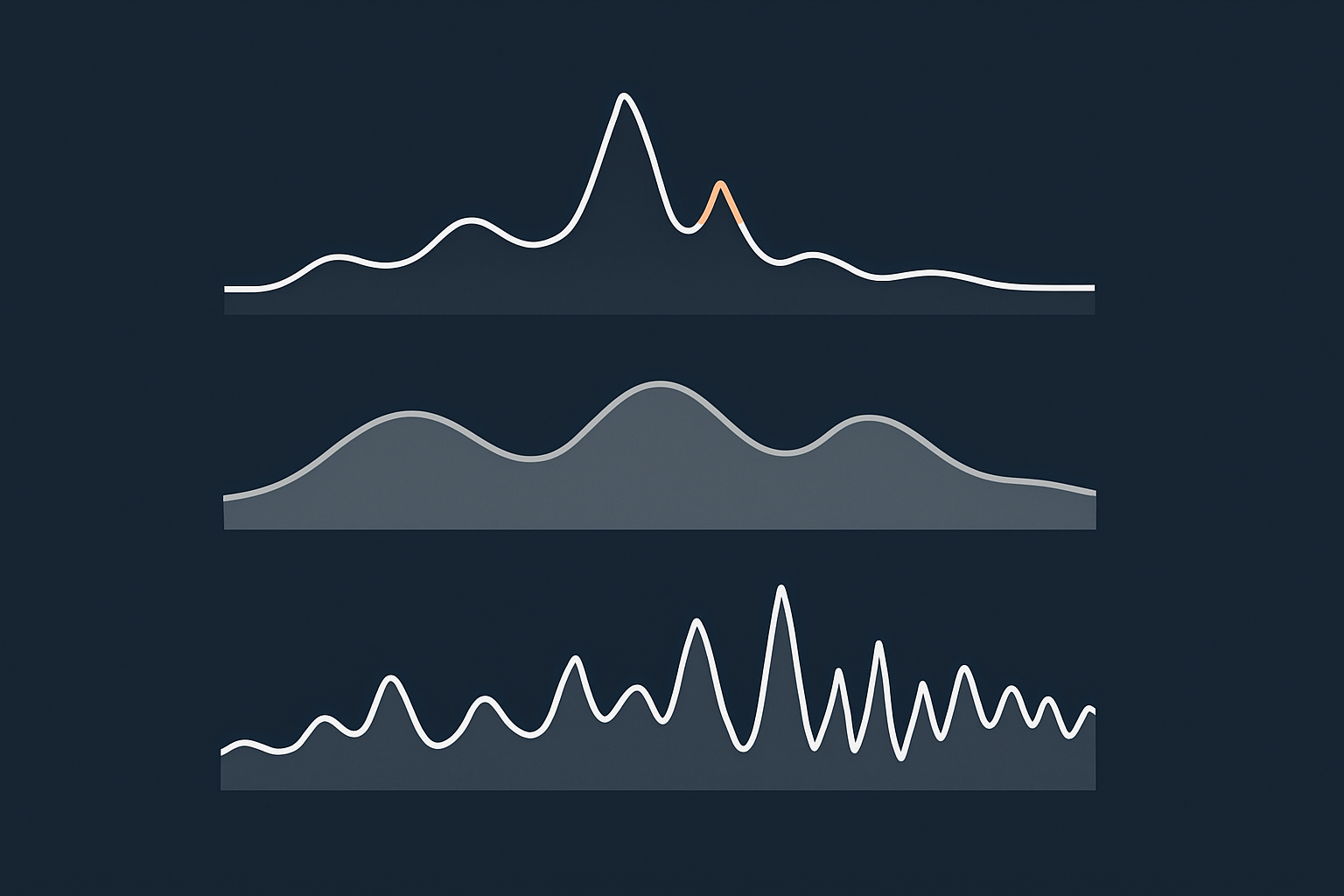
Most control panels show some combination of:
- CPU usage: percent of available CPU time used.
- RAM (memory): active memory used by PHP, MySQL and other processes.
- Disk I/O: how quickly the server can read/write to storage.
- Entry processes / PHP workers: concurrent PHP requests your account can run.
In simple terms:
- Short spikes near 100% are often fine, as long as they drop quickly.
- Flat lines near 100% for minutes at a time usually indicate saturation.
- Repeated “faults” or “limits reached” around your busy periods point to capacity issues.
If you want more help interpreting graphs, the article How to Read a WordPress Hosting Resource Graph explains these metrics in more depth with WooCommerce examples.
Spotting genuine capacity problems vs noisy neighbours or short spikes
On shared hosting, another user’s site can cause poor performance for everyone else on the same server. Typical signs:
- Your own CPU/RAM graphs look fine, but response times still spike.
- Slowdowns appear random, unrelated to your traffic or campaigns.
- Multiple customers on the same host report issues at similar times.
On VPS or virtual dedicated servers, you control most of the resources, so persistent saturation is more likely caused by your own panel or configuration.
When you talk to your host, ask specifically whether they can see node-level issues (noisy neighbours, disk contention, overloaded database server) at the times you experienced problems.
What “normal” looks like on a healthy WooCommerce site
On an adequately sized plan with reasonable optimisation, you would typically see:
- CPU usage with small spikes during peaks, but plenty of headroom.
- RAM usage rising during busier periods but not constantly at the limit.
- Disk I/O spikes during backups or log rotations, not all day long.
- PHP workers peaking during campaigns but not queuing for long.
Most importantly, response time graphs should roughly mirror traffic. If response time is high even when traffic is low, something else is wrong.
When a virtual dedicated server or higher tier plan becomes necessary
Signs you have outgrown your current hosting include:
- Predictable slowdowns every time you run a sale or promotion
- CPU, RAM or PHP worker usage consistently near 80–100% during your normal busy periods
- Database performance issues despite good indexing and cleanup
- Limitations from shared environments (noisy neighbours, restricted configuration)
At this point, upgrading within the same platform or moving to virtual dedicated servers with isolated resources is often more effective than endlessly shaving milliseconds off front-end assets.
Step 6: Look for background issues that build up over time
Some slowdowns feel sudden but are driven by gradual growth that finally hits a tipping point.
WooCommerce database growth: orders, sessions, transients and logs
Over months and years, WooCommerce stores accumulate:
- Orders, refunds and order notes
- User sessions and cart contents
- Expired transients
- Logs from plugins, gateways and integrations
These can swell tables like wp_posts, wp_postmeta, wp_wc_order_stats, wp_options and more. Large tables slow down queries, especially if indexes are missing or suboptimal.
Use tools such as phpMyAdmin, Adminer, or your host’s database viewer to check table sizes. Long-term, plan regular cleanup and archiving rather than deleting orders dangerously; the database maintenance article linked earlier gives strategies that balance performance with data retention.
Disk space, logs and backups filling storage
Low disk space often causes erratic performance or even database errors. Common culprits:
- Old local backups kept on the same server
- Oversized error logs and access logs
- Staging sites no longer in use
- Media library bloat from unused images and thumbnails
Check disk usage in your control panel and within WordPress (Media Library, backup plugins). Wherever possible, store backups offsite and periodically rotate logs. Automated image conversion to AVIF/WebP on edge layers such as the G7 Acceleration Network also helps reduce long-term storage pressure and page weight without any plugin changes inside WordPress.
Security plugins, malware scans and over-aggressive firewalls
Security is vital, but poorly tuned tools can slow everything down:
- Real-time malware scans running during peak traffic
- Logging every single request into the database
- Firewalls inspecting all static files instead of just dynamic requests
Check scan schedules and logging levels, and disable features you do not need. In many cases, a lighter WordPress configuration combined with network-level protection that filters abusive traffic before it hits PHP, similar to G7Cloud’s bot protection inside the G7 Acceleration Network, gives you better protection with less performance cost.
Step 7: Cart, checkout and wp-admin: diagnosing dynamic pages specifically
Cart, checkout and admin are inherently harder to cache, so problems often surface there first.
Why cart and checkout are naturally harder to cache
Each visitor’s cart contents, discounts and logged in status are unique. Full page caching is usually bypassed on:
- Cart and checkout pages
- Account pages
- Any page using nonces or user-specific content
This means every request hits PHP and the database. If you only test your home page speed, you may get a false sense of performance.
Check the TTFB and total load time specifically on cart and checkout. If these are slow while static pages are fast, your optimisation efforts should focus on dynamic performance, not just front-end tweaks.
Common checkout slowdowns: payment gateways, third-party scripts, fraud checks
Checkout interacts with many external systems:
- Payment gateways (Stripe, PayPal, Klarna, etc)
- Fraud detection tools
- Address validation / postcode lookup services
- Finance and BNPL widgets
- Analytics and conversion tracking scripts
Potential problems include:
- Blocking calls to slow external APIs
- Multiple scripts competing at the same time
- Heavy client-side validation libraries
Test checkout with:
- Only one payment gateway active.
- Fraud & address validation temporarily disabled (if safe to do so).
- Third-party scripts reduced to the absolute minimum.
If checkout speeds up dramatically in a stripped-down mode, reintroduce services one at a time and watch where delays appear. For deeper front-end optimisation ideas around checkout, see Practical WooCommerce Image, Script and Font Optimisation for Faster Checkouts if you already use that guide in your workflow.
Admin-only pain: when wp-admin is slow but the shop feels fine
Sometimes only the admin area is painful:
- Orders list takes many seconds to load, or times out.
- Creating or editing products is sluggish.
- Dashboard widgets spin endlessly.
This often comes down to:
- Heavy reporting or analytics plugins running in admin.
- Large order or product counts with inefficient queries.
- Excessive admin notices and widget content.
Try:
- Switching to a default theme temporarily and disabling non essential admin-only plugins.
- Hiding dashboard widgets and clearing transient data.
- Checking if certain admin screens are queries against very large tables.
While admin slowness is frustrating, if the shop front is still responsive, you may be able to schedule administrative work for quieter periods while you plan a more permanent fix.
Step 8: Use logging and error data to back up your findings
Good notes backed by logs make conversations with hosts and developers far more productive.
Where to look: PHP error logs, access logs and WooCommerce logs
Useful places to check:
- PHP error logs in your hosting panel: look for fatal errors, warnings and memory issues.
- Web server access logs: look for high request rates from particular IPs or user agents.
- WooCommerce > Status > Logs: especially payment gateway and webhook logs.
- Any logging systems your host provides as part of their web hosting performance features.
What typical performance-related errors look like
Common indicators include:
PHP Fatal error: Allowed memory size of ... bytes exhaustedMaximum execution time of 30 seconds exceeded- Repeated database connection errors around busy times
- Timeouts or 504 errors when specific plugins are active
These messages give clues about whether to increase resources, optimise code or both.
How to summarise this data for your developer or host
When you contact support, summarise clearly:
- What is slow (which URLs, which actions) and since when.
- Rough traffic levels when issues happen.
- Any changes made in the 72 hours prior (plugins, themes, campaigns).
- Key metrics (TTFB, load time, resource graph snapshots).
- Relevant log snippets around the time of slowdowns.
Provide links or screenshots rather than vague descriptions. This makes it easier for your host or developer to reproduce the behaviour and suggest concrete solutions.
Step 9: When it probably is the host (and what a good provider should do next)
After working through the earlier steps, you may reasonably conclude that hosting is the limiting factor.
Clear signs of hosting-level problems: saturation, noisy neighbours, fragile infrastructure
Indicators that point strongly to the hosting layer include:
- Resource graphs with sustained CPU/RAM saturation even after trimming plugins and traffic.
- Slow response times during periods of low site activity.
- Repeated incidents of node-level issues or outages affecting multiple sites.
- Support admitting to oversubscription or underlying hardware/network faults.
If your host cannot or will not provide transparent metrics or a plausible explanation, it may be time to consider alternatives.
What to reasonably expect from shared hosting vs managed WooCommerce hosting
It is important to have realistic expectations:
- Shared hosting: fine for small stores and lower traffic. Cannot guarantee consistent performance under significant load, and noisy neighbours are a reality.
- Generic VPS: more isolation and control, but you (or your agency) are responsible for optimising the stack.
- Managed WooCommerce hosting: tuned stack, proactive support, and additional layers (edge caching, bot filtering, image optimisation) that are geared around eCommerce workloads.
If your shop is mission critical or handling high revenue, investing in specialist WooCommerce hosting with clear performance guarantees and real support usually pays for itself in fewer crises.
How edge caching, bot filtering and image optimisation relieve server pressure
Performance is not just about raw CPU and RAM. Good providers combine server tuning with:
- Edge caching for static and semi-dynamic content, reducing the load on the origin server.
- Bot filtering that stops abusive crawlers before they reach PHP or the database, keeping response times more stable during busy periods.
- Automatic image optimisation that converts images to AVIF/WebP at the edge, significantly lowering bandwidth and CPU costs related to large media files.
These are the kinds of capabilities bundled into systems like the G7 Acceleration Network, which are designed to offload non essential work away from your core WooCommerce application.
Step 10: Turning your findings into an action plan
Once you have data, you need a clear next step rather than endless tweaking.

A simple decision tree: optimise, scale, or migrate
Use this simplified decision path:
- Are specific plugins or features clearly linked to the slowdown?
- Yes: optimise or replace them. Keep hosting as is for now.
- No: go to step 2.
- Do resource graphs show clear saturation that matches traffic peaks?
- Yes: scale within your current provider (higher plan, more PHP workers, better database) and add caching/bot controls if missing.
- No or unclear: go to step 3.
- Do you see random slowdowns, node issues, or weak support?
- Yes: plan a migration to a more transparent, WooCommerce-aware host.
- No: continue targeted optimisation and monitoring.
What to send to your host for a productive performance conversation
Compile:
- Timeline of when you first noticed the slowdown.
- Example URLs and approximate times when they are slow.
- TTFB and load time examples from tools or your own tests.
- Screenshots of CPU/RAM/PHP worker graphs over the same period.
- Any key log entries (error messages, timeouts, resource limits).
Ask specific questions, such as:
- “Do you see any resource contention or irregular load on the node at these times?”
- “Are PHP workers or MySQL connections hitting limits for my account?”
- “What options do I have to increase capacity or reduce variance in response time?”
Setting up a light maintenance routine so “sudden” slowdowns are less likely
To reduce surprise incidents, put a simple routine in place:
- Monthly: review installed plugins and disable anything unused.
- Quarterly: clean up old logs, expired sessions and unneeded transients.
- Before major campaigns: load test or at least monitor performance under higher traffic.
- Before updates: test big plugin or theme updates on staging.
- Ongoing: watch key metrics in your analytics and hosting panel.
If you prefer not to manage all this yourself, a move to managed WordPress hosting with G7Cloud or a similar provider can offload much of the performance monitoring, caching and security configuration so that you can focus on trading rather than tuning servers.
Summary checklist: quick reference before you blame the host
Use this condensed list the next time your WooCommerce store suddenly feels slow:
- Define what is slow:
- Which pages: home, category, product, cart, checkout, account, admin?
- Customer-facing or only admin?
- Measure TTFB and load time for at least one static page and one dynamic page.
- Check external causes:
- Any recent updates, new plugins, theme changes or new scripts?
- Any campaigns, ads or newsletters just launched?
- Traffic spikes in analytics or uptime monitors?
- Separate front-end vs server-side:
- Reasonable TTFB but slow load: look at images, scripts and fonts.
- High TTFB: inspect PHP, plugins, database and resource limits.
- Run quick on-site checks:
- Disable recently added or updated plugins one by one.
- Test search and filters turned off or simplified.
- Review scheduled tasks and WP-Cron for backlogs.
- Remove duplicate caching and minification setups.
- Review hosting resources:
- Look at CPU, RAM, PHP workers and disk I/O over time.
- Note whether saturation matches traffic peaks or occurs randomly.
- Check background accumulations:
- Database table sizes, especially orders, sessions and logs.
- Disk usage, large backups and logs.
- Security scans or firewalls running too aggressively.
- Test high-impact dynamic areas:
- Measure cart and checkout TTFB and load times.
- Temporarily simplify payment, fraud and tracking integrations.
- Check if admin is slow independent of the front-end.
- Gather logs and evidence:
- PHP error logs and WooCommerce logs for resource errors.
- Access logs for abusive bots or unusual patterns.
- Snapshots of resource graphs around slow periods.
- Decide: optimise, scale, or migrate:
- Optimise site-level culprits first where clearly identified.
- Scale hosting when resource saturation is the bottleneck.
- Consider migrating if infrastructure issues or support gaps persist.
If your checklist points towards the hosting layer and you want fewer surprises, it may be worth trialling managed WooCommerce hosting that includes an edge layer like the G7 Acceleration Network for caching and bot protection. Even if you stay where you are, using the steps above will make your next performance conversation with any provider much more constructive and grounded in real data.