

Why Live Payment Problems Are So Hard To Pin Down
What a customer actually sees vs what is really happening
When a payment fails on a live WooCommerce site, the customer typically sees one of three things:
- A red error notice such as “Payment failed, please try again”.
- A spinner that seems to run forever and then a generic “Something went wrong”.
- Nothing obvious, apart from being left on the checkout page.
Behind that simple message is a multi step chain of events involving:
- The customer’s browser and device.
- Your WooCommerce checkout page, theme and plugins.
- Your web server, PHP workers and database.
- The payment gateway’s API.
- The customer’s card issuer or bank.
A small delay or misconfiguration in any of these can cause the same visible symptom: the payment “does not work”. This is why you often hear “random” or “intermittent” from customers, while the real cause is quite specific but hidden from view.
Three common failure patterns: declines, timeouts and random “ghost” errors
Most live incidents fall into one of three patterns:
- Straight declines
The gateway receives a clear “no” from the bank. The payment is declined for reasons like insufficient funds, incorrect CVV, 3D Secure failure or fraud rules. These are usually consistent and repeatable for the same card. - Timeouts and “taking too long” errors
The customer waits, the spinner keeps spinning, and eventually the browser shows an error or the customer refreshes. These often relate to slow servers, overloaded PHP workers or network issues between your site and the gateway. - Random “ghost” errors
Only some customers hit the problem. It may affect a particular browser or country, or only appear when traffic is busy. These issues are often caused by caching, theme or plugin conflicts, webhooks being blocked, or security tools interfering with requests.
Who might be at fault: site, gateway, acquiring bank, network or customer
Responsibility is usually shared between several parties:
- Your site and hosting: checkout code, plugins, theme, server performance, PHP workers, firewall rules.
- Payment gateway: API availability, fraud rules, 3D Secure flows, webhook delivery.
- Acquiring bank and card issuer: risk scoring, credit limits, AVS and CVV checking.
- Customer and their environment: incorrect card details, adblockers, old browsers, flaky connections.
If you want a deeper look at how this responsibility is shared in practice, the article Who Owns the Outage? is a useful follow up.
This mix of responsibilities is why diagnosing live issues is as much about process as it is about technology.
Start With the Basics: Is It Really a Gateway Problem?
Check order statuses and notes inside WooCommerce
Before blaming the gateway, start with WooCommerce itself.
In the WordPress dashboard go to WooCommerce → Orders and look at:
- Pending payment: the customer started checkout but did not complete payment.
- Failed: WooCommerce tried to take payment but the gateway or bank said no, or an error occurred.
- Cancelled: someone cancelled the order, often manually or via a timeout rule.
- On hold: payment received but awaiting manual confirmation or stock checks.
- Processing: payment authorised and the order is ready to fulfil.
Click into a specific order and scroll to the Order notes panel. Gateways like Stripe, PayPal and many others log messages here, for example:
- “Charge failed: Your card was declined. Code: card_declined.”
- “Payment authorised. Transaction ID …”
- “Webhook received: Payment intent succeeded.”
Those notes often tell you whether WooCommerce successfully talked to the gateway, or whether the failure occurred earlier.
Reproduce the issue safely using test mode and low-value orders
If you can reproduce the issue yourself, you will diagnose it far more quickly.
- Use gateway test mode or sandbox where available and confirm that test transactions behave normally.
- Use low value real orders if test mode works but live does not. A £1 test order paid with your own card is often acceptable.
- Try multiple devices and networks: one test from your office Wi Fi and another from a mobile connection, using different browsers.
- Use a staging site if possible, with gateway sandbox keys, to check whether recent theme or plugin changes are involved.
When testing on a live site, pick quiet periods and clearly label any orders you place so that your team does not try to fulfil them.
Rule out front-end issues: JavaScript errors, broken checkout fields and caching
Many “gateway” problems never reach the gateway at all. They fail in the browser before the payment request is sent.
- Open the browser console (F12 in most browsers, then the Console tab) and look for red JavaScript errors when you click “Place order”. Errors from the theme or optimisation plugins can stop the payment script from running.
- Check checkout fields: ensure required fields are visible and not hidden by CSS, and that error messages appear clearly when fields are incomplete.
- Temporarily disable optimisation plugins that minify or combine JavaScript and CSS. These can break gateway scripts, especially when using hosted forms or 3D Secure popups.
- Confirm caching rules: checkout, cart and account pages should not be served from full page cache or aggressive CDNs. Misconfigured caching can show stale nonces or order tokens, causing apparently random failures. For a more detailed configuration guide, see the WooCommerce caching article on safe caching for carts and logged in users.
Diagnosing Straight Declines: When the Bank Says No
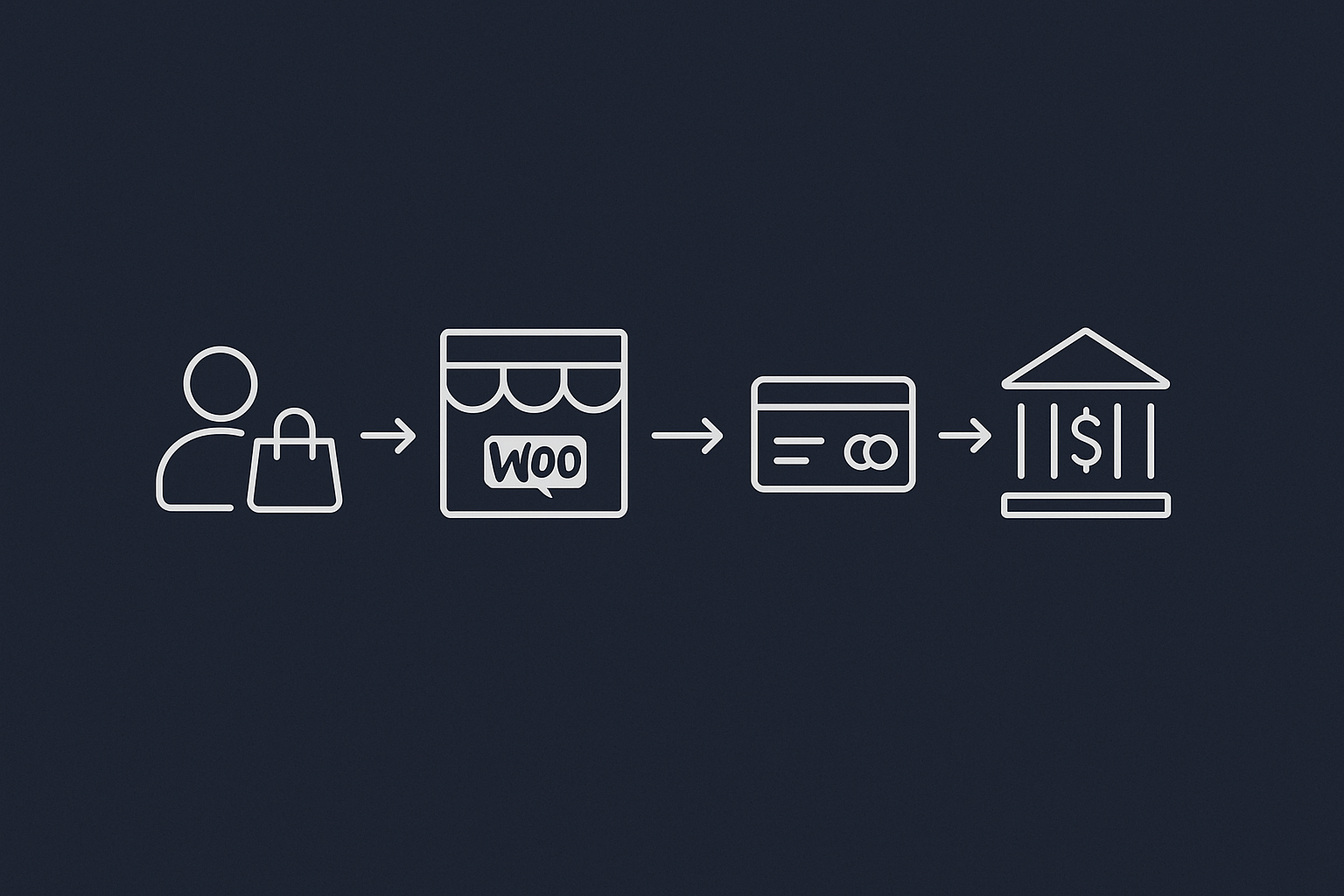
How card declines flow through WooCommerce and your gateway
In a standard card transaction with a modern gateway, the flow looks like this:
- Customer submits the WooCommerce checkout form.
- Your site sends a request to the gateway’s API (or the gateway’s embedded form does this directly from the browser).
- The gateway sends an authorisation request to the acquiring bank and card network.
- The bank replies with “approved” or “declined” and may include a decline code.
- The gateway passes that result back to your site, which updates the order and displays a message.
The crucial point is that a declined card is usually not a technical error. It is a clean “no” from the issuer, returned through that chain so your site can respond gracefully.
Where to look: WooCommerce order notes, gateway logs and provider dashboards
To understand a decline, line up information from three places:
- WooCommerce order notes for the customer’s order, including timestamps and any decline codes.
- Gateway logs in WooCommerce: under
WooCommerce → Status → Logs, select the relevant gateway log and filter around the time of the failed payment. - The provider’s own dashboard: Stripe, PayPal, Worldpay and others log every attempt with details such as AVS results, 3D Secure status and risk scores.
Check that the timestamps and order IDs match so you are looking at the same attempt in all systems.
Distinguishing genuine customer/card problems from configuration issues
Once you match the logs, decide whether the issue is:
- Customer or card related
Repeated declines for the same card, with codes likeinsufficient_funds,do_not_honouror 3DS failure, usually point to the cardholder’s bank. Suggest that the customer contacts their bank or uses another method. - Configuration related
Problems across multiple cards often indicate site or gateway settings, for example:- AVS or CVV rules set too strictly, rejecting valid orders where the address format differs slightly.
- Currency mismatches between WooCommerce and the gateway account.
- Incorrect or missing API keys after a plugin update or migration.
- Missing or failing webhooks, causing orders to stay “pending” even though payment succeeded.
In configuration issues, you will often see the gateway log show “authorised” while WooCommerce never moves the order from “pending” or “processing”. That is a strong hint to check webhook and callback settings.
What to send to your payment provider when you raise a ticket
When you need to escalate to your gateway, sending a clear bundle of data speeds things up considerably. Provide:
- WooCommerce order ID and the customer’s email address.
- Date and time of the attempt (including timezone).
- The last 4 digits of the card number and card brand (Visa, Mastercard, etc.).
- The exact on-screen error message the customer saw.
- Relevant lines from WooCommerce gateway logs at that timestamp.
- If available, the payment ID or transaction reference from the gateway dashboard.
Paste this into a single support ticket, rather than sending pieces in separate emails, so your provider can trace the transaction smoothly.
Chasing Timeouts and “Taking Too Long” Errors

What a timeout actually is in this context
Timeouts can occur at several layers:
- Browser timeout: the customer’s browser gives up waiting, often after 30 to 60 seconds of no response.
- HTTP 502 / 504 gateway timeouts: your web server, reverse proxy or load balancer cannot get a timely response from PHP or the upstream server.
- Gateway side timeout: the payment provider waits for your site’s confirmation or webhook response, but your site is too slow or unreachable.
From the customer’s perspective all of these look like “the site is hanging”. The logs tell you where the delay actually occurred.
Server and hosting bottlenecks that break live payments
Timeouts often trace back to resource issues on your hosting:
- Too few PHP workers: if all workers are busy running other requests, new checkout attempts queue until they hit a timeout. This is common during promotions or traffic spikes. The guide on PHP workers and concurrency explains how this affects WooCommerce checkouts in more detail.
- Slow or contended database: heavy queries from reports, search plugins or abandoned cart tools reduce the capacity for live checkouts.
- Bad bots and scrapers: automated traffic can consume a surprising share of your CPU and PHP workers, especially if bots crawl the cart and checkout pages.
Providers that filter abusive traffic in front of PHP help reduce these issues. For example, the G7 Acceleration Network includes bot protection that filters abusive and non human traffic before it reaches PHP or the database, which keeps response times more stable and reduces avoidable downtime when traffic is heavy.
How to confirm a timeout with logs and monitoring
To prove a timeout rather than guess:
- Check WooCommerce logs for entries that start but never complete, or errors such as “cURL error 28: Operation timed out”.
- Review web server and PHP error logs for slow script warnings, out of memory errors or 502/504 responses.
- Look at your hosting provider’s resource graphs for CPU, RAM and PHP worker usage around the incident time.
- Use simple uptime monitoring with response time charts to see whether the whole site slowed down or just checkout actions.
If PHP workers and CPU spike at the same time as customers report hanging payments, you have a strong indication that hosting capacity is involved.
Quick stabilisation steps on a busy trading day
When timeouts hit during an important sales day, you need to stabilise first and optimise later. Practical short term steps include:
- Disable heavy, non essential plugins such as visual builders, reporting tools, real time analytics or bulk price calculators.
- Pause aggressive marketing traffic: temporarily reduce ad spend or email sends to slow new sessions while you clear the backlog.
- Ask your host to temporarily increase PHP workers or limits and ensure that checkout URLs are not affected by slow background jobs like imports and backups.
- Keep bots away from checkout: ensure crawlers are discouraged from cart/checkout, and that any WAF or edge layer is set to treat these pages gently.
If your platform already includes an edge layer such as the G7 Acceleration Network, make use of its caching and bot filtering to keep non essential requests away from WooCommerce during busy periods.
Fixing Random or Intermittent Failures
Patterns to look for: device, browser, country, payment method, time of day
“Random” problems are rarely truly random. Collect structured information from affected customers:
- Device and browser: does it only happen on Safari, or on older Android devices?
- Country and IP range: are international customers affected more often, suggesting geo rules or fraud filters?
- Payment method: card vs PayPal vs local payment options.
- Time of day: does it correlate with peak traffic, scheduled backups or imports?
Even a small spreadsheet of incidents can reveal patterns you did not expect.
Conflicts with themes, plugins and optimisation tools
Gateway scripts are sensitive to changes made by themes or plugins:
- Checkout customisations that move or hide fields can confuse gateways that expect specific field IDs or flows.
- Security plugins and WAFs may block or modify requests that look “unusual”, such as API calls, JSON payloads or callback URLs.
- Aggressive JS/CSS optimisation can break 3D Secure popups or tokenisation scripts when code is combined or deferred.
A practical test is to temporarily switch to a standard theme like Storefront, disable non essential plugins, and run several test payments. If the problem disappears, re enable components one by one until it re appears.
Caching and CDN issues specific to WooCommerce checkout
WooCommerce relies on dynamic data and nonces at checkout. Page caching and CDNs need careful rules:
- Exclude
/cart/,/checkout/and/my-account/from full page caching. - Disable HTML caching for logged in users or ensure your caching plugin supports WooCommerce aware bypass rules.
- Ensure the CDN does not cache POST requests or query strings used by payment callbacks.
- Check that cookies like
woocommerce_cart_hashandwoocommerce_items_in_cartare respected.
Misconfiguration often shows up as some customers being assigned the wrong session or nonce, which then causes apparently random CSRF or token errors when they try to pay. For a deeper treatment of safe caching rules, see the WooCommerce caching guide mentioned earlier.
Webhook and callback failures: when orders are paid but not marked complete
Many modern gateways take payment off site then notify WooCommerce via a webhook or callback URL. If that callback fails, you end up with:
- Money captured successfully at the gateway.
- Orders stuck in “pending payment” or “on hold” in WooCommerce.
To check for this:
- Inspect the gateway’s webhook logs in its dashboard for HTTP 4xx or 5xx responses when it calls your site.
- Confirm that your firewall, CDN or maintenance plugin is not blocking or redirecting the webhook URL.
- Verify the webhook endpoint configured in the gateway matches the current site URL, especially after migrations or domain changes.
Firewalls are a frequent culprit. Rules that block “unknown POST requests” can easily trap legitimate webhooks, so ensure your web hosting security features are tuned to allow specific gateway IP ranges and endpoints.
A Practical Step-by-Step Checklist for Live Incidents
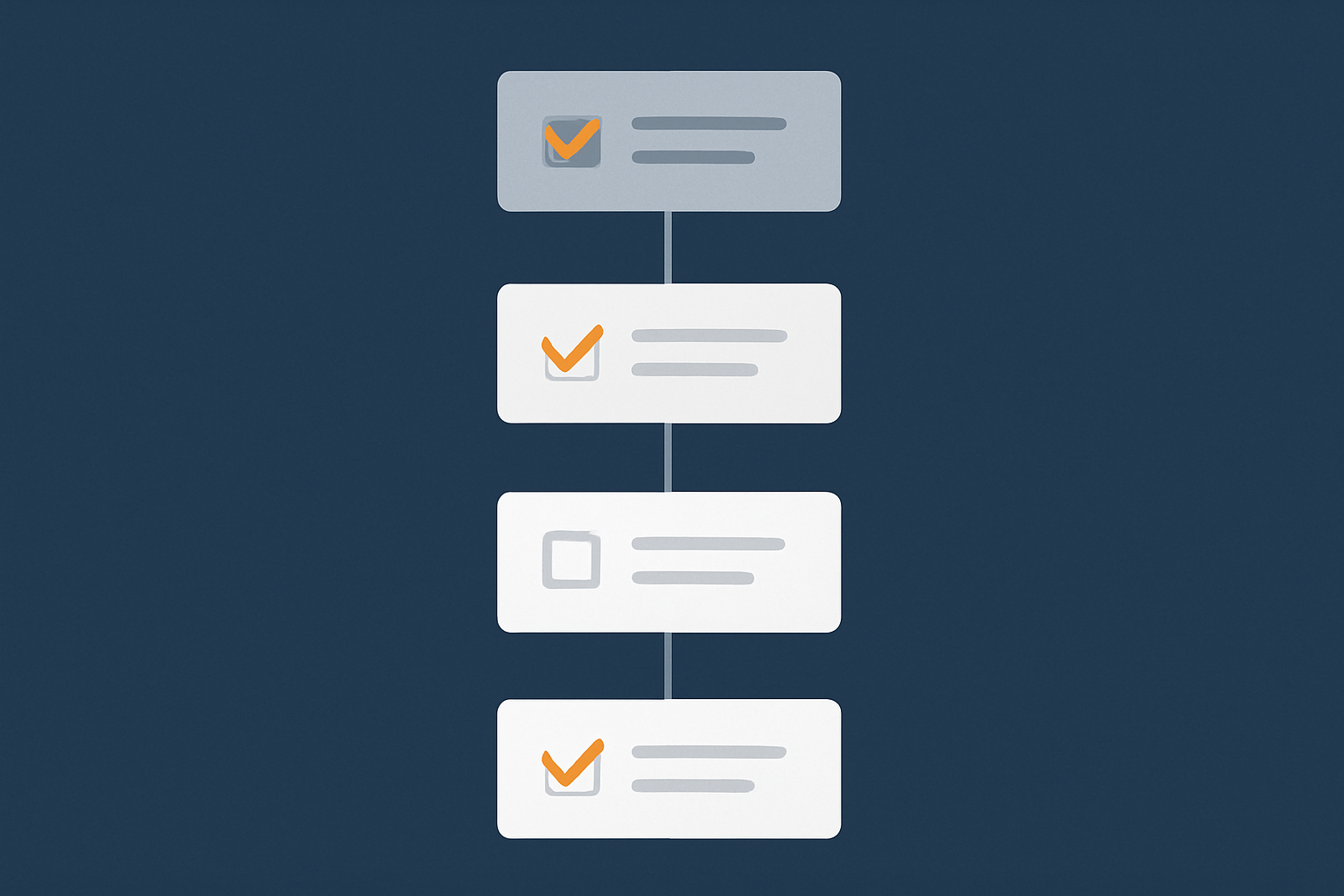
Step 1: Capture evidence while it is still happening
During an incident, focus first on gathering clean evidence:
- Screenshots of on screen messages.
- Exact error texts, not paraphrased.
- Order IDs (if created) and customer email addresses.
- Timestamps including timezone.
- Customer device, browser and payment method.
This saves you from guessing later and gives your gateway or host a clear trail to follow.
Step 2: Check WooCommerce status, logs and recent changes
Next, check for anything that changed just before the problem started:
- In
WooCommerce → Status, confirm the environment looks healthy and there are no glaring errors on the “System Status” tab. - Enable debug logging for your payment gateways and refresh the logs around the incident time.
- List any plugin, theme or core updates or configuration changes in the last 24 to 48 hours.
If you need a more comprehensive approach to logging, the guide on logging and error monitoring for WooCommerce walks through tools and retention periods that work well for live sites.
Step 3: Review hosting health and traffic patterns
Then look at the hosting layer:
- CPU and RAM usage around the failure window.
- Number of active PHP workers and how many were busy.
- Requests per minute and whether there was a spike from a campaign or bots.
- Any 502/504 spikes or database slow query logs.
Persistent issues during modest traffic can be a sign that your current hosting plan is under provisioned for WooCommerce, or that bad bots are consuming a disproportionate share of resources. Managed platforms that put a smart edge layer in front of WordPress, such as the G7 Acceleration Network, can filter abusive traffic before it reaches PHP, which smooths out response times and improves payment reliability.
Step 4: Decide who to call: host, developer, or gateway support
Finally, decide who owns the next step:
- Call your host if you see high load, 502/504s, exhausted PHP workers or connectivity problems from your server to the gateway.
- Call your developer if issues started immediately after code, theme or plugin changes, or if checkout customisations are involved.
- Call the payment gateway if declines or API errors show up in their dashboard, or if their status page indicates an incident.
Send each party the evidence relevant to their layer so you avoid circular blame and reduce time to resolution.
Preventing Future Payment Incidents
Use staging and safe deployment habits for gateway updates
Many incidents are self inflicted by changes rolled directly to live. Safer habits include:
- Keep a staging site that mirrors your live environment as closely as possible.
- Test gateway plugin updates, WooCommerce and WordPress core updates, and theme changes on staging first.
- Run at least one test transaction per payment method before deploying to live.
- Deploy changes during quieter trading windows and let the team know so they can keep an eye on orders.
Logging, monitoring and alerting tailored to WooCommerce payments
Prevention depends on noticing patterns early:
- Review failed payments log lines regularly, not just when customers complain.
- Set up alerts if payment failures spike above a baseline in a given hour.
- Retain gateway and server logs long enough to analyse trends over peak seasons.
- Use simple dashboards to display order count, failure count and average response times.
Even small merchants can get value from light monitoring that shows, for example, that failures increased right after a plugin change or hosting migration.
Hosting and PCI conscious choices that reduce payment risk
Your hosting environment plays a big role in stability and compliance. Choosing PCI conscious hosting with stable infrastructure, sensible defaults and good web hosting security features reduces the risk of:
- Firewalls blocking payment callbacks.
- Unpatched software exposing sensitive data.
- Inconsistent SSL/TLS causing browser trust warnings.
Providers like G7Cloud focus on server level hardening, isolation between sites and practical PCI considerations so you can concentrate on configuring WooCommerce and your gateways correctly rather than managing low level security.
When It Might Be Time To Rethink Your Stack
Signs your current hosting or architecture is not fit for purpose
If you see any of the following regularly, your current setup may be holding you back:
- Repeated payment timeouts under modest, everyday traffic.
- Frequent 502/504 errors during checkout, especially at peak times.
- Ongoing clashes between firewall rules and gateway webhooks.
- Lack of access to useful logs or metrics when something breaks.
At that point, endlessly tuning plugins may deliver diminishing returns compared with rethinking your hosting or stack choices.
What to look for in WooCommerce-focused hosting
When evaluating WooCommerce hosting, especially for sites that rely on card payments, consider:
- Guaranteed and transparent PHP worker capacity suitable for your traffic and order volume.
- Easy access to logs and metrics: PHP error logs, access logs, resource graphs.
- Real support for payment debugging, not just generic “site is up” checks.
- A sensible WAF and bot filtering layer that protects without blocking legitimate payment flows.
Some managed WordPress hosting with G7Cloud combines this with the G7 Acceleration Network, which helps keep bad bots from overloading checkout and improves consistency of response times under load.
Planning a move without breaking payments
If you do migrate, treat payments as a first class concern:
- Use a structured migration plan that includes copying SSL certificates, environment variables and cron jobs.
- After DNS changes, run live test transactions for each payment method to confirm flows and webhooks.
- Update and verify webhook URLs and API credentials in your gateway dashboard so callbacks point to the new environment.
- Keep the old host available for a short overlap period in case you need to check historic logs.
A managed WooCommerce focused platform can remove much of this operational burden. If you want fewer moving parts to worry about, it is worth exploring managed WordPress hosting with G7Cloud and the built in G7 Acceleration Network as a way to stabilise performance, filter abusive traffic and simplify day to day operations without extra plugins.