

Who This Guide Is For (And What You Will Fix)
Typical symptoms of a slow WooCommerce backend
This guide is for UK businesses running WooCommerce who find that the shop front is “OK enough”, but the admin side is painfully slow when working with orders and reports. Typical symptoms include:
- Orders screen taking 5 to 30 seconds to load, or timing out.
- Clicking into a single order causes a spinning loader for several seconds.
- The WooCommerce > Analytics reports hang, never finish loading, or show “There was an error loading reports”.
- CSV exports of orders or revenue stall or fail.
- High CPU or “resource limit reached” errors during busy periods when team members are working in wp-admin.
In many cases, customers can still browse and check out, so the problem is underestimated or ignored until the admin becomes almost unusable.
Why admin orders and reports slow down before the rest of the site
WooCommerce orders and reports are heavier than normal page views:
- The Orders list and Analytics queries often scan large chunks of the database.
- Admins are usually not cached, so every page load is “live” PHP and database work.
- Plugins hook into order list views and reports to add columns, calculations, or logging.
- Background tasks (like analytics syncing, subscriptions renewals, and emails) often run when an admin page is loaded.
This is why the admin can grind to a halt while product pages and the homepage remain relatively fast.
What you can realistically fix without rebuilding your store
You do not usually need to rebuild your store or change platform. In most cases, you can:
- Identify one or two specific bottlenecks such as a reporting plugin, large logs, or bloated
wp_options. - Tune WooCommerce settings so each admin request does less work.
- Clean up old data that is no longer needed for operations or accounting.
- Adjust hosting and database configuration so existing hardware is used more efficiently.
This guide walks through those steps in a practical way, focusing on what you can do now and what is safer to leave for a developer or hosting provider. If you want a broader background on wp-admin performance in general, you may also find our article Why Your WordPress Admin Is Slower Than the Front End helpful later.
Step 1: Confirm the Problem and Collect Simple Evidence
Measure how slow it actually is: baseline timings and affected screens
Before changing anything, get a simple baseline. You do not need special tools:
- Open a private or incognito window and log into wp-admin as an admin.
- Use a stopwatch (or your phone) and time how long these screens take:
- WooCommerce > Orders (first page, default filters).
- Opening a single recent order.
- WooCommerce > Analytics > Orders (for the last 30 days).
- WooCommerce > Reports (if you still use the legacy reports).
- Repeat during a busy period and a quieter time if you can.
Write these numbers down. They give you a way to tell if later changes actually helped.
Check if the problem is global or just specific to orders/reports
Next, compare with other parts of wp-admin:
- WP Admin Dashboard (main /wp-admin/ screen).
- Products > All Products.
- Plugins > Installed Plugins.
If these non-WooCommerce screens are also very slow, your issue is likely more general (hosting resources, PHP configuration, or a plugin affecting everything). If only Orders / Analytics are slow, the bottleneck is probably related to order data or reporting.
Look for easy red flags: browser console, fatal errors, debug log
While testing, open your browser’s developer tools (F12 in most browsers) and check:
- Network tab: is a particular request taking most of the time, such as
admin-ajax.phpor a REST API endpoint for reports? - Console tab: any JavaScript errors that might block reports or filters from loading?
On the server side, enable debugging if you are comfortable:
define( 'WP_DEBUG', true );
define( 'WP_DEBUG_LOG', true );
define( 'WP_DEBUG_DISPLAY', false );
Then check wp-content/debug.log for repeated errors when loading orders or reports. Fatal errors or repeated warnings related to specific plugins are strong clues.
Step 2: Rule Out Server Resource Bottlenecks First
Check CPU, RAM and I/O usage while loading orders and reports
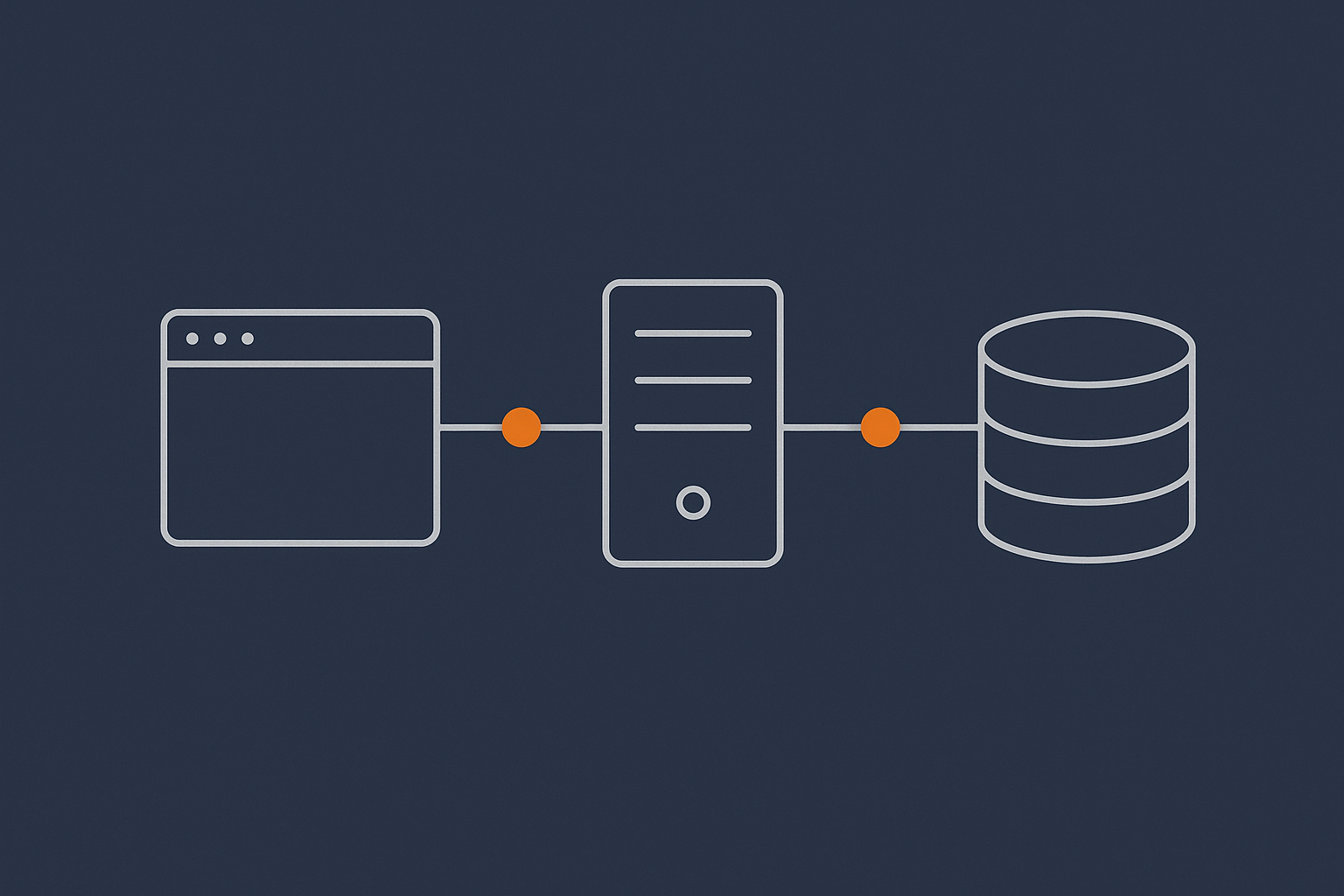
Now you know it is slow, check whether the server is actually struggling. Your hosting control panel should show graphs for CPU, RAM, and disk or I/O usage. Load the Orders screen and Analytics while keeping these graphs open.
Watch for:
- CPU spiking to 90–100 percent during each page load.
- RAM hitting its limit or swap usage increasing sharply.
- Disk / I/O hitting a clear ceiling or showing many read/write wait spikes.
If you are unsure how to read those graphs, the guide How to Read a WordPress Hosting Resource Graph walks through CPU, RAM and I/O specifically for WordPress and WooCommerce.
What high usage actually means for WooCommerce admin speed
For WooCommerce, high usage usually means:
- High CPU: PHP is doing heavy work, often from slow database queries or complex plugin code.
- High RAM: large queries or many concurrent PHP processes are in memory; the server may start swapping to disk, which is slow.
- High I/O: the database is reading or writing more than disks can handle efficiently.
If every Orders or Analytics page load pushes CPU or I/O to the limit, you will feel that as unpredictable load times and occasional timeouts, especially if other tasks are running (backups, cron jobs, or imports).
On hosting that incorporates bot protection into an edge network, such as G7 Acceleration Network, abusive bots and non human traffic can be filtered before they hit PHP or MySQL. This reduces wasted CPU and keeps admin response times more consistent during busy periods.
Quick hosting level fixes before touching WooCommerce itself
Before changing WooCommerce, fix obvious hosting constraints:
- PHP version: ensure you are on a current supported version (8.1 or 8.2 at time of writing). This alone can give a useful speed boost.
- PHP workers / concurrency: if you often have multiple staff in wp-admin plus customers checking out, you may need more PHP workers or processes to avoid queueing. Our guide on PHP workers and WooCommerce explains how to size this.
- Database location: the database should be on the same server or in the same data centre as PHP to minimise latency.
- Scheduled backups: if your slowdowns match backup windows, move heavy backups out of office hours.
If resource graphs show constant saturation even after tuning, you may need to consider higher-spec plans or web hosting performance features that provide dedicated resources.
Step 3: Understand Why Orders and Reports Are Heavy in WooCommerce
How WooCommerce stores orders and analytics data in the database
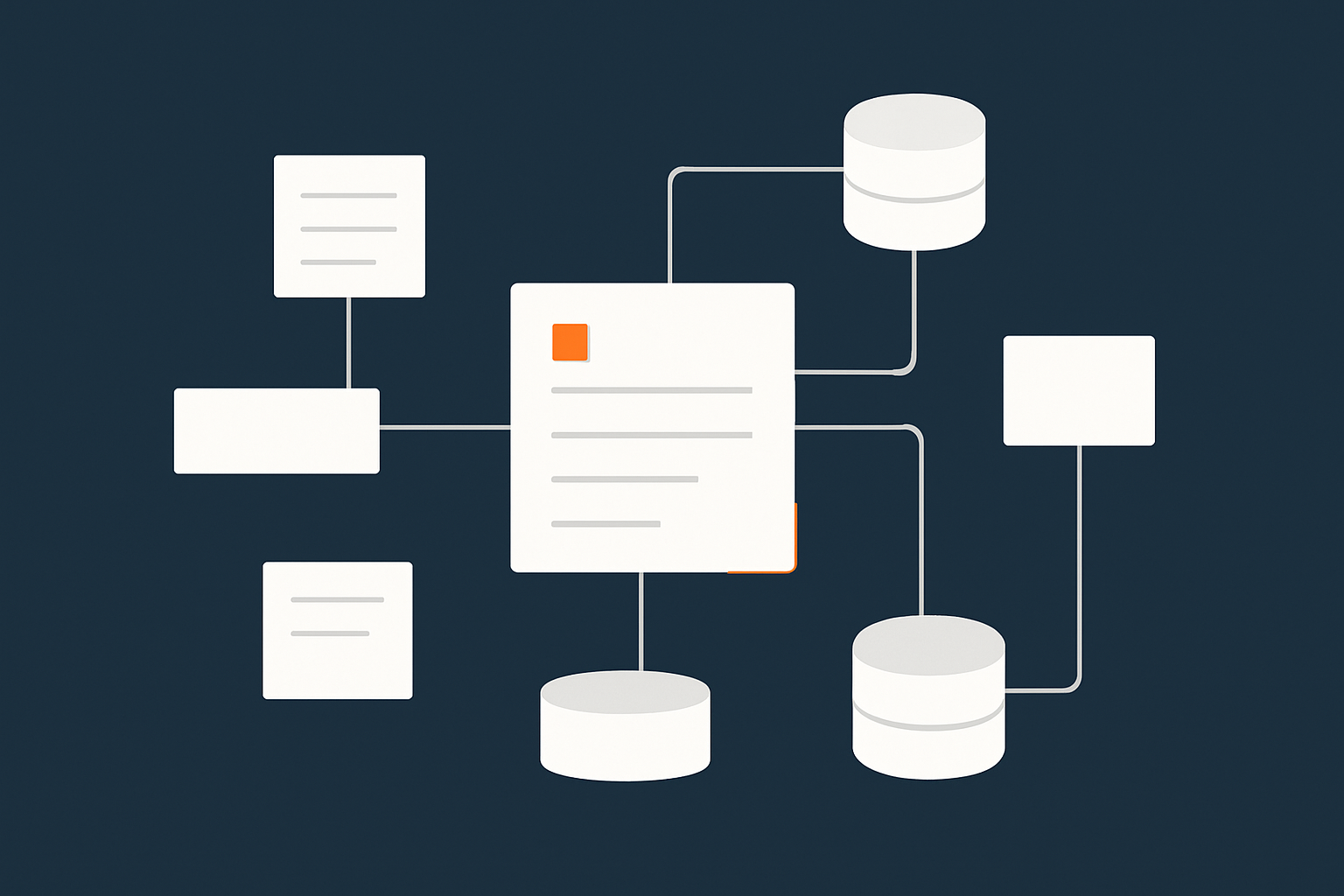
WooCommerce uses WordPress’s general tables for much of its data:
- Orders are stored as custom post types in
wp_posts(typeshop_order). - Order details such as billing name, shipping address, payment method, and totals are stored as key/value pairs in
wp_postmeta. - Order items and item meta live in tables like
wp_woocommerce_order_itemsandwp_woocommerce_order_itemmeta.
The newer WooCommerce Analytics system also keeps its own tables (such as wp_wc_order_stats and wp_wc_order_product_lookup) to speed up reports, but those have to be built and kept in sync.
Why large order volumes, refunds and subscriptions hurt performance
As your store grows, several patterns make queries heavier:
- High order count: millions of rows in
wp_postsandwp_postmetamean that each filter, search or report scan is more work. - Refunds and partial refunds: extra records add complexity to revenue calculations.
- Subscriptions and renewals: recurring orders, scheduled payments and status changes all increase write volume and background processing.
- Complex order meta: custom fields from plugins (for example, delivery slots or personalisation) add many more
postmetarows.
Each Analytics report often joins several of these tables and applies filters. On a small shop this is trivial; on a busy store, it can be substantial.
The impact of Analytics, Activity log and reporting plugins
Beyond WooCommerce core, many plugins touch orders and reports:
- Advanced reporting and BI connectors that query orders, customers or products directly.
- Activity logs that record every change to orders or settings.
- Marketing and CRM integrations that sync order data to external systems.
Any plugin that listens to save_post_shop_order or similar hooks, or adds extra data to the Orders list table, can add significant overhead per order load or save. Stacking several of these together often explains why admin gets slower long before you hit hardware limits.
Step 4: Find the Real Bottleneck Using Queries and Plugins
Use Query Monitor or similar tools to see slow database queries
The most useful single tool for this job is Query Monitor. Use it on a staging copy first if possible.
On staging:
- Install and activate the Query Monitor plugin.
- Log into wp-admin as an administrator.
- Open WooCommerce > Orders, wait for it to load fully.
- Click the “QM” menu in the admin bar and go to “Queries” > “By component” or “By caller”.
Look for:
- Queries taking more than 0.5–1 second each.
- Large numbers of similar queries (N+1 patterns), e.g. one query per order item.
- Queries attributed to specific plugins, not just core WooCommerce.
Repeat the same for Analytics pages. Capture screenshots or export the list of slow queries. This is valuable evidence for both developers and hosting support.
Spot heavy plugins hooked into orders, reports and order list views
Still on staging, try to identify plugins that are doing work on each Orders view:
- On the Orders screen, open Query Monitor’s “Hooks & Actions” tab.
- Search for actions like
manage_shop_order_posts_columns,manage_shop_order_posts_custom_column, orrestrict_manage_posts. - Note which plugins add extra columns or filters above the Orders list.
As a practical step, temporarily disable one plugin at a time, then reload Orders and measure again. If disabling a marketing, export or reporting plugin cuts load times from 15 seconds to 2 seconds, you have found a major contributor.
Is it the WooCommerce Analytics tables, postmeta bloat or something custom?
From your Query Monitor findings, you can usually categorise the issue:
- Analytics tables: slow queries against
wp_wc_order_stats,wp_wc_order_product_lookupor similar may indicate missing indexes or out of sync tables. - Postmeta bloat: many slow queries on
wp_postmeta, often withmeta_keyfilters, can mean that table has simply grown too large, or indexing is suboptimal. - Custom plugin tables: queries targeting tables added by specific plugins (for example,
wp_xyz_analyticsorwp_plugin_logs) may show a third party component as the main bottleneck.
This tells you whether to focus on WooCommerce’s own data structures or external extras.
Step 5: Safely Optimise Your WooCommerce Database (Without Breaking Orders)
Back up first: how to avoid losing order and customer data
Before cleaning anything, ensure you have:
- A full database backup, taken immediately before you start.
- A simple test plan (for example: place a test order, search for an existing customer, run a basic sales report).
If you are unsure about the safest way to archive and restore WooCommerce orders, our piece on keeping WooCommerce order data safe and fast covers practical approaches for busy shops.
Clean up transients, sessions and logs that bloat wp_options
The wp_options table is often an overlooked cause of slow admin. Bloat here affects every page, including orders and reports. Common culprits include:
- Expired transients from caching, SEO or social plugins.
- Old session data left behind by abandoned carts or timeouts.
- Plugin logs stored as options rather than in dedicated tables.
You can use a tool such as WP-CLI or reputable cleanup plugins to:
- Delete expired transients.
- Clear old sessions, particularly from WooCommerce’s own session handling.
- Trim oversized options used by loggers or trackers.
Work carefully and avoid bulk deleting anything you do not understand. Focus on clearly marked transients and sessions first.
Prune old data safely: analytics, abandoned carts, logs and temporary tables
Many WooCommerce sites accumulate large amounts of secondary data that is no longer needed:
- Old analytics or tracking records beyond what you need for tax or reporting.
- Abandoned cart records older than a few months.
- Plugin logs for emails, shipping, fraud checks and more.
- Temporary tables created by imports or reporting tools that were never removed.
Identify these by scanning your database for large custom tables and by checking each plugin’s settings for data retention options. Many have a “delete logs older than X days” option that is not enabled by default.
For a deeper walk through safe pruning steps, see our guide on safely trimming a large WooCommerce database. It explains how to keep order and user data intact while reducing overall size.
Rebuild WooCommerce Analytics tables when they are corrupted or huge
If WooCommerce Analytics is particularly slow or shows errors, rebuilding its lookup tables can help:
- In wp-admin, go to WooCommerce > Status > Tools.
- Look for tools such as:
- Regenerate analytics data
- Rebuild lookup tables
- Run these during a quiet period; they can take some time on large stores.
Monitor CPU and I/O during the rebuild. If the process is so heavy that it affects customers or staff, consider asking your hosting provider to help with off peak scheduling or higher resource limits during the job.
Step 6: Tame Plugins That Slow Down Admin Orders and Reports
Common plugin types that make order lists crawl
Certain plugin categories regularly show up in slow order screens:
- Order export / reporting suites that generate CSVs or PDFs directly from order lists.
- CRM and email automation tools that sync or tag customers on each order load.
- Inventory and fulfilment integrations that pull live stock or shipping rates into the Orders view.
- Fraud detection that runs additional checks when an order is opened.
- Heavy admin UI plugins that add many columns, badges or inline actions to the Orders table.
Each by itself may be manageable, but using several at once multiplies the work per page load.
A safe process to test, disable or replace problematic plugins
On staging or during a quiet window:
- List plugins most likely involved in orders and reports (as identified earlier).
- Deactivate one candidate plugin.
- Reload WooCommerce > Orders and Analytics, measuring load time.
- Repeat for the next plugin, one at a time.
Where a plugin shows as a clear bottleneck:
- Check its settings for options that disable extra columns, analytics, or on the fly calculations.
- See if you can move heavy exports to scheduled background jobs rather than running on demand.
- Consider replacing repeated manual reports with a simpler, lower overhead tool.
If you are on managed WooCommerce hosting, support teams will often help isolate these issues on staging, including temporary profiling and plugin toggling without disrupting your live store.
Reducing work per page load: slimmer order list views and filters
Once major offenders are handled, reduce the work each order view has to do:
- Hide non essential columns such as marketing tags or custom meta you rarely use.
- Limit the number of orders per page (for example, 20 instead of 100) via “Screen Options” at the top of the Orders screen.
- Use narrower date ranges and specific filters before opening Analytics reports.
Less data per page means smaller queries, fewer objects in memory and faster rendering in the browser.
Step 7: Adjust WooCommerce and Server Settings for a Smoother Admin
Limit rows per page and default filters in Orders and Analytics
WordPress allows you to configure “Screen Options” per user. For busy teams you can:
- Set a lower default number of orders per page for each admin user.
- Encourage staff to pre filter by order status (for example, “Processing” only) instead of loading all statuses.
- Standardise preferred Analytics reports, with sensible default ranges such as “Last 7 days” rather than “Year to date”.
These habits prevent staff from unknowingly triggering the heaviest possible queries each time they open admin.
Offload heavy background tasks to real cron and queues
By default, WordPress runs scheduled tasks only when someone loads a page (including admin pages). On busy WooCommerce stores, this can cause a backlog of:
- Subscription renewals.
- Email sending and follow ups.
- Analytics or report generation.
- Stock synchronisation with third parties.
Switching to a real server cron for wp-cron.php and using proper queues where available can make admin much more predictable. For a detailed walkthrough, see our guide on WordPress cron jobs and WooCommerce.
When indexing and database tuning are worth doing
For larger stores, database level optimisation starts to matter more:
- Ensure default indexes are intact on core tables such as
wp_posts,wp_postmetaand WooCommerce lookup tables. - Consider additional indexes on frequently queried
meta_keycolumns, but only after confirming they are used heavily. - Review MySQL configuration (buffer sizes, query cache options, InnoDB settings) with your host.
This level of tuning is usually best handled by your hosting provider or an experienced developer, but being able to show them slow queries and table sizes makes the conversation concrete.
When You Have Done the Basics and It Is Still Slow
Signs you might have outgrown cheap shared hosting
If you have:
- Steadily growing order volume.
- Several integrations (shipping, accounting, CRM, marketing).
- Multiple staff using wp-admin simultaneously.
and you are still on an entry level shared plan with strict limits, you may simply have outgrown that environment. Common signs include:
- Regular 503 errors or “resource limit reached” messages.
- Slow admin even during quiet hours.
- Support responses focusing on limits rather than tuning.
When to consider a virtual dedicated server or managed WooCommerce hosting
At that point, moving to isolated resources or a platform tailored to WooCommerce usually makes sense. Options include:
- Virtual dedicated servers with guaranteed CPU and RAM.
- Specialist managed WooCommerce hosting where the provider understands typical order and reporting workloads.
These setups typically offer more control over PHP workers, database configuration and background processing, which directly affects admin speed.
Providers that layer in an edge network such as the G7 Acceleration Network can also reduce load by blocking abusive bots before they hit PHP or MySQL, which helps keep admin usable even during external traffic spikes.
How a provider can help with slow queries, indexing and load testing
A good hosting partner should be able to:
- Review your slow query logs and suggest suitable indexes or schema tweaks.
- Run short load tests against staging to see how Orders and Analytics behave under realistic team usage.
- Advise on cron, background jobs and queueing so that heavy work is smoothed out instead of spiking during office hours.
If your current host cannot or will not help with these, it may be worth looking at platforms that offer more involved web hosting performance features as part of their service.
Putting It All Together: A Short Checklist You Can Reuse
A repeatable monthly check for WooCommerce admin health
Once you have stabilised things, a light monthly check keeps the backend from drifting back into slowness:
- Time Orders and Analytics pages; compare to last month’s numbers.
- Scan resource graphs while loading those screens to confirm CPU and I/O are not pegged.
- Clear expired transients and old sessions.
- Review plugin changes: anything new that touches orders or reports?
- Check WooCommerce Analytics tools to ensure lookup tables remain healthy.
What to document for future developers and hosting providers
Keep a simple internal document that records:
- Your baseline timings for key admin screens.
- Major plugins that affect orders, reports and integrations.
- Any custom database indexes or cron jobs added.
- Data retention policies for logs, carts, analytics and exports.
This makes it much easier for future developers, agencies or hosting support to help you, because they can see what has already been tried and what is expected behaviour.
If you prefer not to manage this yourself, exploring managed WooCommerce hosting with a focus on admin performance can remove much of the day to day tuning work. Platforms that include an acceleration layer such as the G7 Acceleration Network can also give you consistent speed, bad bot filtering and modern caching out of the box, so you can focus on running the shop instead of chasing slow orders and reports.