

Who This Guide Is For (And What You Can Fix Without Moving Host)
This guide is for UK businesses running WooCommerce that are hitting performance issues, but are not yet ready to move provider.
You might recognise some of these symptoms:
Typical symptoms of hosting bottlenecks on WooCommerce
- Checkout feels slow or hangs at busy times, while the home page is still fast.
- The site is fine with a few visitors, but falls over when you run a sale or send an email campaign.
- Admin / wp-admin is painfully slow, especially Orders and Products pages.
- Product search or filters take several seconds to load results.
- Customers report “your site timed out” or “payment failed” but payments still show in the gateway dashboard.
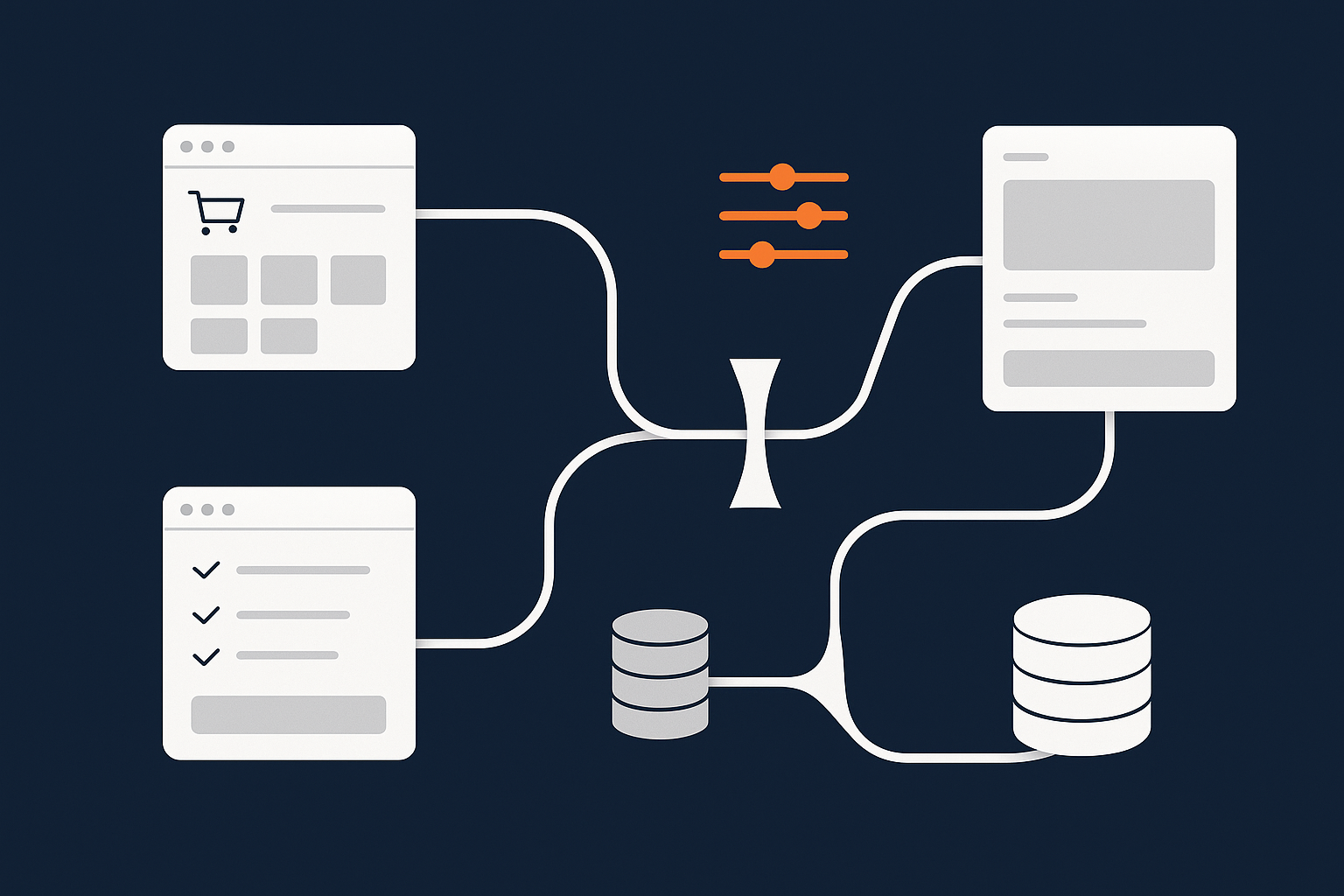
In many cases, these are not problems that a brand new host magically fixes. They are usually bottlenecks in three specific areas:
- PHP workers
- Sessions
- Search and filtering
What this article will and will not solve
This article will help you:
- Understand what PHP workers, sessions and search queries actually do on your server.
- Spot when they are the cause of slow checkouts or random timeouts.
- Apply practical fixes you can usually make without needing your host to move you or upgrade you.
This article will not fix:
- Hosts that are fundamentally oversold or have poor network connectivity.
- Very low resource plans that simply do not match your traffic volume.
- Code-level bugs in your theme or plugins.
If you suspect a more general hosting issue, the checklist in Diagnosing Sudden Slowdowns on WooCommerce is a good companion read.
Understanding Where WooCommerce Really Spends Server Time
Why PHP workers, sessions and search queries matter more than raw CPU
Most hosting plans advertise CPU cores and RAM. For WooCommerce, those are necessary but not sufficient.
What usually dictates real-world speed is:
- How many PHP workers can run at once (concurrent PHP processes).
- How WooCommerce sessions are stored, locked and cleaned up.
- How heavy your search and filter queries are on the database.
Two sites with identical CPU on paper can behave very differently if one uses PHP workers efficiently and the other wastes them on unnecessary background work and uncached requests.
How to tell if your problem is a bottleneck and not just “slow hosting”
Signs you are hitting bottlenecks rather than generic slowness:
- The first page view (uncached) is slow, but a hard-refreshed cached page is fast.
- Checkout is slow only when multiple users are checking out at once.
- Search / filters spike CPU or database usage during browsing.
- Performance tools show long “waiting for available socket / worker” periods.
Tools that help you confirm this:
- Your host’s resource graphs (look for spikes in PHP processes or MySQL usage).
- Simple load tests that hit product search or checkout with several concurrent users.
- Plugins like Query Monitor on a staging site to see slow queries and hooks.
The rest of this guide focuses on fixes you can apply while staying with your current provider. If you later decide you need specialist WooCommerce hosting, the same principles still apply.
PHP Workers: Keeping Checkout Requests Moving
What PHP workers actually are in plain English
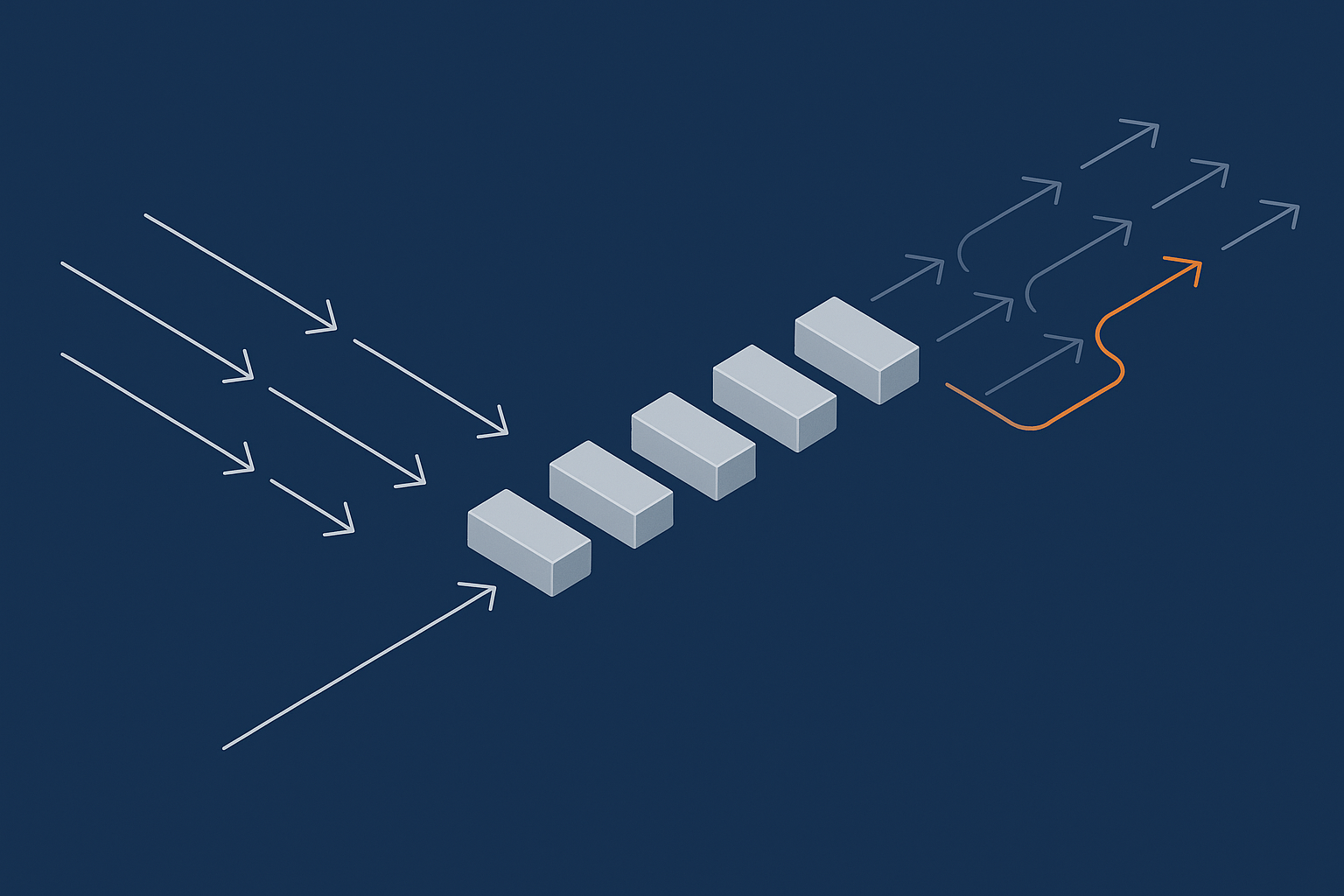
A PHP worker is simply a slot that can run one PHP request at a time.
- If you have 3 workers and 5 people load an uncached page, 3 are served immediately and 2 must wait.
- If checkout, search and background jobs all compete for the same workers, queues form quickly.
On most shared and managed WordPress hosting plans, you cannot directly configure worker numbers, but you can strongly influence how much each worker has to do.
How to spot when you are running out of PHP workers
Typical clues:
- Pages start fast but then suddenly, during campaigns, many requests exceed 30 seconds and time out.
- Your host’s dashboard shows “max PHP processes reached” or similar warnings.
- Monitoring shows spikes where response time climbs sharply while traffic only rises modestly.
If your host exposes logs, look for lots of 504 Gateway Timeout or 502 Bad Gateway errors. These often mean requests could not get a free worker or the worker was overloaded.
Practical fixes without changing provider
Reduce unnecessary uncached requests (what to cache and what never to cache)
Every uncached front end request consumes a PHP worker. Your aim is to make sure workers are mostly used for cart and checkout, not for static pages.
In general:
- Safe to cache: home page, landing pages, category pages, most product pages for logged-out users.
- Never cache: cart, checkout, account area, anything personalised or with changing stock/pricing per user session.
If your host provides a full-page cache or a CDN, use it. When using something like the G7 Acceleration Network, static pages and assets are cached at the edge so PHP workers only handle dynamic requests. That reduces worker pressure significantly at busy times.
Useful checks:
- Ensure your caching plugin or host-level cache excludes
/cart/,/checkout/and/my-account/. - Avoid adding “cache-busting” query strings to every request via marketing plugins.
- For logged-in customers, see if your host supports separate caching rules so catalogue pages can still be cached where safe.
For a deeper explanation of caching layers, see Understanding WordPress Caching Layers.
Disable or tame heavy plugins on cart and checkout
Some plugins hook into woocommerce_before_cart, woocommerce_before_checkout_form and payment processing hooks. Each hook adds more CPU work per order.
Typical culprits:
- Dynamic pricing / discount engines recalculating on every cart update.
- All-in-one marketing suites injecting several tracking scripts and remote API calls.
- Inventory, CRM or ERP sync plugins making remote HTTP requests during checkout.
Practical steps:
- On a staging environment, disable non-essential plugins and benchmark checkout speed with a tool like WebPageTest or Lighthouse.
- Use conditional loading: some plugins let you disable features on specific pages; turn off popups, sliders or tracking in the checkout funnel.
- Move non-essential synchronisation to scheduled tasks instead of running them synchronously on checkout completion.
Use object caching properly if your host supports it
Object caching stores expensive database query results in memory, so that follow-up requests reuse them without hitting MySQL again.
If your host supports Redis or Memcached, you can usually enable it with:
- Installing a persistent object cache plugin recommended by your host.
- Checking that the drop-in
object-cache.phpis active. - Monitoring for reduced database queries on repeated hits to the same pages.
Used correctly, persistent object caching can dramatically reduce PHP worker time per request. Many web hosting performance features on modern platforms include this as standard.
There is a detailed how-to in How to Use Object Caching to Speed Up WordPress.
When you really do need more workers from your host
After caching and plugin trimming, you may still see:
- Consistent worker saturation under realistic traffic for your business.
- Checkouts queueing even though you have done basic optimisation.
- Background jobs (emails, subscriptions, stock sync) falling behind badly.
At that point you probably need either a higher tier with more workers or to move to something like virtual dedicated servers for busier WooCommerce sites where worker limits are higher and more predictable.
Sessions and Cart Concurrency: Avoiding Hidden Locks

How WooCommerce sessions work (and where they live)
WooCommerce sessions store cart contents and related data for each visitor. Typically:
- A cookie in the browser holds a session key.
- The actual session data lives in the database (usually the
wp_woocommerce_sessionstable) and/or the object cache.
When the cart is updated or checkout runs, WooCommerce reads and writes this session data. If those reads and writes are slow, each cart action feels sluggish.
Common session bottlenecks that slow carts and checkouts
Problems often arise when:
- The sessions table grows very large because old sessions are not cleaned up.
- Plugins store extra data in sessions instead of their own tables or meta.
- Database tables are fragmented or missing useful indexes.
Symptoms include:
- Slow “Add to basket” or cart update actions, even with only a few visitors.
- High MySQL CPU usage relative to traffic.
- Random cart empties or session mismatches under load.
Tuning sessions without asking your host to move you
Cleaning up long lived sessions and transients
Start with housekeeping:
- Check the size of
wp_woocommerce_sessionsand transient tables likewp_options(for autoloaded transients). - Use a tool such as WP-CLI or a database admin to remove very old session rows.
- Review WooCommerce > Status > Tools and use the buttons to clear transients and expired sessions.
For small to medium stores, keeping session tables trimmed can make a noticeable difference.
Reducing unnecessary session usage from plugins
Some plugins create sessions for every visitor, even those who never add to cart. Common examples:
- Marketing and tracking plugins storing per-visitor data in the WooCommerce session.
- Currency switchers and geo-location tools.
- Complex wishlist or comparison tools.
Where possible:
- Disable session-heavy features that are not essential to your sales funnel.
- Check plugin settings for “session storage” options and switch to cookies or their own tables if available.
- Avoid plugins that create sessions for anonymous visitors just to track simple things that could live in cookies.
Using database and object cache to keep sessions fast
If your host supports object caching, ensure WooCommerce session data is eligible for caching. This often happens automatically when persistent object caching is enabled, but verify on staging with a tool like Query Monitor:
- Check that repeat cart actions trigger fewer database queries after the first hit.
- Monitor database response times during cart updates to see if object caching improves them.
Hosts that expose Redis or Memcached, or a platform like the G7 Acceleration Network, can keep session reads and writes faster by reducing repeated hits to the database, which helps carts remain responsive even when several customers are checking out together.
Search and Filtering: Stopping Catalog Browsing from Blocking Checkouts

Why WooCommerce search can overload shared hosting
WooCommerce product search and attribute filtering often run expensive SQL queries across several tables. On shared hosting or low-tier managed plans, this competes directly with checkout and admin queries.
Heavy search and filter usage can:
- Consume most available PHP workers and MySQL slots.
- Create lock contention on tables holding orders or sessions.
- Delay payment processing or order creation for real customers.
Quick wins inside WooCommerce and your theme
Limit what each search or filter is allowed to do
Adjustments that often help:
- Disable fuzzy search or “search everything” options if your search plugin allows it.
- Restrict search to product title and SKU instead of full content and custom fields.
- Reduce the number of filter options on heavily used category pages.
- Paginate search results sensibly, for example 12 or 24 products per page, not 60.
Each search should do a small, predictable amount of work. This preserves capacity for orders.
Tidy up product data and indexes
On larger catalogues:
- Run regular database optimisation (for example via your host’s control panel) to defragment tables.
- Ensure important columns used by search plugins are properly indexed.
- Remove obsolete product data, orphaned variations and unused attributes.
If your theme provides its own filter widgets, check whether they can prebuild indexes rather than querying live on every request.
Smarter search options that still run on your current host
You do not necessarily need an external SaaS search tool. Alternatives include:
- Dedicated search plugins that pre-index products into their own tables.
- Search tools that integrate with existing object caching to avoid repeated heavy queries.
- Simple “SKU only” or “title only” search for trade or B2B sites where that is acceptable.
For a deeper dive into practical options, see Practical WooCommerce Search and Filtering for Large Catalogues.
Reducing Background Load So Your Existing Plan Feels Bigger

Taming bad bots and crawlers that burn PHP workers
It is common for WooCommerce sites to be crawled heavily by bots. Many of these are not helpful search engines but aggressive scrapers, vulnerability scanners or low-quality crawlers.
Every time one of these hits a non-cached URL, it consumes a PHP worker and database resources that could have served real customers instead.
Actions you can take even without full server control:
- Use a firewall or security plugin to block obvious bad user agents and rate limit repeated hits.
- Ensure XML sitemaps prioritise important pages and avoid infinite filter combinations that bots love to crawl.
- Disallow crawl traps in robots.txt where appropriate, such as endless search URLs.
Platforms that provide an edge network with smart bot filtering, such as the G7 Acceleration Network, can block abusive or obviously non-human traffic before it reaches PHP or the database. This keeps PHP workers and MySQL free for genuine users and helps your existing plan handle more legitimate traffic without upgrades.
Offloading front end weight so PHP can focus on orders
Even though this article focuses on server-side bottlenecks, front end weight still matters. Heavy pages cause longer sessions and more requests per user, which increases overall load.
Useful steps:
- Minimise JavaScript and CSS where possible and avoid loading large libraries on checkout.
- Lazy load below-the-fold images and consider deferring non-essential scripts.
- Optimise product images to reduce page weight, especially on category and product grids.
On some platforms, an optimisation layer such as the G7 Acceleration Network will convert images to AVIF and WebP on the fly, typically cutting image file size by more than 60 percent while keeping quality suitable for real shops, and doing so without any extra WordPress plugins.
Knowing When Optimisation Is Not Enough
Signs you have genuinely outgrown your current hosting tier
If, after applying the steps above, you still see:
- Regular timeouts during every promotion or email send.
- Order processing delays or failed webhooks with your payment provider.
- Consistent high CPU and database usage even in quiet periods.
- Support from your current host confirming that your plan is resource constrained.
then you may simply have exceeded what your current tier can handle. That is not a failure; it is a sign your store has grown.
What to look for in a WooCommerce host when you are ready to move
When you reach the point of changing provider, prioritise:
- Transparent PHP worker and resource limits, not just vague “unlimited” claims.
- Support that understands WooCommerce specifics, including sessions and search.
- Built-in object caching and edge caching rather than needing several extra plugins.
- Practical help for handling traffic spikes and seasonal peaks.
Managed WooCommerce platforms such as managed WordPress hosting with G7Cloud and similar providers are designed with these bottlenecks in mind. For growing sites, moving to a plan or server tier that gives you more predictable resources can be more cost-effective than endlessly trimming features.
Next Steps and Further Reading
You can usually make a noticeable improvement to WooCommerce performance on your existing host by:
- Ensuring cache coverage for everything that does not need to be dynamic.
- Reducing heavy plugin work on cart and checkout.
- Cleaning and tuning sessions and transients.
- Lightening search and filters so they do not compete with orders.
- Blocking wasteful bot traffic and trimming front end weight.
If you want a broader, step-by-step overview of improving your store without big spend, the guide WooCommerce on a Budget pairs well with the more technical focus here.
When you reach the stage where optimisation alone is not enough and you are ready for a hosting change, exploring specialist WooCommerce hosting or scaling up with virtual dedicated servers for busier WooCommerce sites can give you more headroom with less day-to-day tuning. Many businesses find that combining sensible optimisation with a platform that handles caching, image conversion and bad bot filtering for them is the point where WooCommerce becomes manageable again.