

Who This Setup Is For (And What “Lightweight” Really Means)
Typical real‑world scenarios: local shops, takeaways and service businesses
This guide is written for small UK businesses that mainly serve local customers and do not need a full‑blown national ecommerce operation. Typical examples include:
- Takeaways and cafés where customers order for collection.
- Butchers, bakeries and greengrocers taking pre‑orders for pick up.
- Hardware shops or trade counters handling phone orders for regulars.
- Service businesses such as dry cleaners or repair shops taking simple bookings.
In these cases most orders are placed by regulars, within a few miles of the premises, and often paid for on collection or over the phone. The website’s job is to keep things organised and easy, rather than to run a sophisticated online shop.
What you actually need from WooCommerce when most orders are local
If your customers are local, your WooCommerce site usually needs to do a few basic things well:
- Show a simple, accurate catalogue of what you sell and prices.
- Let people place click‑and‑collect orders without friction.
- Record phone orders in one place, so staff are not juggling bits of paper.
- Handle basic order statuses like “processing”, “ready for collection” and “completed”.
- Send clear email confirmations so customers know what will be ready and when.
You often do not need complex shipping rules, subscriptions, multi‑currency, large marketing stacks or heavy page builders. Stripping those out keeps the site faster, cheaper to run and easier for staff to use.
What “lightweight stack” means in practice: simple, fast, minimal moving parts
A lightweight WooCommerce stack is about:
- Minimal plugins: just the essentials, so there is less to break or update.
- Lean theme: a fast, well‑coded theme rather than a multipurpose “do everything” template.
- Solid hosting: reliable, with server‑level caching and good PHP performance, but not over‑engineered.
- Clear workflows: staff can see and update orders quickly without a cluttered admin area.
If you want more depth on why small shops benefit from lean setups, the article WooCommerce on a Budget: How to Keep Small Shops Fast Without Enterprise Spend covers the trade‑offs in detail.
Designing the Customer Journey for Click‑and‑Collect and Phone Orders
Deciding how customers place orders: online, phone first or a mix
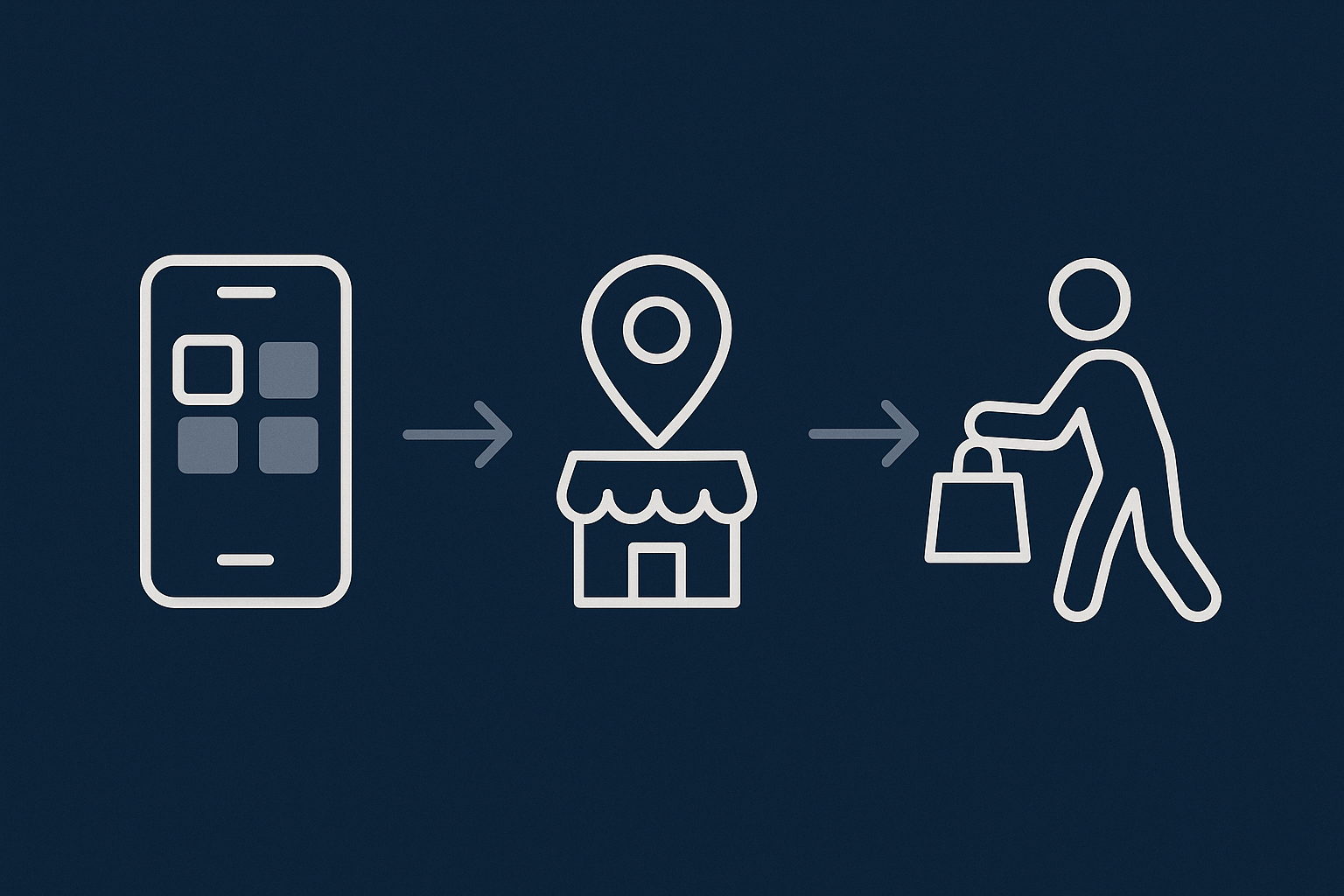
Before touching plugins or settings, decide how customers should actually order:
- Online first: customers browse, add to basket and choose collection. Phone is for questions only.
- Phone first: the site is mainly a menu or catalogue, and staff key orders into WooCommerce while on the phone.
- Mixed: regulars phone, others order online. You still keep everything in WooCommerce.
Write this down in a short policy, so everyone on the team understands the intended journey. It will guide how you configure checkout, payment methods and order notes.
Simplified catalogue: only what locals need to see
For local click‑and‑collect, a giant catalogue usually slows customers down. Aim for:
- Clear categories such as “Meal Deals”, “Pizza”, “Sides”, “Drinks”.
- Simple product titles: “Large Margherita Pizza” instead of keyword‑stuffed descriptions.
- Only the options you really need (size, flavour, toppings) set up as variations or add‑ons.
- A short description, with any detailed allergens or ingredients on a separate information page.
Hide products that are rarely available, or group them into one “Specials” section to keep browsing tidy. The faster locals can find and confirm what they want, the more orders you will actually complete.
Checkout flow for local pickup and “pay in store / over phone”
Your checkout can be much simpler than for delivery‑based ecommerce. Practical steps:
- Remove unnecessary fields: use WooCommerce settings or a simple checkout fields plugin to hide shipping address fields when “local pickup” is chosen.
- Add a pickup location note: if you have multiple branches, use a dropdown or clearly worded description at checkout.
- Include an “Order notes” box: let customers specify allergies, timing (“ASAP” vs “6.30pm”) or vehicle details for kerbside pickup.
- Offer “Pay on collection” and “Pay by phone” methods: these can be custom offline payment gateways with clear instructions.
Keep the number of steps low: cart → checkout → thank you page. Avoid sending customers through account creation unless you really need it.
When you can avoid on‑site card payments entirely
If most customers are comfortable paying on collection or over the phone, you can avoid installing an online card gateway at all. This:
- Removes PCI and Strong Customer Authentication considerations from the site.
- Cuts down plugin complexity, as payment gateways often add significant code and background tasks.
- Reduces friction for staff who already have a terminal or virtual terminal to take payments.
Offline methods that work well include:
- Cash or card on collection: clearly stated at checkout and in confirmation emails.
- Pay by phone: customers call with card details, you process via your terminal, then update the WooCommerce order status.
- Bank transfer for high‑value or trade orders: only if your customers are comfortable with it.
You can always add a simple online gateway such as Stripe or PayPal later if you see demand.
Core Plugins and Theme: Keep the Stack Small
Recommended core pieces: WooCommerce, lightweight theme, 1–2 utility plugins
A practical lightweight stack often looks like this:
- Core: WordPress + WooCommerce.
- Theme: a fast, WooCommerce‑ready theme such as Storefront, GeneratePress, Astra (in a minimal configuration) or a comparable lean theme.
- Utilities (optional):
- One small plugin for checkout field edits if needed.
- One for local pickup time slots if your workflow requires scheduling.
Avoid installing multiple overlapping plugins that all touch checkout or order emails. Each extra plugin is one more thing to update, test and troubleshoot on a busy Friday night.
Click‑and‑collect specifics: local pickup options, time slots and notes
WooCommerce supports “Local pickup” out of the box. To keep it tidy:
- Set up a shipping zone that covers your local area (for example, by postcode) with only “Local pickup” enabled.
- Rename the method label to something clear like “Click‑and‑collect from High Street branch”.
- Use the method description to show opening hours or special instructions.
If you need time slots, use a single small plugin that adds pickup times at checkout. Configure it with:
- Realistic preparation times per product type where possible.
- Clear cut‑off times for same‑day collection.
- Limited slots per 15 or 30 minutes, based on kitchen or staff capacity.
Always test the flow on mobile and check that the time‑slot picker is quick to use with one thumb.
Handling phone orders in WooCommerce: manual orders and simple workflows
Staff can enter phone orders directly into WooCommerce so everything is in one place. A simple approach:
- Log in to the WordPress admin and go to
WooCommerce → Orders → Add order. - Search for or create the customer record, or just use “Guest” with a name and phone number.
- Add products to the order from your catalogue.
- Set the shipping method to “Local pickup” and the payment method to “Phone payment” or “Cash on collection”.
- Add order notes with any specifics agreed on the call.
- Mark the order as “Processing” and let the kitchen or counter staff work from that status.
You can then move orders to “Completed” when collected, which keeps records tidy and helps you review daily volumes later.
Plugins you probably do not need for a local‑only shop
For a simple click‑and‑collect and phone order setup you usually do not need:
- Complicated shipping calculators or multi‑carrier integrations.
- Advanced vouchers or loyalty systems in the early stages.
- Multiple page builders and visual editors at the same time.
- Heavy marketing suites that add tracking scripts and background tasks.
Keep a note of any “nice to have later” features and review them after you have a stable, fast base. You can always add carefully‑chosen plugins once you know where they will genuinely help.
Hosting Choices for a Lean WooCommerce Stack
What your hosting must handle for small but busy local traffic
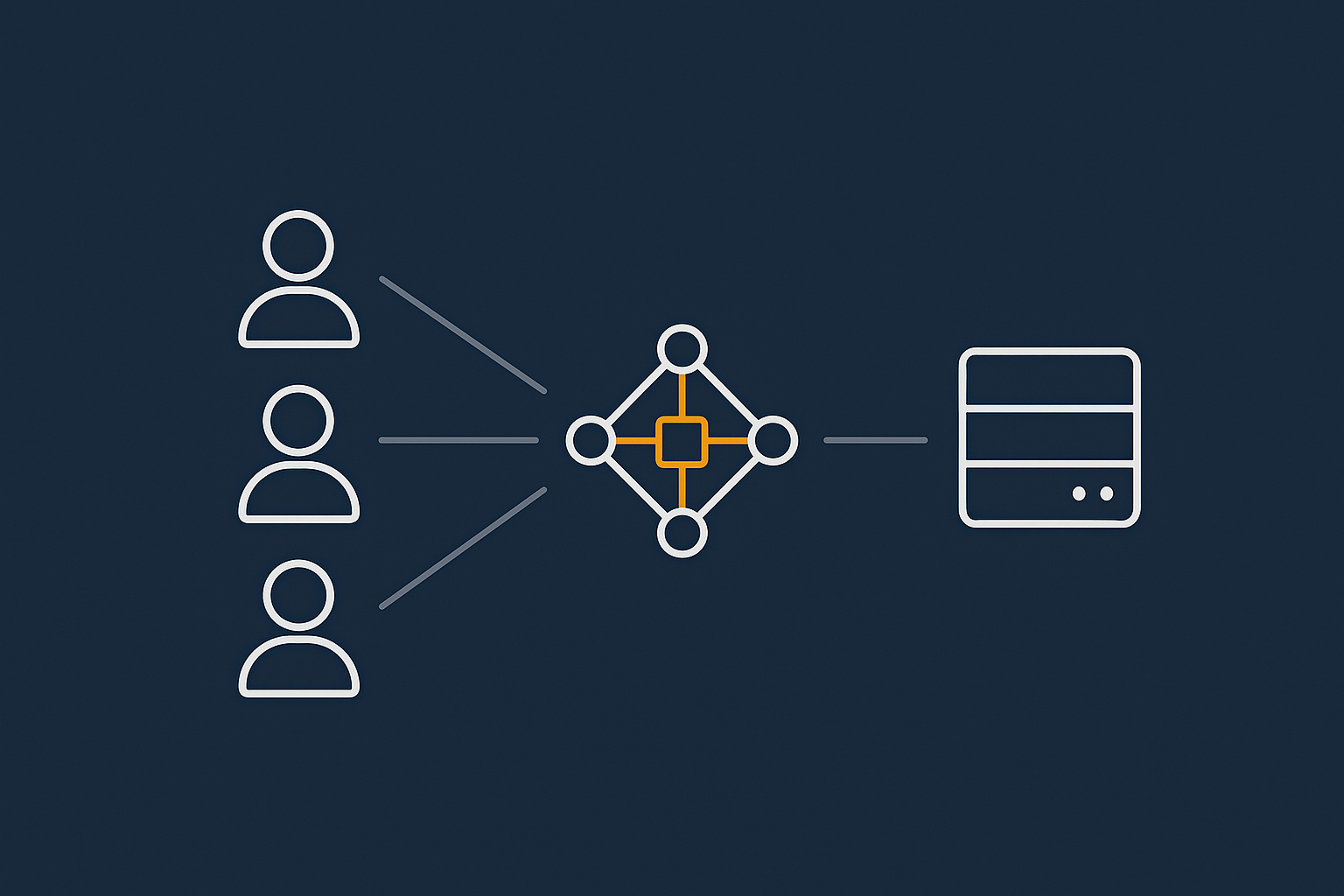
Local shops may have modest daily traffic but sharp peaks during lunch, evenings or just before closing. Your hosting should handle:
- Short bursts of concurrent users browsing the menu and placing orders.
- Fast, consistent page loads on 4G and budget devices.
- Reliable email sending for order confirmations.
High‑end global scalability is not necessary, but poor hosting that struggles under brief spikes will cause slow checkouts and abandoned orders.
Shared hosting vs managed WordPress/WooCommerce: where a small shop sits
Basic shared hosting is attractive on price but often has:
- Limited CPU and memory shared with many other sites.
- Weak or generic caching, not tuned for WooCommerce.
- Less proactive monitoring, so slow‑downs can go unnoticed.
Managed WooCommerce hosting or focused managed WordPress hosting plans usually provide:
- Fewer sites per server and better resource allocation.
- Server‑level caching with WooCommerce‑aware exclusions.
- Regular updates, backups and basic performance checks.
For many small UK shops, a modest managed plan is the right middle ground: not expensive enterprise hosting, but more robust than the cheapest shared packages. If you want a buyer’s overview, see Choosing the Right WooCommerce Hosting for UK Small Businesses.
Server‑level caching and PHP performance for mostly logged‑out visitors
Most visitors to a local shop’s site are not logged in and have empty baskets. That is perfect for caching:
- Cache product, category and information pages at the server or network level.
- Exclude cart, checkout and account pages from caching.
- Let the cache expire regularly when you change prices or menus.
Good hosting will also run a modern PHP version and optimise OPcache, so each uncached request is processed quickly. G7Cloud documents its web hosting performance features, including PHP tuning and caching, which is the sort of thing you should look for when comparing providers.
How G7Cloud’s managed WooCommerce and the G7 Acceleration Network fit this use case
For local click‑and‑collect sites, managed WooCommerce hosting with a built‑in optimisation layer can reduce the number of plugins you need. The G7 Acceleration Network adds network‑level caching, image optimisation and security controls in front of your WooCommerce site. This means catalogue pages are served quickly from the network, while cart and checkout traffic is passed back to your server only when needed, which suits small but busy peaks of local traffic.
Caching, Image Optimisation and Bot Filtering (Without Extra Plugins)
Why local shops still need proper caching and static asset optimisation
Even if your audience is only a few miles away, customers will often browse on mobile data, older phones and congested networks. Caching and asset optimisation matter because:
- Slow pages during a rush mean fewer completed orders.
- Staff may use the same Wi‑Fi as customers, so a sluggish site can also affect in‑house use.
- Search engines still factor speed into visibility, including for local results.
Ideally caching should be handled at the server or network level rather than via multiple overlapping plugins. If your host provides a CDN‑style layer like the G7 Acceleration Network, you can often skip separate caching plugins and keep the stack lean.
Keeping cart and checkout safe while caching product and info pages
For WooCommerce, the usual safe pattern is:
- Cache: home page, product archives (categories), individual product pages, static content (about, contact, FAQ, allergens).
- Do not cache: cart, checkout, account pages and any custom “my orders” pages.
This way, most traffic benefits from fast cached responses, but dynamic parts still work correctly. If you want a deeper technical explanation, the guide WooCommerce Caching Without Breaking Carts walks through this in detail.
Automatic AVIF/WebP image optimisation and why it matters for mobiles
Menus, product images and photos of your shop are important, but they can easily slow pages down if you upload large files directly from a phone. Modern formats such as AVIF and WebP reduce file size significantly compared with JPEG and PNG while keeping visual quality suitable for real sites.
The G7 Acceleration Network automatically converts images to AVIF and WebP on the fly for supported browsers, typically cutting image file sizes by over 60 percent without needing extra plugins or changes in WordPress. This is included for every site hosted with G7Cloud, which keeps mobile loading times down without extra work.
Filtering bad bots to keep a small shop fast and stable
Even tiny local sites are visited by bots, scrapers and automated scanners. These can:
- Hit your site repeatedly, wasting PHP and database capacity.
- Trigger brute force login attempts on
/wp-adminandxmlrpc.php. - Cause slow‑downs that appear at the worst possible time.
Network‑level protection that filters this traffic before it reaches WordPress is more efficient than relying solely on plugins. G7Cloud’s bot protection within the G7 Acceleration Network screens out abusive and non‑human traffic before it hits PHP or the database, which reduces wasted server load and helps keep response times steady during busy local peaks.
Configuring WooCommerce for Click‑and‑Collect and Phone Orders
Shipping zones and methods: local pickup as the default path
To make click‑and‑collect the natural choice:
- Go to
WooCommerce → Settings → Shipping → Shipping zones. - Create a zone for your local postcodes (for example, “LS1–LS9” or “B1–B5”).
- Add the “Local pickup” method only, and remove “Flat rate” or “Free shipping” unless you genuinely offer delivery.
- Set method titles and descriptions that clearly say “Collect in store only” with your address.
If you do occasional delivery, consider a second zone with a simple flat rate so the interface is still clear.
Payment options: cash, card on collection, phone payments and simple gateways
In WooCommerce → Settings → Payments you can configure:
- Cash on delivery: rename to “Cash or card on collection” and explain they will pay when they arrive.
- Bank transfer: rename to something like “Bank transfer (trade customers only)” if relevant.
- Custom offline method: for “Pay by phone” with instructions for calling and providing order number.
If you add an online gateway, keep it to one simple provider and avoid stacking multiple options. That reduces confusion at checkout and the chance of conflicts between payment plugins.
Order statuses and notes that work for a busy counter or kitchen
Use WooCommerce’s built‑in statuses in a way that maps to your real‑world process:
- Pending payment: online order placed, not yet paid (if using online gateways or “pay by phone”).
- Processing: confirmed order that staff should prepare.
- On hold: phone order waiting for card payment or confirmation.
- Completed: collected / finished.
Train staff to move orders through these statuses as work progresses. Use private order notes for internal comments (“Customer will arrive at 7:15”, “Allergy: no nuts”). This keeps your in‑store whiteboard and WooCommerce in sync.
Staff workflow: how your team actually uses WooCommerce day‑to‑day
Decide where WooCommerce fits into daily routines:
- Front‑of‑house: checks new orders, prints order slips if helpful, marks collected orders as completed.
- Kitchen or workshop: works from a tablet or printed list showing “Processing” orders only.
- Owner/manager: reviews reports weekly to see peaks in demand, popular items and average order values.
For small teams, one iPad at the counter may be enough. Make sure staff have separate WordPress user accounts with only the permissions they need, such as “Shop manager”, and avoid giving everyone full admin access.
Keeping the Stack Lean Over Time: Maintenance Without a Dev Team
A simple monthly checklist: updates, backups and plugin review
Set aside 30–45 minutes once a month to:
- Run updates: update WordPress, WooCommerce, theme and plugins after backing up.
- Check backups: ensure your host’s automatic backups exist and that you know how to restore.
- Review plugins: ask “Are we actually using this?” for each one.
- Test checkout: place a small test order from your phone to confirm everything still works.
The article Making WooCommerce Stable and Fast: A Step‑by‑Step Maintenance Routine gives a fuller routine if you want a written checklist.
Spotting bloat early: slow admin, heavy plugins and growing database
Warning signs that your lightweight stack is starting to bloat include:
- The WordPress admin area feels noticeably slower than a few months ago.
- New plugins are installed “temporarily” and never removed.
- Your hosting dashboard shows disk usage growing quickly, mostly from databases or logs.
When you spot this, clean up unused plugins and themes first. G7Cloud has a guide on cleaning up WordPress bloat safely, which covers how to remove old components without breaking the site.
When to upgrade hosting or move to a more scalable architecture
You may outgrow your initial setup if:
- Page loads slow down even after optimising images and cleaning plugins.
- You start taking a lot more orders per day, especially at the same time.
- You add features like delivery zones, loyalty schemes or multi‑branch stock.
In those cases, consider:
- Moving up a tier on your current managed WordPress hosting plans.
- Talking to your provider about dedicated or semi‑dedicated WooCommerce hosting.
- Reviewing whether any new features should be handled outside WordPress (for example, specialist delivery tools).
If you are regularly hitting performance limits due to traffic spikes, having bot filtering and network‑level caching in front of your WooCommerce site, as used by the G7 Acceleration Network, can often buy you more headroom before you need major architectural changes.
Summary: A Practical Lightweight Blueprint You Can Start With
Quick reference: minimal stack components
To recap, a practical lightweight WooCommerce setup for local click‑and‑collect and phone orders looks like this:
- Core software: WordPress + WooCommerce.
- Theme: one lean, WooCommerce‑ready theme, lightly customised.
- Plugins: 1–2 utilities for checkout tweaks or pickup times, no more than you genuinely need.
- Hosting: a modest managed WooCommerce hosting or WordPress plan with server‑level caching and modern PHP.
- Network layer: CDN‑style caching, image optimisation and bot filtering, such as the G7 Acceleration Network, so you do not need separate caching/image plugins.
- Configuration: local pickup as default, simple offline payments, clear order statuses and a workflow that staff understand.
Next steps if you want help planning or migrating your WooCommerce setup
You do not need a development team to get a simple, reliable click‑and‑collect site running. Start by mapping your customer journey, trimming your plugin list and choosing hosting that looks after performance basics for you.
If you would rather not manage the technical side, exploring managed WooCommerce hosting or managed WordPress hosting plans with an optimisation layer like the G7 Acceleration Network can remove much of the hassle. It lets you focus on serving customers at the counter while the platform takes care of caching, image compression, bot filtering and routine maintenance.