


Why Cron Reliability Matters So Much for WordPress and WooCommerce
What cron actually is in plain English
On a typical server, “cron” is a small scheduling service that runs commands at set times. You tell it what to run and how often, and it quietly does that in the background.
In WordPress and WooCommerce, cron is what:
- sends scheduled emails and newsletter digests
- publishes posts at a future date and time
- processes WooCommerce orders and subscriptions in the background
- syncs products and stock with external systems
- cleans up temporary data so your database does not grow endlessly
If cron is unreliable, all of those things become unreliable too.
Typical symptoms when cron is unreliable
Common signs that your WordPress or WooCommerce cron is not working properly include:
- Missed WooCommerce emails such as order confirmations or renewal reminders
- Orders stuck in “pending payment” or “processing” when they should move on
- Failed subscriptions or renewals that never charge or change status
- “Missed schedule” posts that never publish at their scheduled time
- Crons that only run sometimes which leads to feeds and sync jobs drifting out of date
- Slow database clean-up and growing tables that eventually affect performance
If you run a busy WooCommerce shop, those issues are not just technical annoyances. They can lead directly to lost revenue and support headaches.
Why default WP-Cron is best-effort, not guaranteed
By default, WordPress does not use the server’s real cron. Instead it has its own “WP-Cron” system that is triggered by visitors loading pages.
When a user visits your site, WordPress checks whether any scheduled tasks are due and, if so, tries to run them. This is “best-effort” scheduling, not a guarantee, because:
- if there is no traffic, cron may not run at all
- if your host blocks the internal request WP-Cron uses, tasks never start
- full page caching can stop WordPress from even seeing the visit
The result is that you often get cron tasks that “usually” run, but not always. For a WooCommerce site, “usually” is not good enough.
If you want a deeper conceptual explanation of WP-Cron and common failure modes, you may find this detailed cron guide useful alongside this practical walkthrough.
How WordPress Cron Works (And Where It Goes Wrong)
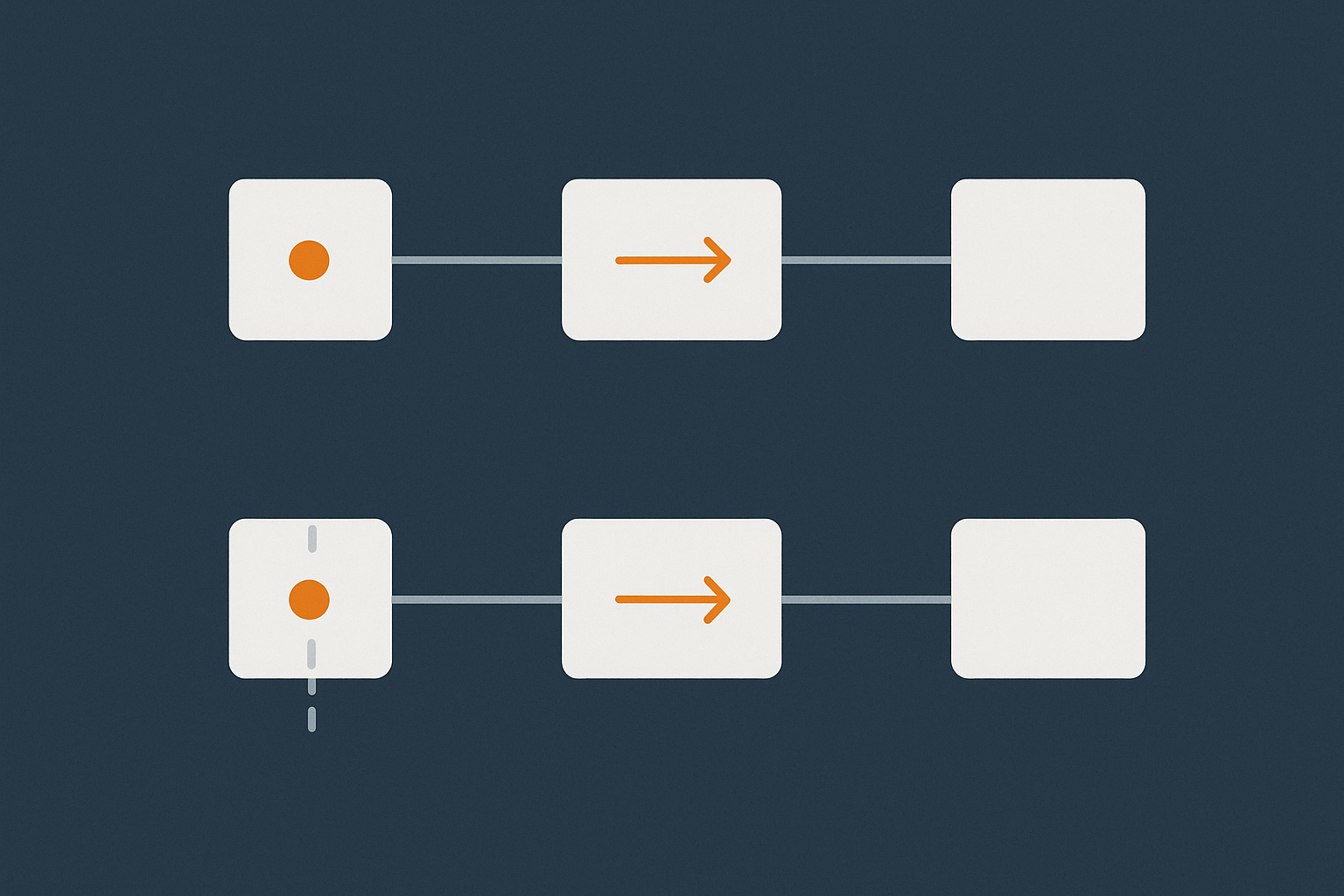
WP-Cron vs real server cron
WP-Cron is a PHP script that runs inside WordPress when triggered by an HTTP request. It checks the database for due tasks and runs them.
Real server cron is the operating system’s scheduler. It runs commands like php or curl at fixed times, regardless of traffic.
In practice:
- WP-Cron is easy to set up (it is on by default) but inherently unreliable.
- Real cron takes a few minutes to configure but is predictable and works even at 3am when nobody is browsing the site.
Traffic, caching and hosting quirks that break WP-Cron
Several common factors interfere with WP-Cron:
- Low traffic sites may not trigger cron frequently enough, which is a problem for subscriptions or membership sites.
- Aggressive full-page caching or a CDN can serve cached pages without hitting PHP, so WP-Cron never fires.
- Disabled loopback requests or blocked localhost connections prevent WordPress triggering its own cron URL.
- Poor hosting configuration can restrict PHP processes or kill long-running cron tasks.
With web hosting performance features tuned for WordPress, a host can balance caching with reliable cron. Some platforms, including the G7 Acceleration Network, also filter abusive bots and non-human traffic before it hits PHP, which keeps background tasks running more predictably during busy times.
WooCommerce’s Action Scheduler on top of WP-Cron
WooCommerce adds another layer called Action Scheduler. This powers:
- subscription and membership renewals
- stock sync and external feeds
- background order processing and clean ups
Action Scheduler itself depends on something calling its queue regularly. On most sites that “something” is still WP-Cron. If WP-Cron is unreliable, your WooCommerce scheduled actions become unreliable as well.
Step 1: Check Whether Cron Is Already Failing on Your Site

Quick checks inside WordPress and WooCommerce
Before changing anything, see how bad the problem is.
- In the WordPress admin, go to WooCommerce → Status → Scheduled Actions.
- Filter by Pending and sort by scheduled date.
You are looking for:
- a large number of overdue actions (scheduled in the past but still pending)
- many Failed actions, particularly for payments or renewals
- actions that only run every few hours or once a day when they are meant to run every few minutes
Look for “missed schedule” posts and stuck events
For content sites, check for posts that say “Missed schedule” in the Posts list. These are often caused by WP-Cron not firing at the right time.
If you want more visibility, you can install a cron viewer plugin that shows the underlying WordPress cron events. Look for events with past timestamps that are still waiting to run.
When to suspect a deeper hosting or performance issue
If scheduled actions are not just late but consistently failing with errors or timeouts, it may point to:
- insufficient CPU or memory
- PHP time limits that are too low for heavy tasks
- a slow or bloated database
In those cases, address performance as well as cron scheduling. There is a practical guide on troubleshooting high CPU and memory usage in WordPress that pairs well with the cron changes in this article.
Step 2: Disable the Built-In WP-Cron Safely
How to disable WP-Cron in wp-config.php
To move to real server cron, you do not want WP-Cron running on every page view. Disable it in wp-config.php.
- Connect via SFTP or your hosting file manager.
- Open
wp-config.phpin a text editor. - Find the line that says
/* That's all, stop editing! */. - Add this line just above it:
define( 'DISABLE_WP_CRON', true );
Save the file. This stops WordPress from triggering cron on page loads. Do not do this unless you also plan to add a real cron within the next few minutes.
Risks if you disable WP-Cron but do not add a real cron
If you disable WP-Cron and forget to configure a system cron job:
- no scheduled posts will publish
- WooCommerce scheduled actions will stall
- subscriptions, renewals, and background cleanups will stop
Treat this as a two-part change: disable WP-Cron, then immediately add a real cron job.
Good practice: test on staging first
If your site is busy, use a staging copy to test cron changes before touching live. Many managed platforms, including managed WordPress hosting with G7Cloud, include one-click staging specifically for this type of work.
For a safe, step-by-step staging workflow, see the guide on using staging sites with WordPress and WooCommerce.
Step 3: Add a Real Server Cron Job for WordPress

The basic cron command you need
The goal is to run wp-cron.php on a fixed schedule using the server’s cron.
There are two common approaches:
- PHP CLI (recommended on most modern hosting):
/usr/bin/php -q /home/USERNAME/public_html/wp-cron.php >/dev/null 2>&1
- HTTP call using
curlorwget(use if CLI is unavailable):
curl -s https://example.com/wp-cron.php?doing_wp_cron >/dev/null 2>&1
PHP CLI avoids web server limits and caching issues, and it does not tie cron to your public URL, so it is usually more reliable.
Example setups on common hosting environments
cPanel and shared hosting
On standard cPanel hosting:
- Log in to cPanel and open Cron Jobs.
- Under “Add New Cron Job”, choose “Every 5 minutes” from the common settings menu.
- In the Command box, enter something like:
/usr/local/bin/php -q /home/USERNAME/public_html/wp-cron.php >/dev/null 2>&1
Adjust the path to PHP and your home directory to match your server. Your host’s documentation usually lists the correct PHP path.
VPS, VDS and dedicated servers with crontab
On a VPS, virtual dedicated or dedicated server where you have SSH access:
- SSH into the server.
- Run
crontab -eas the site’s user. - Add a line like this for an every-5-minutes schedule:
*/5 * * * * /usr/bin/php -q /var/www/example.com/public_html/wp-cron.php >/dev/null 2>&1
Check that:
- the path to
phpis correct (which phpwill show it) - the path to
wp-cron.phpmatches your document root - file and directory permissions allow the user to read and execute what is needed
Choosing a sensible schedule for WordPress vs busy WooCommerce
For most WordPress sites, and many small shops, running cron every 5 minutes is enough.
- For a brochure site or blog, 5–15 minutes is usually fine.
- For a typical WooCommerce store with regular orders, 5 minutes is a good baseline.
- For very busy or subscription-heavy shops, consider every minute during core trading hours.
More frequent cron runs increase background CPU usage. If your server is already near its limits, you may need to keep cron at 5-minute intervals, optimise plugins, or consider moving heavier workloads to more capable virtual dedicated servers.
Step 4: Make Sure Cron Is Actually Running (Verification & Troubleshooting)
Check WooCommerce scheduled actions after a few hours
A few hours after enabling real cron, revisit WooCommerce → Status → Scheduled Actions.
You should see:
- the pending queue steadily clearing, with few or no overdue actions
- new actions being created and completed in line with your schedule (for example within a few minutes)
- failed actions only where there are genuine issues such as declined cards
Check logs or email outputs from cron
During initial setup, it is useful to capture cron output instead of discarding it. For example:
*/5 * * * * /usr/bin/php -q /path/to/wp-cron.php >/var/log/wp-cron.log 2>&1
After a few hours, inspect /var/log/wp-cron.log for PHP errors, timeouts or fatal errors from plugins. Once you are happy things are stable, you can switch back to >/dev/null 2>&1 to stop the log from growing indefinitely.
Common problems and quick fixes
Wrong PHP path or version
If cron is not running at all, the most common mistake is an incorrect PHP path.
- Run
which phpover SSH to find the correct CLI path. - Check with
php -vthat you are using the same PHP major version as your web server. - Update the cron job command accordingly.
Timeouts and heavy plugins
If your cron log shows timeouts or memory errors, one or more plugins may be doing too much in scheduled tasks. Common culprits include:
- bulk email or newsletter plugins
- heavy reporting or analytics jobs
- large feed generators and imports
Options include:
- increasing PHP max execution time just for CLI if your host allows it
- splitting large jobs into smaller batches where the plugin supports this
- offloading heavy work to an external service
- working with your host or moving to specialist WooCommerce hosting that is tuned for busy queues
WooCommerce-Specific Cron Tasks You Really Do Not Want To Miss

Stock sync, feeds and background imports
Many UK retailers rely on cron for:
- syncing stock with EPOS or warehouse systems
- keeping Google Shopping or marketplace feeds up to date
- importing new products from suppliers overnight
If cron is unreliable, you can easily over-sell out-of-stock items or serve price and stock data that does not match reality. That quickly leads to cancellations, returns and support workload. For more detail on these scenarios, see the guide on keeping WooCommerce product feeds and stock in sync.
Order emails, refunds and subscription renewals
WooCommerce defers many email and subscription tasks to cron. When those jobs do not fire:
- customers do not receive order confirmations or shipping updates
- refund confirmations and credit notes may be delayed
- subscriptions stay active when they should cancel, or payments never retry
This affects both cash flow and customer trust. Reliable cron is essential, not optional, when you run subscriptions or high order volumes.
Background cleanups that keep performance stable
WooCommerce stores sessions, carts, logs and temporary data in the database. Scheduled tasks gradually clear this out. When cron is broken, these tables grow indefinitely, queries slow down and page loads suffer.
Keeping cron reliable, and the database lean, is one of the easiest ways to keep a WooCommerce site responsive over the long term.
Reducing Cron Load: Keeping Scheduled Tasks Fast and Lightweight
Audit heavy plugins and scheduled tasks
Use the Scheduled Actions screen to identify:
- actions that run very frequently and take a long time
- plugins that schedule large numbers of background jobs
If a plugin is filling the queue with tasks every minute, look for settings to reduce frequency, batch sizes or logging. In some cases, replacing a particularly heavy plugin with a leaner alternative is the best fix.
Keep the database tidy so cron queries stay fast
Cron often has to scan tables such as:
wp_postsandwp_postmetafor orders and subscriptionswp_optionsfor transients and settings- Action Scheduler tables for the task queue
Even small cleanups like pruning old sessions and logs, and removing expired transients, can significantly reduce cron run times. If you are on managed hosting, there is usually a safe way to run these jobs regularly, as covered in the guide on cleaning and optimising a bloated WordPress database.
Why good hosting and server-level optimisation still matter
Even with perfect cron configuration, a weak or misconfigured server can still cause missed tasks.
- Slow disks or overloaded databases make every task slower.
- Lack of PHP workers means background work competes with visitors.
- Bad bots can chew through CPU and I/O, leaving less for scheduled jobs.
Platforms that combine tuned PHP, appropriate caching and effective bot filtering, such as the G7 Acceleration Network, help by filtering abusive crawl traffic before it reaches PHP or the database. That keeps cron run times more consistent, especially on busy WooCommerce sites.
Hosting and Platform Choices That Make Cron More Reliable
Benefits of managed WordPress and WooCommerce hosting for cron
On unmanaged hosting you are responsible for:
- setting up and maintaining cron jobs
- monitoring task queues for backlogs
- adjusting PHP and database settings as your store grows
With managed WordPress hosting or specialist WooCommerce hosting, the provider typically:
- configures real server cron by default
- monitors server health so tasks do not silently fail
- helps diagnose plugin-level cron issues when you get stuck
How G7Cloud handles cron on managed WordPress and WooCommerce
On managed WordPress and WooCommerce plans, G7Cloud uses real system cron rather than relying on WP-Cron being triggered by visitors. That gives a predictable baseline for scheduled posts and WooCommerce actions.
In addition, the G7 Acceleration Network sits in front of sites to filter abusive bots and non-human traffic before it hits PHP or MySQL. By cutting out this wasted load, background tasks such as Action Scheduler queues are less likely to be delayed during peak periods.
When you might need a dedicated or virtual dedicated server
A standard plan, even if well managed, is not always enough. You may need a VPS or virtual dedicated servers if you have:
- very high order volumes and busy subscription queues
- large catalogues with tens of thousands of products
- complex imports and exports running many times a day
- multi-site setups, or multiple shops, sharing the same server
In those cases you can give cron its own resources, use higher PHP limits and tune MySQL specifically for your workload.
Summary: A Simple, Robust Cron Setup You Can Rely On
The minimal reliable setup in three steps
For most WordPress and WooCommerce sites, a solid cron setup looks like this:
- Disable WP-Cron by setting
DISABLE_WP_CRONinwp-config.php. - Add a real server cron job that calls
wp-cron.phpevery 5 minutes (or every minute for very busy shops). - Verify regularly using WooCommerce Scheduled Actions and occasional log checks.
When to ask your host to review or take over cron management
If you are not comfortable editing wp-config.php or crontabs, or you have already hit scaling limits, it is reasonable to ask your host to help or to take this over entirely.
For many UK businesses, moving to managed WordPress hosting or specialist WooCommerce hosting is less about raw speed and more about dependable background operations: cron jobs that run on time, stock feeds that stay accurate, and subscriptions that renew without manual chasing. If that sounds like the kind of reliability you need, it is worth exploring options that include real server cron and a performance layer like the G7 Acceleration Network as standard.