

Who This Staging Guide Is For (And What You Will Avoid Breaking)
Typical situations where you need a staging site
Staging sites are useful whenever changing the live site feels even slightly risky. Typical cases include:
- Running WordPress core, plugin or theme updates on a busy WooCommerce shop.
- Switching themes or page builders, or redesigning key templates.
- Installing new plugins such as booking systems, memberships or SEO tools.
- Changing payment gateways or shipping calculators.
- Upgrading PHP or switching hosting.
- Cleaning up slow sites: removing old plugins, adjusting caching or security rules.
If any change could affect orders, logins or search visibility, it should go through staging first.
What a staging site actually is in plain English
A staging site is a copy of your live WordPress or WooCommerce site, in a separate environment, where you can safely break things without affecting real visitors.
In practice, it is:
- The same code and plugins as live.
- Its own database with its own URL, for example
staging.example.com. - Hidden behind a password or other protection so the public and search engines cannot see it.
You test changes on staging, then move only the good changes back to live using a safe process.
The main risks: lost orders, broken logins and SEO surprises
Using staging incorrectly can cause real damage. The main risks are:
- Lost orders or stock mismatches: overwriting the live WooCommerce database with an older staging copy can remove recent orders or reset stock levels.
- Broken logins: users unable to sign in because of changed roles, membership rules or single sign on integrations.
- SEO problems: search engines indexing your staging URL, or live SEO settings being overwritten with staging values.
- Confused customers: test emails or payment attempts accidentally going to real customers or live gateways.
This guide focuses on avoiding those outcomes while still getting the benefits of safe testing.
Staging Basics: How Cloning Works for WordPress and WooCommerce
Files vs database: what needs to be copied
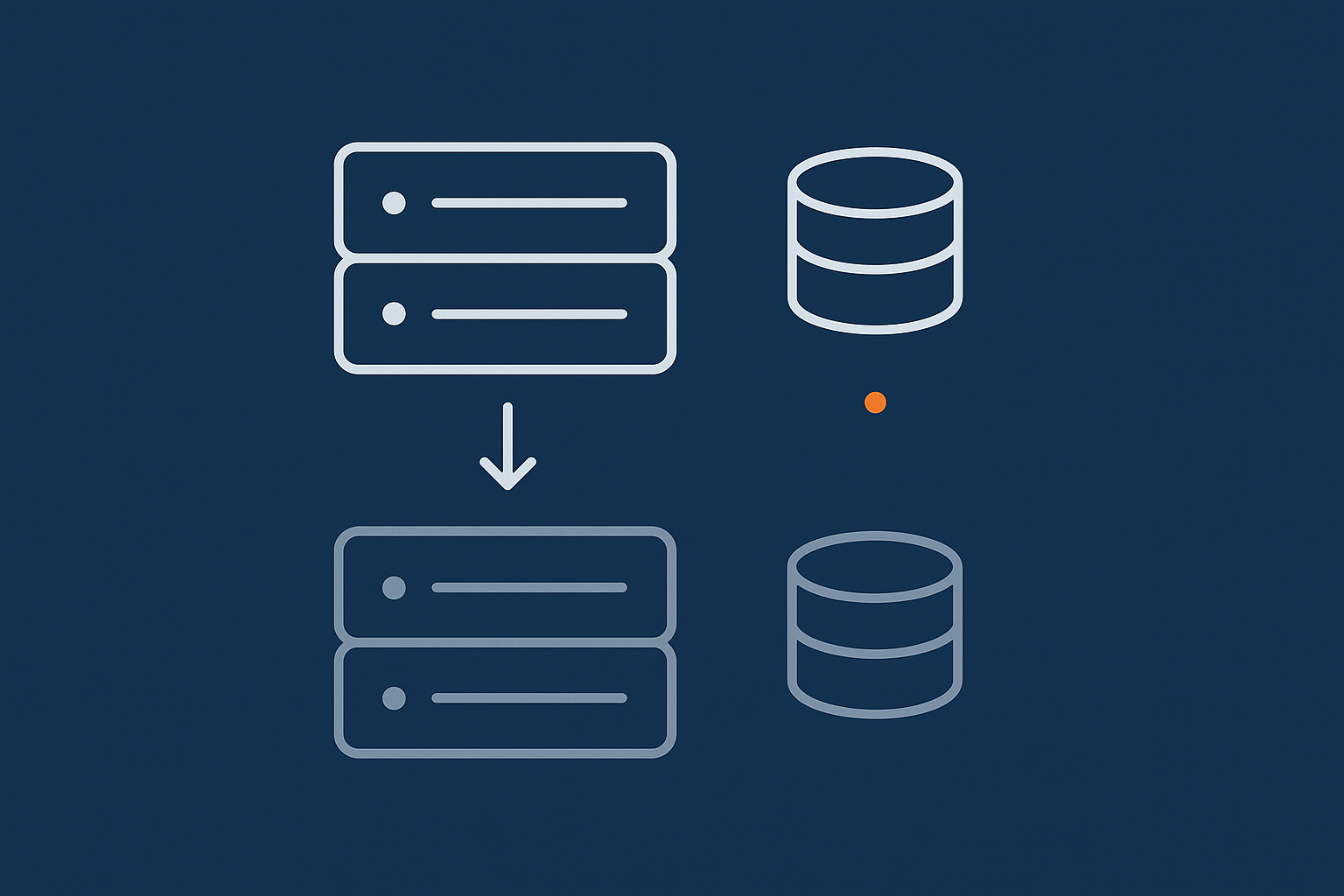
A WordPress site has two main parts:
- Files: WordPress core, themes, plugins and uploaded media in
wp-content/uploads. - Database: content and settings, including pages, posts, products, orders, users, menus and most plugin configuration.
A proper staging clone copies both:
- All files from the live site to the staging site.
- The entire database from live into a new staging database.
On some managed WordPress hosting plans, the control panel handles this with a single “create staging” action.
URL changes, search and replace, and why hard coded links matter
Your live site might use https://www.example.com. The staging site will normally use a different domain such as https://staging.example.com or a temporary URL.
WordPress stores the site URL in the database and may embed it in:
- Page and post content.
- Menu items, widgets and custom fields.
- Serialised options for themes and plugins.
When cloning, you must update all occurrences of the live URL to the staging URL. Good staging tools handle this search and replace (including serialised data). Manual clones often rely on tools like WP-CLI or plugins such as Better Search Replace.
If you have hard coded URLs in theme files or custom code, they will still point to live, which can cause strange behaviour such as forms submitting to the wrong site. It is worth reviewing custom code to ensure URLs are generated dynamically using WordPress functions such as home_url() and site_url().
Common ways to create a staging copy: host tools, plugins and manual clones
There are three main approaches:
- Hosting staging tools
Many providers, including managed WordPress hosting with G7Cloud, offer one click staging. These typically:- Clone files and database.
- Adjust URLs for staging.
- Give you separate SFTP, database and a staging URL.
- Include push/pull tools for moving changes.
This is usually the safest and quickest route.
- Staging / migration plugins
Tools like migration plugins can create a clone on a subdomain or another server. You still need to handle basic security (password protection, robots rules) and be careful when pushing changes back. - Manual clones
For technically confident teams:- Copy files to a new directory or server.
- Create a new database and import a dump from live.
- Edit
wp-config.phpwith the new database credentials. - Run a search and replace on the database for the staging URL.
- Configure web server, SSL and protection.
This gives full control but is error prone if rushed.
Creating a Safe Staging Site: Step by Step
Decide what you are testing: layout, features or full upgrade
Start by defining the purpose of this staging round. Three common categories:
- Layout and content: design tweaks, new landing pages, navigation changes.
- Feature changes: new plugins, checkout flows, membership logic, search.
- Full upgrades: major theme switch, WooCommerce version upgrades, PHP changes.
The more intrusive the change, the more thorough your testing and deployment plan needs to be. For a simple content refresh, you might not need to move any database changes back, whereas a theme rebuild will require a careful deployment strategy.
Create the clone without interrupting the live site
When you create the staging copy:
- Avoid putting the live site into maintenance mode just to clone it. Good tools work on a snapshot while live keeps running.
- Take a fresh backup first, especially for busy WooCommerce shops.
- Note the time of the clone. For WooCommerce, this matters when later reconciling orders and stock.
If you are on shared hosting with no staging tools, consider whether this is the right time to move to WooCommerce hosting for busy shops that includes safe staging workflows.
Protect staging from visitors, search engines and bots
A safe staging site must not be visible to the public or indexed by search engines. To achieve that:
- Password protect the staging site at the web server level using HTTP authentication or similar. Anyone visiting sees a login prompt before the site loads.
- Block indexing:
- Set “Discourage search engines from indexing this site” in Settings → Reading.
- Add
Disallow: /torobots.txtfor staging.
- Use environment specific analytics so testing traffic does not pollute real metrics. Many sites simply disable Google Analytics on staging via environment checks.
Bad bots can still waste resources, even on staging. Using bot filtering such as the protection built into the G7 Acceleration Network means abusive and non human traffic is filtered before it hits PHP or the database, which keeps staging and live responsive even during busy periods.
Locking down emails, payments and third party integrations on staging
On staging, you usually want all “real world” effects disabled. Key points:
- Emails:
- Use an email logging plugin configured not to send, or route all emails to a single test address.
- Change WooCommerce email recipients to internal addresses.
- Payments:
- Switch gateways (Stripe, PayPal, etc.) to their sandbox / test modes.
- Use sandbox API keys that are clearly labelled and stored via environment variables where possible.
- Visibly mark the site as “staging” in the admin bar and footer so staff do not confuse it with live.
- Third party integrations such as CRMs, mailing lists, ERP systems:
- Point staging at test accounts or disable the integration.
- Disable webhooks that would add or change data in external systems based on test orders or signups.
Special Considerations for WooCommerce Staging
Why WooCommerce is different from a simple brochure site
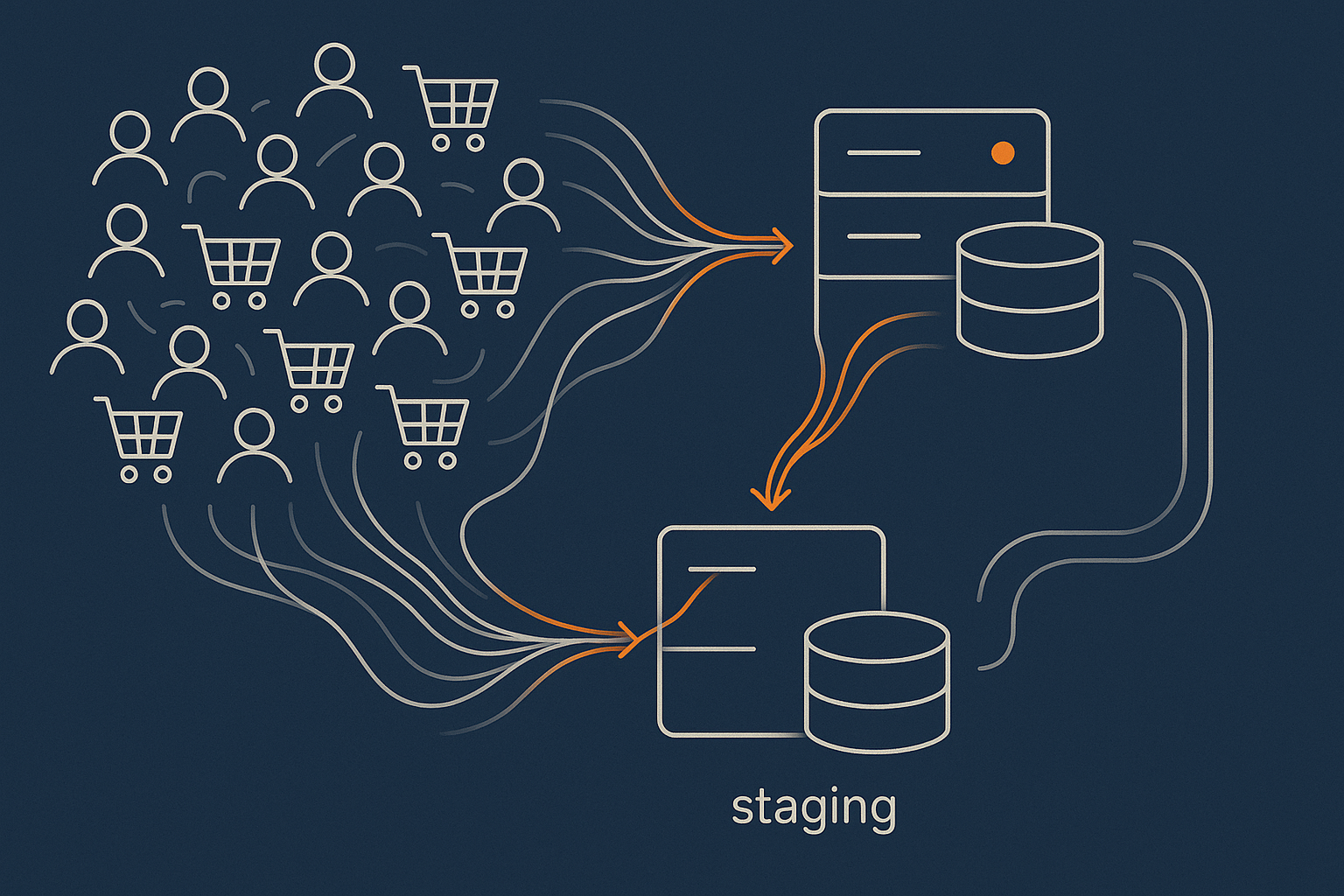
WooCommerce sites are dynamic and transactional. Every minute, customers may:
- Place new orders.
- Create or update accounts.
- Change addresses and preferences.
- Trigger stock adjustments.
On a brochure site, you can often copy the staging database over live without issues. On an active store, that would overwrite real-time data with older data. This is the core risk to manage with WooCommerce staging.
Handling orders, stock and customer accounts between live and staging
To keep data consistent:
- Treat the live database as the source of truth for orders, stock and customer accounts.
- Avoid pushing the entire staging database over live once customers have been using the site.
- If you must replace the database (for example, a big rebuild), use a short maintenance window and ensure no orders are processed during that time.
For ongoing development, a common pattern is:
- Clone live to staging.
- Apply code and configuration changes on staging.
- Replicate only the required settings or structural changes back to live, not transactional data.
Plugins exist that try to selectively sync orders, products or settings between environments, but they have limits and edge cases. For complex stores, you may want to follow a more detailed process like the one described in the article on moving a WooCommerce store to a new host without losing orders or stock, as many of the same principles apply to staging synchronisation.
Safe payment gateway and webhook setup on staging
When using payment gateways on staging:
- Use the gateway’s dedicated test environment and API keys.
- Make sure webhook endpoints for test keys point to the staging URL, not live.
- Label test cards clearly in your team documentation to avoid confusion.
- After testing, double check that no test webhooks or credentials remain on live.
For integrations like fulfilment systems or CRMs that use webhooks, consider separate staging endpoints or temporarily disabling them on staging to avoid cluttering live systems with test data.
What To Test On Staging Before You Touch Live
Core, plugin and theme updates
Updates are one of the main reasons staging exists. A practical approach:
- On staging, run WordPress core, theme and plugin updates in small batches rather than “update all”.
- After each batch, clear caches and check:
- Dashboard access and user roles.
- Product pages, cart and checkout.
- Key plugins such as SEO, caching, security and page builders.
- Only once you are comfortable on staging, apply the same updates on live, ideally outside peak hours.
If you want a fuller routine around this, the guide on making WordPress updates safe when you do not have a dev team pairs well with using staging.
Performance, caching and frontend behaviour
Staging is a good place to test:
- Page cache rules and exclusions for cart, checkout and account pages.
- Object caching behaviour.
- Frontend scripts and CSS loading, including any deferral or concatenation tweaks.
If you use a CDN or edge caching layer such as the G7 Acceleration Network, configure staging so its cache rules and security headers match live as closely as possible. The same network can also convert images to modern AVIF and WebP formats on the fly for both staging and live, usually cutting image file sizes by over 60 percent with no plugin changes inside WordPress.
Critical user journeys: checkout, forms, logins and search
Define a short list of “must work” paths and run through them after each major change:
- Anonymous user:
- Browse categories and product filters.
- Add products to cart, update quantities and remove items.
- Guest checkout using a test card in sandbox mode.
- Logged in customer:
- Register a new account.
- Place an order while logged in.
- View order history, addresses and account details.
- Admin / staff:
- Process a test refund.
- Change product stock and pricing.
- Update order statuses.
- Site wide:
- Global search results and filters.
- Contact forms and newsletter signups.
Logs and error monitoring: catching problems early
Silent errors on staging are easy to miss. To spot them:
- Enable
WP_DEBUG_LOGinwp-config.phpon staging, but not necessarily on live. - Check your hosting error logs after testing sessions.
- Consider adding a logging plugin or external service that captures PHP errors, JavaScript errors and slow queries.
For WooCommerce shops that depend on reliable uptime and conversions, it is worth pairing staging with structured logging and monitoring across environments. The guide on logging and error monitoring for WordPress and WooCommerce gives practical setups you can adapt.
Pushing Changes Live Safely: Strategies That Actually Work
Why you cannot just copy the staging database over a busy WooCommerce store
If you replace the live database with the staging database after customers have used the site, anything that happened in the meantime is lost. That includes:
- Orders and payment records.
- Stock changes and reservations.
- New customer accounts and profile updates.
- Content edits by staff that were made directly on live.
For low traffic brochure sites, a database overwrite might be acceptable if the site stays in maintenance mode during the switch. For active WooCommerce stores, it is rarely safe unless you plan a controlled content freeze and short maintenance window.
Approach 1: File only deploys with careful database changes
The safest default for many stores is:
- Use staging to develop and test code changes only:
- Themes and child themes.
- Custom plugins or mu-plugins.
- Configuration files.
- Deploy those code changes to live using:
- Git or other version control tools.
- Hosting deployment features.
- SFTP / SSH in a controlled way, avoiding ad-hoc edits in production.
- Reapply important database level settings manually in live:
- WooCommerce settings pages.
- Plugin configuration screens.
- Menu and widget changes if necessary.
This approach takes a bit more discipline but avoids overwriting any live orders or customer data. For a deeper look at structured deployments, the article on setting up safe, testable deployments on managed hosting is a good next step.
Approach 2: Maintenance window with content freeze
For larger structural changes that require database work, for example:
- Switching a shop from one theme framework to another.
- Installing a major new membership or subscription plugin.
- Rebuilding product structures or taxonomies.
A controlled maintenance window can be appropriate:
- Pick a quiet time based on analytics.
- Announce a short maintenance period to customers.
- Place the live site into maintenance mode and prevent new orders or logins.
- Take a fresh backup of live.
- Apply the tested database and file changes from staging to live.
- Run your critical path tests on live.
- Remove maintenance mode.
This reduces, but does not completely remove, the risk of data drift between environments.
Approach 3: Granular or selective sync tools (and their limits)
Some staging systems and plugins offer “selective sync”, for example:
- Push only media library changes.
- Sync only theme and plugin files.
- Deploy only certain database tables.
These can be useful, but you must understand what lives in which tables. For example, WooCommerce orders live in different tables from products and settings. Accidentally overwriting the wrong table can still lose data.
Always test your sync process on a non production copy first, and keep documented procedures so your team does not have to guess which options to tick each time.
Final pre‑live checklist before you switch traffic
Before you make changes live, run through a simple checklist:
- Backups:
- Full file and database backup of live taken within the last few minutes.
- Restore tested at least once in the past so you trust the process.
- Environment:
- Maintenance page or banner ready.
- Staff aware of the deployment window.
- Config:
- Sandbox keys removed; live API keys confirmed.
- Webhooks tested or queued for testing after deployment.
- Caching and any CDN layers ready to be cleared.
- Monitoring:
- Error logging active.
- Uptime monitoring pointed at the live URL.
Hosting Features That Make Staging Safer and Easier
Managed WordPress tools for one click cloning, staging URLs and backups
Running staging manually can work, but it is easier if your host provides:
- One click staging creation and deletion per site.
- Separate staging and production databases with clear labelling.
- Automatic URL replacement on clone.
- Automatic backups before pushes or major updates.
- Clear control over which direction you are syncing: live to staging or staging to live.
Providers of managed WordPress hosting with G7Cloud bundle these tools so you can focus on testing rather than wiring environments together.
How caching, bot protection and CDN style layers interact with staging
Caching layers and CDNs sit in front of your site and can sometimes hide issues if not configured consistently between staging and live. To reduce surprises:
- Ensure cart, checkout and account pages are excluded from page caching in both environments.
- Use similar caching rules and security headers across staging and live, with only minor differences where necessary.
- Clear caches after deployments so visitors see the latest code and layout.
Using the G7 Acceleration Network with staging and live for consistent behaviour
A network layer such as the G7 Acceleration Network can sit in front of both staging and live, providing consistent caching, image optimisation and security policies. Its built-in bot protection filters abusive and non human traffic before it hits PHP or the database, which reduces wasted server load and keeps response times steadier during heavy traffic or attacks.
When you have grown out of shared hosting for serious staging and deployments
If any of the following are true, it may be time to outgrow basic shared hosting:
- Deployments require long manual checklists and FTP uploads.
- Staging copies fail, time out or share resources with noisy neighbours.
- Backups are unreliable or hard to restore quickly.
- Performance drops sharply whenever traffic spikes or bots crawl aggressively.
Stepping up to a platform built around WordPress and WooCommerce, with dedicated staging and deployment features, usually costs more than commodity hosting but reduces the risk and time spent firefighting.
A Simple, Repeatable Staging Workflow You Can Follow
Putting it all together: from idea to tested live change
A practical, repeatable workflow for most UK businesses:
- Plan the change and decide what must be tested.
- Create or refresh your staging site from live.
- Lock down staging (password, no indexing, sandbox payments, safe emails).
- Implement the changes on staging.
- Test:
- Core flows (browse, cart, checkout, account, forms).
- Performance and caching behaviour.
- Logs and error reports.
- Prepare live:
- Schedule a quiet deployment window.
- Take fresh backups.
- Warn internal stakeholders.
- Deploy using the safest method that fits your change:
- File only deployments for most work.
- Maintenance window and content freeze for major structural changes.
- Verify on live with your critical path checklist.
- Monitor logs, performance and support channels for a few hours.
Where staging fits into your wider maintenance and update routine
Staging works best as an ongoing habit, not an occasional emergency tool. Many SMEs find a rhythm such as:
- Monthly or quarterly:
- Pull a fresh staging copy.
- Test batches of updates and small improvements.
- Deploy safely.
- Before seasonal peaks:
- Run through your full test suite.
- Confirm performance and caching.
- Check payment flows and third party integrations.
This fits naturally into a broader maintenance routine such as the one outlined in the guide to day to day WordPress maintenance for UK SMEs.
When to ask your host to handle staging and deployments for you
If your team is small or you would rather focus on the business than the technical process, it can be worth asking your host to manage staging and deployments as a service. Some providers bundle this into a hassle free WordPress maintenance service, where updates, staging tests and safe rollouts are handled for you according to an agreed schedule.
If you recognise that you need safer, more predictable changes but are not ready to build a full internal deployment workflow, exploring managed WordPress hosting with G7Cloud and the G7 Acceleration Network is a practical next step. It can give you reliable staging tools, performance tuning and bot protection, while leaving your team to focus on content, customers and growth.