How to Safely Prune Old Orders, Logs and Sessions in WooCommerce (Without Breaking Tax, Accounts or Repeat Customers)
Who This Guide Is For (And What You Will Safely Clean Up)
This guide is for UK businesses running WooCommerce who have traded for a few years and now feel the weight of history.
Common patterns:
- WooCommerce reports timing out or taking 30 seconds to load.
- Order search in wp-admin is painfully slow.
- Database size alarms from your host, or backups that have begun to fail.
- Accountants worrying that “IT” will delete records they need for HMRC or VAT.
Typical problems: slow reports, huge databases, nervous accountants
As order volume grows, so does everything around it: logs, sessions, analytics tables, transients and plugin data. The result is often:
- Slow admin order screens and reports, especially for multi-year date ranges.
- Inflated hosting costs because your database volume has crept upwards.
- Unreliable tasks such as scheduled exports and subscriptions, because the database is overloaded.
Meanwhile, finance and compliance teams need you to:
- Keep accurate records for at least 6 years for UK tax (often longer in the EU).
- Match WooCommerce orders with accounting software, invoices and payment gateway reports.
- Handle refunds, chargebacks and warranty claims for older orders.
So you need to clean up without breaking tax records, financial reporting or repeat customer journeys.
What you will be able to decide by the end
By the end of this guide you should be able to:
- Identify which WooCommerce data is essential for tax and accounts, and which is not.
- Choose safe pruning rules for orders, logs, sessions and analytics tables.
- Agree a defensible retention policy with finance/compliance.
- Automate regular cleanups with cron and monitoring.
- Know when you have outgrown DIY and need managed WooCommerce hosting or database help.
If you also want broader database context, you may find it useful to read our guide on safely trimming a large WordPress or WooCommerce database alongside this article.
What You Can and Cannot Safely Delete in WooCommerce

Key WooCommerce data types in plain English
At a high level, your store contains:
- Orders (posts and post meta): order totals, tax, shipping, customer details, status.
- Order items: line items, taxes, shipping lines and fees linked to each order.
- Customers (users and user meta): login accounts, addresses, preferences.
- Sessions: shopping basket and session data in
wp_woocommerce_sessions. - Logs: gateway logs, webhook logs, error logs in various tables (for example
wp_wc_logs, plugin-specific tables, filesystem logs). - Analytics and reports: WooCommerce analytics tables like
wp_wc_order_stats,wp_wc_customer_lookupand similar. - Transients and cache: temporary cached data in
wp_optionsand other tables.
The safest approach is to think in three groups:
- Must keep: orders and financial data needed for tax and accounting.
- Can anonymise: personal data in orders that are no longer needed for customer service.
- Safe to prune: expired sessions, transients, old logs and redundant analytics.
What must be retained for tax and accounting
In practice, you should assume that these need to be retained for at least your required tax period (often 6 years in the UK):
- Order totals and line items.
- VAT amounts and VAT rates applied.
- Order dates, payment methods and statuses.
- Refunds, partial refunds and associated notes.
If you are exporting orders into accounting software, those exports become part of your accounting records. However, for troubleshooting and reconciliation, it is usually safer to keep matching order-level records in WooCommerce for the same retention period, even if you anonymise some personal details.
Data that can usually be trimmed: transient cache, expired sessions, old logs
Data that is normally safe to prune on a regular basis includes:
- Expired sessions in
wp_woocommerce_sessions. - WooCommerce transients and expired cache rows in
wp_options. - Old log entries from gateways and webhooks beyond your agreed log retention window.
- Analytics and lookup tables that can be regenerated from core order data, if needed.
Be more careful with plugin-specific tables for subscriptions, memberships or custom fulfilment workflows. Some of these are functional, not just historical, so confirm what they do before pruning them.
Legal, Tax and Accounting Considerations Before You Touch Anything
Typical tax record retention requirements in the UK and EU
In the UK, HMRC generally expects you to keep VAT records and supporting documentation for at least 6 years. Several EU countries have similar or longer requirements. Orders in WooCommerce count as part of those records if you rely on them for:
- VAT calculations or cross-checks.
- Sales and revenue reporting.
- Evidence to support invoices issued through your accounting system.
Accounting records are broader than just WooCommerce. They include invoices in your accounting platform, bank statements and gateway statements. Still, deleting underlying WooCommerce data too early can make it harder to evidence how those records arose if you are ever audited.
How order data links to your accounting system or invoices
Map the flow of data for a typical order:
- Customer places an order in WooCommerce.
- Payment gateway processes the card/PayPal/payment.
- Order is exported or synced into accounting software (such as Xero or QuickBooks).
- An invoice is created, often using data originally entered in WooCommerce.
Ask your accountant:
- Which system they rely on as the “source of truth” for revenue and VAT.
- How often they export or reconcile WooCommerce orders.
- What they would need from WooCommerce if something looked wrong a year from now.
Reconciling payment gateway records, refunds and chargebacks
Payment gateways keep their own records, including failed payments and chargebacks. Before pruning older incomplete orders, check:
- How long your gateway keeps detailed logs and downloadable statements.
- Whether your accounting team ever uses WooCommerce to investigate gateway discrepancies.
- Whether chargebacks are handled through WooCommerce refunds or only at gateway/bank level.
Keep enough order data to investigate disputes and replicate historical totals for at least the duration your gateway and accounting platform keep their own records.
Agreeing a retention policy with finance and compliance
Write down a simple policy that covers:
- How long you retain full order details in WooCommerce.
- When you anonymise personal data in older orders.
- How many months of detailed logs you keep for gateways and webhooks.
- How often you run pruning tasks and who is responsible.
This will make your pruning decisions far less stressful, particularly when staff change or you switch hosting providers.
Preparation: Backups, Staging and Basic Diagnostics
Confirm you have restorable backups before any pruning
Before altering large amounts of order or session data, verify that you can restore your database.
How to do a quick test restore (or ask your host to prove it)
Ideally, perform a test restore to a staging or temporary database:
- Ask your host to create a staging site from last night’s backup.
- Load the staging site and confirm that orders, customers and admin logins work.
- Time how long the restore took and note any issues.
If your provider offers hassle free WordPress and WooCommerce maintenance, they should be able to demonstrate point-in-time restores and advise on rollback plans for data pruning tasks.
Use a staging site to test your pruning rules
Never test large deletions or anonymisation on your live store first.
Copying production data safely and sanitising if needed
For staging:
- Clone the live database so it includes real orders, logs and sessions.
- If you need to share access with external developers, consider sanitising sensitive personal data first (for example, masking email addresses or postcodes).
- Disable outbound emails and payment gateways so test orders do not hit real customers or accounts.
Identify what is actually taking space: orders vs logs vs sessions
Using plugins or database tools to see table sizes
Use tools that show table sizes by name, such as:
- Your hosting control panel’s database viewer (for example phpMyAdmin or Adminer).
- Database inspection plugins designed for WooCommerce.
Look for unusually large tables such as:
wp_woocommerce_sessionswp_wc_order_stats,wp_wc_order_product_lookupwp_actionscheduler_actionsand logs for scheduled tasks- Plugin-specific tables with “log”, “history” or “analytics” in the name.
Recognising when hosting or database size is the real bottleneck
If tables are reasonably sized but admin queries are still slow, the problem may be:
- Inadequate database resources on your hosting plan.
- Missing or poor indexes on custom tables.
- High read/write concurrency because of busy cron jobs, bots or background imports.
In those cases, pruning alone will not fix performance. Our guide on WooCommerce hosting bottlenecks you can fix without changing provider can help you distinguish between data volume problems and resource or configuration issues.
Safe Strategies for Pruning Old Orders (Without Breaking History)

Option 1: Reduce application-level noise before deleting anything
Archive vs delete: changing order lists and customer views
Before deleting old orders, consider whether the main problem is simply noise in the admin interface. You can:
- Use custom views or filters to only show recent orders to staff.
- Limit the default date range in reports and dashboards.
- Adopt an “archive” concept, where older orders remain in the database but are excluded from day-to-day screens.
This keeps your data for tax and historical analysis, but makes the admin area more manageable.
Limiting how far back admin listings and reports query
Encourage staff to:
- Filter orders by date when running reports.
- Avoid “All time” reports for busy stores.
- Use order search or customer email search instead of scrolling through thousands of entries.
In some cases, custom code or plugins can impose sensible limits on default queries, avoiding huge unbounded database requests that slow everything down.
Option 2: Anonymise personal data while keeping order records
How WooCommerce personal data erasure works
WooCommerce has built-in privacy tools that work with WordPress’ personal data export and erasure system. You can configure retention periods and then:
- Erase or anonymise personal data for specific customers on request.
- Schedule automatic personal data cleanup after a certain period.
You will find these settings under WooCommerce → Settings → Accounts & Privacy. This approach allows you to keep the financial parts of orders (totals, tax, items) while reducing the amount of personal data you store for older customers.
Choosing fields to anonymise so repeat customers still match
If you sell products that people regularly reorder, you may want to:
- Keep email addresses long enough to support repeat logins and loyalty schemes.
- Retain basic address data where needed for long warranties or subscriptions.
- Anonymise non-essential fields such as phone numbers or order notes once they are no longer required.
Test anonymisation on staging. Create a customer account, place a few orders, anonymise an older order and then check:
- What the customer still sees in “My Account”.
- Whether staff can still find the customer’s history when providing support.
Option 3: Export older orders to external storage, then prune in WooCommerce
Exporting orders to CSV or your accounting system
You can export orders out of WooCommerce using:
- Built-in WooCommerce CSV exporters.
- Report exports from the Analytics section.
- Dedicated export plugins that support scheduled exports and custom fields.
Many businesses adopt a pattern where, for example, orders older than 3 years are fully exported for archival and reporting, then pruned or anonymised within WooCommerce.
Verifying exports against a sample of payment gateway records
Before deleting anything after export:
- Pick a random month in the exported period.
- Compare order counts and totals against your payment gateway and accounting software for that month.
- Check a sample of individual orders end-to-end: WooCommerce → export → accounting → gateway.
This reduces the risk of subtle gaps that might otherwise only emerge years later.
Only then removing orders past a certain age or status
Once you are confident your exports are complete, you can remove or further anonymise orders beyond a defined age, such as:
- Completed and refunded orders older than 3–6 years, subject to your retention policy.
- Unpaid or failed orders older than 12–24 months, once reconciled with gateway records.
Run deletions in small batches on staging first, then on live during a quiet window.
Statuses and order ages that are usually safe to remove
Old cancelled, failed and pending payments
The safest candidates for deletion are usually:
- Failed orders that never completed payment.
- Cancelled orders where no fulfilment occurred.
- Pending orders that are months old with no payment captured.
These often represent abandoned baskets, declined cards or test attempts. Confirm with finance that they do not rely on these statuses for any reporting before bulk deleting them.
Partial data created by spambots and failed checkouts
Spam checkouts or bots can create many low-value records. If you see large numbers of orders with nonsensical names, disposable emails or incomplete details, it is usually safe to remove them, especially if they remain in pending or failed status after a reasonable period.
Here, hosting environment also matters. Where providers include bot filtering at the edge, such as the G7 Acceleration Network, abusive and non human traffic is filtered before it hits PHP or the database, which reduces the volume of junk orders and keeps server load and response times more stable.
Safely Cleaning Up WooCommerce Sessions, Transients and Logs
What WooCommerce sessions actually are and how they affect performance
User sessions vs wp_woocommerce_sessions rows
WooCommerce sessions store basket contents and some visitor data in the wp_woocommerce_sessions table. This is separate from WordPress user logins. Large or poorly pruned session tables can become a major source of database bloat.
Expiry and why old sessions are usually safe to remove
Sessions have expiry timestamps. Any session older than your configured session length is no longer needed for active customers. Deleting expired sessions does not log customers out, because login state is managed separately; it mainly affects abandoned baskets that are already stale.
Clearing expired sessions without kicking out active customers
Using built-in WooCommerce cleanup (Action Scheduler and WP-Cron)
By default, WooCommerce uses scheduled tasks to clean up expired sessions. These run via Action Scheduler and WordPress cron, which are triggered by site traffic. If cron is reliable and you have regular visitors, expired sessions should be periodically removed without manual intervention.
Manual cleanup on a quiet window if cron is unreliable
If wp_woocommerce_sessions has grown very large, or cron has been unreliable, you can:
- Trigger the session cleanup actions manually from the WooCommerce → Status → Scheduled Actions screen.
- Ask your host to run a direct database query that deletes rows where the expiry is older than now, during a quiet period.
- Fix cron long term (see our guide on WordPress cron jobs and WooCommerce) so that automated cleanups work again.
Pruning WooCommerce logs, webhooks logs and plugin-specific tables
Where logs live by default (status logs, gateways, integrations)
Common log locations include:
- WooCommerce logs in WooCommerce → Status → Logs, often stored as files.
- Payment gateway logs, either as files or dedicated tables.
- Webhook delivery logs and history tables for integrations.
- General PHP or error logs managed by the host.
Review your logging configuration and note which logs are essential for diagnosing current issues, and which are just historical noise.
Deciding how much log history you realistically need
Practical log retention windows might be:
- 30–90 days for detailed gateway and webhook logs, unless you are currently debugging problems.
- Longer for error logs if you are tracking intermittent issues.
Our guide on logging and error monitoring for WordPress and WooCommerce goes deeper into choosing sensible retention periods and log destinations.
Cleaning up transients and analytic tables
WooCommerce analytics tables and when they get too big
WooCommerce analytics tables improve reporting performance by pre-calculating metrics. Over time, they can become large, especially if orders are imported, modified or duplicated. In most cases, these tables can be regenerated from core order data using tools within WooCommerce Analytics.
Safe use of cleanup tools and why you should avoid generic “optimisers”
Use WooCommerce-aware tools for clearing transients and regenerating analytics tables. Avoid generic “database optimisation” plugins that blindly delete rows from wp_options, wp_posts or unknown tables, as they may remove data that WooCommerce or extensions rely on.
Well configured hosting with solid web hosting performance features helps here too, since the database server can better absorb analytics recalculations and cleanups without affecting customers.
Protecting Repeat Customers, Accounts and Subscriptions While Pruning
How customer accounts tie back to historical orders
What customers actually see in “My Account”
Customers typically expect to see:
- Recent orders and their status.
- Downloads for digital products.
- Active subscriptions or memberships.
- Addresses and saved payment methods.
Pruning old orders may remove items from this history. Decide whether that is acceptable, and if not, adjust your retention periods so that a reasonable history remains visible for regular customers.
Risks of deleting orders that power loyalty, warranties or subscriptions
Take extra care if:
- You run loyalty schemes that depend on lifetime spend or number of orders.
- You sell products with long warranties or regulatory traceability needs.
- You use WooCommerce Subscriptions or Memberships that reference original orders.
In these cases, consider anonymising personal details while keeping the structural order record intact, rather than deleting orders outright.
Choosing retention windows that respect your business model
Fast-moving retail vs long-lived B2B relationships
Some examples:
- Fast-moving B2C retail: you might keep full identifiable orders for 2–3 years, anonymised beyond that, and fully prune only after 6+ years.
- B2B with long contracts: you may need identifiable order history for 6+ years, especially if it affects contract performance, SLAs or audits.
There is no single correct window; the important thing is to align it with how you actually serve and support customers.
Subscription and membership sites: extra care points
Subscriptions often have long lifetimes and tie into renewal logic, access rights and proration. Before pruning:
- Check which tables the subscriptions plugin uses and how it references original orders.
- Verify that deleting a parent order will not break renewal payments or cancel access.
- Test subscription renewal, upgrade/downgrade and cancellation flows on staging after applying your pruning rules.
Testing key customer journeys after pruning
Repeat purchase, refunds and account area checks
On staging, simulate:
- A regular returning customer logging in, checking old orders and reordering a favourite product.
- A staff member issuing a refund for an order that is older than your normal support window.
- Subscription renewals and membership access where applicable.
What to sample manually before and after each pruning run
Before and after live pruning, sample:
- Admin orders screen performance and filters.
- Critical reports that finance runs monthly or quarterly.
- Customer account pages for a few test users and real staff accounts.
- Payment gateway integration tests (new orders, refunds, voids).
Document what you tested and any issues, so future runs can follow the same checklist.
Automating Pruning Safely: Schedules, Cron and Monitoring
Why you should treat pruning as a scheduled maintenance task
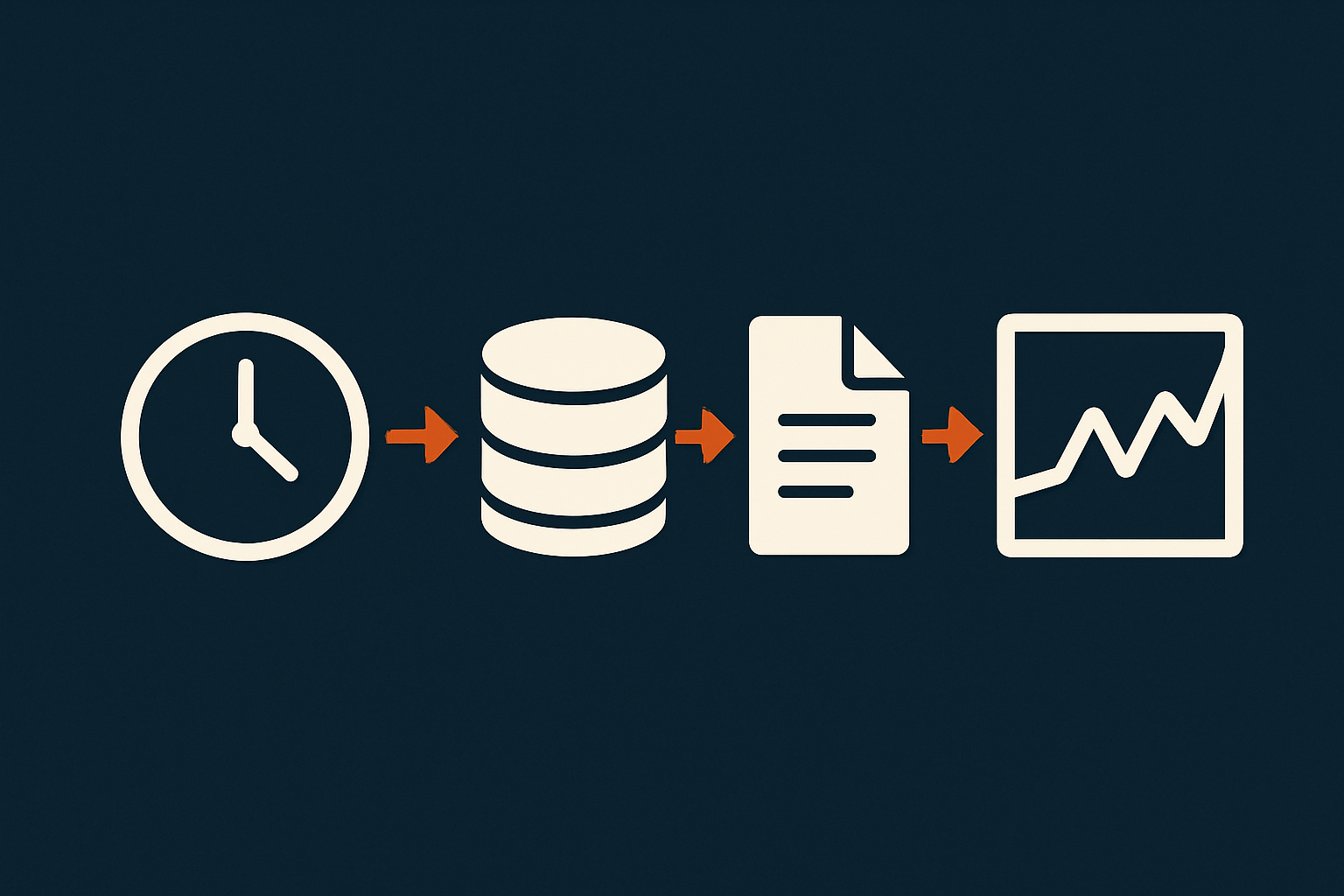
Monthly or quarterly cleanups tied to reporting cycles
Rather than occasional large, risky cleanups, aim for:
- Monthly or quarterly pruning of sessions, logs and transients.
- Annual or semi-annual reviews of order retention and anonymisation rules.
Align these with your normal reporting cycles so that you never prune before essential reports and reconciliations are complete.
Using WooCommerce tools, real cron and server-side automation
Setting reliable cron on your hosting so cleanups actually run
Scheduled WooCommerce cleanups rely on cron. On busy stores, it is often worth moving to real server-level cron rather than relying on visitor-triggered WP-Cron. Our article on setting up reliable cron for WooCommerce covers this in depth.
Rate-limiting heavy cleanup tasks to avoid slowing the site
When scripting or scheduling bulk deletions:
- Process records in batches (for example 500–2,000 rows per run).
- Run tasks during quieter hours for your audience.
- Monitor CPU, memory and database load during early runs.
Good infrastructure and a performance-focused host will help these tasks run in the background without affecting customers.
Monitoring performance improvements and catching issues early
Tracking database size and slow admin screens over time
After implementing pruning:
- Log database size monthly.
- Note response times for order search and key reports.
- Track backup durations and restore test times.
This helps you see whether your policies are working, or whether specific plugins or integrations are generating new data faster than you are cleaning it.
When database bloat points to a deeper hosting or architecture problem
If regular pruning does not stabilise performance, or if you repeatedly hit storage limits, it may be time to review:
- Your database server specifications.
- Indexing on custom tables and queries from heavy plugins.
- Whether you should move reporting workloads to a data warehouse or BI tool rather than relying on live WooCommerce for all historical analysis.
Managed providers with WooCommerce expertise can often help you profile queries, optimise indexes and move background jobs off the critical path.
When You Have Outgrown DIY Pruning (And What Better Hosting Can Do)
Signs you need managed help: timeouts, constant DB alerts, fragile reporting
DIY pruning is still viable while:
- Admin pages load reliably.
- Scheduled tasks complete in reasonable time.
- You understand where your main data growth is coming from.
Consider moving to managed WooCommerce hosting with database expertise if you see:
- Regular slow queries or timeouts that you cannot trace.
- Constant disk or inode alerts focused on database storage.
- Reporting and exports that frequently fail or hang.
How managed WooCommerce hosting and database expertise help keep stores lean
Specialist teams can assist with:
- Profiling WooCommerce and plugin queries to identify real bottlenecks.
- Designing and implementing safe retention and anonymisation policies.
- Automating cleanups with proper monitoring and rollback plans.
They can also advise when it is better to adjust your accounting integrations or reporting tools instead of constantly stretching the WooCommerce database.
Network-level protections that reduce pointless database load from bots
If your store is regularly hammered by scrapers, fake checkouts or brute force bots, no amount of pruning will fully offset the wasted load. Network-level filtering, such as the bot protection within the G7 Acceleration Network, can block abusive and non human traffic before it reaches PHP or MySQL, which keeps response times steadier and reduces the risk of downtime during busy seasons.
Summary: A Sensible WooCommerce Data Retention Checklist
One-page checklist you can share with finance and your host
Use this as a starting point for your own policy:
- Backups & staging
- Confirm working, restorable backups (test at least once).
- Maintain a staging site for testing pruning rules.
- Legal & accounting
- Agree minimum retention periods with finance (for example 6+ years for UK VAT).
- Document how WooCommerce links to accounting and gateway data.
- Orders
- Retain financially relevant data for the full tax period.
- Use WooCommerce privacy tools to anonymise older personal data where appropriate.
- Export older orders to CSV or accounting systems before pruning.
- Regularly delete very old failed, cancelled and obviously spammy orders once reconciled.
- Sessions, logs, transients
- Ensure cron and Action Scheduler are running reliably.
- Schedule regular cleanup of expired sessions and transients.
- Set clear log retention windows (for example 30–90 days) and prune older logs.
- Customer experience
- Confirm that pruning does not break “My Account”, loyalty, subscriptions or warranties.
- Test repeat purchase, refunds and key admin reports after each pruning run.
- Automation & hosting
- Move regular cleanups onto reliable server cron with rate limiting.
- Track database size and admin performance over time.
- Review hosting and architecture if performance issues persist despite sensible pruning.
If you would prefer not to manage all of this alone, exploring managed WooCommerce hosting with providers who understand pruning, cron and database performance can remove much of the day-to-day friction. Likewise, network-level tools such as the G7 Acceleration Network can reduce bad bot traffic and keep your store responsive while you focus on clear, well-documented data retention policies rather than constant firefighting.