

Why WooCommerce Caching Feels Risky (And Why You Still Need It)
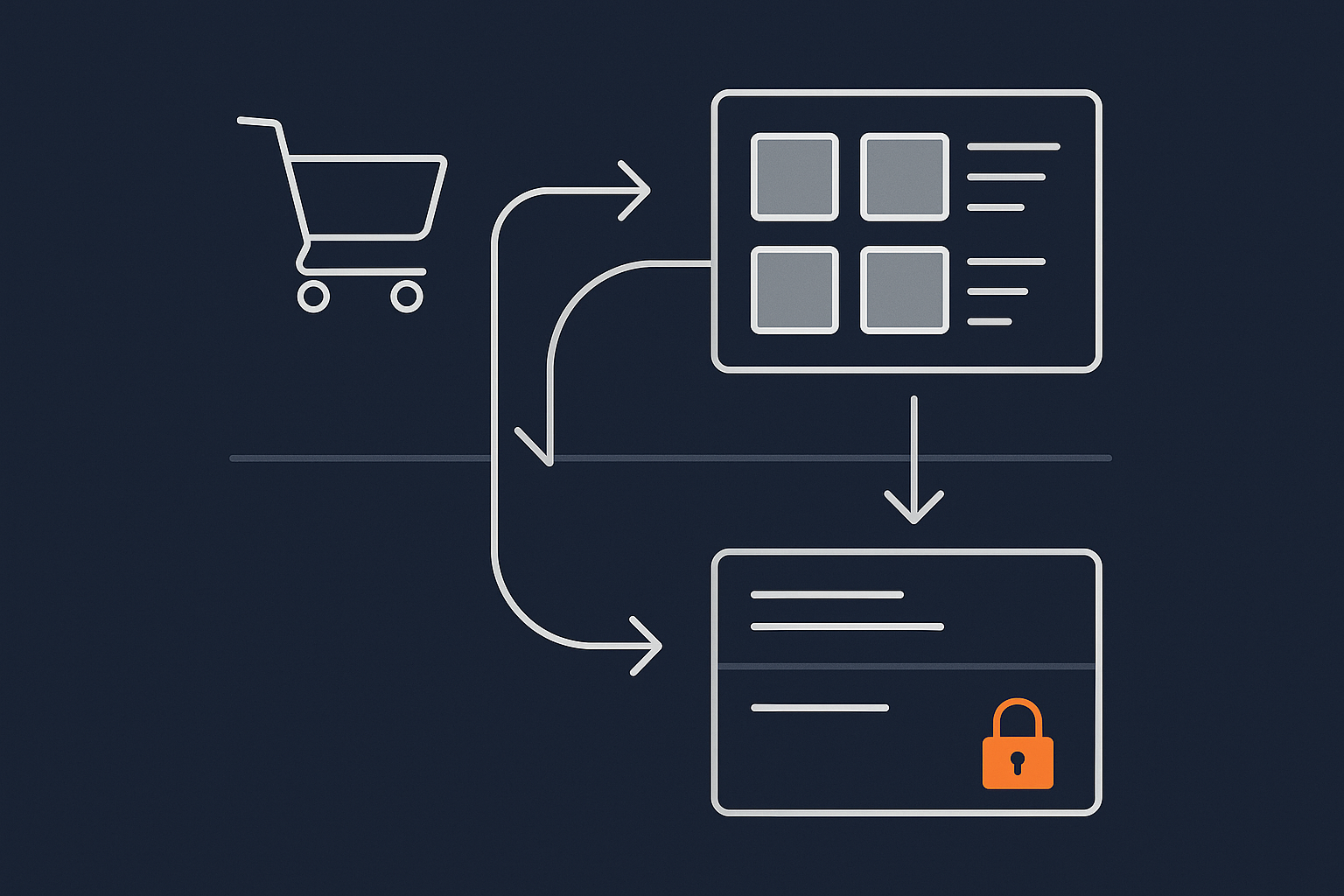
WooCommerce and aggressive caching have a reputation for clashing. Many shop owners have seen, or heard about, caches causing:
- Customers seeing somebody else’s cart contents
- Logged‑in users appearing logged out, or stuck as the wrong user
- Wrong prices or expired vouchers still applying
- Checkout pages that refuse to update totals or shipping
So it is understandable that some teams simply switch all caching off for WooCommerce “to be safe”. The problem is that an uncached store on typical shared or entry level hosting often becomes slow, unstable or both as traffic grows.
What actually goes wrong when caching is misconfigured
Most serious problems come from one basic mistake: caching personalised or fast‑changing responses as if they were generic pages.
Common failure patterns include:
- Cached carts or checkouts
Cart and checkout pages include user‑specific items, shipping, tax and discounts. If your cache stores that HTML and serves it to another user, they inherit the previous user’s state in subtle ways. - Cached “mini‑cart” fragments
Many themes use an AJAX mini‑cart. If that AJAX endpoint is cached, the mini‑cart becomes stuck and does not reflect real cart contents. - Cached prices with per‑user or per‑role logic
Trade pricing, wholesale roles, logged‑in discounts or currency conversion plug‑ins can all be bypassed if a “guest” version of a product page is cached and re‑used for logged‑in users. - CSRF and security tokens cached
WooCommerce and payment gateways use nonces and tokens that must be unique and time‑limited. Caching pages that embed these can cause checkout or account actions to fail.
None of this is a reason to avoid caching altogether. It is a reason to be deliberate about what is cached and when it is bypassed.
The trade off: dynamic shop vs static caching
WooCommerce is inherently dynamic. Prices can depend on:
- User role or membership
- Location or currency
- Quantity in basket
- Active promotions and coupons
Caching, in contrast, works best when you serve the same response to many people. Static marketing pages and anonymous catalog views are ideal candidates. Carts, checkouts and personalised dashboards are not.
The aim is not “cache everything” or “cache nothing”. It is to cache the parts of your store that are stable for most visitors, and let WooCommerce handle the sensitive bits in real time.
Key principle: cache what is anonymous and stable, bypass what is personal and changing
Almost every robust WooCommerce caching setup comes back to one principle:
- Anonymous, mostly identical for everyone, rarely changing
Cache it aggressively. - Personalised to the user, their session, their basket or their offers
Bypass or cache it lightly with strict rules.
When you keep this distinction clear in your cache rules, you can get excellent performance without touching the safety‑critical parts of your checkout flow.
If you want more background on how different caching layers work in WordPress generally, the guide Understanding WordPress Caching Layers is a useful companion to this WooCommerce‑specific article.
Understanding What You Can and Cannot Safely Cache in WooCommerce
Pages that are usually safe to cache
In most stores, the following are safe to put behind page caching for anonymous visitors:
- Home page (unless it includes personalised recommendations)
- Category / shop archive pages listing products
- Product detail pages, if pricing and stock are not per‑user
- Content pages such as About, Delivery, Returns, Blog
- Landing pages for campaigns that do not embed cart fragments
For these, full page caching at server or edge level can make a large difference to time to first byte and perceived speed.
Pages that must not be cached (or must be carefully excluded)
The following should be excluded from full page caching:
/cart//checkout//my-account/and any subpages- Login, registration and password reset pages
- Custom pages that expose account or order data
- AJAX endpoints that modify the basket or totals
Most cache systems let you list URL patterns such as *cart* or *my-account* to exclude. A more robust approach is to respect WooCommerce cookies, which we will cover later.
How logged‑in users, session cookies and cache vary rules interact
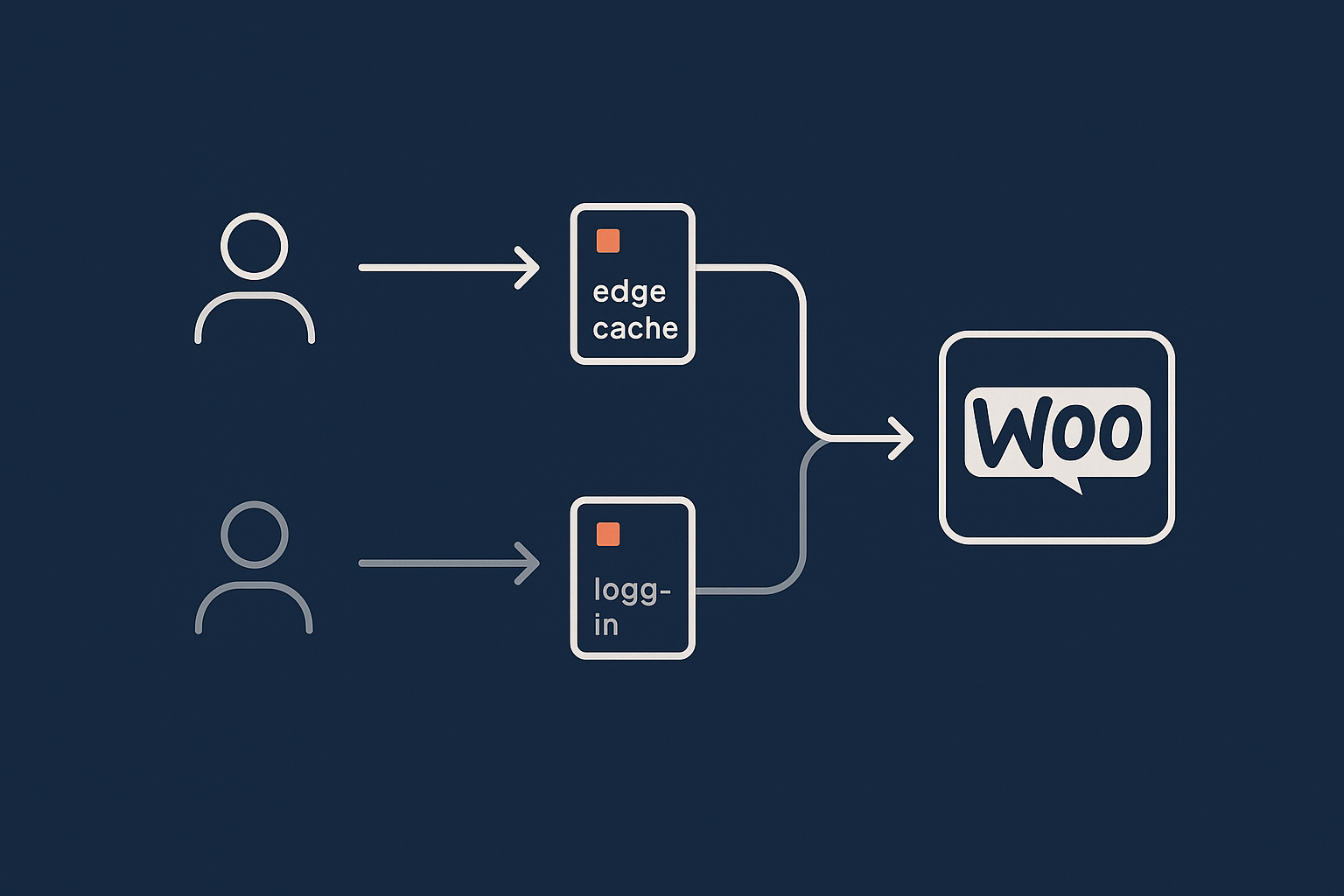
WordPress sets its own logged‑in cookies. WooCommerce adds session cookies to track carts and other state for both guests and logged‑in users.
Good WooCommerce caching has rules such as:
- If a user is logged in, bypass page cache for all requests, or at least for account, cart and checkout URLs.
- If a WooCommerce session cookie exists, still allow cached product or category pages, but bypass cache for cart, checkout and AJAX endpoints.
- If a specific cookie indicates currency or language, vary the cache by that cookie so that each variant has its own cached copy.
More advanced setups use “vary by cookie” or “vary by header” at an edge cache such as the G7 Acceleration Network instead of trying to handle every nuance in a plug‑in.
Core Caching Layers for WooCommerce: Browser, Page, Object and Edge
Browser and static asset caching
Before worrying about page caching, make static assets efficient:
- Set long
Cache-ControlandExpiresheaders for images, CSS, JS and fonts - Use versioned file names so updated assets are picked up correctly
- Consider HTTP/2 and compression (gzip or Brotli) at the server
Image sizes have a big impact on WooCommerce catalog and product pages. The G7 Acceleration Network automatically converts images to modern AVIF and WebP formats on the fly, usually cutting file sizes by more than 60 per cent without needing extra plug‑ins or changes in WordPress.
Page caching at server or edge level
Page caching stores the final HTML output for a URL and serves it without running PHP each time. This is where most performance gain comes from for anonymous traffic.
Typical options:
- Plug‑ins such as WP Rocket, W3 Total Cache or LiteSpeed Cache
- Server‑side cache included with managed WooCommerce hosting
- Edge caches sitting in front of your origin, such as the G7 Acceleration Network
The configuration effort is mostly about setting correct exclusions for logged‑in traffic, carts and dynamic logic.
Object caching for database heavy WooCommerce queries
WooCommerce stores orders, products and meta data across many tables. Complex queries can be expensive. Object caching with Redis or Memcached stores the results of these queries in memory.
Object cache does not risk serving the wrong cart to the wrong user because it sits behind PHP. It helps your origin handle more uncached requests efficiently, particularly on busy checkouts or with complex dynamic pricing rules.
There is a dedicated guide on this topic in How to Use Object Caching to Speed Up WordPress.
Where a managed edge layer like the G7 Acceleration Network fits
An edge layer such as the G7 Acceleration Network sits between visitors and your origin server. It can:
- Serve cached HTML for safe pages directly from edge locations close to users
- Respect cookies and headers to bypass cache where needed
- Offload image optimisation and static asset delivery
- Filter malicious or abusive requests before they hit PHP
For WooCommerce, the edge cache handles the high volume of anonymous catalogue browsing while leaving carts and checkouts to your origin with object caching.
Safe Page Caching Rules for WooCommerce Carts, Checkouts and Accounts

Identify and exclude sensitive URLs
Start by listing URL patterns that must bypass cache:
/cart//checkout//my-account*(including endpoints like/my-account/orders/)/wp-login.phpand custom login pages- Any “order tracking” or “my subscription” URLs
In a plug‑in cache, you typically add these under “Never cache URL(s)” or equivalent. On server or edge caching, your hosting panel or configuration file will have a similar rule section.
Respect WooCommerce and WordPress cookies
Next step is to define cookie‑based behaviour.
- Do not cache for logged‑in cookies:
Ifwordpress_logged_in_is present, bypass page cache, at least for dynamic areas. - Do not cache for WooCommerce session cookies on sensitive URLs:
You can allow WooCommerce session cookies on product and category pages, but bypass cache when the URL matches cart, checkout or account. - Guest caching with sessions:
Some stores choose to bypass caching for any WooCommerce session cookie for safety. Others allow it except on a short list of sensitive paths. The latter usually gives better hit rates with careful testing.
Varying the cache for currency, language and GEO rules
If you serve different catalogues or prices by:
- Currency switcher plug‑ins
- Language or region (WPML, Polylang, etc)
- GeoIP‑driven pricing or tax rules
then your cache must treat these variants separately. This is usually done by:
- Vary by cookie, for example
currency=GBPvscurrency=EUR - Vary by path, for example
/en/vs/fr/ - Vary by header, for example a country code header added at the edge
An edge platform such as the G7 Acceleration Network can handle “cache key” variations for these factors, so UK, EU and US catalogues each have their own cached copy without cross‑contamination.
How to handle mini‑carts, AJAX fragments and cart widgets
WooCommerce used to rely heavily on “fragments” for mini‑carts. Modern themes often use custom AJAX. The key principles:
- The main page HTML (product or category) can be cached.
- The mini‑cart endpoint should not be cached, or at most cached per‑user for a very short time.
- AJAX requests that add to cart or update totals must bypass cache.
In page cache plug‑ins, this often means:
- Adding
/wc-ajax/*and similar endpoints to “Do not cache” rules - Ensuring query strings used for AJAX endpoints are set to bypass or use separate entries
Dynamic Prices, Vouchers and Promotions: Caching Without Stale Offers
How dynamic pricing and discount plugins typically work
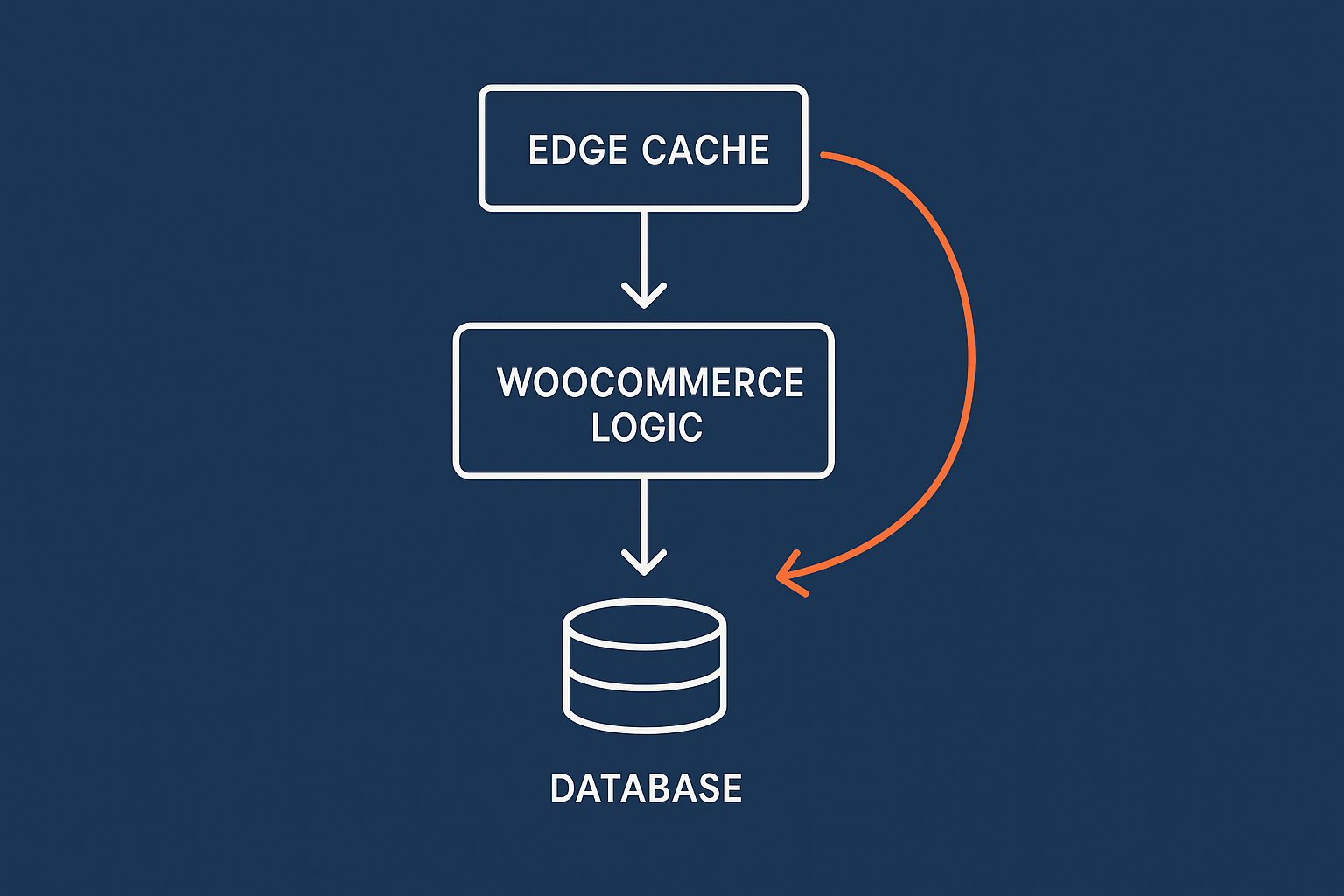
Dynamic pricing plug‑ins usually hook into WooCommerce in one of three places:
- On product display, altering the price shown
- On “add to cart”, altering line item prices
- On cart calculation, adding or adjusting discounts
Whether caching breaks anything depends on where logic is applied:
- If the logic only affects cart totals, cached product pages are usually fine.
- If product display prices differ per role, per user or based on past behaviour, full page caching of product pages needs to be disabled for those scenarios.
Coupon codes, vouchers and cart‑level conditions
Coupons and vouchers are checked at cart and checkout level in real time. Common patterns include:
- “10% off orders over £100”
- “Free shipping for UK customers this weekend”
- “Voucher valid for one use per customer”
These should always be evaluated on uncached cart and checkout pages. Product pages advertising the promotion can still be cached, provided they do not include hard‑coded discounted totals that must update hourly or daily.
Practical cache rules to keep prices and offers correct
Some practical patterns:
- Per‑role pricing
Disable page caching for logged‑in users entirely. Use object caching to offset the load. - Time‑limited offers
Reduce cache TTL on product and category pages to something like 10 to 30 minutes during sales so prices do not stay stale for hours. - Cart‑only promotions
Keep cart and checkout pages uncached but allow heavy caching for product listings. The dynamic discount happens in the basket.
Short TTLs, cache tagging and smart purging after price changes
Even with careful rules, stale cache after bulk price changes is a risk if you rely only on TTL. Better options:
- Manual cache purge after large price imports
Clear page cache for affected categories whenever you run import tools. - Automatic purge hooks
Some caching systems, and solutions like the G7 Acceleration Network, can purge cache entries when products are updated or when you change menus and widgets. - Category or tag‑based invalidation
Cache tagging allows selective invalidation for a category instead of purging the entire site cache during sales.
Safe Configuration Patterns: Examples With Common WooCommerce Setups
Small shop on shared hosting using a plugin cache
Typical setup: LiteSpeed Cache, WP Rocket or similar, no object cache.
Suggested pattern:
- Enable page cache for all pages by default.
- Add exclusions for
/cart/,/checkout/,/my-account*, login and registration URLs. - Set “do not cache for logged‑in users”.
- Exclude WooCommerce AJAX endpoints from caching.
- Set HTML cache TTL to a few hours, shorter during active promotions.
This avoids major correctness issues while still dramatically reducing load for guest catalogue browsing.
Growing shop on managed WooCommerce hosting with server‑side caching
Typical setup: Nginx or Varnish cache controlled by your host, object cache enabled.
Suggested pattern:
- Use your host’s recommended WooCommerce exclusions as a starting point.
- Confirm that logged‑in sessions bypass page cache, with Redis or Memcached handling performance instead.
- Work with support to set cache variations for language and currency cookies where relevant.
- Use shorter TTLs during campaigns and rely on automatic or manual cache purging after bulk changes.
Hosts that focus on WooCommerce, including providers of managed WooCommerce hosting, usually have pre‑tested rulesets and tooling for this.
Busy or high value shop using an edge cache / acceleration layer
Typical setup: Edge caching and security layer in front of a tuned WooCommerce origin, object cache, maybe autoscaling.
Suggested pattern:
- Edge cache HTML for home, category, product and CMS pages, varying by device, language and currency where required.
- Ensure cart, checkout, account and AJAX endpoints bypass edge cache and are served from your origin with object cache.
- Configure edge rules to respect or strip specific cookies so only safe ones influence caching.
- Use edge‑side purge API to invalidate categories or products on updates.
Services like the G7 Acceleration Network are designed around this pattern, taking care of edge‑side caching logic, image optimisation and sensible defaults for WooCommerce paths.
Testing Your WooCommerce Cache Setup Without Risking Revenue
Basic checks with private/incognito windows and multiple accounts
Before enabling caching for all visitors, test:
- Open an incognito window as a guest. Browse, add items, go to cart and checkout. Confirm behaviour.
- Log in as a normal customer in another browser. Confirm that prices, carts and account details are correct and do not leak between user types.
- Log in as an admin. Check that admin bar and preview features work correctly.
Repeat during any change to cache rules or before large campaigns.
Using query strings and response headers to confirm cache behaviour
Most caches add response headers such as:
X-Cache: HITorMISSServer-Timingentries from the edge layer
You can inspect these using browser developer tools or a command line tool like curl -I. Some caching systems also respect a query string such as ?nocache=1 to bypass the cache for debugging.
Confirm that:
- Product and category pages show cache HITs for guests.
- Cart and checkout consistently show MISS or are marked as “no-store”.
- Logged‑in users mostly bypass page cache, especially around sensitive flows.
Common red flags: what to watch for in support tickets and analytics
After changes, watch for:
- Support tickets about “items disappearing from basket” or “wrong items in basket”.
- Unusual spikes in checkout abandonment that correlate with cache rule changes.
- Complaints about seeing somebody else’s name or address (critical severity).
- Sharp reduction in server CPU but sudden issues with promotions not applying.
If anything in this category appears, disable the last change you made to cache rules and retest with carts and checkouts uncached.
Reducing Load From Bots So Your Cache Actually Helps

Why abusive bots quietly wreck WooCommerce performance
Once you have caching in place, human visitors are usually fast. What often still hurts performance is:
- Price scrapers hitting thousands of product URLs rapidly
- Login brute force attempts against
/wp-login.phpor XML‑RPC - Vulnerable plug‑in scanners probing every endpoint
Many of these requests bypass cache because they use POST requests, are logged in or include query strings that force misses. They eat CPU and database capacity without contributing any revenue.
Filtering bad bots before they hit PHP and WooCommerce
The most effective place to block abusive traffic is before it reaches PHP:
- Rate limiting by IP or fingerprint at the edge
- Blocking known bad user agents and patterns
- Differentiating search engine crawlers from generic scrapers
On G7Cloud, G7Cloud’s bot protection within the G7 Acceleration Network filters abusive and non‑human traffic before it reaches PHP or the database, which reduces wasted server load and helps keep response times consistent during busy periods.
How G7Cloud’s bot filtering and edge caching stabilise WooCommerce under load
Combining edge caching with bot filtering gives a simple result:
- Real customers mostly receive cached pages for browsing.
- Carts and checkouts hit your origin, but with object caching and far less background noise from bots.
- Resource‑heavy brute force and scraping traffic is dropped early.
This gives more predictable behaviour during campaigns, flash sales and seasonal peaks, even when the raw request volume is high.
When To Revisit Hosting and Caching Architecture
Symptoms that caching tweaks are not enough
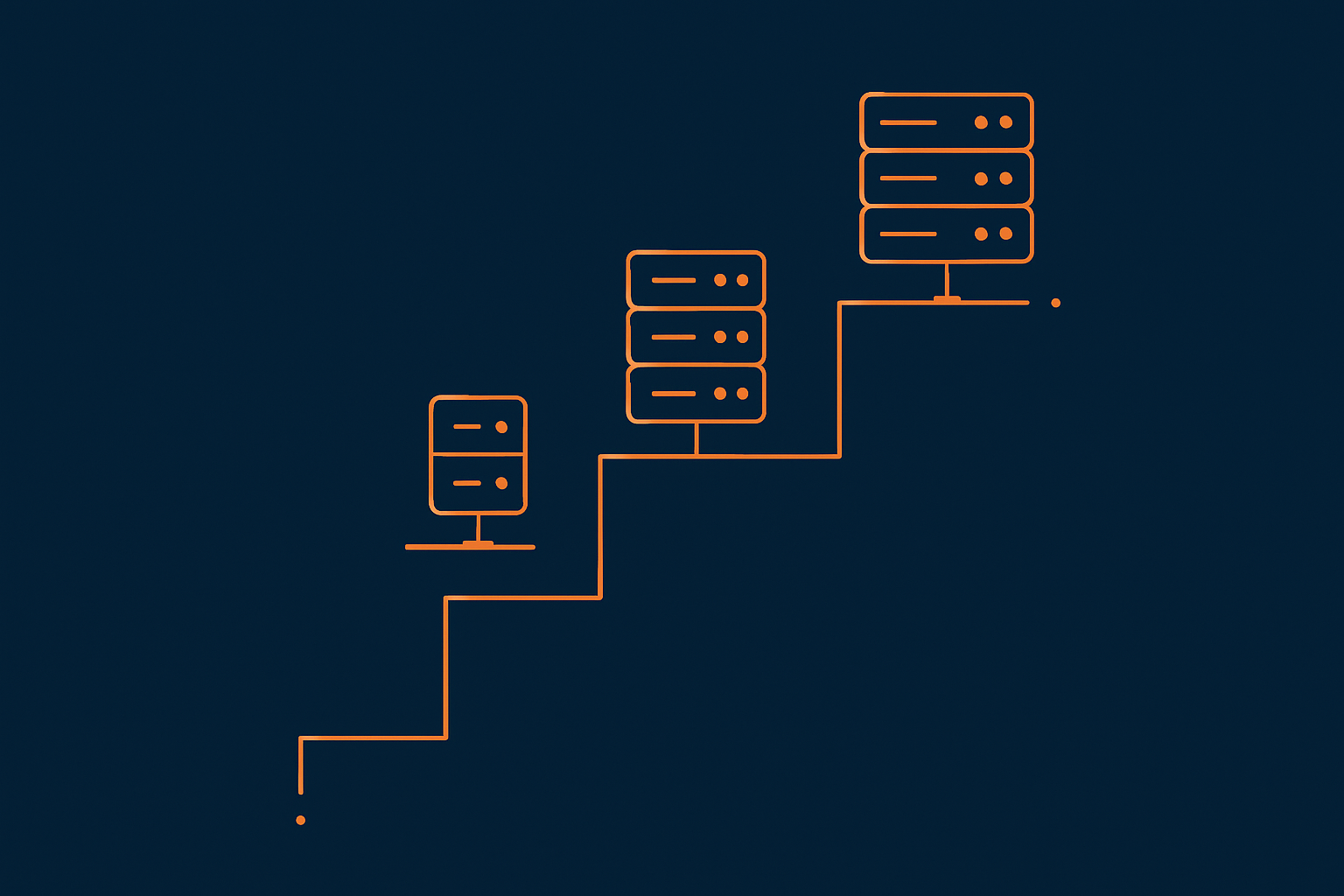
You may have outgrown your current setup if:
- Even with sensible cache rules, CPU and database stay saturated during normal trading hours.
- Small promotions or email campaigns still cause timeouts.
- You need increasingly complex exclusions to keep dynamic pricing and offers correct.
- Support keep asking you to disable key plug‑ins just to stay online.
When to consider WooCommerce‑focused hosting or a virtual dedicated server
At this stage, moving from generic shared hosting to managed WooCommerce hosting or to virtual dedicated servers starts to make sense.
The benefits are mostly practical:
- Server‑side page cache configured with WooCommerce defaults
- Redis or Memcached object cache available and tuned
- Edge caching and bot filtering integrated rather than bolted on
- Support teams familiar with common WooCommerce plug‑ins and their caching quirks
Planning ahead for campaigns, peak events and seasonal spikes
Peak traffic is where caching and architecture are properly tested. Before sales events:
- Review cache TTLs for catalogues and decide how fresh pricing must be.
- Schedule bulk imports or price changes during quieter windows and purge cache after.
- Confirm bot filters and rate limits are active.
- Load test specific flows such as adding to cart, applying vouchers and completing checkout.
If you want a structured approach, the guide How to Prepare a WooCommerce Site for Seasonal Traffic Spikes gives a detailed checklist that builds on the caching principles covered here.
If your team would prefer not to manage all of this alone, exploring managed WooCommerce hosting or an edge layer such as the G7 Acceleration Network can remove much of the day‑to‑day tuning work while keeping your store fast, accurate and stable under load.