

Why Your WooCommerce Database Needs Regular Care
What actually lives in your WooCommerce database
Your WooCommerce database holds far more than just orders. Every time someone visits, adds to basket or checks out, WordPress and WooCommerce write multiple rows across several tables.
For a typical shop, your database will contain:
- Orders: the main order records, including status, customer details and totals.
- Order items: each product line within the order, taxes and shipping lines.
- Order metadata: extra fields such as delivery instructions, payment IDs, VAT numbers and coupon details.
- Customers: user accounts, addresses and past order links.
- Sessions and carts: data for logged in users and visitors with items in their basket.
- Logs: gateway logs, error logs, stock change logs and background task logs.
- Plugin data: extra tables and meta added by marketing plugins, shipping integrations, subscriptions, memberships and so on.
None of this is bad. It is exactly what makes WooCommerce flexible. The problem comes when old, no longer useful data never gets cleared.
How bloated order tables slow your shop down
As your store grows, so do the tables that WooCommerce queries on every request. For example:
- Order listing in wp-admin has to search, sort and paginate through the orders table, often joined with postmeta.
- Customer my account pages query past orders.
- Reports and analytics read across large ranges of order data.
Over time you can end up with:
- Millions of rows in
wp_postsandwp_postmetarepresenting orders and order data. - Large logs in custom tables created by gateways and shipping plugins.
- Abandoned carts, expired sessions and transients that are never cleaned up.
This bloat affects speed in several ways:
- Queries have to scan more data to find what they need.
- Indexes become larger and less efficient in memory.
- Backups take longer and restores become more stressful.
The impact shows up as slow wp-admin order screens, sluggish reports, timeouts during busy periods and inconsistent checkout performance.
Performance vs safety: the balance to aim for
Cleaning your database is not about deleting as much as possible. You are balancing three things:
- Performance: keeping live tables lean enough for fast queries.
- Safety: protecting order history, evidence for disputes and accounting trails.
- Compliance: honouring retention rules for VAT, HMRC records and privacy law.
The goal is a predictable, repeatable process where you:
- Remove clearly temporary data, such as expired sessions and transients.
- Prune failed or cancelled orders after a sensible period.
- Archive or retain completed orders in line with your accountant’s advice and legal requirements.
Done carefully, this keeps WooCommerce fast without risking the data you rely on for customers, tax, refunds or chargebacks.
How WooCommerce Stores Orders in WordPress (In Plain English)
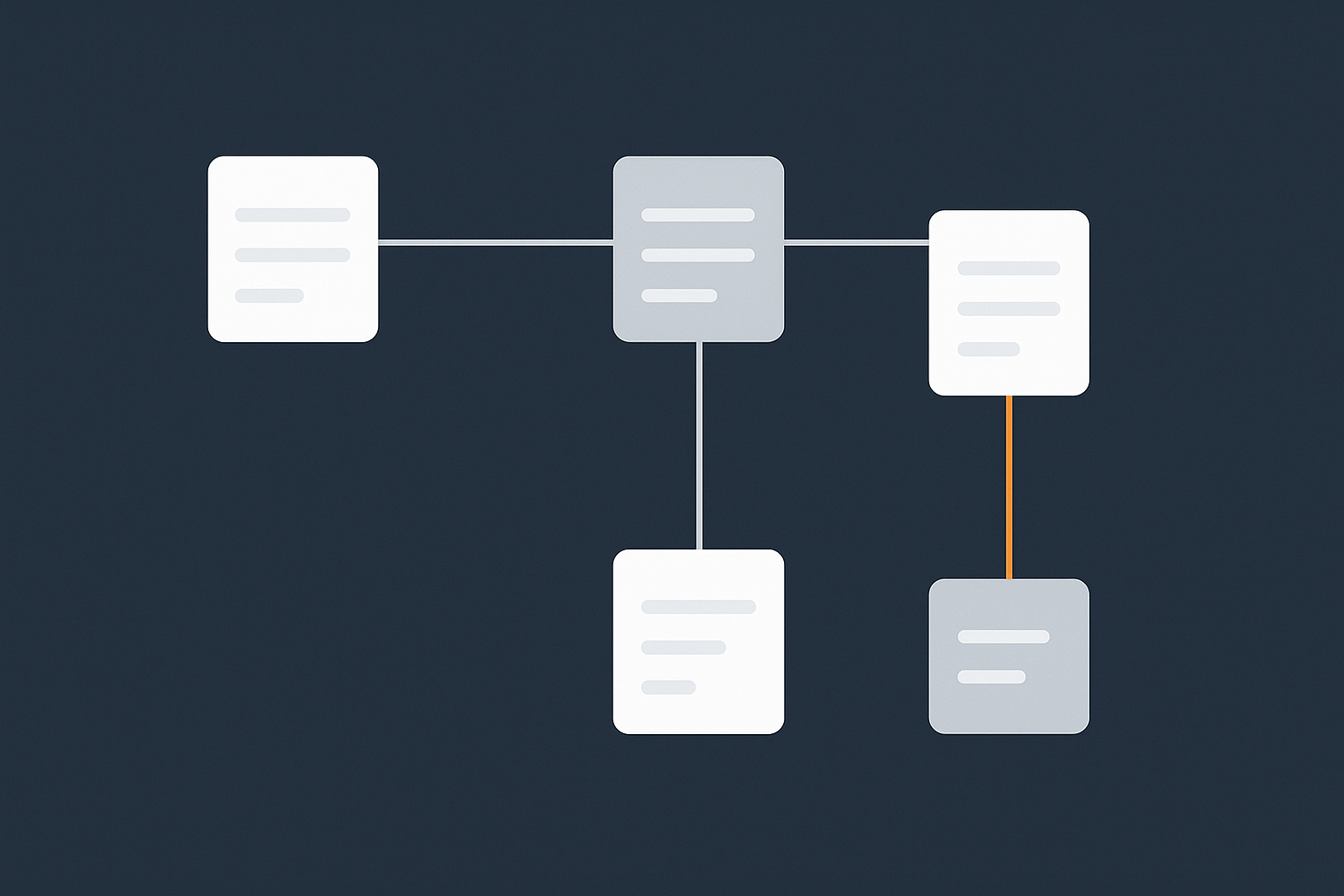
Posts, postmeta and order tables: the core structure
WooCommerce uses the standard WordPress database structure for most things, especially on older sites.
wp_posts: each order is stored as a “post” with a type such asshop_order. The post stores the order status, dates and basic details.wp_postmeta: extra fields linked to that order, such as billing address, shipping method, payment transaction ID and any custom checkout fields.wp_woocommerce_order_items: each product, shipping line or fee in the order.wp_woocommerce_order_itemmeta: metadata for every line item, such as product IDs, variation attributes, tax rates and subtotals.
Official WooCommerce updates are gradually adding more dedicated order tables in newer versions, but many sites still use this posts plus postmeta layout or a mixture of both.
What gets written on every order: orders, notes, sessions, logs
When someone completes checkout, WooCommerce writes multiple rows around the database:
- An entry in
wp_postsfor the order itself. - Dozens of rows in
wp_postmetafor every detail. - Rows in
wp_woocommerce_order_itemsand_order_itemmetafor each product, fee, tax and shipping line. - Order notes in
wp_commentsandwp_commentmetathat log status changes, gateway responses and admin comments. - Gateway logs or webhooks in custom tables, depending on your payment provider.
On top of that you will often have:
- Session data in the WooCommerce sessions table for logged in customers.
- Cart fragments and related data for basket updates.
- Transients for stock levels, pricing rules and cached fragments.
This is why order volumes quickly translate into very large tables.
Why abandoned carts and failed payments still leave clutter
Not every order that reaches the database becomes a paid sale. Common clutter includes:
- Failed orders where the card was declined or the gateway rejected the payment.
- Cancelled orders where the customer changed their mind or an admin cancelled it.
- Pending orders where the customer never quite finished checkout.
- Abandoned carts stored in sessions or plugin tables for recovery emails.
Some of this is useful for a while. Fraud screening, customer support and marketing teams might look at failed attempts in the short term. After a reasonable period, most of these records only slow queries down.
Before You Touch Anything: Backups, Staging and Access
Non‑negotiable: tested backups and restore points
Database cleanups and optimisations are powerful. They are also hard to undo if something goes wrong. Before you delete or change anything:
- Take a full database backup that includes all tables, not just WordPress core tables.
- Confirm you can restore from that backup on your current hosting.
- Ideally, keep an off‑site copy (for example in cloud storage) in case the server itself has an issue.
If you are unsure about backup quality, G7Cloud has a detailed guide, What Every WordPress Owner Should Know About Backups and Restores, which is worth reading before you go further.
Using a staging site to rehearse database changes
Database work should not be tested for the first time on your live store. A staging site lets you:
- Test cleanup plugins and scripts without risking real customers.
- Measure impact on wp-admin, order searches and reports after cleanup.
- Check that integrations such as accounting, shipping and marketing still behave correctly.
Most quality WooCommerce hosting plans include staging. With managed WooCommerce hosting options you can usually clone production to staging with a few clicks, apply your planned cleanups there, then repeat them on live once you are happy.
Who should do this work: store owner, developer or host?
Think carefully about who is best placed to perform each type of task:
- Safe, routine cleanups such as clearing expired transients can often be done by a confident store owner using a well reviewed plugin.
- Custom database queries, index changes and table repair are better handled by a developer or technically experienced host.
- Structural changes like moving to new order tables or splitting databases should be planned with your host or an experienced WooCommerce consultant.
If you are not comfortable with SQL, direct access to phpMyAdmin or the command line, it is usually cheaper in the long run to ask a specialist to do the deeper work for you.
Safe WooCommerce Database Cleanup: What You Can Remove (And What To Keep)
Cleaning expired transients, sessions and carts
Expired temporary data is the safest starting point. Common targets include:
- Expired transients: these are cached pieces of data with an expiry time. WordPress should clean them up, but often does not keep up on busy sites.
- Old sessions: WooCommerce stores session data for carts and logged in users in its own table. Sessions older than your typical buying cycle are normally safe to remove.
- Abandoned carts: many cart recovery plugins have their own retention settings. Anything older than your recovery sequences are likely to be safe to purge.
Look for tools that specifically say they only remove expired transients and old sessions. Avoid anything that promises “aggressive” cleanup without clearly listing what it touches.
Trimming order notes, logs and temporary plugin data
Order notes and logs can multiply quickly. Consider:
- Automatic notes added on every status change.
- Repeated gateway messages, such as “Payment complete” or “Customer IP checked by fraud service”.
- Debug logs for integrations that have long since been fixed.
Some cleanup plugins let you:
- Delete order notes that match certain patterns after a set time.
- Prune log tables older than a specific age, for example 90 days.
- Empty debug tables created by plugins you no longer use.
Be cautious with any tool that offers to delete comments or notes in bulk. Filter carefully so you do not remove notes that your support team relies on.
Deciding how long to keep failed, cancelled and pending orders
Failed and cancelled orders are a grey area. Reasons to keep them for a while include:
- Checking for card testing or fraud patterns.
- Following up with potential customers where it is appropriate.
- Debugging checkout issues with your gateway provider.
Beyond that, they mostly slow maintenance tasks down. A common compromise is:
- Keep failed and cancelled orders for 3 to 6 months.
- Delete pending orders older than 1 to 3 months, after checking they are truly abandoned.
- Retain completed and refunded orders for years, in line with accounting advice.
Many database tools allow rules such as “Delete shop_order posts with status failed older than 180 days”. Always test such rules on staging first and confirm counts before running them live.
Old data and legal retention: VAT, accounting and dispute windows
Before deleting any order data, agree a retention policy with your accountant and, if needed, a legal adviser. Consider:
- VAT and corporation tax: HMRC expects you to retain records for several years.
- Chargeback and dispute windows: card schemes and PayPal can allow disputes months after purchase.
- Warranty and returns policies: you may need order records to honour promises you make to customers.
Some businesses solve this by periodically exporting old completed orders to an external system such as accounting software or a data warehouse, then archiving them from the live database. That approach is more complex technically but keeps WooCommerce lean while still preserving a full history.
Using Plugins and Tools To Clean and Optimise
What a WordPress database optimisation plugin actually does
Most database optimisation plugins focus on housekeeping rather than structural tuning. Typical features include:
- Removing post revisions and auto‑drafts.
- Clearing expired transients.
- Deleting spam and trashed comments.
- Cleaning orphaned metadata that no longer has a parent post or comment.
- Running
OPTIMIZE TABLEon selected tables to reclaim space.
Some offer WooCommerce specific options such as deleting expired sessions or old cart entries. These can be very helpful, provided you configure them conservatively.
Recommended features to look for (and red flags to avoid)
When choosing a cleanup tool for WooCommerce, look for:
- Granular control: the ability to include or exclude specific tables and data types.
- Dry‑run or preview: clear estimates of what will be deleted before you commit.
- Logging: records of what each cleanup job did, which help debugging if something unexpected happens.
- WooCommerce awareness: explicit support for WooCommerce tables and sessions.
Be cautious of:
- Tools that “optimise” by deleting data with no explanation.
- Plugins that bundle too many unrelated features, such as security scans, SEO tweaks and database work all at once.
- Anything that runs heavy operations on every page load instead of on scheduled tasks.
Scheduling light touch automatic cleanups
Once you trust a tool’s behaviour (tested in staging), you can schedule light automatic jobs. For example:
- Daily: clear expired transients.
- Weekly: prune sessions older than 30 days.
- Monthly: remove spam comments, old drafts and auto‑drafts.
Leave deeper tasks, such as deleting orders by status, as manual jobs that you run quarterly with a fresh backup in place.
Database‑Level Optimisation: Indices, Engine Choice and Table Health
InnoDB vs MyISAM and why it matters for WooCommerce
Modern MySQL and MariaDB support several storage engines. For WooCommerce, InnoDB is almost always the right choice because it:
- Supports row‑level locking, which allows many queries to run in parallel without blocking each other.
- Provides ACID‑compliant transactions, which help keep order data consistent during busy checkouts.
- Handles crashes more gracefully, reducing the risk of table corruption.
MyISAM is older and lacks transactions. It uses table‑level locking, so a single write operation can block reads, which is particularly damaging to busy stores. If you see core WooCommerce tables using MyISAM on a live shop, speak to your host about converting them to InnoDB.
Checking and repairing tables, then running OPTIMIZE
Over time, especially after crashes or forced restarts, tables can develop errors or fragmentation. You can:
- Use phpMyAdmin’s “Check table” and “Repair table” options on suspicious tables.
- Run
CHECK TABLEandREPAIR TABLEfrom the command line if you are comfortable with the shell. - Use
OPTIMIZE TABLEon InnoDB tables to reclaim unused space and defragment data.
Practical guidelines:
- Always back up before repair or optimise operations.
- Run heavy operations during quiet periods, as they can lock tables while they work.
- Start with large, frequently used tables such as
wp_posts,wp_postmeta,wp_woocommerce_order_itemsandwp_woocommerce_order_itemmeta.
If your host offers web hosting performance features such as scheduled maintenance windows or managed database health checks, it is worth asking them to handle this part for you.
Indexes: how they help lookups on large order tables
Indexes are like the index at the back of a book. They let MySQL jump straight to rows that match certain criteria instead of scanning the whole table.
On WooCommerce tables, useful indexes might cover:
- Order status and date, for fast listing and reporting.
- Customer email or user ID, for quick order history lookups.
- Meta keys that you query often, such as custom fields or VAT numbers.
Adding or changing indexes is not something to guess at. A developer can use tools such as EXPLAIN on slow queries to see where extra indexes will help. Poorly chosen indexes can actually slow writes down and waste disk space, so this is one area where targeted changes beat broad optimisation plugins.
Why your hosting and database configuration also matter
Even a well‑tuned schema will struggle if the underlying database server is undersized or misconfigured. Some of the key factors include:
- Buffer pool size: InnoDB performs best when its buffer pool can hold your hot data and indexes in memory.
- Connection limits: too few connections and your application queues; too many and you over‑commit memory.
- Disk performance: slow disks increase the penalty of large tables and frequent writes.
On entry‑level shared hosting you have little control over these settings, which is one reason busy shops often benefit from managed WooCommerce hosting options or virtual dedicated servers where the host can tune MySQL for your workload.
Reducing Load Around the Database: Caching, Object Cache and Bot Filtering
Page caching vs database queries: where the wins come from
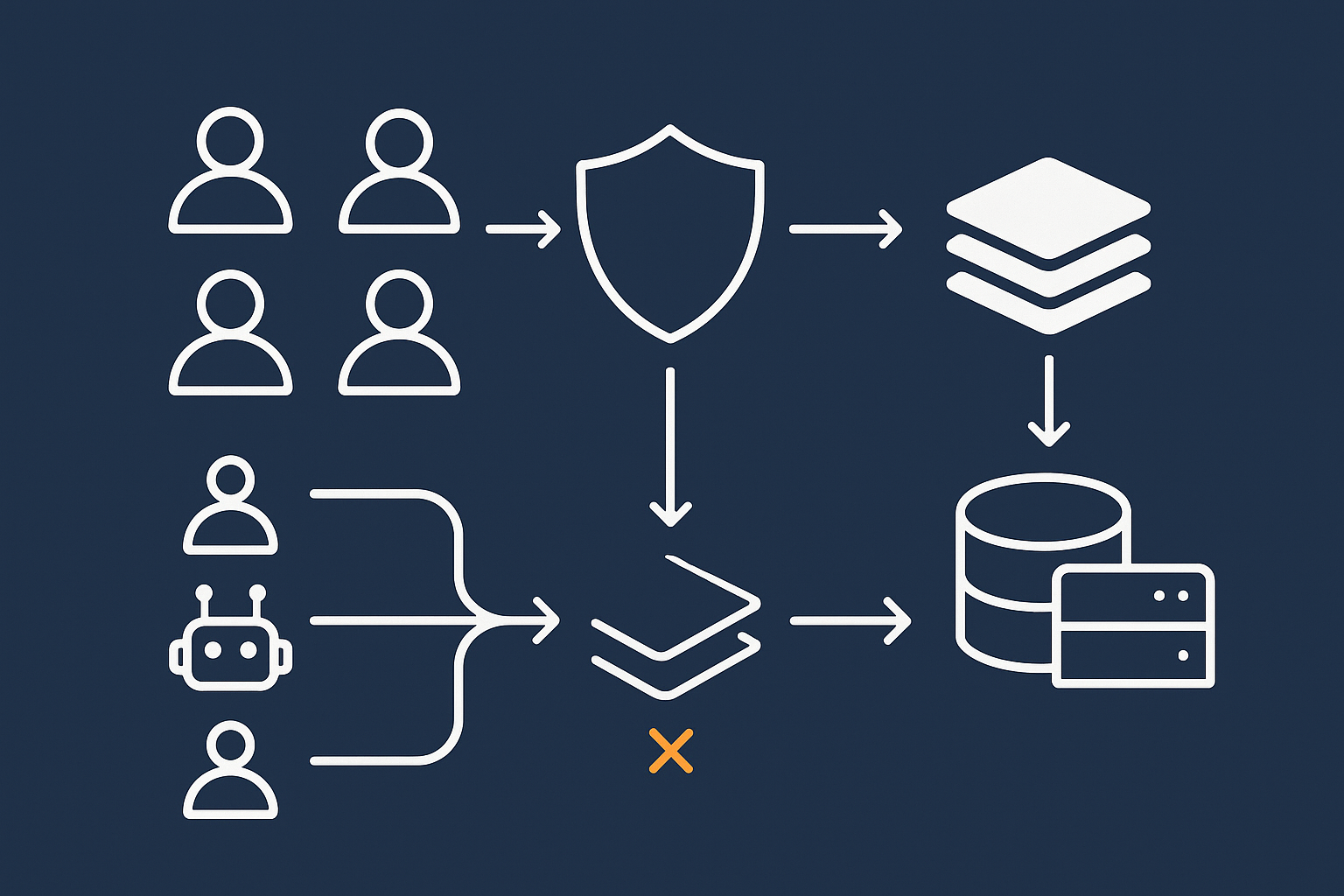
Not every request needs fresh data from MySQL. Page caching stores the final HTML of pages and serves it directly to visitors, skipping PHP and database work entirely.
For WooCommerce this typically applies to:
- Home page and landing pages.
- Category and product archive pages for non‑logged‑in users.
- Content pages such as delivery information and FAQs.
Checkout, basket and my account pages should usually bypass full page caching to avoid stale or incorrect content, but can still benefit from fragment caching and object caching.
A good edge caching layer such as the G7 Acceleration Network can sit in front of your store, serving cached pages to visitors while only passing dynamic requests through to WooCommerce and the database. This reduces the number of queries MySQL must handle during traffic spikes.
How object caching helps WooCommerce specifically
Object caching stores the results of expensive queries and calculations in memory, using tools such as Redis or Memcached. This is particularly helpful for WooCommerce because many requests repeat similar lookups, for example:
- Product data and price calculations.
- Stock levels for popular items.
- Customer and order details used across several pages.
Instead of hitting MySQL every time, WordPress can fetch these objects from the cache. G7Cloud has a deeper guide on this topic in How to Use Object Caching to Speed Up WordPress, which is worth reading if your store is starting to struggle with database load.
Blocking abusive bots so they never hit PHP or MySQL
Many slowdowns come not from real customers, but from:
- Scrapers and price comparison bots hammering product pages.
- Vulnerable plugin scanners crawling every URL they can guess.
- Brute force login attempts and xmlrpc attacks.
All of these generate unnecessary PHP execution and database queries. A smart protection layer can filter out abusive and clearly non‑human traffic at the edge, before it ever reaches your WooCommerce application.
The bot protection included in the G7 Acceleration Network is designed for exactly this, filtering bad traffic before it hits PHP or the database. That reduces wasted server load, keeps query response times more consistent and helps avoid needless downtime when both customers and bots are active.
Where the G7 Acceleration Network fits in
For many UK retailers, caching and bot filtering are as important as database tuning. A network layer such as the G7 Acceleration Network combines:
- Page caching for static and semi‑static content.
- Smart rules to bypass cache on sensitive WooCommerce pages.
- Bot detection and rate‑limiting that sit in front of PHP and MySQL.
This does not remove the need for good database housekeeping, but it does mean your database only has to cope with genuine traffic and unavoidable queries, not noise from abusive bots and repeated uncached page views.
A Practical Monthly and Quarterly Maintenance Routine
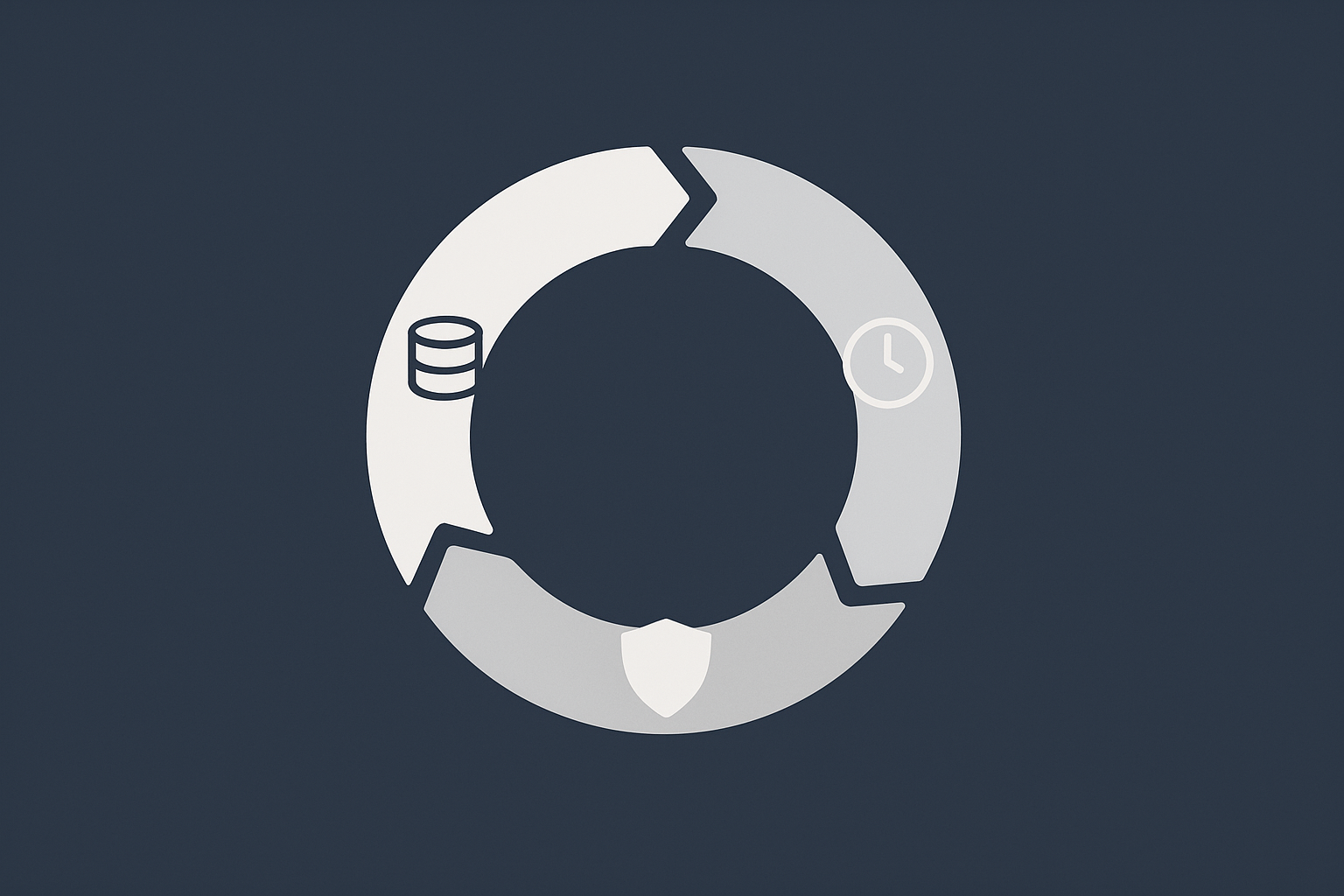
Monthly tasks: light cleanup, checks and reports
A simple monthly routine keeps your database under control without taking half a day out of your schedule. For example:
- Housekeeping via plugin: run scheduled jobs to clear expired transients, old sessions and general WordPress clutter such as spam comments.
- Check WooCommerce status: review the WooCommerce > Status page for database size, pending updates and log sizes.
- Scan for unusual growth: compare table sizes to last month. Sudden jumps may indicate a plugin misbehaving or a logging level left on “debug”.
- Review failed and pending orders: look for patterns that suggest gateway issues or fraud attempts.
Pair this with basic store maintenance as described in G7Cloud’s broader guide, Making WooCommerce Stable and Fast: A Step‑by‑Step Maintenance Routine for Busy Shop Owners, so database checks sit within your overall housekeeping.
Quarterly tasks: deeper optimisation and policy review
Every three months, set aside a little more time for deeper work:
- Review retention policies: confirm how long you keep failed, cancelled and pending orders and adjust if needed.
- Run manual cleanups: prune old failed orders, clear outdated logs and remove disabled plugin tables once you are confident you will not need them.
- Check table health: run checks and, if appropriate,
OPTIMIZEon large, busy tables. - Evaluate performance: compare checkout and wp-admin responsiveness against earlier months.
This is also a good time to review whether your current hosting still suits your traffic pattern, especially if your order volume or catalogue size has grown significantly.
Monitoring symptoms: when your database is becoming a bottleneck
Signs that your WooCommerce database is struggling include:
- Slow order search and filtering in wp-admin.
- Timeouts or errors when running built‑in reports.
- Checkout pages that feel fine on staging, but slow under real customer load.
- MySQL process lists showing many long‑running queries or locked tables during busy times.
If you see these, look at database size, slow query logs (if available) and your caching and bot filtering setup. G7Cloud’s article Why Server Performance Problems Are Rarely Caused by One Thing is a useful companion here, as database pressure often interacts with PHP limits, caching gaps and external calls.
When To Move Up: Hosting, Virtual Dedicated Servers and Scaling Safely
Signs you have outgrown basic shared WooCommerce hosting
Even a well maintained database has limits on very small hosting plans. You may be outgrowing basic shared hosting if:
- Performance drops sharply during promotions or seasonal peaks.
- You regularly hit resource caps or CPU throttling imposed by your provider.
- Your host discourages or blocks features like object caching or background processing.
- Support repeatedly suggests “upgrading” without helping you understand the actual bottleneck.
Shared hosting is designed for many small sites, not for busy e‑commerce. Once you pass a certain order volume or traffic level, it becomes more cost‑effective to move to managed WooCommerce hosting options built with caching, object caching and database tuning in mind.
Why throwing CPU at the problem is not always enough
Adding more CPU and RAM does help, but only if the database and application are reasonably well tuned. Common traps include:
- Upgrading to a larger server while keeping an unindexed, bloated database.
- Paying for more resources while abusive bots still waste a large share of them.
- Ignoring caching, so every request still forces PHP and MySQL to work hard.
A balanced approach combines right‑sized hosting with clean data, effective caching and a protection layer such as the G7 Acceleration Network to shield your database from unnecessary queries.
When a virtual dedicated server or enterprise setup makes sense
If your store has:
- High, predictable order volumes every day.
- Regular TV, influencer or email campaigns that drive sharp peaks.
- Complex integrations with ERP, warehouse or custom applications.
then shared or small VPS plans are unlikely to provide the consistency you need. This is where virtual dedicated servers or carefully planned multi‑server setups become attractive.
These environments allow:
- Dedicated database resources and tuned MySQL settings.
- Separation of web, database and async job workers for stability.
- Closer monitoring and proactive optimisation by your hosting partner.
The aim is not constant tinkering, but a steady, predictable platform where your monthly and quarterly maintenance routines keep things healthy instead of firefighting crises.
Summary: Keep Orders Safe, Keep Performance Predictable
Key principles to remember
Database maintenance for WooCommerce is less about clever tricks and more about calm, consistent habits. The essentials are:
- Know what lives in your database and which tables grow fastest.
- Always have tested backups and, ideally, a staging site.
- Clean expired and temporary data regularly, and prune failed or abandoned orders on a schedule that respects your legal obligations.
- Keep core tables healthy with periodic checks and optimisations.
- Use caching, object caching and bot filtering to protect MySQL from unnecessary load.
- Review hosting and database configuration as your store grows.
If you build these into a simple monthly and quarterly routine, performance tends to stay predictable, and order data remains both safe and usable.
Where to get help if you are not comfortable in the database
You do not need to become a database engineer to run a successful WooCommerce shop. If direct SQL and table operations feel outside your comfort zone, lean on:
- Your hosting provider, especially if they specialise in WooCommerce and can include database health checks with their managed WooCommerce hosting options.
- A trusted developer who can design and test safe cleanup scripts tailored to your store.
- Well maintained tools that handle routine housekeeping while you focus on products and customers.
If you are ready to reduce hassle further, exploring managed WordPress hosting with G7Cloud and the G7 Acceleration Network is a practical next step. It gives you a tuned platform, caching and bot protection by default, so your WooCommerce database has the best chance of staying both safe and fast.