

Why a Simple Maintenance Routine Matters for WooCommerce
What happens when you skip maintenance: real‑world symptoms
If you run a busy WooCommerce shop, you are probably too familiar with “it works until it suddenly does not”. Most problems that look random are usually the result of skipped or rushed maintenance.
Common symptoms include:
- Slow pages at peak times: Product and checkout pages feel fine in the morning, but crawl during lunch or after work.
- Intermittent checkout failures: Some customers see “payment failed”, empty carts or spinning loaders, while others check out fine.
- Search and filters timing out: Category filters, search results or “load more” take several seconds or throw 500 errors.
- Email issues: Order confirmation emails not sending, going to spam, or sending twice.
- Plugin conflicts: A new plugin or update quietly breaks shipping rules, VAT logic or discount calculations.
- Random logouts or cart resets: Session and cache issues that frustrate customers halfway through an order.
None of these appear overnight. They build up over weeks or months of:
- Outdated plugins and themes
- Bloated database tables and transients
- Uncontrolled image sizes and media uploads
- Ignored error logs and warning signs
- Increased bot and crawler traffic eating server resources
The aim of a simple routine is not perfection. It is to spot and fix small issues while they are still cheap and quick to fix, so your shop feels boringly reliable for both you and your customers.
The 3 goals of a good routine: stability, speed, safety
A useful WooCommerce maintenance routine only needs three goals.
1. Stability
Your shop should behave predictably at all times.
- Checkout always works.
- Stock, coupons, shipping and tax rules behave as expected.
- Updates and changes are tested and reversible.
2. Speed
Customers should never feel they are waiting for your site.
- Pages load in a couple of seconds or less for typical UK connections.
- Search, filters and cart actions respond quickly, even during busy periods.
- The site copes gracefully with traffic spikes.
3. Safety
You need to protect revenue, data and your own time.
- Reliable backups that are actually restorable.
- Basic security hardening against common attacks.
- Protection from bot traffic that can slow or crash the site.
Everything in this guide serves one or more of these goals.
How much time you actually need per week and per month
You do not need to turn into a sysadmin. For most WooCommerce shops:
- Daily / twice weekly: 5 to 10 minutes for a quick click‑through and order checks.
- Weekly: 20 to 40 minutes for updates, cleaning and log checks.
- Monthly: 45 to 60 minutes for performance tests and checkout UX checks.
- Quarterly: 60 to 90 minutes for capacity, plugins and hosting review.
If you prefer not to handle this yourself, a hassle free WordPress maintenance service can take most of it off your plate, but it is still useful to understand what is happening and why.
Before You Start: Safe Defaults for Any WooCommerce Store
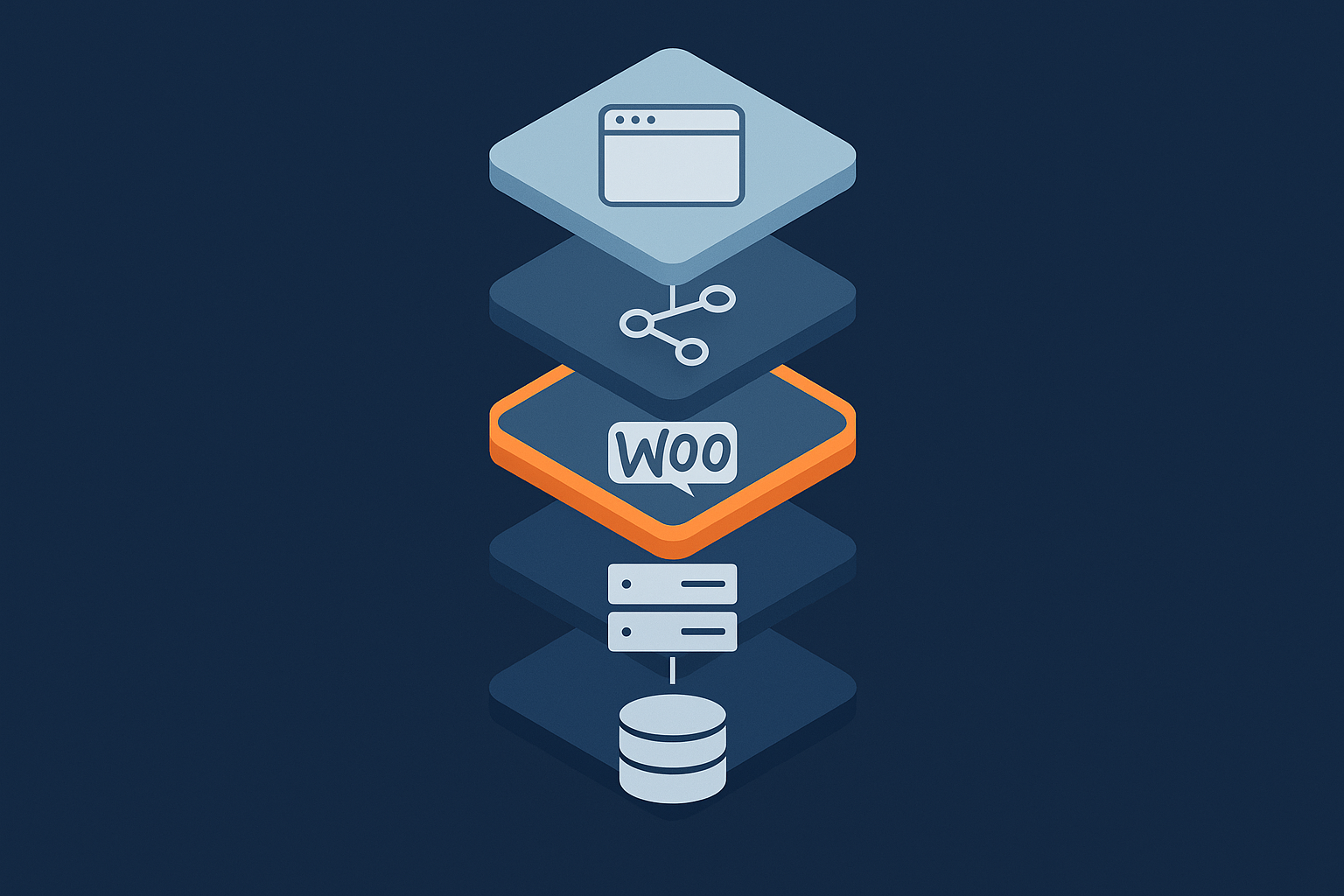
Backups you can actually restore from
Backups are only useful if you can restore them quickly without data loss.
A good backup setup for WooCommerce should have:
- Daily full backups of files and database stored off‑server.
- More frequent database backups during busy seasons, for example every 2 hours during a Black Friday sale.
- At least 14 to 30 days of history, so you can roll back past a problem that was not immediately obvious.
- Easy restore process that does not require deep technical skills.
Test this:
- Create or use a staging copy (see below).
- Restore a backup from a day or two ago.
- Check products, orders and user accounts look correct.
If this feels painful, your backup process needs attention. For a deeper walk‑through, see What Every WordPress Owner Should Know About Backups and Restores.
Staging and how to test risky changes without breaking checkout
A staging site is a private copy of your live site where you can test updates and new plugins without risking real orders.
Safe staging use for WooCommerce:
- Create staging from a fresh backup so it matches your live site closely.
- Block search engines and add a password or IP restriction so customers cannot stumble across it.
- Test updates, theme changes and new plugins on staging first. Run a full test purchase using test payment modes.
- Never confuse staging orders with real ones. Make sure payment gateways are clearly in test mode.
Managed WordPress hosting with WooCommerce awareness, such as a WooCommerce‑aware hosting platform, usually includes one‑click staging that makes this much easier.
Basic hosting checks: PHP version, SSL, and resource headroom
Before settling into a routine, confirm that your underlying hosting is in reasonable shape.
- PHP version: WooCommerce generally supports relatively recent PHP versions. Running something like PHP 8.1 or 8.2 is usually ideal; older versions reduce performance and security.
- SSL (HTTPS): Your entire site, including checkout and admin, should load over HTTPS with no browser warnings.
- Resource headroom: Check with your host how close you are to your limits on:
- CPU usage
- RAM / memory
- Database connections
- Disk space and inodes (number of files)
If your site already sits near its limits during normal traffic, no amount of optimisation will fix the underlying problem. Over time you may need to move towards managed WooCommerce hosting that understands the particular demands of carts, sessions and background tasks.
Daily & Twice‑Weekly Checks: Keep Orders Flowing Smoothly
Quick front‑end sweep: homepage, category, product, cart, checkout
This is a fast, non‑technical check that catches many issues before customers do.
On a laptop and on a phone, spend 3 to 5 minutes:
- Load the homepage. Check for obvious errors, missing images, or layout issues.
- Click into a main category or shop page. Make sure products show, filters work and pagination / load more behaves.
- Open a popular product page. Check images, stock status, variation dropdowns and add‑to‑cart.
- Add an item to the cart. Make sure mini‑cart and cart page update correctly, totals look right and shipping estimates appear.
- Go to checkout. You do not need to complete payment every day, but confirm:
- Checkout page loads.
- Address fields show.
- Payment options are visible.
If anything looks slow, broken or odd, note the time and page and, if possible, capture a quick screen recording or screenshot before asking for help.
Order and payment sanity checks
Next, confirm that money is actually flowing correctly.
- In WooCommerce → Orders, check the last 24 to 48 hours:
- Are orders coming in as expected?
- Any unusual spike in “pending payment” or “failed” statuses?
- In your payment gateway dashboard (Stripe, PayPal, etc.):
- Compare today’s order count and revenue to WooCommerce.
- Look for error messages or alerts.
- Check order emails:
- Are “New order” emails reaching your team?
- Occasionally do a test order and confirm customer emails arrive and look correct.
Even a few minutes spent here can catch gateway configuration issues, failing webhooks or email misconfigurations before they cost real money.
Watching for odd spikes: traffic, failed logins, error emails
Finally, glance at a few basic indicators for early warning signs.
- Analytics / traffic: In Google Analytics or another tool, check:
- Any unusual spike or drop in sessions compared to the same day last week?
- Sudden increase in bounce rate or decrease in conversion rate?
- Failed logins: Many security plugins and hosting dashboards show failed logins. A sharp spike can indicate brute‑force attempts that may slow the site if not filtered.
- Error emails: If your site or host sends automatic error alerts (PHP errors, WooCommerce fatal errors), scan your inbox for anything new or repeating.
Where your host includes upstream protection, such as G7Cloud’s bot protection within the G7 Acceleration Network, abusive and non‑human traffic is filtered before it reaches PHP or the database, which keeps these spikes from turning into slowdowns or downtime.
Weekly Routine: Updates, Clean‑up and Performance Hygiene
Safe plugin and theme updates for WooCommerce
Updating is one of the highest‑risk and highest‑reward tasks. A simple, repeatable process reduces stress.
Each week:
- Check backups and staging:
- Confirm you have a recent backup.
- If possible, test updates on staging first.
- Update in logical groups:
- Update WooCommerce core on its own.
- Update payment/shipping plugins separately.
- Then update remaining plugins and themes.
- After each group, run the quick front‑end sweep:
- Homepage, product, cart, checkout.
- Process at least one test order with a low‑value product and test payment mode.
- Note versions in a simple change log:
- Date, what you updated, any issues seen.
If you rely on a managed maintenance service, they should already follow a similar pattern and test major WooCommerce updates carefully before applying them to your live shop.
Database and content tidy‑up
Over time, WooCommerce databases collect a lot of clutter that can slow queries and the admin area.
Weekly or fortnightly, consider:
- Emptying trash: Clear trashed products, orders and posts you no longer need.
- Cleaning expired transients: Many caching or optimisation plugins include a “clear transients” option. Use it sparingly, but it is safe periodically.
- Spam and post revisions: Delete spam comments and consider limiting post revisions to a sensible number (for example via
WP_POST_REVISIONSinwp-config.php). - Old sessions and carts: Some plugins allow clearing old sessions and abandoned carts after a set period.
Always avoid “optimise everything” buttons that you do not fully understand. Stick to clear, reversible actions, or ask your host what is safe. For more detail, you can follow the principles in A Simple Guide to Optimising WooCommerce Performance.
Checking error logs for early warning signs
You do not need to read logs like a developer, but a quick scan can reveal patterns before they become outages.
Check weekly:
- PHP error log (location varies by host, often in a
logsdirectory or in the hosting control panel). - WooCommerce status at
WooCommerce → Statusfor red or orange warnings. - Server logs in your hosting dashboard if they are easily accessible.
What to look for:
- Repeated errors mentioning the same plugin or theme.
- Database connection or timeout errors.
- Memory limit errors (
Allowed memory size exhausted).
Note dates, times and full error lines and share them with your developer or host. This information can cut diagnosis time dramatically.
Cache, object cache and sessions: what to clear (and what not to)
Caching is essential for performance, but aggressive “clear all caches” habits can hurt WooCommerce, especially around carts and checkouts.
Some guidelines:
- Page cache:
- Safe to clear after updates that change templates or CSS/JS.
- Many systems, including the G7 Acceleration Network for caching and image optimisation, automatically bypass cache for cart, checkout and account pages, so you do not have to manage complex rules.
- Object cache (Redis, Memcached, etc.):
- Clearing this occasionally is fine, but do not do it constantly as it can briefly slow the site.
- Sessions:
- Avoid manually deleting active sessions unless instructed by your host or developer, as this logs customers out and empties carts.
Use cache clearing as a controlled tool after specific changes, not as a general “fix everything” button.
Monthly Routine: Performance, Images and Checkout Experience
Run a quick performance health check
Once a month, run simple tests to see whether your site remains reasonably fast for customers.
Use tools such as:
- PageSpeed Insights
- WebPageTest (for more detailed waterfall and timing breakdowns)
Test these pages separately:
- Homepage
- A popular category page
- A product page with several images and variations
- Cart
- Checkout
For non‑technical use, focus on:
- Time to first byte (TTFB) and overall load time.
- Top issues that appear consistently, such as large images, unused JavaScript or render‑blocking CSS.
Record your results in a simple spreadsheet so you can track trends over months. If numbers or grades drop significantly, it is a sign to review recent changes or speak with your host.
Core Web Vitals for WooCommerce in plain English
Core Web Vitals are Google’s way of measuring user experience. For shops, three are worth keeping an eye on:
- Largest Contentful Paint (LCP): How long it takes for the main content (often a large image or hero area) to appear. For a good experience, aim under about 2.5 seconds.
- Interaction to Next Paint (INP): How long the page takes to respond after a user interacts (clicks, taps, types). Slow INP makes your site feel sluggish even if it looks fast.
- Cumulative Layout Shift (CLS): How much content jumps around as it loads. High CLS is annoying on product and checkout pages where buttons move under your finger.
For WooCommerce, LCP and INP are usually the most important. Your monthly performance tests will show whether they stay within sensible ranges. If they drift, the cause is often:
- Heavier themes or page builders being used more aggressively.
- Larger images and banners.
- Additional scripts from marketing tools, chat widgets or A/B testing.
For a more detailed but still non‑technical explanation, you can read Practical Core Web Vitals for WordPress: A Non‑Developer’s Guide for UK Business Sites.
Image and media housekeeping
Images are often the biggest single contributor to slow pages and poor Core Web Vitals, especially on product and category pages.
Monthly tasks:
- Review new product images:
- Keep dimensions sensible (for example, 1200px longest side is often enough for catalogue images).
- Avoid uploading giant originals directly from cameras (4,000px+).
- Check hero banners and sliders:
- Limit the number of very large banners on a single page.
- Ensure images are compressed and not much larger than the displayed size.
- Clear unused media occasionally:
- Remove clearly unused old banners or product images to keep the media library tidy.
Modern edge networks can automate much of this. For example, the G7 Acceleration Network automatically converts suitable images to AVIF and WebP formats on the fly, usually cutting file sizes by over 60 percent while maintaining real‑world quality, and it does this without extra plugins or changes in WordPress.
Test your full purchase journey on mobile and desktop
Once a month, act like a customer with fresh eyes.
- On a mobile (ideally on 4G, not Wi‑Fi), search for a product, add it to the cart and complete checkout using a real low‑value payment.
- Repeat on a desktop or laptop.
Pay attention to:
- Form behaviour: Address lookup, postcode validation, required fields.
- Shipping and tax: Do prices and totals look as expected for your location?
- Coupons and discounts: Test at least one active promotion code.
- Order emails and thank‑you page: Do they include the right details?
Note any friction or confusion, even if technically “correct”. These small UX issues often cost as much revenue as slower performance.
Quarterly Routine: Capacity, Plugins and Hosting Choices
Review resource usage and headroom with your host
Every quarter, especially ahead of known busy seasons, ask your host for a simple health report.
Useful questions:
- What does CPU and memory usage look like during normal peaks and during promotions?
- Are there frequent database slow queries or connection limits being hit?
- Is disk space or inode usage approaching limits?
- Do they see any recurring performance bottlenecks specific to your site?
They should be able to explain whether you have comfortable headroom or are already operating close to capacity. If you are near the limit, discuss options such as scaling resources, better caching, or moving to a more WooCommerce‑aware hosting platform.
Pruning plugins and integrations without breaking critical flows
Over time, most shops accumulate plugins and integrations that are no longer needed. Each extra plugin adds code, potential conflicts and maintenance overhead.
Quarterly, review your plugins list:
- Mark each plugin as:
- Critical (payments, shipping, security, backups, WooCommerce core add‑ons).
- Useful (reporting, SEO, product enhancements you actively use).
- Unclear or unused (not sure what it does, or does not appear in your workflow).
- For unclear / unused plugins:
- Search your site admin and front‑end to see whether they affect anything important.
- Disable one at a time on staging, retest your core flows, then mirror the change on live.
- Delete plugins that are clearly no longer needed.
- Watch for overlaps:
- Multiple caching plugins.
- Several analytics or tracking tools doing similar things.
- Duplicate SEO or schema plugins.
Fewer, well‑maintained plugins generally mean better stability and performance.
Planning for peak days and promotions
Busy periods are where your maintenance discipline pays off, but they also bring special risks.
Ahead of sales and promotions:
- Estimate traffic: Look at previous years’ analytics for the same period and add a realistic growth factor.
- Share plans with your host: Tell them about upcoming email campaigns or ad spends so they can prepare.
- Load testing (optional but useful): For larger shops, basic load testing can help see how the site behaves at higher concurrency.
Bad bots and aggressive crawlers often spike during sales, scraping your catalogue or trying brute‑force attacks. Systems such as the G7 Acceleration Network include bot protection that filters abusive and non‑human traffic before it touches PHP or the database, which reduces wasted server load and helps keep response times steady during campaigns.
For a deeper look at handling peaks, you may find WooCommerce Hosting for UK Retailers: Choosing Infrastructure That Will Not Fall Over on Peak Days useful.
When to move from basic hosting to WooCommerce‑aware infrastructure
At some point, the bottleneck is no longer your maintenance routine, but the underlying platform.
Signs it may be time to move to more capable, WooCommerce‑aware hosting:
- Frequent slowdowns that your host blames solely on “high traffic”.
- Regular 502/504 or database connection errors during busy times.
- No simple way to use staging, view logs or adjust PHP versions.
- You are told to “add more caching” instead of addressing capacity or database tuning.
Moving to managed WordPress hosting with G7Cloud or another provider that explicitly supports WooCommerce can reduce your routine workload and provide better monitoring, staged updates and edge‑level caching.
Security and Bot Control: Quietly Protecting Stability and Speed
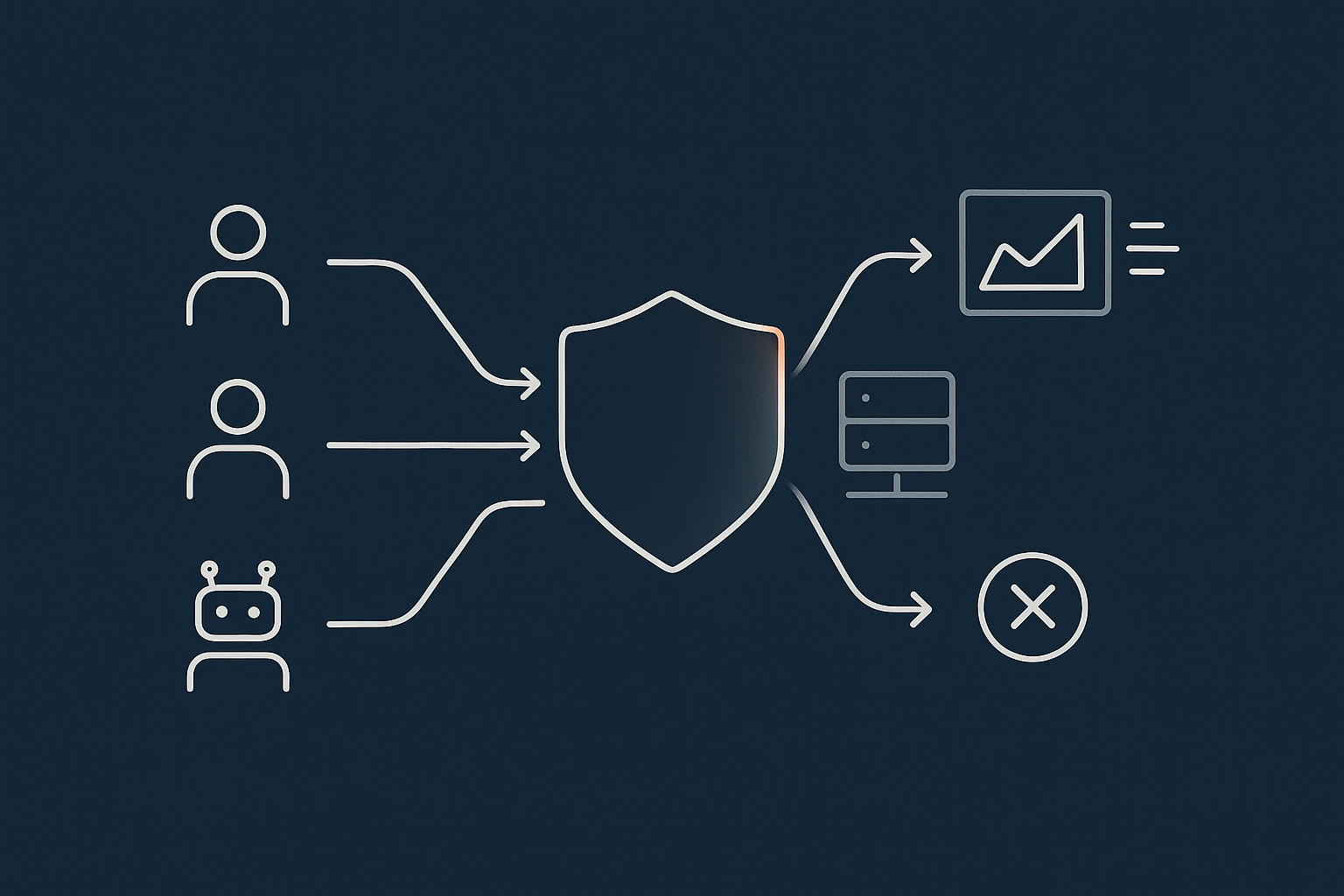
Minimal, high‑impact security practices for shop owners
You do not need to become a security specialist, but a few basics go a long way.
- Keep everything updated: WordPress core, WooCommerce, plugins and themes.
- Strong, unique passwords and preferably a password manager for all admin accounts.
- Two‑factor authentication (2FA) for all administrators.
- Limit admin access:
- Give staff only the role they need (Shop Manager instead of Administrator where possible).
- Remove old or unused accounts regularly.
- Minimal security plugin:
- Focus on login protection, basic firewall features and file change alerts.
- Avoid overlapping multiple heavy security plugins.
Your host should also provide built‑in web hosting security features such as firewalls, malware scanning and automatic SSL renewal, which remove many common risks with little effort from you.
For a calmer, sustainable approach, you can read How to Keep WordPress Secure Without Constant Firefighting.
Bad bots, scanners and why they slow your shop down
Not all traffic is good traffic. A significant share of requests to WooCommerce sites come from:
- Scrapers copying prices, descriptions and images.
- Aggressive crawlers and uptime monitors.
- Login brute‑force attempts and vulnerability scanners.
These bots use server CPU, memory and database connections, often without you seeing many extra “users” in analytics. During sales or marketing campaigns, this can push a site that is fine in normal conditions into timeouts and crashes.
Network‑level protection, such as G7Cloud’s bot protection within the G7 Acceleration Network, filters abusive and non‑human traffic before it reaches PHP or MySQL, which keeps load more stable and performance more predictable without you needing to tune every plugin.
How a smart edge layer supports your routine
An “edge layer” is a network of servers that sit between your visitors and your origin server, handling tasks that do not need to hit WordPress directly.
Used correctly, it supports your maintenance routine by:
- Caching static and semi‑static content like images, scripts and some pages, so fewer requests hit your origin server.
- Optimising images (for example to WebP/AVIF) and applying compression automatically.
- Adding security headers that harden the browser’s behaviour with no plugin overhead.
- Filtering abusive bots and common attacks at the network level.
In systems such as the G7 Acceleration Network, this is all managed for you, including WooCommerce‑specific rules that avoid caching carts and checkouts. That means your regular tasks can focus more on content, UX and business logic rather than low‑level performance tuning.
Putting It All Together: A 30‑Day WooCommerce Maintenance Checklist
Suggested calendar: what to do daily, weekly, monthly, quarterly
You can turn all of the above into a simple, repeatable schedule.
Daily or twice weekly (5–10 minutes)
- Quick front‑end sweep (home, category, product, cart, checkout).
- Check recent orders and payment gateway dashboards.
- Glance at analytics for obvious anomalies.
Weekly (20–40 minutes)
- Confirm backups are running.
- Apply WordPress, WooCommerce and plugin updates (staging first if available).
- Clean trash, spam and expired transients.
- Scan error logs and WooCommerce status for warnings.
Monthly (45–60 minutes)
- Run performance checks for key pages with PageSpeed Insights or similar tools.
- Review Core Web Vitals trends.
- Do image and media housekeeping.
- Test the full purchase journey on mobile and desktop.
Quarterly (60–90 minutes)
- Review hosting capacity and resource headroom with your provider.
- Audit and prune plugins and integrations carefully.
- Plan for upcoming peak periods and promotions.
- Re‑assess whether your hosting and edge‑layer setup still fit your growth.
What to document so others on your team can help
To make this routine sustainable, document it so others can share the work.
Helpful documentation includes:
- A simple checklist for each time frame (daily, weekly, etc.).
- Screenshots showing where to click for:
- Order checks
- Updates screen
- Logs and status pages
- Basic performance tests
- Contact details and steps for:
- Reaching your host’s support.
- Escalating to your developer.
- Finding backup restore options.
- A simple change log template so everyone records what they changed and when.
Even basic documentation means that holidays, staff changes or sickness do not stall your maintenance routine.
When it is time to hand maintenance to a managed provider
Finally, be honest about when you no longer want to carry this yourself.
Signs it may be time to move to managed WooCommerce hosting and maintenance:
- You regularly postpone updates because you are worried about breakage.
- Performance issues and security alerts distract you from core business work.
- You have no spare capacity to prepare for peak days properly.
- More than one person in your team is making ad‑hoc changes without coordination.
In that situation, exploring managed WordPress hosting with G7Cloud and the G7 Acceleration Network can be a practical way to reduce your maintenance workload while improving speed, uptime and protection against bad bots. Whether you stay hands‑on or hand things off, a calm, structured maintenance routine will keep your WooCommerce shop stable, fast and ready for the next busy season.