

Who This Guide Is For (And What “On a Budget” Really Means)
This guide is written for small WooCommerce shops that need to be fast and reliable without paying enterprise hosting prices or hiring an in‑house developer.
Typical small shop scenarios
Common situations where this guide fits:
- A local retailer or maker doing £2k to £20k per month online, often with seasonal peaks.
- A small brand with 50 to 1,000 products, mostly simple products and a few variations.
- A side‑business that runs on evenings and weekends, where there is no time to “tinker”.
- A shop that started on cheap shared hosting and a marketplace theme, now feeling slow.
Budgets often look like:
- £10 to £40 per month for hosting.
- Selective spend on 1 to 3 key premium plugins.
- Occasional one‑off developer help, but not a monthly retainer.
If that sounds familiar, you are the intended reader.
What “fast enough” looks like for a budget WooCommerce store
You do not need every performance metric to be perfect. You do need the site to feel immediate for real customers on ordinary devices and 4G or basic broadband.
As a practical target for a modest WooCommerce shop:
- Home and category pages: fully usable in under 2 seconds for UK visitors.
- Product pages: first content in under 1.5 seconds, main content usable within 2.5 seconds.
- Cart and checkout: page change on each step within 2 to 3 seconds under usual load.
On tools like Lighthouse or PageSpeed Insights, aim for green on mobile if you can, but accept that checkout pages often score lower because of needed scripts. What matters is real response time and reliability.
Where money is usually wasted with WooCommerce hosting and plugins
Small shops often waste budget in a few predictable ways:
- Overpaying for bare hosting power while still running slow because of missing caching, poor configuration or heavy plugins.
- Underpaying for unsuitable shared hosting, then compensating with a stack of paid optimisation plugins and developer time.
- Installing many “free” plugins that add queries, scripts and background jobs, costing more in hosting upgrades than a single well built paid plugin would.
- Duplicating features with separate plugins for caching, image optimisation, security headers and bot filtering, instead of using platform features such as the G7 Acceleration Network for caching, image optimisation and bot protection.
This guide focuses on the combinations that give the most speed and stability for the least money and effort.
Choosing Hosting for WooCommerce When You Do Not Have Enterprise Money
The minimum hosting capabilities a WooCommerce store really needs
Even on a tight budget, a WooCommerce site has some non‑negotiables. In practice you need:
- PHP 8.1 or newer, with regular security updates.
- Fast storage (NVMe or SSD at minimum), not slow spinning disks.
- Dedicated PHP worker limits that are appropriate for WooCommerce, not the absolute minimum that static blogs can get away with.
- HTTPS by default with automatic certificate renewal.
- Server level page caching and GZIP/Brotli compression for non‑dynamic pages.
- A reliable database server, ideally on the same physical host or low latency network.
- Backups at least daily (ideally with simple restores).
Many “£2.99 unlimited” shared hosting plans technically run WooCommerce but fall short on PHP workers, database performance or support. You will feel this during busy periods when cart and checkout become sluggish.
Providers that focus on performance, such as those offering specialised WooCommerce hosting plans designed for shops of different sizes, usually publish realistic limits and tune servers for PHP applications out of the box.
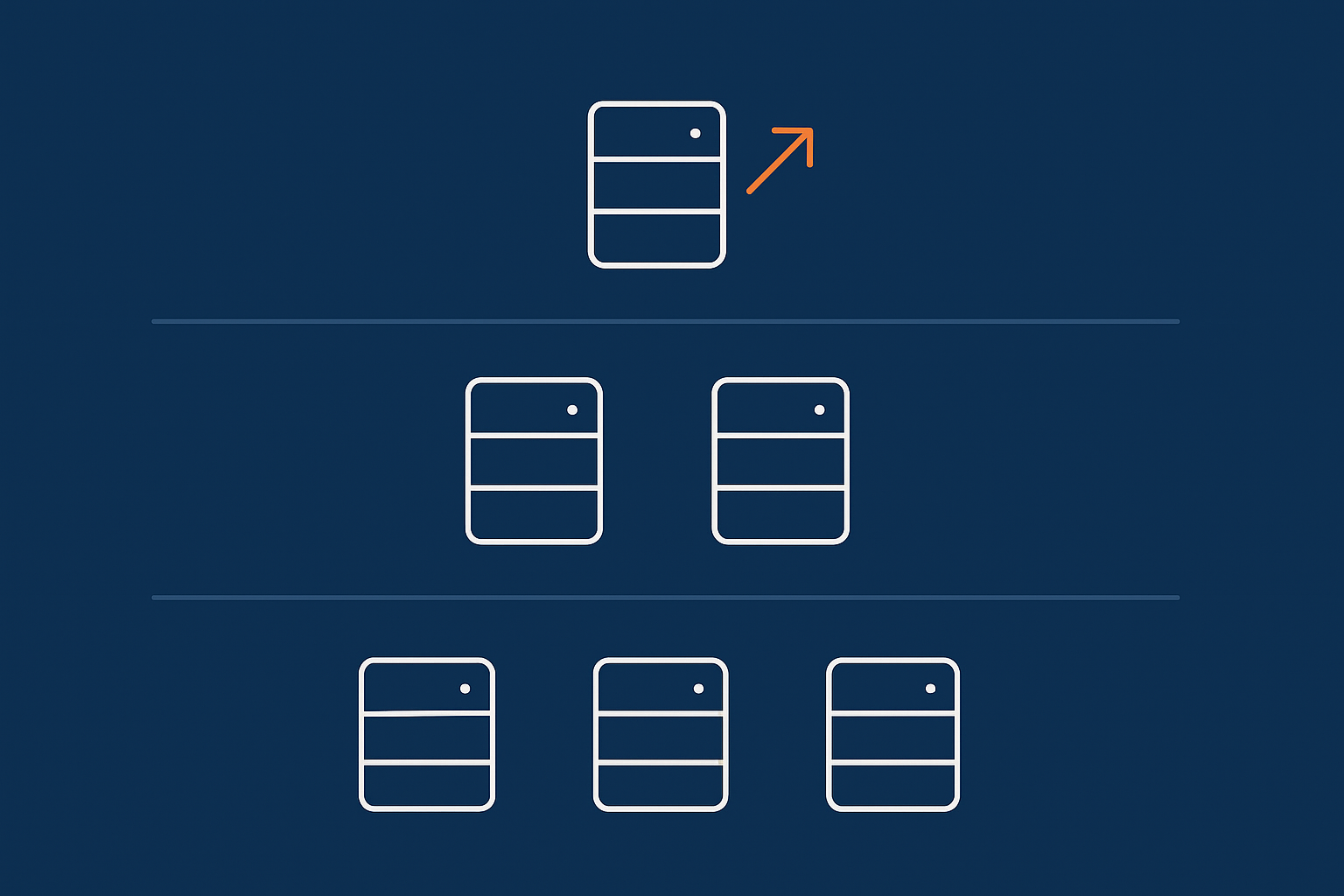
Shared hosting vs managed WordPress vs VPS/VDS for small shops
In simple terms:
- Shared hosting: cheapest, resources shared with many sites, basic panel, minimal WooCommerce specific tuning. Suitable only for very small or test shops, or if most sales are offline.
- Managed WordPress hosting: costs more per month but includes tuned PHP, web server caching, automatic updates, backups and often a support team familiar with WooCommerce.
- VPS/VDS: your own slice of a server with dedicated resources. Powerful but you or a sysadmin must manage configuration, updates and monitoring.
For a typical small UK shop, a good quality managed WordPress hosting for small business sites plan is usually the sweet spot. VPS hosting often only makes sense if you have development or system administration skills in‑house, or a technical partner.
If you are already on a VPS that you manage yourself and the shop is slow, remember that throwing more CPU at poor configuration and heavy plugins rarely solves the underlying issues.
Practical rules of thumb: when to upgrade (or when a move is better than a bigger plan)
Consider upgrading your plan with your current host when:
- Your current plan frequently hits CPU or entry process limits but the host can show that PHP and database response times are otherwise healthy.
- You see consistent slowness only when many users are on the site at once, but it is fine during quiet times.
Consider moving provider instead of upgrading when:
- Pages are slow even with low traffic and a basic theme.
- Support cannot explain performance metrics or just recommends “upgrade to a bigger plan” without analysis.
- You need to stack multiple caching plugins because your host does not provide sensible caching out of the box.
A well configured, modest plan on a provider that cares about web hosting performance features on the server side can often outperform a larger generic plan at the same price point.
How platform features like built in caching, image optimisation and bot filtering protect your budget
Good hosting platforms reduce the need for extra plugins and manual tuning. Useful features to look for include:
- Server level page cache for catalogue and content pages, with automatic bypass on cart and checkout.
- Object caching at the platform level for logged in users, reducing database load.
- Network level caching layer that can serve cached content from locations closer to customers.
- Automatic image conversion and compression for common formats.
- Bot and attack filtering before traffic reaches PHP.
On platforms that provide something like the G7 Acceleration Network for caching, image optimisation and bot protection, much of this is handled outside WordPress. This cuts the number of performance and security plugins you need, reduces plugin conflicts and usually keeps your hosting needs smaller for longer.
G7Cloud’s bot protection within the G7 Acceleration Network filters abusive and non human traffic before it hits PHP or the database, which keeps resource usage predictable and helps avoid paying for extra capacity purely to absorb bot traffic.
Budget Friendly Performance Wins: Caching, Images and Front End Weight
Page caching for WooCommerce: what you can cache safely, and what must stay dynamic
WooCommerce is partly cacheable and partly dynamic. Getting this right is one of the cheapest ways to speed up a small shop.
Safe to cache (for guests):
- Home page and landing pages.
- Category / shop archive pages for non‑logged in users.
- Individual product pages, as long as prices and stock are not changing every second.
- Blog posts and other static content.
Should stay dynamic:
- Cart and checkout pages.
- My account pages.
- Pages with personalised pricing or content.
Most modern caching plugins and managed WordPress platforms know these rules out of the box, but it is worth checking:
- Load a product page as a guest user, then reload it. The second load should be faster and come from the cache.
- Add a product to the cart, then reload the cart or checkout. These pages should not show a “cache hit” header.
If your host controls caching, ask support how WooCommerce rules are handled. If you manage caching yourself, take time to configure WooCommerce exclusions correctly. Misconfigured caching that affects carts can be expensive in abandoned orders.
If you want a deeper explanation of caching layers and what your host should handle, the article Understanding WordPress Caching Layers: What Really Speeds Up Your Site (and What Your Host Should Handle) is a helpful follow‑up.
Object caching and transient cleanup: when it is worth enabling on a small shop
Page caching speeds up anonymous visitors. Object caching speeds up logged in activity, especially in wp‑admin and checkout flows.
For small shops, lightweight object caching is usually worthwhile if:
- You use complex product filters or custom pricing rules.
- There are multiple admins or staff in the back end during the day.
- You notice slow admin screens, especially orders and products.
On managed platforms, object caching may be built in. If not, consider Redis or Memcached via a reputable plugin, but avoid stacking multiple object cache plugins.
Equally important is cleaning up transients and expired sessions:
- Use a database cleaning plugin that can safely remove expired WooCommerce sessions and transients once a week or month.
- Avoid overly aggressive cleanup on live sites with active carts; schedule it for quiet hours.
This sort of housekeeping costs nothing and can reduce database size and query time meaning you may not need to upgrade hosting as soon.
Image optimisation on a budget: formats, compression and avoiding bloated product pages
Unoptimised images are often the single largest source of wasted bandwidth on small shops. A few simple rules help:
- Upload at sensible dimensions. Product images rarely need to be wider than 1,600px for normal themes.
- Use JPG or WebP for photos, PNG only when transparency is essential.
- Compress to a visual quality of 70–80 percent in tools like ImageOptim or TinyPNG before upload if you do not have server side optimisation.
- Avoid massive hero sliders with 5+ full width images on the home page.
Many sites now rely on automatic conversion. On platforms that include a network layer, such as the G7 Acceleration Network, images are converted on the fly to modern AVIF and WebP formats, typically cutting file sizes by more than 60 percent while keeping quality suitable for real shops. This is included for every site hosted with G7Cloud and does not require additional plugins or changes in WordPress.
If you want deeper front end guidance specifically for WooCommerce product and checkout pages, see Practical WooCommerce Image, Script and Font Optimisation for Faster Checkouts.
Keeping themes, fonts and scripts lean without a full redesign
You may not have the budget for a redesign, but there are usually easy wins:
- Disable unused theme features such as sliders, popups, animations or social feeds if they add scripts and are not driving sales.
- Limit web fonts to 1 or 2 families and a few weights. Consider system fonts for body text to avoid multiple font files.
- Remove unused page builder blocks and templates; they often still load CSS and JS even when not visible.
- Turn off “global” widgets or tracking scripts that you no longer use.
Use browser developer tools or waterfall charts from tools like WebPageTest to see which scripts are heavy and whether they are needed on every page.
How a network layer accelerator can replace several optimisation plugins
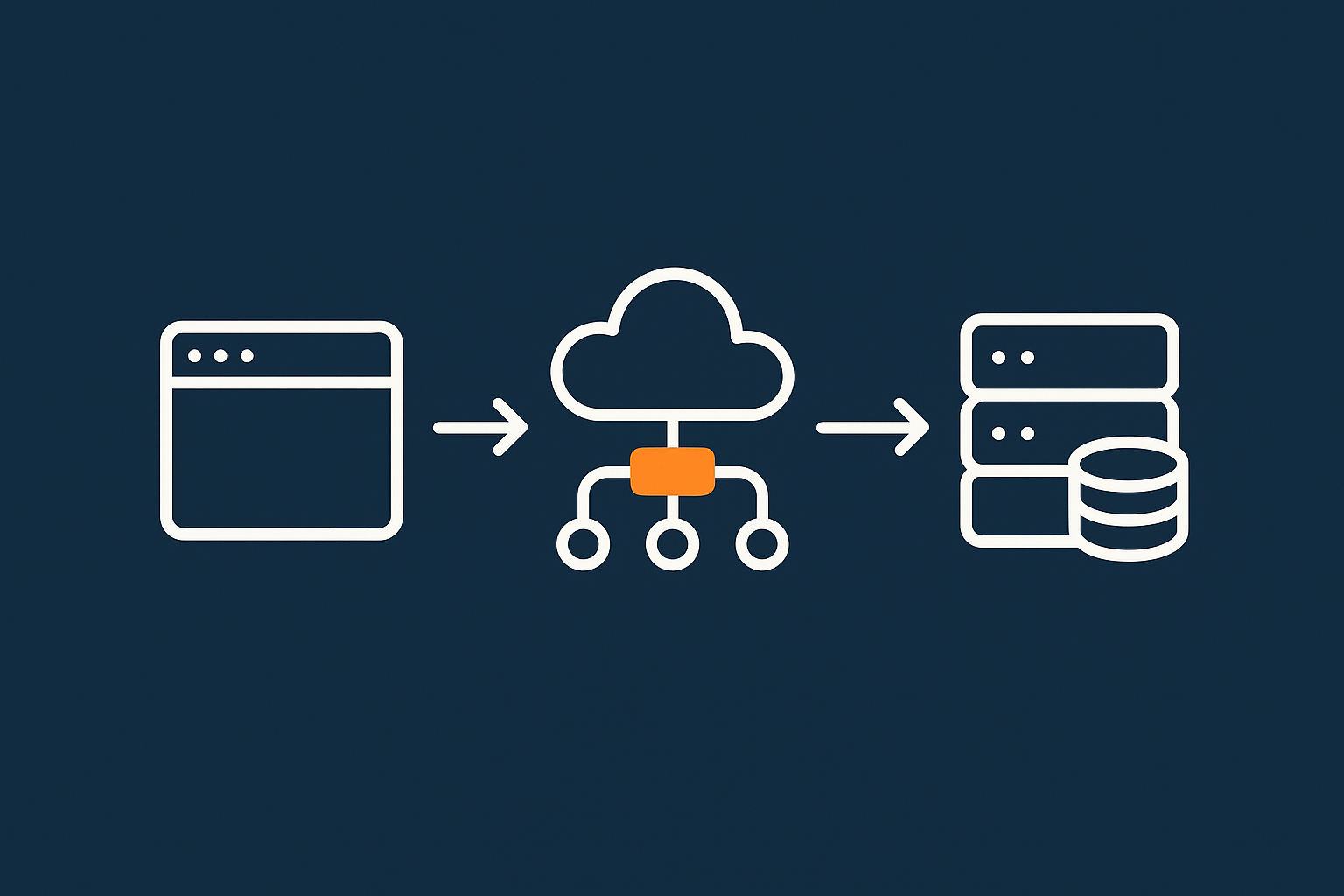
A network level accelerator sits in front of your WordPress site and handles caching, asset optimisation and security headers before requests reach the origin server.
Handled well, this can replace several plugins:
- Page caching for anonymous users.
- Static asset compression and HTTP/2 or HTTP/3 delivery.
- Image format conversion and resizing.
- Basic WAF‑style request filtering and bot control.
Systems such as the G7 Acceleration Network can offload this work without needing separate caching, image optimisation and firewall plugins. Keeping the plugin list slimmer usually means fewer compatibility problems and lower PHP overhead on each request.
Because G7Cloud’s bot protection filters abusive and non human traffic before it reaches PHP or the database, you are less likely to hit resource limits during campaigns or busy weekends purely due to automated scraping.
Plugin Choices That Keep WooCommerce Lean (Instead of Death by Add ons)

The hidden cost of “free” plugins: queries, scripts and background tasks
Free plugins can be a good way to control costs, but they are not cost‑free for performance.
Common hidden costs include:
- Extra database queries on every page, even when the feature is not used.
- Heavy JavaScript bundles loaded on all front end pages.
- Cron jobs and background tasks that run every few minutes.
- Admin dashboard widgets that slow down back end screens.
A single heavy plugin is manageable. Ten heavy plugins begin to require a bigger hosting plan just to stay responsive.
How to audit your current plugin list in under an hour
You can perform a quick, practical audit with no special tools.
- List all active plugins on a spreadsheet with columns for “critical”, “nice to have” and “do not use anymore”.
- Mark anything that touches checkout, payments or orders as “critical” by default.
- Identify overlap. For example, multiple SEO plugins, two caching plugins or several security plugins.
- Measure impact:
- Use Query Monitor or similar on a staging site to see which plugins add many queries.
- Check front end scripts: view source and search for
wp-content/plugins/to see which plugins load assets on key pages.
- Deactivate one plugin at a time (on staging first) and re‑test page speed and key flows.
The aim is not to remove every plugin, but to remove or replace those that add noticeable overhead without directly contributing to sales or essential management.
Lightweight alternatives for common WooCommerce add ons
In many categories there are lighter choices:
- Wishlists and comparison: choose solutions that use as few scripts as possible and can use browser local storage instead of heavy database tables.
- Page builders: if you have already built the site, do not add a second builder for landing pages. Use your existing builder’s templates.
- SEO plugins: a simple, focused SEO plugin is often enough for small shops; advanced schema builders and analysis modules may be unnecessary.
- Security: rely on your host’s firewall and network layer where possible. Only add WordPress‑level security plugins when they provide a clear, missing feature.
Before installing a new plugin, ask:
- Can this feature be implemented with my existing tools?
- Does my host already provide this feature at the network or server level?
- Is there a more focused plugin that does only what I need?
When premium plugins are actually cheaper than “making do”
Sometimes a well designed paid plugin is cheaper in the long run than multiple free ones plus higher hosting costs.
Examples:
- A solid caching plugin that handles WooCommerce correctly can avoid lost orders and reduce support time, even if your host’s caching is basic.
- A premium shipping or tax plugin that calculates rates cleanly may be more efficient and legally reliable than several overlapping tools.
- A good email or CRM integration can replace manual exports and fragile custom code.
When judging premium plugins, consider:
- How much time it will save you every month.
- Whether it lets you remove two or more other plugins.
- Support quality and update history.
Configuration Tweaks Inside WooCommerce That Cost £0 and Save Resources
Tuning catalog, search and product data for speed
WooCommerce’s default settings try to cover many scenarios, but small shops can often simplify them.
Consider:
- Reduce products per page in catalogue view to 12 or 16. This cuts queries and images per request.
- Disable AJAX “load more” if it loads very large pages; use numbered pagination instead.
- Keep variations tidy. Hundreds of variations on a single product are hard for WooCommerce to handle. Where possible, split into multiple products.
- Use a lightweight search. If your catalogue is small, the built‑in search may be enough. Large, fuzzy search plugins can be heavy.
Also review catalog visibility and indexing options. Hiding discontinued or low value products from the shop and search can reduce clutter and the amount of data WooCommerce needs to process.
Cart and checkout settings that reduce load and abandonment
Cart and checkout pages are dynamic and cannot be fully cached, so every optimisation helps.
Within WooCommerce:
- Disable “redirect to cart after adding to cart” if you prefer customers to carry on browsing for a bit.
- Keep checkout fields to the minimum legally and operationally required.
- Limit payment gateways to those you actually use; each may add scripts and API calls.
- Turn off unnecessary cart fragments in your theme options if supported.
If your theme or plugins add upsell sliders and popups on checkout, test their real impact on conversion and speed. Removing a marginal cross‑sell that slows checkout by a second or two can be a net gain.
Email, webhooks and integrations: keeping background tasks under control
Background tasks often get overlooked. Poorly configured webhooks or integrations can consume resources even when your shop is quiet.
Practical steps:
- Review WooCommerce webhooks and remove any that point to old services or are no longer used.
- Adjust email notifications so you are not sending unnecessary emails for every status change.
- Check integrations with mailing lists, CRMs and fulfilment providers to ensure they sync only necessary data and at sensible intervals.
- Monitor failed tasks in WooCommerce Status > Scheduled Actions; repeated failures can indicate misconfigured plugins.
For transactional email delivery, offload to a dedicated SMTP or email provider if possible. This improves deliverability and reduces the risk of your web server being tied up sending large volumes of mail.
Database cleanup basics for small stores
A tidy database is easier and faster for MySQL to query.
Low risk cleanups include:
- Removing old post revisions beyond a reasonable limit.
- Deleting spam and trashed comments.
- Clearing expired transients and WooCommerce sessions periodically.
- Dropping tables left behind by plugins you removed long ago.
Use a reputable optimisation tool, and take a backup before major changes. For many sites, a monthly cleanup is enough to keep growth under control without manual SQL work.
Handling Traffic Spikes Without Renting Half a Data Centre
What usually breaks first on a budget WooCommerce setup
During big campaigns or sudden press mentions, it is rarely bandwidth that fails first. More often:
- PHP workers are saturated by uncached requests, causing queues and timeouts.
- Database connections max out leading to “Error establishing database connection” or similar.
- Session or cart tables grow rapidly and slow queries.
- Cheap shared hosting throttles your account to protect other users.
Bad bot traffic compounds this. Cheap setups often let automated crawlers hammer product filters and search pages, consuming most of the available PHP capacity while real customers wait.
Cheap ways to prepare for campaigns, Black Friday and press mentions
You can do a surprising amount without upgrading hosting dramatically:
- Ensure page caching works perfectly for all non‑cart pages so that cold visitors hit the cache rather than PHP.
- Simplify product filters and avoid expensive combination filters on category pages during campaigns.
- Temporarily disable non essential features such as live chat popups and heavy tracking scripts.
- Pre‑warm cache by crawling key pages before a campaign goes live.
- Coordinate with your host and let them know about expected traffic peaks. They may suggest temporary tuning.
For more detailed preparation steps, the guide How to Prepare a WooCommerce Site for Seasonal Traffic Spikes Without Oversized Hosting is worth a read.
Bot protection and rate limiting so real customers get priority
During busy periods, bot and scraper traffic can consume as much or more capacity than real visitors if it is not filtered.
Cost effective defences include:
- Blocking abusive IP ranges and user agents that constantly hit search and filter URLs.
- Rate limiting for dynamic endpoints such as
/cart/,/my-account/and search queries. - Using a network layer firewall that can challenge or block non human traffic before it reaches PHP.
On platforms that provide a network accelerator, such as the G7 Acceleration Network, bot protection filters abusive and non human traffic at the edge. This keeps wasted server load down and makes response times more consistent for real customers during campaigns.
A Simple, Low Cost Maintenance Routine That Keeps Things Fast
Monthly checks that prevent slowdowns before you need an upgrade
A short, consistent routine is often more valuable than occasional big optimisation projects.
Each month:
- Update WordPress, WooCommerce and plugins after taking a backup. Test checkout after each update cycle.
- Review plugins you installed “temporarily”. Deactivate anything not in use.
- Run a database cleanup focusing on transients, revisions and old sessions.
- Test speed on home, a busy category, a typical product and checkout. Note major changes.
- Check error logs for repeated PHP or database errors that might indicate problems building up.
Once a quarter, revisit theme settings, fonts and external scripts to see whether anything can be simplified further.
If you prefer a more detailed step by step routine, Making WooCommerce Stable and Fast: A Step‑by‑Step Maintenance Routine for Busy Shop Owners offers a practical checklist.
When it is time to call your host or move provider
Even with good housekeeping, there comes a point when either your plan or your provider is holding you back.
Contact your host when:
- You see regular slowdowns at certain times of day even after optimising images and caching.
- You notice frequent 502/503 errors without obvious cause.
- You suspect another site on shared hosting is affecting you.
A move is worth considering when:
- Support cannot explain performance metrics in clear terms.
- You are told to “upgrade again” every time performance drops, without deeper investigation.
- You must manage your own caching, backups and security despite paying for hosting that claims to be suitable for WooCommerce.
Many small shops move to managed WordPress hosting for small business sites once they realise the time cost of self managing a generic VPS or very cheap shared hosting. The monthly fee is often offset by fewer problems and less need for third party performance plugins.
Putting it all together: a realistic action plan for the next 30 days
You do not need to fix everything at once. A simple 30‑day plan could look like:
- Week 1: Audit hosting and caching. Confirm WooCommerce pages are cached correctly for guests and that cart/checkout are excluded. Talk to your host about performance limits and options.
- Week 2: Audit plugins. Remove unused ones, replace heavy add ons where sensible and avoid feature overlap.
- Week 3: Tidy front end and media. Optimise key images, reduce sliders and extra scripts, and simplify fonts.
- Week 4: Tune WooCommerce settings, clean the database and test checkout under realistic load.
As you work through this, keep notes on what had the biggest impact. That will guide future decisions about whether you need a bigger plan, a different provider, or simply a more efficient configuration.
If you would rather spend time on products and customers than on caching rules and logs, exploring WooCommerce hosting plans designed for shops of different sizes with features like the G7 Acceleration Network can be a practical next step. Managed WordPress hosting with sensible performance defaults often turns “WooCommerce on a budget” from a constant balancing act into something you rarely need to think about.