

Why Paid Traffic Exposes WooCommerce Performance Problems
How ad traffic behaves differently from organic visitors
Organic traffic is usually uneven but manageable. People arrive from search, email and social at different times of day, so load is spread out. Paid traffic from Google Ads and Meta is the opposite: you are deliberately concentrating visitors into specific time windows and specific landing pages.
A few key differences:
- High concentration on a handful of URLs: One product or category page might suddenly receive 80 percent of traffic.
- Short sessions and quick decisions: Many visitors bounce in seconds if the page feels slow or unresponsive.
- More mobile, more 4G/5G: Meta traffic in particular skews to mobile, which is more sensitive to heavy pages.
- Bursty patterns: Ads start, budgets reset, posts go viral, and your server suddenly sees 5 to 10 times the usual concurrency.
This kind of traffic quickly reveals weak PHP capacity, poor caching and inefficient themes or plugins in a way that normal organic load often does not.
The cost of slow landing pages when you are paying per click
With paid traffic you are buying every second of delay. Slow WooCommerce landing pages hurt you in three places at once:
- Lower conversion rate: A product page that takes 5 seconds to become usable will lose a significant share of visitors compared with one that becomes interactive in around 2 seconds.
- Higher cost per acquisition: Google Ads and Meta both factor landing page experience into their auction systems. Poor speed signals can mean you pay more per click for the same ad position.
- Wasted media budget during slowdowns: If the site becomes overloaded, your spend continues, but fewer people actually see a working page or checkout.
For campaigns with tight margins, it is often cheaper to fix performance than to increase bids.
What “fast enough” looks like for Google Ads and Meta campaigns
Instead of chasing perfect scores, aim for reliable, repeatable speed under load:
- Time to First Byte (TTFB) under about 300 ms for UK visitors on cached landing pages.
- Largest Contentful Paint (LCP) under 2.5 seconds on mobile for key landing URLs, even when traffic spikes.
- Fully usable page (above the fold) in under 3 seconds on a realistic 4G connection.
Improving TTFB in particular can have an outsized effect on both user experience and ad platform quality scores. For a deeper dive into TTFB fixes, there is a separate guide on reducing WordPress Time to First Byte on UK hosting.
Start With Real Campaign Data, Not Synthetic Tests
Using Google Analytics, Ads and Meta reporting to see real load patterns
Before changing hosting or plugins, look at the traffic you already have:
- Google Analytics 4: Check “Pages and screens” for your main landing pages. Note pageviews per minute at peak and what proportion is mobile.
- Google Ads: In the landing page report, look at “Mobile speed score” and which URLs receive the highest click volume.
- Meta Ads Manager: Look at delivery by hour of day and by placement. This tells you roughly when your WooCommerce landing pages are under the most stress.
This data gives you starting assumptions for concurrency and which URLs to optimise first.
Core Web Vitals under load vs one off PageSpeed tests
PageSpeed Insights and similar tools are useful, but they test in isolation. Your campaigns will not. Real users hit the server while others are already in the checkout, the admin is updating products and background tasks are running.
To understand what happens under load:
- Use Core Web Vitals in Search Console to see field data over time rather than a one off lab run.
- Compare PageSpeed lab results during quiet times with those during campaigns.
- Watch for LCP and FID/INP degrading during busy hours.
It is common to see a WooCommerce site that “scores green” in the lab but becomes sluggish as soon as 20 to 30 concurrent visitors arrive.
Simple way to simulate campaign spikes without risking live spend
You can run basic load tests before increasing budgets:
- Pick one or two high value landing URLs.
- Use a tool like k6 or Locust, or even simpler, a browser based tester that supports multiple concurrent users, to request those URLs repeatedly over 5 to 10 minutes.
- At the same time, watch your hosting control panel metrics (CPU, RAM, I/O, entry processes, PHP workers) and response times.
If your host offers staging environments, run the test there first. G7Cloud’s web hosting performance features include metrics that help you see when PHP or the database is becoming saturated long before the site outright fails.
Tuning WooCommerce Landing Pages for Paid Traffic
Choosing the right landing type: product, category or dedicated page
Your landing type affects both performance and conversion:
- Single product pages: Best for clearly defined offers. Performance is usually decent, but watch out for heavy product galleries and “related products” queries.
- Category / archive pages: Useful for broad intent keywords. These can be heavy because of product loops, filters and sorting.
- Dedicated campaign pages: Often the fastest if built lean. You can strip away navigation, sidebars and heavy widgets, focusing only on what this campaign needs.
For high spend campaigns, a dedicated landing template that uses WooCommerce shortcodes for key elements but avoids full shop loops is often a good compromise.
Trimming heavy builders, popups and tracking on campaign pages
Many WooCommerce sites rely on visual builders, popup plugins and multiple analytics scripts. Each adds requests and processing.
For campaign URLs:
- Use a lighter template or a simplified builder layout with fewer global sections.
- Disable non essential popups such as generic newsletter overlays that delay engagement.
- Limit tracking to what you genuinely need for optimisation. Avoid stacking several heatmap and session replay tools during heavy campaigns.
Tools like Perfmatters or Asset CleanUp can help conditionally disable scripts and styles on specific landing pages without rewriting the whole site.
Front end weight: images, scripts, fonts and above the fold content
Once the basic layout is lean, focus on bytes and requests:
- Images: Use responsive image sizes, avoid oversized hero banners and compress aggressively.
- Scripts: Remove unused carousels, sliders and social feeds from landing pages. Defer non critical JavaScript where safe.
- Fonts: Stick to one or two webfont families with limited weights, and preload the main font used above the fold.
- Above the fold: Keep the first viewport mostly HTML and CSS, with large images optimised and lazy load heavier elements further down.
If you want deeper tactics, there is a detailed article on practical WooCommerce image, script and font optimisation that also applies to landing pages.
How automatic AVIF/WebP image optimisation keeps pages light
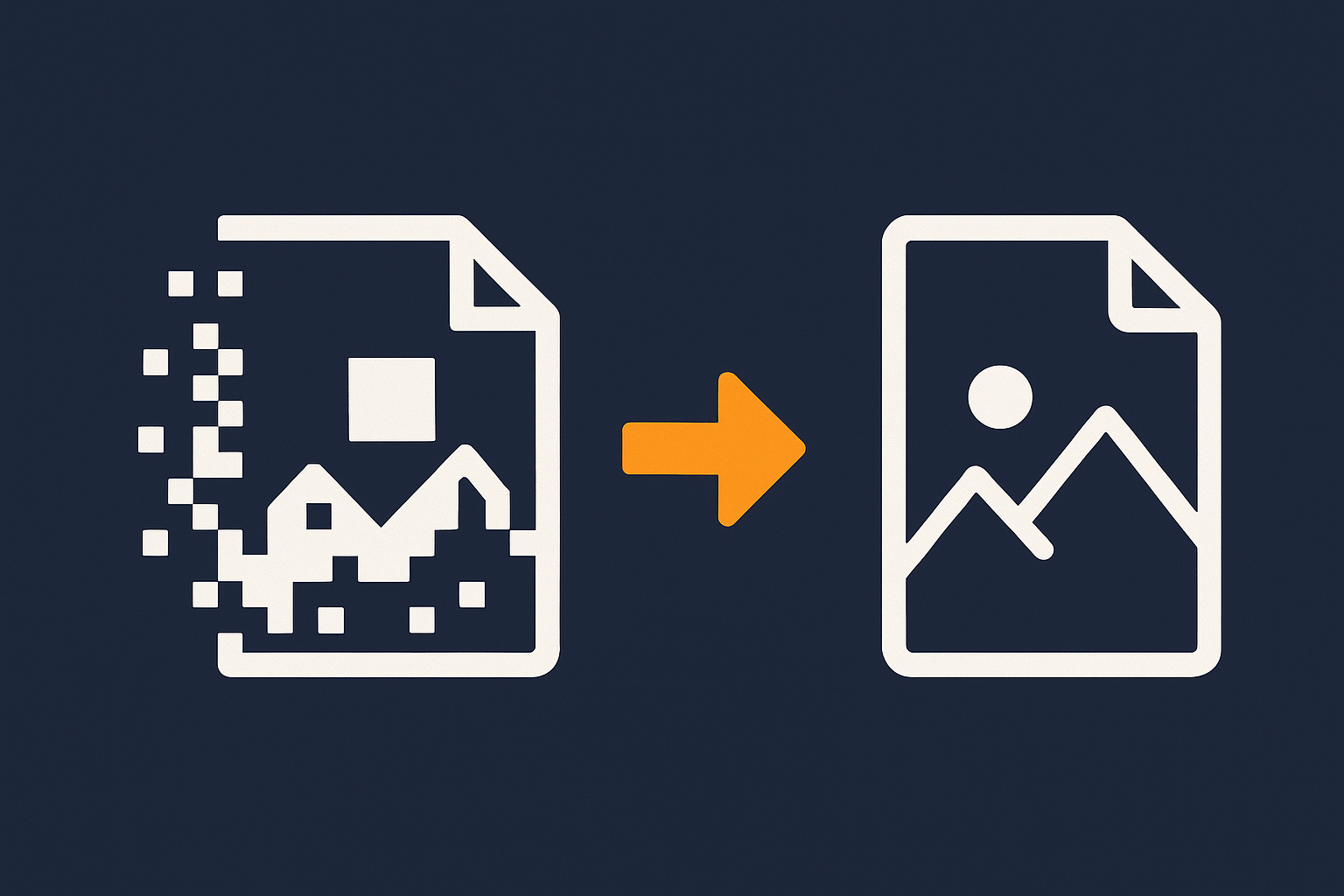
Modern formats like AVIF and WebP can cut image weight dramatically. The G7 Acceleration Network automatically converts images to AVIF and WebP on the fly, which typically reduces file sizes by more than 60 percent while keeping quality suitable for real stores. It is included for every site hosted with G7Cloud and works without installing extra plugins or changing anything in WordPress.
Caching That Works With WooCommerce, Carts and Dynamic Prices
What you can safely cache for ad traffic (and what you must not)
Caching is vital for handling paid traffic, but WooCommerce adds constraints.
Generally safe to cache:
- Landing pages that do not show personalised content.
- Category pages without logged in specific pricing or user dependent stock.
- Blog posts and informational pages for top of funnel ads.
Be careful or avoid full page caching for:
- Cart, checkout, account and wishlist pages.
- Stores with complex dynamic pricing, currency switching or logged in only prices.
Instead of disabling caching entirely, set sensible exclusions and use cache rules that vary by cookie or query string where needed. The separate guide on WooCommerce caching without breaking carts covers this in depth.
Per campaign and per device caching considerations
For campaigns, you often know exactly which parameters will be present in URLs. That makes caching easier:
- Normalise tracking parameters so that
?utm_source=and similar do not create endless cache variants. - Ensure the cache varies by device type if your mobile and desktop layouts differ significantly.
- Check that geo or currency switching logic does not explode your cache into too many variants.
Ask your host or caching plugin vendor how many cache keys a given landing page is likely to generate when UTM parameters and cookies are taken into account.
Server level caching and the role of a CDN / acceleration layer

Relying purely on a WordPress plugin for caching means every request still hits PHP before being served. With serious ad spend, that is rarely enough.
Adding server level caching and a CDN or acceleration layer means:
- Static assets and many HTML responses are served directly from the edge.
- TTFB stays low even when PHP workers are busy.
- The origin server has more breathing space for logged in users and checkout.
The G7 Acceleration Network sits in front of WooCommerce to provide this kind of caching as part of the hosting stack instead of relying only on plugins.
How the G7 Acceleration Network handles WooCommerce caching
For WooCommerce, you need a caching layer that understands which pages can and cannot be cached. The G7 Acceleration Network is tuned to cache product, category and landing pages aggressively while bypassing cache automatically for carts, checkout and logged in users. This gives ad landing URLs the benefit of edge caching without risking customers seeing someone else’s cart or stale pricing.
Handling Concurrency: PHP Workers, Database Load and Background Tasks
What actually happens on the server when an ad spike hits
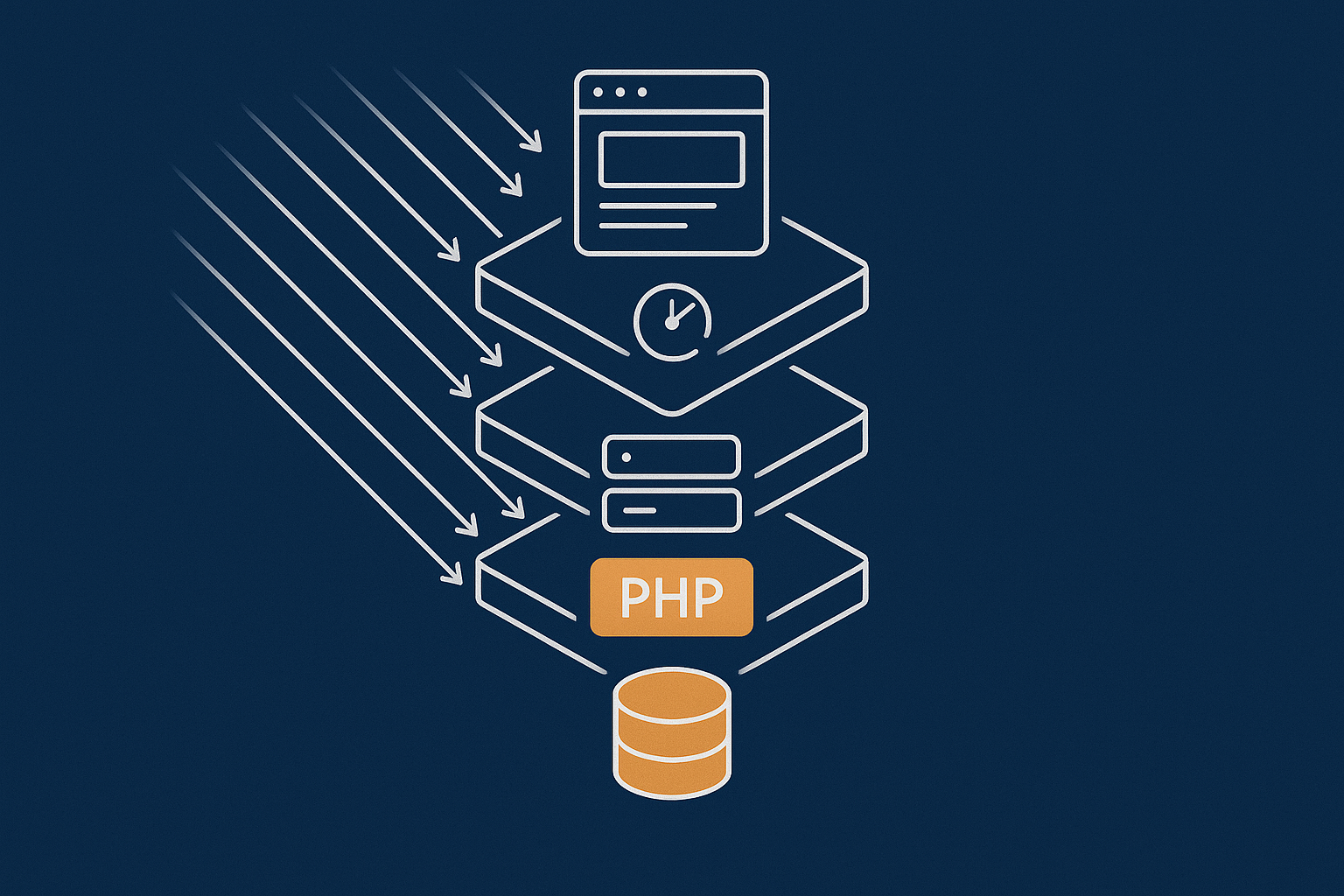
When your Google Ads or Meta campaign spikes, every click results in:
- The request hitting your web server or acceleration layer.
- If the landing page is not cached, a PHP worker starting a new WordPress + WooCommerce process.
- Multiple database queries to fetch products, stock levels, prices, menus and options.
- Optional extra work from plugins such as search, recommendations, tracking and security tools.
If all PHP workers are busy when new requests arrive, they queue. Visitors experience this as slow initial responses or timeouts.
Matching PHP workers and database capacity to campaign peaks
You do not need enough capacity for the absolute worst peak you can imagine, but you do need a realistic buffer for campaign plans.
As a starting point:
- Estimate concurrent active users during campaigns using your analytics and ad reports.
- Ensure you have at least enough PHP workers to handle typical concurrency plus a margin for checkout and admin activity.
- Watch database CPU and query time; one inefficient plugin can use an entire core under load.
The article on PHP workers, concurrency and WooCommerce explains how to translate these numbers into practical hosting choices.
Keeping cron jobs, feeds and sync tasks away from peak hours
Background tasks can quietly steal capacity right when you need it most:
- Disable or reschedule heavy cron jobs such as bulk email sends, report generation and order exports to quieter hours.
- Stagger stock syncs and marketplace feeds so they do not coincide with major ad pushes.
- Use a real cron at the server level rather than relying only on WP-Cron triggered by visitors.
Where possible, avoid running large imports or plugin updates during live campaigns.
Filtering Bad Bots So Your Campaign Budget Serves Real Customers
How scrapers, fake crawlers and attack traffic eat your capacity
Not all traffic is human. Scrapers, vulnerability scanners and fake crawlers can generate significant load, particularly on product and search pages.
During ad campaigns, this matters because:
- Bots consume the same PHP workers and database resources as real users.
- Spikes in bot traffic can coincide with, or even be triggered by, your ad visibility.
- Security plugins that inspect every request in PHP can become a bottleneck.
Separating human ad clicks from bot noise in your logs
To understand the problem:
- Look at your access logs for unusual user agents or IPs hitting landing URLs far more often than typical users.
- Compare Google Ads click counts with your server request counts for the same period; a large gap suggests non ad traffic.
- Use analytics filters to exclude obvious spam and internal traffic so you can focus on genuine sessions.
This helps you size how much of your capacity is truly needed for customers.
Server level bot protection to keep WooCommerce response times stable
Blocking abusive bots in WordPress itself is often too late; PHP has already been invoked. What you want is filtering that happens before requests hit PHP or the database. G7Cloud’s bot protection within the G7 Acceleration Network inspects and filters abusive and clearly non human traffic at the edge, which reduces wasted server load, keeps response times more consistent and helps avoid unnecessary slowdowns during busy campaigns.
Capacity Planning: How Much Hosting Do You Really Need for Campaigns?
Estimating concurrent users from your ad budgets and CTR
You can get a rough concurrency estimate from simple campaign maths:
- Estimate clicks per hour using your planned daily budget and average CPC.
- Assume an average session length on the landing page, for example 2 to 3 minutes.
- Convert this into concurrent users. As a quick rule, 300 clicks per hour with 3 minute sessions could mean 15 active users at any moment, plus others elsewhere on the site.
Add a buffer for checkout, admin usage and bots that slip through, then compare that with what your current hosting tier comfortably handles.
Reading CPU, RAM and I/O graphs during test campaigns
Most hosting panels show basic resource graphs. During a test campaign or load test, check:
- CPU utilisation: Sustained near 100 percent usually means PHP or the database is the bottleneck.
- RAM: If memory is exhausted, the server may start swapping to disk, slowing everything.
- Disk I/O: High I/O wait suggests slow storage or a plugin doing too much file access.
- Entry processes / concurrent connections: Maxing these out leads to 508/503 errors.
If you see these hitting their ceilings at your test spend levels, increase capacity before launching the full campaign.
When to move from shared hosting to dedicated WooCommerce infrastructure
Signs you may have outgrown generic shared hosting include:
- Noticeable slowdowns whenever you increase ad budgets, even though the site seems fine at low traffic.
- Your host cannot clearly explain limits such as PHP workers, CPU shares and I/O caps.
- You struggle to keep carts and checkout responsive during busy periods.
In those cases, moving to managed WooCommerce hosting or to virtual dedicated servers for higher campaign loads gives you predictable resources and more control over tuning, without stepping straight into expensive physical hardware.
A Practical Pre‑Campaign Performance Checklist
Quick technical checks before you increase spend
Before you turn up budgets:
- Run a test load on key landing URLs and confirm TTFB and LCP remain acceptable.
- Ensure page caching is active for landing pages and correctly excluded for carts and checkout.
- Verify that heavy popups, sliders and non essential scripts are disabled on campaign URLs.
- Check that core plugins, theme and WooCommerce are up to date and that there are no obvious slow queries in logs.
Monitoring during the first 24–48 hours of a big push
When a major campaign starts, treat the first 1 to 2 days as a live test:
- Watch error logs and slow query logs for spikes.
- Track Core Web Vitals and user behaviour on landing pages, especially bounce rate and time to first interaction.
- Keep your hosting dashboard open to monitor CPU, PHP workers and response times.
Make small, targeted tweaks between days rather than large changes mid day that could disrupt tracking.
When to involve your hosting provider (and what to ask them)
Involve your host sooner rather than later. Helpful questions include:
- “How many PHP workers and CPU cores do I effectively have, and what concurrency is realistic for WooCommerce?”
- “Can you help configure server level caching that is WooCommerce safe for these specific landing URLs?”
- “What metrics can you show me in real time during campaigns, and can you temporarily raise limits if needed?”
A hosting partner that understands WooCommerce will usually welcome advance notice of major campaigns and can help you plan capacity more calmly.
How G7Cloud Helps WooCommerce Stores Handle Real Campaign Load
Managed WooCommerce hosting and virtual dedicated servers for busy shops
If campaigns are becoming a regular part of your marketing, offloading infrastructure concerns can free you to focus on ROAS instead of response codes. With managed WooCommerce hosting and virtual dedicated servers for higher campaign loads, G7Cloud provides predictable PHP and database resources, along with help tuning caching rules and concurrency for your specific store.
G7 Acceleration Network: caching, image optimisation and bot filtering included
The G7 Acceleration Network combines edge caching, on the fly AVIF/WebP image optimisation and HTTP security headers tailored for WordPress and WooCommerce. It also includes bot filtering that blocks abusive and clearly non human traffic before it reaches PHP, which both lightens server load and stabilises response times when ad traffic surges.
Planning migrations and upgrades around your paid campaigns
If you are considering a move to managed WordPress hosting with G7Cloud or a similar provider, try to:
- Schedule migrations at least a week before big campaigns, giving you time for testing.
- Run a small “shake down” campaign or paid test after migration to verify performance under real conditions.
- Agree on a rollback plan and support contacts for the first days of your larger campaigns.
If you would like less day to day performance management and a clearer path for scaling campaigns, exploring managed WooCommerce hosting or the G7 Acceleration Network can be a practical next step. The right hosting platform will not replace good marketing, but it will ensure your spend is not wasted on slow or unreliable landing pages.