

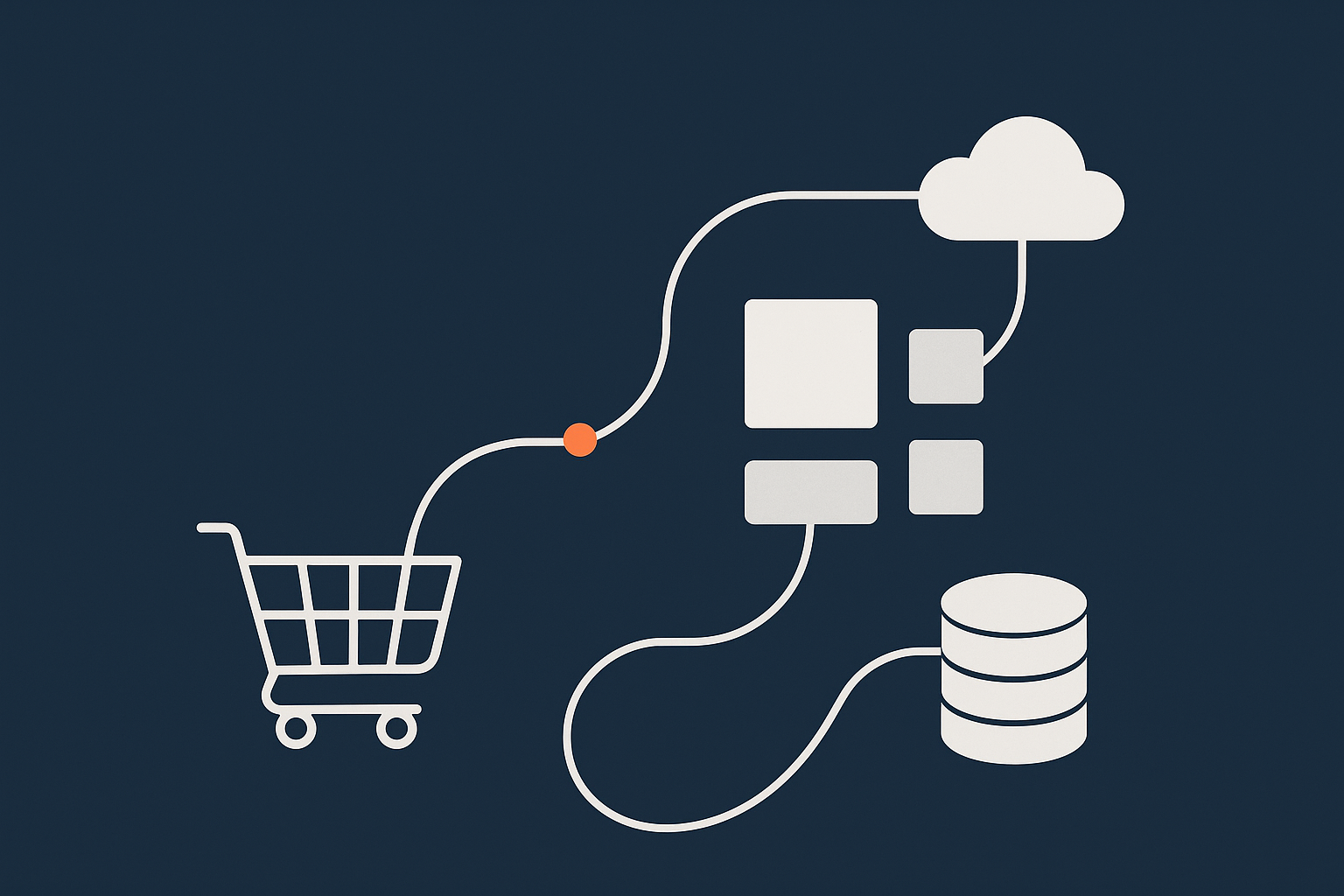
Why Product and Stock Sync Matters So Much for UK Retailers
Real world problems when feeds drift out of sync
When product feeds and stock are even slightly out of sync, problems show up quickly in real shops:
- Overselling: Marketplaces and Google Shopping show items as in stock when WooCommerce has already sold the last unit. You then cancel orders, issue refunds and damage seller ratings.
- Underselling: You mark stock as available in your EPOS or warehouse system but the website still shows “out of stock”, so customers never even see the item.
- Wrong prices: A sale price is updated in WooCommerce but price comparison feeds still send the old higher price, so you look uncompetitive, or the opposite: feeds send a temporary promo price after the sale has ended.
- Compliance and customer rights: UK consumer law expects clear, accurate pricing and availability. Persistent errors increase complaint risk and can attract regulator attention for larger brands.
For busy UK retailers using multiple channels, “a few minutes out” can make the difference between a profitable campaign and a support nightmare.
Typical UK setups: EPOS, marketplaces and price comparison feeds
Most UK WooCommerce sites do not exist in isolation. Common combinations include:
- EPOS / retail systems: Vend, Retail Express, Lightspeed, or custom in-store systems that are the source of truth for stock counts.
- Marketplaces: Amazon, eBay, OnBuy and others, usually via a connector plugin or SaaS tool.
- Marketing feeds: Google Shopping, Meta (Facebook / Instagram) catalogues, TikTok, and price comparison sites.
- Wholesale or B2B portals: Either separate websites or customer-specific price lists drawing from the same WooCommerce catalogue.
Each of these needs some combination of:
- Regular stock updates in both directions
- Price and attribute feeds (for ads and marketplaces)
- Occasional full catalogue syncs when you redesign categories or add many new SKUs
All of that depends on background jobs running on schedule and your hosting not struggling under load.
What “in sync” actually means in practice
In an ideal world, “in sync” would mean every system knows the exact stock quantity in real time. In practice, you are working with delayed updates and trade offs:
- Acceptable delay: For slow moving catalogues, a 15 to 30 minute delay may be fine. For fashion or limited drops, you may need 1 to 5 minute updates or near real-time webhooks.
- Direction of truth: Decide which system “wins” for stock, prices and product data. For many retailers, EPOS is the stock master and WooCommerce is the product/content master.
- Conflict handling: If an order arrives at the same time from Amazon and your website, how does the connector decide which one gets the last unit?
This article focuses on the technical side: getting your WooCommerce hosting, cron and plugins set up so that whatever sync strategy you choose actually runs reliably.
How WooCommerce Product Feeds and Stock Updates Actually Work
Key moving parts: WooCommerce, feed plugin and remote systems
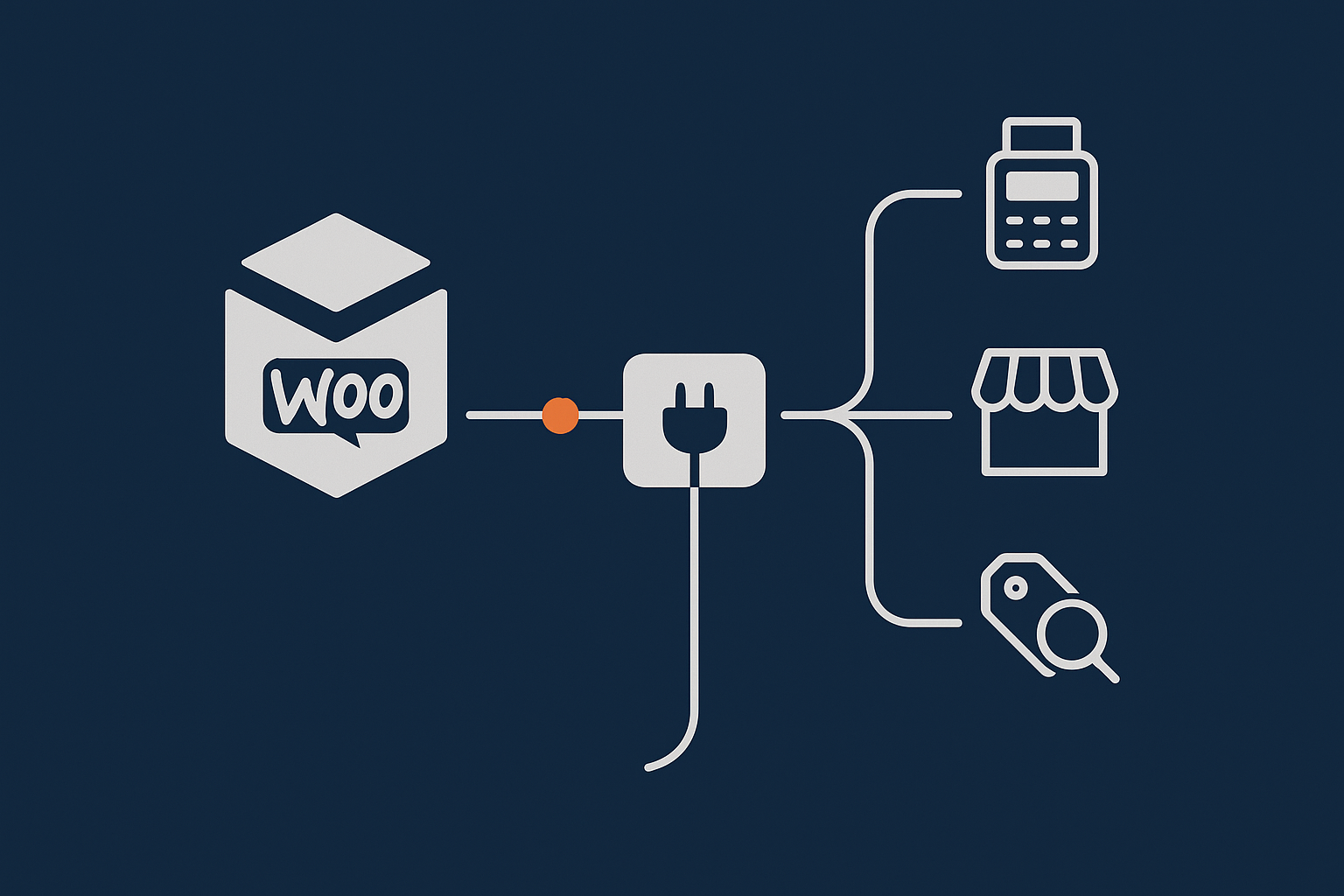
Most setups have the same structure:
- WooCommerce: Holds products, variations, prices, stock values and orders.
- A feed or connector plugin: Generates XML/CSV feeds, talks to external APIs, or listens for webhooks.
- Remote systems: EPOS, marketplaces, ads platforms or comparison engines.
- Your hosting environment: Web server, PHP, database, cron and any caching or protection layer.
The plugin is the “translator” in the middle, but it relies on your server to run heavy tasks in the background without timing out.
Push vs pull: imports, exports and webhooks in plain English
In plain terms, data can move in a few ways:
- Pull exports: A platform such as Google Shopping “pulls” a feed from a URL your plugin provides, usually every 15 minutes to 24 hours. Your plugin has to generate that feed file in time.
- Push exports: Your plugin “pushes” updates by calling an API (for example, pushing stock changes from WooCommerce to Amazon).
- Pull imports: Your plugin regularly fetches a stock or price file from your EPOS provider.
- Webhooks: The external system “calls back” to WooCommerce whenever something changes, such as an order on a marketplace.
The common theme is that something on your server has to run scheduled tasks, often using WordPress cron, to generate feeds and process imports.
Where hosting, PHP workers and cron fit into the picture
Every feed generation or import runs as a PHP process. These processes share resources with your real customers:
- PHP workers handle HTTP requests and background tasks. Too few and feeds will stall when traffic is busy.
- Database queries fetch and update product, order and stock records.
- Cron decides when background jobs should run.
If you are not familiar with PHP workers and concurrency, the guide PHP Workers, Concurrency and WooCommerce: How Many Do You Really Need on UK Hosting? explains how these limits affect feed generation and imports.

Cron Basics for WooCommerce Feeds and Stock Sync
What WordPress cron is, and why it is unreliable on its own
WordPress does not have a real system scheduler by default. Instead, it uses wp-cron.php, which is triggered when someone visits the site.
That means:
- If traffic is quiet overnight, tasks supposed to run at 02:00 may not run until the next visit.
- If traffic is very busy,
wp-cron.phpcan be triggered repeatedly and tasks can overlap or compete for resources. - Some hosts disable
wp-cronon high traffic plans, expecting you to use a real cron instead.
This is why purely relying on WordPress cron is risky for strict feed schedules. Stock imports can slip, and product feeds can be generated late or not at all.
Setting up a real server cron job for reliable schedules
A more robust pattern is:
- Disable built in WordPress cron by adding to
wp-config.php:define( 'DISABLE_WP_CRON', true ); - Add a system cron job (via your hosting control panel or SSH) to call
wp-cron.phpon a fixed schedule, for example every 5 minutes:*/5 * * * * curl -s https://yourdomain.co.uk/wp-cron.php?doing_wp_cron > /dev/null 2>&1 - Adjust intervals:
- For busy fashion or FMCG shops, 1 to 5 minute cron intervals are usual.
- For slower catalogues, 5 to 15 minutes is often sufficient.
On good managed WooCommerce hosting you can usually ask support to set this up for you, so it runs reliably even when the site is quiet.
For a deeper explanation of how WordPress cron behaves, see WordPress Cron Jobs Explained: How Missed Tasks Slow Your Site and Break WooCommerce.
Avoiding duplicate and overlapping cron tasks
Overlapping cron jobs are a common cause of timeouts and stale stock. Typical patterns to avoid:
- Running a full product feed every 5 minutes when it takes 6 minutes to generate.
- Starting a big stock import at the same time as backups or image optimisation jobs.
- Allowing multiple instances of the same import to run in parallel because the previous one has not finished.
To avoid this:
- Use your plugin’s options to run incremental updates frequently and full feeds less often.
- Stagger heavy tasks so they do not share the same minute. For example, feed generation on the hour, EPOS import at ten past.
- Check your plugin documentation for options like “do not start if previous job still running”.
Choosing and Configuring Product Feed / Stock Sync Plugins Safely
Features that matter for UK retailers
When selecting a feed or connector plugin, look beyond the marketing bullets and focus on:
- Multiple channels: Support for Google Shopping, Microsoft Ads, Meta, TikTok, Amazon/eBay, plus generic CSV/XML feeds for comparison sites.
- VAT inclusive pricing: Clean handling of VAT inclusive display prices, especially if you sell to both B2C and B2B customers.
- Multi currency support if you sell in GBP plus EUR/USD.
- Large catalogues: Explicit support and guidance for tens of thousands of SKUs, with batch processing and resume-on-failure behaviour.
- Clear logging: You need human readable logs when sync fails.
Choose plugins that are transparent about performance costs and provide tuning options, not just a “sync everything” button.
Plugin settings that affect performance and reliability
Once installed, resist the temptation to set every job to run every minute. Pay attention to:
- Batch size: Many plugins let you choose how many products or rows to process per batch. For mid range hosting:
- 50–200 items per batch is usually safe.
- Larger batches risk timeouts and locking the database.
- Timeouts: Where possible, keep individual HTTP/API calls under 30–60 seconds. Use more batches rather than longer timeouts.
- Incremental vs full sync:
- Incremental updates (only changed products) should run frequently.
- Full catalogue syncs should be scheduled for quieter periods.
- Database locking: Heavy imports updating many rows at once can lock WooCommerce tables. Smaller batches and staggered schedules reduce this risk.
Testing feeds on staging before rolling out
Before turning on aggressive schedules in production, use a staging or cloned environment:
- Test attribute mappings and tax/VAT settings with a subset of products.
- Run full feed generation and imports on staging with similar data volume to see how long they take.
- Simulate typical cron intervals and confirm that jobs complete before the next one starts.
Good managed providers will give you a staging environment as part of their web hosting performance features, which makes this safer and repeatable.
Hosting Requirements for Reliable Sync: What Your Server Actually Needs
CPU, RAM and PHP workers for background tasks
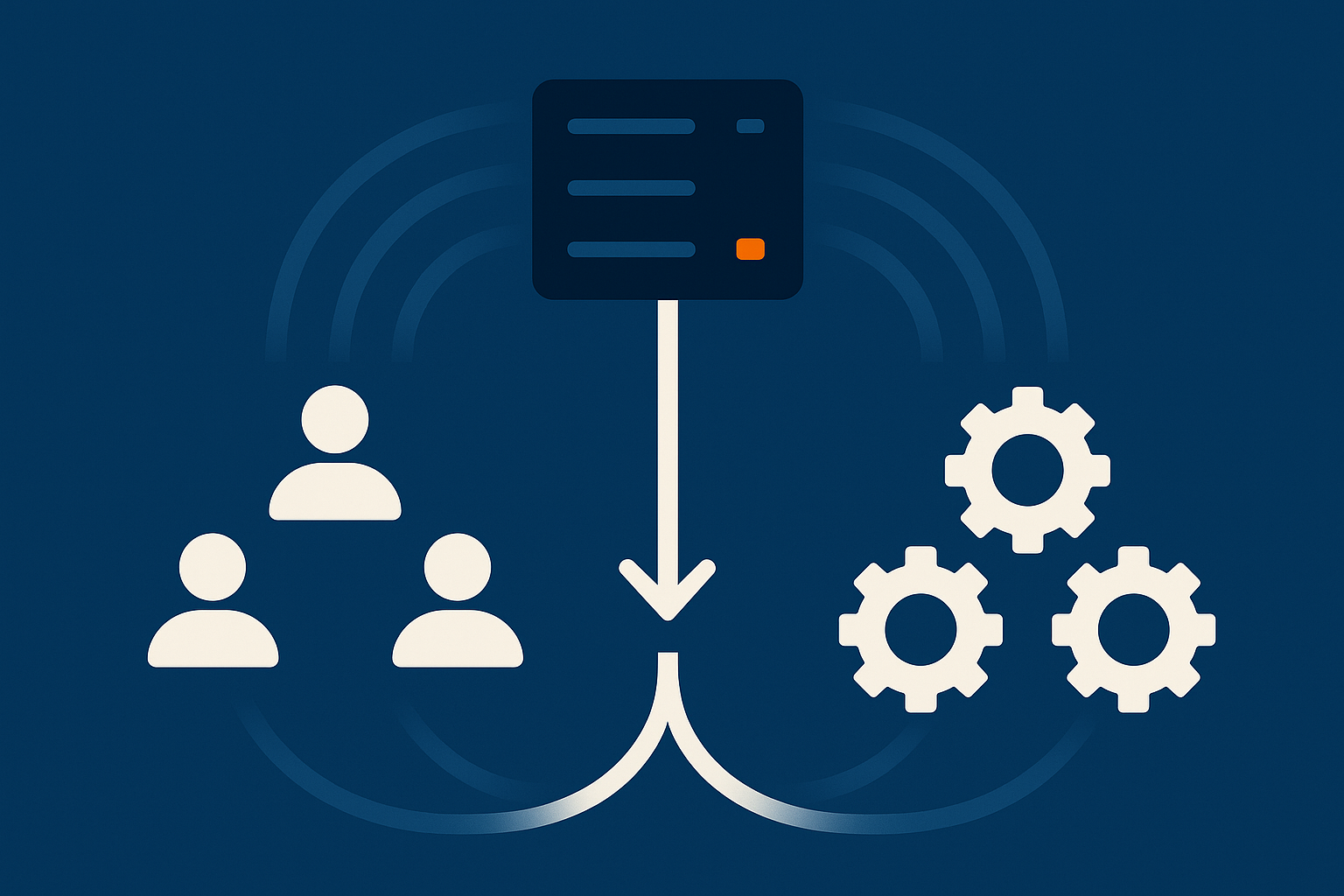
Feed generation and stock imports use the same server resources as customers adding products to basket. You need enough headroom for both.
Rough guidance:
- Small catalogue (under 2,000 SKUs) with moderate traffic:
- 2–4 CPU cores
- 4–8 GB RAM
- 4–6 PHP workers
- Medium catalogue (2,000–20,000 SKUs) or busy store:
- 4–8 CPU cores
- 8–16 GB RAM
- 8–12 PHP workers
These are starting points, not hard rules, but if your site often hits its PHP worker limit, background jobs will queue up and feeds will lag.
Database performance and WooCommerce table health
WooCommerce stores product data in several tables, with a lot of metadata in wp_postmeta. As your site grows:
- Large, unindexed meta tables slow queries for feeds and imports.
- Old order data, sessions and transients bloat the database.
- Fragmented tables increase disk I/O during heavy jobs.
Routine cleanup and optimisation can make a significant difference to feed generation times. The guide Keeping WooCommerce Order Data Safe and Fast covers practical maintenance steps, including indexing and pruning old data.
Bad bots, traffic spikes and why they break scheduled jobs
Abusive crawlers, vulnerability scanners and poorly behaved bots eat into your PHP and database capacity. When they are active:
- Legitimate customer requests slow down.
- Cron tasks are delayed, or time out once they finally start.
- Feeds may be generated partially or not at all.
Network level filtering is very helpful here. G7Cloud’s bot protection within the G7 Acceleration Network filters abusive and non human traffic before it reaches PHP or the database, which reduces wasted server load and keeps response times more consistent during busy trading periods.
Designing a Practical Sync Schedule for UK Retailers
Matching sync frequency to how quickly stock changes
Start from your actual stock movement patterns, not from what the plugin offers as a maximum:
- Fast moving fashion, gifts or daily deals:
- Incremental stock sync every 1–5 minutes.
- Price and attribute feeds every 15–30 minutes.
- Slower catalogue retail, furniture or speciality B2B:
- Stock sync every 10–30 minutes.
- Price feeds every 1–4 hours.
Running jobs more frequently than necessary simply adds load without improving accuracy in a meaningful way.
Separating heavy feed generation from order and email tasks
To keep everything responsive:
- Schedule heavy full feeds overnight or during known quiet periods.
- Keep order processing, subscription renewals and transactional emails running at higher priority and frequency.
- Avoid stacking backups, image regeneration and feed jobs in the same time window.
A simple timeline spreadsheet or diagram, listing each cron task and its schedule, helps you see where clashes will occur.
Handling peak periods and campaign days
Before big events such as Black Friday, TV mentions or marketplace promos:
- Temporarily reduce the frequency of any non critical feeds to free resources.
- Increase short burst capacity through your host if possible, or move heavy full catalogue jobs to off peak hours.
- Closely monitor logs and queue lengths during the campaign window.
Good managed WooCommerce hosting for UK retailers will help you plan these peak days so that both customer traffic and scheduled jobs remain stable.
Monitoring, Logging and Alerting: Knowing When Sync Breaks
Key logs and tools to watch for feed and cron issues
Do not wait for customers to tell you something is wrong. Instead:
- Enable WooCommerce logs for your feed or connector plugins.
- Use your hosting control panel or SSH to check PHP error logs and any
cronrelated logs. - Watch for repeated 502/504 gateway errors or “maximum execution time exceeded” messages.
The guide Logging and Error Monitoring for WordPress and WooCommerce walks through setting up logging and basic alerting, which is directly applicable to feed failures and missed cron runs.
Simple checks to confirm your feeds and stock are in sync
Alongside log monitoring, build a simple routine:
- Maintain a handful of test SKUs with known stock levels and prices.
- Change stock in your EPOS, then confirm:
- WooCommerce updates correctly.
- Marketplaces and Google Shopping show the new level within your expected delay window.
- After any plugin update or hosting change, run these checks again.
Even small teams can run this as a weekly or monthly checklist to catch issues early.
When it is time to upgrade hosting or refactor your setup
Signs you have outgrown basic shared hosting or an ad hoc setup include:
- Feeds regularly taking more than their scheduled interval to complete.
- Frequent PHP timeout or memory errors during imports.
- Customer experience suffering whenever background jobs are running.
At that point you either need more capable infrastructure, or to refactor how and when feeds run. Managed platforms such as managed WooCommerce hosting from G7Cloud are designed to handle sustained background work alongside front end traffic.

How Managed WooCommerce Hosting Helps Keep Feeds and Stock in Sync
What a good managed provider should handle for you
A decent managed WooCommerce host should not just give you a server and leave you to it. They should:
- Configure a real server cron and tune it to your store’s needs.
- Optimise PHP versions, workers and limits for WooCommerce and your feed plugins.
- Keep the database healthy with indexing guidance and sensible defaults.
- Advise on plugin scheduling and help diagnose slow or failing jobs.
This is the main value of managed WooCommerce hosting: not just hardware, but practical support for the background processes that keep your catalogue accurate.
Network-level protection and caching that do not break sync
Caching and network acceleration must be configured carefully for WooCommerce so that feeds and stock updates are not cached incorrectly. The G7 Acceleration Network is designed to cache product and catalogue pages safely while leaving API endpoints, webhooks and cron untouched, so scheduled jobs still run correctly.
G7Cloud’s bot protection within the G7 Acceleration Network filters abusive and non human traffic before it hits PHP or the database, which keeps response times steadier and reduces the chance of delayed imports or feed jobs during busy shopping periods.
Migrating to a more suitable platform without downtime
If you decide to move provider, plan the migration with your feeds in mind:
- Clone the site to the new host and test all feeds and stock sync on staging.
- Run a short freeze window for catalogue changes during the final move if possible.
- Switch DNS at a quiet time, then monitor logs and test SKUs closely for the first 24–48 hours.
G7Cloud offers a free WordPress and WooCommerce migration service, which can include pre migration testing of feed and stock sync so you are not guessing on launch day.
Summary: A Simple Checklist for Stable WooCommerce Product and Stock Sync
Quick checklist retailers can use with their team or agency
Use this as a working list with your developers, agency or host:
- Cron & scheduling
DISABLE_WP_CRONset and a real server cron callingwp-cron.phpon a sensible interval.- Heavy jobs (full feeds, large imports, backups) staggered to avoid overlap.
- Plugins & sync strategy
- Clear definition of which system is master for stock and price.
- Feed/connector plugins tuned for batch size, timeouts and incremental vs full sync.
- All changes tested on staging before going live.
- Hosting & capacity
- Enough CPU, RAM and PHP workers for both customers and background jobs.
- Regular database maintenance and indexing.
- Network level bot filtering to keep abusive traffic away from PHP.
- Monitoring
- Logs enabled for WooCommerce and feed plugins.
- Simple test SKUs used regularly to confirm end to end sync.
- Plans in place for peak days, with adjusted schedules and extra capacity where needed.
If you are spending too much time firefighting feed issues instead of trading, it may be a sign that you have outgrown your current platform. Exploring managed WooCommerce hosting or trying the G7 Acceleration Network with a smaller site first can give you a feel for how much smoother stock sync and product feeds can be when the hosting, cron and plugins are working together.