


Who this guide is for (and why search performance suddenly matters)
This guide is for UK businesses running WooCommerce stores with growing catalogues, where search and filters are starting to feel slow or unreliable, but the budget or appetite for an enterprise SaaS search tool is not there.
If you are in the 5,000 to 50,000 product range, or planning to get there, you are in the right place. The aim here is to give you a realistic, self hosted search setup that stays fast and predictable without complex infrastructure or high monthly fees.
Typical WooCommerce search pain points with large catalogues
Once you move beyond a few hundred products, common problems start to appear:
- Search results feel “random”, with poor relevance and no SKU support.
- Category pages with lots of filters take several seconds to load.
- High CPU or database usage whenever customers heavily use filters.
- Pages returning 502/504 errors during sales when people are searching a lot.
- Filter counts (e.g. “Size M (203)”) being slow or obviously wrong.
- Search behaving very differently on mobile because of heavy JavaScript.
On small shops, these issues can be masked by aggressive caching and low traffic. Once traffic and catalogue size increase together, your search queries become one of the main sources of load on the database.
When you actually need more than the default WooCommerce search
Out of the box, WooCommerce search is quite basic. You probably need more if any of these are true:
- Customers often search by SKU, part number or model code.
- You sell similar products where relevance really matters (e.g. hundreds of nearly identical cables or clothes).
- You rely on filters such as size, colour, brand, material and price to help users narrow results.
- Search is a primary way people find products, rather than browsing a small set of categories.
- You see frequent “no results” searches in analytics for queries that should have matches.
If none of the above apply and your catalogue is small, you might be better off fixing general site performance first. The guide WooCommerce on a Budget: How to Keep Small Shops Fast Without Enterprise Spend covers that angle in more detail.
What we will focus on in this guide (and what we will not)
This guide focuses on:
- How WooCommerce search and filters work technically.
- How to decide what level of search you really need.
- How to keep a self hosted search and filter setup fast as you grow.
- Choosing and configuring plugins sensibly.
- Handling spikes and abusive search traffic.
This guide will not try to:
- Walk you through every SaaS search tool feature list.
- Cover advanced headless / custom front ends.
- Offer a one size fits all plugin recommendation.
The goal is to help you run fast, practical search and filtering on standard WooCommerce hosting, potentially supplemented by acceleration and caching layers such as the G7 Acceleration Network, without committing to an expensive external search service unless you truly need it.
How WooCommerce search and filters really work under the hood
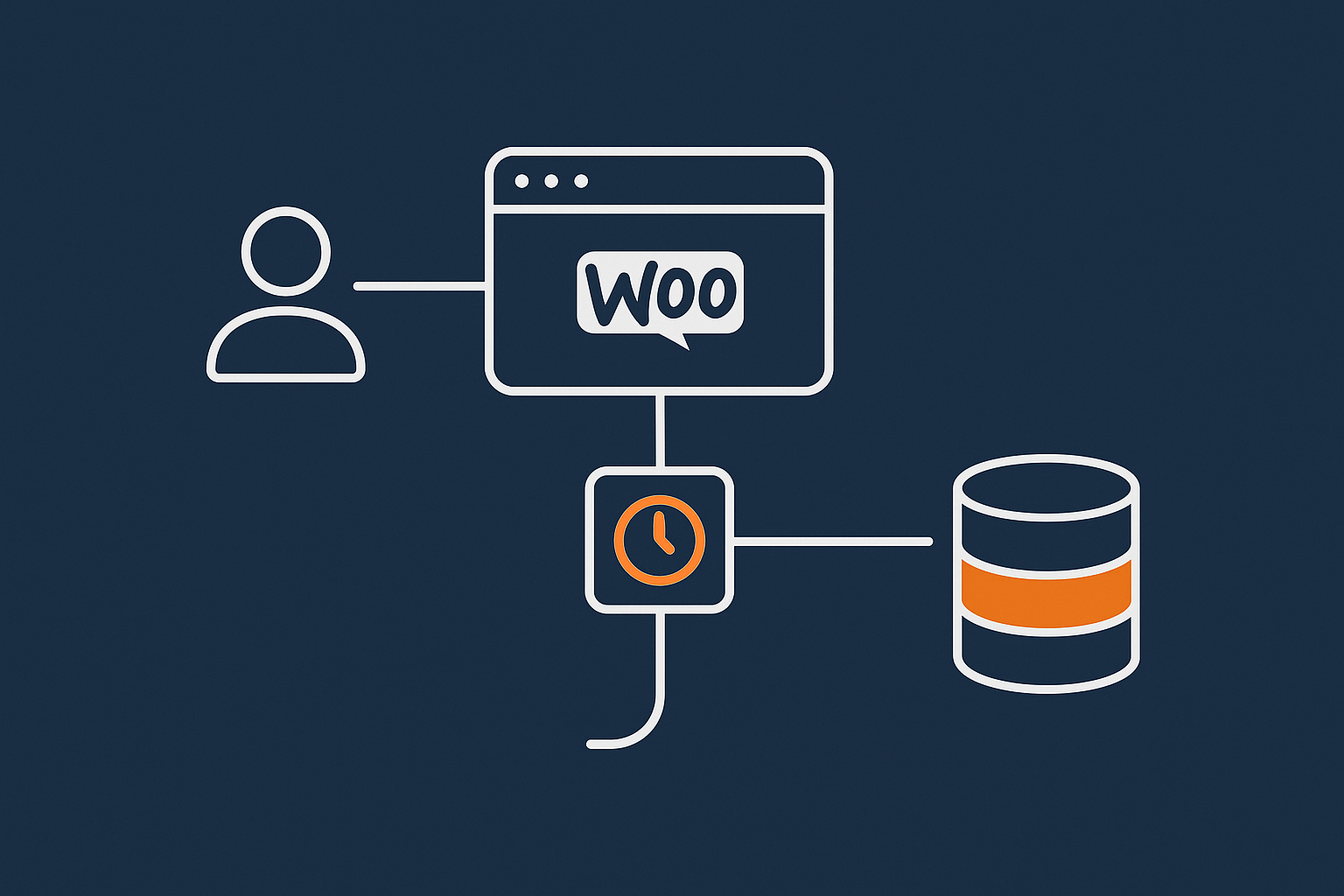
What WordPress and WooCommerce search do by default
WordPress core search queries the wp_posts table for posts that match your search term in the post title and content. WooCommerce products are just a custom post type, so default product search does roughly this:
- Searches product titles and descriptions for the keyword.
- Applies basic relevance (e.g. title matches tend to appear higher).
- Does not handle synonyms, typos, or complex weighting.
WooCommerce product data such as price, SKU, stock and attributes live mainly in:
wp_postmetafor meta fields such as_price,_sku.wp_terms,wp_term_taxonomy,wp_term_relationshipsfor categories, tags and attributes (size, colour, brand).
Any time you add filters, WooCommerce and most search plugins add extra conditions to the database query, often against these tables.
Why queries slow down as your product catalogue grows
Performance problems appear because of how MySQL has to combine multiple conditions across different tables:
- More products mean more rows in
wp_postsandwp_postmeta. - Each filter (e.g. size = M, colour = blue) adds join conditions.
- Poorly indexed columns (like
meta_keyandmeta_value) lead to table scans.
Common patterns that hurt performance include:
- Searching across content, excerpt, title, SKU, and multiple meta fields all at once.
- Using leading wildcards, e.g.
%term%, which block index use. - Sorting by fields in
postmeta(price, custom ranking) without proper indexing.
The result is higher CPU usage on the database server and slower response times whenever users search or change filters.
The impact of filters on database load (attributes, taxonomies and meta queries)
Filters in WooCommerce are typically powered by two mechanisms:
- Taxonomies (categories, tags, attributes such as size/colour) which are relatively efficient when built well.
- Meta queries (searching
wp_postmetafor keys and values) which are often slower.
Good faceted search plugins lean heavily on taxonomies and precomputed indices to avoid complex meta queries. Poorly designed filter sets do things like:
- Store filterable data in custom fields (meta) for everything, including brand and size.
- Allow users to combine too many filters in one go (e.g. 10+ options across several facets).
- Calculate filter counts on the fly from raw queries on every page load.
This leads to heavy queries that do not scale well when you reach tens of thousands of products.
How caching interacts with search and filtering results
There is a persistent myth that “search pages cannot be cached”. It is only partially true.
- Full page caching is often skipped on
?s=search result pages by default. - Filter combinations often live on URL paths such as
/category/shoes/?filter_size=9&filter_colour=black, which can be cached per URL if configured properly.
What you usually cannot cache globally is:
- Personalised blocks like “Recently viewed” or dynamic cart fragments.
- Anything tied to logged in user state, such as wholesale pricing.
Acceleration layers such as the G7 Acceleration Network can cache filter result pages at the edge per URL and user state while bypassing obvious dynamic fragments, which takes a lot of repeat load off the origin server and database.
Deciding what kind of search experience you actually need
Three common patterns: basic, faceted and “Google like” search
Before diving into plugins or external tools, decide which of these patterns matches your store.
1. Basic keyword search
- Customers mainly know what category they want.
- Search is used occasionally for simple queries like “red dress” or “USB charger”.
- Results list pages of products with minimal filtering.
For this level, straightforward enhancements to default search (SKU support, better relevance, search suggestions) are usually enough.
2. Faceted search (structured filters)
- Customers narrow down large sets using filters: size, colour, brand, price, features.
- Search bar is often secondary; filters do most of the work.
- Category pages and search results share the same filter sidebar.
This is where database load starts to matter, because you are combining text search with multiple filters simultaneously.
3. “Google like” search
- Customers rely heavily on search to find what they need among thousands of similar items.
- You care about spelling tolerance, synonyms, ranking by behaviour (clicks, conversions).
- You want instant results as the customer types.
This is the territory where dedicated SaaS search tools and self hosted search engines (Elasticsearch, OpenSearch) are worth considering, but that does not mean every store must start there.
Questions to answer before choosing a plugin or SaaS
Before committing, write down:
- Traffic levels: Average and peak concurrent visitors. Are you expecting sharp sales spikes?
- Product count: Total number of products and active variations.
- Product complexity: Simple products or many attributes, bundles and custom data?
- Budget: Monthly spend available for search specifically, not hosting as a whole.
- In house skills: Is there anyone comfortable configuring servers, cron and monitoring logs?
- Hosting environment: Shared, cloud VM, or managed WooCommerce hosting tuned for search heavy stores?
For many shops in the 5,000 to 30,000 product range with moderate traffic, you can get good results with a well tuned WooCommerce plus plugin setup on capable hosting, backed by edge caching.
When a SaaS search tool is worth the money (and when it is overkill)
A SaaS search solution starts making sense when:
- You need advanced relevance features that plugins cannot easily provide.
- Your traffic is consistently high and justified spend on offloading search is clear.
- You have multiple front ends (apps, headless sites) needing centralised search.
- You lack the internal capacity to maintain custom indexing and infrastructure.
It is often overkill when:
- Your main problem is a slow or overloaded database, not search logic.
- You are under 50k products and on underpowered hosting.
- You have never tuned default search or filters or cleaned the database.
Exhaust the straightforward, self hosted improvements first. They tend to offer the best return on effort for growing WooCommerce shops.
Keeping search and filters fast with a self hosted approach
Principle 1: Reduce the work each search has to do
The less work each query performs, the better your store scales.
Indexing and limiting searchable fields
- Decide which fields must be searchable: title, SKU, a short description. Avoid indexing long content unless necessary.
- Turn off search on fields customers never use (e.g. very long technical spec fields).
- Use plugins that create their own optimised indices, rather than querying
postmetadirectly for everything.
Avoid expensive wildcards
Searches built on SQL like WHERE post_title LIKE '%cable%' are much heavier than prefix searches like 'cable%'. Where possible:
- Prefer indexed search engines or plugins that avoid leading wildcards.
- Use autocomplete suggestions to guide users to valid queries quickly.
Make filters more specific
- Consolidate overlapping attributes (e.g. “Dark Blue”, “Navy Blue”, “Blue”) into a sensible set.
- Hide facets that rarely help or that create huge query combinations.
- Use ranges for price and numeric attributes instead of dozens of discrete options.
Principle 2: Reduce how often searches hit the database
Even optimised queries will hurt if they run too often. Reduce repetition.
Server level and edge caching
- Cache filter result pages by URL where possible (e.g.
/category/shoes/?filter_size=9). - Ensure your caching solution respects query parameters used by your filter plugin.
- Exclude personalised elements from the cache using fragment or AJAX loading.
If your host provides an acceleration layer such as the G7 Acceleration Network, it can cache these filtered pages at the network edge and serve repeat requests without hitting PHP or MySQL, which smooths performance as traffic increases.
Fragment caching and AJAX results
- Use AJAX to load search results while the rest of the page remains cached.
- Cache heavy fragments such as filter count blocks where the plugin supports it.
- Disable “live search on every keystroke” for heavy catalogues unless results are cached or offloaded.
Principle 3: Keep the database healthy as your catalogue grows
A healthy database is as important as clever search logic.
Indexes
- Ensure standard WordPress and WooCommerce indexes exist and are not corrupted.
- Consider additional indexes on frequently queried meta keys used in filters, with caution and guidance from a developer.
- Avoid creating many overlapping custom indexes; they can slow writes and bloat storage.
Cleanup
- Archive or delete old products that will never be sold again.
- Remove unused attributes, taxonomies and terms that no longer appear in products.
- Clean up orphaned
postmetaand transient rows regularly.
Basic MySQL tuning
On capable hosting, modest MySQL tuning can help search heavy workloads: query cache settings (if applicable), buffer sizes and connection limits. For more detail on keeping WooCommerce data fast, see Keeping WooCommerce Order Data Safe and Fast: Database Cleanup, Optimisation and Routine Maintenance.
Practical plugin choices for WooCommerce search and filtering
Improving relevance and usability without heavy infrastructure
You do not always need a full search engine to improve relevance. When evaluating search plugins, look for:
- SKU search: Vital for trade customers and repeat buyers.
- Partial matches: Sensible handling of stems and partial words without relying on heavy wildcards.
- Synonyms: Ability to map “hoodie” to “hooded sweatshirt”, “tv” to “television”, etc.
- Search weightings: Boost titles, key attributes and high margin brands.
- Mobile friendly results: Clean layouts, accessible filters and keyboard focus.
- Search suggestions: Suggest products and categories after a few characters, not on every keystroke.
Avoid plugins that:
- Store their own full copies of all product data in
postmeta, doubling database size. - Require external services for basic features you could self host.
- Run heavy analytics and logging on every search by default.
Faceted filters that do not kill performance
Good faceted filter plugins tend to share some implementation choices:
- Rely mainly on taxonomies for filterable attributes.
- Precompute product counts per facet combination where feasible.
- Provide their own lookup tables or indices instead of raw postmeta scans.
- Offer caching of filter count widgets and internal query results.
Pay attention to how a plugin calculates and displays filter counts. If you see a visible delay every time a count updates, it likely runs heavy queries per interaction. Configuring it to cache counts for short periods (e.g. 5 to 15 minutes) can be a big win.
Avoiding common plugin traps that slow everything down
Common traps include:
- Layering multiple search and filter plugins: Disable all but one search plugin and one primary filter plugin. Overlaps cause duplicated indexing and queries.
- Unneeded analytics: Turn off detailed search logging or at least reduce retention if the plugin writes every query to the database.
- Unlimited background indexing: Ensure indexers run in batches with resource limits, not full catalogue reindexing on every minor change.
If you are on managed WooCommerce hosting, your host can often help identify misbehaving plugins via query logs and resource graphs.
Configuring search and filters so they scale beyond a few thousand products

Designing your product data for fast filtering
Fast filters begin with sensible product data design.
- Use attributes and taxonomies for filters: Brand, size, colour, material and similar should be global attributes or taxonomies, not arbitrary custom fields.
- Consolidate options: Agree a single spelling and style for each option. Do not mix “XL”, “Extra Large” and “X-Large”.
- Avoid overusing custom fields for filterable data: Use meta only for fields that are rarely filtered (e.g. internal codes).
- Plan hierarchies: Use category trees sensibly so filters do not need to span the entire catalogue at once.
Indexing and background jobs: making sure they finish reliably
Most serious search and filter plugins build an index or lookup table. For that to work reliably:
- Schedule index builds: Run heavy reindexing during quiet hours. Use CLI (e.g. WP-CLI) where possible rather than relying only on WP Cron.
- Use WP Cron correctly: Ensure cron is triggered by real traffic or set up server side cron jobs to fire
wp-cron.phpat regular intervals. - Monitor for stuck jobs: Check plugin status pages or logs for partially completed indices and repeated failures.
On properly tuned managed WooCommerce hosting, you often have real cron jobs and WP-CLI out of the box, which makes large index builds more predictable.
Tuning search queries and filter combinations
Once the basics are in place, tune for realism rather than perfection.
- Limit results per page: 24 or 36 products per page are usually enough. Very high values increase memory and processing per request.
- Set sensible default sorting: Sorting by “popularity” that relies on complex meta queries can be expensive. Consider defaulting to “menu order” or “newest” if that is acceptable.
- Restrict filter combinations: On high traffic stores, consider limiting how many filters can be applied at once, or progressively loading additional facets after a primary choice such as category.
Using caching, offload and hosting architecture to keep results snappy
What can and cannot be cached with search and filters
With the right configuration, you can cache more than you might expect.
- Can often be cached: Anonymous search results and filter pages by URL, as long as cart/account fragments are handled separately.
- Should not be cached globally: Logged in user pages, basket totals, and anything with user specific pricing or stock visibility.
Edge caching systems such as the G7 Acceleration Network specialise in caching these semi dynamic pages per combination of URL and user state while letting true dynamic pieces load via AJAX or small uncached fragments.
For a deeper look at how the different caching layers fit together, see Understanding WordPress Caching Layers: What Really Speeds Up Your Site (and What Your Host Should Handle).
How an acceleration layer helps under heavy search usage
A network acceleration layer sits in front of your origin server. In plain terms, it:
- Caches popular search and filter URLs close to your visitors.
- Reduces the number of requests that reach PHP and MySQL.
- Applies basic protections and rate limits at the edge.
Services such as the G7 Acceleration Network also include bot filtering that blocks or challenges abusive, non human search traffic before it hits PHP or the database, which keeps CPU and database load steady during busy periods and helps avoid slowdowns or downtime from search abuse.
When to consider dedicated resources or a virtual dedicated server
Even a well optimised search stack needs enough underlying resources. It is time to consider virtual dedicated servers for busy WooCommerce stores or similar setups when:
- You hit consistent CPU or RAM limits during normal trading, not just rare spikes.
- Database queries remain slow even after optimisation and caching.
- You need predictable resources isolated from noisy neighbours.
Dedicated resources do not replace the need for sensible search design, but they give you more headroom and control as catalogue and traffic grow.
Handling traffic spikes and abusive search usage

Recognising when bots or scrapers are hammering search
Abusive bots often target search endpoints to scrape prices and catalogue data. Warning signs include:
- Sudden spikes in requests to
/?s=,/search/paths, or AJAX search endpoints. - Highly repetitive query strings or nonsense queries.
- High request rates from a small set of IP addresses or user agents.
- Server resource graphs showing CPU and MySQL usage peaking even when real customer traffic is steady.
Rate limiting and blocking bad search traffic before it hits PHP
Blocking bad bots inside WordPress plugins is usually too late. The request has already used PHP, memory and some database capacity. Better options are:
- Web server level rate limiting (Nginx, Apache) on search and filter endpoints.
- Network level firewalls or WAF rules that challenge or block suspicious traffic.
- CAPTCHA or JS challenges on obviously automated patterns, not for normal customers.
Bot protection in systems such as the G7 Acceleration Network filters abusive and non human requests before they touch PHP or MySQL, which reduces wasted server load and helps keep search responses consistent during promotions or attacks.
Planning for peak days: sales events with heavy filtering
Sales events stress search and filters because customers compare many options quickly. Prepare by:
- Prewarming caches for popular categories and filter combinations.
- Temporarily simplifying filters (e.g. fewer price bands) to reduce query complexity.
- Monitoring search response times and error rates in real time.
- Having an emergency plan to disable non essential features (e.g. live search suggestions) if performance dips.
If you expect major spikes, discuss capacity and caching strategies with your hosting provider ahead of time. Guides like Handling Traffic Spikes on WordPress Without Breaking the Bank can help frame that conversation.
Monitoring, testing and ongoing maintenance for search performance
Simple tests non technical teams can run regularly
You do not need to be technical to spot search problems early. Once a week or month:
- Run a set of key searches (top products, categories, brands) and note response times.
- Apply common filter combinations (size + colour + price) in popular categories.
- Use browser developer tools “Network” tab to see page load times.
- Record anything over 2 seconds as worth watching, especially if it used to be faster.
What to watch in hosting resource graphs during search heavy periods
During promotions or busy periods, keep an eye on:
- CPU: Spikes during search usage may indicate heavy queries or PHP bottlenecks.
- RAM: Sudden jumps can signal large result sets or memory hungry plugins.
- Database usage: High concurrent connections or slow queries tied to search endpoints.
If your host provides resource dashboards, the guide How to Read a WordPress Hosting Resource Graph: CPU, RAM, I/O and What They Really Mean for Speed is useful background reading.
A lightweight monthly checklist to keep search and filters healthy
- Update search and filter plugins after testing on staging.
- Review error logs for timeouts or database errors involving search URLs.
- Clear and rebuild search indices if recommended by your plugin.
- Remove obsolete attributes and categories.
- Review caching rules and ensure new filter parameters are covered.
- Scan for suspicious search traffic patterns in analytics or logs.
Bringing it together: a realistic setup for fast, filterable WooCommerce on a sensible budget
Example architecture for a 5,000 to 50,000 product WooCommerce store
A pragmatic, non SaaS setup might look like this:
- Hosting: Solid managed WooCommerce hosting with PHP 8+, sufficient RAM and tuned MySQL, plus support for server level caching and cron.
- Acceleration: A network cache such as the G7 Acceleration Network in front of the origin, configured to cache anonymous search and filter pages, and to filter abusive bot traffic before it reaches PHP.
- Search plugin: One well supported plugin that adds SKU search, basic relevance tuning and suggestions without requiring external services.
- Filter plugin: A faceted filtering plugin built on taxonomies with its own indexing and support for caching count widgets.
- Data model: Carefully defined attributes (brand, size, colour) as taxonomies, minimal use of meta for filterable data.
- Caching: Full page caching for category and filter URLs, with AJAX loaded dynamic blocks (cart, recently viewed).
- Maintenance: Monthly indexing checks, database cleanup and basic monitoring of search heavy periods.
This combination is enough for many UK WooCommerce stores in the mid range to keep search and filters responsive without the cost and complexity of SaaS search tools or custom search engines.
When it is time to revisit your search approach as you grow
Reassess your search stack when you notice:
- Persistent slow search responses even after tuning and hardware upgrades.
- Frequent timeouts or 5xx errors during promotions tied to search usage.
- Clear business requirements for more advanced features (personalised results, multi language relevance) that current tools cannot meet.
At that point, you have options:
- Scale vertically with more resources, such as virtual dedicated servers for busy WooCommerce stores.
- Introduce a self hosted search engine (e.g. OpenSearch) while keeping WooCommerce as the front end.
- Evaluate SaaS search providers with a clear understanding of what you truly need.
If you prefer not to manage all the technical details yourself, exploring managed WooCommerce hosting with a built in acceleration layer such as the G7 Acceleration Network can offload a lot of the caching, bot filtering and performance tuning work, while keeping you in control of your products and search tools.
The key is to treat search as part of your overall WooCommerce architecture, not as something a single plugin or SaaS service will magically fix. With a clear plan, sensible product data and the right infrastructure, you can keep large WooCommerce catalogues searchable and fast without overspending.