

Introduction: The Plugin Myth That Will Not Die
Why “you have too many plugins” is lazy advice
“You have too many plugins” is one of the most common explanations given for a slow or unstable WordPress site. It is also one of the least helpful.
Plenty of fast, reliable WordPress and WooCommerce sites run with 30, 40 or even 60 plugins. Other sites crawl to a halt with 12. The difference is not the number on its own. It is what those plugins do, how they are built, and the quality of the hosting underneath.
Blaming plugin count can hide the real issues:
- A single bloated page builder or security suite that does far too much.
- Cheap, oversold shared hosting that struggles under normal load.
- Poorly coded themes that ship their own framework and mini plugin collection.
- Heavy images, unoptimised JavaScript and third party embeds from marketing tools.
If you just delete plugins based on a magic number, you risk breaking important features without actually fixing the real bottlenecks.
What this guide will actually help you decide
This guide is about making clear, evidence based decisions around plugins on real business sites.
By the end, you will know:
- How plugins really affect speed, security and stability.
- How to tell when plugin count is part of the problem.
- How to audit your existing plugins without guesswork.
- Sensible ranges of plugins for different types of sites.
- When to remove a plugin, replace it, or move the work to your hosting platform.
The goal is not to reach some “perfect” plugin number. It is to run only the code you actually need, on infrastructure that can handle it.
Do Too Many Plugins Really Slow Down WordPress?
Quantity vs quality: what really affects speed
On their own, plugins are just chunks of PHP code that WordPress can load when needed. You can have many lightweight, well built plugins and still have a fast site, especially on solid managed WordPress hosting.
Speed problems tend to appear when:
- Plugins run slow or complex PHP on every page load.
- Plugins add heavy JavaScript, CSS and images to the front end.
- Multiple plugins duplicate the same features, each adding their own overhead.
- Plugins perform expensive database queries without caching the results.
So “too many” really means “too many heavy, overlapping or poorly written plugins relative to your hosting and caching setup”.
Where plugins add overhead: PHP, database and front end
Plugins can slow your site in three main places:
- PHP execution
Every time WordPress handles a request, it loads active plugins and runs their hooks. Complex plugins can add dozens of actions for each page. - Database queries
Plugins often store settings and data in the database. Poorly optimised ones can run many queries, or queries that scan large tables, on every request. - Front end assets
Many plugins load JavaScript and CSS files on every page, even when the feature is not in use on that particular page. Some also add extra images and fonts.
If any of these are excessive, performance will suffer long before you hit a particular plugin count.
Examples: 10 good plugins vs 40 poorly built ones
Consider two simplified scenarios:
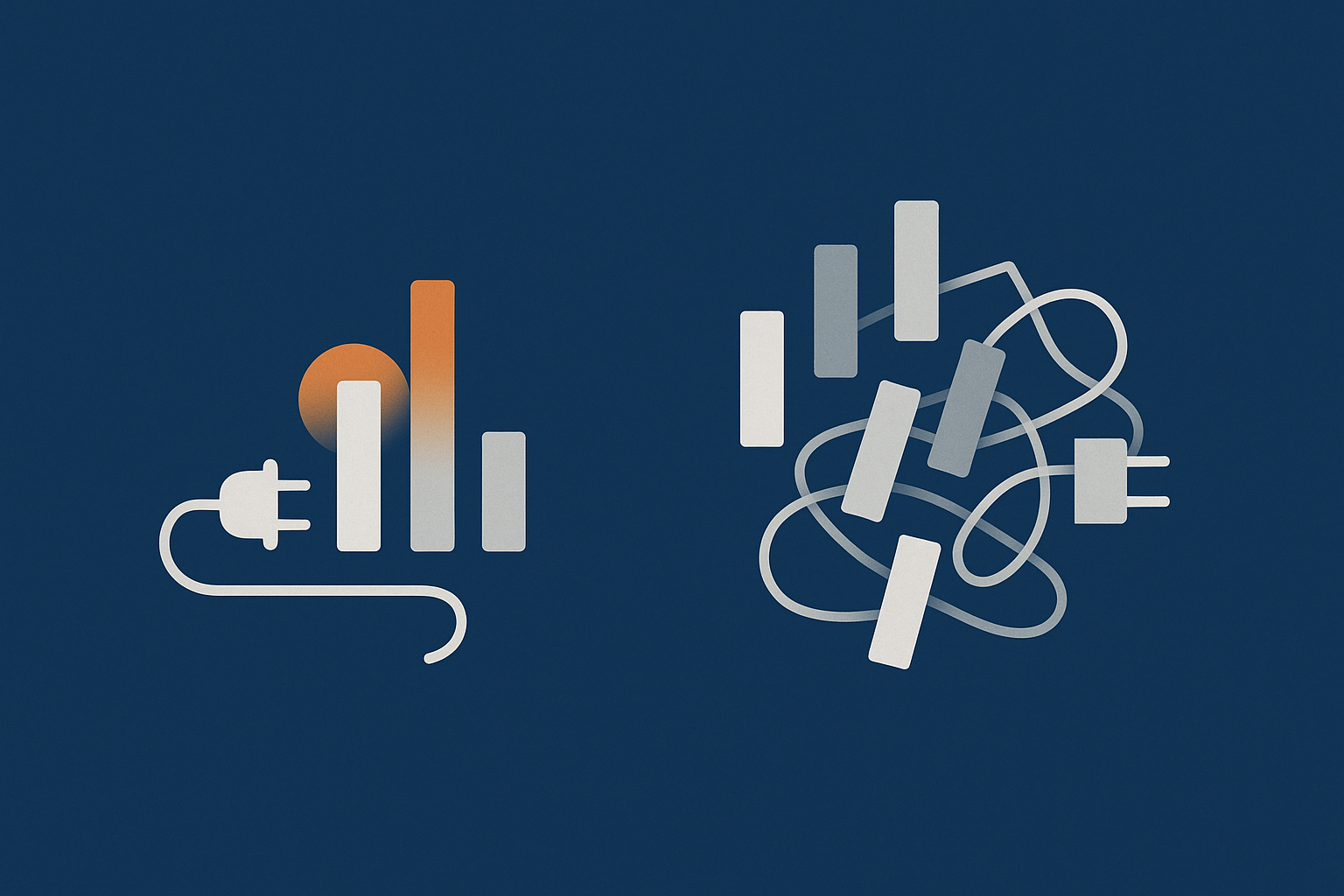
- Site A: 10 well built plugins, each focused on a single job (SEO, security hardening, forms, caching integration, etc.). Assets only load on relevant pages. Queries are cached. The host runs modern PHP and uses server level caching.
- Site B: 40 plugins, including three page builders, two caching plugins, multiple overlapping SEO/social plugins and an all-in-one security suite. Many run on every page, load assets everywhere and query the database heavily.
Site A will usually be faster and more stable. Site B will struggle even on decent hosting, and any traffic spike will quickly expose PHP and database limits.
The takeaway: if you worry about plugin count, look closely at what they do and how they behave, not just how many you have.
How Plugins Affect Performance in Practice
Backend impact: PHP execution, memory, database queries
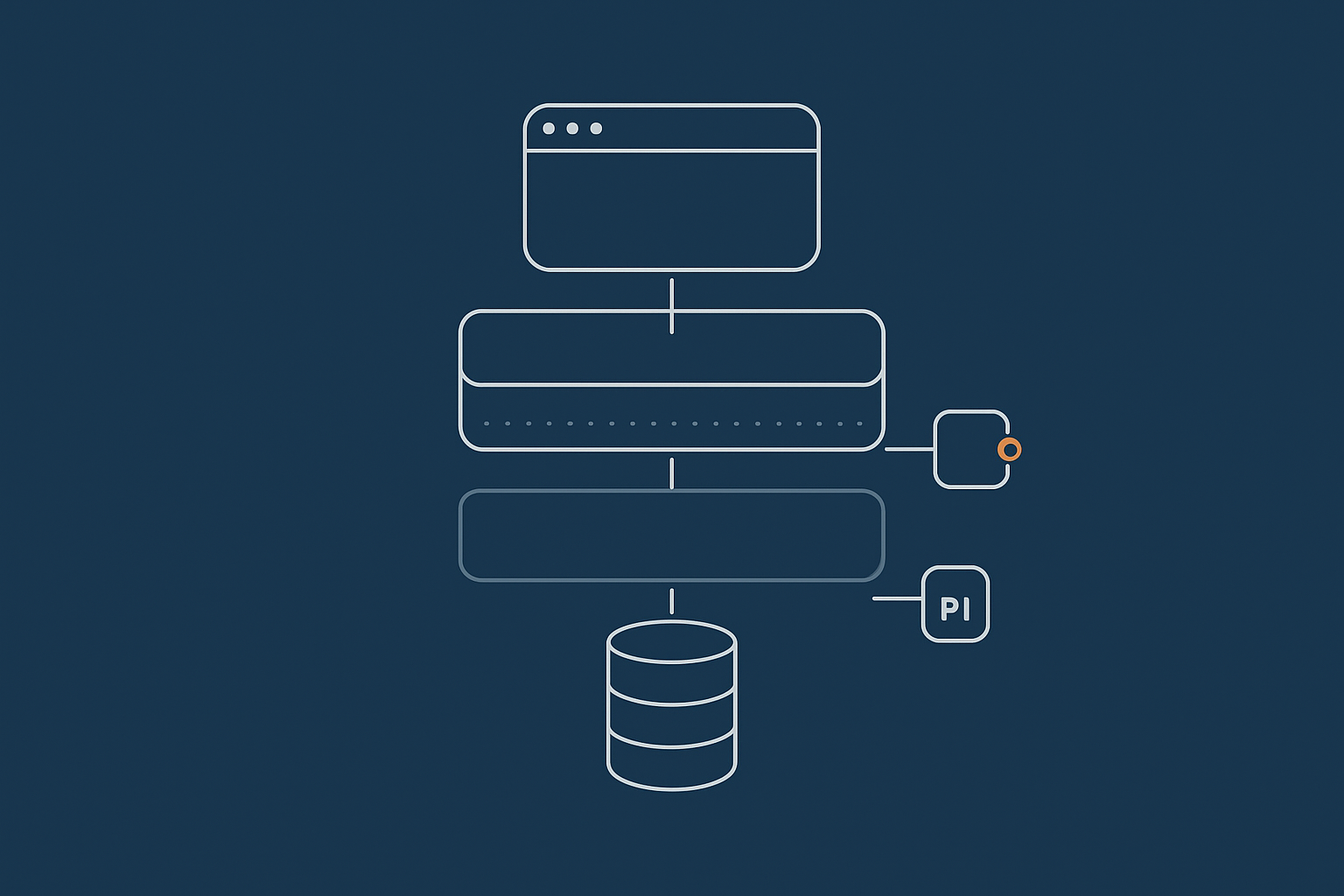
On each dynamic request, WordPress and your plugins share three key resources:
- CPU time to execute PHP.
- Memory to hold code and data in RAM.
- Database capacity for reads and writes.
Typical backend problems caused by plugins include:
- Long PHP execution times from heavy logic on
initorwp_loadedhooks. - High memory usage from large libraries, image manipulation or complex data structures loaded on every request.
- Expensive database queries from unindexed searches, custom tables or analytics features that run without caching.
On good hosting, you can see this clearly in metrics such as average PHP response time, memory usage and slow query logs. If many requests are taking 1 second or more in PHP before caching, something in your theme or plugins is working too hard.
Frontend impact: extra scripts, CSS and images
Even if backend performance is acceptable, plugins can slow down what your visitors see and interact with.
Common frontend issues include:
- Large JavaScript bundles from sliders, popups, analytics and builders.
- Multiple versions of jQuery or other libraries loaded by different plugins.
- CSS files from plugins that are loaded globally instead of only where needed.
- Extra images and icons, often unoptimised.
Every additional file means more requests and more data for the browser to download and parse. This directly affects Core Web Vitals metrics such as Largest Contentful Paint (LCP) and First Input Delay (now Interaction to Next Paint).
If you find yourself relying on several optimisation plugins just to patch over this, you probably have a plugin (or theme) selection problem rather than simply “needing more optimisation”. If your host uses something like the G7 Acceleration Network, many of these assets can be cached and served efficiently, which reduces the visible impact of heavier plugins but does not remove the underlying code footprint.
How caching can hide (or reveal) plugin problems
Caching is helpful, but it can be misleading when judging plugin impact.
- Full page caching stores the generated HTML of pages and serves it without running PHP or database queries for most visitors.
- Object caching keeps the results of expensive database queries in memory.
With strong full page caching, your site might feel fast for anonymous visitors even if plugins are extremely heavy in PHP. The problems appear when:
- Users are logged in (WordPress skips normal page cache by default).
- Pages cannot be cached (basket, checkout, account pages, search results).
- Traffic increases and your server must process more uncached requests.
This is common with WooCommerce and membership sites. Platform level caching such as that provided by networks like the G7 Acceleration Network can handle much of this intelligently, but your plugin stack still needs to be sensible.
Bot traffic, spam and background tasks triggered by plugins
Plugins can also contribute to load you never see directly:
- Background tasks such as email sending, scheduled imports, backups and cleanups. If several plugins run heavy cron jobs on the same schedule, your server will feel it.
- Spam and brute force attempts that hit login, search or forms, triggering your security and spam plugins on every request.
- Over‑curious crawlers that fetch thousands of URLs, forcing plugins to run on pages nobody actually visits.
If your host includes bot filtering at the edge, like G7Cloud’s protection within the G7 Acceleration Network, abusive traffic can be blocked before it reaches PHP or the database, which cuts wasted plugin processing and keeps performance more predictable.
Speed, Security, Stability: The Real Risks of Plugin Bloat
Security: more code, more vulnerabilities
Every plugin is extra code that could contain a vulnerability. The more you install, the larger the attack surface.
Risks include:
- Outdated plugins with known security issues.
- Abandoned plugins that no one maintains or audits.
- Plugins that handle sensitive data (forms, payments, member details) without strong hardening.
Security is not a reason to avoid all plugins, but it is a clear reason to avoid unnecessary ones and to keep your remaining set small, reputable and maintained. If you use multiple overlapping security plugins, you may gain complexity more than protection. A solid firewall and hardening from your host, combined with a carefully chosen security plugin, is usually safer.
Conflicts and bugs: when plugins fight each other
The more plugins you install, the more moving parts you introduce. Conflicts often show up as:
- Broken layouts or missing elements in your page builder.
- Checkout errors after adding or updating WooCommerce extensions.
- Admin screens that load slowly or throw PHP warnings.
- JavaScript errors in the browser console from competing scripts.
These conflicts are time consuming to diagnose. Every new plugin is another piece of the puzzle that might interact in unexpected ways with your theme, PHP version or other plugins.
Update fatigue: keeping dozens of plugins patched
Frequent updates are a good sign in terms of maintenance, but they create workload and risk:
- You need a process to apply and test updates without breaking key journeys.
- Premium plugins may expire, leaving you stuck on old versions.
- Automatic updates can occasionally introduce breaking changes.
If you are managing a site in house, there is a practical limit to how many moving parts you can keep on top of. Reducing plugin count to those you really need makes updates much more manageable. A hassle free WordPress maintenance service can take this entire process off your plate if you do not want to build that workflow internally.
Hosting resources: when plugins push your server too hard
At some point, a heavy plugin stack simply demands more CPU, RAM and database throughput than your current hosting can give. Symptoms include:
- Admin area lagging or timing out.
- 502/504 errors during traffic spikes.
- Intermittent “Error establishing a database connection”.
- Slow search, filter and report pages on WooCommerce or membership sites.
You can disable a few non critical plugins as a temporary fix, but long term you either need to reduce what your plugins are doing, or move to hosting that is genuinely tuned for WordPress and WooCommerce.
So How Many Plugins Is Too Many? A Sensible Way To Think About It
Why there is no magic number (and what to use instead)
The honest answer: there is no single plugin number that is “too many” for every site.
A more useful way to judge your setup is to look at:
- Baseline performance: are uncached requests reasonably fast?
- Resource usage: do CPU, RAM and database usage look healthy under normal and busy periods?
- Stability: do updates regularly cause issues? Do you see many errors in the logs?
- Security posture: are you able to keep all active plugins patched on time?
If all of these are in good shape, your plugin count is probably appropriate, whatever the actual number may be.
Risk-based guidelines for common site types
Small brochure sites and blogs
For simple sites with low to moderate traffic, a plugin stack around 10 to 25 well chosen plugins is common and usually fine. These might cover:
- SEO and sitemaps.
- Forms and basic spam filtering.
- Analytics integration.
- Performance integration with your host.
- Security hardening.
If you find yourself using multiple large page builders, dozens of design add ons and several overlapping optimisation plugins, you are likely overdoing it regardless of traffic levels.
WooCommerce and membership sites
Transactional sites almost always need more plugins. It is common to see 30 to 60 plugins on:
- WooCommerce stores that use payment gateways, shipping, subscriptions and marketing integrations.
- Membership or e‑learning platforms with access control, LMS features and CRM links.
The key is to treat each additional plugin as a risk and a cost. Before adding another WooCommerce extension, ask:
- Does this feature directly support revenue or key operations?
- Can we implement it using existing tools or a small custom snippet?
- Is the plugin from a reputable vendor with clear support and update history?
This is also where a specialised WooCommerce hosting platform becomes important. Heavy transactional sites need database tuning, PHP workers and caching rules that are geared to logged in, uncached traffic.
High traffic or enterprise WordPress
For large publishers, high traffic corporate sites or bigger e‑commerce operations, plugin counts of 40 to 80 can be perfectly normal. The difference is that:
- Code is often reviewed or managed by developers.
- Critical features are built as custom plugins rather than stacking many off the shelf ones.
- Staging, testing and observability are part of the release process.
The question is not “how many plugins” but “how predictable is the behaviour of this code under load”.
Warning signs you definitely have a plugin problem
Regardless of count, you almost certainly have a plugin problem if:
- Removing or disabling a single plugin suddenly makes the site feel much faster.
- You rely on two or three optimisation plugins just to make things tolerable.
- Updates regularly break layouts, checkout or admin screens.
- Your host complains about excessive resource usage, especially from
wp-admin. - You cannot clearly explain what half your installed plugins actually do.
In these cases, an audit is overdue.
How To Audit Your Existing Plugins
Step 1: List what each plugin actually does
Start with a simple inventory:
- Go to Plugins → Installed Plugins.
- Export or copy the list into a spreadsheet.
- Add columns for “Purpose”, “Critical / Important / Nice to have” and “Notes”.
For each plugin, answer:
- What specific problem does this solve?
- Is this still needed? Who uses it and how often?
- Is there overlapping functionality with other plugins?
If you cannot describe a plugin’s purpose, flag it for closer review.
Step 2: Spot duplications and “nice-to-haves”
Next, group plugins by category: SEO, performance, security, marketing, design, content, WooCommerce extensions and so on.
Look for:
- Multiple plugins doing similar things (e.g. several galleries, sliders or contact forms).
- Features your theme or page builder already provides natively.
- Plugins installed for short term campaigns or tests that are no longer in use.
Mark candidates for removal or consolidation. Often you can keep one strong tool and remove several weaker or redundant ones.
Step 3: Check performance impact with real tools
Now measure instead of guessing. Useful approaches include:
- Run a baseline speed test in GTmetrix, PageSpeed Insights or WebPageTest.
- Inspect waterfall charts for heavy scripts, CSS and requests clearly tied to specific plugins.
- Check backend metrics such as PHP execution time and slow queries via your host or a profiling plugin on a staging site.
For a deeper walkthrough, the guide How to Diagnose Slow WordPress Performance Using Real Tools and Metrics explains how to interpret these numbers and tie them back to plugins and themes.
Step 4: Check security reputation and maintenance
Finally, review each plugin’s safety and support status:
- Is it regularly updated and tested with your WordPress version?
- How many active installations does it have, and what do recent reviews say?
- Has it had recent security advisories, and were they fixed quickly?
Consider replacing or removing:
- Plugins not updated for a year or more.
- Plugins with repeated or serious security issues.
- Obscure plugins where the author or company appears inactive.
Using Tools To Measure Plugin Impact (Without Guesswork)
Page speed tools: before and after tests
What to look for in GTmetrix, PageSpeed Insights or WebPageTest
When testing plugin impact, focus less on “scores” and more on:
- Largest Contentful Paint (LCP) and fully loaded time.
- Total page size and number of requests.
- Waterfall entries for plugin related JavaScript and CSS.
Test pages that represent different templates: home, blog post, product page, checkout, account area. After you disable a plugin (on staging), retest the same page. If LCP and total blocking time improve significantly or the request count drops noticeably, that plugin was part of the problem.
Server-side metrics: PHP time, queries and errors
Frontend tests are only half the story. Also watch:
- Average PHP response time for uncached requests.
- Slow query logs from MySQL or MariaDB.
- Error logs showing PHP warnings or fatal errors tied to specific plugins.
On well instrumented managed WordPress hosting, your provider can usually expose these metrics or help interpret them. They may also spot clear patterns such as a single analytics or backup plugin consuming far more resources than expected.
Safe ways to test disabling plugins on a staging site
Never randomly disable plugins on a live business site during working hours. Instead:
- Create a staging copy of your site via your host’s tools or a migration plugin.
- Disable one suspect plugin at a time.
- Retest key user journeys: navigation, contact, checkout, logins.
- Run performance tests again and compare results.
Once you are confident that a plugin is safe to remove and that you have an alternative for any important features, you can repeat the change on production in a planned window, ideally with a backup available.
Smarter Alternatives To “Just Install Another Plugin”

When a few lines of code beat a whole plugin
It is common to install a full plugin for something that could be done with a small code snippet:
- Adding tracking scripts or verification tags.
- Minor tweaks to login behaviour or admin menus.
- Simple redirects or header changes.
If you have developer support, ask whether a snippet in a small “site functionality” plugin, or in functions.php within a child theme, would be cleaner than a large plugin. This keeps your plugin list shorter and gives you more control over exactly what runs.
Using your theme or page builder features instead of addons
Themes and major page builders often ship with:
- Form modules.
- Sliders, galleries and accordions.
- Basic popups and marketing elements.
Before adding yet another addon pack, check whether you can achieve the same result with built in components. Reducing the number of overlapping design plugins cuts down on scripts, CSS and update surfaces.
Letting your hosting platform replace whole plugin categories
Caching and performance plugins
Many WordPress sites run two or three performance plugins in an attempt to patch slow hosting or heavy themes. If your platform provides server level caching, compression and HTTP/2 or HTTP/3, you often do not need complex caching plugins at all, or can run them in a much lighter configuration.
Networks such as the G7 Acceleration Network handle full page caching and edge optimisation outside WordPress, so fewer plugins need to touch caching settings directly. This reduces conflict risk and makes performance more predictable.
Image optimisation plugins
Image optimisation is important, but it does not always need a separate plugin. Some hosting platforms automatically compress and convert images at the edge. For instance, the G7 Acceleration Network converts images to modern AVIF and WebP formats on the fly, usually cutting image size by more than 60 percent while keeping real world quality, and it works without extra plugins or changes inside WordPress.
Bot protection and basic security hardening
Security and anti spam plugins often duplicate what a good host already does at the firewall or web server level. If your platform provides rate limiting, WAF rules, two factor authentication and automatic updates, you may only need one lean security plugin for extra control rather than several competing products.
Where hosts filter bad bots and abusive traffic at the edge, such as with G7Cloud’s bot protection in the G7 Acceleration Network, brute force attempts and non human crawlers are stopped before WordPress loads. This directly reduces the work your plugins must do to respond.
Practical Plugin Management Rules For Business Sites
Rules for installing new plugins
Before installing anything new, apply a simple checklist:
- Is this plugin solving a clear, important problem?
- Does something we already use provide the same feature?
- Is the plugin actively maintained, with good reviews and documentation?
- Can we test this on staging first?
If you cannot answer “yes” to at least the first three, consider walking away.
Rules for updating and removing plugins
For day to day management:
- Keep a regular, scheduled update window each week or fortnight.
- Always have recent backups, including database and files.
- Update higher risk items (WooCommerce, membership, security) with extra care and testing.
- Remove, not just deactivate, plugins that are no longer needed.
Deactivated plugins still sit in your filesystem and can occasionally pose security risks if left outdated.
When it is time to involve your host or a developer
Bring in extra help when:
- You see consistent performance or stability problems you cannot trace.
- Critical updates are risky because of many customisations.
- You suspect a plugin conflict but cannot reproduce it reliably.
A good host or WordPress developer can:
- Profile resource usage and identify heavy plugins.
- Replace multiple plugins with cleaner, custom functionality.
- Advise when hosting limits, rather than plugins, are the real constraint.
When The Problem Is Not Plugins But Hosting
How to tell if you have outgrown your current hosting
Sometimes plugins get blamed for what is really a hosting issue. You may have outgrown your current plan if:
- Performance is poor even on a well optimised, cache friendly theme.
- Your host frequently mentions “resource limits” or throttling.
- Admin access and simple actions are slow at all times, not only under heavy traffic.
- Support suggests disabling essential plugins rather than tuning the environment.
If you have a lean, sensible plugin stack and still struggle with speed or uptime, it is time to look at better managed WordPress hosting rather than trimming further.
What a good WordPress host does for plugin-heavy sites
A capable host will:
- Run current PHP versions tuned for WordPress and WooCommerce.
- Provide server level and edge caching that respects logged in and ecommerce traffic.
- Monitor PHP errors, slow queries and resource usage, and help you interpret them.
- Filter abusive bots and brute force traffic before it reaches WordPress.
- Offer staging, backups and a safe process for updates.
This sort of environment lets you run the plugins your business needs without constantly firefighting performance and security issues. If you want fewer moving parts to manage yourself, exploring managed WordPress hosting with a provider that understands plugin heavy sites is usually more effective than endlessly searching for “lighter” plugins.
Summary: Focus On Code Quality, Not Plugin Count
Key takeaways you can act on this week
There is no universal limit on how many plugins you should have. What matters is:
- How well your plugins are written and maintained.
- How much overlapping or unnecessary functionality you are carrying.
- Whether your hosting stack is appropriate for your site’s complexity and traffic.
This week you can:
- Inventory your plugins and remove anything clearly unused or duplicated.
- Test key pages before and after disabling a suspected heavy plugin on staging.
- Review security and update history for plugins that handle sensitive data.
- Talk to your host about performance metrics and whether your plan still fits.
If you reach the point where you want less day to day hassle and a platform that handles caching, image optimisation, bad bot filtering and updates for you, it is worth looking at managed WordPress hosting or solutions such as the G7 Acceleration Network that move more of the heavy lifting out of WordPress itself.
The real goal is simple: a smaller, cleaner, better understood set of plugins, running on infrastructure that supports your business rather than holding it back.