

Who This Guide Is For (And What You Will Set Up)
This guide is for UK businesses running WordPress or WooCommerce that need a temporary maintenance mode or a simple pre‑launch holding page without damaging search visibility or slowing the site down.
Typical scenarios: redesigns, rebrands and new launches
You are likely in one of these situations:
- Redesign or replatform: You are rebuilding a site and want time to test before going live.
- Rebrand: The underlying content will stay similar, but design, logo and messaging are changing.
- New launch: You have a domain and want a professional holding page while you finish the full site.
- Technical maintenance: Database work, plugin changes or server moves that should not be interrupted by visitors or orders.
In all of these, you want a clear message to visitors, minimal disruption to SEO, and no surprise slowdowns.
What “lightweight” really means for WordPress maintenance mode
Lightweight in this context means:
- Very small page weight: Minimal HTML, almost no JavaScript, and only essential CSS and images.
- Few moving parts: Avoiding heavy plugins, page builders and complex layouts while in maintenance or holding mode.
- Simple logic: Clear rules for who sees what, without complicated conditions that are hard to test.
Practically, a good holding or maintenance page might be a simple static HTML page or a single WordPress page that uses the default theme styling, with no extra scripts beyond analytics if you really need it.
The outcomes you should aim for: fast, indexable and easy to switch off
Your goal is to set up something that is:
- Fast: Time to first byte and full load should be similar to or better than your normal pages.
- SEO‑safe: Search engines see the correct HTTP status codes, noindex rules and redirects.
- Reversible: One switch, config change or plugin toggle takes you back to normal in seconds.
Managed platforms such as managed WordPress hosting with a built‑in maintenance option make this simpler, but you can also achieve it with a bit of configuration on most hosts.
Key SEO and Speed Principles for Maintenance Mode and Holding Pages
When Google should see the real site vs the holding page
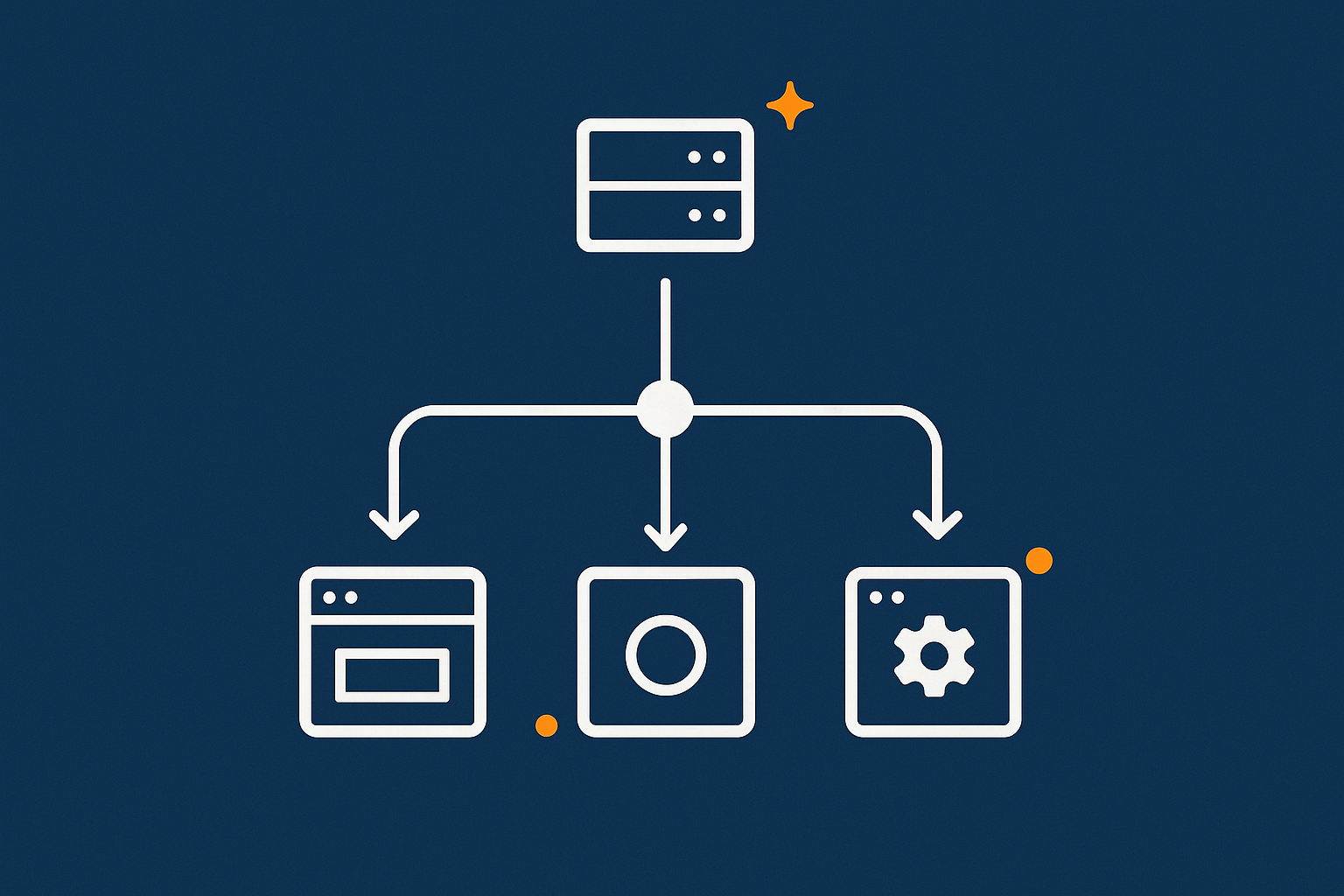
There are two basic patterns:
- Short technical maintenance: Search engines should see a temporary error (503) so they know to come back later. Do not serve a full holding page for days under 503.
- Pre‑launch holding: If the domain is new or the old site is gone for good, a simple holding page with a 200 status is fine while you build the full site behind the scenes.
If your existing site is still live elsewhere (for example on another domain or staging), it is usually better to keep that live and delay DNS changes until you are ready, instead of putting the main domain behind a holding page for weeks.
HTTP status codes that matter: 200, 302 and 503 in plain English
- 200 OK: Everything is normal. Use this for a pre‑launch holding page that you are happy to let Google index.
- 302 Found (temporary redirect): Tells browsers and search engines that this is a temporary redirect. If you redirect all traffic from
/to/holding/with a 302, Google may keep the original URL in results but show the holding content for a short time. - 503 Service Unavailable: A temporary error specifically for planned maintenance. Always include a
Retry-Afterheader or meta tag so crawlers know when to try again.
Avoid using 301 (permanent redirect) for maintenance unless you are permanently moving URLs.
Avoiding common SEO mistakes: noindex misuse, redirect loops, blocking everything
Frequent problems include:
- Leaving noindex on: Adding
<meta name="robots" content="noindex">for a holding page is sometimes fine, but many people forget to remove it at launch. If you do use it, create a launch checklist. - Redirect loops: Misconfigured maintenance plugins can cause loops such as
/ → /holding/ → /holding/, which wastes crawl budget and slows visitors. - Blocking all bots entirely: A
Disallow: /inrobots.txtor IP blocks on common crawlers can make Google think your site is broken long term.
Google’s own documentation on handling temporary site outages is worth a quick read before a maintenance window.
Keeping the page lightweight: HTML, CSS, JS and image basics
Treat your maintenance or holding page like an ultra‑lean landing page:
- HTML: Use clean, semantic markup. Avoid embedding page builder shortcodes or huge sections of unused markup.
- CSS: Prefer simple inline or small external CSS. You usually do not need full theme and builder CSS just to show a logo and a line of text.
- JavaScript: In many cases, you can avoid JS entirely. If you need analytics, use a single async script and nothing more.
- Images: One small logo or hero is enough. Compress it heavily. If your host uses a layer like the G7 Acceleration Network, images can be converted automatically to AVIF and WebP on the fly, cutting file sizes by more than half without needing any WordPress plugins.
Option 1: A True Maintenance Mode While You Fix or Deploy
When you actually need a 503 maintenance page (and when you do not)
You need a true 503 maintenance page when:
- Database migrations or core updates could corrupt data if users interact while you work.
- You are changing WooCommerce payment gateways or order processing logic.
- The site might be partially broken during deployment and you would rather show a clean message.
You usually do not need 503 for:
- Minor content edits.
- Most plugin updates, if tested first.
- Design tweaks or CSS changes.
A robust deployment process, such as the one described in this safe deployments guide, can reduce how often you need full maintenance windows.
Simple ways to serve a 503 page without bloating WordPress
Using your host or control panel maintenance tools
Many control panels offer a native maintenance or “website offline” toggle. The benefit is that the server serves a small static page without loading WordPress at all.
On some managed platforms, including web hosting performance features from providers like G7Cloud, this can be controlled per site and combined with network‑level caching, so visitors see a 503 page instantly while logged‑in admins bypass it.
A basic PHP or HTML maintenance page via .htaccess or Nginx
If you control the web server, you can configure a small maintenance page directly.
Apache example (.htaccess):
RewriteEngine On

# Allow your IP to bypass maintenance
RewriteCond %{REMOTE_ADDR} !^123\.123\.123\.123$

# Serve maintenance.html with 503 for everyone else
RewriteCond %{REQUEST_URI} !/maintenance\.html$
RewriteRule ^.*$ /maintenance.html [R=503,L]
Create a minimal maintenance.html file in your web root with a short message and no heavy assets.
Nginx example (snippet):
error_page 503 @maintenance;

location @maintenance {
    root /var/www/html;
    try_files /maintenance.html =503;
}

# Turn on maintenance
rewrite ^ /maintenance.html break;
return 503;
Again, keep maintenance.html as small as possible.
How long you can safely stay in 503 without harming SEO
503 is safe for short outages. As a rule of thumb:
- Under 1 hour: Very low risk, especially with a Retry‑After header of 1 hour.
- A few hours: Usually fine for occasional planned maintenance.
- More than a day: Risk grows. Search engines may treat the site as unreliable if outages recur.
If you expect days or weeks of downtime, you are better off with a 200 holding page and clear messaging, not a 503.
Option 2: A Lightweight Pre‑Launch Holding Page On the Same Domain
When a simple holding page is better than maintenance mode
A holding page is better when:
- The site is not ready yet, but you want to capture leads or interest.
- You are changing brand or messaging and do not want old content indexed.
- You want something reliable in place while you build and test the full site behind the scenes.
In these cases, 200 OK + minimal content is often the best option. You may choose to allow indexing or to add noindex if the content is clearly temporary.
Keeping it fast: design and content guidelines
For a pre‑launch holding page, keep to essentials:
- Short headline and one or two lines of explanation.
- Optional simple form or email link for enquiries.
- One image or logo, heavily compressed.
- No carousels, sliders or background videos.
If your host provides an optimisation layer like the G7 Acceleration Network, it can convert any image you upload into AVIF and WebP automatically while the page is served, typically cutting image weight by 60 percent or more without needing extra plugins or manual work.
Implementation paths
Using a single static page as your homepage
- Create a new Page in WordPress, call it “Holding” or “Coming Soon”.
- Use the block editor with the default theme, no page builder.
- Under
Settings > Reading, set “Your homepage displays” to “A static page” and select your Holding page. - Optionally, restrict menus and widgets so they do not show navigation to unfinished sections.
This approach is simple to disable later: just switch the homepage back when ready.
Using a lightweight maintenance/coming soon plugin, safely
If you prefer a plugin, look for:
- No page builder dependency.
- No bundled sliders, forms or marketing integrations you do not use.
- Explicit control over HTTP status codes (200 vs 302 vs 503).
- Options to let logged‑in admins view the real site.
After activation, run some tests in an incognito window and via tools such as curl -I https://example.com/ to confirm the correct status code and headers.
Serving a static holding page in front of WordPress (web server or acceleration layer)
For the lightest option, you can serve a plain static index.html or similar in front of WordPress:
- Place an
index.htmlin your web root. Many servers will serve this beforeindex.php. - Restrict access to
index.php(the WordPress front controller) via IP or login for your internal team. - When you are ready to launch, remove or rename
index.html.
Acceleration layers such as the G7 Acceleration Network can also cache this static holding page globally, so most visitors never touch PHP at all, which is useful if you expect interest before the launch.
Handling contact forms, tracking and analytics on a holding page
For forms:
- If you use a WordPress form plugin, keep it to a single simple form with server‑side validation only.
- Alternatively, use an embedded third‑party form that loads from their servers, not yours.
For tracking:
- Only load one analytics script if needed, and set it to
async. - Avoid full tag managers with many tags, as they can significantly slow a simple page.
Controlling Who Sees the Holding Page vs the Real Site
Letting logged‑in users and testers see the full site
For most WordPress or plugin‑based approaches, configure:
- Visitors who are not logged in see the holding or maintenance page.
- Administrators and editors see the full site for testing.
You can implement this with a small snippet in functions.php or a custom plugin:
function mysite_maintenance_mode() {
    if ( ! current_user_can( 'edit_posts' ) && ! is_user_logged_in() ) {
        wp_redirect( '/holding/' );
        exit;
    }
}
add_action( 'template_redirect', 'mysite_maintenance_mode' );
Replace /holding/ with your actual holding page URL, and disable this when you launch.
IP allowlists, preview URLs and staging sites
Sometimes you want specific partners or agencies to see the real site without an account. Options include:
- IP allowlists on the web server or firewall for office IPs.
- Secret preview URLs with a long random string, configured not to be crawled.
- Staging sites on managed WordPress hosting, which clone the live environment and stay private to your team.
Staging is usually the safest: you build and test there, then push to production with a brief 503 window if needed.
How to keep crawlers seeing what you intend
To ensure crawlers see the right thing:
- Do not block major search engine user agents unless you have a specific reason.
- Set the correct HTTP status for the root URL according to whether you are in maintenance (503) or holding (200/302).
- Use
robots.txtcarefully; avoidDisallow: /unless the domain should truly not be crawled at all.
After any change, test with Google’s “URL inspection” in Search Console to confirm how they see a key URL.
Avoiding Performance Problems While in Maintenance or Pre‑Launch
Why many maintenance plugins slow sites down more than the site itself
Heavy maintenance plugins often:
- Load the full WordPress stack for every visitor.
- Use page builders, large background images and multiple fonts.
- Disable or bypass caching, so every hit triggers PHP and database queries.
The result is that your “simple” maintenance page is slower than your actual site. Prefer static or nearly static solutions and confirm caching still applies to the holding page.
Using caching wisely for holding pages
For a holding page you want:
- Full page caching enabled so most visitors never reach PHP.
- Exceptions for logged‑in users, preview URLs or form POST requests.
Caching at the network edge, as used by the G7 Acceleration Network, means the static holding page is served quickly from nearby locations and your origin server stays cool even if interest spikes before launch.
Keeping images and assets tiny
Modern formats like AVIF and WebP
Instead of traditional JPEG or PNG, use WebP or AVIF where possible. They deliver similar quality at much smaller file sizes, which can significantly improve load times on a simple page.
How automatic on‑the‑fly optimisation helps
Automatic optimisation at the hosting or network layer is ideal for non‑technical teams. For example, the G7 Acceleration Network converts your uploaded images to AVIF and WebP on the fly and serves the most suitable format to each browser, often cutting image weight by more than 60 percent without any extra plugins or WordPress changes.
Filtering bad bots so a busy launch does not take the site down
Bad bots and aggressive crawlers can hit your site hard during a rebrand or launch, especially if word gets out early. If every one of those requests triggers WordPress, PHP and database queries, the site can slow or fail just when you most want it to be reliable.
Network‑level protection, such as G7Cloud’s bot filtering within the G7 Acceleration Network, screens abusive and non‑human traffic before it ever reaches PHP or MySQL, which smooths response times and reduces the chance of avoidable downtime during busy periods.
Safely Switching Out of Maintenance or Holding Page Mode
Pre‑launch checklist before you go live
Before removing your 503 or holding page, check:
- Core pages load correctly (home, key services, contact, checkout).
- Forms submit and emails send as expected.
- Payment gateways work in test or sandbox mode.
- Caching and minification do not break layouts.
A short final pass with a Core Web Vitals checklist, such as the one in this WordPress Core Web Vitals guide, helps ensure the live site is at least as fast as your holding page.
Removing temporary redirects, noindex and caching rules
On launch, you should:
- Remove or disable any
index.htmlholding file. - Turn off maintenance plugins or snippets that redirect users.
- Delete temporary
noindextags from the holding page or global SEO settings. - Undo temporary
.htaccessor Nginx rules that forced 503 or redirected everything to/holding/. - Clear caches at plugin, server and CDN/network levels.
Post‑launch checks in Google Search Console and real‑world monitoring
After launch:
- Use Search Console’s URL inspection to confirm key pages return 200 and are indexable.
- Monitor crawl stats over the next few days to ensure there are no sudden spikes in errors.
- Run real‑user speed checks from UK locations. If you want a deeper dive into baseline response times, the article on reducing WordPress TTFB gives practical steps.
When Hosting and Management Help Are Worth It
When a managed WordPress host simplifies maintenance and pre‑launch setups
If you are frequently redesigning, updating WooCommerce or planning campaigns, handling maintenance mode manually can become a risk. A provider that specialises in hassle free WordPress maintenance can handle safe updates, brief maintenance windows and rollbacks for you.
Using managed WordPress hosting with staging environments, automatic backups and tested deployment workflows reduces the chance of long outages or SEO‑damaging mistakes.
How network‑level caching, bot filtering and image optimisation reduce risk on launch day
On busy launch days, three things matter most: fast cached responses, protection from abusive traffic and small assets. A network layer such as the G7 Acceleration Network wraps these together by caching pages close to visitors, filtering bad bots before they hit PHP, and automatically serving AVIF/WebP images so pages stay light.
Where to get help if you do not want to manage this yourself
If all of this feels like more than you want to handle, it is reasonable to hand it off. A good next step is to speak with a provider that offers managed WordPress hosting and can walk you through a simple plan for staging, maintenance windows and safe launches.
Whether you stay on your current platform or move to a host like G7Cloud, the principles remain the same: keep your maintenance or holding page lean, send clear signals to search engines and make it easy to switch back to normal when you are ready.