

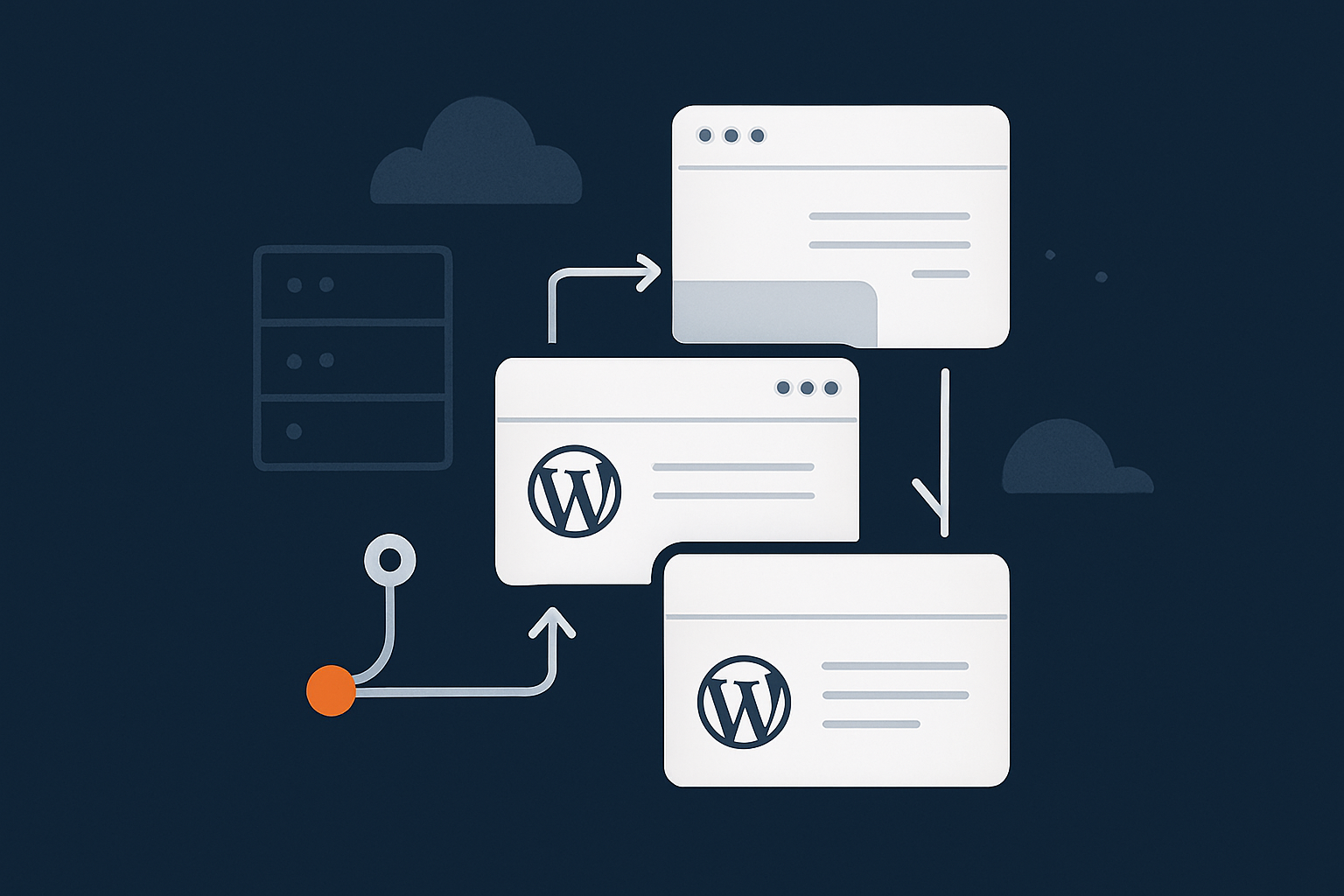
Why WordPress Deployments Go Wrong (And Why You Need a Safer Workflow)
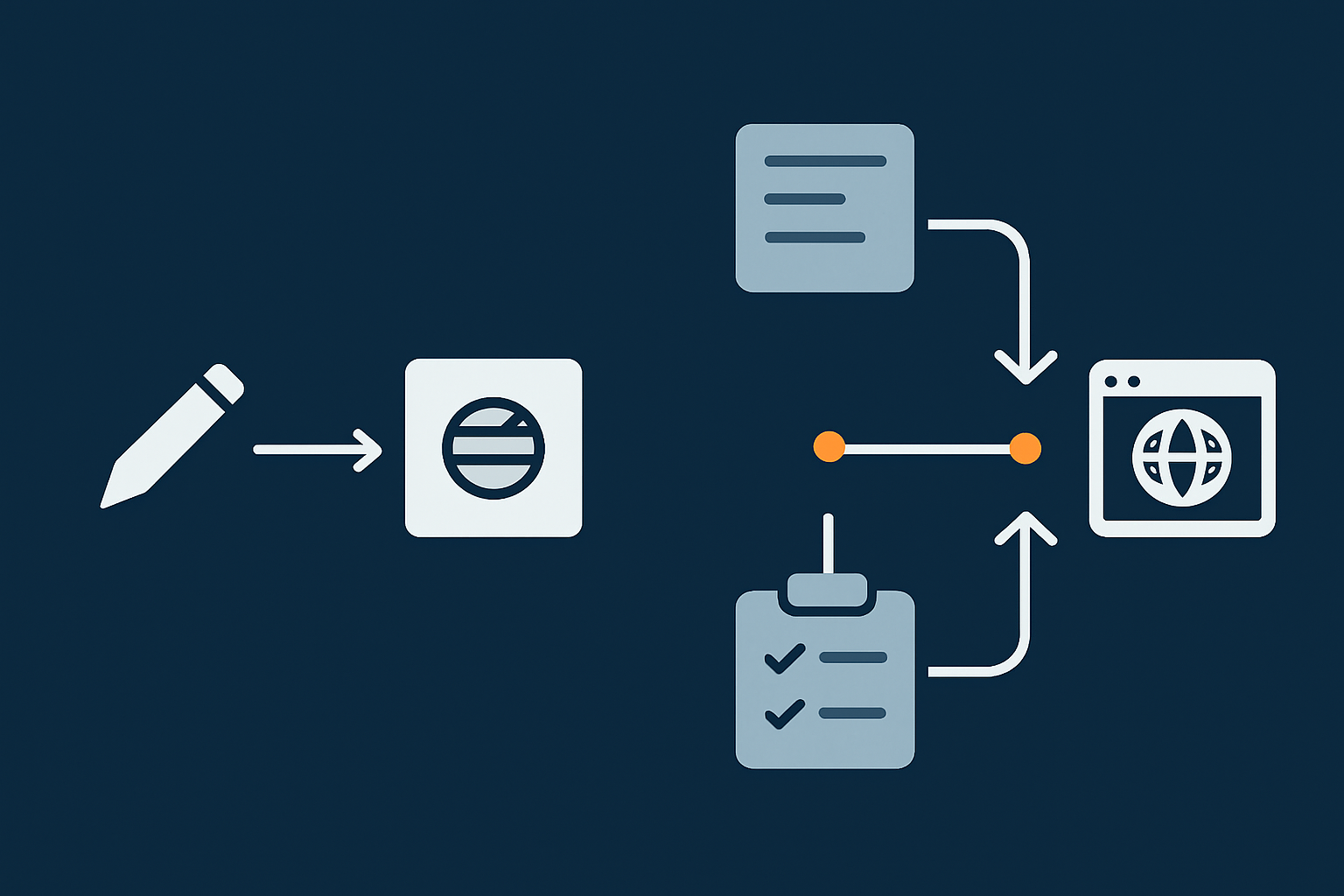
The risky reality of “just log in and change it live”
Many UK businesses still treat their WordPress site like a shared document. Someone logs in, changes a theme file in the editor, updates a plugin, or tweaks a WooCommerce setting on the live site and clicks save.
It works, until it does not. Typical problems include:
- A plugin update conflicts with the theme and takes the site down.
- A quick CSS fix breaks the mobile menu because it was never tested.
- A WooCommerce checkout tweak stops payments for hours before anyone notices.
- A “small” functions.php change triggers a fatal PHP error and white screen.
In most of these cases there is no clear record of what changed, no easy way to roll back, and no safe place to test before touching real customers or leads.
What a good deployment looks like in plain English
A safe deployment workflow is simply a repeatable way of getting changes from “idea” to “live site” with low risk. In practical terms:
- You have a recent, tested backup before you change anything.
- You make and test changes on a copy of the site (staging) first.
- You use a predictable method to move those changes to live.
- You check key user journeys after deployment and know how to roll back.
This does not require a full engineering team. It just means replacing ad hoc edits with a small number of habits and tools that you use every time.
How managed hosting changes what is realistic for small teams
On low cost shared hosting you often need to piece together your own backups, staging and security. Managed WordPress hosting providers, such as managed WordPress hosting from G7Cloud, bundle many of these pieces so a small team can behave more like a disciplined tech team without extra complexity.
Features like one click staging, automatic backups and performance tooling remove most of the technical friction. You still need to decide how you work, but the platform does more of the heavy lifting and reduces the chance that a simple mistake will bring the site down.
Step 1: Get the Basics Right Before You Touch a Deployment Workflow
Non‑negotiables: backups, staging and version control
Before redesigning your deployment process, make sure you have three basics in place:
- Reliable backups of both files and database, stored off the main server, with proven restores. If you are unsure, see What Every WordPress Owner Should Know About Backups and Restores.
- A staging site that is a reasonably up to date copy of live and easy to recreate.
- Version control for your custom code, usually Git, so you can see what changed and when.
Managed WordPress platforms typically handle scheduled backups and provide a staging toggle out of the box. That matters because deployment safety depends as much on recovery options as on the deployment itself.
Choosing where your staging site lives
Most businesses have two realistic options:
- Staging on the same managed host as live. Easiest to set up and maintain. One click staging environments on managed WordPress hosting usually clone the full stack (PHP version, database, caching) so tests are meaningful.
- Staging on a separate environment or sub account. Sometimes used for very high risk changes or for agencies that need isolation per client.
For most SMEs, staging in the same managed hosting account is fine. Just be careful with:
- Search engine indexing: ensure staging is blocked via
noindexand password protection. - Emails: configure staging so it does not send real emails to customers.
G7Cloud’s staging tools are an example of this kind of setup, giving you a clone of your site without extra plugins or manual database exports.
Deciding who owns what: host vs developer vs site owner
Deployment safety also depends on clear responsibilities. A useful split is:
- Host: platform reliability, backups, staging infrastructure, security patches at the OS and web server level, performance optimisations.
- Developer or agency: theme and plugin development, Git workflows, detailed testing, deployment scripts.
- Site owner / internal team: content changes, deciding when to deploy, business acceptance testing.
If you are relying on a host’s staging feature or their hassle free WordPress maintenance features, be explicit about what they will and will not do during deployments. Resources like Understanding Hosting Responsibility can help frame that conversation.
From Risky Manual Edits to Simple, Repeatable Deployments
The old way: direct FTP and database changes on live
A lot of older WordPress sites still use flows like:
- Edit theme files locally and upload via FTP straight to
wp-content/themes/. - Run SQL queries directly on the live database to “fix” data.
- Edit PHP templates inside the WordPress dashboard editor on live.
This is risky because:
- There is no testing environment.
- Only parts of the change are versioned, if at all.
- There is no quick rollback other than restoring a whole backup.
A safer manual workflow you can adopt this week
If you are not ready for Git or automation, you can still improve safety quickly:
- Take a manual backup immediately before any significant change.
- Clone live to staging using your managed host’s tools.
- Apply changes on staging:
- Install or update plugins.
- Change theme files via SFTP.
- Adjust WooCommerce settings.
- Test key journeys: homepage, contact form, account login, basket and checkout, search.
- Repeat the same steps on live once you are satisfied, keeping a simple text log of what you do.
This “double run” approach is not as slick as code based deployments, but it already removes most of the chaos from day to day changes.
What you should still avoid even with backups in place
Even with backups and staging, try not to:
- Make structural database changes on live with ad hoc SQL unless you know how to roll them back.
- Edit PHP files inside the WordPress dashboard. Use SFTP and a proper editor instead.
- Push large batches of plugin updates all at once without grouping and testing.
Use backups as a safety net, not as an excuse for reckless changes. Restores cost time, and on an active WooCommerce store they can mean lost orders if you roll the database back too far.
Using Staging Sites Properly: Test Changes Before They Go Live
What a staging site actually is and how it fits into deployments
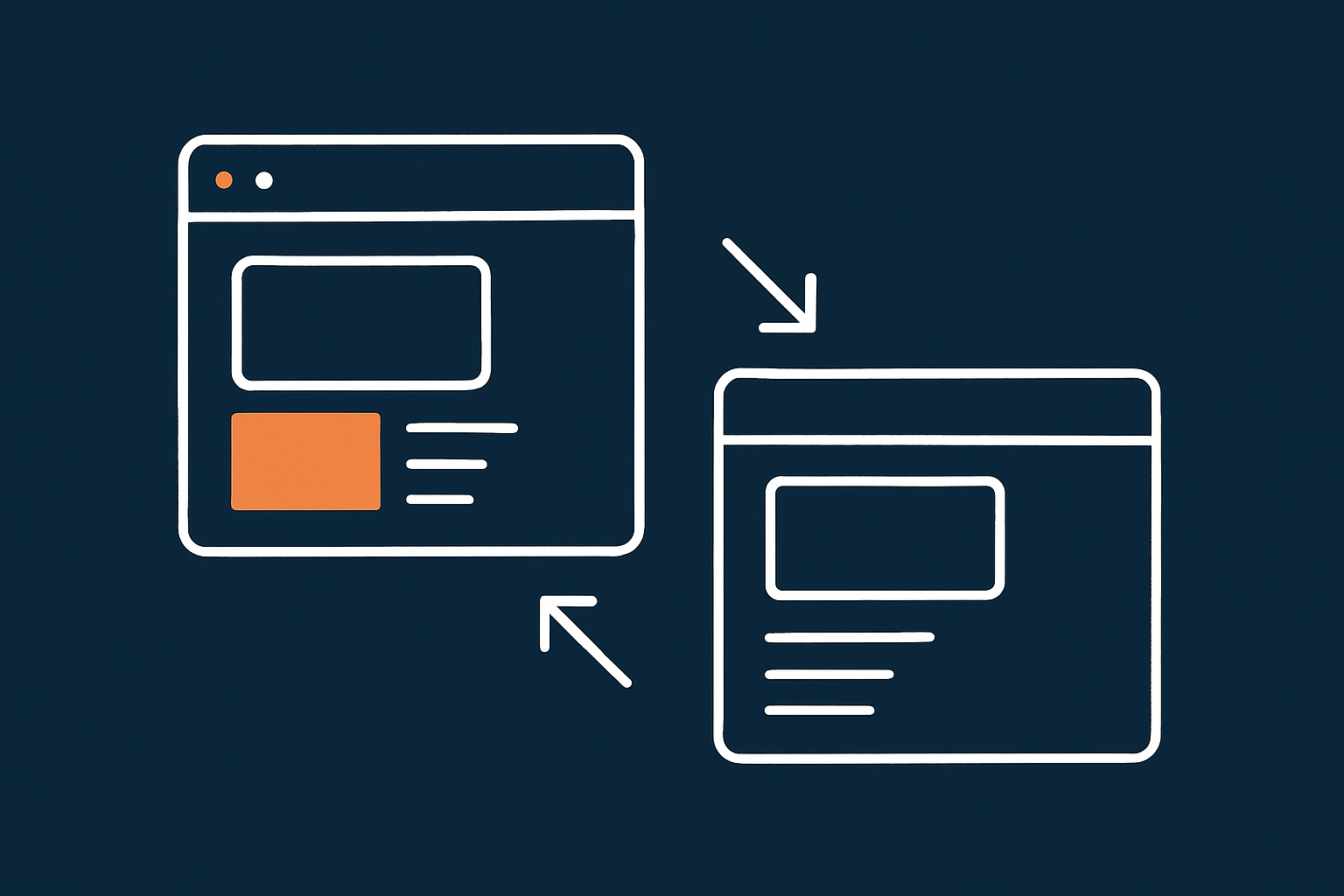
A staging site is a private copy of your live site used for testing. On decent managed WordPress platforms it usually has:
- The same PHP version and database engine.
- A copy of your files and database from a recent point in time.
- Separate URLs, sometimes with basic auth to keep it private.
Staging sits between your local changes and the live site. You:
- Pull or recreate a staging copy from live.
- Apply and test changes on staging.
- Deploy only the validated changes to live.
For a deeper dive into staging strategies and pitfalls you can read A Practical Guide to WordPress Staging Sites for UK Businesses.
A simple staging workflow for content, plugins and theme changes
For routine work you can simplify it to:
- Plugin and core updates: run updates on staging, test, then apply the same updates on live.
- Theme tweaks: deploy theme changes to staging via SFTP or Git, test layouts and performance, then deploy the same files to live.
- Content: pure content changes (posts, pages, products) are usually safe on live, but major layout changes to page builder templates should be tested on staging first.
It helps to agree internally which changes must go through staging and which can go straight to live. For example, price changes might be live only, but plugin upgrades must go through staging.
Handling WooCommerce orders and other changing data safely
WooCommerce adds a complication: the live database keeps changing as customers place orders, create accounts and leave reviews. If you clone staging from live and then later push the staging database back to live, you risk overwriting real orders.
Common strategies include:
- File only deployments: only push theme and plugin files from staging to live. Keep the live database as the source of truth.
- Short maintenance windows: for bigger changes, put the store into maintenance or catalogue mode briefly while you deploy and run database migrations.
- Selective data migration: for advanced setups, use WooCommerce migration tools or scripts to move specific settings without copying whole databases.
For busy sites, coordinate deployments around quieter trading times and monitor order flow closely after any update touching checkout or payments.
Bringing Git into the Picture: Version Control for WordPress Without a Dev Team
Why Git helps even if you are not a developer
Git is a version control system that records changes to files over time. For WordPress, it gives you:
- A history of changes to your theme and custom plugins.
- An easy rollback path for code problems.
- A single source of truth for what should be on the server.
You do not need to be a full time developer to benefit. Even basic use of Git for your wp-content/themes/yourtheme directory is a big step up from manual FTP uploads with no history.
What to put in Git (and what to leave on the server)
A sensible split for most WordPress sites:
- In Git:
- Custom themes and child themes.
- Custom plugins developed for your site.
- Configuration files like
wp-config.phptemplates (without secrets) and deployment scripts.
- Not in Git:
wp-content/uploadsmedia files.- Third party plugins pulled from the WordPress repository or vendors (you can track versions elsewhere).
- Generated cache files.
This keeps your repository manageable while still capturing the parts of the site that are most likely to break things if changed carelessly.
Basic Git‑driven deployment flow on managed hosting
On managed hosting you can often wire Git directly to the environment. A simple pattern looks like:
- Work on your theme locally, commit changes to a branch in Git.
- Push to a remote repository (GitHub, GitLab, Bitbucket).
- Deploy to staging by pulling that branch on the staging server.
- Test on staging.
- Merge into a
mainorproductionbranch. - Deploy that branch to live, using either a host provided Git deployment feature or a small script.
Many managed hosts, including those offering enterprise WordPress hosting for higher stakes sites, add guard rails here, such as atomic deployments and automated backups before each pull.
From Manual Deployments to Simple CI: Automating the Boring, Risky Steps
What “CI/CD” really means for a WordPress site
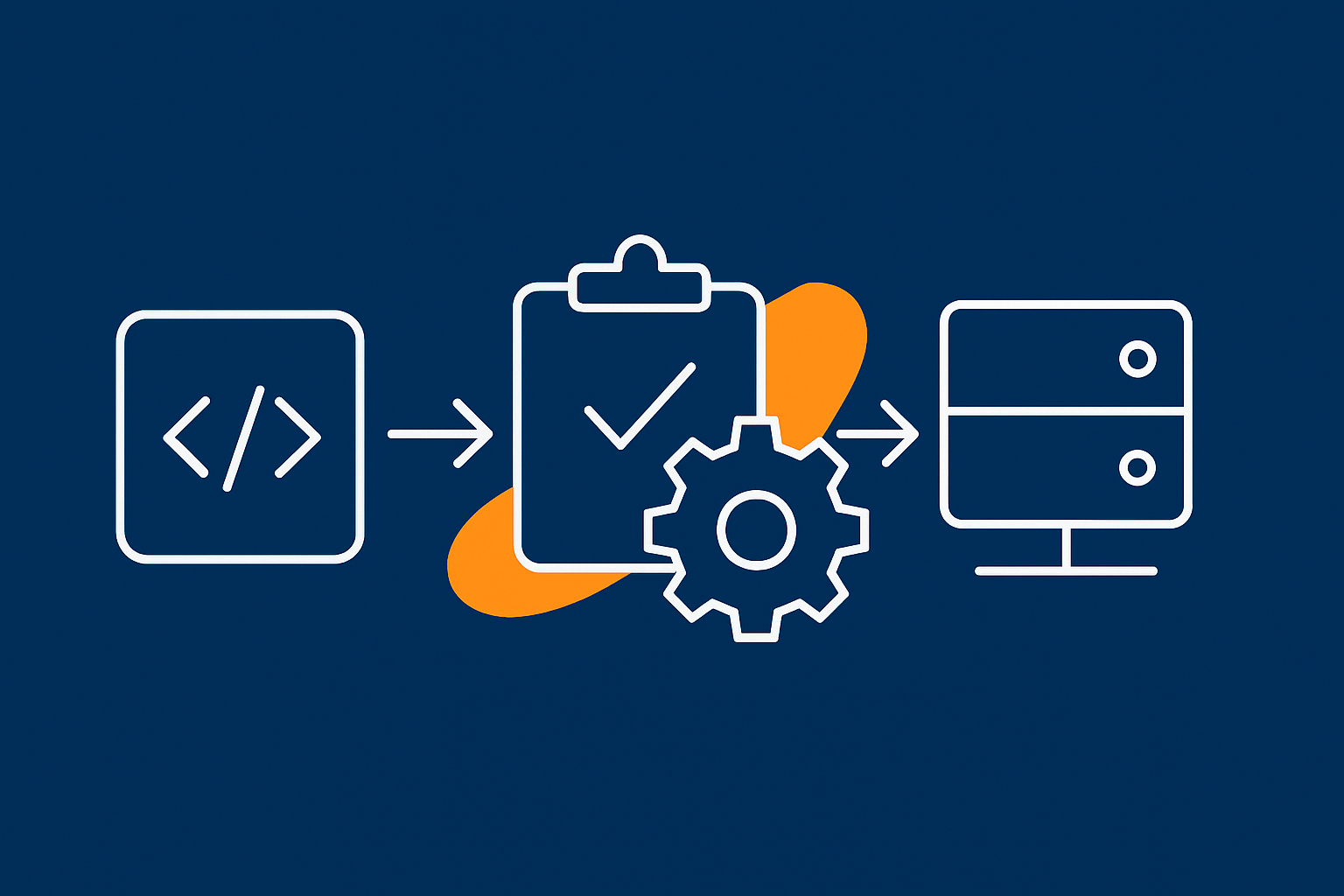
Continuous Integration (CI) and Continuous Deployment/Delivery (CD) sound grand, but for WordPress they usually boil down to:
- Automatically running checks whenever you change code.
- Automatically deploying to staging or live when changes pass those checks.
For a small team this might just mean:
- Every commit to the
stagingbranch triggers a deployment to the staging environment. - Every tagged release on
maintriggers a deployment to live after running some basic tests.
A realistic CI‑style pipeline for small teams
You can set up a light pipeline using GitHub Actions or similar:
- Push code to GitHub.
- An action runs:
php -lto check PHP syntax.- WordPress coding standards checks if you use them.
- Simple unit tests if you have any.
- If checks pass on a
stagingbranch, the action deploys to the staging server via SSH or a host API. - After manual testing, you tag a release on
main. - Another action deploys that tag to live, taking a backup first.
This keeps the automation focused on things that are repetitive and mechanical, while leaving business decisions and final checks in human hands.
What your host can (and should) automate for you
A good managed host can reduce the amount of custom scripting you need. Look for:
- Automatic pre deployment backups.
- One click or API driven staging refreshes.
- Git based deployments tied to branches or tags.
- Rollback tools if a deployment degrades performance or causes errors.
Some providers also integrate performance tooling and caching management into the deployment process so that, for example, caches are warmed or cleared in a predictable way after each release. The G7 Acceleration Network from G7Cloud is an example of this, combining smart caching, security headers and bad bot filtering to keep performance more consistent after changes.
Practical Examples of Safe Deployment Patterns on Managed Hosting
Example 1: Safe plugin and theme updates on a brochure site
For a small brochure site with contact forms and a blog:
- Weekly, refresh staging from live.
- Run WordPress core, plugin and theme updates on staging.
- Test homepage, key landing pages and enquiry forms.
- If all is well, repeat the updates on live during a low traffic window.
- Spot check error logs and the front end.
You can support this with your host’s maintenance tools or a service such as G7Cloud’s hassle free WordPress maintenance features, which can handle routine updates while still allowing you to test high risk changes on staging.
Example 2: Deploying a new WooCommerce checkout layout without risking orders
For a busier WooCommerce store launching a new checkout layout:
- Develop the new layout in a theme branch tracked in Git.
- Deploy the branch to staging and connect it to a test payment gateway.
- Run full test orders across devices, checking emails, stock levels and order statuses.
- Schedule deployment for a quiet period.
- Enable a short maintenance window on live (or at least disable new orders briefly).
- Deploy the theme changes to live, clear caches, re enable checkout.
- Place a live test order with a low value product.
Here, file only deployments help avoid overwriting live order data. If performance during deployment is a concern, managed platforms that use networks such as the G7 Acceleration Network can keep cached pages responsive while PHP and database work is underway.
Example 3: Coordinating deployments with traffic spikes and campaigns
If you are running a paid campaign or expecting a sudden spike (for example a TV appearance or major email send), avoid shipping big changes just beforehand. Instead:
- Freeze non critical deployments for an agreed period.
- Ship necessary fixes at least a day before and monitor closely.
- Use staging for any last minute riskier experiments.
To keep the site stable under load, consider what is hitting your server. G7Cloud’s bot protection within the G7 Acceleration Network filters abusive and non human traffic before it reaches PHP or the database, which reduces wasted server load and helps keep response times steady during busy campaigns.
Operational Checks: What to Verify Before and After Each Deployment
Pre‑deployment checklist: backups, lock‑downs and communication
Before you deploy, confirm:
- Backup: there is a recent backup and you know how to restore it.
- Access: only people involved in the change have admin access during the window.
- Change scope: everyone understands what is being deployed.
- Timing: you picked a low traffic period and informed stakeholders.
For bigger changes, consider enabling maintenance mode to prevent users interacting with half deployed features.
Post‑deployment checks: logs, errors and key user journeys
After deployment:
- Load key pages: homepage, high traffic landing pages, checkout, account login.
- Submit a contact form, create a test account, place a low value order.
- Check server and PHP error logs for new warnings or errors.
- Monitor performance graphs for unusual spikes in response time or CPU.
If you are not familiar with log monitoring, Logging and Error Monitoring for WordPress and WooCommerce walks through practical setups.
Rolling back calmly when something still slips through
Even with good processes, issues slip through. Plan your rollback steps in advance:
- For code only changes, roll back the Git commit or redeploy the previous release.
- For broken plugin updates, restore just the affected plugin directory if possible.
- For serious incidents, restore from the pre deployment backup.
Afterwards, capture what went wrong and adjust your checks or staging process accordingly. Postmortems do not need to be formal, but a short written summary helps you learn from each incident.
When to Ask Your Managed Host for Help (and What to Expect)
How far managed providers will usually go on deployments
Managed WordPress hosts will typically:
- Ensure backups and staging are working.
- Assist with rolling back to a previous snapshot.
- Give guidance on performance, caching and configuration issues.
They are less likely to:
- Debug custom themes or plugins in depth.
- Design your Git or CI workflows end to end.
- Manually test your business specific user journeys.
Providers offering higher touch services, such as enterprise WordPress hosting for higher stakes sites, may offer more hands on support. Clarify this upfront so you know when to call them and when to involve your developer or agency.
Questions to ask before you rely on a host‑provided staging or CI feature
Useful questions include:
- Does staging clone both files and database, and how often?
- Can I push only files back to live to protect WooCommerce orders?
- Are pre deployment backups automatic?
- Is there an API or Git integration I can hook into?
- What is the rollback process if a deployment fails?
This helps you design a workflow that fits within what the platform supports rather than fighting against it.
Planning ahead: aligning deployments with your wider hosting roadmap
Deployment processes should evolve as your site grows. If you are expecting more traffic or more frequent changes, look at:
- Moving to managed WordPress hosting if you are still on generic shared hosting.
- Introducing Git based deployments even for small code bases.
- Adding light CI for basic checks and automated staging deployments.
Resources such as When Managed Hosting Makes Sense for Growing Businesses can help you decide when to upgrade platform as well as process.
Summary: A Sensible Deployment Maturity Path for WordPress
From ad‑hoc edits to repeatable, testable releases
You do not need to jump straight from “log in and edit live” to enterprise level CI pipelines. A practical path for most UK WordPress and WooCommerce sites looks like:
- Ensure solid backups and set up a staging site.
- Stop editing PHP on live; use SFTP and test on staging first.
- Introduce basic Git for your theme and custom plugins.
- Wire Git to staging and later to live, with manual checks.
- Add light CI to automate syntax checks and deployments.
Each step reduces risk and makes deployments more predictable without overwhelming a small team.
Where to invest next if your site is becoming business critical
If your WordPress site now drives a significant part of your revenue or lead generation, it is worth investing both in better process and better hosting. Managed platforms with Git aware staging, automatic backups and integrated performance tooling make it much easier to run safe, testable deployments without building everything from scratch.
If you are ready to reduce deployment stress, explore managed WordPress hosting with G7Cloud or talk to their team about how the G7 Acceleration Network and staging tools could fit around your existing workflow. For existing sites, a free WordPress migration service can move you onto a platform that better supports the deployment practices outlined in this guide.