

Who This Guide Is For (And What You Will Be Able To Decide)
This guide is for UK businesses running WordPress or WooCommerce that are seeing warnings about high CPU, memory or “resource limits” and are wondering whether it is time to upgrade hosting.
We will walk through practical checks you can do first, so you can decide calmly whether:
- There is a genuine resource problem.
- You can fix it with configuration and clean up.
- Or you really do need more powerful hosting.
Typical warning signs of high CPU and memory on WordPress
You may recognise some of these symptoms:
- Your hosting control panel shows CPU or RAM usage hitting 90–100% regularly.
- Pages are fast sometimes, then suddenly very slow during busy periods.
- Admin screens (especially WooCommerce orders or product lists) feel “sticky” or time out.
- You see 502 / 504 gateway errors or “Error establishing a database connection”.
- Your host emails you about “excessive resource usage” or “account limits reached”.
Several of these can be caused by other bottlenecks, so the first step is to confirm what is really happening.
What you should be able to answer by the end
By the end of this guide you should be able to answer:
- Is CPU or memory the real bottleneck, or is it something like I/O, network or PHP workers?
- Are traffic spikes, bots or attacks driving usage, or is it normal visitors?
- Which plugins, themes or queries are heaviest, and what you can tune or remove.
- Whether caching or offloading can safely reduce load.
- When it genuinely is time to move to more powerful hosting, such as managed WordPress hosting options or virtual dedicated servers with dedicated CPU and RAM.
Step 1: Confirm It Really Is High CPU or Memory (Not Something Else)
Reading your host’s resource graphs in plain English
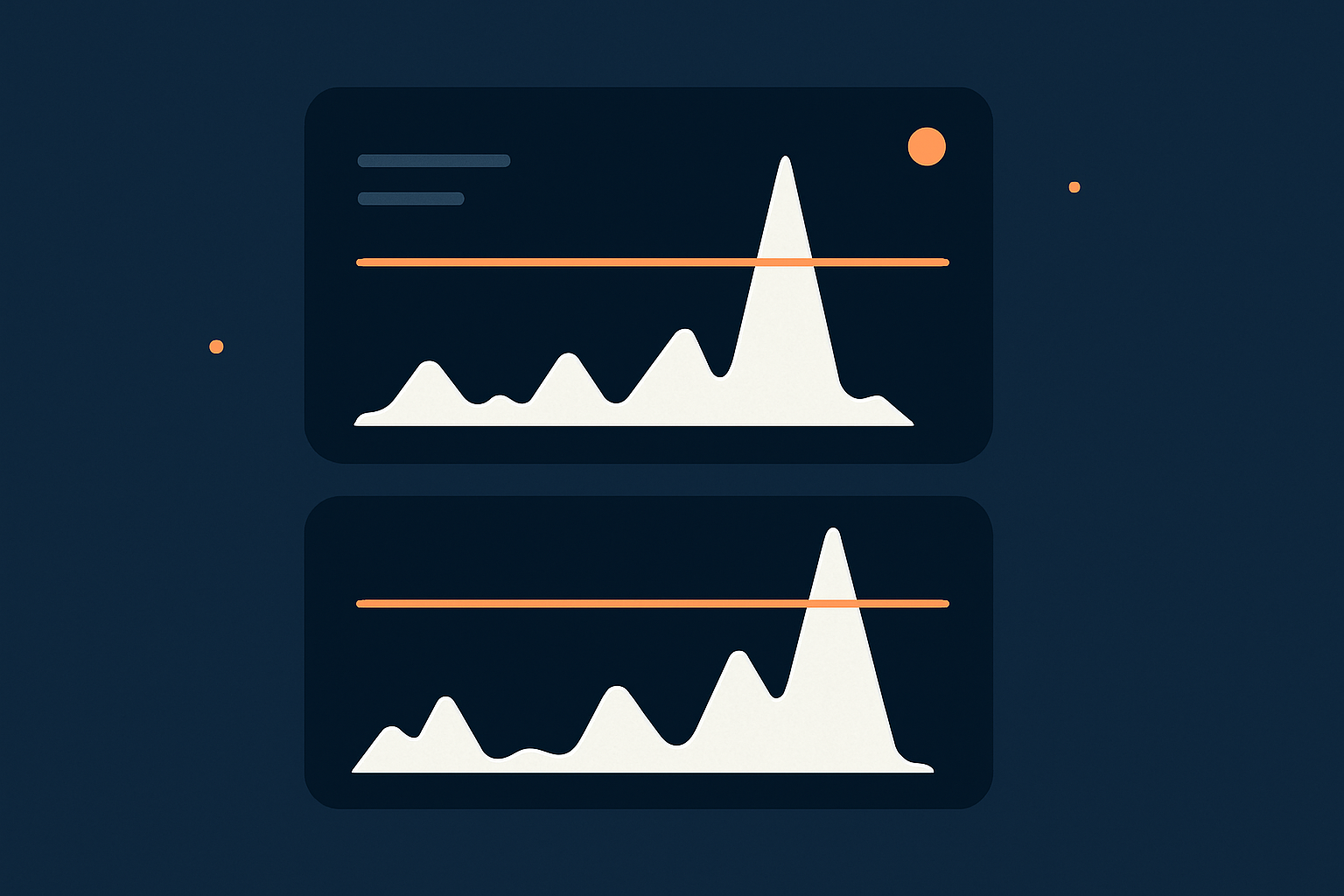
Most modern hosts provide graphs for CPU, memory, disk I/O and sometimes PHP workers. These graphs are your first clue.
Look for:
- CPU usage: if the graph regularly flatlines near 100%, the server is fully busy. Spikes at 100% for a few minutes during a known promotion might be acceptable; a plateau for hours is not.
- Memory usage: if RAM sits consistently near the limit (or you see swap usage climbing), PHP and MySQL will slow down or fail.
- Patterns: do spikes line up with specific times of day, cron jobs or backups? Sudden vertical jumps that drop back quickly often point to tasks rather than normal visitors.
If you want a deeper explanation of what each metric actually represents, the guide How to Read a WordPress Hosting Resource Graph is a useful reference.
If you run your own VPS or dedicated server, you can also confirm resource usage from the command line using tools like top, htop and free -m. For a step-by-step approach, see the article on checking CPU, memory and disk usage on a Linux server.
Quick checks from the WordPress side: admin slowness, cron, error logs
Inside WordPress, some simple checks give extra clues:
- Is the front end slow or only the admin? If the public site is fine but /wp-admin/ is slow, resource limits might be kicking in mainly when heavy queries run (orders, reports, page builder editing).
- Check error logs: in your hosting panel, look for PHP error logs. Repeated “out of memory” errors or long-running scripts are strong hints that memory or CPU is tight.
- Look at cron behaviour: if scheduled tasks are missing or delayed (no emails, subscriptions not renewing on time), WordPress may be struggling to complete background work because resources are exhausted.
When to suspect PHP workers, I/O or network limits instead
Not every slowdown is pure CPU or RAM:
- PHP workers: on some platforms, a limit on concurrent PHP processes will cause queues. The CPU graph might not be maxed, but visitors wait while their requests sit in the queue.
- Disk I/O: if logs or metrics show high read/write wait times, slow storage can slow database queries even with plenty of CPU spare.
- Network or external APIs: slow responses from payment gateways, shipping APIs or external search services can tie up PHP workers, which then looks like a CPU issue.
If your host provides a breakdown of web hosting performance features such as PHP workers, I/O limits and caching, it is worth reading that alongside your graphs so you know which limits apply to your plan.
Step 2: Rule Out Traffic and Bot Spikes Before Blaming WordPress

Comparing usage graphs with traffic patterns and campaigns
Before changing plugins or code, compare server load with traffic:
- Check Google Analytics or Matomo for visitor counts and page views by hour.
- Match peaks in CPU / RAM usage against:
- Email campaigns.
- Social media posts that went viral.
- Ad campaigns or influencer mentions.
- Look at geographic or device patterns: a sudden spike from one country or a single user agent can indicate bots.
If 10 times more people arrived on your site in half an hour, some higher usage is expected. The question is whether it is genuine humans or automated traffic.
How abusive bots and scrapers quietly eat CPU
Bad bots, scrapers and credential-stuffing tools often hit:
- Search pages with unbounded queries.
- Cart and checkout URLs.
- XML-RPC and /wp-login.php for brute force attacks.
- Large sitemaps and product archives repeatedly.
Each of these requests can trigger heavy database work, PHP execution and caching misses. A single aggressive scraper can consume as much CPU as dozens of normal visitors.
Good providers use network-level and application-level filtering to block abusive patterns. With G7 Acceleration Network for caching and bot protection, for example, G7Cloud’s bot protection filters abusive and non human traffic before it reaches PHP or the database, which reduces wasted server load and helps keep response times stable during busy periods.
Practical bot filtering options (and what a good host should handle for you)
You can tackle bad bots in several layers:
- At the edge / CDN: services like a CDN or the G7 Acceleration Network for caching and bot protection can challenge or block known bad user agents and IPs before they ever touch your server.
- Web application firewall (WAF): rules to throttle or block suspicious patterns, repeated logins or XML-RPC abuse.
- Rate limiting: limit hits per minute from a single IP for heavy endpoints, particularly search and login.
- Robots.txt and crawl-delay: not effective against abusive bots, but can gently guide legitimate crawlers to be kinder.
A good host will already filter the worst of this traffic for you. If you find you are leaning heavily on WordPress security plugins to cope with bot traffic, that is a sign the host should be doing more at the network layer.
Step 3: Find Heavy Plugins, Themes and Queries
Identify recent changes: new plugins, updates and feature launches
When performance suddenly changes, ask “what changed recently?”
- New plugins installed.
- Major version updates to WooCommerce, page builders or themes.
- New features like on-site search, wishlists, live chat or reporting dashboards.
Make a simple timeline: on this date, we launched reviews; two days later CPU usage spiked. This often points you at the culprit without needing profiling tools.
Using simple tools and plugin health checks (without being a developer)
You do not need to write code to find slow components:
- Query Monitor plugin: shows slow database queries, hooks and HTTP calls. Use it on a staging site or during off-peak times, then deactivate when done.
- Plugin by plugin testing: temporarily disable non-essential plugins in batches, checking resource usage and perceived speed as you go.
- Health Check & Troubleshooting plugin: lets you simulate plugin deactivations only for your admin session to test conflicts without affecting visitors.
Look for plugins that:
- Run heavy queries on every page (for example, complex related posts, statistics or “most viewed” widgets).
- Call external APIs synchronously (for example, shipping calculations on product pages).
- Perform large database scans or writes without batching.
Common culprits on busy sites: WooCommerce, page builders, search and reporting
Some areas are naturally heavier, particularly on busy WooCommerce stores:
- WooCommerce order and product queries: complex filters in the admin, advanced search and reporting dashboards can hit the database hard.
- Page builders: heavy templates with many elements increase PHP work on cache misses and make uncached admin edits slower.
- Search: plugins that search all post meta or run fuzzy matching can be demanding on large catalogues.
- Reporting and analytics: on-site reporting add-ons that aggregate data on the fly often cause big CPU spikes.
For a deeper dive into ecommerce-specific issues, the article on WooCommerce hosting bottlenecks you can fix without changing provider covers common patterns and workarounds.
Step 4: Fix What You Can Inside WordPress
Clean up WordPress bloat: unused plugins, themes and background tasks
Every active plugin adds code that can run on each request. Even inactive but poorly built plugins may leave behind cron jobs or autoloaded data.
Practical clean up steps:
- Make a full backup before making changes.
- List all plugins and mark which are truly business-critical.
- Deactivate and remove plugins that are unused or duplicate functionality.
- Delete unused themes, keeping one default theme as a fallback.
Removing bloat reduces the amount of PHP that needs to run, which lowers both CPU and memory usage. If you want a more structured approach, see the guide on cleaning up WordPress bloat safely.
Tuning WooCommerce features that hit CPU and RAM hard
Within WooCommerce you can often trade off “nice to have” features against load:
- Stock and status updates: reduce how often background tasks recalculate stock or regenerate reports.
- Order status emails: avoid custom workflows that trigger several emails and webhooks per order unless they are essential.
- Product filters: use indexed or pre-generated filters rather than dynamic “filter everything” queries on large catalogues.
- On-the-fly image sizes: pre-generate needed thumbnails instead of letting every new request trigger large image resizes.
Some managed WooCommerce hosts pre-optimise these areas. If you are managing this yourself, small configuration changes can materially lower CPU load.
Cron jobs, scheduled tasks and how to stop them piling up
WordPress cron is triggered by visits rather than running on a fixed system schedule by default. When traffic is low or the site is under heavy load, tasks can pile up and then run in a burst, causing CPU spikes.
To tame cron:
- Install a cron manager plugin to inspect scheduled tasks.
- Look for tasks that run very frequently (every minute or five minutes) and see if they can be reduced.
- Disable unnecessary or duplicate tasks that plugins may have left behind.
- Consider setting up a real server cron job to trigger
wp-cron.phpat fixed intervals, then disable the default behaviour withDISABLE_WP_CRON.
If you want to understand this area thoroughly, the guide on WordPress cron jobs and missed tasks covers configuration and common pitfalls in more depth.
Step 5: Reduce Server Work With Caching and Offloading

What caching actually saves in CPU and memory
Caching works by storing pre-generated versions of pages or data so that repeat requests do not need to run all the PHP code and database queries again.
On a WordPress site, a good cache can mean:
- Most anonymous visitors never trigger PHP at all.
- The database is hit far less frequently.
- CPU and RAM are reserved for logged-in users, carts and checkouts where caching is trickier.
If your host includes server-level caching or a solution like the G7 Acceleration Network for caching and bot protection, you often get page caching, static asset caching and sometimes object caching at the edge, which significantly cuts the work your origin server has to do.
For media, performance improvements also come from reducing asset weight. Some providers, including G7Cloud through the G7 Acceleration Network, automatically convert images to modern AVIF and WebP formats on the fly, typically reducing image file sizes by over 60 percent while keeping quality suitable for real sites, without needing extra plugins or WordPress changes.
Safe caching patterns for WordPress and WooCommerce
To keep things stable:
- Cache pages for anonymous users: home, category, product and content pages that do not depend on the user’s identity.
- Avoid caching: carts, checkouts, account pages and anything containing personalisation or security tokens.
- Use separate cache bins: if using object caching (Redis or Memcached), separate groups for transients and sessions can prevent bloat.
- Set sensible TTLs (time to live): most content can be cached for 10–60 minutes without issues; purging on content updates avoids stale pages.
If you want a deeper understanding of the different caching layers and what your host should handle, the article on WordPress caching layers explained is a solid next step.
How bot filtering and edge caching keep load stable
High resource usage is often a combination of two things: a lack of caching and too much low-quality traffic. Edge caching and bot filtering address both.
When a service like the G7 Acceleration Network for caching and bot protection serves cached pages from locations close to visitors and blocks abusive bots at the edge, most hits never trigger PHP or the database, which keeps CPU and memory load far more predictable during promotions and seasonal peaks.
Step 6: Check for Deeper Server or Security Problems
Signs of malware or abusive activity causing high usage
Malware, backdoors or hacked plugins can quietly consume a lot of resources:
- Unusual spikes in outbound traffic or email sending.
- New or modified PHP files in
wp-content/uploadsor plugin directories. - Unknown admin users appearing in WordPress.
- Obfuscated code at the top or bottom of
index.php,wp-config.phpor theme files.
If security scans find suspicious files, clean them with a reputable scanner or work with your host’s support team. In some cases, a full site rebuild from clean backups is safer than trying to patch a heavily compromised install.
When it might be a server configuration or database issue
Sometimes the underlying server configuration is the real problem:
- MySQL poorly tuned: wrong buffer sizes and cache limits cause unnecessary disk I/O and query slowdowns.
- PHP version outdated: older PHP versions often perform worse; moving from 7.x to 8.1+ can deliver a noticeable CPU saving.
- Insufficient or misconfigured opcache: without opcache, PHP has to recompile scripts constantly, increasing CPU.
Database bloat can also matter: large wp_options tables, many expired transients and postmeta growth all add overhead. Managed platforms that focus on web hosting performance features generally tune these layers for WordPress and WooCommerce out of the box.
When It Really Is Time To Upgrade Hosting (And What To Upgrade To)

Simple rules of thumb: when optimisation is not enough
After you have:
- Cleaned up plugins and themes.
- Configured caching safely.
- Filtered abusive bots and fixed cron issues.
- Checked for security problems.
It may still be that your site has genuinely outgrown its current plan.
Some rules of thumb:
- Your CPU graph is close to 100% for several hours per day even after optimisation.
- Legitimate traffic keeps increasing month on month.
- WooCommerce orders, logged-in sessions and admin work are consistently slow.
- You need to disable valuable features just to stay within limits.
At this point, it is sensible to upgrade rather than constantly firefight.
Choosing between bigger shared, VPS/VDS and managed WordPress hosting
Broadly you have three choices:
- Larger shared plan: slightly higher limits, still competing with neighbours for underlying resources. Suitable for smaller sites but less ideal for growing stores.
- VPS / VDS: more control and guaranteed slices of CPU and RAM. This is flexible, but you (or your team) are responsible for OS, PHP, database tuning and security. Products such as virtual dedicated servers with dedicated CPU and RAM fit into this category.
- Managed WordPress hosting: provider handles server setup, security hardening, performance tuning and backups, usually with WordPress-aware support. If you want less infrastructure hassle, looking at managed WordPress hosting options with providers like G7Cloud is often the most efficient route.
If your business relies heavily on WooCommerce revenue or lead generation, the time saved by not running servers yourself is often worth more than the raw cost difference.
Make High Usage Less Scary: Ongoing Monitoring and Maintenance
A lightweight monthly checklist so problems show up early
To avoid surprises, build a simple monthly routine:
- Check hosting graphs for CPU, RAM and I/O trends.
- Review plugin and theme lists for anything unused or rarely used.
- Run a quick front-end speed test and compare with previous months.
- Scan for malware using your chosen security tool.
- Check WooCommerce order processing and cron-driven processes are on time.
The article on keeping a WordPress site fast over time contains a practical routine you can adapt to your own workflow.
What your hosting provider should proactively help with
A good hosting partner will not just sell you “more CPU” but will also:
- Provide clear, readable graphs and alerts for resource usage.
- Explain whether high load is due to traffic, configuration or genuine capacity limits.
- Offer features like the G7 Acceleration Network for caching and bot protection to handle caching, image optimisation and bad bot filtering at the edge.
- Help you choose an appropriate upgrade path when it is genuinely needed.
If you are finding that high CPU and memory issues are consuming more of your time than the site itself, exploring managed WordPress hosting options with a provider that understands WooCommerce, caching and security can be a straightforward way to regain headroom without guesswork.
Troubleshooting high resource usage does not have to be stressful. With a clear process, you can separate one-off spikes from genuine capacity limits, fix what is within your control inside WordPress, and then upgrade to the right level of hosting when it genuinely benefits your business.