

Who this guide is for (and what you will be able to decide)
Typical UK SME scenarios: from cheap shared plan to business critical site
Many UK businesses start their first WordPress or WooCommerce site on a low cost shared hosting plan. It keeps the budget small, and for a simple brochure site with a few hundred visitors a month, it usually works well enough.
Fast forward a couple of years and the same site might be:
- Generating regular leads or online orders
- Running multiple plugins such as page builders, SEO suites, form builders and marketing tools
- Handling busy campaigns, Black Friday offers or seasonal peaks
- Used daily by staff to manage products, content and orders
At that point, slow admin screens, sporadic 503 errors or lost orders are no longer minor annoyances. They start to translate into missed revenue and internal friction.
This guide is for owners, marketers and technical generalists in UK SMEs who suspect that their shared hosting is holding them back, but do not want to overspend or move unnecessarily.
What this article covers: clear triggers, realistic options, and a step by step migration plan
By the end of this article you should be able to:
- Recognise concrete signs that you have outgrown shared hosting
- Understand when shared hosting is still acceptable, so you do not move too early
- Compare realistic next steps such as managed WordPress hosting for UK businesses, VPS and virtual dedicated servers
- Follow a practical migration plan that keeps downtime and stress to a minimum
If, after reading, you want a deeper comparison of hosting models, there is a more detailed breakdown in Shared Hosting vs VPS vs Virtual Dedicated Server for WordPress.
Why shared hosting stops working as you grow
How shared hosting actually works in plain English
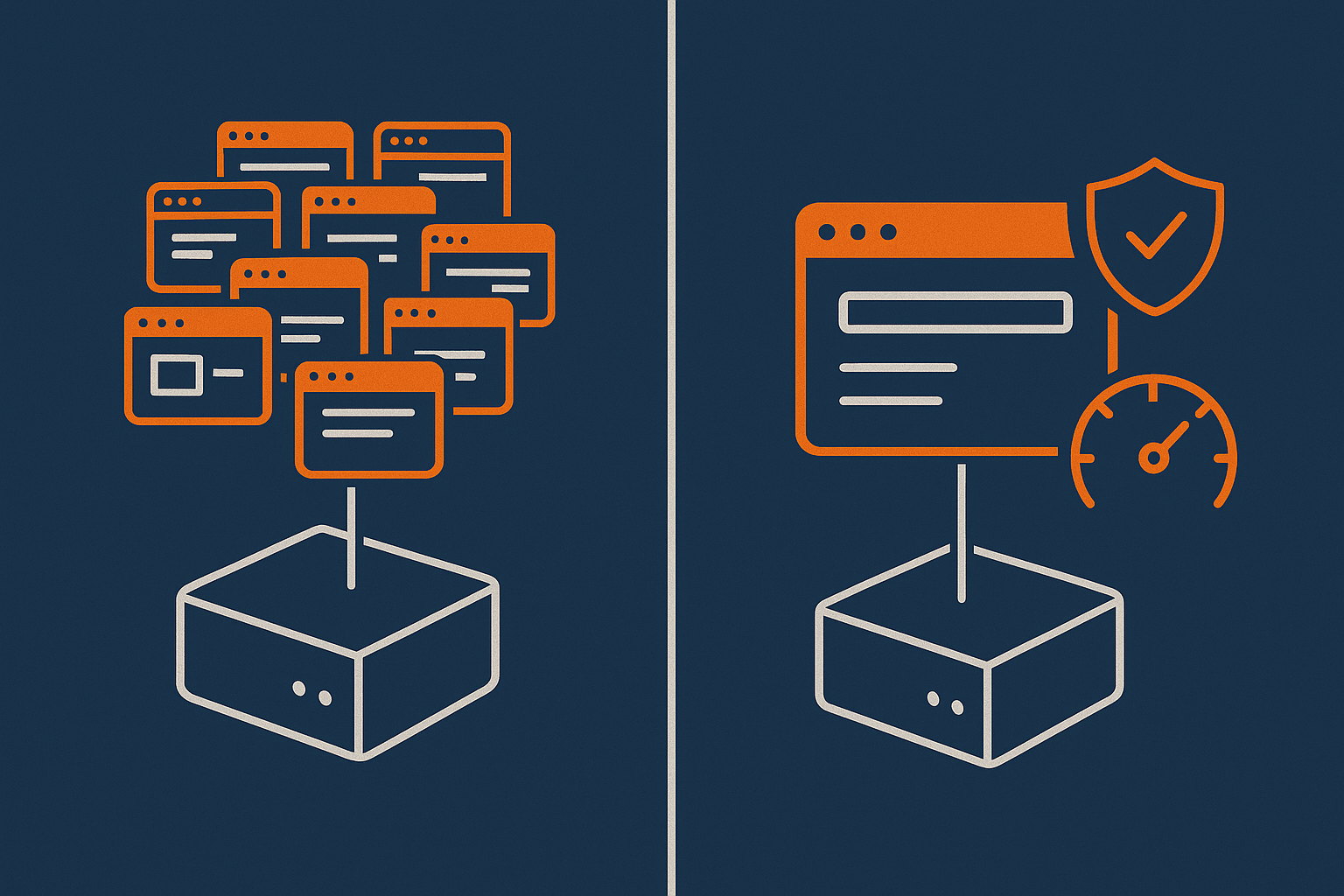
Shared hosting means your site runs on a server that is shared with many other customers. All of you use the same CPU, memory, storage and network connection. The hosting company isolates accounts at a basic level, but fundamentally you are all competing for the same pool of resources.
To keep prices low and predictable, hosts often place hundreds of small sites on a single machine, using automated systems to stop any one account from using too much.
In practice this means:
- Your site is fast when the server is quiet
- Your site slows down when other sites on the same server are busy
- If your site uses more than your “fair share”, the host will throttle or temporarily block it
The trade offs: low cost vs noisy neighbours, limits and support boundaries
Shared hosting is cheap because the provider spreads the cost of the server across many customers and offers standardised support. The trade offs usually include:
- Noisy neighbours: another site on the same server can suddenly use more CPU or disk I/O, and your response times spike for no apparent reason.
- Hard limits: processes, concurrent connections, memory and disk I/O are capped per account. Hit the ceiling and you see 503 errors or slowed responses.
- Restricted configuration: PHP extensions, memory limits, background processes and advanced caching are limited or unavailable.
- Support scope: support teams typically look after the server only. If a plugin, theme or WooCommerce task is the issue, you are on your own.
When shared hosting is still fine (so you do not move too early)
Shared hosting can still be an appropriate choice when:
- You run a small brochure site or local services site with modest traffic
- Your site is mostly static pages and a simple contact form
- You rarely change content and do not run heavy plugins or marketing automation
- Performance is acceptable and you are not seeing resource limit warnings
If that describes you, focus first on good housekeeping: lean themes, up to date plugins, basic caching and image compression. The tipping point usually comes when business reliance and traffic grow together.
Practical triggers that it is time to move off shared hosting

1. Performance problems you cannot fix with normal optimisation
Slow TTFB, spiky response times and CPU / I/O limits
Time To First Byte (TTFB) measures how quickly the server starts responding to a request. On a healthy WordPress site with sensible optimisation, you would expect TTFB in the UK to be under about 500 ms for cached pages.
Warning signs that the platform is the bottleneck, not your site build:
- TTFB is slow even for simple pages with caching enabled
- Performance varies widely across the day without you changing anything
- Your control panel shows CPU, entry processes or I/O frequently hitting 100 percent
If you want to dig deeper into TTFB symptoms before planning a move, see Reducing WordPress Time to First Byte on UK Hosting.
Admin area much slower than the front end
An increasingly sluggish WordPress admin area is common as sites grow. The back end cannot usually be fully cached, so shared hosting limitations show more clearly there.
Clear red flags include:
- Product list pages taking several seconds to load
- Order pages timing out or failing to update
- Scheduled edits or bulk actions failing part way through
Some admin slowness can be fixed with plugin clean up and query optimisation. If you have already done that and the host still throttles your account, the platform is probably the constraint.
Caching plugin plateaus: no more real world gains
On shared hosting, caching plugins are often used to squeeze as much performance as possible out of limited resources. They help, but they do not change the fact that your site is contending for CPU and I/O with many others.
Typical “plateau” signals:
- You have a well configured full page caching plugin, minification and basic image compression
- Real users still see slow first page loads, especially at busy times
- Performance reports show server response time as the main issue
At that point, changing caching plugins again rarely delivers a step change. A platform that includes server side caching and a front end layer such as the G7 Acceleration Network for caching and bot protection usually has more impact, because it reduces the load before PHP and the database are involved.
2. Resource ceilings: your site regularly hits account limits
Visible symptoms: 503 / 504 errors, ‘resource limit reached’ messages, throttling
Most shared hosting panels will show when your account hits resource caps. Even if you do not check graphs, you will often notice:
- “Resource limit is reached” or “Service unavailable (503)” messages during busy times
- Checkout pages or login forms timing out (504 gateway timeouts)
- Email from your host warning about excessive resource usage
Occasional spikes during a big campaign are not unusual. Regular issues during normal trading suggest you are simply too big for the plan, or for shared hosting altogether.
Reading your hosting graphs: CPU, RAM and I/O on shared plans
In cPanel and similar dashboards you will usually find graphs for:
- CPU usage: if this is sitting close to 100 percent at busy times, your site is being throttled.
- Physical memory: frequent peaks may indicate too many concurrent PHP processes or heavy plugins.
- I/O usage: sustained peaks suggest the disk system is a bottleneck, often visible as slow database queries.
If you consistently hit those caps after sensible optimisation, it is a sign that you need either a higher quality shared environment or a move to managed hosting, a VPS or virtual dedicated servers with isolated resources that give you guaranteed allocations.
3. WooCommerce growth: orders, plugins and traffic outgrowing the platform
Busy checkouts, heavy search / filters and large catalogues
WooCommerce adds more database queries and dynamic behaviour than a simple blog or marketing site. As your shop grows, shared hosting tends to struggle with:
- Larger product catalogues with complex variations or attributes
- Layered navigation, faceted search and filter plugins
- High numbers of concurrent users browsing and checking out
Common customer facing symptoms:
- Slow category pages or filtered views
- Customers complaining about slow or failed checkouts
- Search results hanging or timing out
Payment reliability, email confirmations and cron tasks
Order processing in WooCommerce relies on background tasks and external services. On overloaded shared hosting, you may see:
- Delayed or missing order confirmation emails
- Abandoned cart emails not sending
- Subscriptions and renewals not processing on time
- Payment gateways reporting timeouts or duplicate attempts
These often stem from a mix of slow PHP execution, limited cron reliability and poor email deliverability. A managed platform with stronger PHP resources, offloaded mail and proper cron handling is usually more stable.
4. Reliability and risk: downtime and shared platform incidents start to hurt
Frequent small outages, unpredictable slowdowns and noisy neighbours
Shared hosting typically comes with “best effort” uptime. The provider will work to keep servers running, but noisy neighbours and overloaded nodes are part of the model.
Signals that reliability is becoming a business risk:
- Your site goes down several times a month, even if only for a few minutes
- Performance drops sharply during other people’s peaks, not your own
- Your host regularly emails about maintenance or unplanned incidents
For a busy WooCommerce shop or lead driven site, those small outages can easily translate into measurable lost revenue, especially during campaigns.
Security concerns: other customers on the same server
Reputable shared hosts isolate accounts reasonably well, but you still share an operating system and underlying services. If another account on the server is compromised, misconfigured or used for abusive activity, it can affect:
- Overall server performance
- IP reputation and email deliverability
- Occasional cross account issues if isolation is not strong enough
A move to properly isolated virtual resources, or managed WordPress hosting that limits tenant density, reduces these shared risks.
5. Operational friction: you need help beyond “we only support the server”
Support gaps: plugin / theme issues, staging, updates and basic troubleshooting
As your site becomes more important, you may need:
- Safe staging environments for testing changes
- Help diagnosing slow queries or plugin conflicts
- Assistance with PHP versions, memory limits or object caching
On basic shared hosting, the support line is usually clear: they will keep the server up, but they will not investigate WordPress specific problems or performance.
Internal signals: marketing plans blocked by hosting constraints
Another way to tell it is time to move is to listen to your own team. Examples:
- Marketing postpones campaigns for fear the site will fall over
- Developers or agencies complain they cannot use modern tooling
- Content teams get frustrated by slow admin performance or missing staging
When hosting becomes a recurring reason not to do things, rather than a quiet enabler, it is usually time to plan a move.
Choosing where to move: realistic options after shared hosting
Managed WordPress hosting vs generic VPS: who does what
Once you outgrow shared hosting, the next step is not always obvious. Broadly, you can choose between:
- Managed WordPress hosting: the provider configures the server for WordPress, handles security updates, backups, server side caching and often provides WordPress aware support.
- Generic VPS: you rent a virtual server with allocated resources, then you or your developer install and manage everything, from the web server to PHP and backups.
Managed WordPress hosting with a provider like managed WordPress hosting for UK businesses is usually better for SMEs without in house server expertise. A generic VPS can be a good fit if you have a capable technical team that needs specific customisation.
Virtual dedicated servers and when you need isolated resources
Virtual dedicated servers are a step up from a small VPS. You get a larger slice of a physical server with clearly defined CPU, RAM and storage that are not shared in the same way as budget VPS tiers.
They are particularly useful when:
- You run a busy WooCommerce site with regular peaks
- You have multiple related sites and want to consolidate them on one strong box
- You need predictable performance and the ability to scale resources over time
Providers such as G7Cloud offer virtual dedicated servers with isolated resources where you still get management and WordPress aware support, but with more headroom and stability.
When to think about enterprise or PCI conscious hosting
If you:
- Process large volumes of cardholder data or high value orders
- Need strict compliance (for example PCI DSS conscious setups)
- Have internal IT or security teams setting requirements
it may be time to look at enterprise grade hosting or a tailored solution rather than standard SME plans. This does not always mean a huge cost jump, but it does require more careful planning and closer coordination with your provider and payment gateways.
What to look for in a new provider: performance, support and network protection

Server side caching, image optimisation and bad bot filtering (G7 Acceleration Network as an example)
Modern managed platforms should provide more than just a PHP version and a database. Look for:
- Server side page caching integrated with WordPress
- Object caching such as Redis or Memcached support
- Automatic image optimisation and format conversion
- Protection against abusive bots, brute force and scraper traffic
For example, the G7 Acceleration Network for caching and bot protection places an acceleration layer in front of your site so that many page requests are served without touching PHP. Its bot protection filters abusive and non human traffic before it hits PHP or the database, which reduces wasted server load and helps keep response times consistent during busy periods.
On the media side, the same layer can automatically convert your images to modern AVIF and WebP formats on the fly, usually cutting file sizes by more than 60 percent without obvious quality loss. With G7Cloud this is included for every site and works without extra WordPress plugins.
Clear resource allocations, UK data centre and realistic SLAs
Whatever provider you choose, check:
- Where servers are located: for UK audiences, a UK data centre usually provides lower latency.
- How resources are defined: clear CPU, RAM and storage allocations instead of vague “unlimited” marketing.
- Service level commitments: realistic uptime guarantees and clear incident communication, not just sales claims.
- Backup and restore options: automated daily backups and simple restore tools.
A practical migration plan for UK WordPress and WooCommerce sites
Step 1: Define your goals and timing (and avoid peak trading days)
Before moving, decide what you actually want to improve:
- Faster page loads and better Core Web Vitals
- More stable checkouts under load
- Improved reliability and support
Then choose a migration window that avoids:
- Your busiest trading hours or days
- Major campaigns or product launches
- Planned staff holidays for key people
Step 2: Inventory your site: plugins, themes, cron jobs, external services
Create a simple inventory:
- Active theme and any custom child theme
- All active plugins, especially security, caching and WooCommerce extensions
- Scheduled tasks (cron jobs), for example subscription renewals, imports, feeds
- External services such as payment gateways, CRMs, email providers, shipping tools
This helps you test everything properly on the new environment and identify anything that might need special configuration.
Step 3: Set up the new hosting environment properly
PHP version, database, caching and object cache
On the new platform, configure:
- An appropriate recent PHP version supported by your plugins
- A dedicated database with suitable charset and collation (usually
utf8mb4) - Server side page caching (ask your host how it integrates with WordPress)
- Object caching such as Redis for heavier WooCommerce or membership sites
If you choose managed WordPress hosting for UK businesses, most of this should be done or guided for you. On a self managed VPS, you or your developer will need to configure and maintain it.
Security basics: server level protection vs heavy plugins
Good providers will handle many security controls at the server or network layer, which means you may not need several overlapping security plugins in WordPress itself. As a rule:
- Use your provider’s firewall and bot protection where available
- Keep one well configured security plugin if you need extra logging or rules
- Avoid stacking multiple heavy security plugins that duplicate work
Step 4: Copy the site and run a full staging test
Functional checks: login, forms, checkout, search, cron driven tasks
Most managed hosts offer a free migration or at least tools to clone your site. G7Cloud, for example, provides a free managed WordPress migration service that handles this for you.
Once the copy is running on a staging URL, test:
- Front end pages, menus and language switchers
- WordPress admin logins and basic content editing
- Contact forms, newsletter sign ups and search
- Full WooCommerce checkout flow with test payments
- Any cron based tasks such as subscription renewals and feeds
Performance checks: TTFB, Core Web Vitals and key user journeys
Measure performance using WebPageTest, PageSpeed Insights or similar tools, focusing on:
- TTFB for key pages
- Largest Contentful Paint (LCP) for your homepage, category pages and product pages
- Checkout journey under light load
If your new host provides image optimisation via an acceleration layer, check that it is active: the G7 Acceleration Network for caching and bot protection converts images to AVIF and WebP formats on the fly, usually trimming 60 percent or more from image weight without breaking layouts, and it works without extra plugins.
Step 5: Plan and execute the DNS cutover with minimal downtime
Short TTLs, freeze windows and content freeze for WooCommerce
To minimise disruption:
- Lower your DNS TTL (time to live) to around 300 seconds at least 24 hours before cutover
- Plan a “content freeze” window where no major changes are made on the old site
- For WooCommerce, freeze orders if possible, or schedule the move during a very quiet period and manually reconcile a short overlap if needed
When ready, update your DNS records (usually the A record) to point at the new server’s IP. Many managed hosts will assist or guide you through this step.
Post cutover checks and roll back options
After DNS changes propagate, perform:
- Spot checks from different networks and devices
- Full checkout tests with real or low value orders
- Monitoring of error logs for unexpected issues
Keep the old hosting account active for at least a few days as a fallback. In a worst case, you can point DNS back temporarily while you fix problems on the new environment.
Step 6: Decommission the old shared hosting safely
Final backups, email and DNS records
Before cancelling your old plan:
- Take a final full backup of files and database
- Confirm all email accounts have been migrated or replaced (for example by Microsoft 365 or Google Workspace)
- Check DNS for any old records that might still point at the old host
Once everything is stable on the new platform for at least a week, you can safely close the old account.
Keeping performance and reliability steady after the move

Lightweight maintenance routines that protect your investment
After migrating, a simple monthly routine helps keep things smooth:
- Apply WordPress core, theme and plugin updates after checking the changelogs
- Remove unused plugins and themes
- Review user accounts and permissions
- Check backups are running and restore points are valid
Monitoring uptime, resource usage and error logs
Use a basic uptime monitoring tool to alert you if the site goes down or response times climb. Your host’s control panel should let you review:
- Resource usage (CPU, RAM, I/O) to spot growth trends
- PHP and web server error logs for recurring problems
If you find you are regularly at the top end of your plan’s resources, it is better to talk to your provider early about scaling than to wait for problems.
Using provider tools: caching layers, bot protection and image optimisation
Make use of the tools you are already paying for. On platforms with an acceleration layer such as the G7 Acceleration Network for caching and bot protection, you can offload a lot of work from WordPress itself. Its bot protection filters abusive traffic before it hits PHP or MySQL, which keeps load steadier during peaks and helps avoid avoidable downtime.
The same layer can also handle image conversion and compression across the site, automatically serving AVIF or WebP versions of your images without changing your media library. That reduces page weight significantly and usually improves Core Web Vitals without extra plugins to manage.
Summary: a quick checklist to decide if it is time to move
10 yes/no questions to assess whether shared hosting is holding you back
Run through these questions:
- Do you see frequent 503/504 errors or “resource limit reached” messages?
- Is your WooCommerce checkout slow or unreliable at normal trading levels?
- Is your WordPress admin area noticeably slower than it was a year ago, despite optimisation?
- Do performance tests highlight slow server response time even on cached pages?
- Have you hit account CPU, I/O or process limits multiple times in the last three months?
- Have small outages or unexplained slowdowns already cost you leads or orders?
- Are marketing plans or campaigns being delayed because you do not trust the hosting?
- Do you need help with WordPress specific issues but your host only supports the server?
- Are you running a growing WooCommerce shop on the same cheap shared plan you started with?
- Do you lack staging, proper backups or modern caching/image optimisation tools from your host?
If you answered “yes” to several of these, it is likely time to plan a move.
If you are on the edge: what to optimise before you commit to a move
If you are unsure, tidy up first:
- Update everything and remove unused plugins and themes
- Implement a solid caching plugin and basic image compression
- Check for obviously heavy plugins or poorly coded themes
- Review cron jobs and scheduled tasks for inefficiencies
If performance and reliability are still poor after that, the hosting platform is probably the limiting factor, not your configuration.
When you reach that point, moving to a better platform need not be painful. A provider offering managed WordPress hosting for UK businesses plus a free managed WordPress migration service can take most of the operational burden off your team. Combined with an acceleration layer that handles caching, bot filtering and image optimisation for you, it is often the cleanest way for a growing UK SME to move beyond shared hosting without adding day to day complexity.