

Why Cron Jobs Matter More Than You Think
What a cron job actually is in plain English
On a normal Linux server, a “cron job” is simply a scheduled task. The server keeps a clock and runs commands at the times you tell it to:
- Every 5 minutes, run this script.
- Once a day at 02:00, back up this database.
- Every minute, check for new emails in a queue.
WordPress has its own version of this system, usually called “WordPress cron” or wp-cron. It exists so your site can do things in the background without you having to log in and click buttons at the right time.
For your business, this matters because many critical actions are scheduled, not instant. If the scheduling system is unhealthy, important things silently stop happening.
The hidden jobs running behind every WordPress site
Even a simple brochure site has background work to do. Examples of typical WordPress cron jobs:
- Checking for plugin, theme and core updates
- Clearing out old transients and caches in the database
- Sending batched emails from contact or newsletter plugins
- Running security or backup plugins on a schedule
- Regenerating image sizes or cleaning up temporary files
These tasks are easy to forget because they are mostly invisible. When cron fails, the symptoms are subtle at first: a bigger database, a slower dashboard, email delays, and “random” instability that is hard to link to a single cause.
Why WooCommerce relies heavily on scheduled tasks
WooCommerce uses scheduled tasks even more heavily than plain WordPress. Much of the shop logic is handled through background “actions” rather than immediate work in the page load. Examples include:
- Processing pending orders and updating order statuses
- Charging renewals for subscriptions (via WooCommerce Subscriptions or similar)
- Sending order confirmation, refund and follow up emails
- Adjusting stock levels and syncing inventory with external systems
- Cleaning up expired coupons, sessions and carts
If these scheduled tasks stop running, your store may keep taking orders on the front end, but behind the scenes things can quietly fail. You can end up with unpaid orders, incorrect stock and unhappy customers while the site still “loads fine”.
How WordPress Cron Really Works (And Its Limitations)
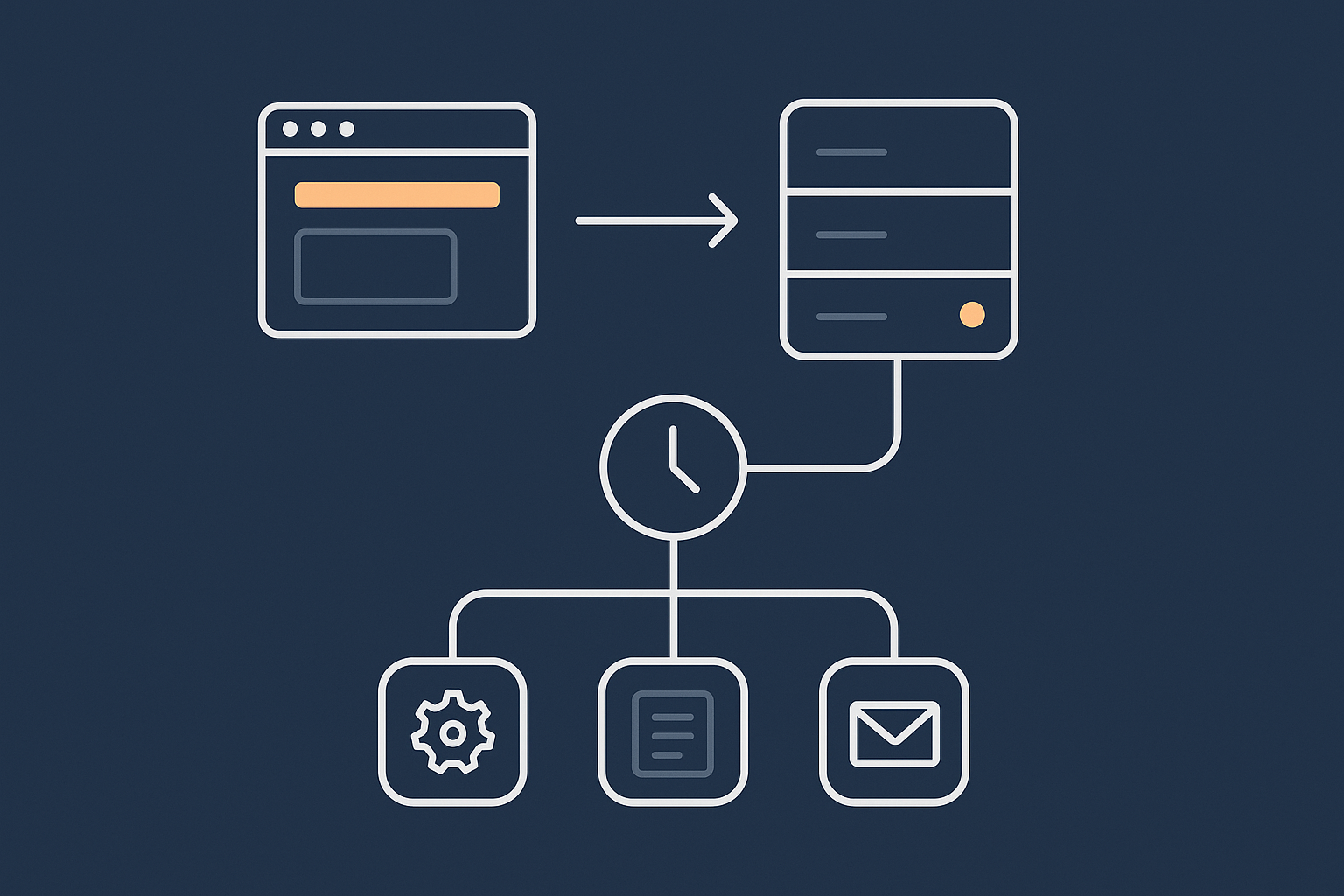
wp-cron.php: the pseudo-cron triggered by page views
By default, WordPress does not use the server’s real cron system. Instead, it emulates cron using a PHP file called wp-cron.php.
In practical terms:
- A visitor opens any page on your WordPress site.
- WordPress checks if any scheduled tasks are “due”.
- If there are, WordPress tries to trigger
wp-cron.phpover HTTP in the background. wp-cron.phpthen runs the queue of pending tasks.
This is why WordPress cron is sometimes called a “pseudo-cron”. It is tied to traffic, not to the server clock.
Default behaviour on typical shared hosting
On low cost shared hosting, the pattern is usually:
wp-cron.phpis enabled and runs on almost every page load.- There is no system cron job configured for your site by default.
- There may be tight limits on PHP execution time and memory.
For very small sites, this can be enough. However, as soon as you have a heavier WooCommerce shop or many plugins relying on cron, this model starts to show its limitations. Every visit has to carry the overhead of checking scheduled tasks, and busy periods can trigger repeated cron runs overlapping each other.
Common failure modes: missed, piled up or stuck tasks
When WordPress cron misbehaves, one of three things usually happens:
- Missed tasks
If your site has little or no traffic, cron only runs when someone visits. A “daily” backup or report may not happen for several days. - Piled up tasks
If there is a lot of work and limited resources, jobs start queuing. You can end up with thousands of pending actions, each one taking time and memory. - Stuck tasks
A single bad plugin task may fatally error or time out. WordPress flags it as failed and retries, or it just sits in the queue, never completing. Other tasks may be blocked behind it.
On some hosts, outgoing HTTP calls to wp-cron.php are blocked or rate limited for security. WordPress does not always surface this clearly, so cron simply appears to “do nothing”.
Why high traffic, zero traffic and heavy plugins all cause cron problems
It sounds contradictory, but both ends of the traffic spectrum can create cron issues:
- Zero or very low traffic:
Cron barely runs, so scheduled tasks are late or never run. - High traffic:
Cron tries to run far too often, sometimes starting multiple overlapping runs. This can eat CPU, trigger 502 / 504 errors and slow normal visitors, especially if the cron queue is large.
Heavy plugins, especially backup, security, analytics and marketing automation tools, add many scheduled jobs. If one plugin floods the queue with tasks every minute, wp-cron.php can spend almost all its time working through them instead of quickly clearing small batches.
If your site regularly sees timeouts under load, it is worth also reading our guide on diagnosing WordPress 502 / 504 errors on busy sites, as a broken cron system can contribute to those symptoms.
Real World Symptoms: What Broken Cron Looks Like on WordPress and WooCommerce
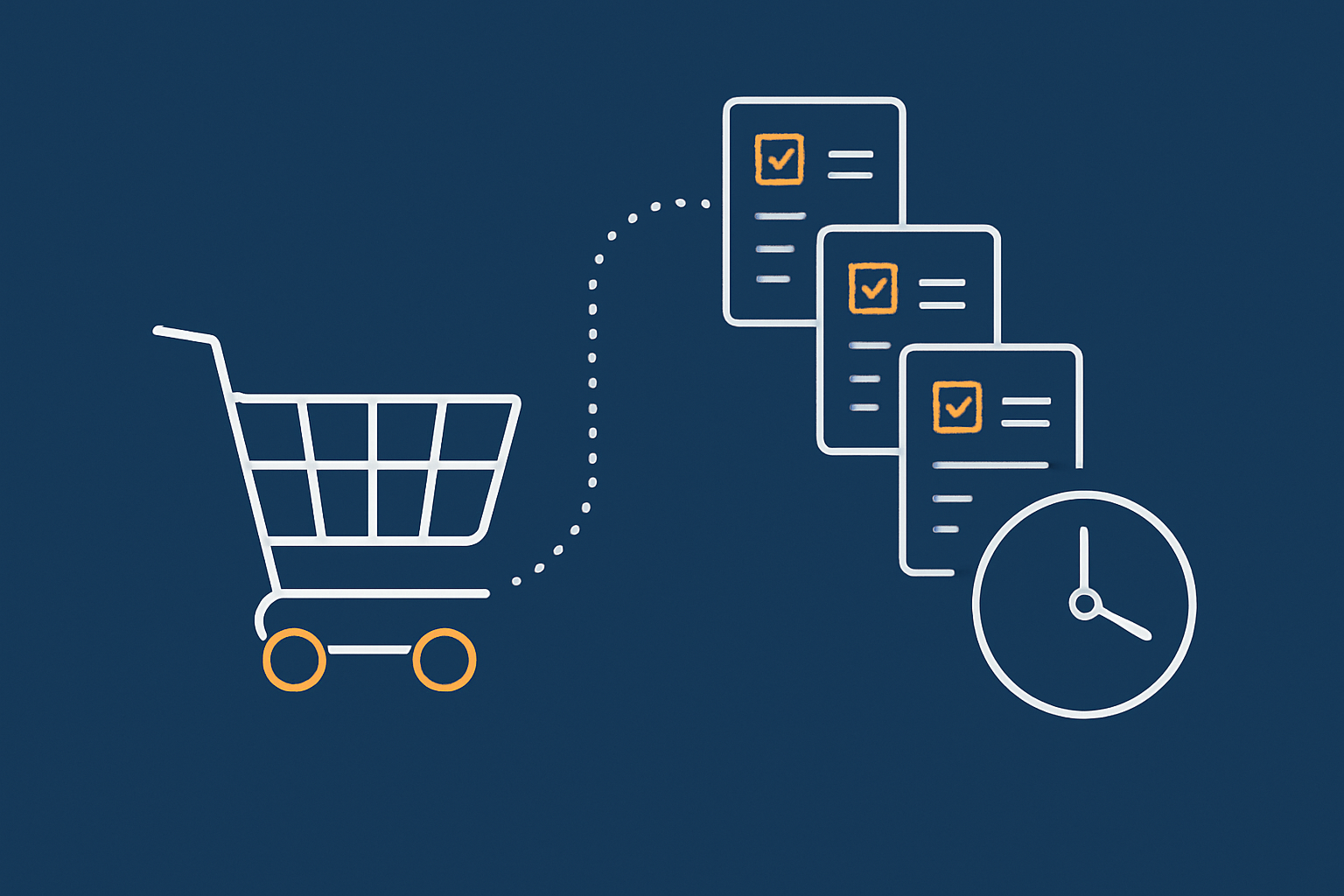
For any WordPress site: slow admin, bloated database, missed emails
Some common non shop symptoms of cron trouble:
- Slow or erratic wp-admin:
The dashboard feels fine for a while, then suddenly stalls or loads slowly, particularly right after you log in. This can be a large backlog of scheduled tasks kicking in. - Growing database size:
Options and transients are not being cleaned up. Analytics or backup plugins may be leaving logs and historical data because their tidy up tasks never run. - Missed or delayed emails:
Contact form, membership or notification emails that rely on background sending pile up. You may only realise when users tell you they did not receive anything.
WooCommerce examples: unpaid orders, stuck subscriptions, delayed stock updates
For WooCommerce, cron problems are more visible in revenue and customer trust:
- Orders stuck in “pending payment” or “processing” that never move to “completed”, even though payment gateways show the money as captured.
- Subscriptions not renewing or renewing late, because the scheduled renewal actions never fire.
- Order emails and invoices delayed, or not sent at all, leading to chargebacks and support tickets.
- Stock levels incorrect, particularly if you sync stock via an external system or marketplace integration that depends on scheduled updates.
- Abandoned cart reminders not going out or going out in bulk, hours after the actual abandonment time.
On busy shops, these problems can quickly become expensive. It is worth checking WooCommerce’s built in scheduled actions screen, which we will cover later.
How cron issues quietly hurt performance and Core Web Vitals
Cron problems are not only about missed tasks. They also affect speed and stability:
- A large queue of tasks means
wp-cron.phpruns for longer, consuming CPU and RAM that could serve visitors. - If cron runs on every page view, some visitors will land at the exact moment a heavy cron run starts, seeing slower first byte times.
- If cron never cleans up transients and expired data, database queries become slower over time.
All of this affects Core Web Vitals: slower server responses increase Time to First Byte and may make Largest Contentful Paint worse, especially for uncached or personalised pages such as the basket, checkout and account areas.
For a deeper look at performance diagnostics, you may find our guide on diagnosing slow WordPress performance with real tools and metrics a helpful companion to this article.
Step 1: Check Whether WordPress Cron Is Actually Running
Quick non-technical checks most owners can do
You can do some quick checks without SSH or developer tools:
- Check post scheduling:
Create a test post, schedule it 5 minutes in the future, and wait. If the publish time passes and it remains scheduled for more than 10 minutes, cron may not be running reliably. - Check for missed WooCommerce emails:
Place a test order with a real email address and watch how long it takes for the order email to arrive. If you use SMTP, check whether the email was queued much later than the order time. - Use a cron inspection plugin:
Tools like “WP Crontrol” or “Advanced Cron Manager” can show scheduled events and whether they are overdue. Install, visit the cron list and look for events with a “next run” time far in the past.
These checks will not tell you everything, but they quickly reveal if cron is obviously broken.
Using WP-CLI to inspect scheduled events (if you have SSH access)
If your host provides SSH and WP-CLI, you can inspect cron from the command line. From your WordPress directory, run:
wp cron event list --fields=hook,next_run,recurrence --order=asc --format=table
Look for:
- Events with “next_run” in the past by hours or days.
- Huge numbers of repeated events for a single hook, which might indicate a plugin flooding the queue.
You can also manually trigger due events:
wp cron event run --due-now
If this command hangs, throws errors, or takes a very long time, your cron queue or one of the tasks is likely problematic.
Using WooCommerce’s Scheduled Actions screen to spot problems
WooCommerce ships with a built in task runner called Action Scheduler, which is exposed in the admin interface. Go to:
WooCommerce → Status → Scheduled Actions
Here you can see:
- Pending actions waiting to run
- Completed actions already processed
- Failed actions that threw errors
Filter by “Pending” and sort by scheduled date. Warning signs include:
- Hundreds or thousands of pending actions.
- Many actions scheduled in the past, for example “due 2 days ago”.
- Repeated failures for the same hook, such as a payment gateway or subscription renewal action.
Reading basic error logs when cron fails completely
If cron is not running at all, error logs can provide clues:
-
- PHP error log:
Look for fatal errors that mentionwp-cron.php, Action Scheduler, or specific plugins that run scheduled tasks.
- PHP error log:
<liWeb server log / access log:
On some setups you may see repeated 403 or 404 errors for /wp-cron.php. A 403 suggests the call is blocked by security rules or .htaccess.
You can usually access logs from your hosting control panel. If you use managed WordPress hosting or similar, support should be able to surface relevant entries for you.
Step 2: Fixing Common WordPress Cron Problems
When wp-cron is disabled or blocked by the host
Some hosts disable wp-cron.php by default to prevent abuse, expecting you to set up a real system cron job instead. Others accidentally block it with firewalls or misconfigured security.
Checks and fixes:
- Look in
wp-config.phpfor:
define('DISABLE_WP_CRON', true);
If present, cron will never run automatically on page views. Either remove this line or configure a system cron job, which we cover later. - Manually call
wp-cron.phpin a browser:
Visithttps://yourdomain.com/wp-cron.php?doing_wp_cron=1. You should see a blank page or simple output. A 403 or 404 response suggests the file is blocked or missing. - Check security plugins and WAF rules:
Some security tools block direct access towp-cron.php. Temporarily disable them and re test.
Managed providers such as managed WordPress hosting with G7Cloud often disable the default wp-cron trigger and replace it with a system cron at the server level, so cron runs reliably without depending on visitors.
Cleaning up stuck or failed WooCommerce actions safely
Back in WooCommerce → Status → Scheduled Actions you can manage problematic jobs.
- Filter to “Failed” and look at the error messages when you hover the action. This often points directly to a plugin or integration.
- Retry individual actions if the error was likely a temporary payment gateway or SMTP issue.
- Cancel clearly broken actions in bulk if you see repeating failures for a hook that is no longer relevant (for example, for a disabled plugin).
Be cautious with bulk deletes. Actions related to payments, renewals and stock should not be deleted without understanding the impact. In unclear cases, export a list of affected orders and speak to your developer or gateway support before making mass changes.
Dealing with a huge backlog of tasks without crashing the server
If your cron queue has grown into the thousands, running everything in one go can overload a small server.
Safer approaches include:
- Process in smaller batches
Using a cron manager plugin or Action Scheduler UI, run only a small number of pending actions at a time, then pause and watch CPU and memory use. - Temporarily increase PHP limits
If your hosting allows it, increasemax_execution_timeandmemory_limitslightly while you clear the backlog, then reduce them again. - Disable non essential plugins temporarily
Turn off heavy plugins that do not need to run during recovery, such as on site backup or analytics tools, to free resources.
If your site is frequently hitting resource limits or throwing 502 / 504 errors while clearing cron tasks, follow the steps in our 502 / 504 guide and consider whether your hosting plan has enough headroom for your traffic and workload.
Finding the plugin that is flooding your cron queue
When one plugin adds too many scheduled tasks, the queue grows faster than it can be processed.
To identify the culprit:
- Sort scheduled actions by hook name in WooCommerce’s Scheduled Actions screen or in your cron manager plugin. Look for hooks with hundreds or thousands of entries.
- Match the hook name to a plugin. Names like
mailpoet_sending_queueorwpseo_onpage_fetchclearly indicate the source plugin. - Disable the suspected plugin temporarily and clear or run a small selection of its tasks to see if the queue stabilises.
Once identified, check the plugin’s settings. Many have options to:
- Reduce how often they run background syncs.
- Limit batch sizes for imports and emails.
- Turn off unnecessary features that create extra tasks.
Step 3: Moving From wp-cron to a Real System Cron (Recommended Setup)
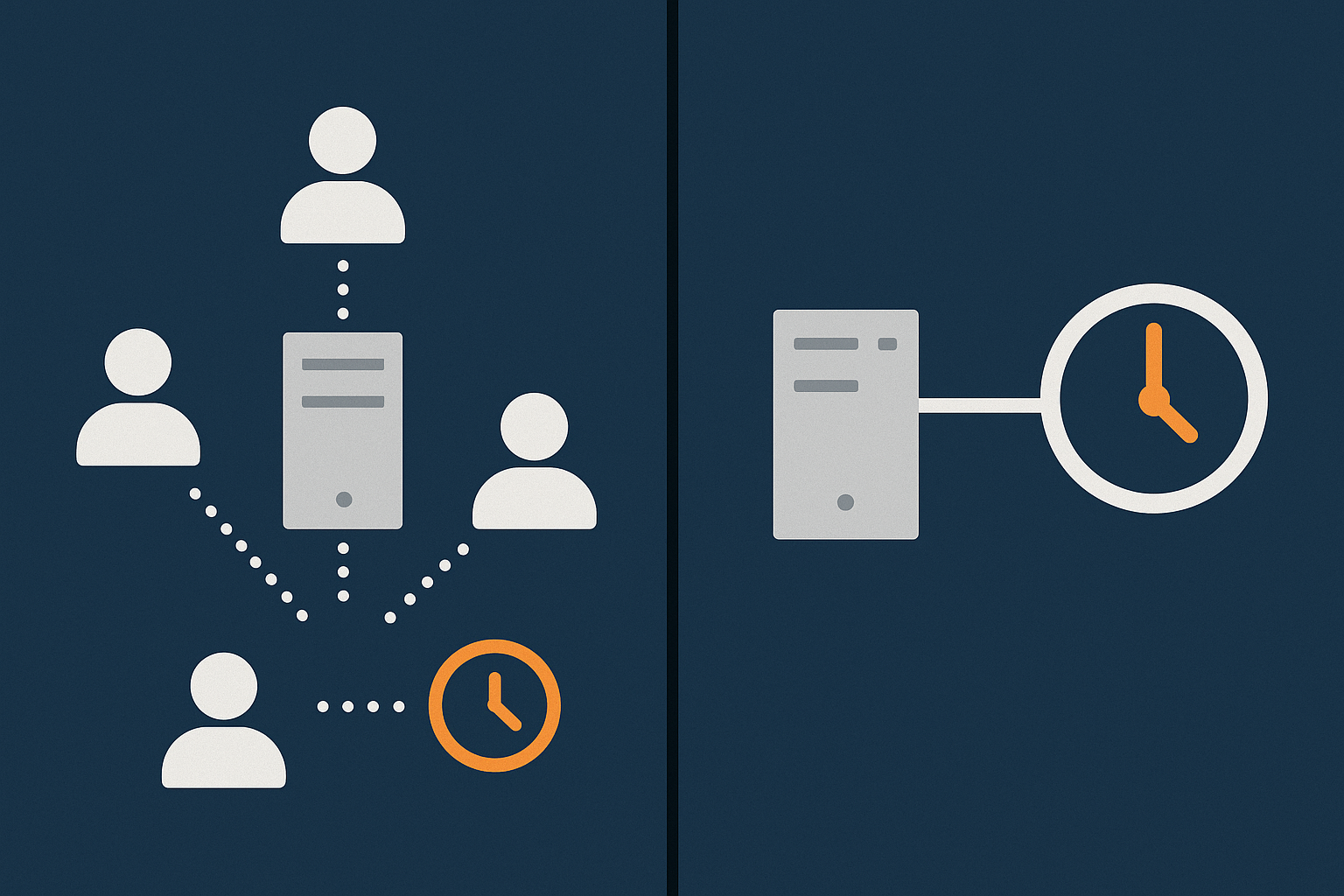
Why a real system cron is more reliable and faster
Using the server’s native cron system removes the main weakness of wp-cron.php: its dependency on visitors. A system cron job:
- Runs at fixed times regardless of traffic.
- Can be tuned to run often for busy shops and less often for small sites.
- Prevents duplicate overlapping runs, because you control exactly when it starts.
This is the setup used by most serious WooCommerce sites and is standard on better quality WooCommerce hosting, including specialist WooCommerce hosting with G7Cloud.
How to disable wp-cron in wp-config.php
Before adding a system cron job, disable the default behaviour to avoid double running.
- Edit
wp-config.phpvia SFTP or your control panel. - Above the line that says
/* That's all, stop editing! */, add:
define('DISABLE_WP_CRON', true); - Save the file.
From this point, WordPress will no longer trigger cron on page loads. If you do not yet set up a system cron job, scheduled tasks will stop, so do not leave it in this halfway state.
Setting up a system cron on cPanel and on a VPS or virtual dedicated server
The command you want your server to run looks like:
php /home/username/public_html/wp-cron.php >/dev/null 2>&1
The path will vary depending on your hosting and document root. Use the which php command over SSH or ask your host for the correct path to PHP.
On cPanel
- Log in to cPanel.
- Click on “Cron Jobs”.
- Under “Add New Cron Job”, set the schedule. For many sites:
*/5 * * * *(every 5 minutes) is a good start. - In the command field, enter:
/usr/bin/php -q /home/username/public_html/wp-cron.php >/dev/null 2>&1 - Save.
On a VPS or virtual dedicated server
If you manage your own server:
- SSH in as the relevant user.
- Run
crontab -e. - Add a line such as:
*/5 * * * * /usr/bin/php -q /var/www/example.com/public_html/wp-cron.php >/dev/null 2>&1 - Save and exit.
In both cases, the cron job is now calling WordPress every 5 minutes to run any due tasks. You can adjust the frequency later as you observe performance and queue size.
Safe schedules: how often to run cron for busy WooCommerce stores
Choosing a schedule is a trade off between timeliness and load:
- Small brochure sites: every 10 or 15 minutes is usually enough.
- Moderate shops (dozens of orders per day): every 5 minutes keeps order and email handling fairly prompt.
- Busy WooCommerce stores: every 1 or 2 minutes may be appropriate, especially if you rely on subscriptions, external stock syncs or marketing automations.
After changing the schedule, monitor your site for a few days. If you notice higher CPU use during cron runs, consider a slightly lower frequency combined with plugin tuning and queue housekeeping.
Keeping Cron From Slowing Your Site in the Future
Good housekeeping: database and scheduled task cleanup
A healthy cron system needs a reasonably tidy database and manageable queues:
- Regularly clean expired transients and sessions using a sensible optimisation plugin or command line tools.
- Limit how long logs and reports are kept in plugins that store this data in the database.
- Prune abandoned carts and sessions in WooCommerce so cron is not processing old, irrelevant data.
Some of this can be built into a monthly routine. Our guide on a maintenance routine for stable, fast WooCommerce shops covers a wider set of tasks that pair well with cron housekeeping.
Plugin choices and update habits that avoid cron overload
To keep cron healthy:
- Avoid overlapping plugins that all schedule similar tasks, such as multiple security scanners or analytics tools.
- Be cautious with heavy “all in one” marketing suites that track every click and send many automated emails.
- After installing a new plugin, check cron and scheduled actions a day later to see what it added.
- Keep plugins updated. Old versions may contain bugs that leak scheduled actions or never clean up after themselves.
For smaller teams, building this into a general WordPress maintenance checklist works well. Our article on a monthly WordPress maintenance routine for UK SMEs is designed for that purpose.
How caching and performance layers interact with cron
Page caching vs background tasks: what is and is not affected
Cron jobs run server side through wp-cron.php or the system cron, not via your public pages. Page caching does not block cron, but it can influence when wp-cron.php is triggered if you still use the default traffic based model.
Important points:
- Full page caching reduces PHP executions for visitors, which is good. However, if you rely solely on traffic triggered wp-cron, heavy caching can mean fewer opportunities for cron to run. Another reason to move to a system cron job.
- Object caching (Redis, Memcached) can make cron work faster by speeding up database reads and writes.
- External performance layers like CDNs do not affect cron directly, but misconfigured firewalls or rate limiting can accidentally block
wp-cron.php.
Where the G7 Acceleration Network helps: bad bot filtering and steady load
Busy or abused sites often struggle with cron because server resources are being wasted on non human traffic. The G7 Acceleration Network includes bot protection that filters abusive and non human traffic before it reaches PHP or the database, which helps keep server load stable so cron jobs run more consistently.
Because background tasks are not served from cache in the same way as pages, having a balanced performance stack matters. If you want a deeper explanation of how caching layers sit around WordPress, our guide to WordPress caching layers is a useful reference.
When Cron Problems Point To Wider Hosting Limits
Signs you have simply outgrown basic shared hosting
Sometimes cron problems are a symptom of the hosting plan, not a configuration mistake. Signs you may have outgrown entry level shared hosting include:
- Cron runs cause noticeable slowdowns or 502 / 504 errors, even after you clean up queues.
- Support regularly mentions “you are hitting CPU or I/O limits” when you ask about stability.
- Your WooCommerce database is large, with many orders, and backups or maintenance jobs time out.
- You need cron to run every minute for subscriptions or stock sync, but the server cannot cope.
In these cases, you can tune cron only so far. Extra headroom and better resource isolation make more difference than further tweaks.
When to move to managed WordPress or WooCommerce hosting
If you are spending more time chasing performance and cron issues than running your business, that is usually the point to look at a more suitable hosting tier.
Options such as managed WordPress hosting or specialist WooCommerce hosting typically include:
- Server level cron configured for you, with sensible defaults.
- Higher PHP limits and better database performance.
- Monitoring and alerts when cron or other key services misbehave.
This does not remove the need to keep plugins and WooCommerce itself tidy, but it does mean you spend less time debugging low level hosting issues.
How a managed provider can monitor and maintain cron for you
A good managed provider should:
- Set up system cron on new sites by default.
- Monitor for failed cron runs and large backlogs, at least on higher tiers.
- Help you identify misbehaving plugins when cron queues get out of control.
- Provide realistic advice on whether your current plan has enough resources.
Some providers, including managed WordPress hosting with G7Cloud, combine this with intelligent traffic filtering and robust web hosting performance features so that background work such as cron, backups and indexing has room to run without dragging down the front end experience.
Practical Checklist: A Stable Cron Setup for WordPress and WooCommerce
Simple cron health checklist for site owners
You can use this as a periodic checklist, especially before peak trading periods:
- Confirm whether
DISABLE_WP_CRONis set inwp-config.phpand that a system cron job is in place if it is. - Run a quick scheduled post test and a WooCommerce test order to confirm tasks and emails execute promptly.
- Review WooCommerce’s Scheduled Actions for failed or overdue actions.
- Check for any plugin that has created a very large number of scheduled tasks.
- Clean up expired transients, sessions and unnecessary logs.
What to ask your hosting provider
If you are unsure how your current hosting handles cron, ask:
- Do you support system level cron jobs, and can you set one up for my WordPress site?
- Are there any restrictions on calling
wp-cron.phpfrom the server? - What are my current PHP and database resource limits, and are they suitable for a WooCommerce shop?
- Do you provide any monitoring or alerts if cron fails or if my account regularly hits resource limits?
- Do you filter abusive bot traffic before it reaches PHP, to help keep cron and normal requests responsive?
Providers that can answer these clearly are usually a better fit for busy shops than those who simply say “we do not support application level issues”.
When to get specialist help instead of guessing
It makes sense to bring in a specialist when:
- You see repeated failed WooCommerce actions affecting payments or renewals.
- Cron backlogs keep returning even after cleanup, and they are hurting performance.
- You are unsure which plugin is safe to disable or adjust without breaking key workflows.
- The business cost of downtime or broken renewals is high.
A developer or a hosting provider used to WooCommerce workloads can usually diagnose and stabilise cron far faster than trial and error changes. If you would prefer to have this looked after for you, exploring managed WordPress hosting or specialist WooCommerce hosting with G7Cloud is a sensible next step.
Getting cron right is not glamorous work, but it is one of those quiet foundations that keeps orders flowing, emails sending and performance steady. Once you have a system cron in place, a sensible plugin set and a host that respects your workload, cron becomes something you barely have to think about, which is exactly how it should be.