

Before You Touch Anything: Confirm the Hack and Stabilise the Situation
Common signs your WordPress site has been hacked
Not every glitch is a hack. Start by listing the symptoms you can actually see. Typical signs of infection include:
- Unexpected redirects to gambling, adult or “win a prize” sites
- New content or pop ups you did not add, especially on high traffic pages
- Spam posts or pages in another language
- Strange users with admin roles in WordPress
- Search results showing titles or descriptions you do not recognise
- Browser or antivirus warnings when visiting the site
- Sudden spikes in outgoing emails or server CPU usage
Write these down, including the URLs affected. It helps you confirm the issue and later check whether you have actually fixed it.
Quick checks to confirm it is a real infection (not just a plugin bug)
Before you declare a security incident, rule out simpler issues:
- Disable recent plugins: If you just installed or updated a plugin and then saw errors, temporarily disable that one plugin via the dashboard or by renaming its folder in
wp-content/plugins. - Try another browser and device: Some “redirect” problems are caused by local adware on your machine or an old DNS cache.
- Check with another network: Use mobile data or a VPN. If only one network sees problems, the issue might be local filtering rather than your site.
- Look for obvious defacement: Malware often injects unfamiliar JavaScript or iframes in the page source. View source on an affected page and search for domains you do not recognise.
If you still see clear signs of compromise across multiple devices and connections, treat it as a real hack and move to containment.
Put the site in “safe mode”
Your goal now is to limit damage without making things worse:
- Enable a maintenance page: Use a simple static maintenance page at the web server or hosting panel level if you can. Avoid heavy WordPress “coming soon” plugins at this stage.
- Disable new logins: Temporarily block new registrations and consider limiting admin access by IP (more on that later).
- Inform your team: Let internal teams, agencies and freelancers know not to make changes until you have a plan. Shared credentials are common in small businesses and you do not want conflicting fixes.
If revenue depends heavily on the site, weigh up using a basic read only static copy of key pages while you clean. Some managed WordPress hosting providers, including managed WordPress hosting with G7Cloud, can help you present a temporary landing page at the edge while you work.
Why you must avoid random “one click fixer” tools at this stage
It is tempting to install the first “WordPress malware remover” plugin you find and click Fix. That can backfire badly:
- Poor tools may delete legitimate files and break the site beyond simple repair.
- Some “cleaners” are themselves malicious or add unwanted backdoors.
- Even good scanners are better at detection than full remediation.
Use scanners, but treat them as diagnostic tools. Do not rely on any automated cleaner as your only defence or as a substitute for proper investigation and backups.
Step 1: Protect Your Backups and Collect Evidence
Secure a clean off site backup (or take one now, even if it is infected)
You never want your only copy of the site to be the hacked one running in production.
- If you already have backups: Log in to your hosting control panel, confirm recent backups exist and download at least one full backup (files and database) to a safe local machine or secure cloud storage.
- If you do not have backups: Create one now anyway. It will still be invaluable if a cleaning step goes wrong.
For a detailed walkthrough on reliable backups and restores, see the G7Cloud guide What Every WordPress Owner Should Know About Backups and Restores.
Download access logs and error logs from your host
Logs tell you how the attacker got in and whether they are still active. From your hosting panel or server:
- Download web server access logs for at least the last 7 to 14 days.
- Download error logs (
error_logfiles, PHP logs) for the same period.
Keep these safe. Even if you do not analyse them yourself, a specialist can later use them to trace the entry point and confirm it has been closed.
Note what changed and when
Make a simple incident diary:
- Date and time you first noticed the problem
- Recent updates to WordPress, plugins and themes
- Any new plugins, themes or code customisations added in the last month
- Any new admin users or access given to third parties
This helps narrow down potential vulnerabilities and spot malicious changes, especially in user accounts.
When to involve your hosting provider or a specialist
Contact your host early, especially if:
- The hack affects multiple sites on the same server
- You see signs of server compromise beyond WordPress (suspicious system users, strange processes)
- You run ecommerce or handle personal data and may have reporting obligations
A host with strong web hosting security features may be able to help with server level scanning, temporary firewalls or rolling back to earlier snapshots.
Step 2: Change Critical Passwords and Lock Down Access
Accounts to change immediately
Assume that anything an attacker could reach is compromised. Change in this order:
- Hosting control panel (cPanel, Plesk, custom panel)
- SFTP/SSH and any FTP accounts
- Database user used by WordPress (update the password in
wp-config.phptoo) - All WordPress admin accounts, including agency or developer logins
Use long, unique passwords and enable two factor authentication where possible.
Turn off unknown API keys and application passwords
Check for:
- WordPress Application Passwords under Users → Profile
- API keys in plugins such as WooCommerce, membership and marketing tools
Revoke anything you do not recognise or no longer use. Replace keys that might have been exposed.
Remove unused admin users
In Users → All Users:
- Remove unknown accounts altogether.
- Downgrade anyone who does not need full access to Editor or lower.
- Make sure there is more than one trusted admin account so you are not locked out.
Repeat this in your hosting panel for extra database users, email accounts and access keys that no longer serve a purpose.
Set up temporary IP restrictions for wp admin if possible
While cleaning, it helps to reduce the surface area:
- Restrict
/wp-adminto specific IP addresses using your hosting firewall or a simple allow list in.htaccessor Nginx config. - If IPs change frequently, at least block access from obvious hostile regions temporarily.
This is a short term measure, but it makes brute force login attempts and automated exploit scans less likely while you work.
Step 3: Scan the Site Properly (Plugins, Files and Database)
On site scanners vs server level malware scanning
There are two broad categories of scanner:
- WordPress plugin scanners that run inside PHP and look at files, checksums and database content.
- Server level scanners provided by some hosts that check the filesystem outside WordPress and compare against known malware signatures.
Server level tools can sometimes spot infections that have hidden from WordPress itself, but plugin level scanners are still very useful for detecting modified themes, plugins and database content.
Running WordPress level scans
Install a reputable security plugin only for scanning if you do not already have one. Run:
- A full file scan, including
wp-content/uploads - A database scan for known patterns and suspicious options
Note the paths and database tables reported as suspicious. Do not blindly delete everything a plugin flags without double checking.
Files and locations most often infected on WordPress
Common targets include:
wp-config.php(database credentials and early execution)wp-includesandwp-admincore files with subtle injected codewp-content/themes/your-theme/and child themes, oftenfunctions.phpwp-content/plugins/directories for vulnerable pluginswp-content/uploads/for disguised PHP shells named like images
Use your scanner reports plus file timestamps. Recently changed files in these locations, especially with random names, are high priority for review.
Why database malware matters
Not all malware lives in files. Attackers often:
- Inject spam links or redirects into post content and widgets
- Add hidden admin users by modifying the
wp_usersandwp_usermetatables - Insert malicious JavaScript in options such as
siteurlor theme options
That is why a database scan is essential. Cleaning files alone rarely solves persistent redirects or strange content reappearing after a reinstall.
Step 4: Clean or Replace Hacked Files Safely
The safest approach: replace WordPress core with fresh copies
Instead of trying to edit every compromised line, it is usually safer to replace entire components.
For WordPress core:
- Download the same WordPress version from the official release archive.
- Extract it locally.
- Overwrite all core folders and files except
wp-contentandwp-config.phpon the server.
This removes modifications in wp-admin and wp-includes without touching your content, plugins and themes.
Reinstalling plugins and themes from trusted sources
Next, clean plugins and themes:
- Remove any plugins and themes you do not recognise or no longer use.
- For the rest, delete the plugin or theme folder on the server, then reinstall a fresh copy from the official repository or your vendor account.
- Avoid reinstalling from random download sites, “nulled” theme providers or emailed zip files.
This step alone often clears most file based malware, especially if the entry point was an outdated plugin.
Spotting and removing backdoors, shells and suspicious files
After replacement, look for leftovers:
- Files with random names in
wp-content/uploadsthat are PHP but named as images. - Files placed one directory above your web root.
- Standalone PHP files with names like
mail.php,cache.php,logs.phpsprinkled through plugin or theme folders.
Open suspicious files in a text editor. Warning signs include:
- Heavy use of
eval(),base64_decode(),gzinflate()with long encoded strings - Code that checks for
$_POSTor$_GETvalues and writes arbitrary files - Obvious references to known spam domains
Delete files you have positively identified as malicious and that are not part of core, a plugin or a theme.
What to do if you cannot tell whether a file is safe
If you are unsure about a file:
- Compare it against the same file from a clean download of WordPress, the plugin or the theme.
- Search the file path online alongside the plugin or theme name to see if others report it as legitimate.
- Ask your developer or a security specialist to review it before deleting.
When in doubt, a full restore from a known good backup may be safer than guessing, as long as you also fix the vulnerability that led to the original hack.
Clearing opcode and page caches
Stale caches can keep serving old malicious code or redirects even after the underlying files are fixed.
- Flush any caching plugins inside WordPress.
- Clear server side caches (OPcache, Redis, Varnish) from your hosting panel.
- Clear CDN or edge caches if you use one.
If your host uses an edge acceleration layer such as the G7 Acceleration Network, ask support to confirm all cached versions have been purged so visitors only see the cleaned site.
Step 5: Clean the Database and User Accounts
Remove malicious admin users and reset roles
Return to Users → All Users and double check:
- Delete any unknown admin or editor accounts.
- Ensure there is a single “owner” account and a small number of named admins.
Check for users where the email address does not match the person you expect. Attackers sometimes hijack existing accounts by changing emails and passwords.
Find and clean injected content, links and redirects
Look in:
- Posts and Pages for content you did not write, especially bottom of articles.
- Appearance → Widgets and any theme “footer” settings for hidden HTML or JavaScript.
- Settings → General to confirm WordPress Address (URL) and Site Address (URL) are correct and not including redirects.
Scan posts for common spam phrases and outbound links to strange domains. Some security plugins can help highlight posts with suspicious outbound links.
Search for known malware patterns and suspicious options
If you have database access via phpMyAdmin or a similar tool, you can run searches:
- Search the
wp_poststable for suspicious domains seen in the infection. - Check the
wp_optionstable for options containing long encoded strings or JavaScript. - Look at
active_pluginsand theme related options for references to things you did not install.
Always back up the database before making manual edits. A small SQL mistake can break the site.
When a full restore from a known good database backup is safer
If the database is heavily compromised or you cannot reliably spot all malicious entries, restoring the entire database from a known clean backup is usually safer. Make sure:
- You know roughly when the hack started, so you do not restore an already infected copy.
- You are willing to lose content changes between that backup and today.
This is one reason regular, tested backups matter. They give you a clean baseline to return to when manual cleaning becomes too risky.
Step 6: Verify the Site Is Clean (Before You Go Live Again)
Rescan from multiple tools and from outside your hosting environment
Once you believe you have cleaned files and database, repeat scans:
- Run your WordPress security plugin scan again.
- Ask your host to run any available server level malware scanners.
- Use an external scanner that accesses the site as a visitor would.
Different tools catch different things. You are looking for consistent “clean” results.
Check Google Search Console, blocklists and reputation services
In Google Search Console, under Security Issues, check for any remaining warnings. If you have addressed the issues, you can request a review.
You can also check common blocklists and security reputation services to see if your domain is still flagged. This helps avoid users seeing browser warnings even after you clean up.
Test key user journeys
From fresh browsers and devices, test:
- Homepage, category pages and search results
- Contact forms and logins
- For WooCommerce, product pages, basket and checkout
Watch for unexpected redirects, pop ups or content changes. Use private browsing windows so cached content does not hide problems.
Monitor logs and file changes for the first 24–72 hours
For at least a few days after going live:
- Keep an eye on error logs and access logs for repeat attacks or suspicious scripts.
- Use a simple file integrity monitor to alert you if key files change unexpectedly.
The G7Cloud guide Logging and Error Monitoring for WordPress and WooCommerce walks through practical ways to do this without drowning in data.
Hardening WordPress So the Malware Does Not Come Back
Keep core, plugins and themes updated without breaking the site
Out of date software is one of the most common infection paths.
- Enable automatic minor updates for WordPress core.
- Update plugins and themes regularly, ideally in a staging environment first for busy ecommerce sites.
- Remove anything that is no longer maintained or has not had updates in years.
Managed platforms and services that provide hassle free WordPress maintenance can reduce the risk of sites quietly falling behind on critical security releases.
Remove unused plugins, themes and admin accounts
Every extra component is another place for vulnerabilities to appear.
- Delete deactivated plugins instead of letting them sit there.
- Remove old themes you no longer use, keeping only the active theme and one default theme for troubleshooting.
- Regularly review admin accounts and access keys.
Lock down wp admin, XML RPC and file permissions
Some practical hardening steps:
- Limit login attempts and enforce strong passwords.
- Disable
xmlrpc.phpif you do not use apps that rely on it, or restrict it by IP. - Ensure file and directory permissions are not overly permissive (for example, avoid 777 permissions).
For a deeper checklist that balances security with stability, see How to Harden WordPress Without Breaking Your Site.
Use server level firewalls, WAF and bad bot filtering instead of stacking plugins
It is better to stop attacks before they reach PHP than to install multiple overlapping security plugins that all inspect the same traffic.
- Use a web application firewall (WAF) at the network or server level where possible.
- Block common exploit patterns, known malicious IPs and abusive crawlers before they ever hit WordPress.
Edge platforms such as the G7 Acceleration Network include bot protection that filters abusive and non human traffic before it reaches PHP or the database, which reduces wasted server load and helps keep response times stable during attack spikes.
Why good hosting and the right division of responsibility matter for security
Security is shared. Your host should provide a hardened baseline, isolation between sites, network firewalls and prompt patching at the OS level. You remain responsible for the WordPress application itself, content, user management and most plugins.
If you are unsure where the line sits, the G7Cloud article “What ‘Managed’ Really Covers: A Plain English RACI for Hosting, Security and Compliance” is a useful reference, especially if you handle sensitive data.
How Hosting Security Features and Bot Protection Help Prevent Future Hacks
What your host can realistically block before it reaches PHP
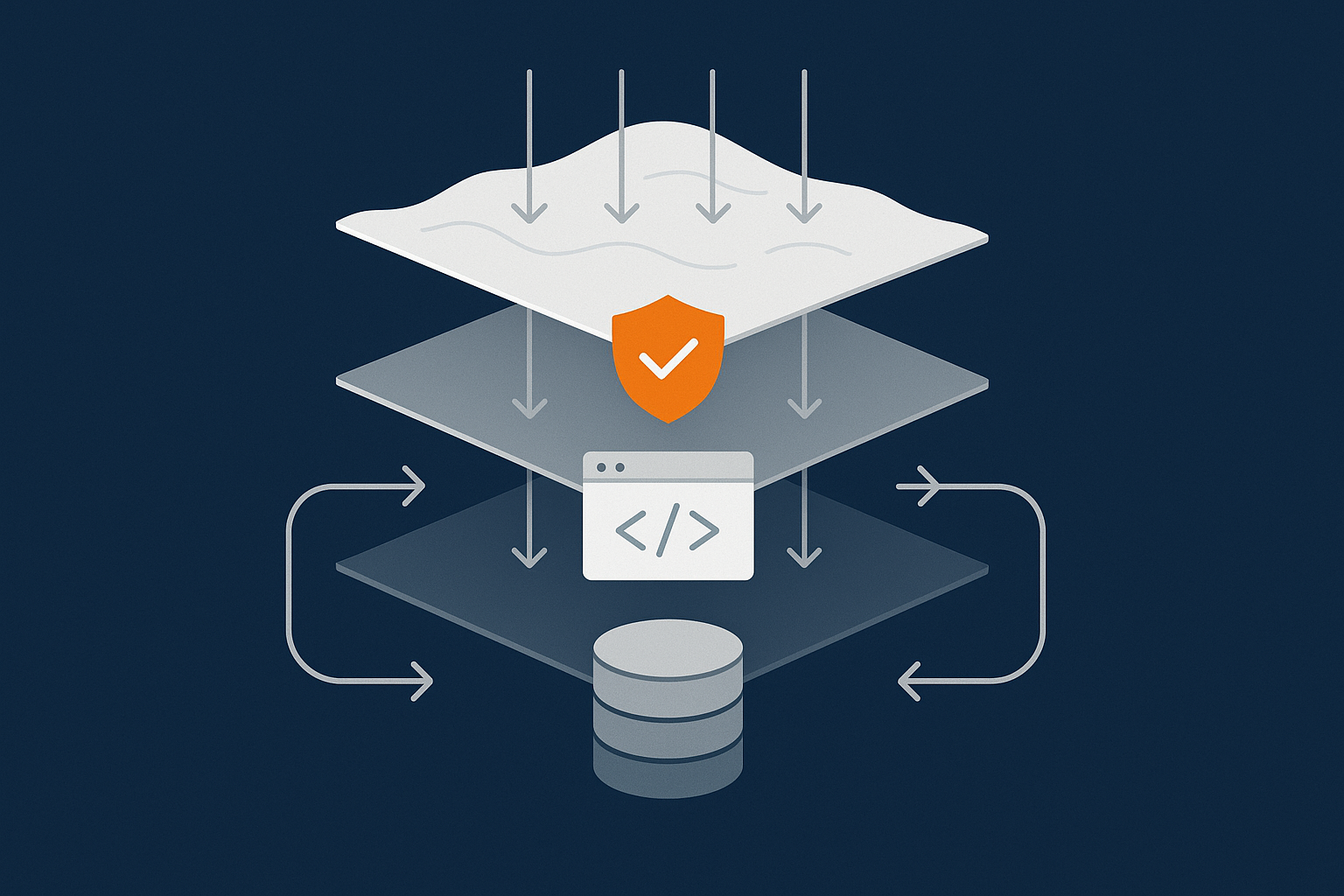
A capable host can block entire categories of traffic at the edge:
- Requests to obviously malicious paths or known exploit scripts
- Traffic from IP addresses and networks with a history of abuse
- Patterns that match known vulnerability scanners or attack tools
This takes load off WordPress and reduces the number of opportunities attackers have to find a weak plugin or password.
How network level firewalls and intrusion prevention reduce brute force attacks
Network firewalls with basic intrusion prevention can:
- Rate limit repeated login attempts across multiple URLs and users
- Temporarily block IP ranges that repeatedly trigger failed logins
- Filter known attack payloads before they reach the application
Layering this in front of WordPress login protection means repeated brute force attempts are throttled or blocked at a cheaper point in the stack.
Filtering abusive bots and exploit scanners to keep load and risk down
Many sites suffer not from a single big hack, but from constant background noise of bots hammering every URL they can find. Over time this:
- Consumes CPU and database resources that should be serving customers
- Increases the chance that one of those probes hits an unpatched vulnerability
G7Cloud’s bot protection within the G7 Acceleration Network filters abusive and non human traffic before it hits PHP or the database, which helps keep load predictable and reduces the risk of downtime during attack waves or busy trading periods.
Benefits of managed WordPress hosting with built in security hardening
For many UK businesses, it is more realistic to choose hosting where patching, baseline hardening and first line incident response are handled for you, rather than building everything from scratch.
Using managed WordPress hosting with sensible defaults, staging environments, integrated backups and security controls takes care of the foundations so your team can focus on content, marketing and customer service rather than emergency firefighting.
Aftercare: Monitoring, Backups and a Simple Security Routine
Set up reliable automated backups and test a restore
Once the site is clean, lock in a better backup regime:
- Schedule automatic daily backups for the database and at least weekly full backups.
- Store copies off site, not just on the same server.
- Test restoring to a staging or test environment so you know the process works before the next incident.
Enable logging and simple alerting for suspicious behaviour
You do not need a full SIEM platform, but you should:
- Ensure access and error logs are kept for a reasonable period.
- Enable basic notifications for repeated failed logins or file change alerts.
- Review security plugin dashboards occasionally rather than ignoring them until the next crisis.
Monthly security and maintenance checklist for non technical teams
A light but regular routine works better than rare big projects. Each month:
- Apply available updates to WordPress core, plugins and themes.
- Remove unused plugins, themes and stale admin accounts.
- Check that backups are running and recent restore points exist.
- Skim logs or monitoring dashboards for new patterns.
The G7Cloud article “Day to Day WordPress Maintenance for UK SMEs” provides a practical checklist that can be followed without a full time IT department.
When it is time to move hosting or bring in ongoing managed maintenance
If this hack was not your first, or you found yourself spending days trying to coordinate fixes between different suppliers, it might be time to reconsider your setup.
- If your host lacks basic security, backups or support, migrating may reduce your overall risk.
- If you rely heavily on the site for revenue but have no internal technical capacity, ongoing managed maintenance can be cheaper than repeated emergency clean ups.
If you want to spend less time firefighting and more time running your business, exploring managed WordPress hosting with G7Cloud and the G7 Acceleration Network is a practical next step. You gain a hardened platform, built in bot filtering and caching, and a clear understanding of which parts of security you own and which are handled for you.