
A Practical Core Web Vitals Checklist for WordPress Business Sites in the UK
Who this Core Web Vitals checklist is for (and what it will help you do)
If you run a WordPress site for a UK business, you have probably seen Core Web Vitals warnings in Search Console or PageSpeed Insights and wondered what to do next.
This article gives you a clear, practical checklist you can follow, without needing to be a developer or a server specialist. It builds on the ideas in our broader guide Practical Core Web Vitals for WordPress: A Non‑Developer’s Guide for UK Business Sites, and turns them into an action plan.
Typical UK business scenarios
This checklist is designed for situations such as:
- Local service businesses whose enquiries depend on WordPress contact or booking forms. Slow pages mean fewer people complete the form, especially on mobile connections.
- UK ecommerce and WooCommerce stores where slow product or checkout pages reduce add‑to‑basket and payment completion rates.
- Teams moving from shared hosting or cPanel to their own VPS or virtual dedicated server and seeing Core Web Vitals reports for the first time. You may now have more power, but also more responsibility for tuning and monitoring.
What you will get from this checklist
By the end, you will have:
- A plain English view of Core Web Vitals focused on what matters for leads and sales, not just getting a “green score”.
- A prioritised checklist you can work through gradually over a few weeks, then revisit monthly.
- A clear sense of what you can reasonably do yourself in WordPress, and where it is more practical to lean on Managed WordPress hosting or a managed virtual dedicated server.
You do not need perfect 100 / 100 scores. You do need a site that feels fast, stable and responsive for real users on real UK connections.
Core Web Vitals in plain English (LCP, CLS, INP, TTFB)
The three main Core Web Vitals
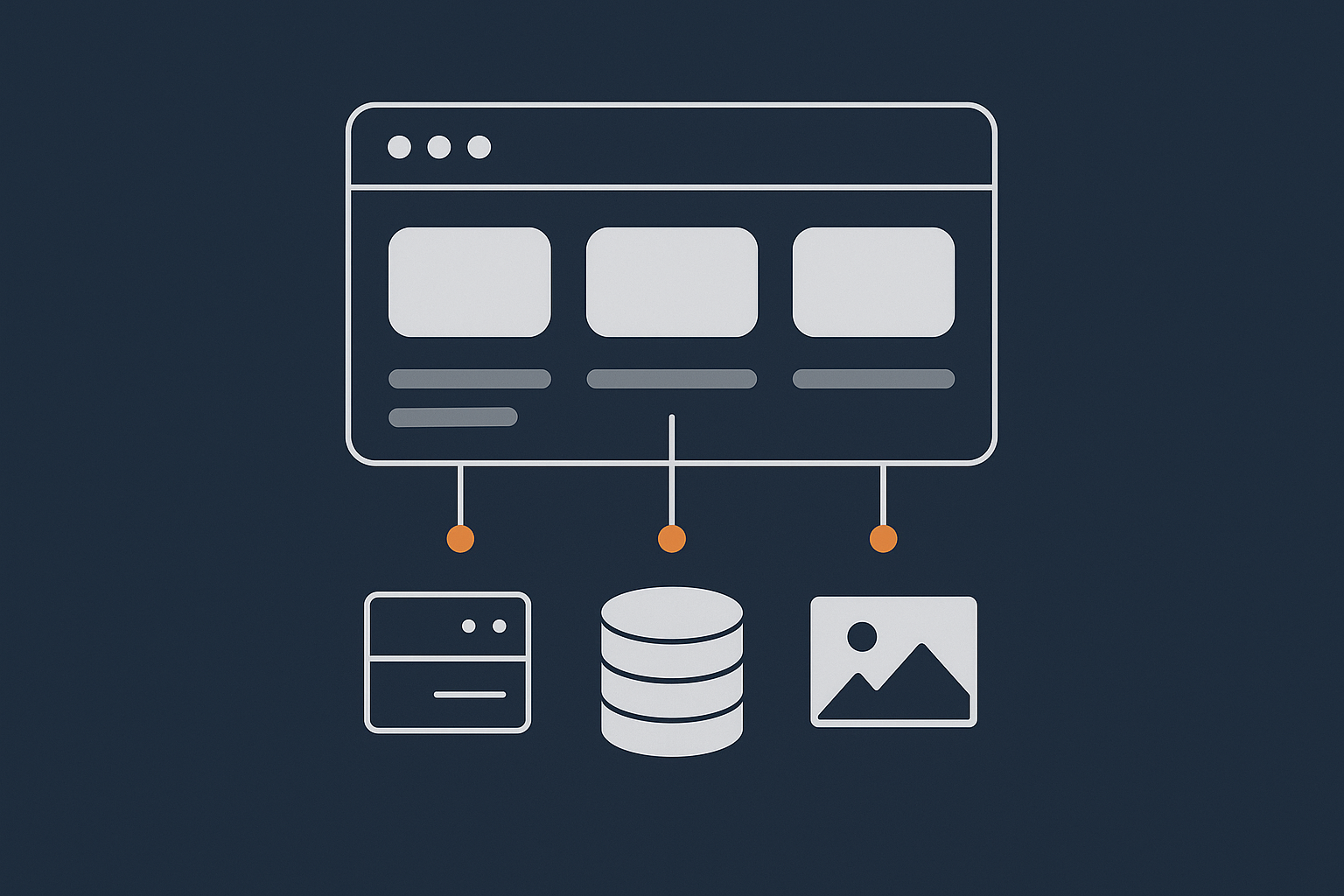
Core Web Vitals are three key user experience metrics that Google pays attention to, based on real user data.
Largest Contentful Paint (LCP)
LCP measures how quickly the main content of your page becomes visible. In WordPress this is often:
- The hero image at the top of your homepage
- A large heading and background image
- On WooCommerce, a main product image or product title area
If this is slow, users see a blank or half‑loaded page for too long. Large, unoptimised images and heavy sliders are common causes.
Cumulative Layout Shift (CLS)
CLS measures how much the layout moves around while the page is loading. This is the “page jumping” feeling.
Typical causes include:
- Images that load without reserved space, pushing text down as they appear
- Popups and cookie banners that suddenly push content
- Fonts changing after the first paint
Poor CLS is especially annoying on mobiles, where users may tap the wrong button because things moved.
Interaction to Next Paint (INP)
INP is replacing FID as the main interaction metric. It looks at how quickly the page responds visually after a user does something, such as:
- Clicking a menu item
- Opening a mobile menu
- Adding a product to cart
- Submitting a form
Slow INP is usually due to heavy JavaScript from themes, page builders, plugins and third party scripts, combined with slow server responses during those interactions.
Supporting metric: Time to First Byte (TTFB)
TTFB is how long it takes between requesting a page and the first byte coming back from the server. It reflects how quickly your hosting, PHP, database and caching respond.
TTFB is not a Core Web Vital itself, but it sits underneath LCP and INP. If TTFB is slow, your LCP will almost always be slow, and interactions that require server work will feel sluggish.
- Hosting quality affects how many sites share resources with you and how quickly PHP and MySQL run.
- PHP performance and opcode caching affect how quickly WordPress can execute your theme and plugin code.
- Database performance affects complex queries, especially on WooCommerce.
- Page and object caching can hide a lot of heavy lifting by serving ready‑made responses.
For deeper technical detail on TTFB, see Reducing WordPress Time to First Byte on UK Hosting.
Why Core Web Vitals matter for UK businesses
Core Web Vitals matter because they describe how your site feels to visitors:
- Conversions: Faster LCP and INP usually mean more people complete contact forms, bookings and checkouts. Even saving a second or two can make a difference for paid traffic campaigns.
- Search visibility: Core Web Vitals are part of Google’s page experience signals. They will not make a weak site rank like a strong one, but poor vitals can hold you back, especially on mobile searches.
- Trust and professionalism: A site that feels responsive, does not jump around, and loads quickly on common UK connections supports the perception that your business is organised and reliable.
Step 1 – Measure Core Web Vitals with real user data
Before changing anything, it helps to see how real users experience your site, not just how it looks in one test.
Use multiple tools and focus on field data
There are two main types of measurement:
- Lab data: Synthetic tests run from a fixed location and device. Examples:
- The “Lab data” section in PageSpeed Insights
- Lighthouse in Chrome DevTools
- Field data: Real users on real devices and networks. Examples:
- “Field data” in PageSpeed Insights
- Search Console’s Core Web Vitals report
- Chrome User Experience (CrUX) data
For business decisions, field data matters more. It will also reflect your actual audience mix: for a UK site, you may have a lot of mobile users on 4G around cities and slower connections in more rural areas.
You can explore official documentation for CrUX and Core Web Vitals on web.dev if you want deeper technical context.
Quick workflow: how to check your current Core Web Vitals
Start with a simple, repeatable process:
- Open PageSpeed Insights.
- Test:
- Your homepage
- A key landing page, such as your main service page or top blog post
- Your main money page. For WooCommerce: a typical product page and the checkout page
- For each URL, note:
- Whether field data is available. If you do not have enough traffic yet, you will see only lab data.
- Which metrics are coloured:
- Green: passing
- Amber: needs improvement
- Red: poor
For Core Web Vitals, Google uses the 75th percentile of users. That means at least 75 percent of visits must be fast enough for the page to “pass”. A few very slow users will not ruin your score, but if a large chunk of users struggle, it will show up.
Create a simple snapshot before you change anything
It is easy to lose track of what changed when. Create a small baseline record before making tweaks.
You might set up a simple spreadsheet with columns such as:
- URL
- Type (home, product, checkout, blog, booking)
- Device (mobile / desktop)
- LCP value and status (pass / needs improvement / poor)
- CLS value and status
- INP value and status (or FID if INP is not yet shown)
- Date of test
Keep this shared with your team. Each time you make a significant change, add a note. This makes it easier to link improvements or regressions to specific actions, rather than guessing.
Step 2 – Fix server side bottlenecks: TTFB, hosting and caching

Before you worry about every small front end detail, it is sensible to make sure your server is not holding everything back.
Check hosting and TTFB basics
Even a well‑optimised WordPress theme will feel slow if your server takes a long time to respond. TTFB is where this shows up.
For UK‑targeted sites, a rough target for cached pages is:
- Mobile or desktop visits from the UK: TTFB under about 200–300 ms for key landing pages
If your TTFB is often 800 ms, 1 second or more for cached pages, it usually means one of:
- Overloaded shared hosting where too many accounts share limited resources
- WordPress running dynamically for every request because caching is not configured correctly
- Database issues or slow PHP configuration on your VPS or VDS
Warning signs you may have outgrown basic shared hosting include:
- Regular 502 or 504 errors during busy periods
- Very inconsistent response times throughout the day
- Support telling you to “upgrade to the next shared plan” each time you hit limits
If you run your own VPS or virtual dedicated server, these are now your responsibility: keeping PHP, the web server and the database tuned, and monitoring load over time.
Use proper page caching for anonymous visitors
For most public pages on a WordPress site, you do not need to regenerate the page for each visitor.
What page caching does
Page caching saves a fully rendered copy of a page as HTML. When the next visitor comes, the server can:
- Serve the cached HTML directly, without running PHP and database queries
- Return the first byte much more quickly, which helps both TTFB and LCP
Checklist for page caching
- Ensure a reputable page cache is enabled. On many hosts this is handled at server level. On others you may use a plugin.
- Set sensible cache durations. For example:
- Home, services and blog posts: often safe to cache for hours
- WooCommerce product catalogues: cache but clear when products or prices change
- Avoid frequent full cache purges for minor content edits. If your cache is constantly cleared, you lose the benefit.
Logged in vs logged out visitors
- Logged out visitors (most users, including from Google and ads) should usually get cached pages wherever possible.
- Logged in users and carts/checkouts should not see cached content that belongs to other users. Good caching tools can exclude WooCommerce cart and checkout pages automatically.
To understand your caching layers more deeply, you can refer to Understanding WordPress Caching Layers.
Offload heavy work with an edge or acceleration network
A content delivery or acceleration network places an “edge” layer closer to your UK visitors. This layer can:
- Serve cached HTML and static assets from data centres near your users, lowering TTFB
- Handle SSL and HTTP/2/3 connections efficiently
The G7 Acceleration Network is an example of such a layer with a focus on UK and European traffic.
Two useful capabilities for Core Web Vitals are:
- Bot and abuse filtering: Filtering abusive or non‑human traffic before it reaches PHP or MySQL reduces wasted server work and makes performance more stable for genuine visitors.
- On‑the‑fly image optimisation: Automatically converting and serving images in modern formats like AVIF and WebP can cut image file sizes by more than 60 percent. This directly helps LCP, especially for hero and product images, without needing to change WordPress plugins.
When to consider managed WordPress or a managed VDS
Running your own VPS or VDS can be powerful, but it also means:
- Keeping the OS, PHP, web server and database patched and updated
- Configuring server caching, compression and HTTP/2/3 properly
- Monitoring load, memory, disk and performance trends
If any of these feel unrealistic for your team, especially with a business‑critical WooCommerce store, it may be worth:
- Using Managed WordPress hosting if you mainly run a small number of business or brochure sites
- Choosing a managed virtual dedicated server if you need dedicated resources but want experts to handle tuning, security and performance monitoring
The aim is not to avoid learning, but to decide where your time is best spent: running campaigns and improving content, or running servers.
Step 3 – Largest Contentful Paint (LCP) checklist for WordPress
Once server and caching basics are in good order, LCP usually becomes the main focus, especially on mobile.
Find what is actually causing slow LCP
Before making design changes, identify the actual LCP element on your key pages.
To do this:
- Open PageSpeed Insights for a URL.
- Scroll to the “Diagnostics” and “Performance” sections.
- Look for the LCP element description. It is often:
- The main hero image or background image
- A large heading block
- On WooCommerce, the main product image or title area
Make a note of what that element is for each key page type. This tells you where to focus your optimisation time.
Image optimisation for faster LCP
Images are the most common cause of slow LCP.
Size images sensibly before upload
- If your content area is 1200 px wide, try not to upload 4000 px images for that slot.
- Most hero images can be around 1600–2000 px wide for desktops, with smaller responsive versions for mobile.
- Use image editing tools (local or online) to resize and compress before uploading to WordPress.
Use modern formats and responsive images
- Prefer WebP or AVIF where possible. Many image or performance plugins support this.
- Use responsive images (
srcset) so mobiles do not download desktop‑sized images unnecessarily. - Ensure lazy loading is enabled, but consider not lazy loading the main hero image that forms your LCP element.
If you are using the G7 Acceleration Network, it can automatically convert and serve images in AVIF and WebP formats on the fly, without requiring a separate optimisation plugin.
Avoid overly heavy above‑the‑fold designs
- Be cautious with sliders that load several large images before first paint.
- Reserve video backgrounds for cases where they add clear business value. They are almost always heavier than static imagery.
Theme, fonts and render blocking resources
Beyond images, your theme and CSS/JS loading strategy can delay LCP.
- Audit your theme:
- Multipurpose themes with many unused features can ship large CSS and JS bundles.
- If you consistently struggle with Core Web Vitals, consider a lighter, performance‑focused theme.
- Reduce render‑blocking CSS/JS:
- Load only the CSS needed for above‑the‑fold content early.
- Defer non‑critical CSS and JS where safe using your optimisation plugin or theme options.
- Be cautious: aggressive deferral can break layouts. Test changes on a staging site first.
- Optimise fonts:
- Limit web font families and weights. For example, one family with regular and bold is often enough.
- Use
font-displaysettings (often available via theme or performance plugins) so text shows quickly, even if the custom font loads slightly later. - Self host fonts where practical to avoid third party delays.
Quick wins specific to WooCommerce
WooCommerce product pages and category lists can become image‑heavy without you noticing.
- Reduce product page bloat:
- Limit the number of large gallery images visible above the fold.
- Ensure thumbnails are properly sized and lazy loaded below the fold.
- Delay non‑essential scripts:
- Defer review widgets, recommendation carousels and chat tools so that they load after the main content is visible.
- Keep checkout pages as lean as possible. Every extra script here affects both LCP and INP, and could reduce conversions.
For a deeper dive into ecommerce specifics, see Practical WooCommerce Image, Script and Font Optimisation for Faster Checkouts.
Step 4 – Cumulative Layout Shift (CLS) checklist for WordPress
CLS problems can often be fixed without touching servers at all. They are usually about layout and content.
Understand what is shifting on your pages
It is helpful to visually see what moves as a page loads.
You can use:
- The layout shift debugger in PageSpeed Insights to highlight elements contributing to CLS
- Chrome DevTools:
- Open a page in Chrome
- Right‑click > Inspect
- Use the “Performance” panel and enable “Web Vitals” to record layout shifts as the page loads
Common culprits you will often spot:
- Images or banners suddenly appearing and pushing text down
- Sticky headers resizing after scroll
- Cookie banners and popups that insert themselves at the top of the viewport
- Fonts switching after a second or two
Reserve space for images, embeds and ads
The main principle is simple: reserve space before content loads.
- Images:
- Ensure all images in your theme and content have explicit width and height attributes, or CSS rules that give them a fixed size or aspect ratio.
- Most modern WordPress themes do this, but some page builder elements may need checking.
- Video embeds:
- Wrap iframes (YouTube, Vimeo etc.) in containers with fixed aspect ratios, such as 16:9, so the browser knows how much space to allocate.
- Ad slots or rotating banners:
- Give them a fixed height, even when there is no ad loaded yet, so they do not collapse and then expand later.
If you are editing theme templates or child themes directly, keep a record of what you changed and test on a staging site if possible. Template errors can break layouts.
Handle popups, banners and sticky elements carefully
Popups and banners are often added through plugins, which can make them harder to control.
- Cookie banners and consent tools:
- Prefer designs that overlay the page or appear in a reserved area, rather than pushing the entire page down when they appear.
- Check on mobile views as well as desktop.
- Chat widgets and discount popups:
- Position them so they slide in over content or appear in corners, instead of inserting extra blocks above existing content.
- Sticky headers:
- Stick to a consistent height as much as possible.
- Avoid large shrinking effects that cause the entire page to jump when scrolling.
Fonts and CLS
When a page first loads, the browser may show a fallback system font, then switch to your custom web font when it arrives. If those fonts have very different metrics, lines of text will shift.
- Choose sensible fallback fonts with similar size and spacing to your main web font.
- Use appropriate font‑display settings using your theme or performance plugin, balancing:
- Showing text immediately with a fallback
- Avoiding noticeable “flashes” of different fonts
- Self host fonts where practical to cut out external network delays.
Step 5 – Interaction to Next Paint (INP) checklist: making WordPress feel responsive
Once pages load quickly and do not jump, the next step is to make sure they stay responsive when users interact with them.
What typically slows interactions on WordPress
Slow interactions usually result from a combination of front end and back end issues:
- Heavy JavaScript:
- Visual effects from page builders, sliders and animation libraries
- Large marketing scripts, tag managers and analytics tools
- Too many plugin scripts everywhere:
- Plugins that load their JS and CSS on every page, even when their features are not used
- Slow server responses during interactions:
- Complex WooCommerce cart and checkout logic
- Database queries running on overloaded hosting without object caching
Reduce and tidy up JavaScript
A careful clean up can significantly improve INP, especially for mobile users.
- Audit plugins:
- List your plugins and identify which ones add front end scripts.
- Remove or replace plugins that add heavy scripts for minor visual effects.
- Trim page builder features:
- Disable animations that run code on every scroll or hover event.
- Where possible, build key landing pages using lighter blocks or theme tools instead of stacking multiple builders.
- Manage third party scripts carefully:
- Only install the analytics, chat and heatmap tools you actually use.
- Load them in a performance‑aware way:
- Delay non essential scripts until after first paint
- Limit script loading on sensitive pages like checkout
After significant JS changes, re‑test key pages with PageSpeed Insights and in real browsers. Make sure forms and tracking still work as intended.
Improve back end response during interactions
Some interactions must reach the server, such as adding products to a cart, logging in or submitting forms. You can make these faster by tidying the back end.
- Keep the database tidy:
- Remove expired transients, old sessions and unnecessary post revisions using reputable tools or plugins.
- On busy WooCommerce stores, consider periodic database housekeeping as part of normal maintenance.
- Use object caching where appropriate:
- Redis or Memcached can store results of expensive queries and operations.
- This is particularly helpful for logged in users, admin dashboard performance and WooCommerce actions.
- Object caching needs proper configuration on the server side. On unmanaged VPS or VDS hosting, you or your sysadmin will need to install and maintain it.
- Keep checkout lean:
- Avoid loading unnecessary marketing scripts directly on checkout pages.
- Test checkout flows on slower mobile connections to see whether they feel snappy or sluggish.
If server‑side tuning and advanced caching feel outside your comfort zone, this is a strong sign that managed WooCommerce hosting or a managed VDS may be more suitable for a high‑stakes store.
Step 6 – Practical checklist you can follow each month
Core Web Vitals work best as a steady habit rather than a frantic one‑off project.
Monthly Core Web Vitals routine for UK SMEs
A simple monthly routine, taking 30–60 minutes, can keep your site in good shape and catch regressions early.
- Run PageSpeed Insights on:
- Homepage
- Top service or landing page
- For WooCommerce: a typical product and the checkout
- Check Search Console’s Core Web Vitals report:
- Look for any new URLs marked as “needs improvement” or “poor”.
- Pay attention to mobile data first if most of your visitors are on phones.
- Update your baseline spreadsheet:
- Add new measurements for LCP, CLS and INP for key URLs.
- Note any significant changes in design, plugins or hosting since the last check.
- Investigate any regressions:
- If a metric worsened, check what changed that month: new plugins, design tweaks, third party scripts, hosting changes.
- Roll back or adjust changes that clearly harmed performance.
For more ideas on structured measurement and tooling, you may find How to Diagnose Slow WordPress Performance Using Real Tools and Metrics helpful.
Simple prioritisation framework
When you have a list of potential improvements, it helps to tackle them in a sensible order:
- Fix TTFB and caching:
- Ensure your hosting is suitable and page caching is working well.
- Consider using an acceleration network to ease the load.
- Address LCP on key landing pages:
- Optimise hero and product images.
- Review heavy themes and front end blocks.
- Fix frustrating CLS issues:
- Reserve space for images, embeds, banners and popups.
- Adjust sticky headers and fonts.
- Improve INP and tidy JS:
- Remove or delay non essential scripts.
- Optimise WooCommerce carts and checkouts.
Within each step, start with the pages that bring in money or leads: paid campaign landing pages, core service pages, and WooCommerce product/checkout pages.
When to bring in managed help
There is no single point where you must move to managed hosting, but some signs suggest it is worth considering:
- You see repeated regressions after design or plugin changes and spend a lot of time firefighting performance.
- Your site uses a complex stack of themes, builders and plugins that is difficult to optimise internally.
- You operate a business‑critical WooCommerce store with seasonal peaks, where slowdowns or outages carry clear financial risk.
In these cases, using Managed WordPress hosting or a managed virtual dedicated server allows a specialist team to handle:
- Server maintenance, updates and security
- Performance tuning of PHP, MySQL, caching and HTTP/2/3
- Platform‑level features like the G7 Acceleration Network, which improve Core Web Vitals by filtering abusive traffic and optimising images at the edge
This frees your team to focus on content, marketing and products, rather than constant optimisation work.
Summary: Core Web Vitals as an ongoing habit, not a one off project
You do not need a perfect Lighthouse score to run a successful UK business site. What you need is a site that:
- Shows its main content quickly (good LCP)
- Stays visually stable as it loads (good CLS)
- Feels responsive when people click, type and scroll (good INP)
- Runs on hosting where TTFB is consistently low for your UK audience
Treat this checklist as part of normal WordPress maintenance, alongside updates, backups and security checks. Small, regular improvements tend to be safer and more effective than large, rushed overhauls.
If you find Core Web Vitals work is starting to consume time that should be spent on marketing or running your business, it may be worth reviewing your hosting approach. Exploring Managed WordPress hosting or a managed virtual dedicated server can be a calm next step, allowing you to keep the benefits of WordPress while offloading much of the operational responsibility.




