
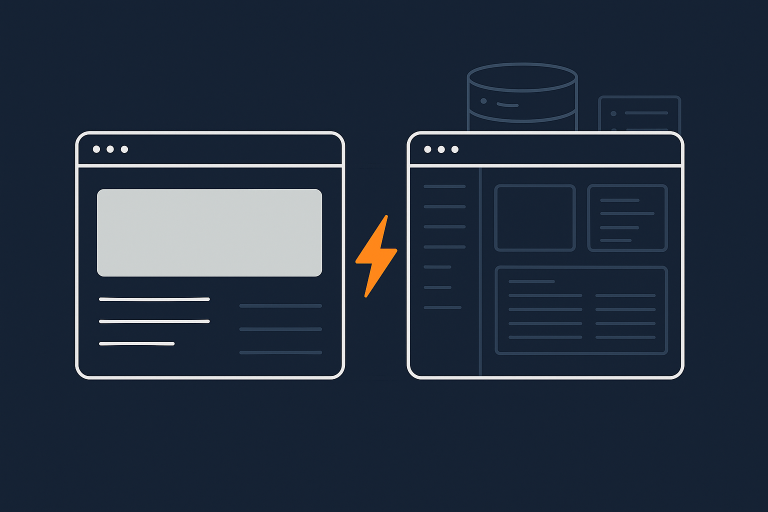
Why Your WordPress Admin Is Slower Than the Front End (and How to Fix It on Managed Hosting)
Who This Guide Is For (And What You Will Fix)
If your WordPress or WooCommerce site feels fine to customers, but logging into wp-admin is a slog, this guide is for you.
Typical symptoms of a slow WordPress admin
Common signs include:
- Login page hangs on “Loading…” before the dashboard appears
- Every click in admin takes 3 to 10 seconds to respond
- Product, order or post lists take a long time to load or filter
- Saving posts or products sometimes times out or shows “Updating failed”
- The front end is reasonably fast, but admin is always noticeably slower
- Admin becomes almost unusable during busy periods or when sending campaigns
You will learn how to:
- Tell whether the slowness is caused by WordPress itself or your hosting
- Track down heavy plugins, WooCommerce data issues and misconfigured tasks
- Understand what your managed host should be doing for admin performance
- Apply practical fixes that usually make admin 2 to 5 times more responsive
What is different about admin speed on managed hosting vs cheap shared plans
On very cheap shared hosting, every site on the server fights for the same limited CPU, RAM and disk. When a neighbour’s site is busy, your wp-admin slows down even if your own traffic is low.
With good managed WordPress hosting, resources are allocated more predictably, the stack is tuned for WordPress, and support can help you identify where the bottleneck really sits. The admin will still usually be slower than the cached front end, but it should be consistently usable and not collapse under normal work.
This guide assumes you are on, or considering, managed hosting. The principles also apply if you are still on shared hosting and planning your next move.
Why wp-admin Is Almost Always Slower Than the Front End
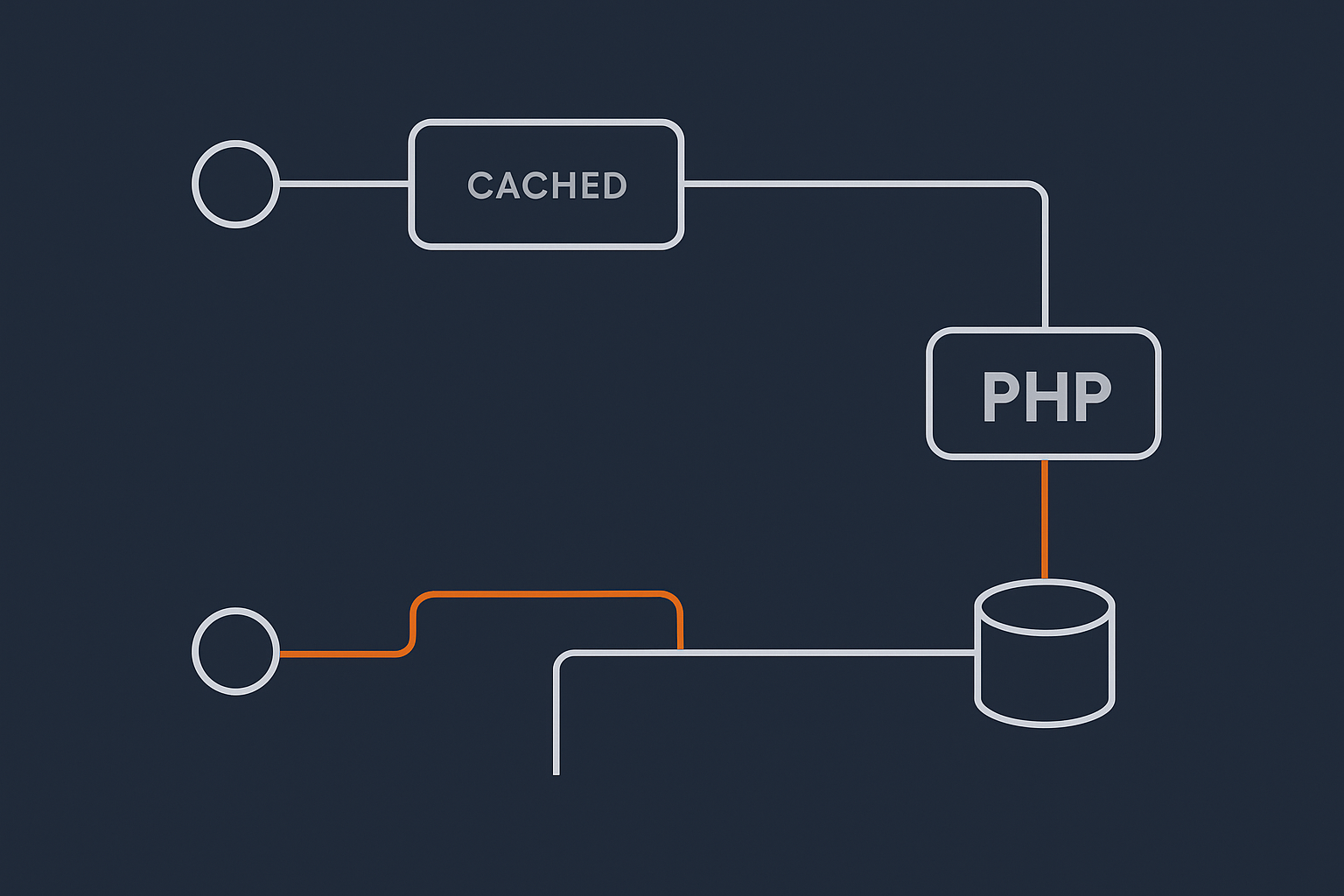
Front end pages are cached, wp-admin usually is not
Most performance guides, plugins and hosting features focus on caching the public front end. A cached product page can be served directly from memory or disk without running WordPress and without touching the database.
The admin area is different:
- Every admin page is personalised for the logged in user
- Order, stock and content data must be up to date, not stale
- Nonces and security checks prevent full-page caching
This means almost every wp-admin request must go all the way through PHP and the database. Even if your host uses a powerful edge layer such as the G7 Acceleration Network to cache and accelerate front end traffic, that layer will (correctly) avoid caching most admin requests.
More PHP work, more database queries and heavier plugins
Admin pages tend to do more work than front end pages:
- They load capability checks, menus, metaboxes and editor components
- They aggregate data (order counts, stock levels, comment counts)
- They invite plugins to hook into many actions and filters
In practical terms, a simple front end page might use 40 to 60 database queries. An admin screen with WooCommerce, SEO, analytics and security plugins can easily hit 200 to 400 queries per request.
That is why you can see a fast home page yet feel that wp-admin is crawling. The front end is coasting on caching; admin shows you the true cost of your plugin stack and data model.
WooCommerce and high order volumes add extra load
WooCommerce introduces more pressure on admin performance, especially as order volume grows:
- The “Orders” screen queries large tables with filters, joins and meta lookups
- Stock status, reports and dashboard widgets run aggregate queries
- Each order can have dozens of meta rows, notes and logs
Once you reach tens of thousands of orders, poorly indexed tables or uncleaned logs can turn a simple list view into a slow query. If admins are viewing, editing and filtering orders every day, any inefficiency is very visible.
Background tasks, crons and bad bots quietly competing for resources
While you are working in wp-admin, the server is often busy with tasks that you never see:
- WordPress cron jobs running imports, emails or sync tasks
- Search indexers and reporting jobs crunching through orders or products
- Bad bots crawling your site or hammering
wp-login.php
On a constrained server, these background tasks share the same PHP workers and database as your admin sessions. A big import or a misbehaving bot can easily double or triple your admin page load times.
Managed platforms usually mitigate this with server-level cron and resource isolation. When a provider uses a network layer such as the G7 Acceleration Network, a lot of abusive and non human traffic can be filtered before it ever reaches PHP, which preserves capacity for real users in both front end and wp-admin.
Quick Checks: Is It Really Hosting, Or Is It WordPress Itself?
Test admin speed against a clean baseline
First, you need to decide whether your site’s own code and data are causing the slowness, or whether the hosting platform is saturated.
A useful quick test:
- Create a fresh subsite or staging copy with a default theme and no extra plugins.
- Log in to
wp-adminthere and click around: Dashboard, Posts, Add New. - Compare the “feel” and page timings with your live admin.
If the clean site’s admin is snappy while your live admin is slow, the cause is almost certainly your plugin stack, WooCommerce data or custom code. If both are slow at similar times, it is more likely that the server resources or database are the issue.
For a deeper dive on reading hosting-level graphs, see the guide on how to read WordPress hosting resource graphs, which explains CPU, RAM and I/O in practical terms.
Check time to first byte for admin requests
A simple, reliable metric is Time To First Byte (TTFB): how long the server takes to send the first byte of a response.
To test it:
- Open your browser’s developer tools (Network tab)
- Load an admin page such as “All Posts”
- Look at the request for
edit.phporindex.php(Dashboard) - Check the “Waiting” or “TTFB” value
As a rough guide:
- < 300 ms TTFB for admin is excellent
- 300 to 800 ms is workable
- > 800 ms suggests a bottleneck in PHP, database or hosting
If your TTFB is slow even when the page content is simple, the problem is usually server load, database contention or slow initial PHP execution. There is a separate detailed guide on reducing WordPress TTFB on UK hosting, and many of the remedies there apply directly to admin performance.
Use your host’s resource graphs to spot obvious CPU, RAM or I/O limits
Managed hosts typically offer graphs for:
- CPU usage
- RAM / memory usage
- Disk I/O (read/write operations)
- Sometimes PHP worker usage and database load
Correlate admin slowdowns with these graphs:
- If CPU is near 100% when admin is slow, PHP or cron jobs are saturating it.
- If Disk I/O is pegged, backups, logs or large queries may be thrashing the disk.
- If RAM is consistently high and swap is used, the server is under provisioned.
If your host does not give you clear visibility here, you may struggle to diagnose issues that are genuinely at the platform level.
Common WordPress-Level Causes of a Slow Admin (And How to Fix Them)
Plugin bloat and heavy admin-side features
Plugins that look light on the front end can be heavy in admin. Examples include:
- Page builders that load assets and panels into every edit screen
- SEO suites that analyse content on the fly
- Membership and LMS plugins with complex capability checks
To diagnose:
- Install a profiling plugin on staging, such as Query Monitor.
- Load a slow admin page and note the total queries and slowest components.
- Temporarily disable suspected plugins and compare.
A few practical tips:
- Remove outright unused plugins, not just deactivate them.
- For plugins with optional dashboard or editor integrations, disable those features in their settings if you do not need them.
- Avoid having multiple plugins that duplicate roles, such as several analytics or SEO add ons.
Dashboard widgets, analytics and reporting plugins
The WordPress dashboard often becomes cluttered with widgets from security, SEO, mailing lists, forms, WooCommerce and external services.
Many of these:
- Pull external API data on each dashboard load
- Run aggregate queries over large tables (orders, users, logs)
- Add extra CSS and JavaScript to every admin page
Easy wins:
- On the main Dashboard screen, click “Screen Options” and untick any widgets you do not actively use.
- In plugin settings, disable built-in analytics dashboards if you already use another tool.
- Consider moving heavy reporting to scheduled exports or external BI tools rather than live admin widgets.
Unoptimised WooCommerce data: orders, sessions and logs
WooCommerce relies on several database tables that can grow large:
wp_postsandwp_postmetafor orders and productswp_woocommerce_order_itemsand related meta tables- Logs, sessions and analytics tables
Symptoms of bloat include:
- Orders list taking a long time to load
- Searching or filtering orders timing out
- Saving products lagging when stock or variations are updated
Maintenance tasks to consider:
- Clear expired transients and WooCommerce sessions.
- Prune very old orders that are no longer legally required, or archive them outside the live database.
- Truncate or rotate large log tables and clean up abandoned carts if you use a plugin for them.
The detailed guide on keeping WooCommerce order data safe and fast covers practical SQL examples and plugin options for this type of housekeeping.
Misconfigured WordPress cron jobs and background tasks
WordPress cron (WP-Cron) is triggered by page views. On busy sites, this can mean multiple heavy cron tasks try to run while you are working in wp-admin. On quieter sites, overdue tasks all run at once when you log in, creating a burst of load just when you need the admin to be responsive.
Typical issues include:
- Import or sync jobs scheduled too frequently
- Email sending plugins doing large batches via cron
- Search indexing, subscription renewals and licence checks all colliding
Fixes:
- Use a cron inspection plugin or your host’s tools to view scheduled events.
- Reschedule heavy jobs during quieter periods.
- On managed hosting, disable
WP-Cronand have a real server-side cron triggerwp-cron.phpat a controlled interval instead.
There is a separate deep-dive on WordPress cron jobs and how missed tasks affect WooCommerce, which is worth reviewing if your shop runs regular renewals or imports.
Broken or noisy security plugins inside wp-admin
Security plugins can add significant overhead, especially if they:
- Log every admin action in detail
- Perform live malware scans on each request
- Query remote APIs for reputation checks synchronously
Practical approach:
- Only run one comprehensive security plugin if you really need it.
- Disable “live scan” or “scan on every page load” features; schedule periodic scans instead.
- Use server-level protection for brute force and bad bots where possible, rather than stacking multiple WordPress-based firewalls.
When your hosting platform handles WAF rules and bot mitigation, you can usually strip back some of the heaviest plugin-based features without reducing real security.
Server and Hosting Factors That Make wp-admin Feel Sluggish
PHP workers, opcache and process limits
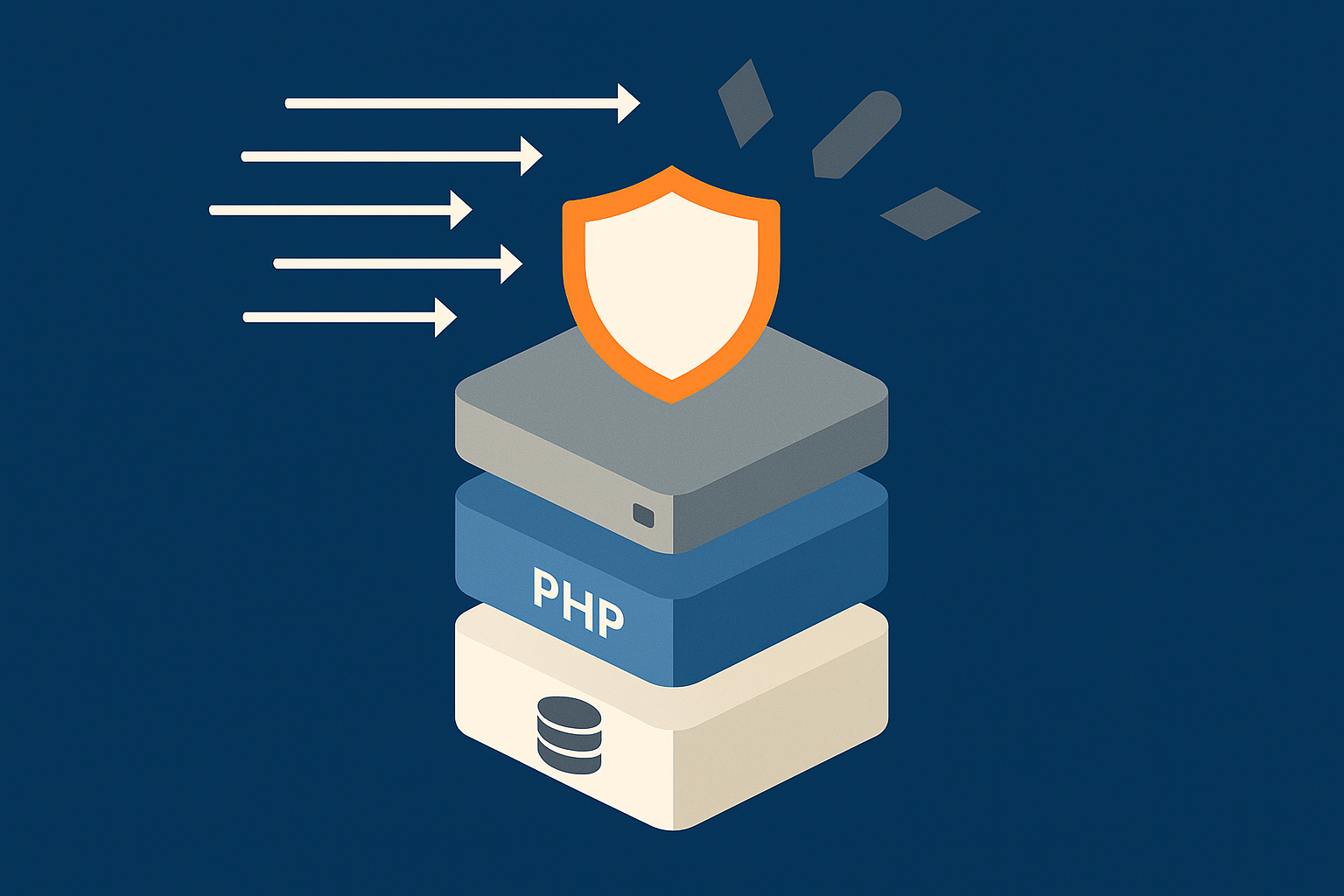
Each PHP worker can handle one request at a time. If you have 4 workers and 10 requests arrive, 6 must wait in a queue. In practice, that queue often appears to you as a slow or spinning admin.
On modern managed hosting, your stack should include:
- A sensible number of PHP workers for your traffic and workload
- PHP opcache enabled and sized correctly so code is cached in memory
- Process limits configured to avoid excessive swapping or crashing under load
Ask your host what PHP handler and worker limits you have, and whether they can increase them if you consistently reach the ceiling. Providers that advertise strong web hosting performance features will often expose worker usage or be able to share metrics on request.
Database performance and table bloat
The database is often the real bottleneck for admin speed.
Problems to look for:
- Slow queries logged repeatedly, such as order lookups or meta joins
- Huge
wp_optionstables filled with autoloaded data - Fragmented or oversized InnoDB tables, especially for orders and logs
How managed hosting can help:
- Provide optimised MySQL / MariaDB configuration for WordPress patterns
- Run regular table optimisation and check for database errors
- Advise when a separate database server or more RAM is realistically needed
Where WooCommerce is heavily used, some hosts will move you to an instance with more database memory and I/O, or recommend their virtual dedicated servers when shared database resources are no longer sufficient.
Disk I/O, backups and noisy neighbours
Disk performance matters whenever the server:
- Reads or writes cache files
- Swaps memory to disk under pressure
- Runs backups or log rotations
On cheaper platforms, nightly backups can compete for disk I/O with your admin work, causing slow saves and intermittent timeouts. Multi-tenant shared hosting can also suffer from “noisy neighbours” performing heavy tasks on the same physical disk.
Managed platforms typically mitigate this with SSD or NVMe storage, offloaded backups and better isolation. If your admin slows down at the same time every night, ask whether backups or maintenance tasks are running then and whether they can be moved.
Bad bots, crawlers and API calls using up your capacity
It is not unusual for the majority of a site’s requests to come from bots rather than humans. Search engine crawlers, scrapers and brute force attacks all consume PHP workers and database connections if they are not filtered efficiently.
An unprotected site might be dealing with:
- Repeated hits to
wp-login.phpandxmlrpc.php - Automated price or content scrapers crawling thousands of URLs
- Cheap uptime monitors or broken integrations polling APIs too often
On platforms that use an edge layer such as the G7 Acceleration Network, bot protection filters abusive and non human traffic before it reaches PHP or the database. This reduces wasted load, keeps response times consistent and helps prevent avoidable admin slowdowns during busy times.
How managed hosting should help here (and what to expect from your provider)
A good managed WordPress host is not just “more resources”. You should expect:
- Pre-tuned PHP, database and caching for WordPress and WooCommerce
- Clear visibility of resource usage and soft limits
- Support that will examine slow logs, database issues and configuration with you
- Edge-level features such as WAF, caching and image optimisation handled for you
Providers such as G7Cloud also integrate bot filtering and performance features into the platform, so you do not have to stack multiple plugins to achieve the same result within WordPress.
Targeted Fixes: How to Make WordPress Admin Genuinely Faster
Slim down plugins and disable what you do not use in admin
A structured plugin cleanup often delivers the biggest improvement for effort.
- Make a staging copy of your site.
- List all active plugins and mark those you do not recognise or no longer use.
- Deactivate non-essential plugins in batches and test
wp-adminspeed. - Remove unused plugins entirely after verifying nothing breaks.
Where plugins have separate front end and admin features, disable admin extras you do not need. For example, many form or email plugins allow you to turn off dashboard summaries and in-admin charts.
Tidy WooCommerce data, transients and logs
For WooCommerce shops, focus on the data that admin screens touch frequently:
- Use WooCommerce tools to clear expired transients and sessions.
- Clear analytics data you no longer need, or adjust retention periods.
- Periodically archive and remove failed or cancelled orders older than your reporting window, within your legal and accounting requirements.
Database-level cleanup can be run using trusted plugins or with your developer’s help to ensure you are not deleting anything critical. G7Cloud’s support team, for example, will often help identify the largest tables and advise safe clean up strategies for busy shops.
Fix cron jobs: switch to real server-side cron on managed hosting
On managed hosting you do not need to rely solely on the default WP-Cron mechanism.
A common pattern is:
- Add
define('DISABLE_WP_CRON', true);towp-config.php. - Ask your host to configure a real cron job, for example:
*/5 * * * * wget -q -O - https://example.com/wp-cron.php?doing_wp_cron >/dev/null 2>&1 - Review scheduled events and space out heavy tasks.
This keeps background work running regularly without piling up and suddenly firing when you log into wp-admin.
Leverage smart caching without breaking wp-admin
Even though most of wp-admin is not cacheable, you can still use caching intelligently:
- Ensure your full page cache or edge cache bypasses admin and logged in users correctly.
- Consider object caching (Redis or similar) to speed up repeated queries across admin requests.
- Cache expensive API calls in transients rather than calling remote services afresh on each page load.
Platforms with integrated caching layers, such as the G7 Acceleration Network, handle most front end caching and protocol details for you. That lets you focus on keeping admin logic tight, while the edge absorbs the bulk of anonymous traffic and optimises static assets.
Use a staging site for heavy admin work instead of hammering production
Bulk edits, imports and design changes can be resource intensive. Running them directly on your live site:
- Competes with real customers for CPU and database capacity
- Magnifies any inefficiencies in plugins or queries
- Increases the chance of timeouts or partial updates
Managed WordPress platforms usually provide one-click staging. Use that environment to:
- Test bulk operations and measure how long they take
- Profile admin screens after major plugin changes
- Confirm that new themes or builders do not bloat admin
Once you are comfortable with performance, deploy changes to production during quieter periods.
How Managed Hosting (Done Properly) Changes the Admin Performance Story
What you should expect from a managed WordPress host
For UK businesses that rely on WordPress and WooCommerce, “managed” should mean:
- The platform is tuned specifically for WordPress, not generic PHP sites
- PHP versions and extensions are current and tested
- Database configuration is adjusted for WordPress query patterns
- Caching layers are configured correctly for front end vs admin
- Security and bot filtering are handled largely at the network and server level
With managed WordPress hosting from providers like G7Cloud, most of this is preconfigured. When admin feels slow, support can then focus on your actual site, plugins and data rather than arguing about basic server settings.
Offloading bot filtering, caching and image optimisation to the edge
Moving logic to the network edge reduces the load on your origin server, leaving more capacity for wp-admin and WooCommerce.
An edge layer such as the G7 Acceleration Network typically handles:
- Full page caching for anonymous users
- Static asset optimisation and compression
- Basic WAF rules and bot filtering before PHP
For image-heavy sites, the G7 Acceleration Network also converts images on the fly to modern AVIF and WebP formats, usually cutting file sizes by more than 60 percent at real-world quality, with no plugins or WordPress changes required. This reduces front end bandwidth and processing so your server is freer to deal with complex admin operations.
On the bot side, G7Cloud’s protection within the same network filters abusive and non human requests before they hit WordPress, which stabilises response times and helps keep wp-admin responsive even during external scan or attack spikes.
When to move from shared to a virtual dedicated server for smoother admin
There comes a point where no amount of tuning can hide the fact that you have outgrown a shared plan.
Signs you may need to look at virtual dedicated servers include:
- Admin slowness coincides with CPU or I/O saturation even after optimisation
- WooCommerce order volume has grown into the hundreds of thousands
- Multiple team members are in admin all day, processing orders and content
- You run several sites on the same account and they are busy at the same times
A virtual dedicated environment gives you reserved CPU, RAM and storage performance, often with the same managed stack and tools you had on shared. From an admin perspective, the difference is usually noticeable: fewer slow patches, more consistent page times and less sensitivity to peak periods.
Working with support: what to ask for and what they can realistically fix
Support teams are most helpful when you provide clear, specific information. When wp-admin is slow:
- Note the exact time and which admin pages are affected.
- Mention recent changes (new plugins, imports, campaigns).
- Ask whether resource limits or slow queries correspond to that time window.
Reasonable requests include:
- “Can you check if there are any recurring slow queries in the database logs?”
- “Are my PHP workers maxing out during these admin slowdowns?”
- “Would a higher plan or virtual dedicated server reduce these bottlenecks?”
What support cannot usually do is rewrite third party plugins or redesign your site. What they can do is isolate where the slowness originates and advise you on the most effective next steps.
A Practical Checklist: From Sluggish wp-admin to a Responsive Back End
Step-by-step actions for the next 24 hours
- Create a staging site or safe clone of your production site.
- Test
wp-adminon a clean baseline (default theme, minimal plugins). - Measure TTFB for key admin pages using your browser’s network tools.
- Use Query Monitor or similar on staging to identify the slowest queries and plugins.
- Disable or remove obviously unused plugins, especially those heavy in admin.
- Clear WooCommerce transients, sessions and logs using built-in tools.
- Review WordPress cron events and reschedule or disable unnecessary jobs.
- Ask your host whether PHP workers, CPU or I/O are spiking during admin slowdowns.
Ongoing monthly habits to keep wp-admin fast
- Review new plugins after installation and remove them if they are not essential.
- Archive or prune WooCommerce data according to a clear retention policy.
- Check hosting resource graphs monthly to spot emerging constraints.
- Keep themes, plugins and PHP versions updated once tested on staging.
- Periodically review dashboard widgets and disable those you do not use.
When it is time to plan a migration or hosting change
You do not need to change hosting at the first sign of slow admin. Consider it when:
- You have done sensible cleanup and profiling yet admin is still slow under normal usage.
- Your host confirms that resource usage is high and cannot be raised on your current tier.
- Admin performance problems coincide with growth in orders, content or staff usage.
If you are consistently hitting the ceiling of a shared plan, exploring managed WordPress hosting or a virtual dedicated server can reduce your operational friction significantly. Providers like G7Cloud couple tuned servers with the G7 Acceleration Network for caching, image optimisation and bot filtering, which lets your team work in wp-admin without constantly wrestling slow screens.
If shaving minutes off daily admin work, reducing staff frustration and keeping your shop stable during busy periods matters to your business, it is worth taking a structured look at both your WordPress configuration and the hosting platform underneath it.




