
Diagnosing and Fixing WordPress 502/504 Gateway Errors on Busy Sites
What 502 and 504 Gateway Errors Actually Mean for WordPress
Plain English explanation of 502 vs 504
502 and 504 gateway errors usually appear as a generic “bad gateway” or “gateway timeout” page. To your customers it just looks like the site is broken. Under the surface, these codes mean slightly different things:
- 502 Bad Gateway means a server in the chain received an invalid response from the next system it tried to talk to. For example Nginx could not get a valid reply from PHP-FPM, or a proxy could not get a clean response from the web server.
- 504 Gateway Timeout means a server in the chain tried to talk to the next system, but that system took too long to respond. The “gateway” gave up waiting and returned a 504.
In both cases, WordPress has usually not finished the work it was asked to do. Something between the user’s browser and the database is either overloaded, misconfigured or stuck.
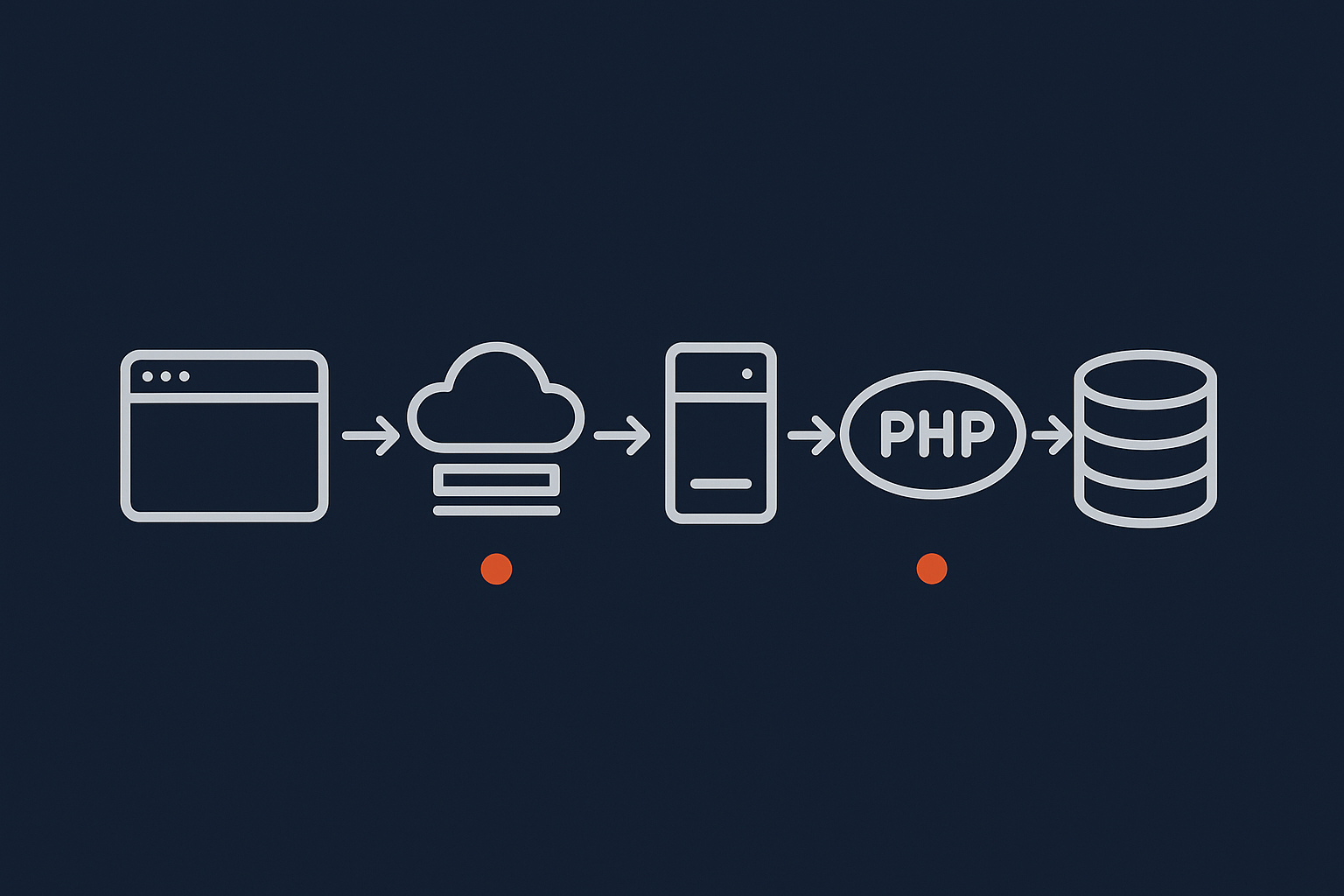
Where these errors occur in the request chain (browser → cache/CDN → web server → PHP → database)
For a typical WordPress or WooCommerce site the path looks like this:
- Visitor’s browser makes a request
- Request hits a cache/CDN or edge network (such as the G7 Acceleration Network)
- If not cached, it continues to the web server (Nginx or Apache)
- Web server passes dynamic requests to PHP-FPM (your PHP worker pool)
- PHP runs WordPress and talks to the database (MySQL or MariaDB)
- Response goes back up the chain to the browser
502s and 504s generally appear at one of these “handover” points:
- Edge / CDN cannot get a valid or timely response from the origin web server
- Web server cannot get a valid or timely response from PHP-FPM
- PHP-FPM is waiting too long for the database or an external API
This chain is why a gateway error page might show a CDN logo or your host’s default error page rather than anything from WordPress itself.
Why they usually appear during busy periods or spikes in traffic
These errors often start during:
- Black Friday or other sales
- Email or SMS marketing campaigns
- Press coverage, TV and influencer mentions
- Bot attacks, scraping or credential stuffing
During quiet periods, your hosting may just about cope. When traffic spikes, hidden bottlenecks show up:
- PHP worker pools are too small, so requests queue until they time out
- The database slows down under complex WooCommerce queries
- Edge caches are not configured well, so every request hits PHP
- Bad bots consume resources that should be serving real customers
Gateway errors are the visible symptom of these pressure points. The root causes are usually a mix of capacity, configuration, code and traffic quality rather than a single “broken” setting. For more background on this, see Why Server Performance Problems Are Rarely Caused by One Thing.
Stabilising a Busy Site When 502/504 Errors Start
Immediate checks: is it really down or just slow?
When staff report “the site is down”, confirm what is actually happening:
- Check a few different pages in a normal browser session
- Try an incognito / private window to avoid cached responses
- Use a different connection (for example mobile data) in case of local network issues
- Ask colleagues in a different location to check too
If pages eventually load but are very slow, you may be close to saturating resources, even if you are not yet seeing full 502/504 errors. This early warning is valuable.
If only certain journeys fail, note it clearly:
- Does the home page work but checkout fails?
- Are logged in users affected but guests are fine?
- Is wp-admin extremely slow or returning 502s?
These patterns help narrow down the root cause later.
Quick containment steps for non‑technical owners
If you are not technical but need to protect revenue during a problem, some quick actions can reduce pressure on the site:
- Pause heavy promotions temporarily: slow down email sends, pause large PPC campaigns or high reach social posts to reduce incoming traffic while you stabilise the site.
- Disable the most intensive features: if you can access wp-admin, consider temporarily disabling:
- Live search or filter plugins that hit the database heavily
- Personalisation or recommendation engines that are not cached
- Marketing popups and real‑time analytics overlays
- Use a simple holding or “degraded service” page if needed: if checkout is broken but you can serve a static page, a simple message explaining that orders are temporarily paused is better than random timeouts.
The goal is not to “fix” the root cause yourself but to reduce load and make the site at least partially usable while you and your host investigate.
Coordinating with your host: what information to give them so they can help faster
When asking your host or a specialist for help, detail matters. Provide:
- Timeframe: when did the issue start, and is it still happening?
- Pages and actions affected: for example “product pages mostly OK, 502s on /cart and /checkout between 7 and 7:30 pm”
- Traffic context: any campaigns, email sends, new ads, or marketing integrations going live around that time
- Recent changes: plugin/theme updates, new plugins, changes to caching or security rules, new payment gateways or shipping plugins
- Any error messages or screenshots: including any reference codes from a CDN or WAF
This helps your provider locate the relevant log entries, correlate them with load spikes, and avoid wasting time guessing. If you are on managed WordPress hosting your provider should also have internal monitoring that correlates CPU, memory and PHP worker usage with your reported incident times.
Common Root Causes of 502/504 on Busy WordPress and WooCommerce Sites
Insufficient PHP workers, CPU or memory during peak load
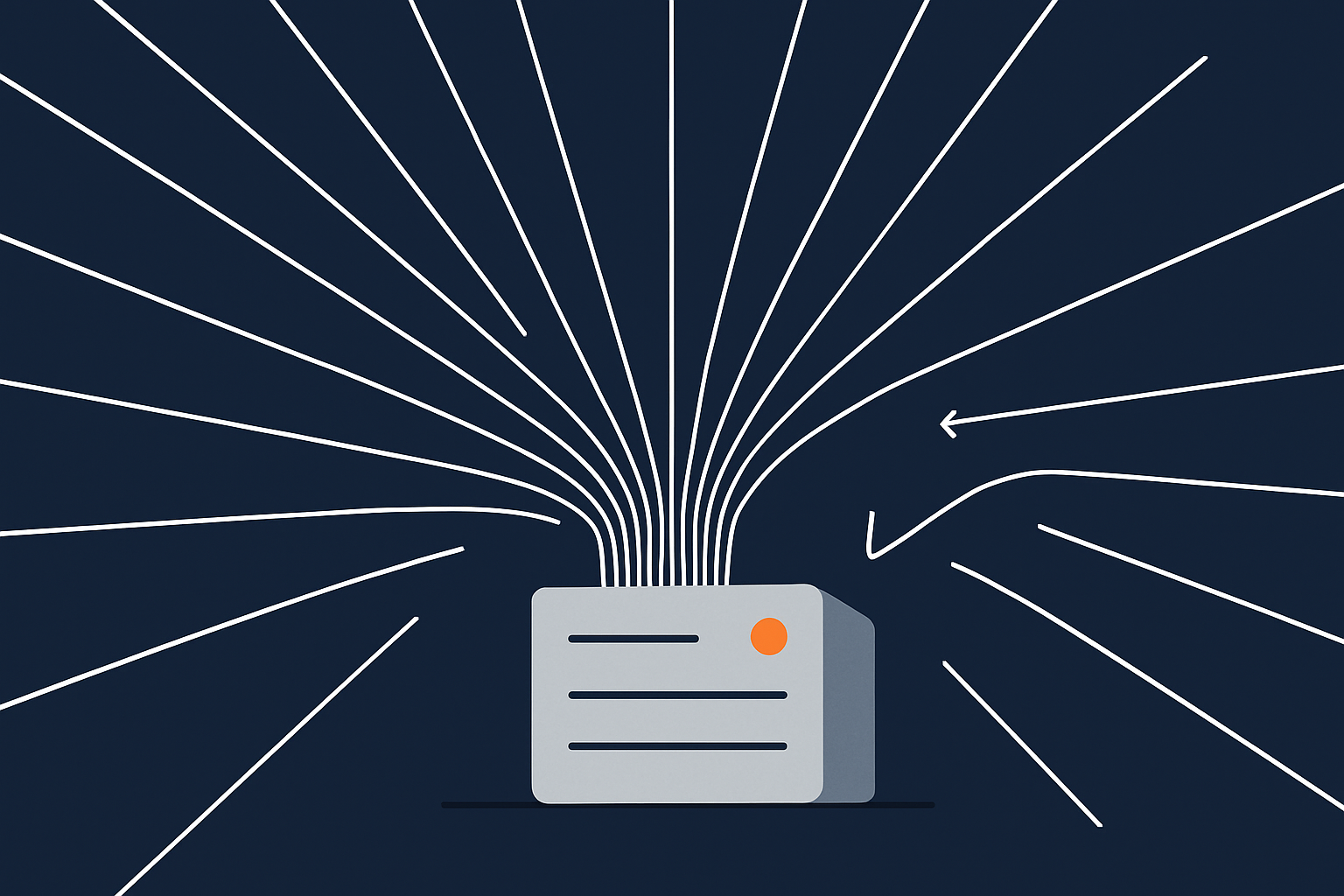
On busy sites, especially WooCommerce, each uncached request usually needs a PHP worker. If the number of simultaneous requests exceeds the worker pool, new requests queue until they time out. You might see:
- Sudden 502/504s when traffic crosses a certain threshold
- Very long time to first byte (TTFB) before any HTML appears
- High CPU and memory usage during peak periods
On shared hosting, worker pools and CPU are often small and shared. A neighbour’s traffic can affect you too. Plans that use isolated pools or virtual dedicated servers with isolated resources greatly reduce this “noisy neighbour” risk.
Slow or overloaded database (WooCommerce, search and reporting queries)
WooCommerce, membership and LMS sites put constant pressure on the database:
- Every add‑to‑basket or login touches multiple tables
- Order lists, reports and analytics often run heavy queries
- Search and filter plugins may query large product catalogues inefficiently
When the database is slow, PHP requests wait longer. Eventually the upstream gateway times out and returns a 504. Typical signs include:
- Cart and checkout failing while simple pages still load
- Admin order list timing out when staff filter or sort
- Slow queries logged in MySQL’s slow query log
Misconfigured or over‑aggressive plugins and themes
Some plugins behave well on small sites but break under heavy traffic:
- Page builders adding heavy queries to each request
- SEO or analytics plugins loading remote scripts on every page
- Security plugins scanning large numbers of files in real time
- Visual customisers or themes that bypass caching by setting cookies or sending “no cache” headers everywhere
On a busy site every bit of extra work multiplies. Under load that can be enough to push PHP workers or database connections over the edge.
Bad bots, scrapers and abusive crawlers consuming resources
It is common to see large volumes of automated traffic:
- Price scrapers loading every product and variation repeatedly
- Credential stuffing bots posting to wp-login.php and wp-json endpoints
- Fake checkout traffic used to probe payment gateways
- Aggressive SEO crawlers hammering faceted navigation and search results
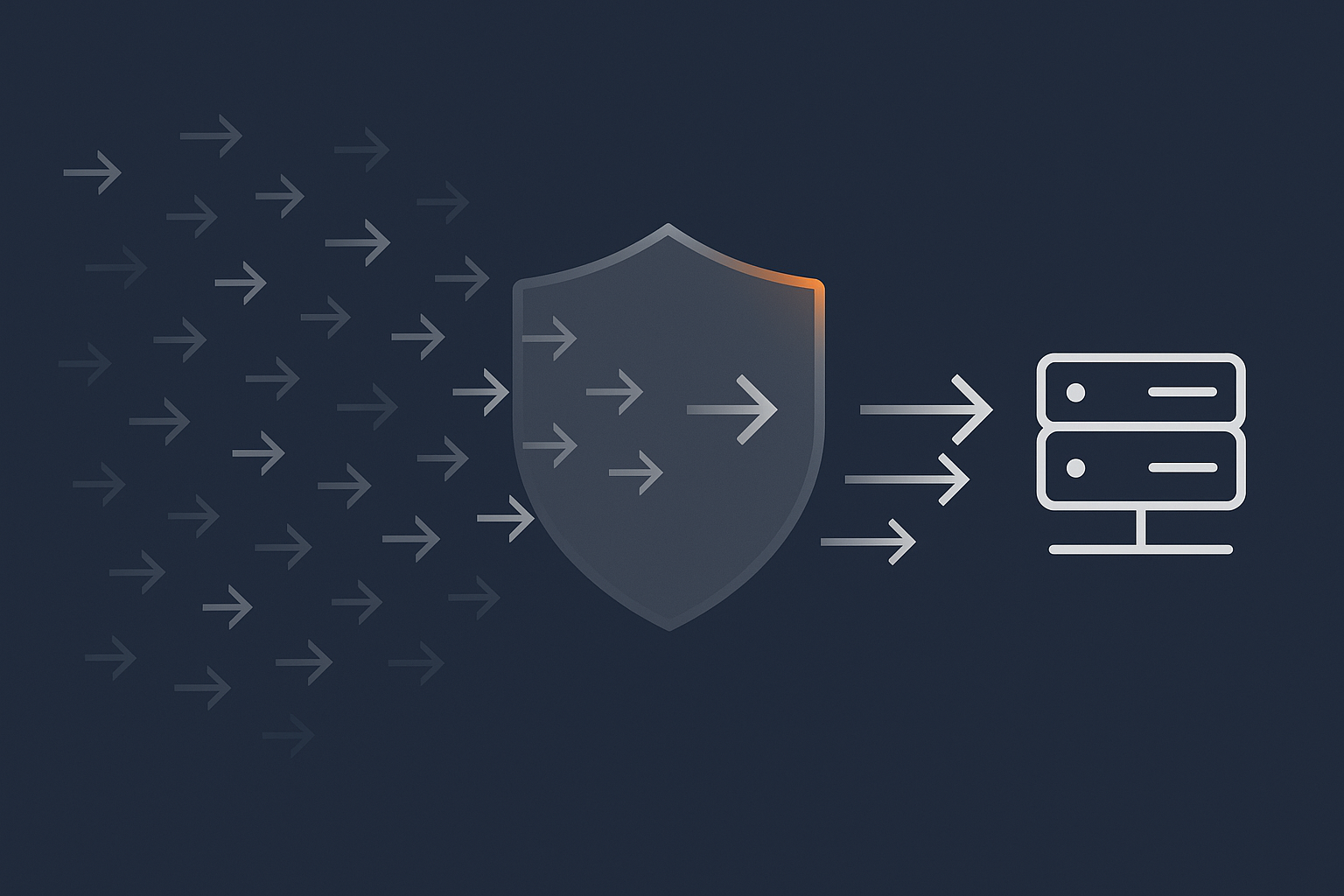
These often hit non‑cached URLs, so each request runs full PHP and database work. On busy sites this can crowd out real customers. On platforms using the G7 Acceleration Network, G7Cloud’s bot protection filters abusive and non human traffic before it hits PHP or the database, which reduces wasted load and helps keep response times consistent during busy periods.
External services and APIs (payment gateways, search, marketing tools) delaying responses
WordPress often depends on third parties:
- Payment gateways and fraud checks at checkout
- External search providers or recommendation engines
- CRM or marketing tools called on form submissions
- Shipping rate APIs queried in the basket or checkout
If any of these services become slow or unreachable, your PHP processes may wait until they hit a timeout. If the overall request exceeds the gateway timeout, you will see 504s even if your own server is healthy.
Network and upstream issues on shared or overloaded hosting
On lower cost hosting, many sites often share:
- Network bandwidth
- Web server processes
- Database servers
If the platform is congested, network round‑trip times increase and you can see intermittent 502/504s. This can happen even if your individual site optimisations are good. In these cases, moving to more predictable capacity (for example WooCommerce hosting that can handle peak days or virtual dedicated resources) is often the only stable fix.
Step‑by‑Step Diagnosis: From Symptoms to Root Cause
Reproducing the problem and narrowing it down
When do errors appear: checkout only, logged‑in users, admin, or whole site?
Start by answering some targeted questions:
- Scope: do 502/504 errors affect every URL, or only certain ones such as /checkout or /my-account?
- User type: are guests, logged in customers, or admins affected differently?
- Timing: are problems tied to specific hours (for example lunchtime, or 8–10 pm) or specific events (campaign emails landing)?
This pattern immediately suggests the likely layer at fault:
- Whole site, including cached pages: hosting platform, PHP capacity, or network
- Only dynamic pages (cart/checkout, account, admin): PHP workers and database
- Only when external calls occur (payment, shipping): third‑party API delays
Checking multiple pages and user journeys (home, product, cart, checkout, admin)
Systematically test:
- Home page and a few category pages as a guest
- Single product pages
- Cart and checkout flow
- Login / account page
- wp-admin: dashboard, orders list, product editor
Note which pages are slow, which return errors, and whether behaviour is consistent. This helps your host align specific URLs with relevant logs (web server, PHP, database).
Checking hosting and server metrics
CPU, memory, disk I/O and PHP processes during peak times
Server‑level metrics are crucial for distinguishing between code problems and simple resource exhaustion. During or shortly after an incident, check:
- CPU usage: sustained near 100% suggests capacity issues or very heavy code paths
- Memory usage: if memory is full and the server is swapping to disk, everything slows down
- Disk I/O: high I/O wait times can delay database responses
- PHP process counts: how many workers are busy versus how many are allowed
If you or your technical team have shell access, the guide How to Check CPU, Memory and Disk Usage on a Linux Server covers practical commands and what their output means.
Connection limits and max_children / PHP‑FPM pool exhaustion
For PHP‑FPM, the important settings include:
pm.max_children: maximum number of child processes (workers)pm.max_requests: number of requests a child process handles before being recycledpmmode: static, dynamic or ondemand
On busy sites, max_children may need increasing, but only if there is enough RAM. Otherwise, more workers just crash the server or trigger swapping. Well run platforms and managed WordPress hosting should tune these for you and keep pools isolated per site.
Reading logs that actually matter for 502/504
Web server error logs (Nginx / Apache) and what to look for
Web server error logs often show why a gateway gave up:
- Nginx:
upstream timed out (110: Connection timed out) while reading response header from upstream - Apache with PHP‑FPM: messages about upstream timeouts or backend unavailable
These point to issues between the web server and PHP‑FPM, or between a reverse proxy and the origin.
PHP error logs and slow logs
PHP logs are helpful when:
- A fatal error crashes scripts, causing 502 responses
- Slow logs show functions or queries that repeatedly take several seconds
Look for:
- Out of memory errors
- Fatal errors from specific plugins or themes
- Repeated long‑running actions during traffic peaks
Database logs and long‑running queries
Enable and inspect the MySQL/MariaDB slow query log (your host may need to do this). Pay attention to:
- Queries consistently taking longer than 1–2 seconds
- Queries on large tables such as
wp_posts,wp_postmeta,wp_wc_order_stats - Missing indexes mentioned in EXPLAIN plans
Long‑running queries that increase in frequency during sales or campaigns are a strong indicator that database optimisation is needed.
Relating log timestamps to traffic spikes and marketing campaigns
Logs are much more useful if you line them up with traffic and marketing activity. Note:
- Exact times of email sends, social posts or ad schedule changes
- Times when 502/504s were reported by customers or monitoring tools
- Spikes in CPU, PHP workers in use or database connections
Correlating these sets of data narrows the root cause more quickly than reading logs in isolation. If you are new to system logs, Understanding System Logs on Linux and Where to Find Them is a useful primer.
Using WordPress‑level tools without adding more load
Safe use of profiling and query monitoring on staging
Profiling tools such as Query Monitor or New Relic can be very helpful, but they add overhead. A sensible approach is:
- Replicate the site to a staging environment with similar data
- Enable profiling there to identify heavy queries, hooks or templates
- Make code or configuration adjustments, then deploy tested changes back to production
If you must profile on production, do it during quieter periods, enable tools for short windows, and coordinate with your host to watch resource usage.
Why you should not install heavy debugging plugins on an already unstable live site
When a busy live site is already returning 502/504 errors, installing extra plugins for debugging can make things worse:
- Additional hooks, logging and database writes on every request
- Extra scripts and assets increasing TTFB and total page weight
- More PHP memory usage, which can trigger out of memory errors faster
In this situation, it is usually safer to:
- Gather server‑side logs and metrics first
- Limit plugins and themes to those strictly required to keep the site functional
- Use staging or a cloned environment for deeper debugging
Fixing Resource Bottlenecks: PHP, Database and Caching
Right‑sizing PHP workers and memory for busy sites
Signs you are running out of PHP capacity
Typical signs of PHP worker saturation include:
- 502/504 errors primarily on non‑cached pages
- Sharp increase in TTFB during peak traffic, even for simple dynamic pages
- Monitoring showing PHP workers constantly at or near maximum utilisation
- Users reporting “spinning” checkout buttons that eventually error
Practical changes your host can make: PHP‑FPM pools, process limits, per‑site isolation
Depending on your platform, your host can:
- Increase
pm.max_children, within sensible memory limits - Adjust
pmmode (for example dynamic rather than ondemand) for more predictable capacity - Allocate more memory per PHP process if scripts are memory‑heavy
- Isolate your site into its own PHP‑FPM pool rather than sharing with many others
These changes should be guided by real metrics rather than guesswork. A good managed WordPress hosting provider will model expected concurrency and help you test under load before big campaigns.
When to move from shared to VPS or virtual dedicated resources
If you repeatedly hit limits despite optimisation efforts, it may be time to move away from crowded shared environments. Indicators include:
- Performance varies significantly by time of day unrelated to your traffic
- Your host frequently mentions “overall platform load” rather than tuning your site specifically
- 502/504 incidents coincide with other sites on the same platform running sales
In such cases, a VPS or virtual dedicated servers with isolated resources give you predictable CPU, RAM and I/O, which makes performance tuning and capacity planning far more reliable.
Reducing database load on WooCommerce and membership sites
Cleaning up transients, sessions and order bloat
Over time, WooCommerce databases accumulate:
- Expired transients
- Old sessions and carts
- Large numbers of completed, failed or cancelled orders
- Log entries from plugins
To reduce bloat:
- Use WooCommerce’s built‑in status tools to clear expired transients and sessions
- Archive or prune very old orders if your accounting and compliance requirements allow it
- Remove unused plugins that created custom tables now left behind
Schedule this work for off‑peak periods so it does not compete with live customers for database resources.
Using indexing and query optimisation where it actually helps
Database tuning should be guided by evidence:
- Identify the slowest queries from the slow query log
- Run
EXPLAINon these queries to see which indexes they use - Add or adjust indexes carefully, ideally in staging first
Common wins include adding composite indexes to large meta tables or order tables where queries frequently filter and sort on the same columns.
Offloading reporting and heavy admin tasks away from peak trading hours
Staff activity in wp-admin can compete with customers for database resources. Practical policies include:
- Running large reports (for example “all orders this year”) outside busy trading hours
- Batch‑processing imports, exports and bulk updates overnight where possible
- Using read‑only replicas or external reporting tools for analytics on very large datasets
This keeps the main database focused on real‑time customer activity during peaks.
Using caching properly so your server is not doing unnecessary work
Page caching for anonymous traffic vs non‑cacheable areas like cart and checkout
Good page caching dramatically reduces load, especially for anonymous visitors:
- Cache home, category and product pages for guests for a sensible time window
- Bypass cache for logged in customers, carts, checkout and account areas
- Avoid cache‑busting cookies or parameters on pages that could otherwise be cached
Correct cache rules mean your server only handles a fraction of total hits, which gives you more capacity for dynamic requests that cannot be cached.
Object caching (Redis / Memcached) to reduce repeated database queries
Persistent object caching stores results of expensive queries and computations between requests. For busy WordPress sites, this often:
- Reduces database queries per page
- Smooths response times during traffic spikes
- Helps hide small database slowdowns from end users
Redis and Memcached are typical backends. Your host can advise which is supported and how to configure WordPress to use it safely.
How edge and network‑level caching can smooth out traffic spikes
Network‑level caching (CDNs and reverse proxies) can cache HTML, assets and API responses closer to users. Benefits include:
- Lower latency for visitors across the UK and globally
- Fewer requests hitting your origin server at all
- More graceful handling of short traffic spikes because the edge serves many repeated requests
This is particularly effective for marketing campaigns where many users hit the same landing page in a short window.
How the G7 Acceleration Network sits in front of WordPress to cache and reduce PHP load
The G7 Acceleration Network acts as a smart edge layer in front of WordPress. It caches suitable pages and assets at the network edge so many visitors are served without invoking PHP or the database at all, which reduces origin load and greatly lowers the risk of PHP worker saturation during busy moments.
Taming Bad Bots and Abusive Traffic Before They Break Your Site
Identifying unhealthy traffic patterns in logs and analytics
Signs of unhealthy traffic include:
- Single IP ranges hitting thousands of pages in minutes
- Many requests to wp-login, xmlrpc.php or /cart with no real conversions
- Crawlers requesting every possible filter combination and query parameter
- High request rates from user agents that are clearly not major search engines
Inspect server logs, CDN logs and analytics to identify these patterns. Look for sudden jumps in requests without a matching jump in page views or conversions.
Blocking scrapers, credential stuffing and fake checkout traffic at the edge
Blocking bots at the application level (inside WordPress) is often too late. Instead:
- Use a CDN or edge firewall to block or challenge suspicious IPs and user agents
- Rate‑limit sensitive endpoints such as wp-login and /cart
- Block or throttle obvious scrapers by IP reputation and behaviour rather than user agent alone
This ensures the majority of bad requests never reach PHP or the database.
Rate limiting and sensible security rules that do not hurt genuine users
Security controls need to be balanced:
- Apply stricter limits on POST requests and login attempts
- Allow generous limits on static assets and cached pages
- Whitelist critical third‑party services such as payment gateways and internal tools
A thoughtful set of rules prevents abusive patterns from degrading service while keeping normal customer journeys smooth.
How G7Cloud bot protection reduces 502/504 risk by filtering bots before PHP
On platforms using the G7 Acceleration Network, G7Cloud’s bot protection runs at the edge and filters abusive and non human traffic before it reaches PHP or the database. This reduces wasted server load, keeps response times more consistent, and significantly lowers the chance that a bot surge will trigger 502/504 errors.
Fixing Plugin, Theme and Integration Issues that Trigger 502/504
Spotting heavy or misbehaving plugins in logs and profiling
To identify problematic plugins and themes:
- Look for fatal PHP errors or long stack traces referencing specific plugin folders
- Use profiling in staging to measure which plugins add the most time to common page loads
- Check which plugins are active on problem pages (for example checkout or account) and test with them disabled temporarily
Patterns to watch include:
- Plugins that execute remote HTTP calls on every page load
- Plugins that run complex database queries in hooks like
initortemplate_redirect - Multiple plugins duplicating similar functionality (for example several analytics or marketing tags)
Safe rollback and testing on staging before changes
When you suspect a plugin or theme:
- Clone the site to staging with the same data and configuration
- Reproduce the issue there if possible
- Disable or roll back suspect plugins/themes one by one while monitoring performance
On production, make changes cautiously:
- Disable non‑essential plugins during off‑peak hours
- Monitor logs and performance metrics immediately after each change
- Have a rollback plan (for example backups or version control for themes)
Background jobs, cron and queue workers that silently overload your site
WordPress tasks scheduled via WP‑Cron can create background load:
- Marketing, newsletter and automation tools processing large queues
- Backup plugins performing full site backups during peak times
- Indexing and search plugins rebuilding large indexes
These jobs may not be obvious to users but still consume CPU, memory and database resources. To manage them:
- Run heavy jobs on real cron at the system level rather than on‑page‑load WP‑Cron
- Schedule backups, index rebuilds and batch exports away from busy trading hours
- Limit concurrency of background queues where settings allow
Third‑party APIs, webhooks and payment gateways causing timeouts
Integration issues can manifest as gateway errors when:
- Payment gateway APIs are slow or intermittently unavailable
- Webhooks from external systems hit your site faster than it can process them
- CRM or marketing integrations perform synchronous calls during checkout or registration
Mitigations include:
- Using asynchronous queues where possible rather than blocking user requests
- Implementing sensible timeouts and fallbacks for external HTTP calls
- Monitoring API latency and error rates, not just your own server metrics
Hardening Your Hosting Architecture So 502/504 Errors Are Rare
Choosing the right hosting model for busy sites and peak days
For high traffic or revenue‑critical sites, infrastructure decisions matter as much as plugin choices. Consider:
- Is your traffic pattern stable, or are there large, predictable peaks?
- How many concurrent checkouts do you need to support comfortably?
- What is your tolerance for occasional slowdowns or brief errors?
High‑demand WooCommerce stores typically benefit from WooCommerce hosting that can handle peak days, with guaranteed CPU, tuned PHP‑FPM pools, caching configured correctly, and staff experienced in handling surges.
Vertical scaling vs architectural changes (object cache, read replicas, HA setups)
Scaling is not just about adding more CPU. There comes a point where vertical scaling (more resources on a single server) stops helping. At that stage you may need:
- Persistent object caching (Redis/Memcached) to reduce repeated queries
- Database read replicas so reads can scale independently from writes
- High availability setups with failover to minimise downtime risk
- Edge caching via a network like the G7 Acceleration Network to offload static and semi‑static content
For a deeper discussion on this, you may find Scaling a Website Safely: When Vertical Scaling Stops Working useful.
Monitoring, alerts and capacity planning before campaigns and sales
Rather than waiting for 502/504 errors on launch day:
- Set up monitoring for response times, error rates and PHP worker utilisation
- Run load tests that simulate expected campaign traffic patterns
- Review capacity and performance with your host before scheduled peak events
This allows you to adjust worker pools, caching rules, and database resources in advance instead of reacting under pressure.
How managed WordPress and WooCommerce hosting reduces the risk of recurring gateway errors
Good managed WordPress hosting does more than provide a control panel. It should include:
- Pre‑tuned PHP‑FPM and database settings for busy WordPress and WooCommerce sites
- Integrated edge caching and bot protection, such as via the G7 Acceleration Network
- Proactive monitoring and incident response, not just ticket replies after the fact
- Guidance on safe plugin choices, caching and capacity planning
This often turns 502/504 incidents from recurring problems into rare edge cases.
When to Involve Your Host or a Specialist (and What to Ask For)
Clear information to share: timelines, pages affected, recent changes
Involve your host or a specialist early if:
- Gateway errors recur even after you pause promotions
- You see patterns but cannot interpret logs or metrics
- The impact on revenue or reputation is significant
Provide a concise summary:
- Timeline of the incident
- Which areas of the site were affected and for how long
- Recent changes and campaigns
- Any logs or screenshots you have gathered
Asking for the right kind of investigation instead of a quick reboot
It is tempting for providers to “fix” symptoms with a reboot. Ask instead for:
- Analysis of CPU, memory, PHP workers and database connections around incident times
- Review of web server, PHP and database logs for timeouts or errors
- Recommendations for structural changes (caching, configuration, capacity) rather than one‑off tweaks
This leads to more durable fixes and fewer repeat incidents.
Planning a follow‑up review so the same incident does not repeat
After an incident, schedule a short review that covers:
- What exactly failed, and why
- Which mitigations worked or did not work at the time
- Permanent changes to infrastructure, configuration or code
- Any additional monitoring or alerting required
Documenting these findings helps your team and your host respond better to any future anomalies.
Summary: Making 502/504 Gateway Errors a Rare Event on Your WordPress Site
Key takeaways and a practical checklist
502/504 gateway errors are usually symptoms of pressure points in your stack, not the problems themselves. To reduce the chance they appear during busy periods:
- Understand the path: browser → edge/cache → web server → PHP → database → external APIs
- Stabilise first: slow or pause campaigns, and communicate clearly with customers if checkout is affected
- Collect evidence: note times, affected pages, and relevant logs before making large changes
- Fix capacity issues: size PHP workers and memory appropriately, use object caching, and tune the database based on real queries
- Use caching intelligently: page cache anonymous traffic, bypass where needed, and leverage network‑level caching
- Control bad traffic: filter bots at the edge so they never reach PHP or the database
- Audit plugins and integrations: remove or replace heavy plugins, and ensure external APIs cannot stall key journeys
- Choose suitable hosting: prefer isolated resources, tuned stacks and providers who understand WooCommerce traffic patterns
- Plan and monitor: run load tests and review capacity before major campaigns, not during them
If you are finding that gateway errors or near‑miss slowdowns are becoming a regular concern, it may be a sign that you have outgrown generic hosting. Exploring managed WordPress hosting or WooCommerce‑focused platforms that include an edge layer such as the G7 Acceleration Network can significantly reduce day‑to‑day firefighting and help keep your site stable when it matters most.




