
How to Keep a WordPress Site Fast Over Time: A Practical Maintenance Routine
Most WordPress speed guides focus on big one off gains. You do some work, your site gets much faster, and then six months later things feel sluggish again.
This article is about what happens after that first round of optimisation. You will learn how to keep performance steady as your site, traffic and business grow, using a realistic routine that fits around normal work.
If you have not yet done an initial round of speed work, you may find it helpful to read Practical WordPress Speed Optimisation for Non‑Developers first, then come back here for the ongoing plan.
Why WordPress Sites Get Slower Over Time
What actually changes as your site grows
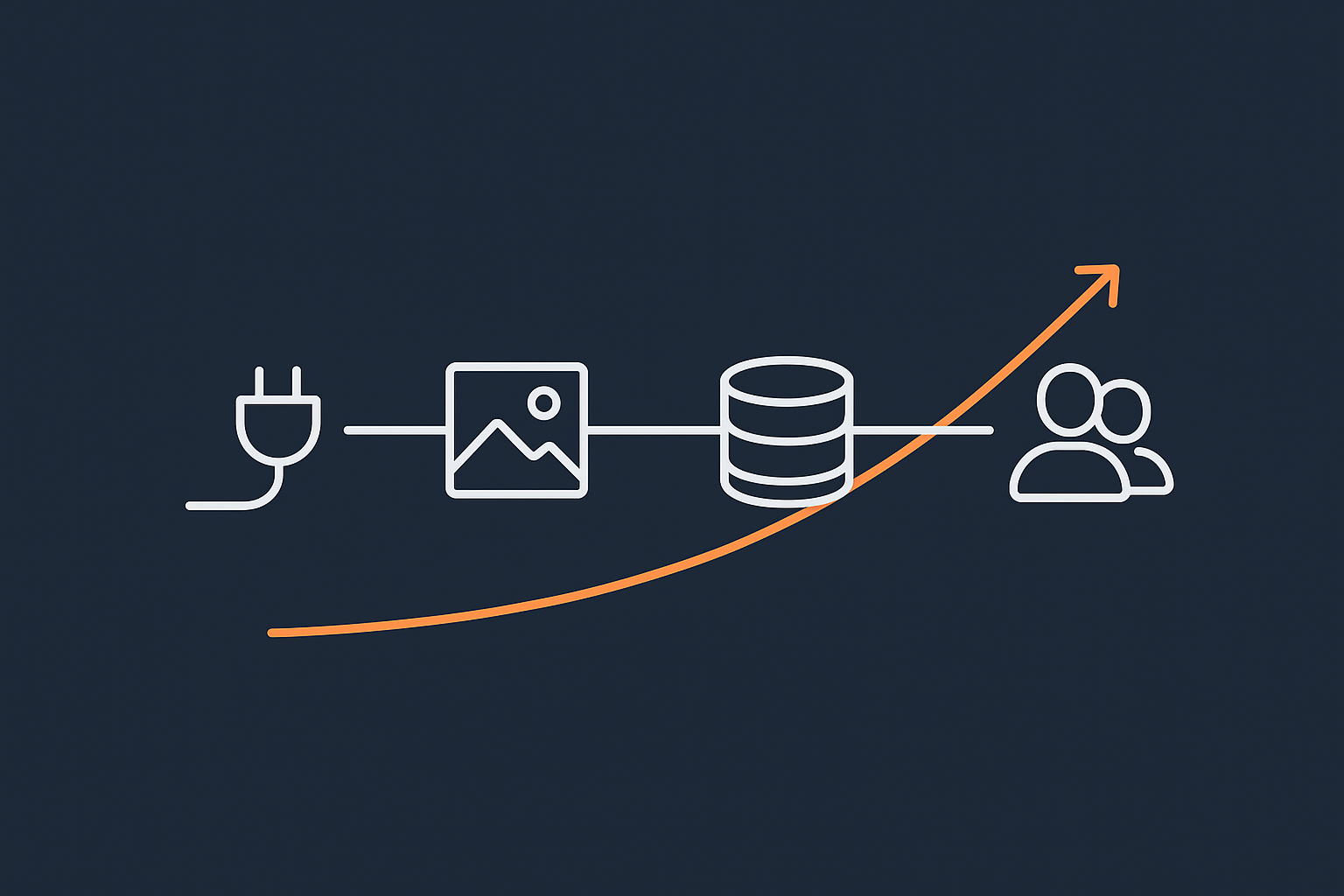
A fresh WordPress install is lean. Over time, several things change in the background:
- More plugins and themes
Each plugin adds code that may load on every page. A few are fine. Ten or twenty is normal. Forty or more, especially if several do similar jobs, starts to add visible delay. - More content and media
Blog posts, pages, products, and especially large images increase the amount of data each visitor needs to download, and the amount of work the database must do. - More traffic
As your audience grows, the server does more work. A site that was fine with 20 visitors at once may struggle with 200 if nothing else has changed. - Background tasks and integrations
Email marketing plugins, backups, analytics, security scans and WooCommerce order routines all run scheduled tasks. These can quietly build up and start overlapping. - Software updates
Updates usually improve things, but sometimes new features come with extra scripts, styles or database queries that increase load time.
None of these changes are bad. They are signs of a healthy, growing site. Performance issues arrive when they build up without occasional tidy‑up and review.
Symptoms that your performance is drifting
Early signs usually appear before the site feels “slow” to everyone. Watch for:
- Time to First Byte (TTFB) creeping up from, say, 200 ms to 600 ms on the same page.
- Occasional “spikes” in load time during busy periods or when a scheduled task is running.
- Admin dashboard feeling heavier, especially on WooCommerce orders and product screens.
- Core Web Vitals warnings appearing in Search Console, especially LCP (Largest Contentful Paint).
- Checkout hesitation for WooCommerce customers, even if the homepage feels fine.
By watching for drift instead of waiting for things to break, you give yourself time to fix issues calmly.
Why one‑off speed fixes do not last
A big optimisation pass is like a spring clean. The house feels great afterwards, but it will not stay that way by itself.
Common causes of “relapse” include:
- New plugins installed for marketing campaigns or features, then left enabled.
- Image sizes drifting upwards as new staff upload media without guidance.
- Database tables growing as orders, revisions and logs accumulate.
- Server usage increasing as your mailing list, product catalogue or content library grows.
The answer is not constant tweaking. It is a light but regular routine: small checks weekly and monthly, and deeper reviews every quarter.
Before You Start: Baseline, Access and Safety Nets
Take a simple performance baseline (Core Web Vitals and TTFB)
Before changing anything, you want to know where you are today. That way you can see if a change helps or harms.
At minimum, record:
- TTFB for key pages (homepage, a blog post, a product page, and checkout for WooCommerce).
- Core Web Vitals (LCP, FID/INP, CLS) from real users, not only lab tests.
You can get these from:
- Chrome DevTools
Right‑click a page, choose “Inspect”, go to the “Network” tab, reload, and look at the first request’s TTFB. - PageSpeed Insights (official tool)
Note the “Origin” Core Web Vitals and record them somewhere. - Search Console → Core Web Vitals
This shows how groups of URLs perform for real users.
Keep the numbers in a simple document or spreadsheet. Once a month, update them. Over time you will see trends instead of isolated readings.
If you want deeper TTFB guidance later, the article Reducing WordPress Time to First Byte on UK Hosting goes into more detail.
Make sure you can safely change things (backups and staging)
A performance routine means changing plugins, settings and sometimes server configuration. It is best to prepare safety nets first.
- Automatic daily backups
Check that your host or backup plugin is taking full site backups (files and database) at least daily, with a way to restore them. - On‑demand backup before major changes
Before big updates or plugin removals, trigger a manual backup. Note the time and what you plan to change. - Staging environment if possible
A staging site is a copy of your site on a separate URL. You can test updates and performance changes there first, then repeat on live.
Undoing a change is usually as simple as:
- Re‑enabling a plugin you just disabled.
- Restoring the previous configuration in a plugin’s settings export.
- Restoring a backup if something major breaks.
It helps to keep a small change log: date, what you changed, and any notes about impact. This can be as simple as a shared document.
Check your hosting is not the hard limit
Some performance problems are not fixable purely in WordPress. If your site regularly hits CPU or memory limits, tidying plugins will only help so much.
Look for:
- Slow TTFB even for a simple test page with almost no content.
- Frequent “Resource limits reached” or 5xx errors in your control panel or error logs.
- Shared hosting with strict limits that now serves a busy WooCommerce shop or content‑heavy site.
If you are on a basic shared plan and see these symptoms regularly, upgrading to a better platform or a Managed WordPress hosting plan can remove the ceiling, so your routine work has room to take effect.
Daily and Weekly Checks: Keeping Small Issues from Piling Up
Watch real user experience, not just synthetic tests
Weekly or fortnightly, it is worth taking five minutes to look at:
- Google Search Console → Core Web Vitals
Are new “poor” or “needs improvement” groups appearing? - Analytics (Google Analytics or similar)
Is average page load time climbing? Are bounce rates rising on specific pages?
You do not need to chase every small fluctuation. You are looking for clear trends. For example, if LCP on mobile has been steadily increasing over three months, that is a prompt to spend some time on the relevant pages during your next monthly session.
Spot early signs of trouble in the WordPress dashboard
Each week, while you are already in the admin area:
- Notice whether the dashboard feels slower than it used to, particularly on Pages, Posts and Plugins screens.
- Check for unusual error messages or warnings at the top of the dashboard.
- Look for plugins showing performance‑related notices, such as “cache disabled” or “critical CSS generation failed”.
Small slowdowns in the admin area can be early signs of database growth, plugin conflicts or hosting resource limits.
For WooCommerce: monitor checkout speed and reliability
If you run WooCommerce, the checkout is the most important performance area.
Once a week (or more during busy periods):
- Do a test checkout yourself, from product page to thank‑you page.
- Note if any step feels noticeably slower than others.
- Watch for timeouts, 500 errors or odd redirects.
You can use a staging site or disable payment gateways for test orders, so you do not create real transactions.
If issues are sporadic or appear only under real load, consider server‑side protection. The G7 Acceleration Network filters abusive or non‑human traffic before it reaches PHP or the database, which can help keep checkout performance steady even during traffic spikes.
Monthly Performance Maintenance Routine
Once a month, set aside 30 to 60 minutes for more deliberate work. If the site is busy, do this at off‑peak times.
Step 1: Review plugins and themes that quietly add bloat
Plugins are one of the biggest variable factors in WordPress performance. You are not aiming for the lowest possible plugin count, but for a clean set that you actually need.
Each month:
- Go to Plugins → Installed Plugins.
- List plugins that:
- You no longer use actively (old forms, campaigns, page builders).
- Duplicate features of other plugins or hosting tools.
- Have not been updated in a long time, or are marked as “untested” with your version of WordPress.
- For each candidate:
- Check whether it affects public pages (scripts, styles, shortcodes).
- Test disabling it on a staging site first if possible.
If you decide a plugin is no longer needed:
- Deactivate it first and use the site for a few minutes, including key pages and WooCommerce flows.
- If everything works, delete the plugin from the Plugins screen.
Removing plugins can usually be undone by reinstalling and reactivating, although some plugins remove their settings when deleted. For anything with complex configuration, export or note the settings before removal.
For themes, keep only your active theme and perhaps one default WordPress theme as a fallback. Extra unused themes are rarely beneficial.
Step 2: Update WordPress, plugins and themes without breaking speed
Updates improve security and compatibility, and often bring performance improvements. They can also change how caching and optimisation plugins behave.
A simple, safe pattern:
- Take a manual backup before bulk updates.
- On a staging site if you have one, apply updates there first and:
- Test critical paths: homepage, top content pages, WooCommerce cart and checkout.
- Check that your caching plugin still indicates that pages are being cached.
- Apply the same updates on live, ideally at a quiet time.
After updating:
- Clear your site cache and any CDN cache.
- Load a few key pages while logged out and in a private browser window.
- Re‑run a quick PageSpeed Insights test on the homepage and one or two important pages.
If performance drops sharply or something breaks, use your backup to roll back or restore only the affected plugin or theme where possible.
Step 3: Check caching is still working as expected
Caching is crucial for WordPress speed. Changes to plugins, themes or server settings can sometimes disable or weaken it.
Each month, verify:
- Your caching plugin still shows “cache hit” or similar indicators in its debug mode or headers.
- Logged‑out visitors receive cached HTML, not fresh PHP responses, on typical public pages.
- WooCommerce cart and checkout pages are correctly excluded from full page cache.
If you want a deeper understanding of how page cache, object cache and server caching work together, see Understanding WordPress Caching Layers.
Step 4: Clean up the database without risking data loss
Over time, WordPress databases collect:
- Post revisions and autosaves.
- Spam and trashed comments.
- Expired transients and session data.
- Logs from plugins.
These do not usually break a site, but they can slow queries down as tables grow.
To clean safely:
- Back up the database specifically (most backup plugins allow database‑only backups).
- Use a well regarded plugin such as WP‑Optimise or similar, and:
- Start with low‑risk items like spam comments and trashed posts.
- Set a sensible limit on revisions (for example keep the last 5 per post).
- Avoid aggressive operations like “remove orphaned tables” unless you understand them.
If you prefer, you can ask your host to run a database optimisation, particularly if you are on a managed plan. For WooCommerce‑heavy databases, the article Keeping WooCommerce Order Data Safe and Fast gives more specific guidance.
Step 5: Keep images under control so they do not dominate load time
Images are often the largest part of page weight. A single oversized hero image can hurt Core Web Vitals even if everything else is tuned well.
Monthly, you can:
- Spot‑check new blog posts and landing pages:
- Use your browser’s “Network” tab to see total page weight and largest images.
- Check that images are not far larger than displayed dimensions.
- Confirm your image optimisation plugin is:
- Compressing new uploads.
- Generating WebP or AVIF where supported, if it has that feature.
If you prefer not to rely on plugins, or you manage several sites, using an edge optimisation service can reduce effort. The G7 Acceleration Network can convert images to AVIF and WebP on the fly and typically cuts image file sizes by more than 60 percent without changing WordPress plugins.
Quarterly Deep Dives: Server, PHP and Cron
Every three months, it is worth looking a little deeper at the underlying software and server environment that WordPress runs on. This is especially helpful on VPS or dedicated hosting.
Check PHP version and extensions for performance
Newer supported PHP versions are significantly faster in most cases. Hosting control panels usually let you see and change the active PHP version per site.
Quarterly, check:
- You are on a supported PHP version (PHP 8.x at the time of writing) rather than an old 7.x release.
- Required extensions for your plugins and WooCommerce are enabled.
If your site runs on a VPS or virtual dedicated server, your host may expect you to manage PHP versions yourself. On a server with SSH access, you can see the default PHP version with:
php -v
This command prints the PHP version and build information. If you see a very old version that your control panel does not reflect, your host or sysadmin may have multiple PHP versions installed. Changing them at server level can affect all sites, so only do this if you are confident or working on a non‑production environment.
On unmanaged VPS or virtual dedicated servers, PHP tuning is part of your ongoing maintenance alongside updates and security. If you would rather not be responsible for these lower‑level tasks, G7Cloud offers both managed and unmanaged virtual dedicated servers, where the managed option covers PHP versioning, patching and performance tuning for you.
Review server resources and usage trends
As your site grows, it may simply need more CPU, RAM or disk performance. A quarterly review helps catch this before it becomes critical.
From your hosting control panel or monitoring tool, review:
- Average and peak CPU usage over the last few months.
- Memory usage and any swapping activity.
- Disk space, particularly if databases or backups share the same storage.
If you have SSH access to a VPS or server, you can get a quick live snapshot using:
top
This shows current processes and their CPU/memory usage. Press q to quit. It is safe to run, as it is read‑only, but avoid stopping processes unless you know what they are, as that can disrupt your site.
If you consistently approach limits, consider:
- Upgrading resources with your host.
- Offloading heavy tasks (search, analytics, backups) to external services.
- Moving busy sites to a managed WordPress or managed virtual dedicated server where capacity planning is part of the service.
Audit WordPress cron jobs and background tasks
WordPress relies on “cron” jobs to run scheduled tasks such as publishing scheduled posts, clearing transients and processing WooCommerce orders. When these build up, they can run on every page load and slow requests down.
Every quarter:
- Use a plugin or tool recommended in WordPress Cron Jobs Explained to see a list of scheduled tasks.
- Look for jobs that:
- Run very frequently (every minute or every few minutes).
- Are overdue or “missed” regularly.
If you are on a VPS or server where you control the system cron, you can offload WordPress cron to the system level for more predictable behaviour. This involves adding a command like the following to your system crontab:
*/5 * * * * php /path/to/wordpress/wp-cron.php >/dev/null 2>&1
This runs wp-cron.php every 5 minutes via PHP, regardless of visitor traffic. It reduces overhead on individual page loads. Changing cron configuration can stop scheduled tasks if misconfigured, so test carefully on staging and keep a note of the previous settings so you can revert.
Keeping Caching, CDN and Optimisation Layers in Good Shape
Understand your caching layers so you can test them properly
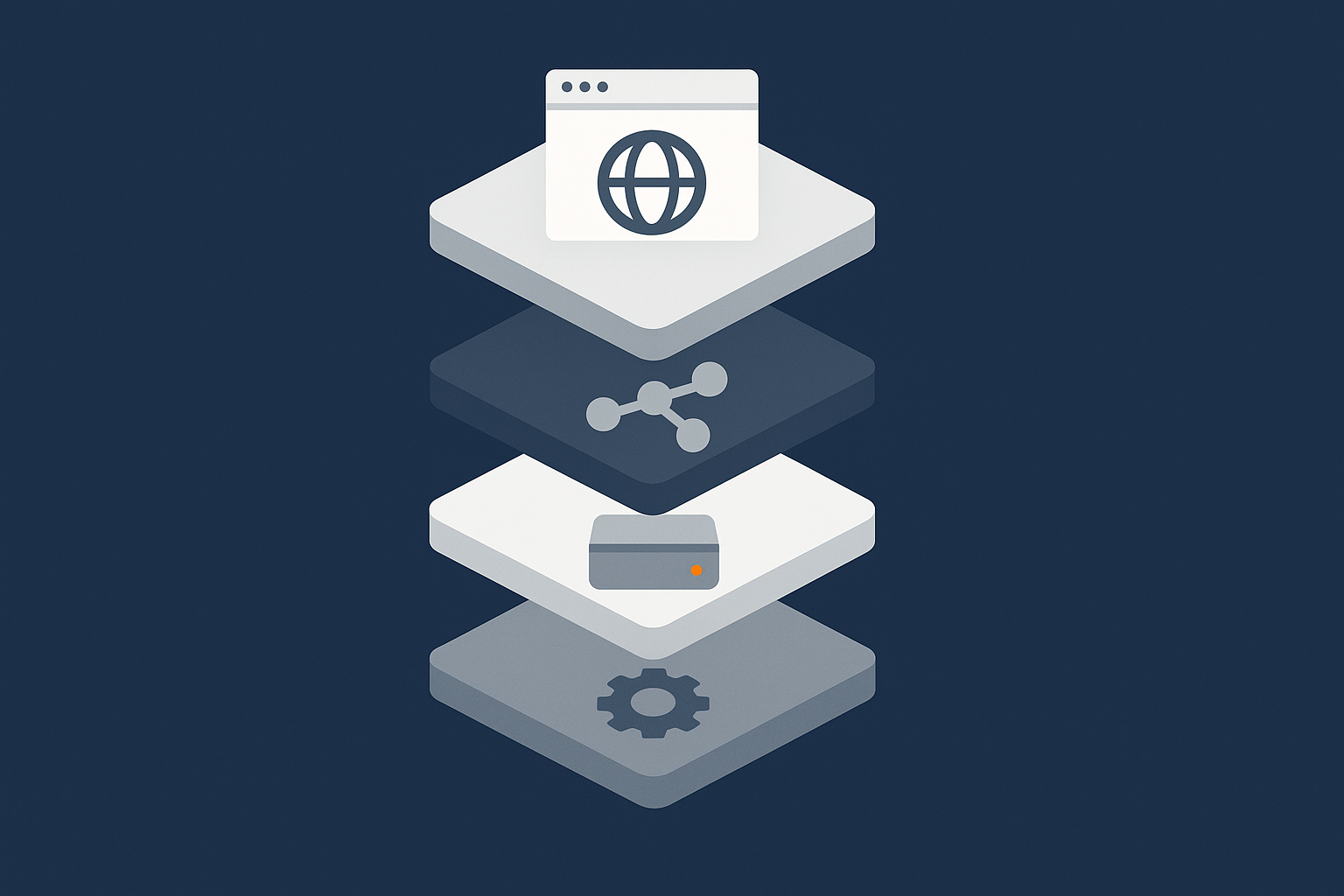
Modern WordPress sites often have multiple layers of caching and optimisation:
- Browser cache.
- Page cache at plugin or server level.
- Object cache (Redis or Memcached).
- CDN or acceleration network cache.
Each quarter, it is worth mapping what you actually have in place:
- Note your caching plugin and its role (page cache, minification, database cleanup, etc.).
- Check whether your host provides server‑level caching and how it interacts with plugins.
- List any CDN or edge services (such as the G7 Acceleration Network) that cache and optimise content.
Knowing which layer is responsible for what makes troubleshooting much less stressful. If a change hurts performance, you can test each layer separately.
What to review if you use a CDN or acceleration network
If you use a CDN or acceleration service, quarterly checks might include:
- Ensuring the CDN is still fronting all relevant traffic and that DNS has not changed unexpectedly.
- Confirming that your cache TTLs (time to live) are sensible for static content.
- Verifying that dynamic pages such as checkout and account areas are excluded if required.
- Reviewing bot protection logs to see if there are patterns of abusive or automated traffic.
For example, the G7 Acceleration Network filters abusive bots before they reach PHP, which keeps server load more stable during scans or attacks. It also handles image conversion and some script optimisation at the edge, reducing the amount of work WordPress has to do.
Avoiding “plugin overlap” and double optimisation
Running multiple optimisation tools that do the same job can backfire. Examples include:
- Two plugins both minifying CSS and JavaScript.
- Both the CDN and a plugin trying to convert images to WebP.
- Page builders and optimisation plugins both inlining critical CSS.
Effects can include broken layouts, duplicate scripts and longer build times.
To avoid overlap:
- Choose one primary tool per task (e.g. one minifier, one image compressor).
- When enabling a new optimisation, disable the equivalent feature in your existing plugin or service first.
- Test with and without combined features enabled and compare the results.
Handling Content Growth: Pages, Blogs and Media Libraries
Editorial habits that keep the site lean
Performance is not only a technical concern. Editorial choices matter too.
Some simple habits:
- Use consistent image sizes for common elements (blog featured images, hero sections) and avoid uploading very large originals where not needed.
- Limit the number of heavy third‑party embeds (maps, videos, iframes) per page. Consider using preview images or “click to load” for videos.
- Keep homepages and key landing pages focused. Very long pages with many blocks, widgets and queries are harder to optimise.
These are decisions the whole team can understand and follow, even without server knowledge.
Categories, tags and queries that scale badly if ignored
WordPress performance can be affected by how you organise content:
- Very large categories or tags can load slowly if archive templates perform complex queries.
- Custom queries on the homepage that pull in many posts with complex filters can slow as content grows.
- WooCommerce product categories with hundreds of products per page can become heavy.
Quarterly, review high‑traffic archive pages and consider:
- Paginating more aggressively (fewer posts or products per page).
- Using caching for expensive queries where possible.
- Refining categories and tags so they reflect how visitors actually browse.
Housekeeping for media libraries and old content
As the media library grows, it becomes harder to manage images and other assets. A little housekeeping helps:
- Remove obviously unused images if your media management plugin can safely detect them.
- Update or redirect outdated content that still receives traffic but has poor engagement.
- Retire complex landing pages from past campaigns that are no longer needed, especially if they load many scripts.
Any removal should be gentle. Redirect URLs where appropriate and avoid breaking media used in older posts. Test changes on staging where available.
Extra Care for WooCommerce Sites
Order data and transient cleanup to keep the database fast
WooCommerce stores a lot of data: orders, sessions, analytics, stock logs and more. Over time, this can become a significant load on the database.
Monthly or quarterly, consider:
- Cleaning expired sessions and transients using WooCommerce tools or well known maintenance plugins.
- Archiving or exporting old completed orders to separate storage if your legal and business processes allow it.
- Reviewing WooCommerce analytics and logs to disable features you do not need.
Because order data is business‑critical, treat cleanup very carefully. Back up the database and, ideally, test your cleanup approach on a staging copy with realistic data volumes. The article Keeping WooCommerce Order Data Safe and Fast provides specific examples and tools for this.
Product, cart and checkout performance checks
For WooCommerce, performance checks should be more frequent around:
- Product pages with many variations, custom fields or heavy images.
- Cart and mini‑cart widgets that may perform AJAX requests.
- Checkout page, including third‑party payment and shipping gateways.
Monthly, run through:
- View slowest‑loading product pages in your analytics.
- Open them in a private window and check the “Network” tab:
- Look for large images or many small requests.
- Note any slow AJAX calls, often linked to third‑party services.
- Do a full test order to confirm each step responds quickly.
If checkout is persistently slow during busy periods even after optimisation, it may be time to review hosting resources or consider more isolated infrastructure such as WooCommerce‑specific or WooCommerce hosting where background tasks and caching settings are tuned for commerce traffic.
Planning maintenance around busy trading periods
For commerce sites, timing matters. As a rule of thumb:
- Avoid major updates or plugin changes just before or during peak sales events.
- Schedule deep maintenance in quieter weeks and outside peak daily trading hours.
- Use staging to test changes well before important dates.
For very busy shops, it can be helpful to plan a formal maintenance calendar that your team is aware of and that avoids key campaigns and holidays.
When Your Routine Finds Problems: A Simple Troubleshooting Flow
Is it the server, the code or the front end?
When performance dips, it helps to classify where the main issue lies. A simple approach:
- Check TTFB
If TTFB is high even for a very simple page, the server or database is likely the bottleneck. - Check page weight
If TTFB is acceptable but the total page size is large, front‑end assets (images, scripts, fonts) may be the issue. - Compare cached vs uncached
If cached pages are fast but uncached are slow, focus on PHP and database queries. If both are slow, look at hosting.
This does not replace detailed profiling, but it gives you a direction to investigate.
Using logs and basic Linux commands without being a sysadmin
On a VPS or virtual dedicated server, you often have SSH access and can see system logs. You do not need deep Linux skills to benefit from a few simple checks.
For example, to see recent web server errors on an Apache based system:
sudo tail -n 50 /var/log/apache2/error.log
This prints the last 50 lines of the error log, which may show PHP errors, timeouts or resource issues. You can safely tail logs like this as it only reads them. If you see recurring errors, share them with your host or developer rather than trying random fixes.
If you are new to servers, keep a clear rule for yourself: do not delete or modify files in /etc or web server configuration directories without knowing exactly what they do, as incorrect changes there can take the site offline. Test major configuration changes on non‑production servers where possible and keep notes of anything altered.
When to call your host or move to managed WordPress
Your routine will catch many issues early, but there are times when it is sensible to ask for help:
- Persistent high TTFB even after plugin and content optimisation.
- Frequent resource limit errors or unexplained slowdowns under modest traffic.
- Performance work starting to consume more time than you can justify for one or two business sites.
In those cases, raising a ticket with your host with specific examples (URLs, times, screenshots) is worthwhile. If you would prefer not to manage caching layers, PHP versions, cron and backups yourself, Managed WordPress hosting can take on much of that operational work so you can focus on content and business tasks.
Putting It All Together: A Realistic Performance Maintenance Schedule
Suggested checklist by frequency (weekly, monthly, quarterly)
Here is a simple schedule you can adapt:
Weekly
- Glance at Search Console Core Web Vitals for new warnings.
- Note any slowdown in the WordPress dashboard.
- For WooCommerce, run a quick checkout test.
Monthly
- Record TTFB and PageSpeed scores for key pages.
- Review plugins and themes; remove what is no longer needed.
- Apply WordPress, plugin and theme updates, testing after each batch.
- Verify caching is working as expected.
- Run gentle database cleanup (revisions, spam, trash).
- Check new content for heavy images or embeds.
Quarterly
- Review PHP version and update if appropriate.
- Check server resource usage trends and disk space.
- Audit WordPress cron jobs and scheduled tasks.
- Review CDN or acceleration network settings and logs.
- Assess content structure (categories, tags, archives) for scaling issues.
- For WooCommerce, plan heavier maintenance around trading patterns.
What to automate and what to keep as a manual review
Automation is helpful as long as you still keep an eye on the results.
Good candidates for automation include:
- Nightly full site backups.
- Image compression and format conversion.
- Clearing expired transients and sessions.
- Server level updates where tested by your provider.
Tasks best kept as manual reviews:
- Deciding whether to remove plugins or change caching behaviour.
- Reviewing slow pages and adjusting content or layout.
- Testing WooCommerce checkout and key business flows.
A light manual review once a month is usually enough if the underlying automation is solid.
How managed hosting can take over the heavy lifting
If you run one or two business sites and do not want to spend regular time on caching layers, PHP versions and database tuning, managed services can free you from most of that work.
Managed WordPress and WooCommerce platforms typically handle:
- Server level performance tuning and updates.
- Backups and restore testing.
- Baseline caching configuration and security hardening.
- Monitoring and responding to major performance issues.
You still control your content, plugins (within reasonable limits) and day‑to‑day publishing, but you do not need to act as your own sysadmin. If your site has outgrown shared hosting, it may be worth exploring Managed WordPress hosting or a managed virtual dedicated server, particularly if performance is business‑critical.
If you prefer the flexibility of an unmanaged VPS or virtual dedicated server, everything in this routine still applies, but you will also need to schedule system updates, security patching and deeper monitoring as part of your operations plan.
If you would like to reduce the amount of time and attention your site’s performance needs, it can be helpful to review your current hosting and decide whether a managed WordPress or managed server option is a better fit for the next stage of your site’s growth.




