
Linux Hosting Explained for Small Businesses: VPS vs Dedicated Server
Who this guide is for and what you will learn
This guide is written for small business owners, technical managers and freelancers who need to choose Linux hosting for real work rather than as a hobby project.
You might not be a full time system administrator, but you are comfortable learning the basics and you want to make a calm, informed decision about VPS versus dedicated servers.
Typical small business scenarios
This article should be useful if any of these sound familiar:
- You run one or two WordPress or WooCommerce sites that bring in leads or sales, and shared hosting is starting to feel slow or unreliable.
- You are launching a SaaS, web application or internal tool and need a Linux server, but you are not sure how big it should be.
- You already have a VPS and wonder if you need to “upgrade to a dedicated server” or just tune what you have.
- You have been told you “must” get a dedicated server for security or PCI reasons and want to verify whether that is really necessary.
What this guide will and will not cover
In this guide we will cover:
- What Linux hosting is in plain language and how it fits around your website or application.
- The difference between shared hosting, VPS, virtual dedicated servers and physical dedicated servers.
- When a VPS is enough, when a dedicated server starts to make sense, and where virtual dedicated servers sit in the middle.
- What “managed” versus “unmanaged” Linux hosting actually means in day to day tasks.
- What Linux access looks like with SSH, including a few basic commands and safe habits.
- A simple decision path to choose your next hosting step without drama.
We will not go deep into:
- Very low level Linux internals or kernel tuning.
- Complex multi server clusters and advanced load balancing.
- Every possible distribution or control panel.
Those topics are important in some environments, but for most small businesses they are overkill. Where relevant, we will link to more detailed G7Cloud knowledge base articles you can explore later.
What Linux hosting actually is, in plain English
Linux as the operating system behind your website
When people say “Linux hosting”, they are usually talking about:
- A server in a data centre.
- Running the Linux operating system (similar to how your laptop runs Windows or macOS).
- Configured to serve websites, APIs or other online services.
You normally do not see Linux directly. You interact with your site through a browser, or through a control panel such as cPanel or Plesk. Underneath, Linux is handling files, memory, security, networking and running the web server software.
Most of the internet runs on Linux because it is stable, efficient and very flexible. That flexibility is helpful for businesses, but it also means there are many choices to make.
How Linux, web servers and databases fit together
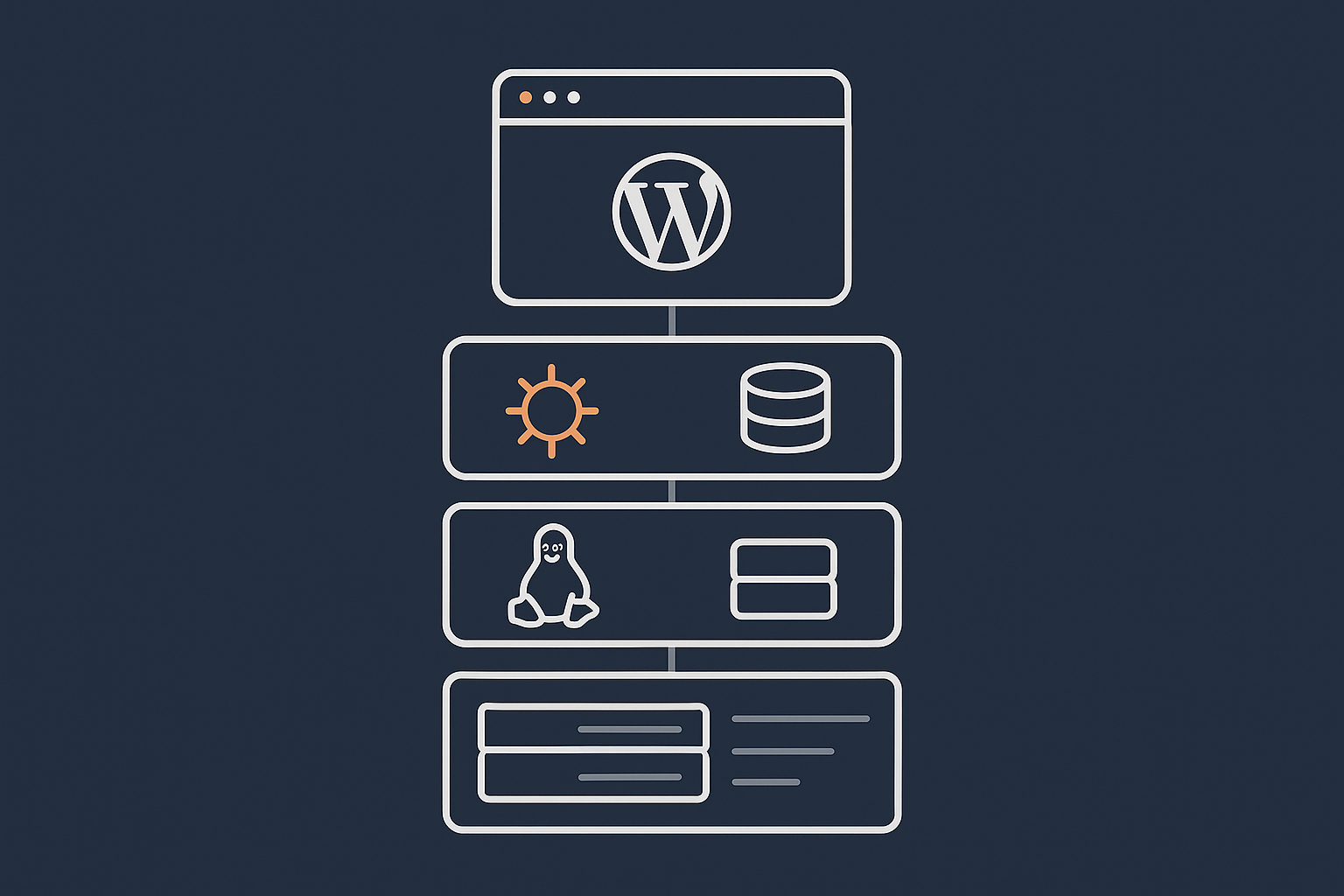
You can think of your hosting stack in layers:
- Hardware: The physical machine, CPU, RAM, storage, network.
- Virtualisation: Software that splits hardware into multiple virtual servers (for VPS/VDS) or exposes the whole machine (for dedicated).
- Operating system: Linux, usually a distribution like Ubuntu, Debian, AlmaLinux or similar.
- Web server: Software that receives HTTP/HTTPS requests and serves pages, such as Nginx or Apache.
- Database: Stores persistent data, such as MySQL, MariaDB or PostgreSQL.
- Application: Your website or app, for example WordPress, WooCommerce or a custom PHP/Python/Node application.
When someone visits your site, the request travels down through these layers and back up again with a response. Performance and reliability depend on each layer doing its job and being sized appropriately.
Where WordPress and WooCommerce sit in the stack
WordPress and WooCommerce are PHP applications that live on top of this stack:
- PHP (the language WordPress is written in) runs in a process managed by Linux and the web server.
- Your themes, plugins and media files sit on Linux file storage.
- Posts, pages, orders and user records are stored in the database.
For WordPress and WooCommerce users, this means:
- CPU and RAM affect how many PHP requests you can handle at once.
- Disk performance affects how quickly themes, plugins and images can be read or written.
- Database performance affects how quickly queries for products, orders and search results can be served.
The rest of this article focuses on choosing the right server foundation for that stack. If you mainly care about running a few business critical WordPress or WooCommerce sites and would rather avoid the server details entirely, Managed WordPress hosting can be a good fit.
Shared hosting vs VPS vs virtual dedicated vs physical dedicated

Shared hosting in simple terms
Shared hosting is like renting a desk in a busy open plan office:
- Many customers share a single server.
- Resources such as CPU, RAM and disk are pooled.
- You usually get a control panel, email hosting and one click installers.
This is convenient and cheap, and it is fine for small brochure sites with modest traffic. However:
- You usually cannot customise the operating system or core software very much.
- You share resources, so very busy neighbours can affect performance.
- You have limited control over security configuration.
If you are reading about VPS and dedicated servers, there is a good chance you have reached the practical limits of shared hosting.
What a VPS is and how it works
A VPS (Virtual Private Server) is a virtual machine created on a larger physical server using a hypervisor such as KVM.
You get:
- Your own isolated operating system environment.
- Guaranteed slices of CPU, RAM and disk, as defined by your plan.
- Root or administrator access, so you can install and configure what you like.
From your perspective, it behaves like a small dedicated server. In reality, multiple VPSs may share the same hardware. When properly managed and not oversold, this works very well for small businesses.
Virtual dedicated servers (VDS) vs traditional VPS
A Virtual Dedicated Server (VDS) sits between a standard VPS and a physical dedicated server.
With a VDS you typically get:
- A larger allocation of guaranteed CPU cores and RAM.
- Stronger performance isolation from neighbours.
- More predictable I/O (disk) and network performance.
On G7Cloud, Virtual dedicated servers are designed for SMEs that want dedicated like performance and isolation without renting a full physical machine.
Technically, this is still virtualisation, but with higher resource guarantees and less contention than a small entry level VPS.
What a dedicated server is
A physical dedicated server is a whole machine reserved for your use:
- The CPU, RAM and disks are not shared with other customers.
- You can run any compatible operating system and configure it freely.
- You have the most predictable performance for that hardware specification.
Dedicated servers make sense when you:
- Have very high or very steady load.
- Need specific hardware, such as many disks, high RAM, or GPUs.
- Have compliance or data isolation requirements that favour single tenant hardware.
However, they are usually more expensive than a comparable VDS and less flexible to scale up and down quickly.
Quick comparison table for small businesses
| Type | Typical use | Control | Performance isolation | Scalability |
|---|---|---|---|---|
| Shared hosting | Small brochure sites, low traffic blogs | Low | Low | Limited |
| VPS | Growing sites, small apps, staging environments | High | Medium | Good |
| VDS | Busy WordPress / WooCommerce, business apps | High | High | Good |
| Physical dedicated | Large workloads, specific hardware, heavy databases | Highest | Highest | Slower to change |
If you want to explore the architectural differences in more depth, see Shared Hosting, VPS, VDS and Dedicated: How to Choose the Right Hosting Model for a Growing Business.
VPS hosting for small businesses: strengths, limits and suitable use cases
When a VPS is a good fit
For many small businesses, a well specified VPS is the sweet spot between cost, control and complexity. It is often a good fit if you:
- Run one or several WordPress sites with modest but growing traffic.
- Want to start learning Linux server administration at a manageable scale.
- Need more control over PHP versions, web server configuration or database tuning.
- Have a developer or technical freelancer who can handle basic maintenance.
A VPS is also ideal for staging and testing environments. You can trial upgrades, configuration changes or new applications there before applying them to production.
Performance, isolation and “noisy neighbours” explained
The “noisy neighbour” problem refers to other customers on the same hardware using a lot of resources and affecting your performance.
On shared hosting, this is common because many sites compete directly for the same CPU, RAM and I/O.
On a VPS:
- You have guaranteed resources, but not infinite capacity.
- Good providers monitor host load and avoid overselling.
- There can still be some contention if several VPSs on the same node are very busy at once, but this is normally controlled.
A VDS takes this a step further by giving you a larger, more isolated slice with stricter limits on how neighbours can affect you.
Common VPS mistakes for first time server owners
New VPS owners are often capable enough to learn, but a few patterns cause avoidable problems:
- Underestimating updates: Ignoring system and software updates for months, which can leave security and performance issues unaddressed.
- Too much tuning, too soon: Changing kernel parameters and advanced settings from blog posts without understanding what they do.
- No backups: Assuming the provider will automatically restore everything, without checking what is actually included.
- Running everything as root: Doing routine tasks as the root user and increasing the impact of small mistakes.
The safest approach is to:
- Start with conservative, proven configurations.
- Apply updates regularly in a controlled way.
- Keep simple offsite backups of both files and databases.
- Document changes so you can reverse or review them later.
Managed VPS / VDS vs unmanaged: who does what
On an unmanaged VPS or VDS, you are responsible for:
- System updates and patching.
- Web server, PHP and database installation and tuning.
- Security configuration such as firewalls and access control.
- Monitoring, troubleshooting and performance tuning.
The provider keeps the underlying infrastructure healthy, but what happens inside the VPS is up to you.
On a managed VPS or managed Virtual dedicated servers plan, the provider will typically:
- Handle operating system and core software updates for you.
- Set up and maintain a secure baseline configuration.
- Monitor key metrics and respond to incidents.
- Help with performance tuning and some application level issues.
This is particularly helpful if your business depends on the server, but you have limited in house time to learn server administration properly. For a deeper look at this trade off, see When Managed Hosting Makes Sense for Growing Businesses.
Dedicated servers: when does a small business actually need one?
Physical dedicated servers in simple language
A physical dedicated server is a box in a rack with your name on it. There is no hypervisor slicing it into smaller servers for different customers. All the hardware resources belong to you for as long as you are renting it.
You can usually choose:
- How many CPU cores and what generation of processor.
- How much RAM.
- How much and what type of storage (SSD, NVMe, HDD).
- Network capacity.
Once provisioned, the server behaves like a very powerful Linux machine under your full control.
Pros and cons compared to VPS / VDS
Advantages:
- Predictable, dedicated performance at scale.
- More control over hardware topology and storage layout.
- Useful for heavy databases, high concurrency applications or specialised workloads.
Trade offs:
- Higher monthly cost than a comparable VDS.
- Less flexible scaling. Upgrades usually involve scheduled changes and sometimes data migration.
- You are responsible for making good use of the capacity you are paying for.
Scenarios where dedicated starts to make sense
For small and medium businesses, dedicated servers usually become sensible when:
- You consistently use the resources of a high end VDS and still need more headroom.
- You run a large WooCommerce or eCommerce platform where database activity is very heavy.
- You host multiple revenue critical applications for many clients and want strong resource separation for each.
- You have particular compliance or data isolation requirements that favour single tenant hardware.
Even in these cases, it is often worth starting with a robust VDS and moving to dedicated only once metrics and growth patterns justify it.
Why many SMEs are better on a strong VDS rather than a big dedicated
A common pattern is to overestimate how much hardware is needed “just to be safe”. This can lead to paying for a large dedicated server that is mostly idle.
A strong VDS offers:
- More than enough performance for most SME workloads.
- Faster, simpler scaling. You can usually increase CPU, RAM or storage without physical hardware changes.
- Lower total cost while you are still growing.
Only once you see sustained high usage, or you have special needs, does a physical dedicated server typically provide clear, practical benefits over a well sized VDS.
Key decision factors for small businesses: how to choose calmly
Traffic and performance: how busy is your site really?
Before deciding on VPS versus dedicated, it helps to get a realistic picture of your load. Useful indicators include:
- Monthly unique visitors and page views from analytics.
- Peak concurrent users during busy periods.
- Whether traffic is smooth or spiky (for example, flash sales, media coverage, seasonal peaks).
Most small business sites, even successful ones, do not need a dedicated server for basic traffic volume alone. A properly tuned VPS or VDS combined with good caching and optimisation can handle a surprising amount.
If you handle large images or heavy media, a content optimisation and delivery layer such as the G7 Acceleration Network can offload a lot of work. It can optimise images into AVIF and WebP on the fly and filter abusive or non human traffic before it reaches PHP or the database, which keeps server performance more stable without complex plugin setups.
Risk, revenue and downtime tolerance
Next, consider how sensitive your business is to downtime or slow performance:
- If your site is mainly informational, short periods of slowness are inconvenient but not catastrophic.
- If you run WooCommerce or another online shop, slow checkouts or downtime during campaigns can directly affect revenue.
- If the site provides a service customers log into daily, availability becomes central to your reputation.
Higher revenue and risk usually justify:
- More generous server resources (VDS or dedicated).
- Managed services to reduce the chance of configuration or maintenance problems.
- Monitoring and alerting, so issues are noticed quickly.
Compliance, data sensitivity and PCI considerations
If you handle personal data, medical information or payment details, compliance may influence your hosting choice.
For payment cards, PCI DSS guidance is that you should minimise how much card data you store or handle yourself. Using hosted payment gateways (such as Stripe or similar) means the most sensitive data never touches your server, which often allows VPS or VDS hosting to meet requirements with appropriate security configuration.
In cases where regulations or internal policies demand single tenant hardware, a dedicated server may still be preferred, but modern virtualisation and good isolation can meet the needs of many SMEs.
In all cases, it helps to pair the right hosting model with solid security practices. G7Cloud provides a set of Web hosting security features that support both VPS/VDS and dedicated environments, including firewalls and access hardening.
In‑house skills and time vs managed services
Ask yourself:
- Who will keep the server updated and secure on a week to week basis?
- Who will respond first if there is a performance issue or outage?
- Do you want your team learning Linux administration, or focusing on core business work?
If your team is small and busy, a managed VPS or managed VDS is often more realistic than running an unmanaged dedicated server. The hosting cost may be slightly higher, but your overall time cost and operational stress are usually lower.
Budget ranges and what you realistically get at each level
Every provider’s pricing differs, but roughly:
- Entry VPS: Suitable for one or two modest WordPress sites or a development environment.
- Mid range VPS / small VDS: Good for several business sites, a busy primary site or a small application.
- High end VDS: Designed for busy WooCommerce shops, multi client agencies or heavier databases.
- Dedicated server: Reserved for heavy, specialised or consistently high load workloads.
It is usually better to run on a well managed mid range VPS or VDS than a large unmanaged dedicated server that you do not have time to look after properly.
Managed vs unmanaged Linux hosting: who is responsible for what
What unmanaged actually means in day to day tasks
With unmanaged Linux hosting, you or your technical team handle:
- Installing and configuring web servers, databases, PHP and related software.
- Keeping the operating system and applications updated.
- Setting up firewalls, SSH access and user permissions.
- Monitoring disk usage, CPU, RAM and logs.
- Troubleshooting performance issues, errors and outages.
The provider ensures the underlying infrastructure (power, cooling, host hardware, network) is functioning, but they will not log into your server to fix configuration problems unless you have a managed agreement.
What a good managed provider should handle for you
A good managed hosting service provides:
- Initial server setup with secure defaults.
- Regular system and security updates.
- Configuration and tuning for common stacks such as Nginx, Apache, PHP and MySQL.
- 24/7 monitoring of key metrics with proactive responses.
- Assistance with migrations, performance investigations and troubleshooting.
This does not remove all responsibility from you. You still need to manage your application code, content and any plugins or extensions. However, most of the underlying system work is delegated.
Examples of tasks you should not try to learn under pressure
Some tasks are best learned calmly, on a non production system. Trying them for the first time during an outage can be stressful and error prone. Examples include:
- Major database upgrades or recovery from corrupted databases.
- Complex firewall reconfiguration that could lock you out.
- Web server migration (for example, Apache to Nginx) during peak trading hours.
- Kernel parameter tuning for performance without understanding the defaults.
If your business depends on the server, it is sensible either to gain experience ahead of time on a staging VPS, or to use a managed VPS / VDS where specialists can handle these tasks.
How to decide whether to “own the server” or buy back your time
A useful approach is to write down:
- How many hours per month you can reasonably devote to server care.
- What it would cost the business if the site was down for a day.
- Whether server administration aligns with your long term role and interests.
If you enjoy the technical side and have steady time available, an unmanaged VPS or VDS can work well. If you mainly want reliable hosting with minimal distraction, putting those responsibilities onto a managed service is often better value than it first appears.
What Linux access actually looks like: SSH, basics and safety
SSH in plain English and how you connect
SSH (Secure Shell) is the standard way to access a Linux server remotely using a terminal. It provides an encrypted connection so you can run commands securely.
On an unmanaged VPS or dedicated server, you will usually receive:
- The server’s IP address or hostname.
- A username (often
rootor another administrative user). - Either a password or instructions to upload an SSH key.
To connect from Linux or macOS, you would open a terminal and run:
ssh root@your-server-ipThis command tells your computer to start an SSH session as user root on the server at your-server-ip. You will be prompted for a password or key passphrase. When it succeeds, you will see a welcome message and a prompt like root@server:~#.
Safety notes:
- It is better to use SSH keys than passwords where possible.
- Access as
rootis powerful. Many managed setups will provide a regular user and ask you to usesudofor administrative tasks. - Before editing critical configuration files, take a quick backup copy using
cp.
For a step by step introduction, see How to Connect to a Linux Server Securely Using SSH.
A few basic Linux commands every VPS owner should recognise
You do not need to become an expert overnight, but recognising a few basics is helpful. Below are simple commands that are generally safe to run, along with what they do.
Check disk usage:
df -hThis shows how much disk space is used and available on each mounted filesystem. The -h flag makes sizes “human readable” (GB, MB). If a filesystem reaches 100 percent usage, services may fail, so it is worth checking this occasionally.
See directory sizes:
du -sh /var/www/*This estimates the disk usage of each directory under /var/www, which commonly stores website files. The -s summarises each directory, and -h again shows human readable sizes. This helps you find which site or folder is using space.
Check memory usage:
free -hThis shows how much RAM is used, free and buffered. It can help you see if the server is under clear memory pressure.
See running processes:
topThis launches an interactive view of running processes and their CPU/RAM usage. Press q to quit. On production servers, avoid killing processes unless you are confident they are safe to restart.
For a more structured walk through of starter commands, see Essential Linux Commands Every VPS Owner Should Know.
High‑risk actions to treat with care on any VPS or dedicated server
Some actions can have immediate impact if misused. Treat these with particular care:
- Deleting files or directories: Commands like
rm -rf /some/pathare irreversible. A wrong path or stray space can remove more than intended. Always double check the target path. - Editing core configuration: Changing files such as
/etc/ssh/sshd_config,/etc/fstabor web server configs can affect logins or critical services. Before editing, make a backup copy, for example:cp /etc/ssh/sshd_config /etc/ssh/sshd_config.backup. - Restarting key services: Commands like
systemctl restart nginxorsystemctl restart mysqlbriefly stop and start services. This is normal maintenance, but on a production server it can cause a short outage. Schedule such restarts at low traffic times where possible.
In general, if you are unsure:
- Test on a staging VPS first.
- Take a snapshot or backup before major changes.
- Keep a change log so you can see what was altered if something needs to be undone.
When to stop and call support or your managed hosting team
It is sensible to pause and ask for help when:
- Basic diagnostics show something unusual (for example, disk is 100 percent full) and you are not certain of the safest next step.
- You are considering editing configuration files you do not fully understand.
- You have already tried a couple of simple, reversible checks and the problem remains.
Part of the value of a managed VPS or managed VDS is having someone to contact at these points. If you are on unmanaged hosting, consider writing clear, minimal notes about what you observe before opening a support ticket. This saves time and avoids guesswork.
Putting it together: a simple decision path for your next hosting move

If you are on shared hosting and outgrowing it
If shared hosting is feeling slow or limiting, a common path is:
- Move to a small or mid range VPS with enough resources for your current traffic.
- Use this move to tidy up your sites, enable caching and review plugins.
- Monitor performance over a few weeks. If you are consistently near limits, scale up to a larger VPS or a VDS.
This keeps costs and complexity reasonable while you learn what your sites actually need. If you prefer not to handle the migration and server setup, a managed VPS or Managed WordPress hosting plan can take most of that work off your plate.
If you already have a VPS and are not sure whether to upgrade
Before upgrading straight to a dedicated server, gather a few metrics from your current VPS:
- CPU usage over time.
- RAM usage and swap activity.
- Disk I/O performance and space utilisation.
- Database performance (for example, query times, slow query logs).
If CPU and RAM are frequently near maximum and you have already optimised the application side, a move to a larger VPS or VDS is often the next best step. This can usually be done with minimal downtime compared to moving to new dedicated hardware.
If you run WooCommerce or another revenue‑critical application
WooCommerce and similar eCommerce platforms put measurable load on the database and PHP, especially during promotions or busy seasons. For these, consider:
- A VDS with enough CPU, RAM and fast SSD/NVMe storage.
- Managed services so updates and tuning are not delayed.
- A web acceleration layer such as the G7 Acceleration Network to optimise images and block abusive traffic before it reaches your origin.
If you only run one or two stores and you do not want to manage servers directly, purpose built WooCommerce hosting or Managed WordPress hosting will often be simpler than running your own dedicated server.
How to plan a safe move without downtime
Whichever direction you choose, a calm migration plan helps avoid surprises:
- Take backups: Ensure you have recent, complete backups of files and databases on both source and destination.
- Set up the new environment: Install the required stack and restore a copy of your site to the new server.
- Test using hosts file: Edit your local
/etc/hostsfile (or Windows equivalent) to point your domain to the new server and test thoroughly without affecting real visitors. - Plan a DNS switch window: Choose a quiet period to point DNS to the new server. Lower the DNS TTL the day before to shorten propagation time.
- Monitor after cutover: Watch logs, performance graphs and error reports closely for at least 24–48 hours.
If you are not comfortable with DNS and migration steps, this is another point where managed services or migration assistance can be worth using, even if you normally prefer to self manage.
Next steps and further reading
Linux hosting does not need to be intimidating. For many small businesses, a well managed VPS or VDS gives plenty of performance and control without the overhead of a large dedicated server. Dedicated hardware becomes relevant later, when load, compliance needs or special hardware requirements clearly justify it.
If your next step is to gain some hands on experience, a small non production VPS is a good place to learn Linux commands, practice SSH and try configuration changes in safety.
When you are ready to choose hosting for your main sites, take a moment to match what you have learned here with your own traffic, risk and time constraints. If you would like to offload much of the day to day server work, exploring G7Cloud Virtual dedicated servers or Managed WordPress hosting is a natural next step.
For further reading:
- Shared, VPS or Dedicated Hosting: How to Choose the Right Foundation for Your Business
- Official PHP manual: What is PHP? for background on the language behind WordPress and WooCommerce.




