

Understanding Linux Users, Groups and File Permissions on Your Server
Linux users, groups and file permissions are the foundations of security and stability on any server. If you run a VPS, a virtual dedicated server or a WordPress site, a basic understanding of these concepts will help you avoid confusing errors and keep control of who can do what.
This guide focuses on practical understanding. You will see a few commands, but the aim is to show what is happening, why it matters, and how to change things safely.
If you are still getting used to the command line, it can help to read Essential Linux Commands Every VPS Owner Should Know and How to Connect to a Linux Server Securely Using SSH alongside this article.
Why Users, Groups and Permissions Matter on a Linux Server
What this article will help you do
By the end of this article you should be able to:
- Understand what a Linux user and group actually are.
- Read file ownership and permissions using
ls -l. - Use
chmod,chownandchgrpcarefully and deliberately. - Set sensible permissions for WordPress or other PHP sites.
- Recognise common dangerous mistakes before you run them.
These skills are useful whether you manage a small VPS yourself or use larger virtual dedicated servers for multiple sites and applications.
How permissions affect real sites like WordPress and WooCommerce
Web applications such as WordPress, WooCommerce or Laravel are just files and folders on disk.
Permissions control things like:
- Whether PHP can read a configuration file such as
wp-config.php. - Whether WordPress can upload media into
wp-content/uploads. - Whether a theme or plugin editor can change files.
- Whether a compromised plugin can overwrite critical code, or is limited in what it can touch.
If permissions are too strict, you might see:
- 500 Internal Server Error pages.
- “Permission denied” messages in error logs.
- Failed uploads or updates in the WordPress dashboard.
If permissions are too loose, any process that reaches the site might be able to change more than it should. That is why understanding users and groups is just as important as “making it work”.
The risk of “just 777 it” and other permission myths
It is common to see advice like “just run chmod -R 777 on your web folder”. It may make an error disappear, but it does so by letting every user and process on the system read, write and execute those files.
Problems with “just 777 it” include:
- Any local user or process can alter your code and configuration.
- Temporary fixes become permanent because the site appears to work.
- You lose the ability to tell which user should be responsible for which files.
Instead of using 777 everywhere, it is better to understand what your web server user needs and set permissions to match.
The Basics: Users, Groups and Ownership in Plain English
What a Linux user actually is
A Linux “user” is a digital identity. It represents a person or a service on the system and has:
- A username, such as
aliceorwww-data. - A numeric ID called a UID.
- A home directory, like
/home/alice(for normal users). - A default group.
The operating system uses the UID internally, but you usually work with the username.
System users vs login users (why www-data or nginx owns your web files)
Not every user is a human who logs in interactively.
- Login users are accounts that real people use, for example
aliceordeploy. - System users are accounts used by services, for example
www-data,nginx,mysqlorpostgres.
Web servers such as Apache or Nginx with PHP-FPM will run PHP scripts as a particular system user. On many distributions this is www-data, though it can vary. That user must be able to read your site files, and in some directories write to them, but it does not need full control of everything on the server.
User IDs (UIDs) and where they live: /etc/passwd
User information is stored in /etc/passwd. You rarely edit it manually, but it is useful to know it exists.
To see your user entry, you can run:
getent passwd "$USER"
What this does: getent looks up information in system databases. getent passwd "$USER" prints the line from /etc/passwd for your current username.
Expected output: A line like:
alice:x:1001:1001:Alice Example:/home/alice:/bin/bash
This shows username, UID, GID (group ID), comment, home directory and shell.
To undo or adjust: This command is read only. There is nothing to undo.
What a Linux group is and why it exists
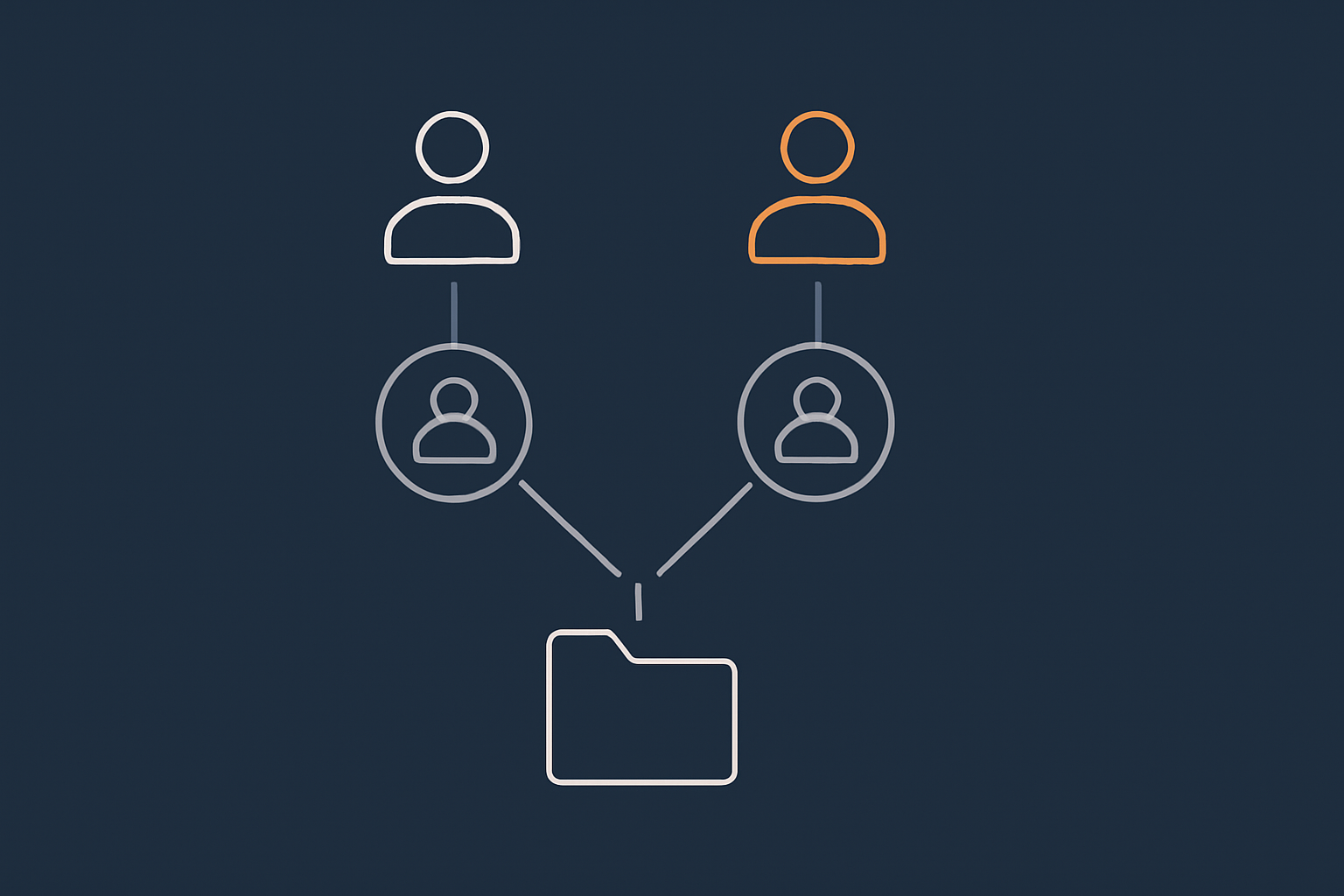
A group is a way to collect users together and give them shared access to files.
Instead of giving a folder to three separate users, you can:
- Create a group, for example
project1. - Add the three users to that group.
- Set the folder’s group to
project1and give the group access rights.
This becomes more important as your server grows and you host multiple sites or projects on one system.
Primary group vs supplementary groups
Each user has:
- One primary group which is used by default for new files they create.
- Optional supplementary groups which grant extra access, for example to web files or Docker.
It is common to put a site’s owner and the web server user into a shared group that owns the web root.
Where groups are stored: /etc/group
Group definitions live in /etc/group. To view a group entry, you can run:
getent group www-data
This prints the www-data group line if it exists. Like with /etc/passwd, this is read only and requires no undo.
Seeing the current user and groups you are in
Commands: whoami, id, groups
Before you change permissions or ownership, it is wise to confirm which user you are currently using and which groups it belongs to.
Command examples with explanations
whoami
What it does: Prints the current username. Expect a simple name like root or alice.
id
What it does: Shows UID, primary group and supplementary groups, for example:
uid=1001(alice) gid=1001(alice) groups=1001(alice),33(www-data)
This tells you that alice is also a member of www-data, which might explain why she can manage web files.
groups
What it does: Prints a shorter list of groups. Again, these commands are informational only and do not change anything.
How Linux File Permissions Work

The three “who” levels: user, group and others
Every file and directory has:
- An owning user.
- An owning group.
- A set of permissions for:
- the user;
- the group;
- others (everyone else).
How ownership is shown in ls -l output
To inspect ownership and permissions, you will often use:
ls -l /var/www
What it does: Lists files and directories in /var/www in long format.
Expected output: Lines like:
drwxr-xr-x  5 root     root     4096 Nov 20 10:00 html
-rw-r--r--  1 www-data www-data  220 Nov 20 10:00 index.php
Here:
- The first column (
drwxr-xr-x) shows the type and permissions. - The third column is the user owner (for example
root). - The fourth column is the group owner (for example
www-data).
To adjust: You do not undo ls -l because it does not change anything. If the directory is different on your system, replace /var/www with your actual web root path.
Relating this to a WordPress site folder
A typical WordPress installation might live in /var/www/example.com/public_html or /home/example/public_html.
If you run:
ls -ld /var/www/example.com/public_html
you might see:
drwxr-xr-x 10 example www-data 4096 Nov 20 10:00 /var/www/example.com/public_html
This means:
- The directory owner is user
example. - The group owner is
www-data. - Both the owner and group can read and execute the directory, but only the owner can write.
This is a common pattern: your login user manages the files, while the web server’s group can read them.
The three “what” levels: read, write and execute
Permissions describe what each category (user, group, others) can do.
What read, write, execute mean for files
- Read (r) allows viewing the file’s contents.
- Write (w) allows changing or deleting the file.
- Execute (x) allows running the file as a program or script.
For most web files such as PHP, HTML and images, execute is not needed because they are interpreted or served, not executed directly.
What read, write, execute mean for directories
For directories the meanings are slightly different:
- Read allows listing the names of files in the directory.
- Write allows creating, deleting or renaming files within the directory.
- Execute allows entering the directory (for example using
cd) and accessing files if you know their names.
Directories used by web applications usually need execute set so that the web server can traverse into them.
Symbolic vs numeric permissions
Permissions are shown in two common ways: symbolic (like rwxr-xr-x) and numeric (like 755).
rwxr-xr-x explained
Breaking down an example line from ls -l
Take this permissions string:
drwxr-xr-x
- The first character
dmeans it is a directory. A normal file would show-here. - The next three characters
rwxare the owner’s permissions. - The next three
r-xare the group’s permissions. - The final three
r-xare for others.
In this example:
- The owner can read, write and execute.
- The group can read and execute, but not write.
- Others can read and execute, but not write.
What 644 and 755 actually mean
Numeric permissions are another way to say the same thing using three digits.
- Read = 4
- Write = 2
- Execute = 1
For each of user, group and others, you add the numbers for the permissions you want.
- 644:
- User: 6 = 4 + 2 = read and write.
- Group: 4 = read only.
- Others: 4 = read only.
- 755:
- User: 7 = 4 + 2 + 1 = read, write, execute.
- Group: 5 = 4 + 1 = read and execute.
- Others: 5 = read and execute.
Files in a WordPress site are often set to 644, while directories are often 755.
Working Safely with chmod, chown and chgrp
Using ls -l to inspect ownership and permissions
Reading and interpreting ls -l output step by step
Before you change anything, always inspect the current state.
cd /var/www/example.com/public_html
ls -l
What this does: The first command moves into your site directory. The second lists contents in long format.
Expected output: Many lines similar to:
-rw-r--r-- 1 example www-data   405 Nov 20 10:00 index.php
drwxr-xr-x 3 example www-data  4096 Nov 20 10:00 wp-content
Take a moment to check:
- Are the owner and group what you expect?
- Are directories
dentries, and files-entries? - Do directories mostly show
755equivalent (drwxr-xr-x)? - Do regular files mostly show
644equivalent (-rw-r--r--)?
If this matches your expectations, you already have a baseline. If not, make a note before changing anything.
Changing permissions with chmod
chmod changes the permission bits of files and directories. Used correctly, it is a precise tool. Used casually with -R, it can cause problems.
Symbolic mode examples (u+, g-, o=)
Symbolic mode lets you adjust specific parts of the permissions using letters:
ufor user (owner)gfor groupofor othersafor all three
Example: give group write access to a shared folder
Imagine you have a shared project directory owned by user alice and group project, and you want group members to be able to create and edit files.
cd /srv/projects/demo
chmod g+rw .
What this does:
cdmoves into the project directory.chmod g+rw .adds read and write permissions for the group on the current directory.
Expected output: No output if successful. You can confirm with:
ls -ld .
To undo or adjust: If you granted too much, you can remove write access again:
chmod g-w .
This only adjusts group permissions and leaves user and others untouched.
Numeric mode examples (644, 755, 700)
Numeric mode is often used when you want to set an exact permission.
- 644 is common for web files.
- 755 is common for directories and executable scripts.
- 700 is used for private directories or SSH keys.
Example: correcting permissions in a WordPress directory
Suppose some files under wp-content ended up with 777. You want directories to be 755 and files to be 644.
Important: These commands are recursive and can change many files. If this is a production site, consider taking a snapshot or backup first, especially if you run it on a VPS or virtual dedicated server. Testing on a staging copy is even better.
cd /var/www/example.com/public_html

# Set directories to 755
find wp-content -type d -exec chmod 755 {} \;

# Set files to 644
find wp-content -type f -exec chmod 644 {} \;
What this does:
find wp-content -type dlocates directories underwp-content.-exec chmod 755 {} \;runschmod 755on each directory.- The second command does the same for files, setting them to 644.
Expected output: By default, chmod is quiet. You can verify by sampling:
find wp-content -maxdepth 2 -ls
To undo or adjust: There is no automatic rollback. This is why backups and notes are useful. If needed, you can repeat the pattern with different numeric values. Keep a record of the commands you run.
Recursive chmod (-R) and why you must be careful
chmod -R applies changes to a directory and everything beneath it. It is convenient, but can cause problems if you use it too widely or with the wrong path.
For example, chmod -R 755 / would try to change permissions across your entire filesystem, which can break services or make the system unbootable.
If you do use -R:
- Double check the path.
- Run it on a narrow, known directory such as a single site root.
- Consider using
findas in the earlier example for more control.
Changing ownership with chown
chown changes the owning user and group of files and directories. This is powerful because it affects who is allowed to change permissions or write to files.
Basic syntax and common patterns: user:group, :group, user:
The general forms are:
chown user fileto change the owner only.chown user:group fileto change both user and group.chown :group fileto change only the group.
Example: assigning a site directory to the correct user
Assume your login user is example and your web server user and group are www-data. You want the WordPress root owned by example but with group www-data.
cd /var/www
sudo chown -R example:www-data example.com
What this does:
cdmoves into/var/www.sudo chown -R example:www-data example.comsets the owner toexampleand group towww-datafor all files and directories underexample.com.
Expected output: No output on success. Verify a few entries:
ls -ld example.com example.com/wp-content
To undo or adjust: As with recursive chmod, there is no simple undo. If you accidentally used the wrong user or path, you may need to set ownership again correctly, possibly using a backup or a known good reference. Avoid running chown -R unless you are confident about the target directory.
Recursive chown and how to avoid breaking system files
Running chown on system directories like /, /etc or /usr can prevent services from starting or make your system unstable.
Good habits include:
- Never run
chown -Ron/or other top level system paths. - Limit
chownto specific application data, such as/var/www/example.comor/srv/app-data. - On production servers, consider snapshots before large ownership changes, particularly on self managed VPS or virtual dedicated servers.
Changing group ownership with chgrp
chgrp changes only the group owner. It is essentially the group half of chown and can be clearer when you do not need to adjust the user.
When you need chgrp instead of chown
If a directory is correctly owned by a user, but you want to bring it into a shared group, you might use:
cd /srv/projects/demo
sudo chgrp -R project .
What this does: Recursively sets the group to project for the current directory and its contents.
To adjust: If the group name was wrong, run chgrp again with the right one. Again, this is powerful as it can change many files, so consider using it on defined project directories rather than system paths.
Common dangerous mistakes to avoid
chmod -R 777 /var/www and why it is a bad idea
chmod -R 777 /var/www gives full read, write and execute access to everyone for all your web files.
Reasons to avoid this:
- It removes any meaningful distinction between trusted and untrusted processes on the server.
- It makes it harder to diagnose which account is responsible for changes.
- It often hides the real underlying issue such as incorrect user ownership or missing write access for a specific cache or upload directory.
Instead, identify which user needs access and set permissions for that user or group only, as described earlier.
Running chown on / or system directories
Changing ownership of system files can lead to:
- Services failing to start.
- Commands not working because they no longer belong to the expected user or group.
If you are unsure about a chown command, stop and check the path. As a rule, only use chown on application or data directories that you created, not on core system paths.
Special Permission Bits: setuid, setgid and the Sticky Bit
Why these exist and when they matter
Linux has three additional “special” permission bits:
- setuid
- setgid
- sticky bit
They change how permissions work in specific scenarios, mostly for executables and shared directories. You will see them occasionally in ls -l output, but in daily web hosting work you rarely need to set them yourself.
High level explanation without deep internals
At a high level:
- setuid on an executable makes it run with the file owner’s permissions.
- setgid on an executable makes it run with the file group’s permissions.
- setgid on a directory causes new files to inherit the directory’s group.
- Sticky bit on a directory prevents users from deleting each other’s files in a shared folder.
Admin tools and multi user directories use these features to behave predictably.
setuid and setgid on executables in simple terms
If you list a system binary such as passwd you might see:
-rwsr-xr-x 1 root root 54256 Nov 20 10:00 /usr/bin/passwd
The s in rws means setuid is on. When you run passwd, it runs with the permissions of its owner (root) so that it can change password files safely, even though you are not root.
These flags are normally set by the operating system packages. For typical WordPress or PHP hosting, you do not need to set them yourself.
setgid and the sticky bit on directories
Shared project directories and /tmp examples
On shared project folders, setgid on the directory helps keep group ownership consistent:
drwxrwsr-x 3 alice project 4096 Nov 20 10:00 /srv/projects/demo
The s in the group position indicates setgid. New files under /srv/projects/demo will inherit the project group, even if the creator’s primary group is different.
The sticky bit is often seen on /tmp:
drwxrwxrwt 10 root root 4096 Nov 20 10:00 /tmp
The t indicates the sticky bit. It allows everyone to write to /tmp, but only the owner of a file (or root) can delete it.
Safety note: when to leave these alone
If you are not sure about setuid, setgid or sticky bits, it is usually safer not to change them. Your distribution and packages will set them where needed. In most web hosting contexts, you can manage users, groups and basic permissions without touching these flags.
Practical Scenarios for VPS and WordPress Users
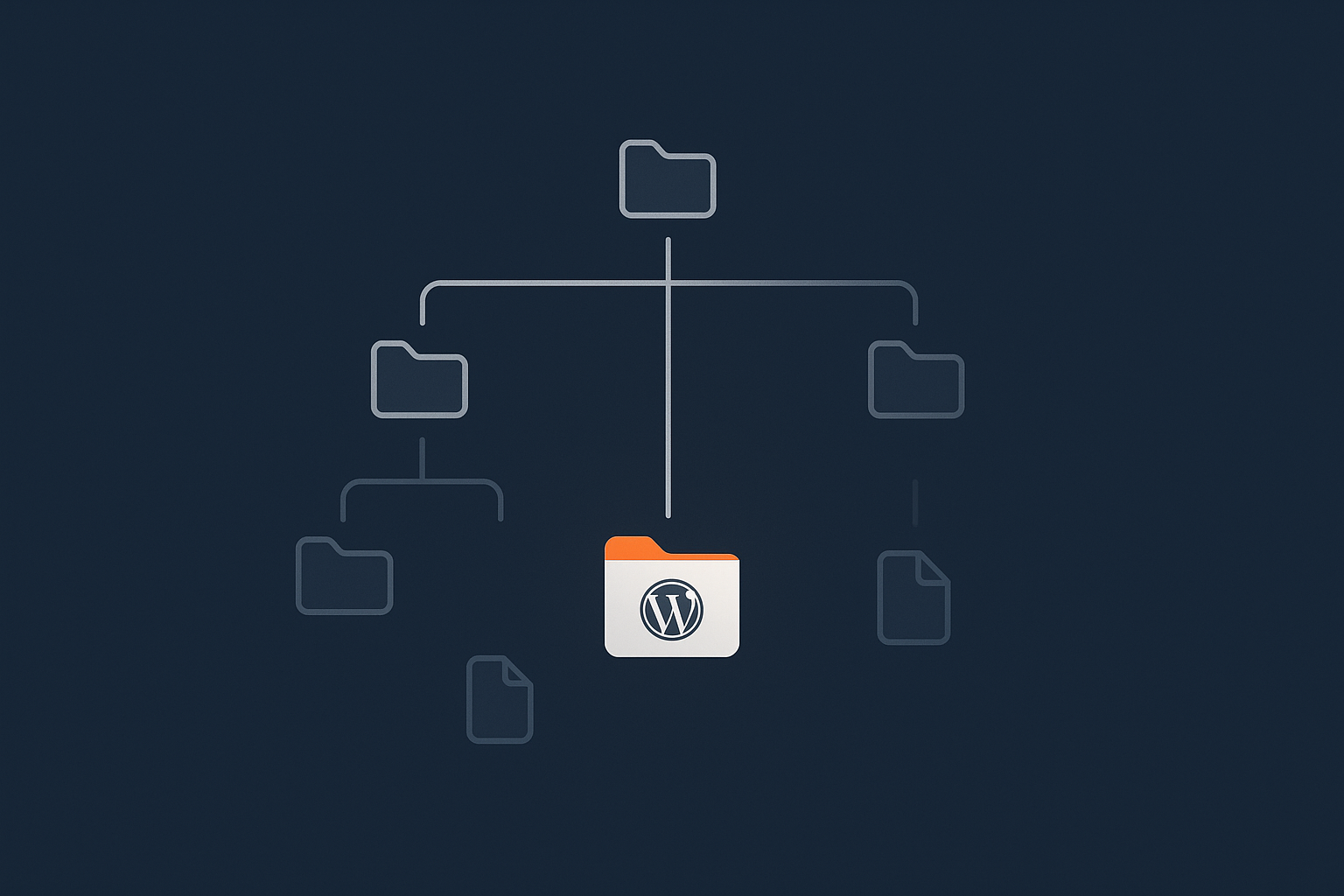
Recommended WordPress file and directory permissions
For a typical WordPress site, a sensible baseline is:
- Directories: 755
- Files: 644
Some setups may require specific directories to be writable by the web server (for example wp-content/uploads or cache directories). That is usually handled by ownership (group) and write permission on those specific directories, not by making everything 777.
Typical patterns: 644 for files, 755 for directories
Example commands to apply these safely inside a web root
Inside your WordPress root:
cd /var/www/example.com/public_html

# Directories
find . -type d -exec chmod 755 {} \;

# Files
find . -type f -exec chmod 644 {} \;
As before, make a note that you have set this baseline. If a plugin later complains about permissions, you can compare its demands against this known starting point rather than randomly opening everything up.
Checking PHP handler user (php-fpm, www-data, nobody, etc.)
To make correct decisions about ownership, you should know which user PHP is running as. On a server with PHP-FPM, you can:
- Check the pool configuration, for example
/etc/php/8.2/fpm/pool.d/www.conf. Look foruser =andgroup =directives. - Or inspect running processes:
ps aux | grep php-fpm | head
What this does: Lists running php-fpm processes. The user column shows which user they run as, often www-data or apache.
When you know this, you can set group ownership so that user can read the site files and write only where needed.
Creating a new Linux user for site management
On unmanaged servers, it is common to create a dedicated user per site or per client to keep things clean and separate.
Basic useradd / adduser commands explained
Different distributions provide slightly different tools. On Debian or Ubuntu, adduser is a friendly wrapper.
sudo adduser example
What this does: Creates a new user called example, asks for a password and sets up a home directory.
On CentOS, Rocky Linux or similar, you might use useradd and set a password separately. See your distribution documentation for details.
Adding the user to the correct group for web files
If your web files are owned by group www-data, you can add your new user to that group:
sudo usermod -aG www-data example
What this does: Appends (-a) the group www-data to the user example’s supplementary groups (-G).
You can verify with:
id example
For a step by step walkthrough of this process, see How to Add a User to a Linux Group.
Giving SFTP-only access to a developer or agency
Principle of least privilege in plain English
The “principle of least privilege” simply means giving people only the access they need to do their job, and no more.
For a developer who only needs to upload themes or plugins, full shell access to the entire server is not required. SFTP-only access to one site directory is often enough.
High level steps: user, group, chown, correct permissions
A common pattern is:
- Create a new user such as
dev-example. - Give that user a home directory or chroot restricted to the site root.
- Ensure the site directory is owned by an appropriate user and group.
- Adjust group permissions and add the developer user to the site’s group.
- Configure SSH to allow SFTP but not shell access.
This involves editing SSH configuration and possibly setting up chrooted environments, which can be complex. If you prefer not to manage that level of detail, a managed plan might be more comfortable. For one or two business sites, Managed WordPress hosting can reduce ongoing server tasks so you can focus on the site itself.
When file permission issues cause 500 errors
Permissions can cause HTTP 500 errors when the web server or PHP cannot read required files or cannot write to directories it expects to use.
Symptoms include:
- 500 responses in the browser.
- “Permission denied” errors in
error.logfor Nginx or Apache. - PHP fatal errors mentioning unreadable files.
To investigate:
- Check web server logs in
/var/log/nginx/or/var/log/apache2/. - Identify the file or directory mentioned.
- Use
ls -lon that path to inspect owner and permissions. - Compare against your expected pattern (for example directories 755, files 644, correct owner and group).
From there, adjust ownership or permissions in a targeted way rather than altering everything at once.
Users, Groups and Security: How Permissions Fit into the Bigger Picture
Why permissions are only one layer of defence
File permissions are a core part of Linux security, but they do not stand alone. Other factors include:
- Keeping the OS and software patched.
- Using strong, unique passwords and SSH keys.
- Restricting which services are exposed to the internet.
On self managed VPS or virtual dedicated servers, you are responsible for these areas, along with backups and performance monitoring. Managed services shift some of this ongoing work onto the hosting provider so you can focus on applications.
How firewalls, WAF and bad bot filtering complement file permissions
Network controls help reduce the number of requests that even reach your files.
- A firewall can restrict which ports are open.
- A web application firewall (WAF) can filter malicious HTTP patterns.
- Bad bot filtering can reduce non human traffic hitting PHP or the database.
For example, the G7 Acceleration Network can apply intelligent bot protection and filter abusive or non human traffic before it reaches PHP. It also optimises images on the fly into AVIF and WebP, reducing CPU and bandwidth load without altering your WordPress plugins. These features sit alongside permissions and ownership to keep sites responsive and predictable.
If you prefer not to manage firewalls and uptime yourself, G7Cloud’s virtual dedicated servers are available as both managed and unmanaged options. Managed plans include help with patching, monitoring and incident response.
When it makes sense to choose managed hosting instead of DIY
Running your own Linux server gives flexibility, but it also involves:
- Regular updates and security patches.
- Ongoing log monitoring and intrusion detection.
- Capacity planning and performance tuning.
- Designing backup and recovery procedures.
If you enjoy learning Linux and are happy to invest the time, an unmanaged VPS or VDS is a good fit.
If you mainly want reliable WordPress or WooCommerce sites with minimal day to day server work, managed options such as Managed WordPress hosting can be more comfortable. They leave you with control over your code and content, while specialists handle much of the underlying platform.
Summary and Safe Next Steps
Key concepts to remember
- Every file and directory has an owner, a group and three sets of permissions.
- Users can be human logins or system accounts such as
www-data. - Groups are a way to share access between several users.
chmodchanges permissions;chownchanges owner and group;chgrpchanges only group.- For WordPress, 755 for directories and 644 for files is a sensible baseline.
- Avoid wide ranging recursive commands on system directories.
Simple checklist before changing permissions on a live site
- Confirm which user you are logged in as:
whoami,id. - Identify the exact path you intend to change.
- Run
ls -lorfind ... -lsto record current ownership and permissions. - If available, take a snapshot or backup, especially on a production VPS or VDS.
- Test commands on a smaller subset or staging copy first.
- Apply changes deliberately and recheck with
ls -l. - Monitor logs for any new errors after the change.
Where to go next to build your Linux skills
To continue building confidence with Linux servers you might:
- Practise core shell commands and navigation skills in a non production environment.
- Read about adding and managing users in more detail, for example How to List Users on Linux.
- Explore SSH, SFTP and key based authentication to manage access for others.
- Learn safe reboot practices for when changes require a service restart, for example How to Reboot Linux Commands.
If you decide you would like someone else to handle security patching, monitoring and platform tuning, it is worth looking at G7Cloud’s managed virtual dedicated servers or Managed WordPress hosting. Both options let you stay in control of your sites, while reducing the amount of day to day server administration you need to do yourself.




