
Running Multiple WordPress Sites on One Server: A Practical Guide for Small Agencies
Who This Guide Is For (And When a Single Server Makes Sense)
Typical small agency and freelancer scenarios
This guide is written for small agencies, freelancers and in‑house teams that look after several WordPress or WooCommerce sites and would like to consolidate them onto one server.
Typical situations include:
- A freelancer running 10 to 20 small brochure sites for local businesses, all fairly low traffic.
- A small agency with a mix of brochure sites, a couple of WooCommerce shops and maybe a membership site.
- An in‑house web team at a medium business looking after a main corporate site, a careers site, a blog and multiple micro‑sites.
The attraction is obvious: one bill, one environment to learn, and less to log into. The risk is just as obvious: if that one box struggles or is compromised, all client sites suffer together.
When one server is sensible vs when it is a risk
Consolidating many WordPress sites onto one machine can be a good idea when:
- Traffic levels are moderate and predictable.
- The sites are mostly brochure style, blogs or small catalogues.
- You have some control over what themes, plugins and custom code go live.
- You are willing to set up basic monitoring, backups and update routines.
It starts to become risky when:
- One or more sites are business critical ecommerce or membership platforms.
- Clients regularly run heavy marketing campaigns or TV ads that cause big traffic spikes.
- You cannot control what plugins clients install, or they insist on custom code of unknown quality.
- There is no clear process for updates, backups, or recovery.
If you are looking after a mix of sites, a common pattern is to keep lighter, less critical sites on a shared server and move the largest shop or application to its own virtual dedicated server for hosting multiple client sites once it outgrows the shared setup.
What you will be able to plan by the end
By the end of this guide you should be able to:
- Choose a sensible structure for multiple sites on one server.
- Roughly size a server for your portfolio and know when it is time to upgrade or split sites out.
- Put basic, reliable monitoring and backup in place so you are not flying blind.
- Keep performance acceptable across all sites, including when one site spikes.
- Reduce shared security risk and make recovery realistic if something goes wrong.
We will assume you are working with Linux servers and standard PHP/MySQL WordPress hosting, whether that is self‑managed or through a managed provider such as G7Cloud.
Clarifying Your Setup: Many Installs vs Multisite vs cPanel‑Style Hosting
Multiple standalone WordPress installs on one server
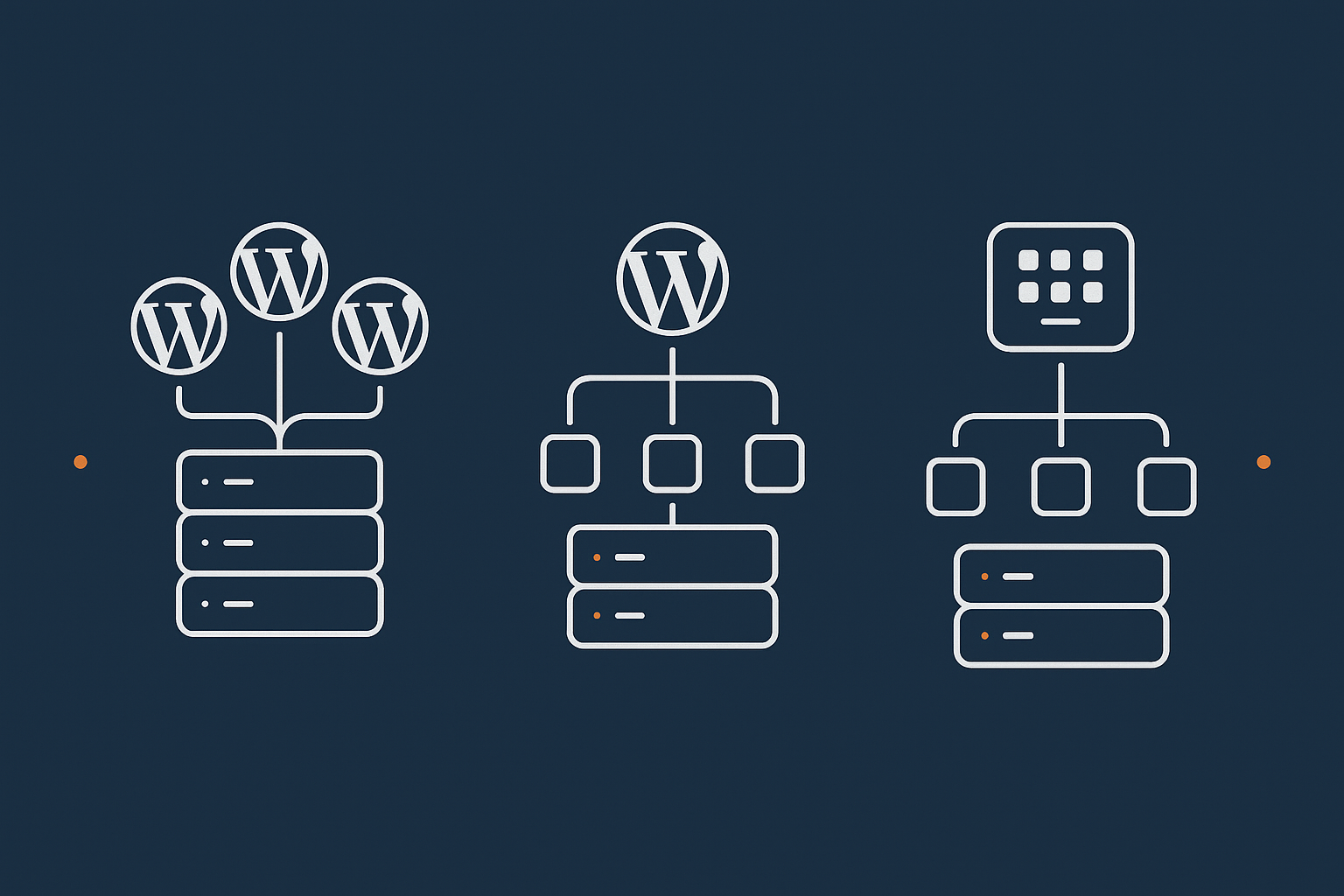
The simplest pattern is to run several separate WordPress installs on one machine, each with its own database and files. You might:
- Place each site in its own directory under
/var/www/(for example/var/www/client1,/var/www/client2). - Use separate Linux system users for each site, with matching PHP‑FPM pools.
- Map each vhost in Nginx or Apache to the correct site directory.
Benefits:
- Good separation. One broken plugin usually does not take down the others.
- Easy to migrate a single site to another server later.
- Works with most backup and staging tools.
Trade offs:
- You have to maintain separate core, plugin and theme updates for each install (unless you automate it).
- Shared resources mean one busy site can still affect CPU, RAM and database performance for all.
For most agencies, this is the safest default. You can read a much deeper comparison of this option against Multisite in WordPress Multisite or Multiple Installs? How UK Agencies and Franchises Should Structure Their Hosting.
WordPress Multisite and when it helps or hurts agencies
WordPress Multisite allows many sites to run from a single WordPress codebase and database. It can work well for:
- Networks of very similar sites (for example franchises, regional sites or microsites of one brand).
- Situations where you want absolute consistency in plugins and themes.
- Cases where central admin should control updates for every site.
However, Multisite brings downsides for agencies:
- Less isolation. A critical plugin update or bug affects every site in the network.
- Migration is harder. Moving one site off a Multisite network is more complex than migrating a standalone site.
- Some plugins do not properly support Multisite, especially WooCommerce extensions and membership tools.
Multisite can make sense for agencies running tightly controlled, templated sites. For mixed portfolios with different owners and requirements, separate installs tend to be safer.
Using a control panel (like cPanel) to manage client sites
Instead of hand configuring each site, many agencies use a control panel to manage multiple WordPress installs on a single server. With cPanel web hosting for managing many WordPress installs or similar tools you can:
- Create separate accounts for each client or site.
- Allocate disk and bandwidth quotas per account.
- Provide limited access for technically minded clients who want email, DNS or file access.
This gives an extra layer of isolation at account level, plus a familiar interface for people who do not want to manage Linux directly. The trade off is some resource overhead from the panel itself and less fine‑grained control than a fully custom stack.
How this choice affects isolation, support and billing
Your structural choice has day to day consequences:
- Isolation: separate installs with separate system users and databases are the easiest way to keep problems contained. Multisite provides the least isolation.
- Support: control panels simplify common tasks and make it easier to delegate, but restrict very low‑level tuning unless you also have root access.
- Billing: Multisite networks can be awkward if you want to cleanly hand off a single site in future. Separate installs or cPanel accounts map more naturally to individual client contracts.
For most small agencies, the blend that works is: multiple standalone WordPress installs, optionally organised into accounts via a control panel, running on a virtual server or virtual dedicated server that you actually understand and can monitor.
Resource Planning: How Many Sites Can One Server Safely Host?
The main bottlenecks: CPU, RAM, disk, database and PHP workers
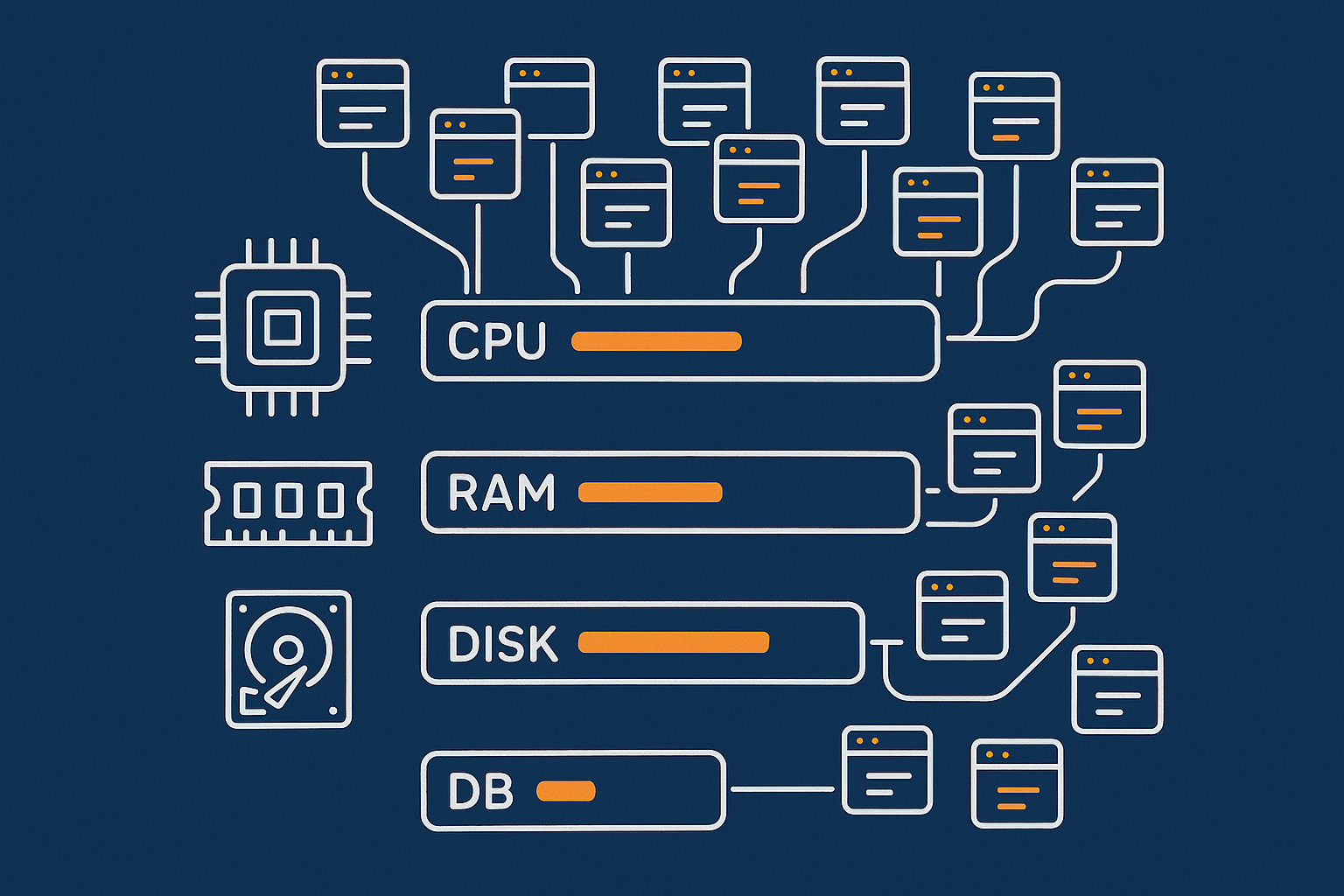
Technically, you can put dozens of WordPress sites on even a small virtual server. The practical limit is set by how those sites use core resources.
CPU (processor)
Every uncached WordPress request runs PHP code and queries the database. Those PHP processes use CPU. When CPU is maxed out for any length of time, response times climb and pages can time out.
Signs of trouble:
- Sustained high load average.
- Pages slow only under traffic, but fine in off‑peak hours.
- Spikes during cron jobs, imports or backups.
RAM (memory)
Each PHP process and database connection consumes RAM. If you run out, the system begins to swap to disk or kill processes. Both cause painful slowdowns.
Things that consume RAM:
- Too many PHP‑FPM workers.
- MySQL/InnoDB buffer cache.
- Caching systems like Redis or Memcached.
- Control panel services and malware scanners.
Disk (storage and I/O)
Disk is both capacity and speed:
- Capacity is simple: total GB used by files, images, backups, logs and databases.
- I/O throughput is how quickly the server can read and write those files and database records.
Heavy WooCommerce order tables, large log files, and huge media libraries all add up. Slow spinning disks will bottleneck far earlier than SSD or NVMe. Any image optimisation you can offload from the server helps significantly. For example, the G7 Acceleration Network for caching, image optimisation and bot filtering automatically converts images to AVIF and WebP on the fly, typically reducing file sizes by over 60 percent while keeping practical quality, and does this without extra plugins or changes in WordPress.
Database (MySQL/MariaDB)
WordPress relies heavily on the database. Slow queries or undersized database resources quickly affect every site on the server. Common issues include:
- Poorly indexed custom tables from plugins.
- Bloated
wp_postmetatables, especially on shops and membership sites. - Too many simultaneous connections under peak load.
PHP workers
For PHP‑FPM, workers are the processes that handle requests. Each worker can handle one request at a time. If you only have five workers and ten requests arrive, five have to wait. Increase workers too far and you run out of RAM. There is always a balance point.
In practice, pages that are served from cache do not need PHP workers at all, so a strong full‑page caching layer is vital in multi‑site environments.
Light brochure sites vs heavier WooCommerce and membership sites
Not all WordPress sites are equal in resource usage.
Typical light brochure site:
- Low daily traffic.
- No logged‑in users beyond admins.
- Simple contact forms, maybe a blog.
- Static content that caches very effectively.
Run these well and a modest server can host quite a few without strain.
WooCommerce, LMS or membership sites behave differently:
- Many logged‑in users.
- Personalised content like baskets, user dashboards or course progress.
- Checkout pages that must bypass full page cache.
- Background tasks such as subscription renewals or email sending.
One busy WooCommerce shop can easily consume the equivalent resources of 10 to 20 simple brochure sites, particularly if product filters and search are heavy on the database.
Rough capacity planning examples for small agency stacks
Every stack is different, but rough ballparks help for planning. Assume a modern 4 vCPU / 8 GB RAM virtual machine with SSD storage and sensible caching.
- Scenario A: primarily brochure sites
25 to 40 light brochure sites, each with modest traffic and good caching, is realistic. You would still want monitoring and a process to move outliers to bigger resources if they grow. - Scenario B: mixed portfolio
15 to 20 brochure sites plus 1 moderately busy WooCommerce store and 1 small membership site can work, but you should assign more conservative PHP‑FPM limits and consider separate database instances or at least careful tuning. - Scenario C: two busy shops
2 busy WooCommerce sites plus 10 to 15 small brochure sites may be the practical ceiling. If either shop runs large campaigns or uses many heavy plugins, moving at least one shop to its own virtual dedicated server for hosting multiple client sites is usually wise.
For very small agencies starting out, even a 2 vCPU / 4 GB RAM server can host a dozen low traffic brochure sites, but you will have far less headroom for growth or plugin bloat.
Monitoring usage so you do not fly blind
You cannot manage what you do not measure. At minimum, set up:
- CPU and load average monitoring with alerts when load stays high.
- RAM usage and swap monitoring.
- Disk usage alerts so backups or logs do not fill the disk.
- Basic MySQL monitoring to catch slow queries and connection saturation.
Managed WordPress hosting with G7Cloud includes this type of monitoring on the platform side; if you self‑manage a server, you can follow the command line examples in How to Check CPU, Memory and Disk Usage on a Linux Server to get started.
Simple measures such as enabling email alerts from your monitoring system or using a Slack webhook for warnings will give you advance notice before performance problems affect clients.
Performance Strategy: Keeping All Client Sites Fast
Why one slow or spiky site can hurt all the others
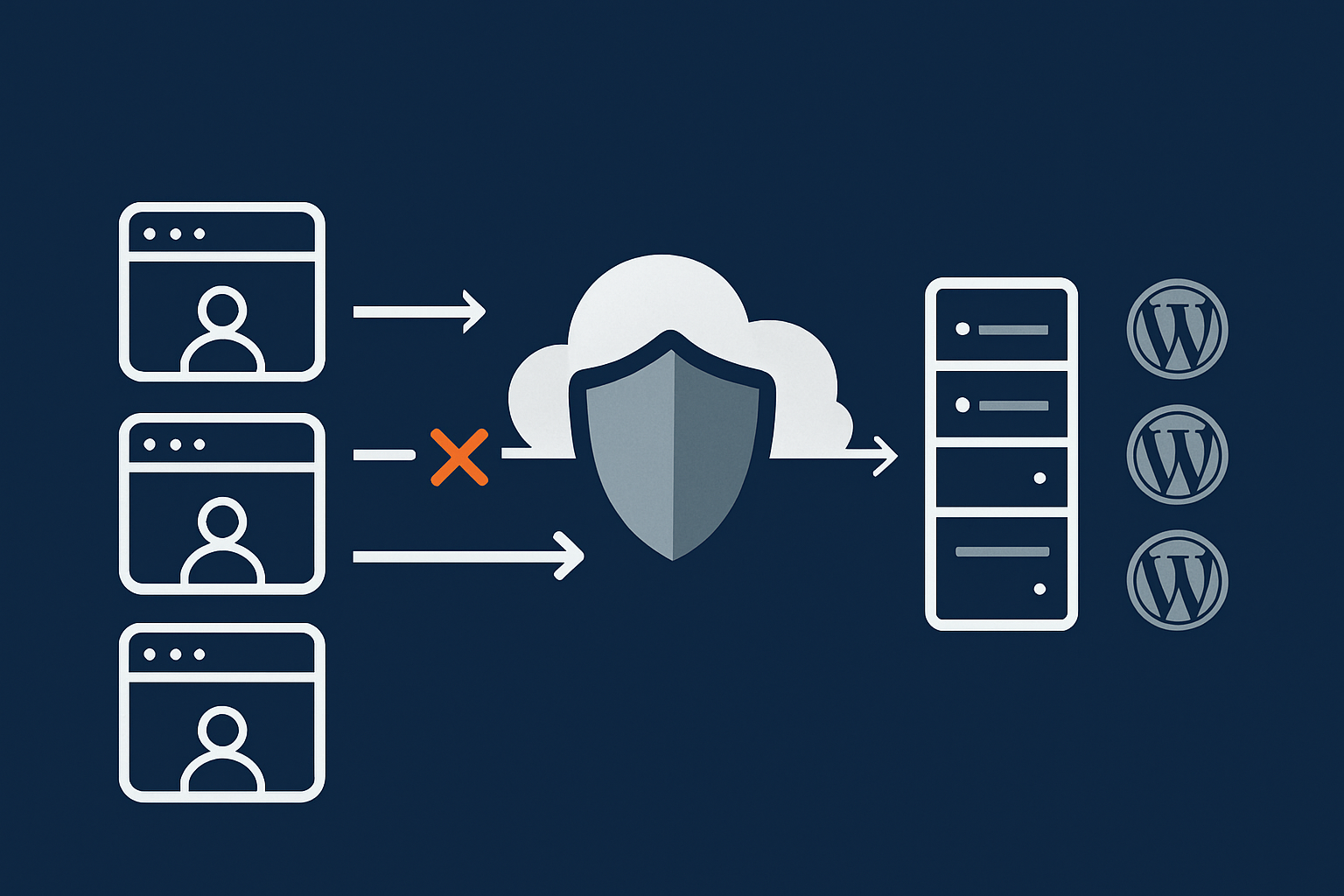
On a shared server, resources are communal. If:
- One WooCommerce site gets hammered by a marketing campaign, or
- One membership plugin starts running inefficient database queries, or
- A single site is targeted by bots and brute force login attempts,
then CPU, RAM and database connections for that site can eat into the pool available for everything else. The symptom is that “all_my_sites_are_slow” tickets arrive around the same time.
This is why per‑site caching, careful resource allocation and upstream protection against abusive traffic are so important on a multi‑site server. Services like the G7 Acceleration Network for caching, image optimisation and bot filtering sit in front of all your sites to absorb much of this load before it touches PHP or MySQL.
Smart use of caching for multi‑site environments
Caching is your primary tool for keeping multi‑site servers stable.
Page caching
Full page caching stores the complete HTML of a given URL and serves it directly on repeat visits. Options include:
- Server‑level caching (Nginx FastCGI cache, Varnish, or built‑in caching via your hosting provider).
- Plugin‑level caching (WP Rocket, W3 Total Cache, Cache Enabler and others).
- Edge or CDN caching through a network such as the G7 Acceleration Network for caching, image optimisation and bot filtering.
On multi‑site servers, aim to:
- Cache as much as possible at the edge or web server level, not via PHP.
- Exclude only the minimum set of dynamic pages (basket, checkout, account pages, certain membership content).
- Ensure cache purge rules are correct so site owners do not see stale content.
Object caching
Object caching with Redis or Memcached speeds up database‑heavy sites by storing the results of expensive queries. On a multi‑site server, central Redis instance(s) can serve multiple sites but you should:
- Use separate databases (namespaces) within Redis for large or noisy sites.
- Monitor memory usage and eviction rates.
- Avoid letting debug plugins or dev environments abuse the shared cache.
Browser caching and compression
Static assets (CSS, JS, fonts, images) should be cached for as long as practical with proper cache‑control headers. Combining this with Gzip or Brotli compression reduces bandwidth and speeds up page loads, especially on mobile.
Networks such as the G7 Acceleration Network for caching, image optimisation and bot filtering can handle page, asset and browser caching rules in one place, which is simpler than trying to configure each site individually.
Image, asset and Core Web Vitals considerations across a portfolio
Every unoptimised image, heavy slider and unused script on a single site multiplies when you host dozens of sites.
Key practices:
- Standardise on a small set of well‑optimised themes and builders.
- Discourage auto‑playing background videos and oversized hero images unless justified.
- Ensure lazy loading is enabled for below‑the‑fold images.
- Periodically audit page weight on representative pages from each site.
Core Web Vitals like Largest Contentful Paint (LCP) and Cumulative Layout Shift (CLS) are often dominated by images. Reducing image weight across your portfolio has an outsize impact. On G7Cloud, the G7 Acceleration Network for caching, image optimisation and bot filtering automatically converts images to AVIF and WebP on the fly and serves whichever format each browser supports, typically cutting image file sizes by more than 60 percent without extra plugins or code changes in WordPress.
Handling traffic spikes without every site feeling slow
Traffic spikes are inevitable: campaigns, news coverage, seasonal peaks. To prevent one spike from dragging down everything:
- Use a front‑end cache / CDN so most traffic is served from edge locations, not your origin server.
- Rate limit expensive operations like search, login attempts and certain API endpoints.
- Configure PHP‑FPM sensibly: better to queue a few requests than to saturate CPU and RAM for everyone.
- Offload background jobs to task queues or external services where possible (for example email sending, heavy imports).
Bot traffic is a common cause of artificial “spikes”. With G7Cloud’s bot protection within the G7 Acceleration Network for caching, image optimisation and bot filtering, abusive and non human traffic is filtered before it reaches PHP or the database, which keeps response times more consistent and reduces the chance that bots knock out several client sites at once.
Security and Isolation: Minimising ‘All Eggs in One Basket’ Risk
What can go wrong with many sites on one box
When you host many sites on a single server, incidents that would be “bad but contained” on a single site can ripple out:
- Compromise of one site leading to malware upload or spam scripts affecting IP reputation for all.
- Ransomware or destructive malware that encrypts or deletes files across multiple vhosts.
- Misconfiguration of the web server or PHP that impacts all sites at once.
- Hardware or hypervisor failure that takes the whole server offline.
You cannot remove this shared risk entirely, but you can reduce the blast radius and improve your ability to recover quickly.
Account‑level isolation, file permissions and separate databases
Some practical steps for containment:
- Separate system users: run each site under its own Unix user, with its own PHP‑FPM pool. That way, a file upload vulnerability in one site has less chance to write into another site’s directory.
- Correct file ownership and restrictive permissions: typically
755for directories and644for files, owned by the per‑site user, not by a shared user with broad access. - Separate databases and users: each WordPress site should have its own database and MySQL user with only the permissions it needs. Do not share one database across multiple installs unless you absolutely have to.
- Limit SSH and SFTP access: give each client only their own account, locked to their own directory, and use key‑based authentication.
Many of these controls are baked into good hosting platforms. If you are managing the server yourself, it is worth investing some initial time to get isolation right. G7Cloud describes the platform side of this in its overview of web hosting security features such as firewalls and hardening.
Firewalls, bad bot filtering and rate limiting across client sites
A properly configured firewall and application‑level protection can significantly reduce shared risk:
- Network firewall: only open the ports you actually need (usually 80, 443, and SSH on a non‑standard port).
- Web application firewall (WAF): patterns for blocking common exploits, SQL injection attempts and known malicious user agents.
- Rate limiting: restrict how many requests a single IP can make to login pages, search endpoints and XML‑RPC within a given time.
Because all sites share the same underlying resources, bad bots and credential stuffing attacks aimed at one WordPress login screen can still stress the entire server. G7Cloud’s bot protection within the G7 Acceleration Network for caching, image optimisation and bot filtering filters abusive and non human traffic before it even reaches PHP, which greatly reduces wasted CPU and memory and helps keep uptime steady across all client sites.
Backups, staging and recovery when you host multiple clients
Backups and recovery plans are not optional when many client businesses rely on the same machine.
Backups
- Take automated daily backups of files and databases at minimum.
- Store backups off the primary server, ideally in another data centre or provider.
- Keep multiple restore points (for example 7 days, 4 weeks, 3 months) in case malware goes unnoticed.
- Ensure you can restore either a whole server image or individual sites, depending on what fails.
Staging
- Provide staging environments for higher risk sites (ecommerce, membership, critical brand sites).
- Test plugin updates, theme changes and version upgrades on staging first.
- Automate sync between production and staging where possible, but be careful not to overwrite live orders or membership data.
Recovery drills
- Actually test restoring a single site from backup at least once before you need it.
- Document the steps and keep them somewhere other than the server.
- Set clear expectations with clients about realistic recovery times.
The balance between prevention and mitigation is explored in more depth in Security Incidents in Web Hosting: Getting the Balance Right Between Prevention and Mitigation, which is worth a read if you are setting policy for your agency.
Operational Practices for Agencies: Updates, Plugins and Change Control
Standardising themes, plugins and update policies
Operational discipline matters more on a multi‑site server because one fragile or insecure plugin can create headaches across the board.
Helpful practices:
- Approved stack: maintain a short list of preferred themes, page builders and key plugins that you know behave well.
- Plugin reviews: avoid niche or unmaintained plugins where possible. Check update frequency and support reputation.
- Update policy: decide how often you will run core, plugin and theme updates (for example monthly, with high priority security patches as they appear).
- Schedule updates: perform updates during agreed maintenance windows where traffic is low, and ensure backups are current.
For agencies looking for a lightweight checklist, the routine described for SMEs in Day‑to‑Day WordPress Maintenance for UK SMEs adapts well to multi‑site setups.
Using staging for higher risk or higher value sites
Not every site in your portfolio needs a full staging workflow. However, any site where downtime means lost revenue or reputational damage should have one.
Prioritise staging for:
- WooCommerce and subscription sites.
- Membership and LMS platforms with many logged in users.
- Flagship brand sites that receive a lot of traffic.
Make it routine to:
- Test major updates and new functionality on staging first.
- Have a defined sign‑off step from your client or account manager.
- Document how you will push changes live (for example via deployment scripts, not ad hoc file uploads).
Logging, error monitoring and knowing which site is in trouble
When one server runs many sites, knowing “something is wrong” is not enough; you need to pinpoint which site is causing pain.
Useful tools and approaches:
- Per‑site access logs so you can quickly see which domains are receiving spikes or unusual traffic patterns.
- PHP error logs per site to catch fatal errors and warnings early.
- Uptime monitoring per domain, not just for the server IP.
- Centralised logging (for example via syslog, ELK or hosted log services) if your portfolio is large enough to justify it.
When you get a report of slowness, being able to cross‑check which domains are seeing elevated response times or 5xx errors will save a lot of guesswork.
When managed hosting support is worth it for an agency
There is a point where the time you spend tuning servers, monitoring, patching and investigating performance issues is worth more than the cost of a managed platform.
Managed WordPress hosting with G7Cloud is aimed at exactly this crossover: platform‑level monitoring, backups, security hardening and the G7 Acceleration Network for caching, image optimisation and bot filtering are handled for you, so your team can stay focused on design, content and client relationships instead of kernel updates and PHP‑FPM tuning.
When to Split Out a Site to Its Own Server or Plan an Upgrade
Technical and business signals that a site has outgrown the shared server
Not every growing site needs its own machine, but some clear signals suggest it is time:
- Frequent CPU or RAM saturation linked to one domain’s traffic peaks.
- WooCommerce or membership checkouts becoming slow during busy periods while other sites remain okay.
- A client whose revenue or lead flow from the site has become critical to their business, and who is willing to invest in extra resilience.
- A site that demands custom server‑side software or configuration that you do not want to roll out to everyone.
Watch also for softer signals such as more frequent content changes, complex integrations (CRM, ERP, marketing platforms) and increased expectations for uptime.
Deciding between a bigger box vs separate virtual dedicated server
When you hit limits, you have two main paths:
- Vertical scaling: move everything to a bigger server (more CPU/RAM).
- Horizontal scaling: keep your main server as is, but move one or more heavy sites to their own virtual dedicated server.
Vertical scaling is simpler technically, but it:
- Keeps the “all eggs in one basket” risk.
- Can become costly if you need very large hardware just for a few heavy sites.
Moving the heaviest site to its own virtual dedicated server for hosting multiple client sites gives that site its own resource pool and limits its blast radius. It can also be easier to explain the cost to clients: “Your online shop has grown enough to need its own box, like an extra staff member.”
Planning migrations with low risk and minimal downtime
When you do decide to split out or upgrade, keep the process deliberate:
- Audit the site: inventory plugins, themes, custom code, cron jobs and integrations.
- Prepare the new server: match PHP versions, extensions, database versions and caching layers. If you are using the G7 Acceleration Network for caching, image optimisation and bot filtering, configure it for the new origin too.
- Do a rehearsal migration: copy the site to the new server with a temporary hostname, fix any issues and run functional tests.
- Plan a low‑traffic cut‑over window: for ecommerce, avoid peak trading hours and communicate in advance if there is potential for brief disruption.
- Switch DNS and monitor closely: keep the old server in a read‑only state for a while if possible, so you can roll back quickly if something unexpected turns up.
For ecommerce and membership sites, special care is needed around orders and user data created during the migration window. In some cases you may opt for a short maintenance window to ensure clean cut‑over.
Putting It All Together: A Simple Planning Checklist for Your Next Server
Capacity, security and performance questions to answer up front
Before you launch a new multi‑site server, capture the following in writing:
- How many sites do you plan to host in the first year, and what mix (brochure vs ecommerce vs membership)?
- What is your headroom target for CPU and RAM under normal load (for example 50 percent average utilisation)?
- Which caching strategy will you use (server‑level, plugin‑level, an edge network like the G7 Acceleration Network for caching, image optimisation and bot filtering, or a mix)?
- How are you handling image optimisation and Core Web Vitals across all sites?
- What is your backup policy (frequency, retention, storage location, tested restore procedure)?
- How is isolation enforced (per‑site system users, databases, file permissions, control panel accounts)?
- Which monitoring and alerting will you rely on, and who is on the hook when alerts fire?
How to explain this setup clearly to your own clients
Many agencies worry that explaining shared hosting to clients will sound unprofessional. In practice, transparency tends to build trust. A clear, simple explanation might:
- Describe that you host several client sites on the same underlying infrastructure, but with strong separation between them.
- Explain that this allows you to manage updates, backups and performance more efficiently, which benefits cost and response times.
- Make it clear which clients are on “shared” vs “dedicated” plans, and what the upgrade path looks like as their site grows.
- Outline your response commitments in plain language: how quickly you act on incidents, and what happens if a larger failure occurs.
Where a client’s site justifies its own resources, position it as a sign of growth rather than a scare story. Moving to a dedicated virtual server or more advanced managed WordPress hosting is often a logical business step rather than a technical indulgence.
Next steps if you want help sizing or migrating
If you are currently juggling sites across cheap shared accounts or ageing VPS plans, consolidating onto a single, properly planned server can significantly simplify life, provided you treat capacity, security and performance planning as first‑class tasks rather than afterthoughts.
You can:
- Audit your existing sites against the portfolio patterns in this guide.
- Sketch a target architecture: multiple installs, possible control panel, and where edge caching or the G7 Acceleration Network for caching, image optimisation and bot filtering fits.
- Decide which sites clearly belong together and which already deserve their own virtual dedicated servers for hosting multiple client sites.
If you prefer to avoid the low‑level server work, exploring managed WordPress hosting with G7Cloud can be a sensible next step. You still retain control over your clients and their sites, but a dedicated team takes care of the underlying platform, performance layer and bot filtering so you are not the one SSHing into servers at midnight.
However you approach it, a single well designed server, with clear boundaries and processes, can host many client WordPress sites reliably. The key is to plan deliberately, monitor continuously and be willing to upgrade or split out heavy sites before they cause wider problems.




