
How to Prepare a WooCommerce Site for Seasonal Traffic Spikes Without Oversized Hosting
Why Seasonal Traffic Spikes Break Otherwise Stable WooCommerce Stores
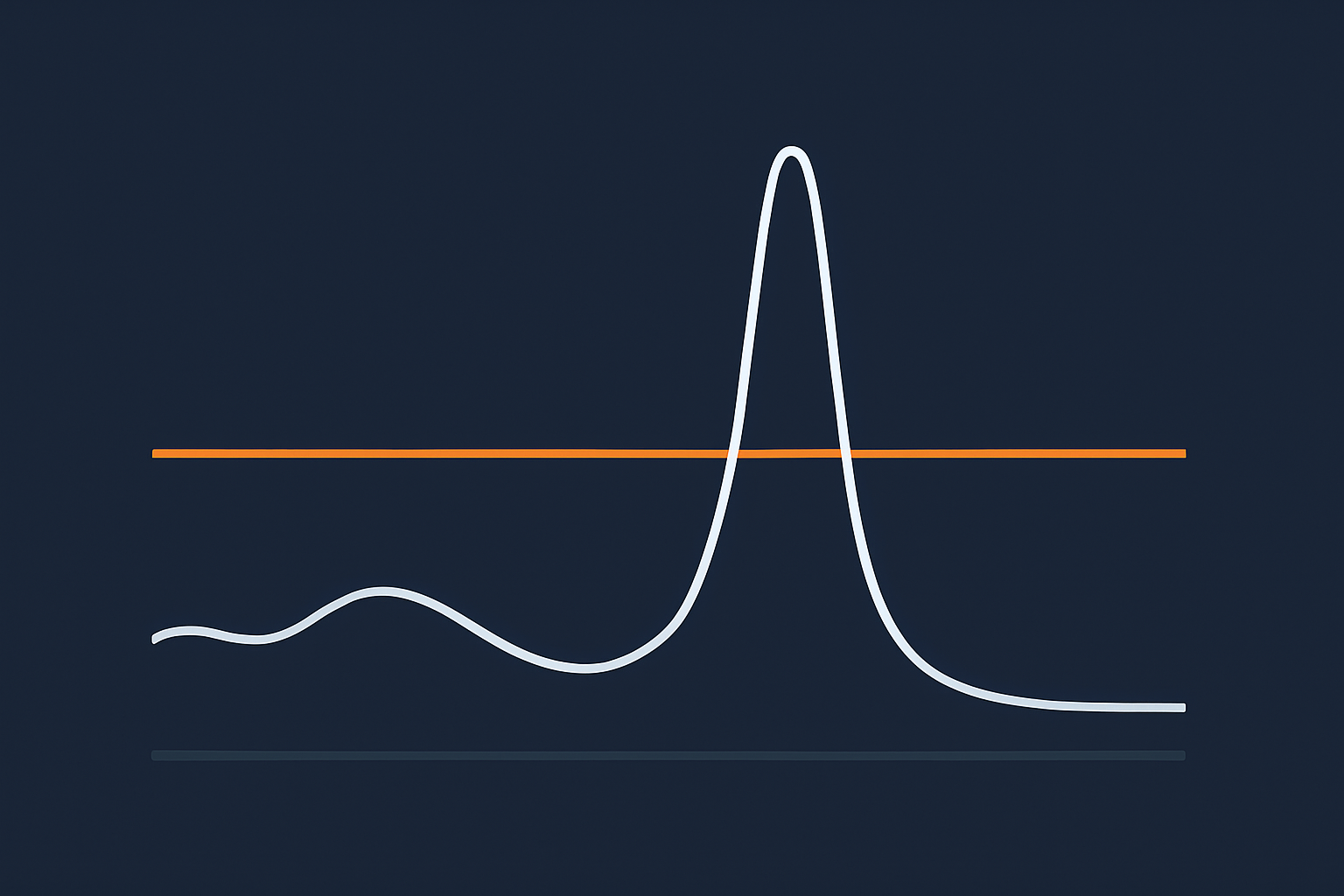
Many WooCommerce stores run smoothly for most of the year, then struggle or fail on key days such as Black Friday or a big TV mention. The problem is not usually that the store is “bad” or the host is “terrible”. It is that the whole setup has only ever been tested at normal load.
Real examples: Black Friday, pay day weekends and TV mentions
Some typical UK patterns:
- Black Friday and Cyber Monday: sudden surges from email campaigns, paid ads and social. Traffic can double or triple within minutes when an email lands.
- Pay day weekends: smaller but more predictable bumps at the end of each month, particularly for fashion, beauty and subscription boxes.
- TV, radio or influencer mentions: a single shout-out can drive thousands of people in a very short window, with almost no warning.
In each case, your WooCommerce store is asked to do much more work in a shorter time: more product views, more add‑to‑carts, more checkouts, more search queries.
What actually changes on peak days: traffic patterns, behaviour and basket size
On busy days, traffic does not just increase evenly. Three things change:
- Traffic pattern: instead of a gentle curve over the day, you get sharp spikes when campaigns launch or when people are off work. That burstiness is what breaks sites.
- User behaviour: visitors browse more products, filter more, compare more and often refresh pages that feel slow. Each of those actions is a new request hitting PHP and the database.
- Basket size and urgency: people add more items, apply coupons, choose different shipping options and expect the checkout to “just work”. Each basket is a set of session records, cart fragments and order rows.
This combination means your server must handle more concurrent activity, not just more visitors per day. Two stores might both see 10,000 visitors in 24 hours. One gets them smoothly over the day. The other gets half of them in an hour after a TV feature. The second one is far more demanding.
The hidden cost of both under‑spec’d and over‑spec’d hosting
Most businesses end up in one of two uncomfortable camps:
- Under‑spec’d: cheap shared or entry‑level VPS hosting that is fine on quiet days, but responds with slow pages, 502/504 errors or checkout failures during spikes. Lost orders greatly outweigh the saving on hosting.
- Over‑spec’d: buying a large dedicated server or high‑end cloud instance “just in case”, which then sits mostly idle for 10 months of the year. You pay for capacity you rarely use.
The goal is to sit between these extremes: a platform that runs leanly on normal days, can safely absorb realistic peaks and can be scaled up temporarily when needed. A good starting point if you want to go deeper on sizing is our guide on WooCommerce hosting for UK retailers on peak days.
Providers offering web hosting performance features tuned for WooCommerce, such as G7Cloud, help here by combining decent baseline capacity with caching and isolation so noisy neighbours do not ruin your big day.
Step 1: Map Your Seasonal Peaks and Sales Calendar
Before thinking about capacity or hosting, you need to understand when and how your traffic actually spikes.
Identify your real peak periods using analytics and order history
Use data rather than memory. Check:
- Google Analytics / Matomo: look at “Users” and “Sessions” by day and by hour over the last 12–24 months. Note days with unusually high sessions.
- WooCommerce order history: export orders by date. Plot daily order counts and revenue. Spikes in orders are what really matter.
- Campaign calendars: review email sends, paid campaigns, PR and influencer activity. Mark which of those historically drove real traffic uplifts.
Out of this, build a simple list for the next 12 months that names likely peaks: “Black Friday weekend”, “1st pay day weekend in December”, “Summer sale launch”, “TV segment scheduled for May”. Add rough multipliers, for example “2–3x normal traffic”, based on past data.
Understand your traffic mix: browsers vs serious buyers
Not all visitors are equal in terms of server load.
- Casual browsers view a few category and product pages. If these are well cached, they are not too heavy.
- Serious buyers log in, add to basket, compare variations, apply coupons and go through checkout. These requests usually bypass full page caching and hit PHP and the database.
In analytics, look at:
- Pages per session and average session duration on peak days vs normal days.
- Ecommerce conversion rate on those peaks. A higher conversion rate often means more traffic to cart and checkout per visitor.
A day with “only” 30% more visitors but double the orders and much more basket activity can be harder on the server than a simple 2x increase in page views.
Define an acceptable performance target for peak days
You need a clear idea of what “good enough” performance looks like when busy. Aim for targets such as:
- TTFB (time to first byte): under 400–500 ms for cached pages, under 800 ms for key uncached pages such as cart and checkout.
- Full page load (Largest Contentful Paint): under 2.5 seconds on typical 4G or home broadband for product and category pages.
- Checkout completion time: from cart to order confirmation within 10–15 seconds, including user input.
These are rough guidelines based on Core Web Vitals and practical ecommerce experience. Write your own numbers down so you can test against them in later steps.
Step 2: Estimate Capacity Without Guessing
You do not need to become a systems engineer, but you should have a rough feel for how much load your store can handle and what you expect on peak days.
Translate current traffic and conversion into resource usage
Start with normal load:
- Pick a “typical busy day” from analytics, not a quiet Sunday.
- Note total sessions, page views and transactions for that day.
- From your host or monitoring, note average CPU usage, RAM usage and any resource graphs you have.
Example:
- 5,000 sessions / 20,000 page views / 150 orders.
- Server averages 30% CPU, 50% RAM, no obvious errors.
If your next seasonal event is expected to be about 3x busier, you know that staying on exactly the same infrastructure will probably push CPU above 80–90% and risk slowdowns, especially if requests are more clustered in time.
How to estimate requests per second and concurrent users in plain English
Two simple concepts matter:
- Requests per second (RPS): how many HTTP requests hit your site each second. Each page view often creates several requests for HTML, CSS, JS, images and AJAX calls.
- Concurrent users: how many people are actively doing something (loading pages, submitting forms) at the same moment.
You can approximate:
- Take your busiest hour from analytics (e.g. 1,200 sessions in one hour).
- Assume an average of 5 page views per session and around 20 requests per page (this will vary, but it is a start).
- 1,200 sessions × 5 pages ≈ 6,000 page views in that hour.
- 6,000 × 20 ≈ 120,000 requests in an hour, which is about 33 requests per second on average.
If your peak day might be 3x that, you are looking at perhaps 100+ requests per second at times. The exact number is less important than knowing whether you are talking about tens, hundreds or thousands of requests per second.
Use load testing carefully: simple ways to simulate a busy day without breaking production
Load testing tools can simulate traffic so you can see when performance drops off. Used badly, they can look like an attack and get you blocked by your own security rules or CDN.
Basic guidelines:
- Test against a staging clone where possible, or a quiet time window on production.
- Start small: simulate, say, 20–50 virtual users over 5–10 minutes, and watch CPU, RAM and response times.
- Replicate realistic behaviour: a mix of category pages, product pages, cart and checkout, not just hammering the home page.
- Talk to your host first: they may have restrictions on aggressive testing and can often provide a saner load test or guidance.
Tools such as k6, Locust or SaaS services can help, but you do not need complex scripts. A small, well targeted test can already reveal whether your site slows badly with just a few dozen concurrent users.
When to ask your host for real metrics (CPU, RAM, database and PHP limits)
Your host sees details you cannot. Ask for:
- Graphs from your last busy period: CPU, RAM, disk IO and database load.
- PHP‑FPM limits: max children / workers and how often they are all busy.
- Database connections: max connections and any spikes.
If your host cannot provide basic resource metrics for a WooCommerce store, or if their answer is simply “upgrade to a bigger server” without analysis, that is a warning sign. Managed WooCommerce providers offering WooCommerce hosting designed for peak days should be comfortable talking in practical terms about concurrent users, PHP workers and how they scale you up and down.
Step 3: Fix the Cheap Bottlenecks Before Buying Bigger Hosting
Many capacity problems can be eased with straightforward optimisation. This is usually far cheaper than paying for a permanently oversized server.
Optimise WooCommerce product, cart and checkout pages first
On peak days, bottlenecks usually show up on:
- Product pages
- Cart and mini‑cart fragments
- Checkout
Actions:
- Reduce unnecessary queries: avoid loading huge “related products” blocks with complex queries on every product page. Limit to a few items, or predefine manual upsells.
- Trim Ajax fragments: WooCommerce cart fragments can be heavy. Disable them where they are not needed, or ensure they do not fire on every page unnecessarily.
- Minimise third‑party scripts on checkout: tools for chat, pop‑ups and behavioural analytics often give little value at checkout and add latency.
For a wider, step‑by‑step approach you can refer to our simple guide to optimising WooCommerce performance.
Trim heavy plugins and unnecessary features on critical paths
Each active plugin can add database queries, hooks and assets. This adds up under load.
Practical steps:
- List all plugins and tag them as “critical to sales” or “nice to have”.
- Disable or replace plugins that add complex behaviour on product, cart or checkout pages but do not clearly increase revenue.
- Avoid duplicate functionality: for example, having two different analytics plugins or multiple page builders.
You can use query monitor tools on staging to see which plugins add the most queries and time on key pages, then focus your effort there.
Database housekeeping so order and session data do not slow peak traffic
WooCommerce stores often accumulate:
- Thousands of transients and expired sessions
- Old orders, especially if you get many failed or pending payments
- Revisions, logs and orphaned data from removed plugins
Steps to keep the database lean:
- Clean up sessions: use WP‑CLI or a plugin that periodically prunes expired WooCommerce sessions and transients.
- Archive or prune old orders where your compliance policy allows, or at least ensure relevant indexes are in place for common queries.
- Optimise tables: run table optimisation during quiet periods to reclaim space and tidy indexes, especially for
wp_posts,wp_postmetaand WooCommerce tables.
Your hosting support should be able to advise on safe scheduling and impact, particularly on larger stores or where you are already hitting limits. Providers of enterprise WordPress hosting for high traffic stores often include periodic database maintenance as part of their service.
Front‑end weight: images, scripts and fonts that quietly kill capacity
Heavy front‑end assets cost you in two ways on peak days:
- They make pages slower for users, which increases refreshes and abandoned sessions.
- They increase bandwidth usage and server work, especially for uncached or partially cached responses.
Focus on:
- Image sizes: upload images no larger than needed and ensure thumbnails and responsive sizes are correct.
- Lazy loading: defer off‑screen images and videos.
- Script bloat: remove unused sliders, animations and tracking scripts, especially on product and checkout pages.
- Fonts: reduce the number of font families and weights, and consider locally hosting essential fonts.
The guide to WooCommerce image, script and font optimisation goes deeper on practical tips. On the hosting side, the G7 Acceleration Network can automatically convert images to modern AVIF and WebP formats on the fly, which typically cuts image file sizes by more than 60 percent with production‑quality visuals, and it works without any extra plugins or WordPress changes.
Step 4: Use Caching and Offload Work So Your Server Handles More Customers

Caching is often the single biggest lever for handling more visitors on the same hardware, but WooCommerce requires a careful approach because many pages are dynamic.
How caching really affects WooCommerce on peak days
There are three main layers to think about:
- Full page caching for anonymous visitors on non‑dynamic pages.
- Object caching to store frequent database query results in memory.
- Browser caching / CDN for static assets such as images, CSS and JS.
On peak days, a well configured cache means most visitors see responses served from memory or edge locations. Only a smaller core of requests reaches PHP and the database, leaving capacity available for logged‑in users, carts and checkouts.
Page caching for catalogue and content pages
Pages that work well with full‑page caching include:
- Home page
- Category and tag archives
- Most product pages for non‑logged‑in users
- Blog and content pages
Guidelines:
- Ensure your caching layer can bypass cache for logged‑in users and for pages that should be personalised.
- Set decent cache lifetimes (for example 10–60 minutes) and use cache purging when stock or prices change.
- Whitelist WooCommerce cookies that must bypass cache, but do not over‑bypass everything “just in case”.
If you are not confident with caching rules, the article on understanding WordPress caching layers walks through the main types in more detail.
Object caching for logged‑in users and busy carts
Object caching uses tools such as Redis or Memcached to store the results of expensive queries or operations in RAM, so repeated visits do not hit the database each time.
It is especially helpful for:
- Logged‑in account pages
- Complex product queries and filters
- Busy cart and checkout flows where some parts can be cached safely
Notes:
- Your host should ideally run a dedicated object cache service and help you configure it.
- Plugins like persistent object cache drop‑ins can be installed once and then left alone, unless you change infrastructure.
CDN and image optimisation to reduce bandwidth and server work
A CDN (content delivery network) caches static assets close to visitors and relieves your origin server from serving every image, CSS and JS file. On peak days this is critical, particularly for image‑heavy catalogues.
Combine this with image optimisation so that each asset that is served is as small as sensible. The G7 Acceleration Network, for example, automatically converts images to AVIF and WebP as they are requested, usually cutting file sizes by well over 60 percent while keeping visual quality fit for real ecommerce sites, and it works transparently without needing extra plugins.
How the G7 Acceleration Network helps: caching, image optimisation and bad‑bot filtering
An edge layer such as the G7 Acceleration Network sits in front of your WooCommerce site and handles:
- Full‑page and asset caching at the edge, so many requests are served without touching PHP or your database.
- On‑the‑fly image optimisation into modern formats with minimal configuration effort.
- Bot and abuse filtering, so a flood of non‑human traffic does not consume your capacity.
Because G7Cloud integrates this with its web hosting performance features, most of the configuration is handled centrally, which is useful if your team does not include a dedicated performance engineer.
Step 5: Protect Your Store From Bad Bots and Useless Traffic
On quiet days, wasteful bot traffic is an annoyance. On seasonal spikes it can be enough to push your store over the edge and cause real customers to see errors.
Why bots hurt capacity more on seasonal spikes
Bad or overly aggressive bots include:
- Scrapers copying your catalogue and prices
- Login and cart brute force attempts
- Badly configured feed or inventory tools that poll far too often
They often ignore caching, trigger dynamic queries and can create thousands of requests in a short time. During peak events, that traffic competes directly with genuine buyers for CPU, database connections and PHP workers.
Spotting abusive crawlers in your logs and analytics
Signs to look for:
- Single IPs or small ranges generating thousands of requests per hour.
- Unknown user agents or scripts with no clear business reason.
- High traffic to wp‑login.php, XML‑RPC or search endpoints compared to normal patterns.
If you do not have direct log access, ask your host for a short sample during a busy period and look for obvious outliers. Good managed WooCommerce hosts will often have internal tooling to highlight abusive patterns for you.
WAF and rate‑limiting basics in plain English
A WAF (web application firewall) sits in front of your site and inspects requests for known attack patterns or abuse. Rate limiting controls how many requests a particular IP, user agent or path can make in a given time window.
Plain language setup goals:
- Block known malicious behaviour such as common exploit payloads and brute force attempts.
- Throttle aggressive bots that request too often, particularly on dynamic endpoints like search and login.
- Whitelist key partners such as payment gateways and trusted integrations to avoid disruption.
You do not need complex custom rules to get significant benefit. Even simple defaults, plus a handful of manual blocks for obvious offenders, can free a lot of capacity.
How pre‑PHP bot filtering stabilises performance and avoids needless scaling
Blocking abusive traffic before it hits PHP or the database means you are not paying in CPU and RAM for requests that will never turn into orders. This is especially important when traffic is spiky.
In practice, this is what G7Cloud’s bot protection inside the G7 Acceleration Network does. It filters non‑human and abusive traffic at the edge, so those requests never touch WordPress, which keeps response times steadier and helps avoid unnecessary auto‑scaling or panicked last‑minute upgrades during busy campaigns.
Step 6: Choose a Hosting Model That Can Scale Up and Down Sensibly
Once you have trimmed bottlenecks and added caching, you still need a hosting model that matches your growth pattern without forcing you into permanent over‑provisioning.
Shared, VPS/VDS and enterprise setups: what really matters for WooCommerce peaks
The label matters less than the real characteristics:
- Shared hosting: many sites on one server, resources shared. Fine for small blogs, risky for serious WooCommerce unless it is a carefully managed, WooCommerce‑specific environment with strict resource guarantees.
- VPS / VDS: virtual private servers give you dedicated slices of CPU and RAM. You have more control but also more responsibility to tune and monitor.
- Enterprise / cluster setups: multiple servers with load balancing and separate database tiers. Useful when single‑server scaling is no longer practical.
For most UK retailers, a well managed, performance‑optimised VPS or containerised environment with clear resource allocations is the sweet spot until traffic reaches very high levels. Providers offering enterprise WordPress hosting for high traffic stores then become relevant as you approach the point where a single node cannot handle growth comfortably.
Vertical vs horizontal scaling and why “just add more CPU” eventually fails
There are two broad ways to scale:
- Vertical scaling: adding more CPU, RAM and disk to a single server.
- Horizontal scaling: adding more servers and distributing the load.
Vertical scaling is simpler but has limits. At some point:
- The database becomes a bottleneck.
- Disk IO or network throughput caps out.
- You hit practical cost or hardware ceilings.
We have written more on this in our guide to when vertical scaling stops working. The key for seasonal spikes is to use vertical scaling sensibly, then start planning for horizontal approaches if you are regularly hitting high loads even after optimisations.
Short‑term scaling: temporary upgrades vs permanent over‑provisioning
For seasonal events, you rarely need the same capacity year‑round. Useful patterns include:
- Temporary upgrades: increase CPU/RAM or move to a larger plan for 1–2 months around your biggest peaks, then scale back.
- Traffic‑linked auto‑scaling: for containerised or cloud setups where capacity adjusts as requests grow, within agreed limits.
This is where a provider focused on WooCommerce hosting designed for peak days can be practical. They understand that you may want to scale up for November and early December then reduce again in January, and can help plan the timing so there is no disruption.
What to expect from a managed WordPress / WooCommerce host around peak events
From a managed provider, you should be able to expect:
- Advance planning: they review expected traffic, discuss temporary scaling and ensure any limits are adjusted ahead of time.
- Performance checks on your store and database, plus advice on obvious bottlenecks.
- Monitoring and alerting on key metrics during your event, with a clear support escalation path.
- Help with WAF, caching and bot rules tuned for your sale period.
If your current provider cannot have this conversation or treats you like any generic brochure site, it may be time to consider managed WordPress hosting with G7Cloud or a similar specialist so you are not carrying all the technical burden alone.
Step 7: Build a Simple Peak‑Day Runbook So You Are Not Firefighting
A runbook is a short, practical checklist that describes what you do before, during and after a peak event. It helps you avoid last‑minute changes and panicked guesses when every minute is valuable.
Pre‑peak checklist: code freezes, staging tests and backups
At least 1–2 weeks before your event:
- Code freeze: no new features or major plugin/theme updates until after the peak, unless critical for security or compliance.
- Staging tests: run through full purchase journeys on a staging copy with your current plugins and theme, under light load testing if possible.
- Backups: confirm automatic backups are working, and take an extra manual backup shortly before your event.
- Monitoring set‑up: ensure uptime and performance monitoring is configured, with alerts going to the right people.
Real‑time monitoring: what to watch during the rush (and who does what)
During peak hours, monitor:
- Uptime and response time for key pages such as home, product category, product detail, cart and checkout.
- Order volume and errors: unexpected drops in orders or spikes in failed payments can indicate issues.
- Server metrics: CPU, RAM, PHP workers, database connections if you have access.
Assign roles, even in a small team:
- One person watches metrics and liaises with hosting support.
- Another handles customer support and social media feedback.
- Decision‑makers are clear on when to trigger fallbacks like holding pages or queue systems.
Fallback plans: queues, holding pages and graceful degradation
Decide in advance how you will degrade if load exceeds safe levels:
- Queues or waiting rooms to limit concurrent users, so some people wait briefly rather than everyone seeing a broken site.
- Simplified templates for peak events that remove non‑essential widgets and heavy sections.
- Temporary feature toggles to disable resource‑intensive add‑ons such as live search suggestions or complex personalisation if necessary.
These measures should be prepared and tested beforehand, so that enabling them is a calm click or configuration change, not an improvised hack during your busiest hour.
After‑action review: what to measure and adjust before the next seasonal spike
After the event:
- Collect data on peak concurrent users, response times and any errors or slowdowns.
- Review what worked well and what broke, including communication and decision‑making.
- Update your runbook with lessons learned and add clear actions for the next 30–60 days.
If your host provides post‑event summaries or graphs, keep them with your notes. They become very valuable the next time you plan capacity.
When It Is Time to Move Host Before Your Next Big Sale
Optimisation can achieve a lot, but sometimes the underlying platform is the main constraint. You want to identify this early enough to migrate calmly, not in a rush days before your sale.
Warning signs your current platform cannot safely handle the next spike
- Frequent 502/504 errors even at moderate loads.
- Support responses that always say “upgrade to a bigger plan” with no diagnostics.
- No clear visibility of resource usage or slow query logs.
- Inflexible plans that do not allow temporary scaling or short‑term upgrades for peak periods.
If you see these, and especially if you already struggled during previous peaks, starting a migration plan well before the next season is sensible.
Questions to ask a potential WooCommerce host about peak‑day handling
When talking to new providers, ask:
- How do you handle traffic spikes for WooCommerce stores? Are temporary upgrades or automatic scaling supported?
- What caching and CDN layers are included, and do you manage them, or are we expected to configure everything?
- How do you deal with bot and attack traffic? Can you filter abusive requests before they reach PHP?
- What level of support can we expect before and during major events such as Black Friday?
Specialist providers that include features such as the G7 Acceleration Network can help you get sane defaults for caching, image optimisation and bot filtering out of the box, so you can focus on merchandising and campaigns rather than low‑level tuning.
How to time a migration so it does not clash with campaign launches
A safe timeline might look like:
- 8–12 weeks before your biggest sale: shortlist hosts, discuss requirements and get test accounts.
- 6–8 weeks before: migrate a staging copy, run functional and load tests, adjust caching and WAF rules.
- 4–6 weeks before: schedule live migration at a quiet time, then monitor closely for a week.
- 2–4 weeks before: apply any final tuning from real‑world data and lock down a code freeze.
This way, your migration is an ordinary project, not an emergency. If you are already close to your peak season and cannot safely change provider, focus on optimisation and caching now, then use the post‑season period to plan a move.
Putting It All Together: A Practical Seasonal Scaling Checklist
Preparing for seasonal spikes is about aligning three things: a realistic view of your traffic, a tuned WooCommerce store and a hosting platform that can stretch when needed without wasting money.
Short, prioritised checklist for the next 30–60 days
- Map your peaks: identify historic busy days and forecast the next 12 months of events.
- Set clear performance targets for TTFB, load time and checkout speed.
- Review resource usage with your current host and understand your limits.
- Optimise critical paths: product, cart and checkout pages, plus prune heavy plugins.
- Clean your database: sessions, transients and obvious bloat.
- Reduce front‑end weight: image sizes, scripts and fonts, ideally backed by automatic AVIF/WebP conversion via a layer such as the G7 Acceleration Network.
- Configure caching properly for catalogue and content pages, and enable object caching.
- Harden against bad bots with sensible WAF rules and rate limiting, and consider pre‑PHP filtering so abusive traffic never hits WordPress.
- Agree a scaling plan with your host for temporary upgrades or auto‑scaling around key dates.
- Write a simple runbook detailing pre‑event checks, real‑time monitoring and fallbacks.
How to avoid repeating the same capacity mistakes every season
After each peak, take a few hours to capture what happened and adjust:
- Update your peak calendar and traffic estimates with real numbers.
- Refine your runbook with any issues you encountered.
- Discuss long‑term scaling with your host if you are now regularly at the upper end of your plan.
If this all feels like a lot to manage on top of running campaigns, it may be worth moving to managed WordPress hosting with G7Cloud or a similar specialist. Having a team that understands WooCommerce, seasonal spikes and tools such as the G7 Acceleration Network behind you means you can focus on sales strategy while they handle caching, image optimisation and bot protection in the background.
Whichever route you take, start early, use your data and treat seasonal scaling as a repeatable process, not a one‑off panic. Your future self, and your customers, will thank you.




