
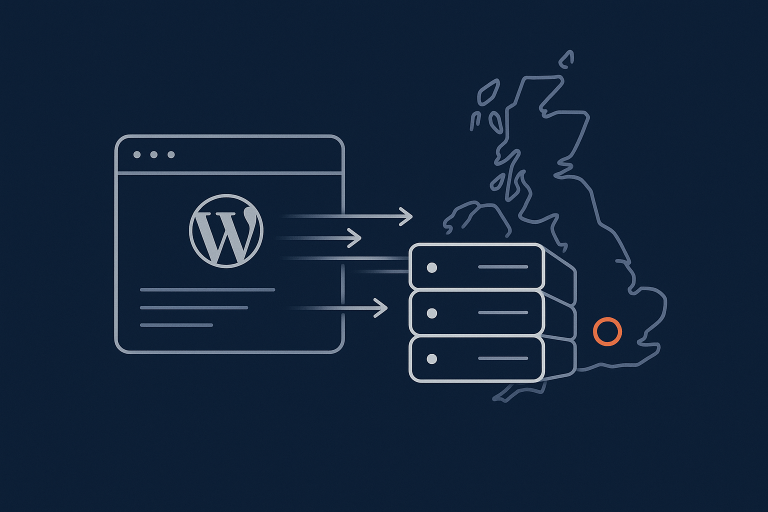
Reducing WordPress Time to First Byte on UK Hosting: Practical Server and Site-Level Fixes
What Time to First Byte Actually Is (And Why It Matters More Than You Think)
Plain English definition of TTFB
Time to First Byte (TTFB) is how long it takes from a visitor requesting a page to their browser receiving the very first byte of data back from your server.
In practical terms:
- Your visitor clicks a link or types your URL.
- The browser looks up your domain name, connects to your server and asks for the page.
- Your server does some work and eventually starts sending a response.
The time between “ask” and “first byte back” is your TTFB. Everything that happens before your server starts sending HTML is included. Everything that happens after (downloading images, CSS, JavaScript and rendering the page) is not.
How TTFB differs from full page load and Core Web Vitals
It is easy to mix TTFB up with total load time or Google’s Core Web Vitals. They measure different things:
- TTFB measures server responsiveness. It ends as soon as the browser receives the first byte of the HTML response.
- Full page load time includes downloading all assets such as images, fonts and scripts, plus any JavaScript work.
- Core Web Vitals (such as Largest Contentful Paint and Interaction to Next Paint) are focused on what users actually see and how quickly they can interact.
Improving TTFB usually improves Core Web Vitals indirectly, because everything starts earlier, but a fast TTFB alone does not guarantee a fast, smooth site if the front end is heavy or poorly optimised.
Why UK businesses should care: SEO, conversions and perceived “lag”
For UK businesses, low TTFB is particularly important:
- SEO: Google has confirmed that page speed is a ranking factor. TTFB itself is not a published ranking metric, but slow server response contributes to poor page speed and crawl efficiency.
- Conversions: That brief pause before anything appears on screen is where people start to doubt whether a site is reliable. A sluggish first response on a checkout or booking form can cost real money.
- Perceived “lag”: Users do not care if the delay is DNS, PHP or database queries. They just feel that your site is “slow to wake up”, especially noticeable on mobile data connections.
If UK visitors are waiting 800 ms to 1.5 seconds before they see the first sign of life, your TTFB is almost certainly part of the problem.
How TTFB Works for a UK WordPress Site: Request Flow Breakdown
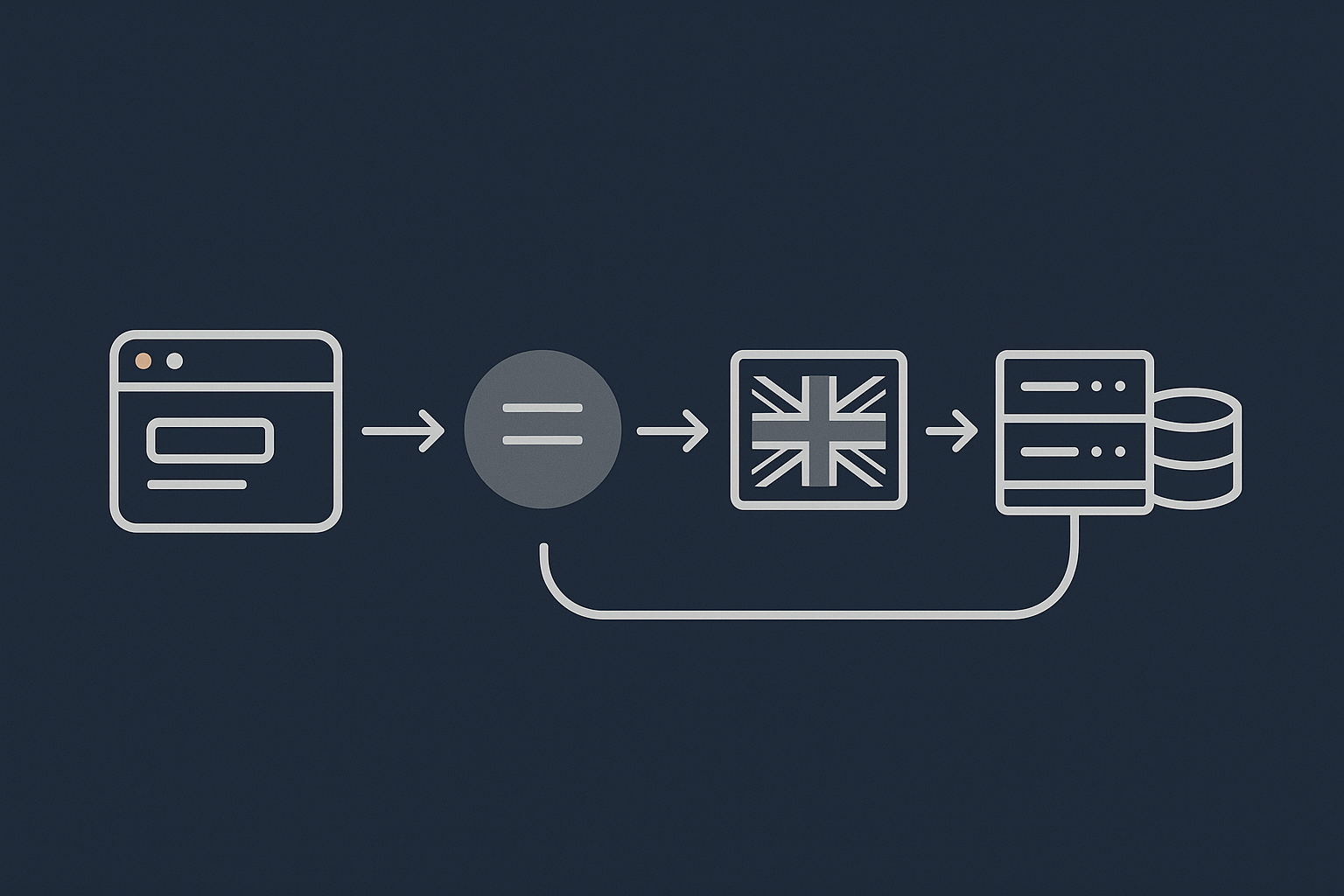
From browser to DNS to UK data centre
When someone in the UK visits your WordPress site, the journey looks like this:
- DNS lookup: Their browser asks DNS servers for the IP address of your domain.
- TCP/TLS handshake: The browser connects to your server’s IP and negotiates a secure HTTPS connection.
- HTTP request: The browser asks for
/or a specific page.
If your site is hosted in a UK data centre and DNS is configured sensibly, this networking stage is usually quite fast for UK users, often 50 to 100 ms. If your site is hosted abroad, you immediately add network latency before the server does any processing.
Web server, PHP and WordPress bootstrapping
Once the request hits your server:
- The web server (Nginx or Apache) receives it.
- It passes the request to PHP (with PHP-FPM or an older handler).
- PHP loads WordPress core, your theme’s functions and all active plugins.
This “bootstrapping” happens on every non-cached request and is a major part of TTFB. Poor PHP configuration or slow disk can make this stage far slower than it needs to be.
Database queries, plugins and external API calls
Once WordPress has booted:
- It runs database queries to fetch posts, pages, WooCommerce products, user data and settings.
- Plugins may run their own queries or API calls, for example to payment providers, CRM, email marketing tools or licence servers.
- WordPress generates the HTML response which is sent back to the browser.
Any slow query or blocking external request holds up the whole process. Until WordPress finishes that work, your visitor sees nothing.
Where delay usually creeps in for UK-hosted WordPress sites
For UK sites already hosted in the UK, the main TTFB causes are usually:
- Overloaded shared hosting or under-provisioned virtual servers.
- Old PHP versions or inefficient handlers.
- No full-page caching in front of PHP.
- Heavy themes, page builders and complex WooCommerce setups.
- Bad bots consuming resources, triggering slowdowns for real users.
A good host that focuses on web hosting performance features will usually address much of this at the platform level, but there is still plenty you can tune inside WordPress.
Measuring WordPress TTFB Properly Before You Start Tuning
Using tools like WebPageTest, GTmetrix and browser dev tools
Before making changes, get a baseline.
- WebPageTest lets you pick test locations and see a detailed breakdown of DNS, connect, TLS and TTFB.
- GTmetrix is more user friendly and also shows TTFB in its waterfall view.
- Browser developer tools (Network tab) show TTFB for each request as “Waiting” or “TTFB”.
Focus on the initial HTML document request (often called “Document” or the URL itself). That is the TTFB that matters most.
If you want a deeper walkthrough of these tools and how to read their graphs, the guide How to Diagnose Slow WordPress Performance Using Real Tools and Metrics may be useful.
Testing from UK vs overseas and why it matters
Run tests from:
- A UK location to simulate real visitors.
- One or two overseas locations if you have international traffic.
A UK-hosted site should show significantly lower TTFB for UK tests compared with US or Asia. If UK TTFB is consistently high (for example over 600 ms) even under light load, the problem is likely server or application related rather than network distance.
Separating network latency from server processing time
Most testing tools show separate timings for:
- DNS lookup
- TCP connect
- TLS handshake
- Time to First Byte
The first three are mostly network and SSL overhead. TTFB includes these plus server processing. On a UK connection, if DNS + connect + TLS is around 100 ms but TTFB is 800 ms, then roughly 700 ms is server-side work.
Collecting a baseline: home, key landing pages and WooCommerce checkout
Measure TTFB for:
- Homepage.
- One or two key landing pages.
- Blog post template.
- WooCommerce cart and checkout (logged-in if possible).
Cart and checkout are often uncached for good reason, so they reveal genuine server/database performance. Keep these baseline numbers so you can see whether each change you make has a measurable effect.
Quick Wins: Configuration Tweaks That Often Cut TTFB Fast

Switching to a modern PHP version and handler
Why PHP version and handler (FPM vs old handlers) affect TTFB
Newer versions of PHP are substantially faster at running WordPress than older ones. PHP 8.1 or 8.2 can process more requests per second with lower CPU use than PHP 7.x. Faster processing means WordPress can generate that first byte sooner.
The PHP handler also matters:
- PHP-FPM keeps a pool of worker processes ready to handle requests, reducing startup overhead.
- Older handlers such as CGI or suPHP start a new process per request, increasing latency and CPU use.
Most modern UK hosts, including those offering managed WordPress hosting in the UK, use PHP-FPM by default, but many shared hosting plans still allow outdated setups.
How to safely change PHP versions on your host
To update PHP safely:
- Check plugin and theme compatibility: Most current themes and plugins support PHP 8.1+, but very old plugins may not.
- Create a staging site (many hosts offer this) and switch PHP there first.
- Browse key pages, test WooCommerce checkout, logins, forms and admin tasks.
- Review PHP error logs for any warnings or fatal errors.
- Once stable, switch the live site and monitor.
If your host offers a control panel, you can usually change the PHP version per site. If not, ask their support to confirm both version and handler.
Enabling effective full-page caching for WordPress
What full-page caching is in practice
Full-page caching stores the final HTML output for a page so that future visitors get that stored copy instead of making WordPress rebuild it each time.
For anonymous visitors (not logged in, not viewing cart/checkout), this can remove PHP and database work entirely from most requests. From the visitor’s perspective, TTFB often drops from hundreds of milliseconds to tens of milliseconds.
Typically this is done with:
- A server-level cache (Nginx’s FastCGI cache, Varnish, or similar).
- A caching plugin if your host does not provide server-level caching.
Avoiding double-caching conflicts and misconfigured plugins
Common pitfalls:
- Running multiple caching plugins at once, which can create inconsistent results.
- Using a plugin cache on top of a host’s own full-page cache without understanding how they interact.
- Not excluding dynamic pages such as cart, checkout and “My Account”, leading to users seeing other people’s cart contents.
A more detailed explanation of how these caching layers stack is in the article Understanding WordPress Caching Layers, which is worth reading if your setup feels confusing.
How built-in edge caching slashes TTFB without extra plugins
Edge caching places full-page cache copies on servers geographically close to visitors. For UK sites, good edge caching will keep copies on UK or nearby European nodes, so TTFB becomes a combination of very short network latency plus no PHP/database work.
Using a platform with built-in edge caching, such as the G7 Acceleration Network, removes the need for extra caching plugins in many cases and can bring TTFB down dramatically for repeat visits and popular pages.
Turning off unnecessary WordPress “work” on every request
Disabling or rescheduling wp-cron correctly
On standard WordPress, wp-cron.php is triggered on page loads to handle tasks such as publishing scheduled posts, sending emails and running plugin tasks. On busier sites this can trigger expensive work at random times.
A better approach is:
- Disable the built-in trigger by adding in
wp-config.php:define( 'DISABLE_WP_CRON', true ); - Set up a real cron job on the server (via control panel or your host) to call:
*/5 * * * * wget -q -O - https://example.com/wp-cron.php?doing_wp_cron >/dev/null 2>&1
This runs scheduled tasks in the background on a predictable schedule, instead of delaying front-end page requests.
Taming high-frequency plugins (analytics, security, backups)
Certain plugin types are notorious for increasing TTFB:
- Analytics plugins that log every hit into the WordPress database.
- Security plugins that run file scans or heavy checks on every request.
- Backup plugins that try to run full backups on live traffic.
Approaches that help:
- Prefer server-level web analytics where possible instead of heavy WordPress plugins.
- Use security tools that run at network or server level, not inside PHP on every request.
- Schedule backups in off-peak hours and ensure they do not run on every page load.
Managed platforms with good security tooling often make several of these plugin types unnecessary, which helps keep TTFB more consistent.
Hosting-Level Factors That Quietly Increase TTFB
Physical location of your servers vs your UK visitors
If your site targets UK users, your primary hosting should be in a UK data centre or very close. Hosting in Germany or the Netherlands can still be reasonable, but hosting in the US or Asia adds needless latency, even with a CDN.
A CDN can cache many assets, but HTML responses may still have to travel further for logged-in users, WooCommerce cart and checkout or any page that cannot be fully cached.
Overloaded shared hosting: noisy neighbours and resource limits
Very cheap shared hosting often means hundreds of sites on the same server. When one site gets busy or misbehaves, everyone else feels it.
This shows up as:
- TTFB that is fine at quiet times but spikes at random during the day.
- Slow WordPress admin even when front-end seems cached.
- Occasional 502/503 errors under modest traffic.
In these situations, no amount of plugin tuning will fully fix the problem. Moving to a better shared platform, a Virtual Dedicated Servers for higher performance plan or managed WordPress hosting with proper resource allocations is often the only reliable solution.
CPU, RAM, disk and PHP worker limits and how they show up as slow TTFB
For WordPress and WooCommerce, TTFB is particularly sensitive to:
- CPU: Needed to run PHP and process requests.
- RAM: Required for PHP workers and database caching.
- Disk speed: Slow HDDs make everything from PHP opcode caching to database queries slower than on SSD or NVMe.
- PHP workers: Limit how many requests can be processed in parallel.
Symptoms of insufficient resources include:
- TTFB increasing sharply under load.
- Admin area very slow during traffic spikes.
- Queueing of PHP requests so visitors “wait their turn”.
When to move from basic shared hosting to VDS or managed WordPress hosting
Consider moving up a level when:
- Your average TTFB is OK at night but poor during business hours.
- You cannot enable proper caching layers due to hosting limitations.
- Your host will not or cannot tell you how many resources you actually get.
A virtual dedicated environment or managed WordPress hosting in the UK gives you predictable CPU/RAM and usually better PHP and database tuning out of the box. This means fewer surprises and more consistent TTFB.
How network routing, peering and DDoS/bot filters affect response time
Low TTFB is not just about the server; how your host connects to UK ISPs matters too. Poor peering or congested upstream links can add tens of milliseconds to every request.
Similarly, some DDoS or security filters sit in front of your site and inspect traffic. Done well, they add only a small overhead. Done badly, they can introduce noticeable delay. Solutions like the G7 Acceleration Network are designed to filter traffic efficiently at the edge so that bad requests are dropped quickly and clean traffic reaches PHP with minimal extra latency.
Application-Level Causes: Themes, Plugins and WooCommerce
Heavy themes and page builders increasing backend processing time
Many modern WordPress themes and visual builders are convenient but heavy. They can involve complex template hierarchies and extra database queries to assemble each page.
Indicators that your theme/builder is affecting TTFB:
- Switching temporarily to a lightweight theme (such as Twenty Twenty-Four) reduces TTFB significantly.
- Complex pages with many widgets or blocks have much higher TTFB than a simple page.
The trade off is between design flexibility and raw performance. For high traffic or revenue-critical sites, simpler themes or more efficient builders usually pay off in reduced TTFB.
Slow database queries and bloated WooCommerce data
Postmeta bloat, order tables and transients
WordPress stores a lot of data in the postmeta table, including WooCommerce product data, variations and custom fields. Over time this table can become very large and poorly indexed, causing slow queries when building pages.
WooCommerce also stores orders and sessions which, if never cleaned, increase table sizes. Some plugins use transients stored in the database in inefficient ways, which again increase query time.
When to consider database cleanup and optimisation
It may be time to review your database when:
- TTFB is high even on uncached pages with low traffic.
- Your host or developer can see slow queries in logs, often targeting
wp_postmetaor WooCommerce tables. - Database size has grown far beyond what you would expect from your content.
Approaches include:
- Removing unused plugins and their leftover tables or metadata.
- Cleaning old WooCommerce sessions, transients and logs.
- Adding or tweaking indexes on hot tables (usually with developer or DBA help).
External API calls that block TTFB (payment gateways, marketing tools, licence checks)
Some plugins perform remote API calls on page load. Examples:
- Checking a licence or subscription status.
- Validating coupons or prices with an external system.
- Sending detailed analytics events synchronously.
If the external service is slow, your visitor’s TTFB suffers, even though your own server is fine. Where possible, configure these integrations to run asynchronously or in the background, or limit them to admin actions rather than front-end page loads.
How to quickly test if a plugin is hurting TTFB using staging and selective disabling
A practical workflow:
- Create a staging copy of your site.
- Measure TTFB on a few key pages.
- Disable non-essential plugins in batches and retest.
- When you see a big TTFB improvement, narrow down which plugin made the difference by re-enabling them one by one.
This is safer than testing directly on live. Once you identify heavy plugins, look for configuration changes or alternatives that offer the same function with less backend load.
Bad Bots, Traffic Spikes and TTFB: Keeping Response Times Stable

Why abusive crawlers and bots inflate TTFB without you noticing
Many UK sites see more bot traffic than real users. Aggressive scrapers, vulnerability scanners and low-quality “SEO tools” can hammer your site all day long.
This affects TTFB because:
- PHP workers and database connections are consumed by non-human traffic.
- Your server’s CPU and disk are busy handling requests that never lead to sales.
Real visitors then queue behind this noise, experiencing longer TTFB even though, from your perspective, traffic seems “normal”.
Rate limiting and WAF rules to protect PHP and the database
There are a few layers to consider:
- Web Application Firewall (WAF) rules to block known malicious patterns.
- Rate limiting by IP, user agent or path to slow or block abusive crawlers.
- Blocking access to sensitive endpoints such as
xmlrpc.phpif not used.
Where possible, implement these controls at the web server or edge level rather than inside WordPress. That way, bad traffic is dropped before it can tie up PHP and the database.
How upstream bot filtering keeps TTFB steady by blocking junk traffic
Platforms that integrate intelligent bot filtering at the edge can make a noticeable difference. The G7 Acceleration Network includes bot protection that filters abusive and non-human traffic before it hits PHP or MySQL, which reduces wasted load and helps keep TTFB consistent during busy periods.
Database and Object Caching: Reducing Work per Request
How object caching (Redis/Memcached) helps TTFB on uncached and personalised pages
Full-page caching is ideal for anonymous traffic, but many WooCommerce and membership pages cannot be entirely cached. This is where object caching comes in.
Object caching with Redis or Memcached stores the results of repeated database queries in memory. On subsequent requests, WordPress fetches data from the in-memory cache instead of running the same query again, which is much faster.
The result is a lower TTFB on dynamic pages, especially under load. If you are not familiar with setting this up, there is a detailed guide in How to Use Object Caching to Speed Up WordPress.
WooCommerce examples: cart, checkout and My Account pages
WooCommerce cart, checkout and My Account pages usually bypass full-page caching because they are user specific. Without object caching, each visit triggers fresh database queries and calculations.
With a properly configured Redis or Memcached cache:
- Cart and checkout pages reuse cached product and pricing data.
- Account dashboards load previous orders and user details faster.
- TTFB improvements become more pronounced under concurrent traffic.
Basic database hygiene that indirectly improves TTFB
Even with caching, a neglected database can slow everything down. Routine maintenance includes:
- Cleaning old post revisions and auto drafts.
- Removing orphaned metadata left by deleted plugins and themes.
- Truncating old WooCommerce logs, sessions and temporary tables.
- Ensuring tables use an appropriate engine (usually InnoDB) and charset.
These steps reduce table size and can improve index efficiency, which in turn reduces per-request query time and therefore TTFB.
TTFB and Front-End Optimisation: Where They Overlap (and Where They Do Not)
What improving TTFB will and will not fix in Core Web Vitals
Lower TTFB gives your site a head start, but it does not automatically fix:
- Large JavaScript bundles that block rendering.
- Huge hero images that take seconds to download.
- Layout shifts caused by ads or unstable elements.
Those fall under front-end optimisation and Core Web Vitals work. Still, any optimisation you do later is more effective when the server responds quickly in the first place.
How CDN, compression and image optimisation help perceived speed after TTFB
Once the first byte is served, the rest of the user experience is about how quickly the browser gets, parses and renders all the assets.
Helpful techniques include:
- Using a CDN for static assets to reduce distance and offload traffic from your origin server.
- Enabling Gzip or Brotli compression for HTML, CSS and JavaScript.
- Serving properly sized, compressed images rather than oversized originals.
Note on automatic WebP/AVIF conversion via the G7 Acceleration Network and its impact on overall time to interactive
Image optimisation does not reduce TTFB directly, but it does reduce the time between first byte and a fully interactive page. Services built into some hosting platforms, such as the G7 Acceleration Network, automatically convert images to modern AVIF and WebP formats on the fly, typically cutting image file sizes by over 60 percent while keeping suitable quality, and they do this for all sites hosted with G7Cloud without extra plugins or WordPress changes.
A Practical Step-by-Step Checklist to Reduce TTFB on UK WordPress Hosting
Priority 1: Measurement, PHP version, caching
- Measure TTFB for homepage, key landing pages and WooCommerce checkout from a UK test location.
- Upgrade to a modern PHP version (8.1 or 8.2) and confirm PHP-FPM or equivalent is in use.
- Enable full-page caching:
- Use your host’s built-in cache if available.
- Otherwise configure a reputable caching plugin, making sure cart, checkout and account pages are excluded.
- Ensure HTTPS is correctly configured with HTTP/2 or HTTP/3 enabled where possible.
Priority 2: Hosting resources, bot filtering, database and object cache
- Check whether your site is on overloaded shared hosting. If you see random TTFB spikes, consider moving to a plan with guaranteed resources or a Virtual Dedicated Servers for higher performance option.
- Implement or tighten bot filtering and rate limiting so abusive crawlers are blocked before they hit PHP. The G7 Acceleration Network does this upstream, which reduces wasted load and helps keep response times stable.
- Enable Redis or Memcached object caching for dynamic pages that cannot be full-page cached.
- Clean up the database and remove obviously unused plugins and themes.
Priority 3: Plugin/theme audits and long-term monitoring
- On a staging site, test TTFB while disabling heavy plugins in batches to identify major offenders.
- Review your theme and page builder: test a lightweight theme to see how much TTFB drops, then decide whether the current stack is still appropriate.
- Set up ongoing monitoring for uptime and TTFB so you can spot issues early.
When it is time to change hosting rather than keep tuning a weak platform
Consider changing host if:
- You have optimised PHP, caching and plugins, yet TTFB remains high.
- Your host cannot provide clear answers about CPU/RAM allocations or PHP worker limits.
- Support repeatedly blames “traffic spikes” for issues that occur at modest traffic levels.
In these cases, an environment designed for WordPress performance, such as managed WordPress hosting in the UK, often provides more improvement than further tinkering.
When You Need Help: Working With a Managed WordPress Host
What a good hosting provider should handle for TTFB
A capable managed WordPress host should:
- Run current, well tuned PHP and database versions.
- Provide server-level full-page and object caching where appropriate.
- Use fast SSD or NVMe storage and sensible PHP worker limits.
- Offer UK data centre options and good connectivity to UK ISPs.
- Handle OS, web server and security updates without downtime.
This frees you to focus on content, design and business logic rather than low level tuning.
Questions to ask about UK data centres, caching layers and bot protection
When evaluating providers, ask:
- “Where exactly are your UK servers located?”
- “What caching layers do you provide, and do I still need a caching plugin?”
- “Do you offer Redis or Memcached object caching for WooCommerce and logged-in traffic?”
- “How do you handle bad bots and abusive crawlers, and at what layer?”
- “Can you help me interpret TTFB measurements and suggest changes?”
How G7Cloud’s managed WordPress hosting, Virtual Dedicated Servers and G7 Acceleration Network are set up to keep TTFB low for UK traffic
For UK businesses that want less hands-on management, managed WordPress hosting in the UK with G7Cloud is built around UK data centres, modern PHP configurations and sensible caching defaults. The optional move to Virtual Dedicated Servers for higher performance gives sites that have outgrown basic shared hosting guaranteed resources without the complexity of managing a full VPS.
On top of that, the G7 Acceleration Network adds edge caching, upstream bot protection and automatic AVIF/WebP image optimisation, which together lower TTFB for cached pages, keep response times steadier under load and reduce the overall time to interactive without extra plugins.
If your WordPress or WooCommerce site feels “sluggish to wake up”, reviewing your TTFB is a concrete, measurable starting point. When you are ready to offload more of the technical work, exploring managed WordPress hosting and edge acceleration options with a provider like G7Cloud can be a straightforward way to reach and maintain consistently low TTFB for your UK visitors.




