How to Run WooCommerce When Your Internet Is Unreliable: Timeouts, Slow Admin and Offline Workarounds
Who This Guide Is For (And What You Can Realistically Fix)
If your WooCommerce shop is live and taking orders, but your own internet connection is unreliable, this guide is for you. The goal is not to make a bad line perfect. It is to keep orders flowing and reduce the stress of working in wp‑admin when your connection drops, stalls or feels painfully slow.
Typical scenarios: rural broadband, busy shared Wi‑Fi, 4G hotspots
Common situations include:
- Rural or small‑town broadband where latency is high and the line occasionally drops.
- Busy shared Wi‑Fi in co‑working spaces or shops where staff, guests and other tenants all compete for bandwidth.
- 4G or 5G hotspots from a phone or MiFi device where signal strength and congestion change minute to minute.
- Home office setups where streaming, gaming or large downloads elsewhere in the house make your WooCommerce admin crawl.
The symptoms can look like a “bad host”, but often the real problem is the line between you and a perfectly healthy server.
What is actually under your control vs what your host or ISP must fix
You cannot control:
- How much congestion your ISP has on its network.
- Weather‑related issues on overhead lines or mobile signal.
- Deep routing issues between your ISP and your hosting data centre.
You can usually control:
- How “light” or “heavy” your WooCommerce admin pages are.
- How much work each click makes the server do.
- When you choose to do heavy tasks like imports, big edits or theme changes.
- Your local network (router quality, Wi‑Fi quality, backup connections).
Your host controls:
- PHP and database performance on the server.
- Caching and database optimisation.
- How well they handle abusive traffic and bots that might be slowing everything down.
If you are on managed WooCommerce hosting, some of the tuning discussed later may already be done, but there is still a lot you can do in your own workflow and configuration.
How Unreliable Internet Shows Up in WooCommerce
Common symptoms: spinning loaders, 504s, failed updates, double orders
On a weak or unstable connection you may see:
- Spinning loaders in wp‑admin when saving products, orders or settings.
- 504 gateway timeouts or 502 errors on big operations like bulk edits or running reports.
- Failed saves where you click “Update” but changes are lost or only partly applied.
- Duplicate actions if you refresh during a slow save and trigger it twice.
- On the front end, customers occasionally seeing a “something went wrong” message at checkout, then reporting that their bank still took payment.
Front end vs wp‑admin: why the shop often looks fine while your dashboard crawls
It is common for the public shop to load quickly while your admin feels unusable. That is because:
- The front end can be cached heavily, so most customers are hitting pre‑generated pages.
- wp‑admin is dynamic and typically uncached, so your clicks trigger real database queries and PHP work every time.
- Admin pages often load more scripts, charts and background AJAX calls than a simple product page.
This is also why tuning server performance and using caching properly makes such a difference. Guides like Why Your WordPress Admin Is Slower Than the Front End explain this in more depth.
Separating local connection problems from hosting problems
Before you blame WooCommerce or your host, try:
- Loading your site on a different connection (for example your mobile data on a phone).
- Using a tool like web.dev’s measure once, from a good connection, to see how the site behaves under normal conditions.
- Running a simple continuous ping to the server or a stable site like
bbc.co.ukto spot packet loss.
If your own connection to every site is unstable, the problem is local. If everything else is fine but your WooCommerce site times out even from different networks, the hosting environment needs attention.
Step 1: Make WooCommerce Admin Less Fragile Over Slow Connections
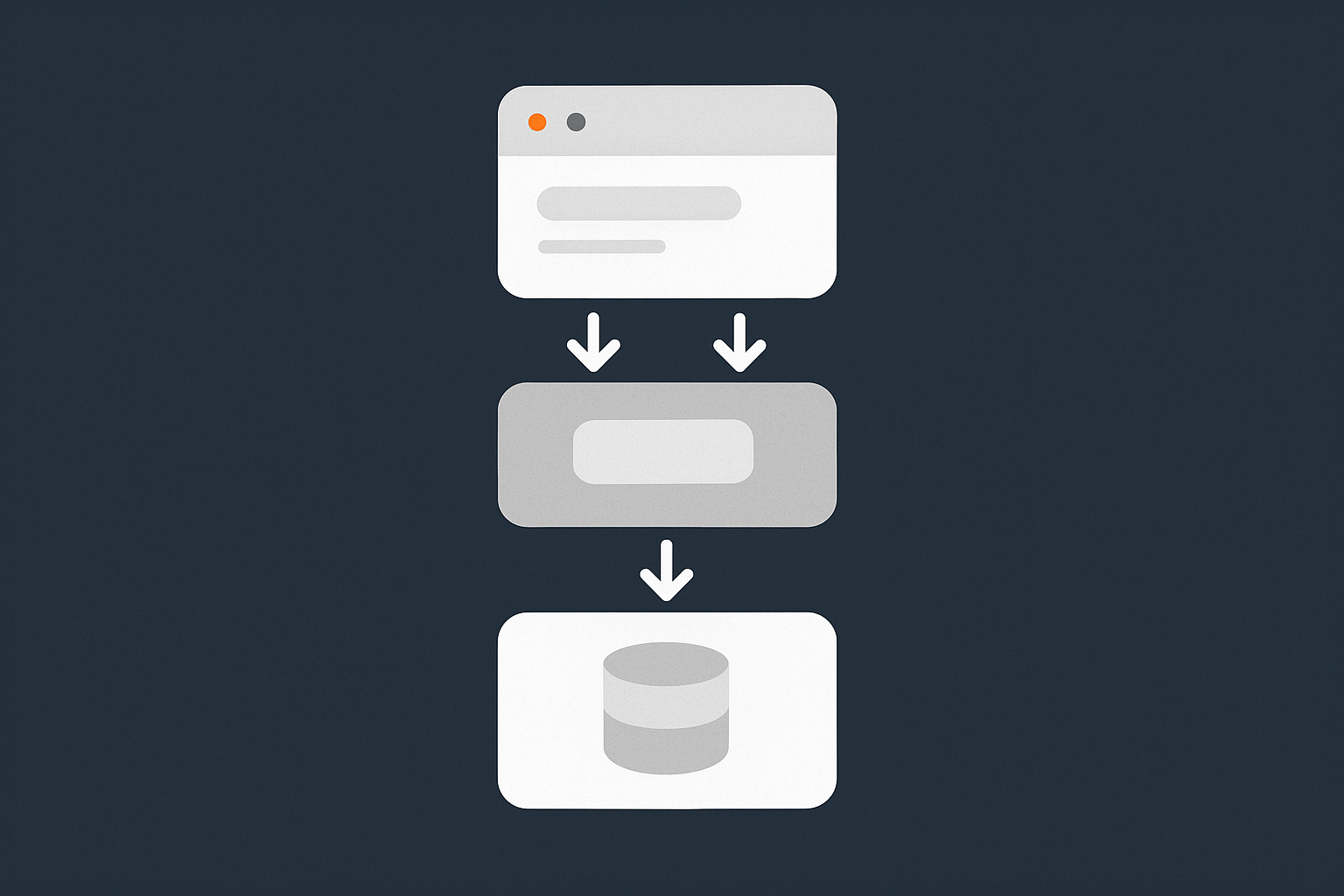
Lightening the wp‑admin experience on your account
Use a lean browser setup for admin work (extensions, tabs, profiles)
Small changes to how you browse can make wp‑admin less fragile:
- Keep a separate browser profile for admin, with only essential extensions (password manager, maybe a security extension).
- Avoid ad blockers or script injectors that can interfere with wp‑admin requests.
- Keep tab count low while doing important saves. Each tab can consume memory and CPU, especially on older laptops.
- Prefer a modern browser like Chrome, Edge or Firefox, kept up to date.
Disable noisy dashboard widgets, analytics and real‑time reports while remote
On slow connections, reduce “live” elements that chew bandwidth and CPU:
- In the main Dashboard screen, use “Screen Options” to hide widgets you never use.
- Turn off or minimise real‑time analytics panels from plugins that keep polling the server.
- Close any plugins’ built‑in chat, help or ad panels that load external resources in the admin area.
This cuts down the number of HTTP requests per page load, which matters when your latency is high.
Avoid heavy page builders inside admin where possible
If your product pages or content rely on visual builders, consider:
- Using the builder only for front‑end layout, but editing descriptions, prices and stock in the simple product data panels for faster saves.
- Creating a “simple edit” workflow where routine changes avoid loading the full visual editor.
This reduces the amount of JavaScript and assets loaded when you just need to tweak a price or stock quantity.
Reducing server work per admin request
Trim WooCommerce reports, filters and date ranges to the minimum needed
WooCommerce reports and order screens are expensive database queries, especially on larger stores. On a shaky line:
- Use shorter date ranges (for example “Last 7 days” instead of “This year”).
- Filter on fewer statuses at once.
- Favour export once, then analyse offline in a spreadsheet over repeatedly re‑running reports in wp‑admin.
This makes each page load quicker, cutting the risk that your connection will drop mid‑request.
Archive or prune old orders, logs and sessions to keep queries light
Large order tables slow down admin for everyone, but you feel it more on a poor line. Safely pruning old data can help a lot. There is detailed guidance in How to Safely Prune Old Orders, Logs and Sessions in WooCommerce and in broader database clean‑up articles.
Practical tips:
- Use WooCommerce’s built‑in log retention settings to auto‑expire logs after a sensible period.
- Archive old completed orders outside of WordPress if you must keep them indefinitely for compliance.
- Clear stale sessions and transients with a trusted optimisation plugin or via WP‑CLI, ideally at quiet times.
Check for background tasks, crons and integrations hammering the database
On some sites, the admin slowdown is caused by:
- Third‑party inventory or accounting syncs running on every page load.
- Action Scheduler queues with thousands of pending tasks.
- Heavy marketing or email automation plugins doing work inside WordPress rather than off‑site.
Use tools in your host’s panel, or plugins that expose scheduled events, to see what is running often. If you are on web hosting performance features tuned for WooCommerce, your provider may already offload or optimise many of these background jobs.
Hosting‑side improvements that help with slow links
Fast PHP and database response to claw back time lost to latency
With a high‑latency or unstable line, you want the server to do its work as quickly as possible to give your browser more margin before timeouts. This depends on:
- Modern, well tuned PHP and opcache.
- A properly indexed and optimised MySQL/MariaDB database.
- Reasonable limits on CPU and I/O so other tenants cannot starve your site of resources.
If your provider cannot demonstrate that the platform is suitable for WooCommerce, it may be time to consider managed WooCommerce hosting that is built around this use case rather than general shared hosting.
Object caching and page caching so each click does less work
Good caching helps twice here:
- Front‑end page caching ensures customers see fast responses even if your own line is poor.
- Object caching (Redis or similar) means each admin page does less repeated database work, so responses come back quicker.
The G7 Acceleration Network includes smart caching tuned for WooCommerce, so most static assets and safe pages are served quickly even under load, without you needing to manage complex rules.
How a network accelerator can smooth out admin performance even on wobbly links
A network accelerator or CDN can help by keeping static assets like scripts, styles and images closer to you, so your browser has fewer long‑haul requests to make. It also absorbs abusive bots that might otherwise waste CPU and make your admin feel slower at busy times.
With G7Cloud, bot protection in the G7 Acceleration Network filters abusive and non‑human traffic before it hits PHP or the database. That keeps server load more stable, so your admin requests are not fighting for resources when your own connection is already fragile.
Step 2: Reduce Timeouts, Failed Saves and Duplicate Actions
What a timeout really is in this context (and what it is not)
A timeout in WooCommerce admin is usually either:
- Your browser giving up waiting for a response, often after 30 to 120 seconds.
- An upstream proxy, load balancer or gateway closing the connection if PHP takes too long.
It might not mean the server crashed. Sometimes the operation finishes, but your browser did not get the confirmation. Other times the process is killed halfway through.
Practical ways to avoid or minimise timeouts
Break big tasks into smaller saves (products, bulk edits, exports)
On a poor line:
- Edit fewer products at once. Instead of bulk editing 500 items, do 50 or 100.
- For long product pages, save more often. Update after key sections instead of once at the end.
- For exports, pick shorter date ranges, then combine CSV files offline.
This gives each request a much shorter processing time, so it is less likely to cross the timeout threshold.
Use background tools carefully: imports, report generation and syncs
Tools that run in the background can be helpful, but they still rely on your connection to trigger and monitor tasks:
- Schedule large imports for times when your connection is as stable as possible.
- Prefer importers that process in small batches instead of massive single‑shot uploads.
- Pause non‑essential third‑party syncs during critical trading periods if they slow admin down.
Some hosts provide task queues and workers that run imports server‑side without needing your browser to stay open. If you are on managed WooCommerce hosting this may be built in or available on higher tiers.
Use staging for risky operations instead of doing everything live
A staging site helps you break big risky changes into two calmer steps:
- Make and test changes on staging without worrying about customer traffic or live payments.
- Push changes to live in one controlled action (or re‑apply the minimal set of changes you know work).
This is particularly useful if your line is unstable at peak hours; you can do heavy work on staging at times of better connectivity, then deploy during quieter windows.
Reducing the risk of double orders and duplicate payments
How payment gateways handle retries when your browser drops
Most modern gateways (Stripe, PayPal, Klarna and many bank gateways) treat each checkout as a single transaction identified by order and session data. If your browser disconnects and you click again, they often detect this and prevent duplicates, but not always.
When your connection is unreliable:
- Use gateways that clearly support idempotent payments and good WooCommerce integration.
- Keep WooCommerce, WooCommerce Subscriptions and gateway plugins fully updated.
For a more detailed breakdown of how retries and timeouts behave, see WooCommerce Payment Gateway Problems on Live Sites.
Safe wording and UX around slow checkouts
A little text can reduce panicked double clicks:
- Add a note near the “Place order” button explaining that the process can take a few seconds and to avoid refreshing.
- If you know your gateway is occasionally slow, consider a “Processing your payment, please wait…” screen after they click.
This does not fix a bad line, but it reduces the chance that customers force a refresh mid‑payment.
Logs to check when a customer sees an error but the bank charged them
When a customer reports being charged but seeing an error, check:
- The WooCommerce order list for that email or amount.
- The gateway’s own log, often available under WooCommerce → Status → Logs.
- Your payment provider’s dashboard for the exact transaction status.
In many cases the order exists but the final “thank you” page failed to load due to a hiccup in their or your connection. Understanding this reduces panic and lets you reassure the customer quickly.
Step 3: Sensible Offline and Low‑Connectivity Workflows

Planning what genuinely needs live access vs what can be done offline
Daily order processing vs deep product edits and redesign work
Map your tasks into:
- Must be live: capturing payments, marking orders as shipped, updating critical stock or prices.
- Can be batched: bulk price changes, product description rewrites, photography updates, theme or layout work.
Try to keep live‑only tasks short and focused, especially during times when your connection is weakest. Batch the rest for times when you can get a more stable connection, even if that means working at different hours or from a different location once a week.
Separating customer service tasks from heavy admin tasks
Customer service often only needs:
- Order lookups.
- Status changes.
- Simple refunds or re‑sending emails.
These can sometimes be done via lighter interfaces such as mobile order management apps or a simple CRM, leaving full wp‑admin sessions only for staff doing heavier work. This separation means that when your connection is weak, you do not overload it with design tasks while trying to support customers at the same time.
Working offline for content, products and marketing
Drafting product descriptions, posts and emails offline, then pasting in
Use local tools like Word, Google Docs (in offline mode) or a notes app to draft:
- New product descriptions.
- Blog posts and landing page copy.
- Email campaigns.
When you have a better connection, log in briefly, paste content in, tidy formatting and publish. This reduces the time you spend “live” in wp‑admin, so fewer chances for the line to drop mid‑edit.
Using CSV templates for bulk product changes during good connectivity
WooCommerce can export products to CSV. You can:
- Export products once during a decent connection window.
- Re‑import the CSV during another good window, using smaller batches if needed.
<2>Edit prices, stock or other simple fields offline in a spreadsheet.
This moves much of the mental work offline and uses short, controlled bursts of connectivity for the actual updates.
Exporting reports once, then analysing offline instead of re‑running them
Instead of re‑running heavy reports repeatedly:
- Export a sales or orders CSV once.
- Do your analysis, charts and summaries in Excel or similar offline.
You get better tools for analysis and reduce the number of slow WooCommerce report loads.
Taking orders when your connection is truly down
Simple phone / paper fallback process that syncs later
Have a written fallback:
- A printed order form with fields for name, contact, items, prices, tax and payment method.
- A simple rule for staff: take full details now, enter into WooCommerce later when the line is back.
Store these forms securely until you can process them. This prevents lost orders during outages and gives you a clear queue to work through.
Using a lightweight POS or order capture app that copes with poor signal
Some POS and order apps cache data locally and sync when they next see a connection. If you do a lot of phone or in‑person orders, a simpler interface than full wp‑admin can make a big difference. The guide on lightweight WooCommerce click‑and‑collect stacks has practical examples.
Safely entering delayed orders into WooCommerce without breaking stock or tax
When entering offline orders later:
- Use the same shipping and tax rules as online orders to keep reporting consistent.
- Make sure you adjust stock levels accurately at the time you enter the order.
- Clearly mark orders as “phone” or “offline” using a custom order status or note.
This avoids double‑counting and keeps accounting and inventory consistent.
Step 4: Network Tweaks and Tools That Help on a Bad Connection
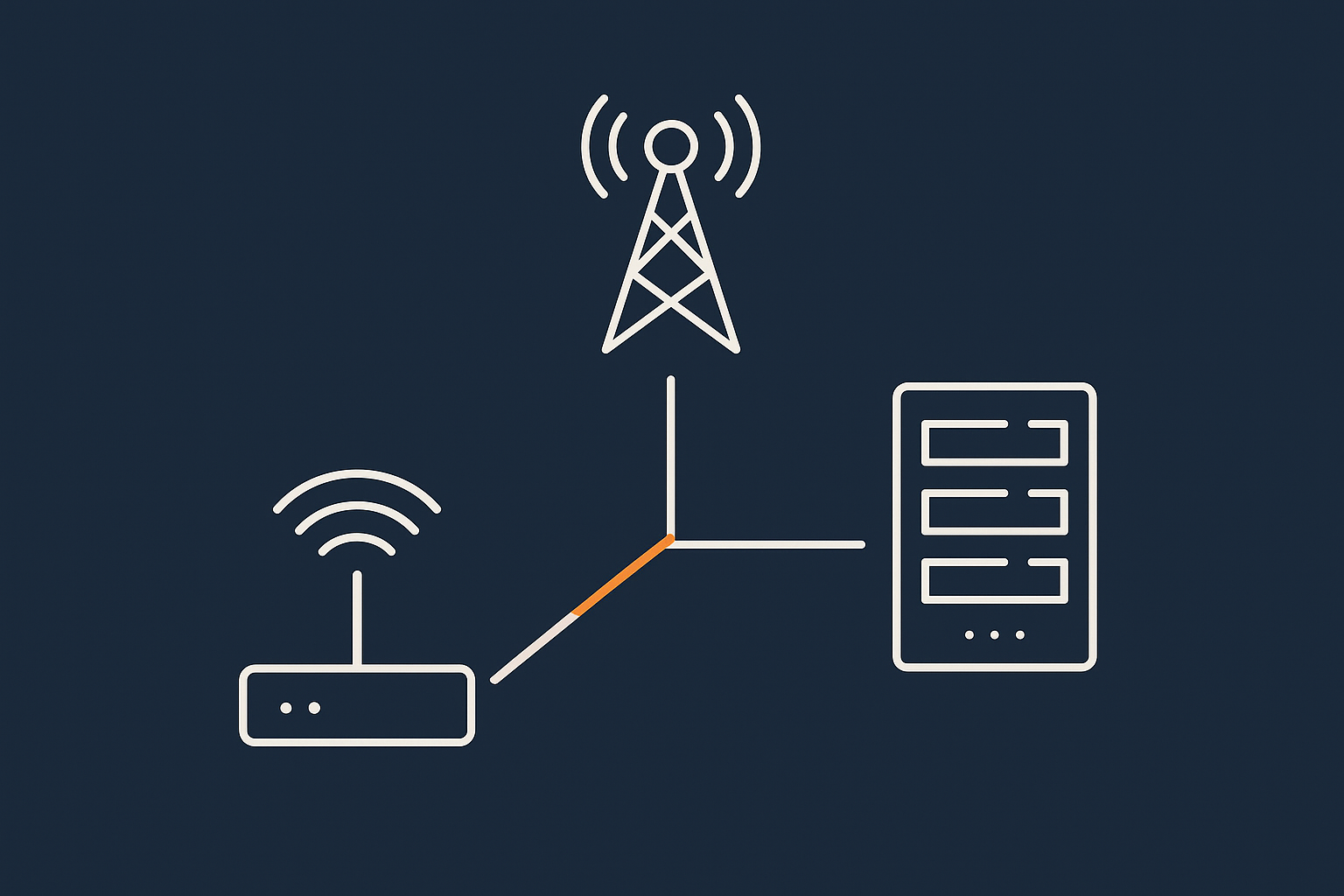
Quick checks on your local network before blaming WooCommerce
Before digging deep into WooCommerce, check:
- Is anyone streaming 4K video or downloading large files on the same line?
- Are you on 2.4 GHz Wi‑Fi at the edge of range where interference is common?
- Does plugging in via Ethernet make everything feel snappier?
Sometimes moving closer to the router, switching bands or using a cable fixes “WooCommerce problems” instantly.
Making the best of what you have: routers, Wi‑Fi and 4G/5G backups
Consider:
- Decent routers with QoS (quality of service) to prioritise your laptop over streaming devices.
- Mesh Wi‑Fi if coverage is poor across your premises.
- A basic 4G/5G backup such as a phone hotspot for emergencies when fixed broadband drops.
You do not need enterprise hardware, but a step up from the cheapest ISP router often pays for itself in reduced frustration.
Where a CDN or acceleration layer actually helps (and where it does not)
A CDN or edge accelerator helps with:
- Static assets (images, CSS, JS) being served from closer locations.
- Filtering bad bots and abusive crawlers that would otherwise eat your server resources.
It does not magically fix a physically broken line, but it can make WooCommerce more forgiving of a weak one by reducing server load and keeping responses fast.
G7Cloud’s bot protection within the G7 Acceleration Network filters abusive and non‑human traffic before it hits PHP or the database, which helps keep response times consistent and avoid unnecessary downtime when your own connection is already under strain.
When It Is Time To Change Hosting (Or Your Working Pattern)
Signs the bottleneck really is your host, not just your broadband
It may be a hosting issue if:
- The site feels slow or times out for everyone, regardless of their connection.
- Your host cannot explain or improve high TTFB (time to first byte).
- You often hit limits like “resource usage exceeded” during normal trading.
In these cases, you need a platform tuned for WooCommerce, not just a bigger generic plan. Articles like WooCommerce Hosting Bottlenecks You Can Fix Without Changing Provider can help you decide if optimisation is enough or a move is needed.
What to look for in WooCommerce hosting when your own line is flaky
When your own internet is unreliable, look for:
- Fast PHP and database performance, with clear evidence of WooCommerce expertise.
- Object caching and smart page caching configured correctly for logged‑in users.
- Protection against bad bots and brute force to prevent wasted server load.
- A built‑in acceleration layer like the G7 Acceleration Network that optimises assets and handles caching without lots of extra plugins.
If moving feels daunting, many providers, including G7Cloud, offer free WooCommerce migration help to minimise downtime and risk.
Practical compromises: scheduled admin windows, delegated roles and remote help
If upgrading your line or moving is not possible immediately:
- Schedule heaviest admin tasks for times when your connection is usually best.
- Delegate some tasks to staff or contractors with better connectivity.
- Use remote assistance tools so a trusted helper can log into wp‑admin from their own connection while you coordinate via phone or chat.
This way you keep trading while longer‑term fixes are arranged.
Summary: Keep Revenue Flowing Even When Your Internet Is Not Perfect
You probably cannot fix the quality of your internet overnight, but you can:
- Make WooCommerce admin lighter and more resilient to latency.
- Break big tasks into small, low‑risk actions that rarely time out.
- Adopt offline‑friendly workflows for content, products and reporting.
- Strengthen your local network and add basic failovers.
- Choose hosting that handles performance, caching and bot filtering properly.
If you want fewer moving parts to worry about, exploring managed WooCommerce hosting with built‑in optimisation and the G7 Acceleration Network can remove a lot of technical friction. That leaves you free to focus on orders and customers, even when your own connection is less than ideal.